The Emoji Slider element adds a fun and interactive way for users to share their feelings, opinions, or satisfaction levels in your Card forms. Instead of selecting plain numbers or text options, users can respond using expressive emojis, making the form experience feel more engaging and user-friendly.
It’s a great option for feedback forms, surveys, ratings, and quick reactions where you want responses to feel more visual and natural. With its simple slider interaction and playful design, the Emoji Slider element can help make your Card forms more enjoyable and interactive for users.
Here are a few ways to use it:
- Collect Quick Satisfaction Ratings — You can use the Emoji Slider element to let users rate their experience using expressive emojis. This makes feedback forms feel more interactive and easier to complete.
- Make Surveys More Engaging — The element adds a fun and visual way for users to respond to survey questions. Emojis help make forms feel less formal and more user-friendly.
- Measure Mood or Emotional Response — You can use the Emoji Slider to ask users how they feel about a product, service, event, or experience. The emoji-based scale makes emotional feedback easier to understand.
- Simplify Feedback for Younger Audiences — The visual format works especially well for children, students, or users who may prefer icons over text-based ratings.
Adding and Setting Up the Emoji Slider Element
Whether you’re building a new form or editing an existing one, you can add and configure the Emoji Slider element in just a few steps. This is how it’s done:
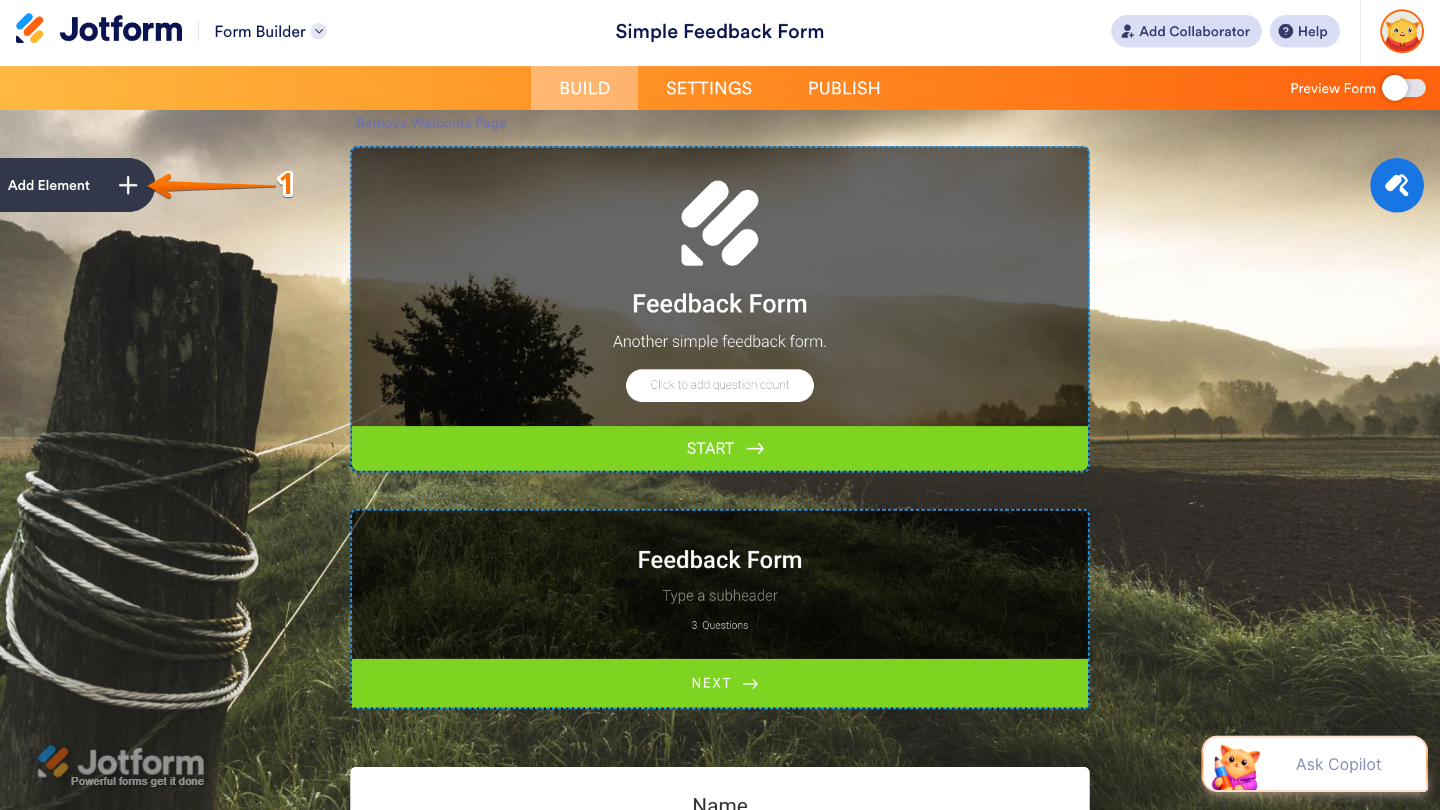
- In Form Builder, click on Add Element on the left side of the page.
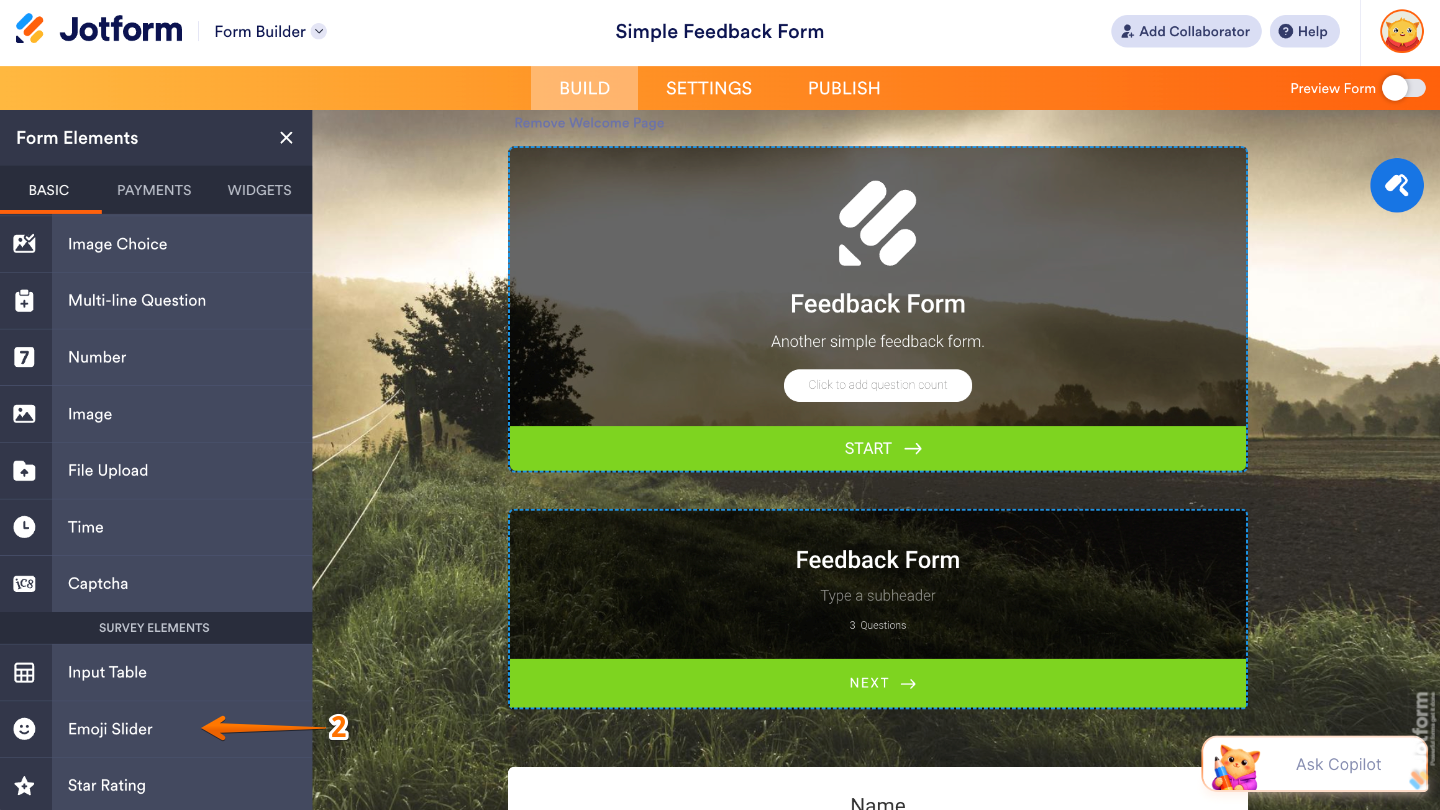
- Then, in the Form Elements menu, under the Basic tab, scroll down and click on Emoji Slider. Or, just drag and then drop it to where you want it to be on your form.
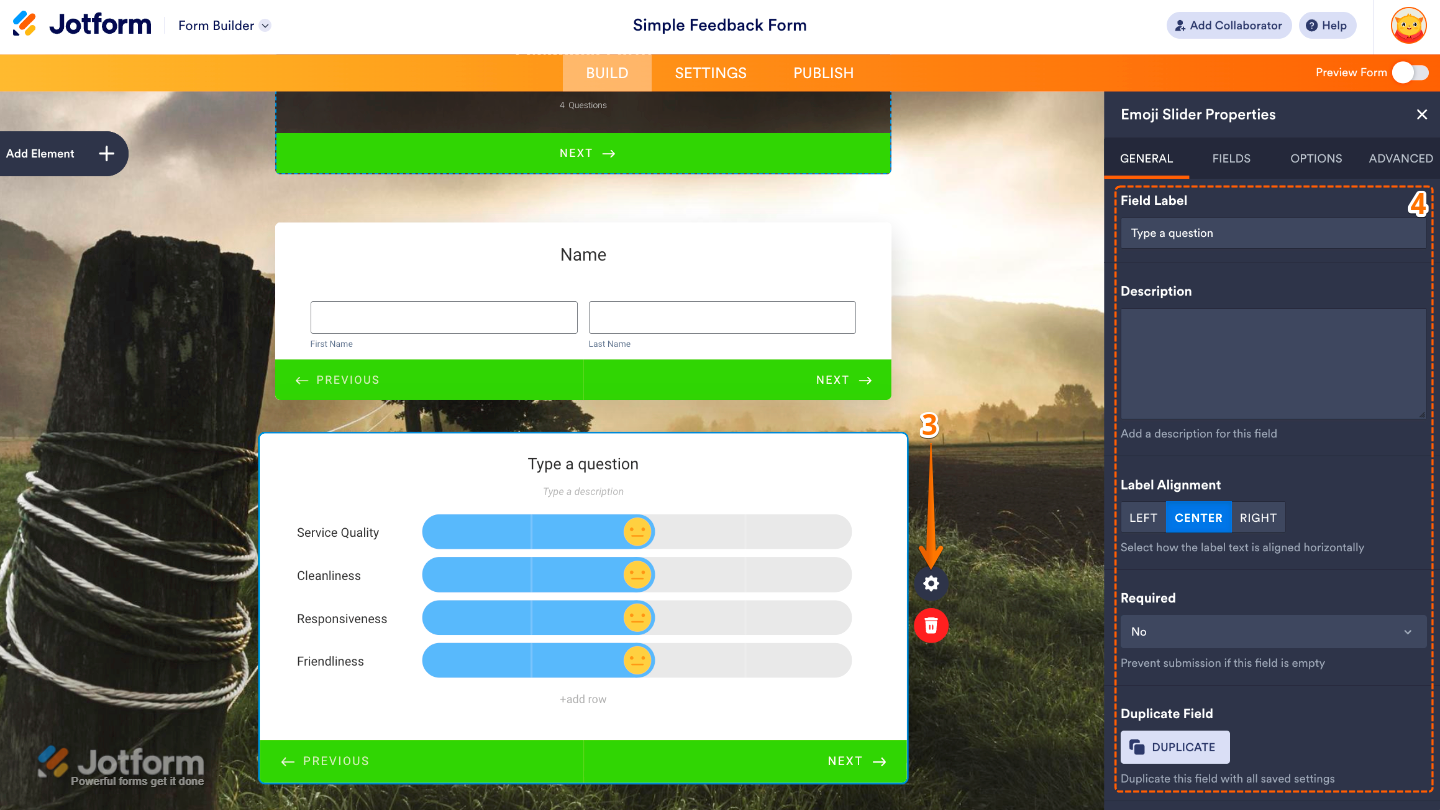
- Next, click on the Gear icon to open the Emoji Slider Properties menu on the right side of the page.
- Then, set up the following:
- Field Label — Lets you add the main title or question for the Emoji Slider field so users know what they’re rating or responding to.
- Description — Allows you to add extra instructions or helpful details below the field to guide users while answering.
- Label Alignment — Lets you choose where the field label appears, such as above or beside the Emoji Slider field.
- Required — Makes the field mandatory, so users must provide a response before submitting the form.
- Duplicate Field — Creates a copy of the Emoji Slider field with the same settings, helping you add similar rating fields more quickly.
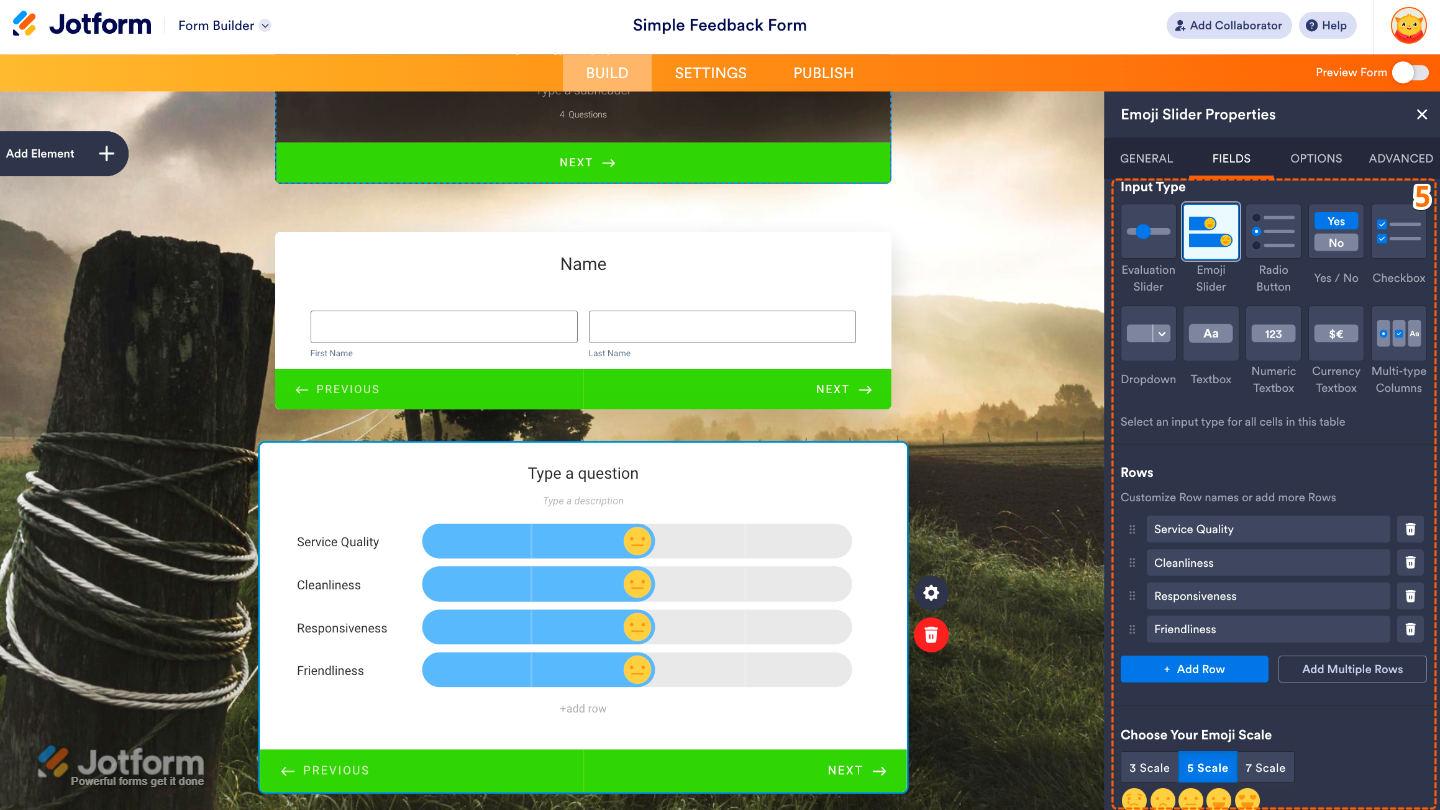
- Now, click on the Fields tab and continue setting up these options:
- Input Types — Let you choose how users will interact with the Emoji Slider, depending on the available response style for the field.
- Rows — Allows you to adjust how many rows are displayed when using multiple emoji slider items.
- Choose Your Emoji Scale — Lets you select the number of emoji options users can choose from, such as a 3-scale, 5-scale, or 7-scale rating system, depending on how detailed you want the responses to be.
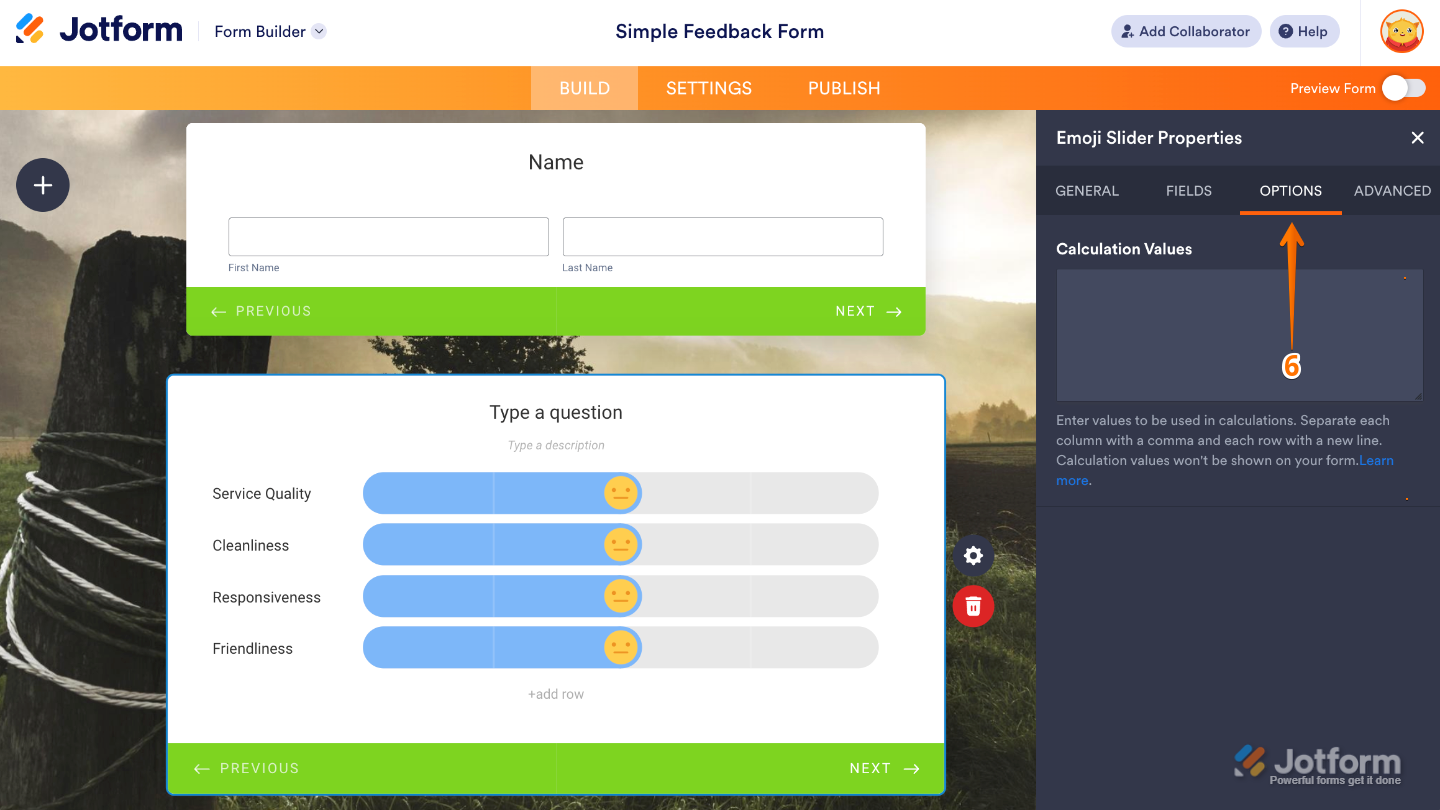
- After that, click on the Options tab, and use the Calculation Values option to assign numeric values to each emoji. This allows the responses to be used in calculations, conditions, scoring, or reports. Check out our guide on Performing Calculations With Input Table to learn more.
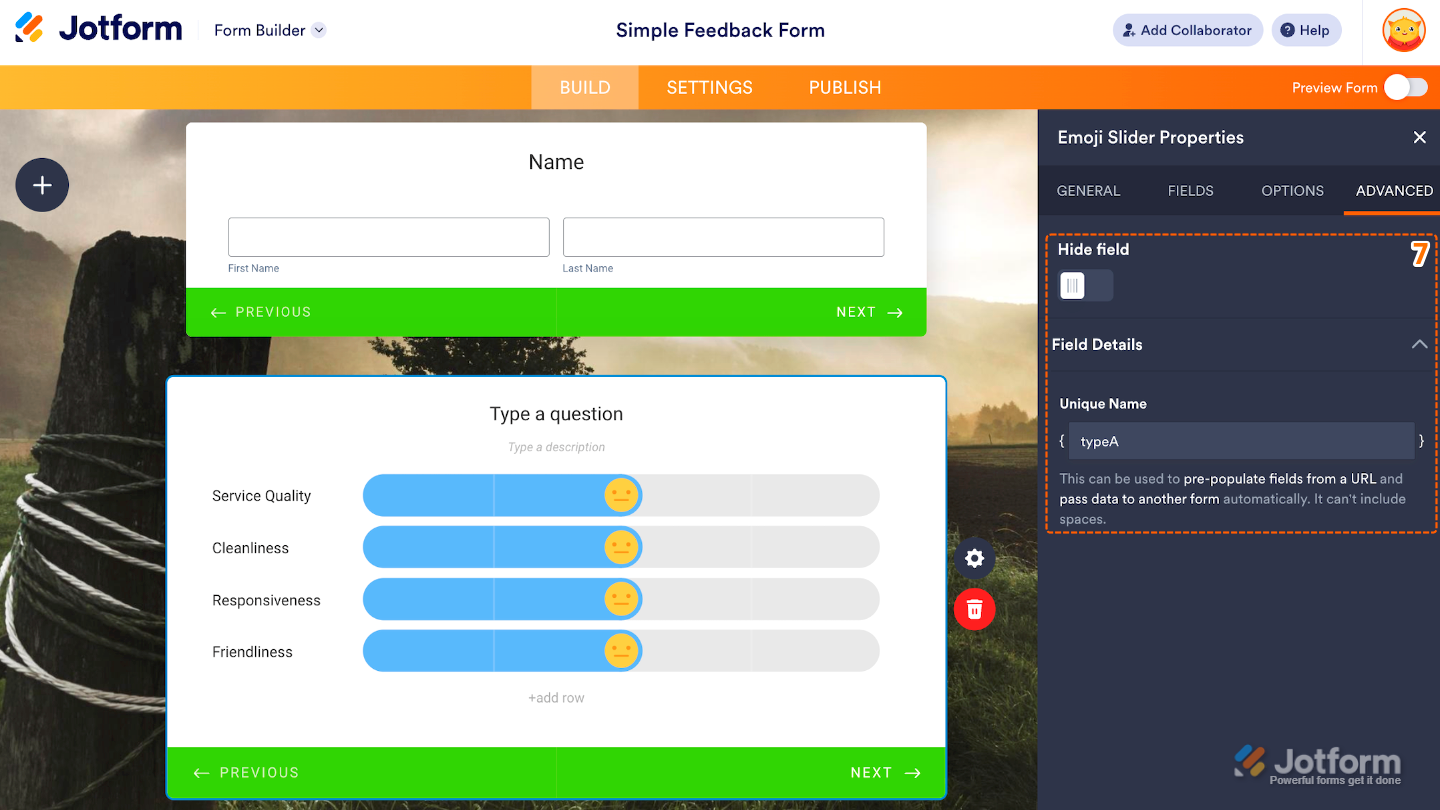
- Finally, go to the Advanced tab and continue managing these options:
- Hide Field — Hides the Emoji Slider field from users while still allowing it to work with conditions or calculations in the background.
- Field Details — Displays technical information and settings related to the field for easier form management.
- Unique Name — Assigns a unique identifier to the field, which is useful when integrating your form with third-party apps or workflows.
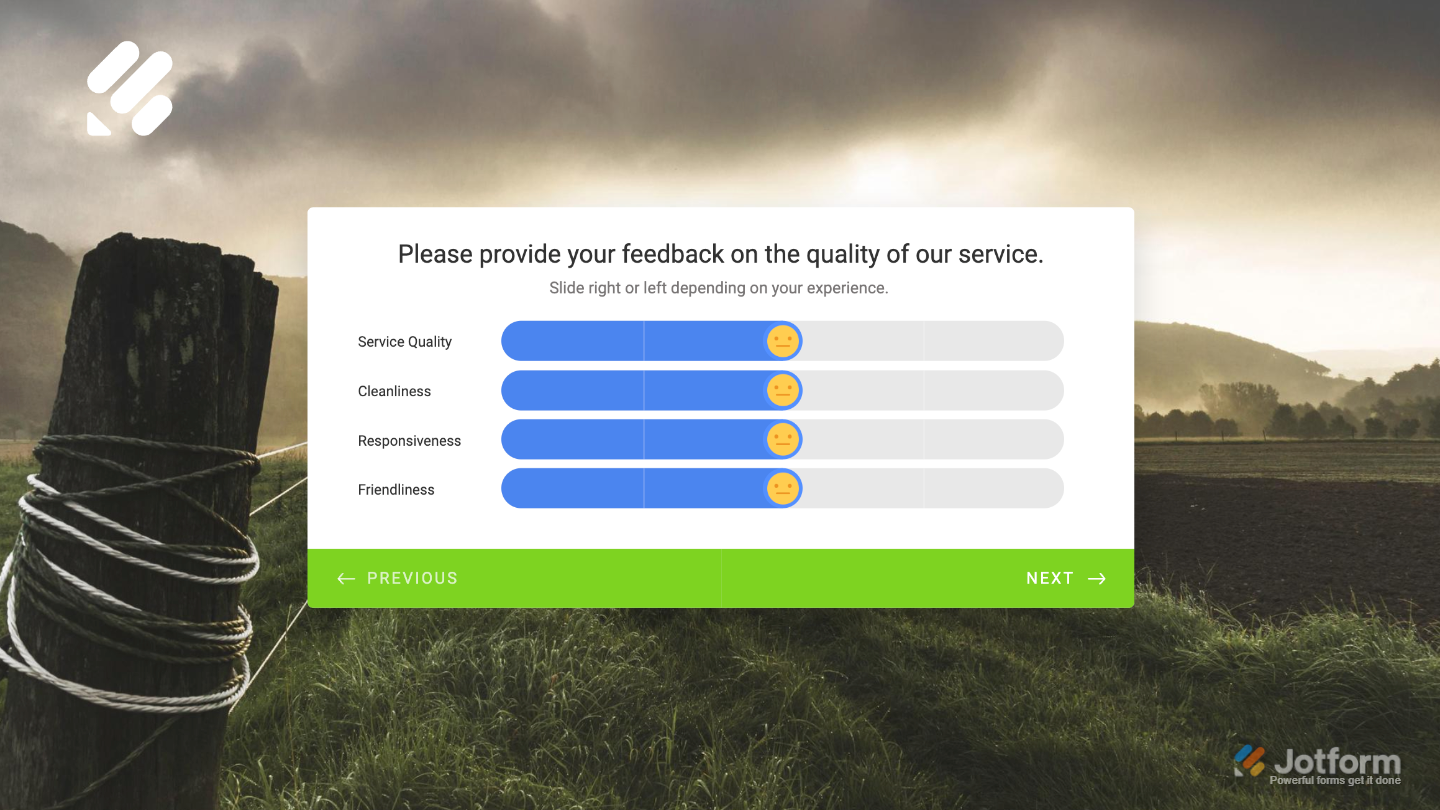
That’s it. You now have a fully set-up Emoji Slider element that makes your Card form more interactive and engaging, giving users a fun and simple way to share their feedback or reactions. Want a quick preview? This demo form shows how it works in action.
Note
The Emoji Slider element is currently only available in the Card form layout and can’t be used in Classic forms.
Pro Tips
- Choose an emoji scale that matches the level of feedback you want to collect, such as a simple 3-scale or a more detailed 7-scale.
- Keep your questions short and easy to understand so users can respond quickly and naturally.
- Test the form on both desktop and mobile devices to make sure the slider interaction feels smooth and user-friendly.

Send Comment: