Connect Your AI Agent to Google Calendar
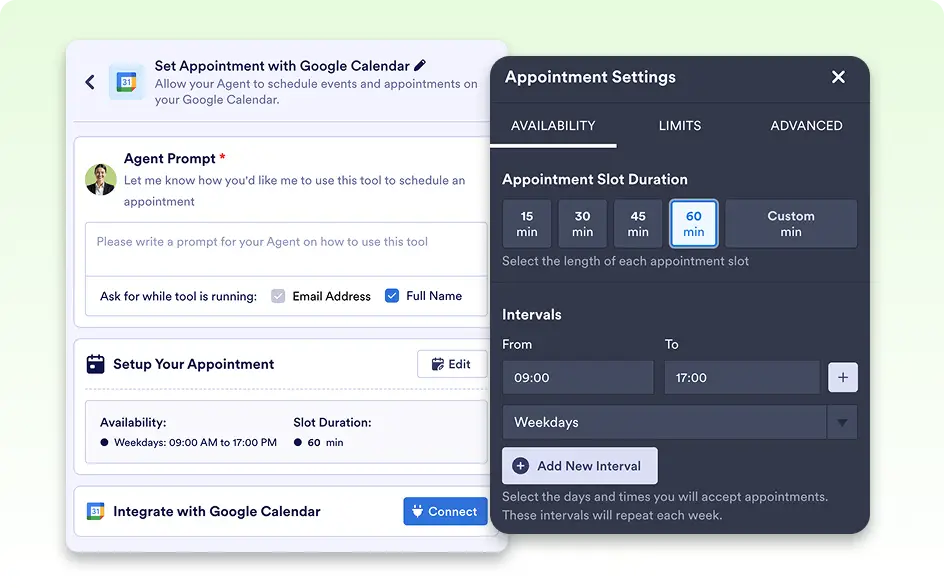
Let your AI Agent create new events in Google Calendar with ease. With Jotform’s Google Calendar integration, users can schedule appointments directly through conversations. Simply authorize the integration, define appointment settings, and let your AI Agent handle scheduling.

Seamlessly connect Google Calendar with your AI Agent to manage appointments effortlessly. Set custom availability, define scheduling limits, and personalize advanced settings—so your AI can book appointments exactly the way you want.
AI-Powered Event Scheduling
Allow your AI Agent to create new events in Google Calendar based on user requests. With custom appointment settings, you can control when and how bookings happen.
Automated Appointment Creation
Your AI Agent can schedule events based on appointment fields, ensuring smooth and structured calendar management.
Fully Customizable Booking Preferences
Define availability, limits, and advanced settings to match your scheduling needs—giving you total control over appointments.
Availability Settings
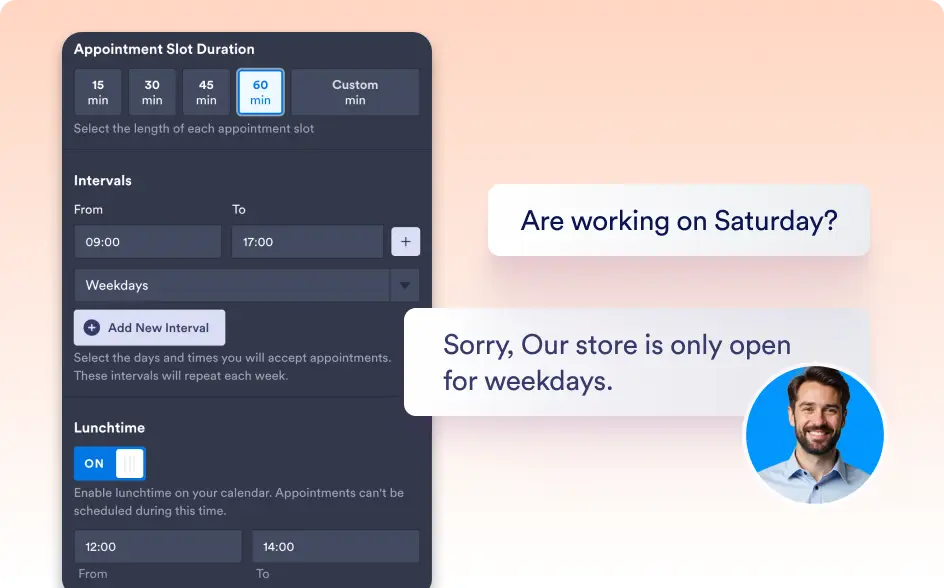
Define your available time slots to ensure bookings fit your schedule.
- Appointment Slot Duration – Set how long each appointment lasts to maintain a structured schedule.
- Intervals – Control the gap between appointments to allow prep time between meetings.
- Lunchtime – Block out lunch breaks to ensure personal time is reserved.
Limits Settings
Set scheduling restrictions to avoid overbooking and manage appointment rules.
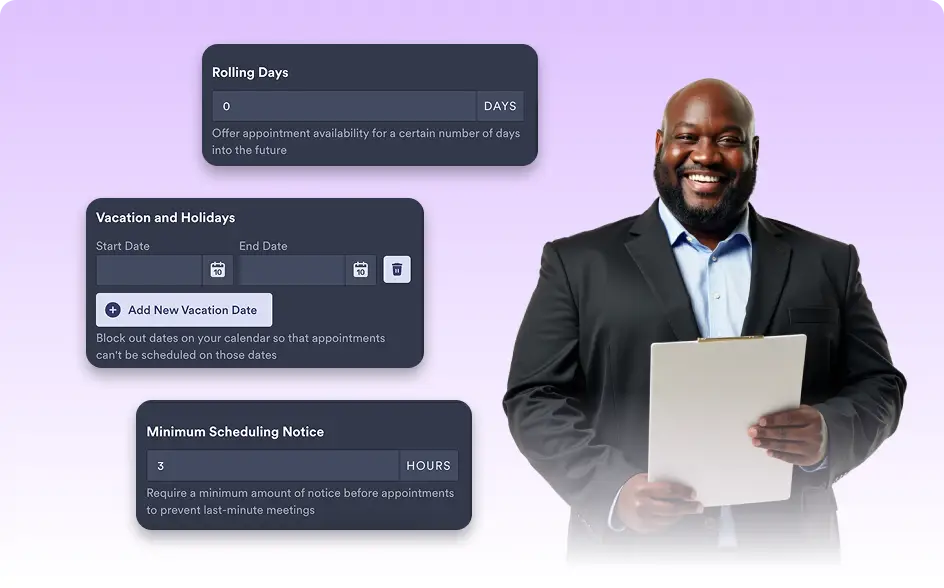
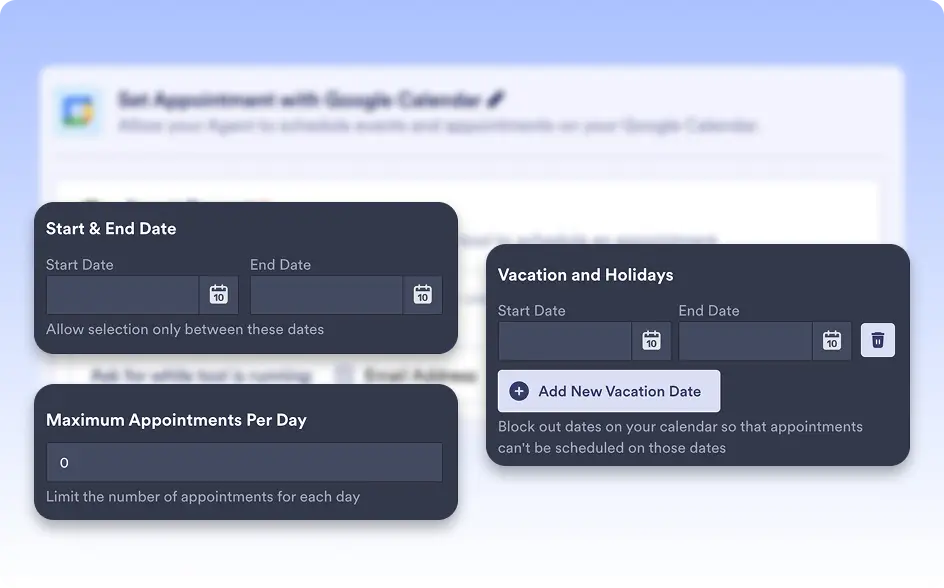
- Start & End Date – Define a specific time frame when appointments can be booked.
- Rolling Days – Control how far in advance users can schedule appointments.
- Enter Holidays – Block out holidays and non-working days automatically.
- Max Appointments Per Day – Set a daily limit to prevent over-scheduling.
- Minimum Scheduling Notice – Require a certain amount of notice before an appointment can be booked.
Advanced Settings
Customize additional settings for a fully tailored booking experience.
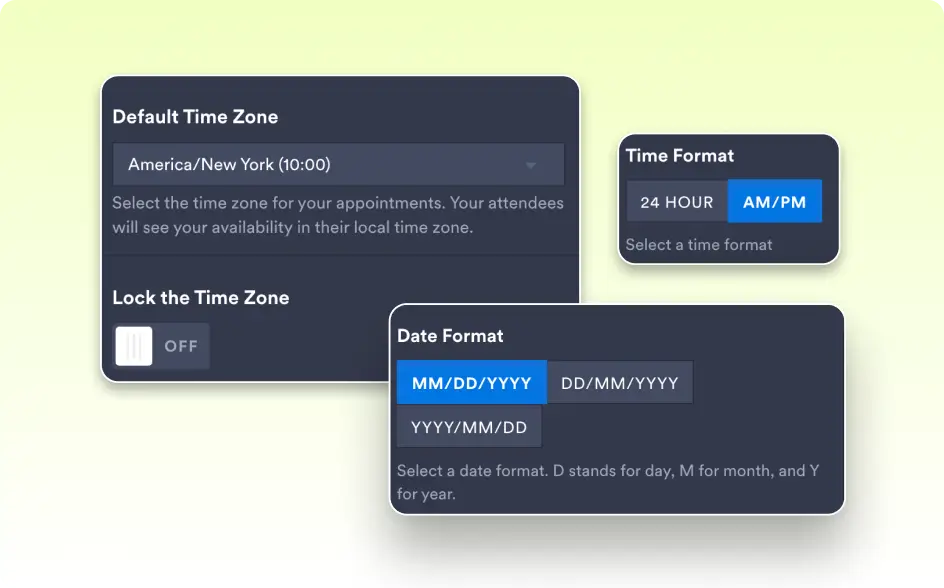
- Location – Specify if the meeting is in-person, virtual, or has a custom location.
- Time Zone – Ensure users schedule appointments in the correct time zone.
- Date Format – Choose between different date formats to match user preferences.
- Time Format – Select 12-hour or 24-hour format for clear scheduling.
- Start Week On – Define which day your calendar week begins.