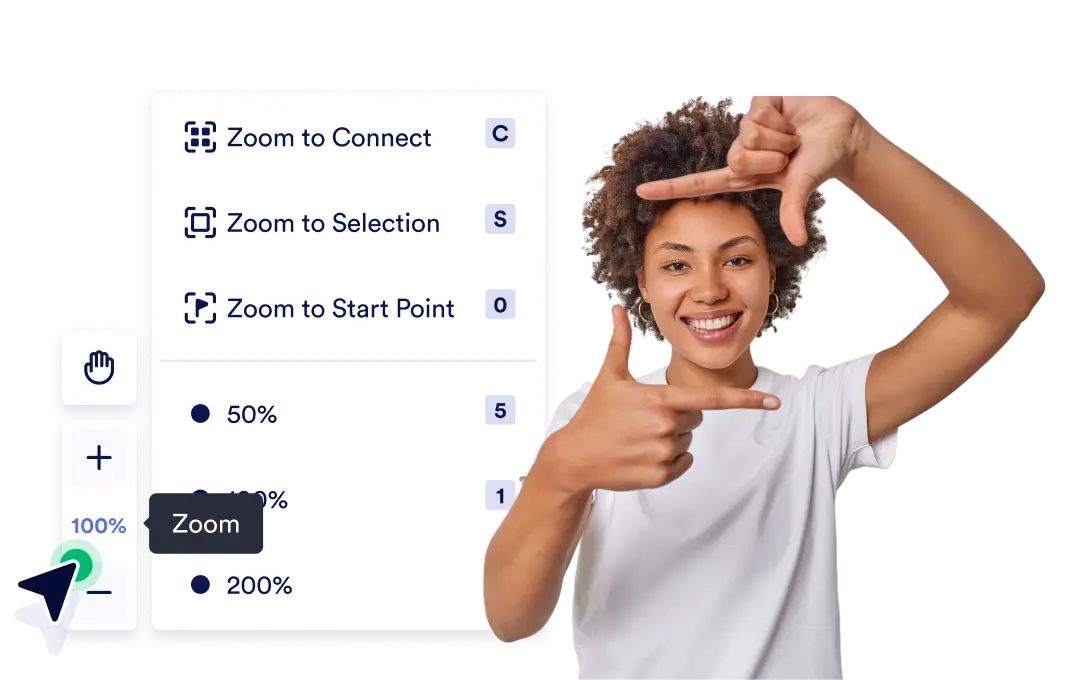
Use the zoom slider or touchpad gestures to easily scale the canvas to your preferred view. Navigate to small details or high-level sections with ease.
Precision Zoom Controls
Pan across your workflow canvas by clicking and dragging, and use intuitive zoom tools to easily navigate expanding processes. These controls help you stay organized, maintain visibility, and manage even complex workflows with confidence.
Zoom to Fit Content / Zoom to Start
Automatically center and scale your canvas view to display all elements at once. Quickly understand how everything connects in your workflow.
Jump straight to the starting point of your workflow with a single click. Ideal for checking how the flow begins or resuming edits where you left off.
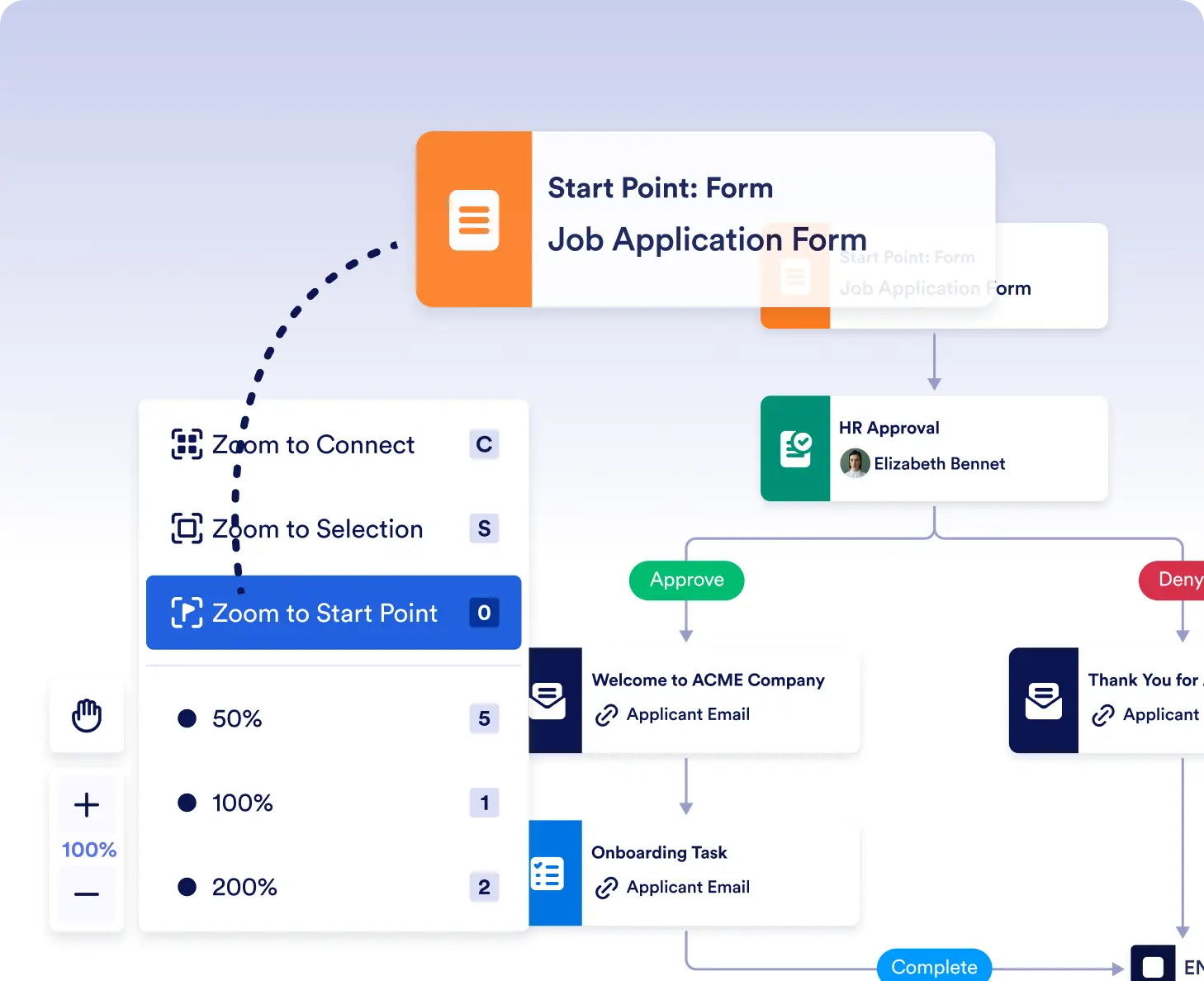
Design and review workflows with ease
Zoom out to see your entire workflow at once, then zoom in on specific steps to fine-tune logic and connections. This makes it easier to spot gaps, optimize flows, and understand how everything works together.
Edit and troubleshoot quickly
Quickly jump to the start of your workflow or zoom to fit all content when making updates or fixing issues. Navigate directly to problem areas without losing your place, even in large, multi-step processes.
Frequently Asked Questions
Have questions about this feature? Explore the FAQs below for quick answers, or reach out to our support team for more details.
Zoom and pan tools let you move smoothly between high-level overviews and detailed sections, so you can manage complex workflows without feeling overwhelmed.
Yes. You can use touchpad gestures or the zoom slider to scale and move around the canvas based on your preferred navigation style.
Zoom to Fit Content shows your entire workflow on the canvas, while Zoom to Start takes you directly to the first step of the flow.