
Start with a professional cover page by adding titles, logos, backgrounds, and intro text to set the tone for your document.
Structured Introductions with Cover Pages
The cover page allows you to separate your document’s introduction from its main content, creating a clear and professional starting point.
Define the Document Title
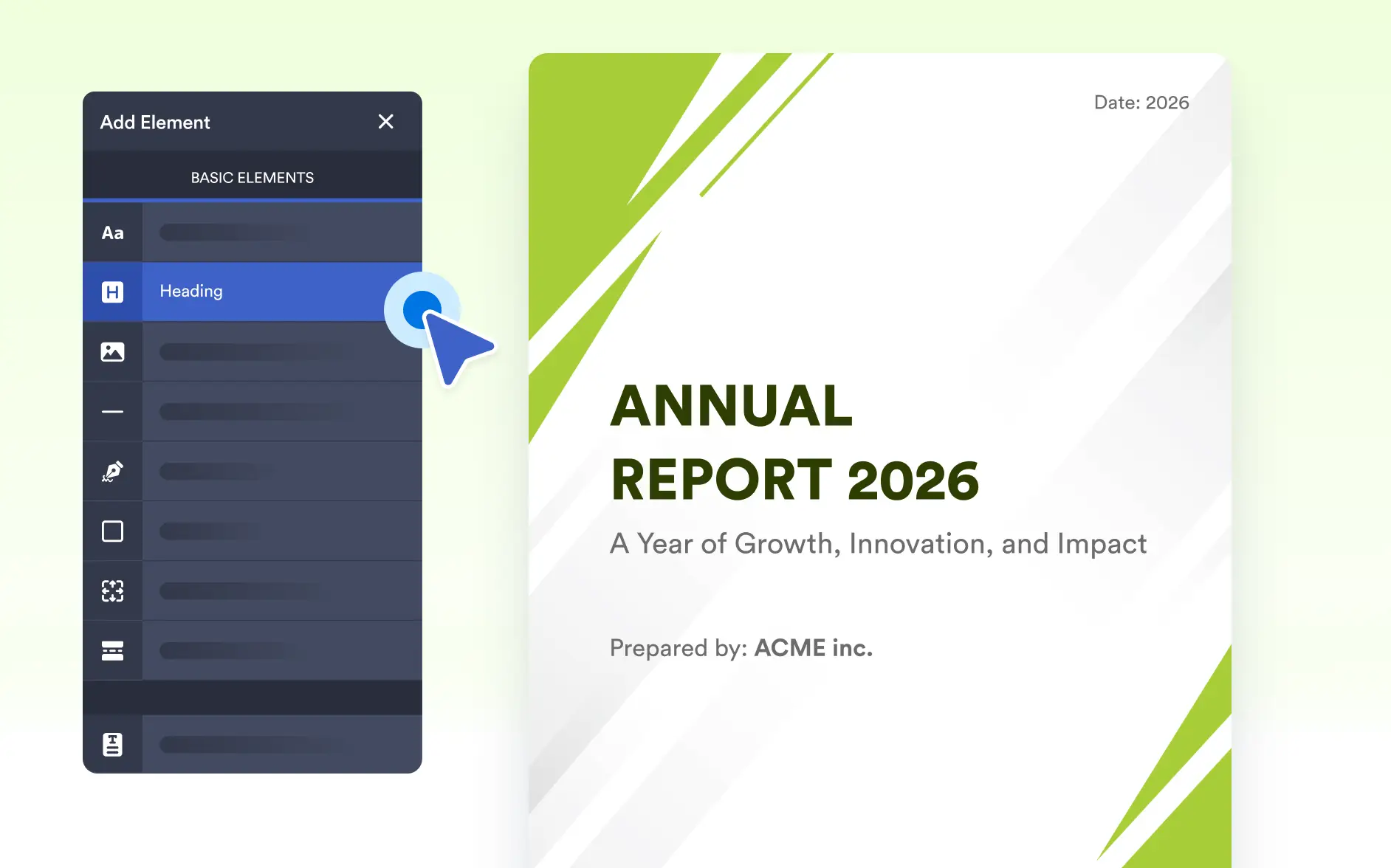
Use the Heading element to add a clear title to your cover page. Headings help introduce the document, establish hierarchy, and set the tone before readers reach the main content.
Add Supporting Information
Include details such as author name, date, version, or description using the Text element. Supporting text provides context while keeping the cover page clean and easy to scan.

Reinforce Branding with Visuals
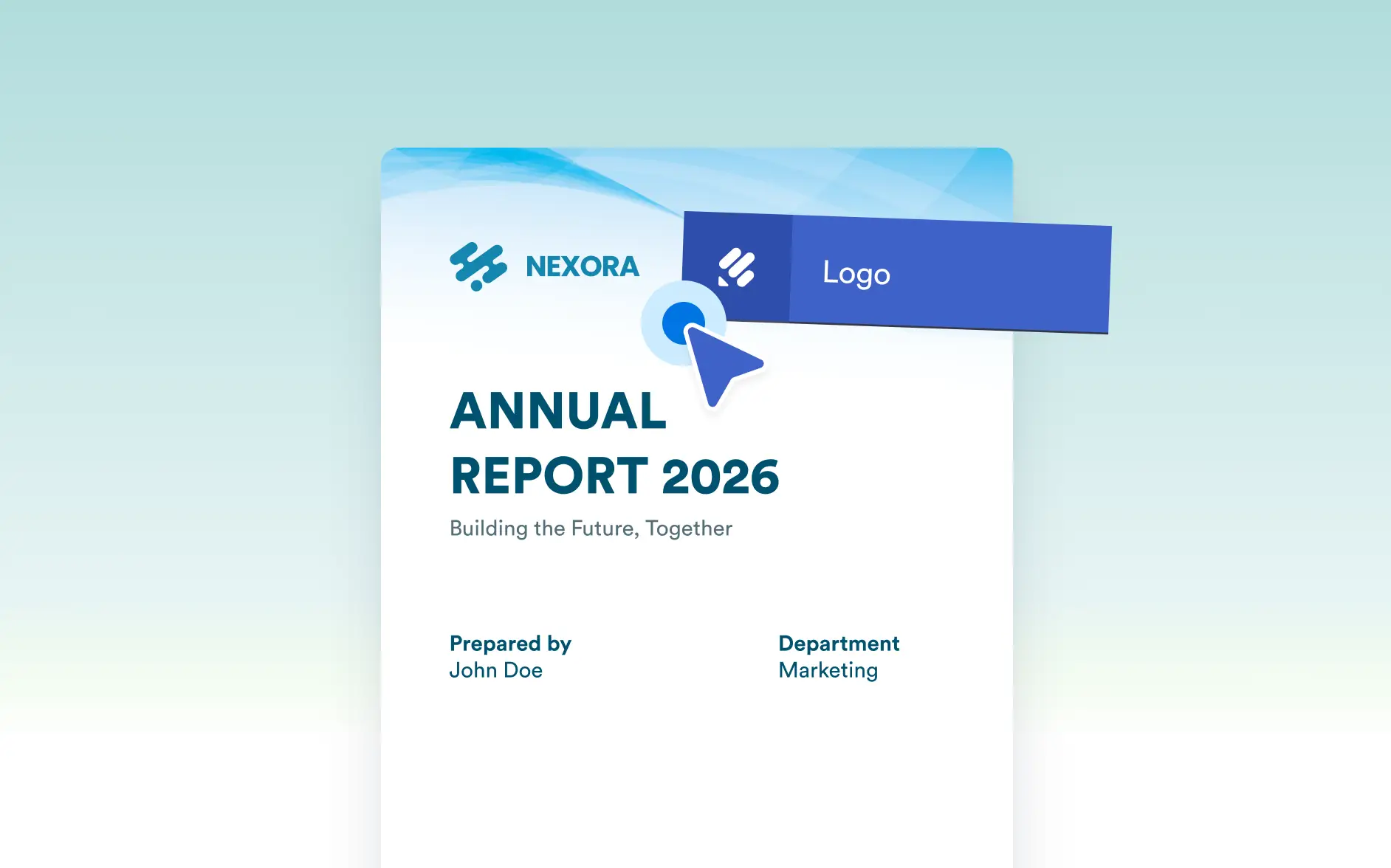
Place your company logo or other visuals on the cover page using the Image element. Images help create a strong first impression and align the document with your brand identity.
Frequently Asked Questions
The Cover Page feature lets you add a dedicated first page to your PDF document. It appears before the main content and is ideal for presenting titles, branding, or introductory information.
You can design your cover page using text, headings, images, logos, background colors, and other Basic Elements. You can also include Form Fields like Form Title or Submission Date to personalize each document automatically.
Yes. The Cover Page can be fully customized independently from the other pages. You can modify its layout, design, and content without affecting the rest of your PDF.