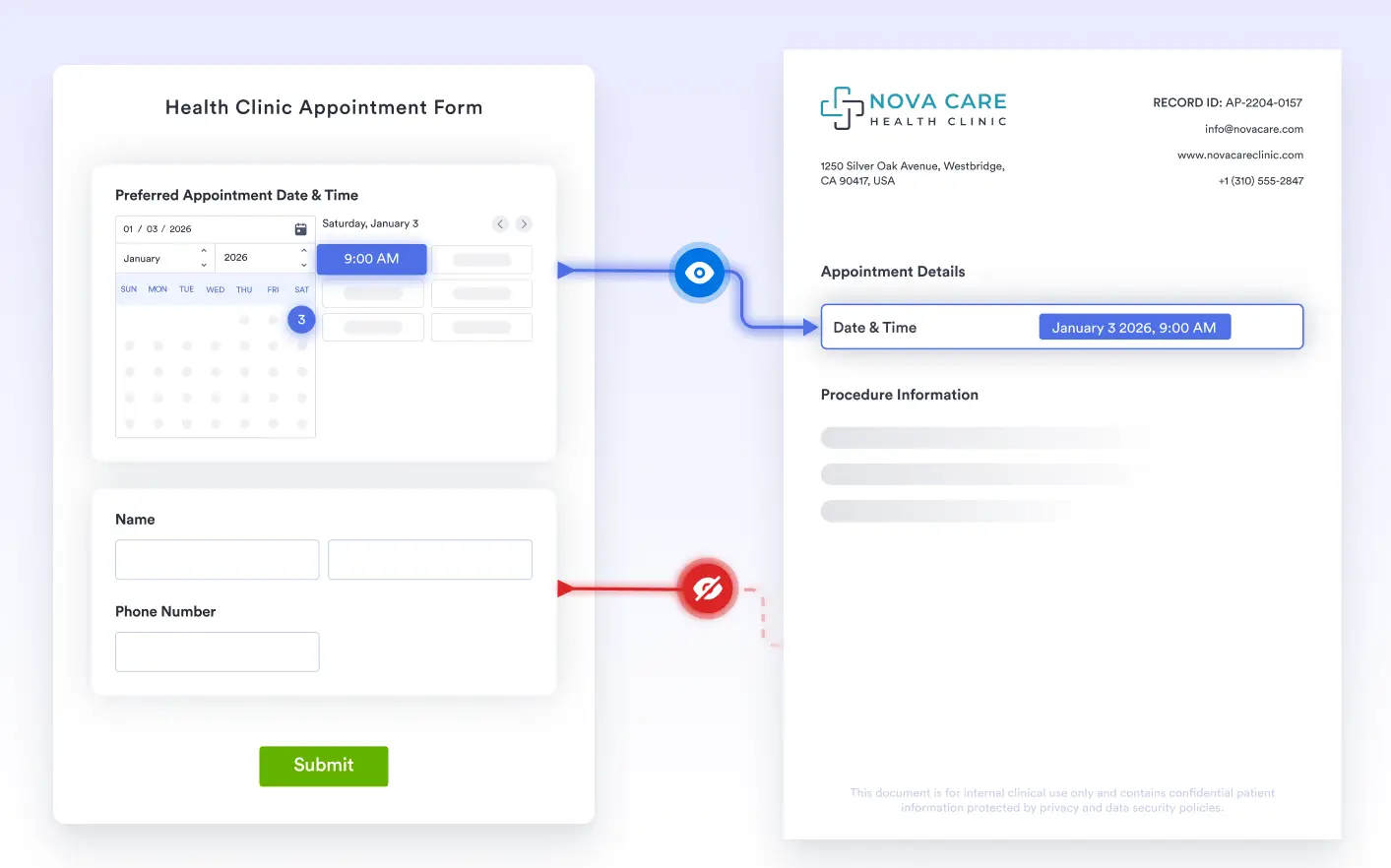
Create automatically. When a form field is left empty, the corresponding field is instantly removed from the document; so recipients only see
Clean Documents Based on Real Submission Data
Only the information actually entered by form fillers is included in the final document, ensuring outputs remain clean, accurate, and free from empty sections, unused fields, or distracting placeholders.
Control Visibility of Empty Fields
Choose whether unanswered fields should appear in your documents using a simple setting. When enabled, empty fields are automatically hidden, keeping PDFs clean, relevant, and free of blank labels or sections.
Reduce Paper Waste
By removing empty fields and unnecessary sections, documents become shorter and more efficient to print. This helps reduce paper waste and creates more focused outputs for physical sharing or archiving.
Frequently Asked Questions
Check out our FAQs for answers to common questions, or contact our support team for further information.
The Auto-Hide Empty Fields feature automatically removes blank form fields from your generated PDF. If a respondent skips a question, that field won’t appear in the final document; helping you create cleaner, more professional PDFs without extra spacing or empty labels.
By hiding unanswered fields, your PDFs become shorter, easier to read, and better formatted. This is especially useful for conditional forms, optional sections, or long applications where not every question applies to every respondent.
Yes. You can enable or disable this option in PDF Settings. If you prefer to show all fields (even unanswered ones), you can turn the setting off at any time.