Cut out manual work by sending emails automatically with Jotform. Set up autoresponder emails, send emails later, attach files, edit email templates, , and make autoresponder emails that enable HIPAA compliance.
Boost productivity with autoresponder emails
Automate your workflow by sending custom automated emails to users as soon as they fill out your online form.
Set up autoresponder emails
Automatically send pre-written emails to the people who fill out your form. Add recipients, attach PDFs and other files, change the email body content, and more.
Send emails later
You don’t need to send autoresponder emails instantly upon submission. Feel free to schedule your autoresponders to go out at a later date by choosing a custom time period or a specific date after the form is submitted.
Attach files to autoresponder emails
Attach files to your autoresponder emails to send additional information to the people who fill out your forms. Supported file types include PDF, DOC, DOCX, PNG, JPG, and JPEG.
Edit email templates
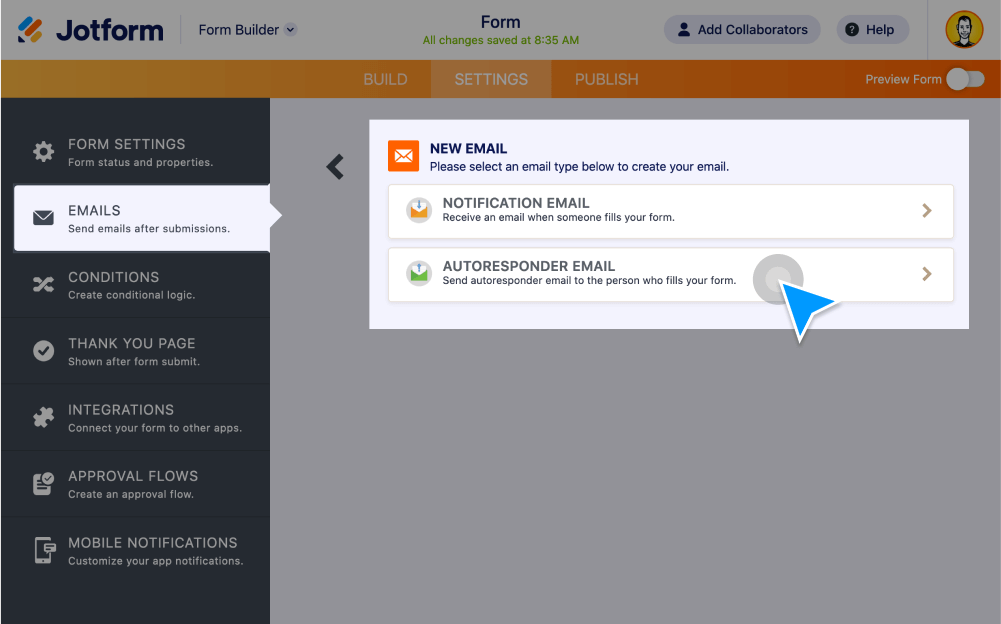
Customize your autoresponder or notification email templates so they work perfectly for your needs. In the Jotform Form Builder, go to Settings and click on the Emails tab. You can then change the email layout, select a different font, upload photos, and more.
Set up SMTP for a form
Send your autoresponder emails and notifications through a specified server with SMTP. To set up autoresponder emails with SMTP, go to your account settings, scroll to the Sender Emails section, and click the Add Sender Email button. You can then enter your SMTP details, and even send a test email to test your new settings.
Make sure notifications and autoresponders don’t violate HIPAA
Since email is considered an insecure channel, autoresponder emails containing protected health information (PHI) don’t comply with HIPAA. However, you can eliminate PHI from autoresponder emails to ensure your emails don’t violate HIPAA. Just preselect the PHI fields to omit from your emails.
How to send Autoresponder Emails?
Whether you’d like to send a confirmation email, send attendees event details, or forward your customers additional information, setting up an autoresponder is a great way to do it efficiently.