Web siteniz için Yukarı Çık Butonu Widget'ı
Ziyaretçileri sayfanın başına götüren özelleştirilebilir bir butonla uzun sayfalarda gezinmeyi kolaylaştırın. Jotform'un Yukarı Çık Butonu Widget'ıyla simgeyi, boyutu, renkleri, konumu, butonun ne zaman görüneceğini ve hangi cihazlarda gösterileceğini belirleyebilir, ardından butonu kod yazmadan web sitenize yerleştirebilirsiniz.
Hemen oluşturun - Ücretsiz!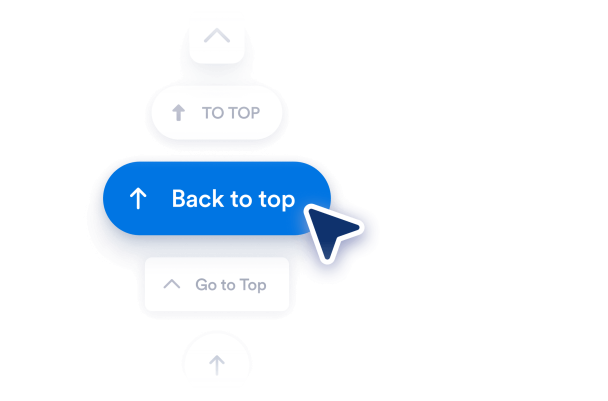

Yukarı Çık Butonu widget'ı nasıl oluşturulur
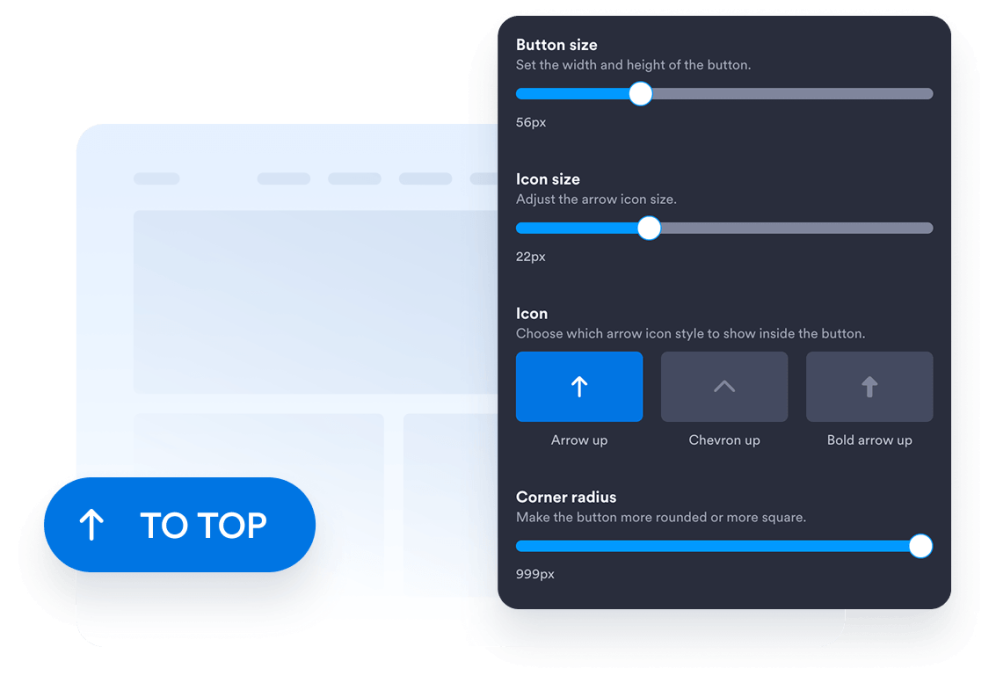
Buton tasarımınızı özelleştirin
Butonun stilini, simgesini, boyutunu, renklerini, köşe yuvarlaklığını ve ekrandaki konumunu belirleyin. Boşlukları ve görünümü web sitenizin tasarımına göre özelleştirin.
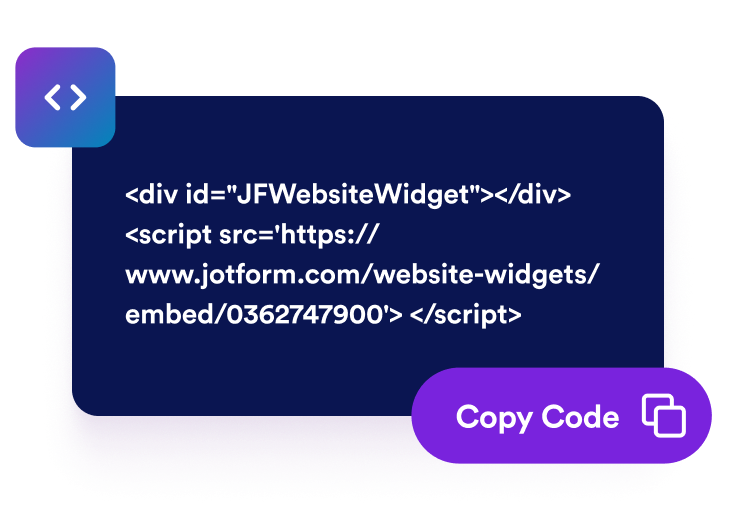
Yerleştirme kodunu alın
Jotform tarafından oluşturulan kullanıma hazır yerleştirme kodunu kopyalayın. Kurulum veya kodlama gerekmez.
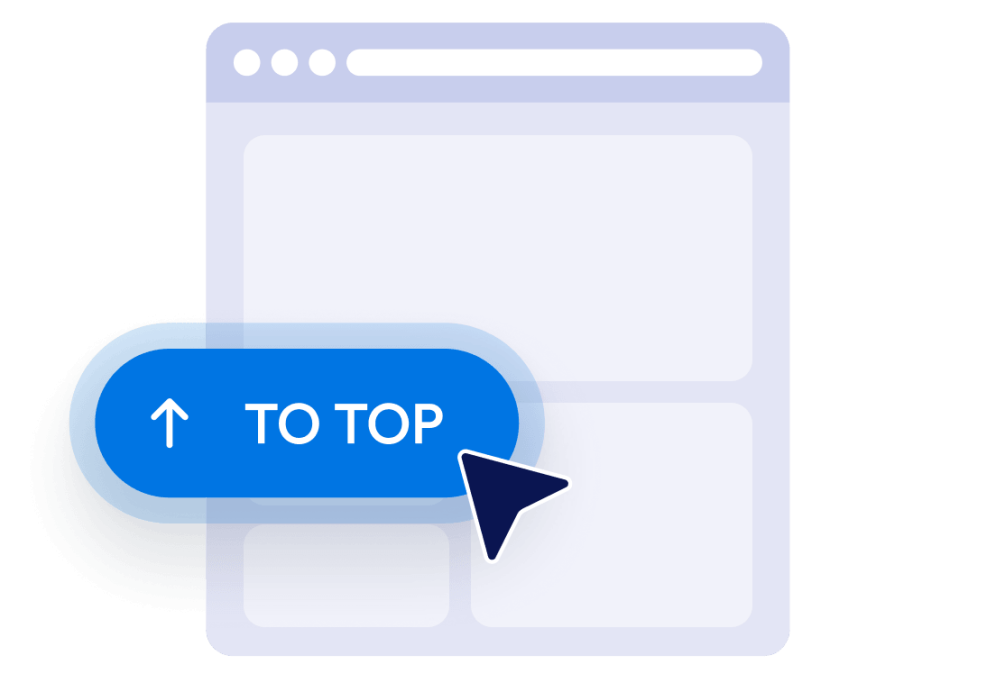
Web sitenize yerleştirin
Butonu önizleyin, oluşturulan yerleştirme kodunu kopyalayın ve özel bir HTML veya yerleştirme bloğuna yapıştırın. Sayfayı yayınlayın ve butonu masaüstü ile mobil ekranlarda test edin.
Uzun web sitesi sayfalarında gezinmeyi kolaylaştırın
Ziyaretçilerin en üste dönmesine yardımcı olun
Ziyaretçilerin uzun sayfalarda elle yukarı kaydırmak zorunda kalmadan sayfanın başına hızla dönmesini sağlayın. Buton, her zaman kolayca erişilebilir bir konumda kalır ve tıklandığında ziyaretçileri sorunsuz bir şekilde sayfanın başına götürür.
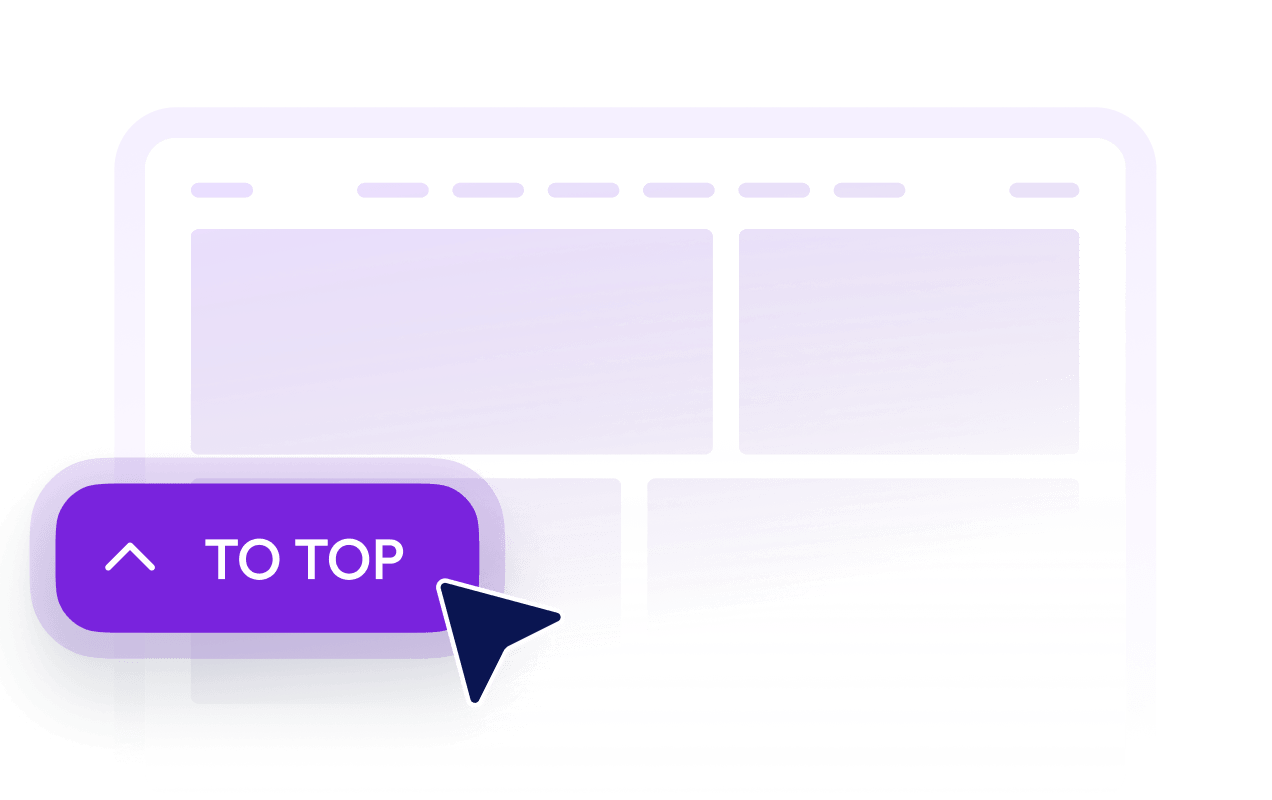
Ziyaretçiler kaydırdıktan sonra butonları gösterin
Butonun ne kadar aşağı kaydırıldıktan sonra görüneceğini belirleyin. Böylece sayfanın üst kısmında gizli kalır ve ziyaretçilerin yukarı dönmesini kolaylaştıracağı noktada görünür.

Butonları tasarımınıza uydurun
İkonu, boyutu, renkleri, köşe yuvarlaklığını ve boşlukları web sitenizin tasarımına göre özelleştirin. Yukarı Çık butonunu sayfa düzeninize göre sol veya sağ tarafa yerleştirin.

Masaüstü ve mobil görünürlüğünü kontrol edin
Butonun masaüstü cihazlarda, mobil cihazlarda veya her ikisinde de gösterilip gösterilmeyeceğini belirleyin. Görünürlük ve konum ayarları sayesinde butonun önemli içerikleri kapatmasını önleyebilir ve küçük ekranlarda kolayca kullanılmasını sağlayabilirsiniz.
Jotform Web Site Widget'ları neden öne çıkıyor
Jotform'un widget'ları web sitenizi daha etkileşimli hale getirir ve dönüşümleri artırır. Yıldızlı değerlendirmelerden ve kullanıcı görüşü kaydırıcılarından sosyal kanıt açılır pencerelerine ve medya yerleştirmelerine kadar birçok araç mevcut. Veri toplamak, kanıt göstermek ve potansiyelmüşteri yakalamak için kod yazmanıza gerek olmadan formlarınıza veya açılış sayfalarınıza widget'lar ekleyin.
Basit bir yerleştirme koduyla Jotform widget'larını web sitenize ekleyin. Bir geliştiriciye ihtiyaç duymadan widget'ı özelleştirin, nasıl göründüğünü önizleyin ve özel HTML ya da yerleştirme bloklarını destekleyen herhangi bir sayfaya yapıştırın.
Potansiyel müşterileri toplamak, müşteri geribildirimlerini göstermek, sosyal kanıt sunmak, medya içeriklerini yerleştirmek veya kullanışlı web sayfası araçları eklemek için Jotform Website Widget'larını kullanın. Her widget, ziyaretçilerin işletmenizle doğrudan web sitenizden etkileşime geçmesine yardımcı olur.
Widget'ınızı kurma, özelleştirme, yerleştirme veya sorun giderme konusunda yardıma ihtiyacınız olursa, Jotform'un müşteri destek ekibi 7/24 hizmetinizdedir. İhtiyacınız olduğunda yardımın hazır olduğunu bilerek güvenle ilerleyebilirsiniz.
Yukarı Çık butonunuzu nerelerde kullanabilirsiniz
Butonu; uzun içerikler, listeler, görseller veya ek bilgiler nedeniyle çok fazla kaydırma gerektiren sayfalara ekleyin.
Okuyucuların sayfanın başına, gezinme menüsüne veya içindekiler bölümüne kolayca dönmesini sağlamak için blog yazıları ve makalelerde.
Müşterilerin filtrelere, sıralama seçeneklerine veya kategori menüsüne kolayca geri dönmesini sağlamak için ürün kategorisi sayfalarında.
Ziyaretçilerin giriş bölümünü ve ana CTA'ları yeniden görüntülemesini kolaylaştırmak için açılış ve satış sayfalarında.
Uzun kılavuzlar, talimatlar ve referans materyalleri arasında gezinmeyi kolaylaştırmak için dokümantasyon sayfalarında.
Ziyaretçilerin çok sayıda çalışmayı inceledikten sonra içeriklere baştan göz atmasını kolaylaştırmak için portföy ve galeri sayfalarında.
Ziyaretçilerin birden fazla bölümü inceledikten sonra kolayca geri dönebilmesini sağlamak için SSS ve kaynak sayfalarında.
Jotform Form Oluşturucu ile müşteri adaylarını ödeme yapan müşterilere dönüştürün
Jotform ile etkileşimi eyleme dönüştürün. Potansiyel müşterileri yakalayan, ödemeleri alan ve yanıtları otomatikleştiren güçlü formları tek bir yerde oluşturun. Her yanıt, takip edebileceğiniz veya favori uygulamalarınızla bağlantı kurabileceğiniz Jotform Gelen Kutusu'na ulaşır.
Hemen Başla — Ücretsiz!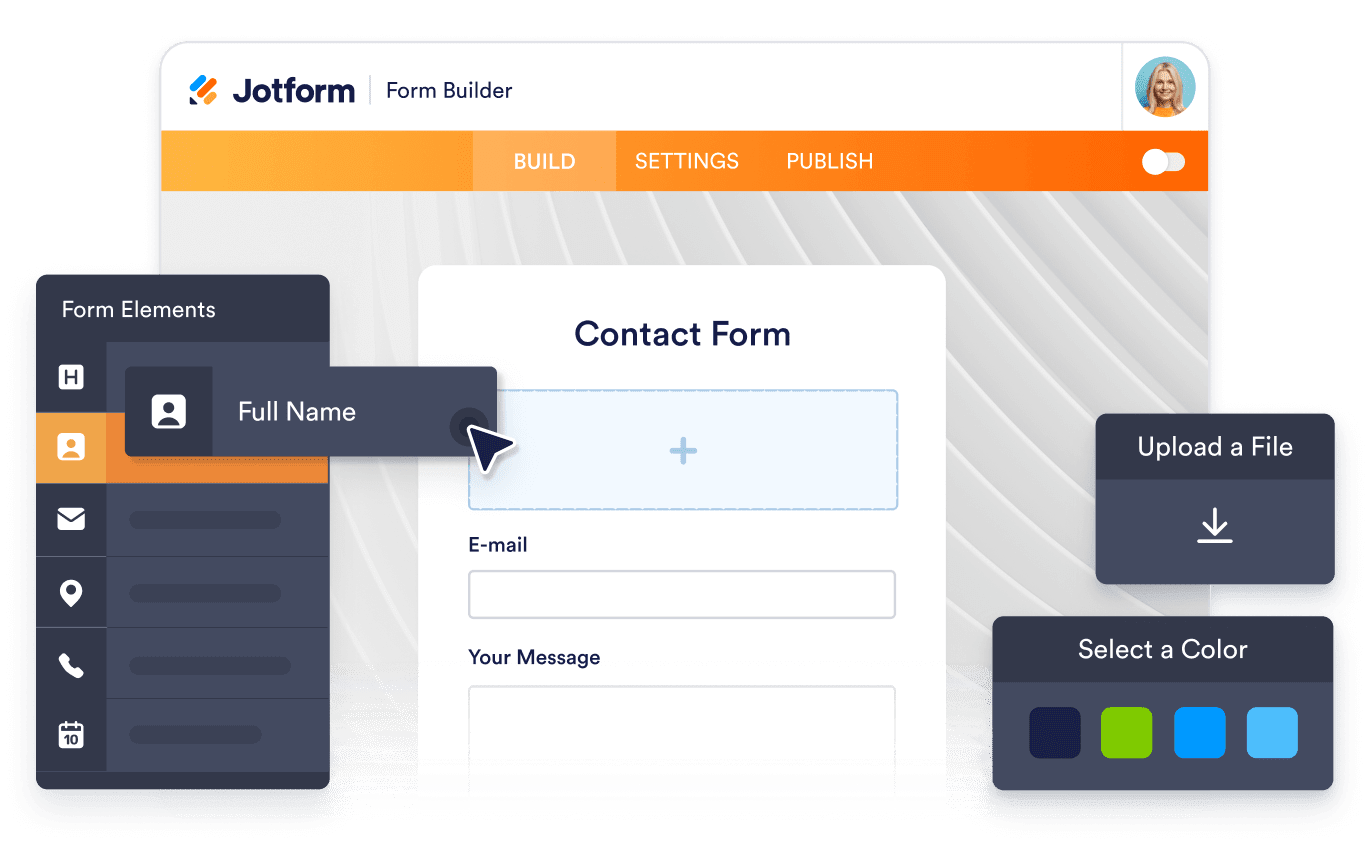
SSS
Yukarı Çık Butonu widget'ı nedir?
Yukarı Çık Butonu Widget'ı, ziyaretçileri sayfanın başına götüren kayan bir buton ekler. Özellikle uzun makaleler, ürün listeleri, dokümantasyon sayfaları, galeriler ve çok fazla kaydırma gerektiren diğer sayfalar için kullanışlıdır.
Web siteme bir Yukarı Çık butonunu nasıl eklerim?
Butonu oluşturmak için kod yazmam gerekir mi?
Yukarı Çık butonunun tasarımını özelleştirebilir miyim?
Yukarı Çık butonu ne zaman görünür?
Butonun ekrandaki konumunu değiştirebilir miyim?
Buton mobil cihazlarda çalışıyor mu?
Jotform'un Yukarı Çık Butonu widget'ı ücretsiz mi?
WordPress veya Elementor'a Yukarı Çık butonu ekleyebilir miyim?
Hangi web sitesi platformları Yukarı Çık Butonu Widget'ını destekler?