-
 rafikdernegi
merhaba jotform yapay zeka asistani gelen bildirim nasıl özelleştirebilirim mesaj içerigi gönderen v.s yardımcı olurmusunuz
-
 Joeni Jotform Support
Hi Tostçu,
Thanks for reaching out to Jotform Support. Our Turkish Support agents are busy helping other Jotform users right now, so I'll try to help you in English using Google Translate, but you can reply in whichever language you feel comfortable using. Or, if you'd rather have support in Turkish, let us know and we can have them do that. But, it might take a while until they're available again.
Now, coming back to your question, you can customize your AI Agents Notification by navigating to the Settings page. Let me show you how:
- In AI Agent Builder, click on the Settings button in the upper right corner of the panel.
- Under the General tab, you can enable the Notification and Autoresponder Emails you want to send.
- Go to the Notification tab, click on the Gear icon of the Send Conversation Notification Emails option.
- Then, you can add the email address of the Sender you want to send the Conversation and click on the Save button.

- Click on the Publish tab in the blue navigation bar and select the Agent App tab on the left side panel.
- Now, select the Push Notification option and toggle on the Enable Push Notification option.
- After that, enter your Notification Title and Customize Message in the Notification Content Input box.
- Then, click on the Send button.
Give it a try and let us know how it goes.
-
rafikdernegi
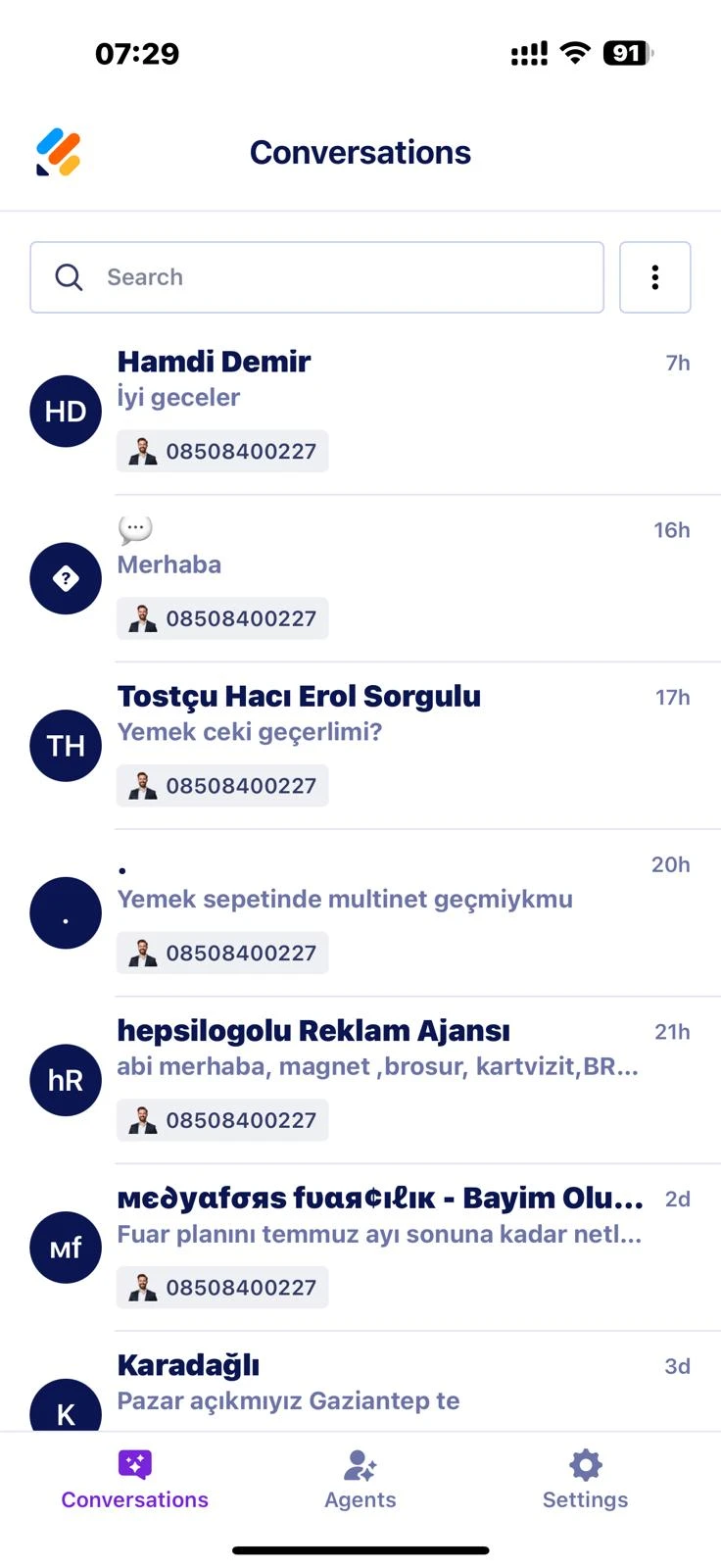
merhaba burda gönderenin ismini veya numarasını nasıl tanımlayabilirim ve uygulamaya girince sadece bu şekil isim cıkıyor numara v.s nasıl görebilirim
uygulamanın icinde böyle görünüyor
-
 Arthur AI Operations Specialist
Merhaba Erol,
Yapay zeka asistanınızla müşterilerinizin yaptığı görüşmelerde müşterilerinizin numaralarını kolayca öğrenebilirsiniz. Bunun için aşağıdaki adımları ve ekran görüntülerini takip edebilirsiniz:
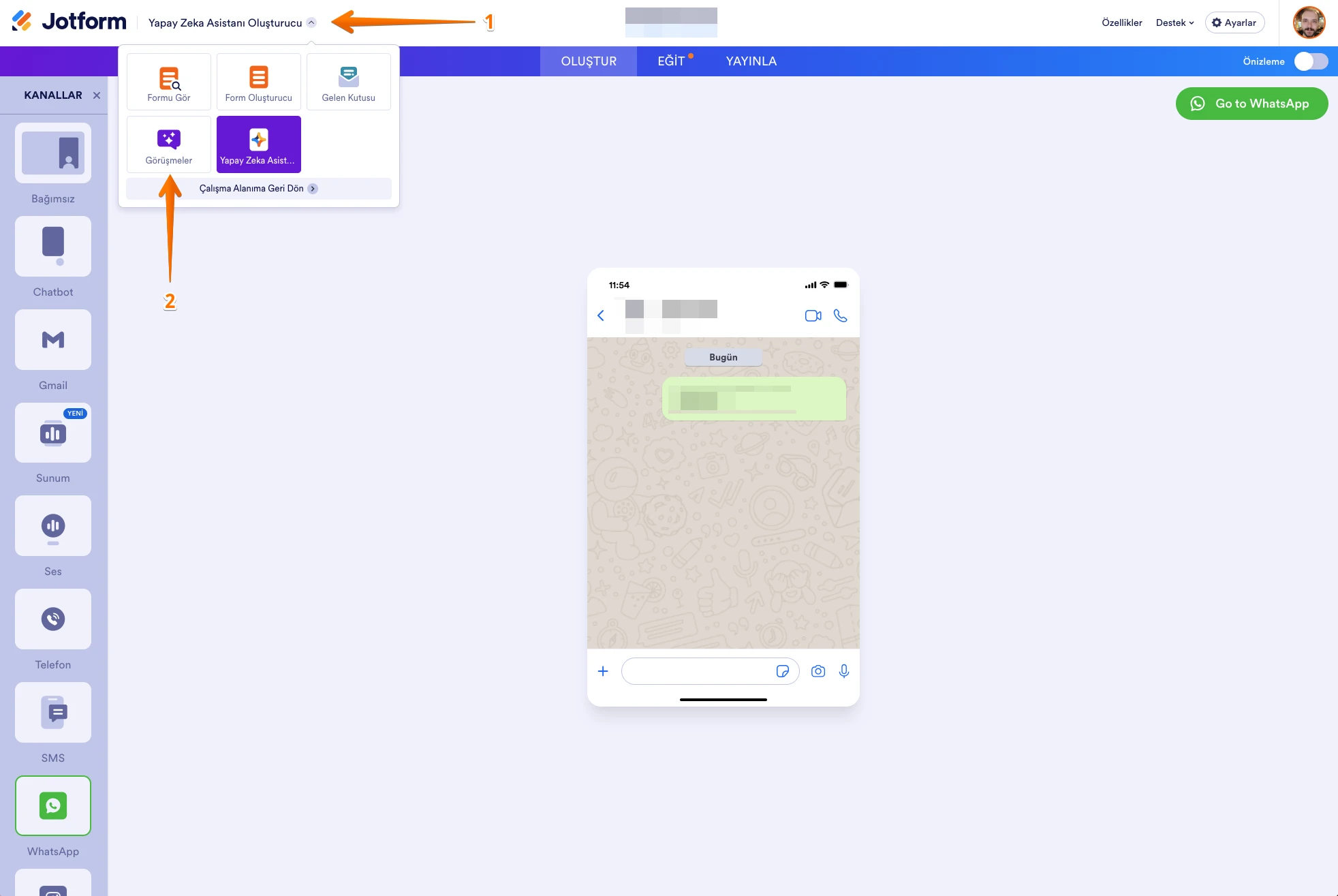
1. Yapay zeka asistanınızı açın ve sayfanın sol üzerinde yer alan Yapay Zeka Asistanı Oluşturucu'ya tıklayın.
2. Açılan pencerede Görüşmeler'i seçin.
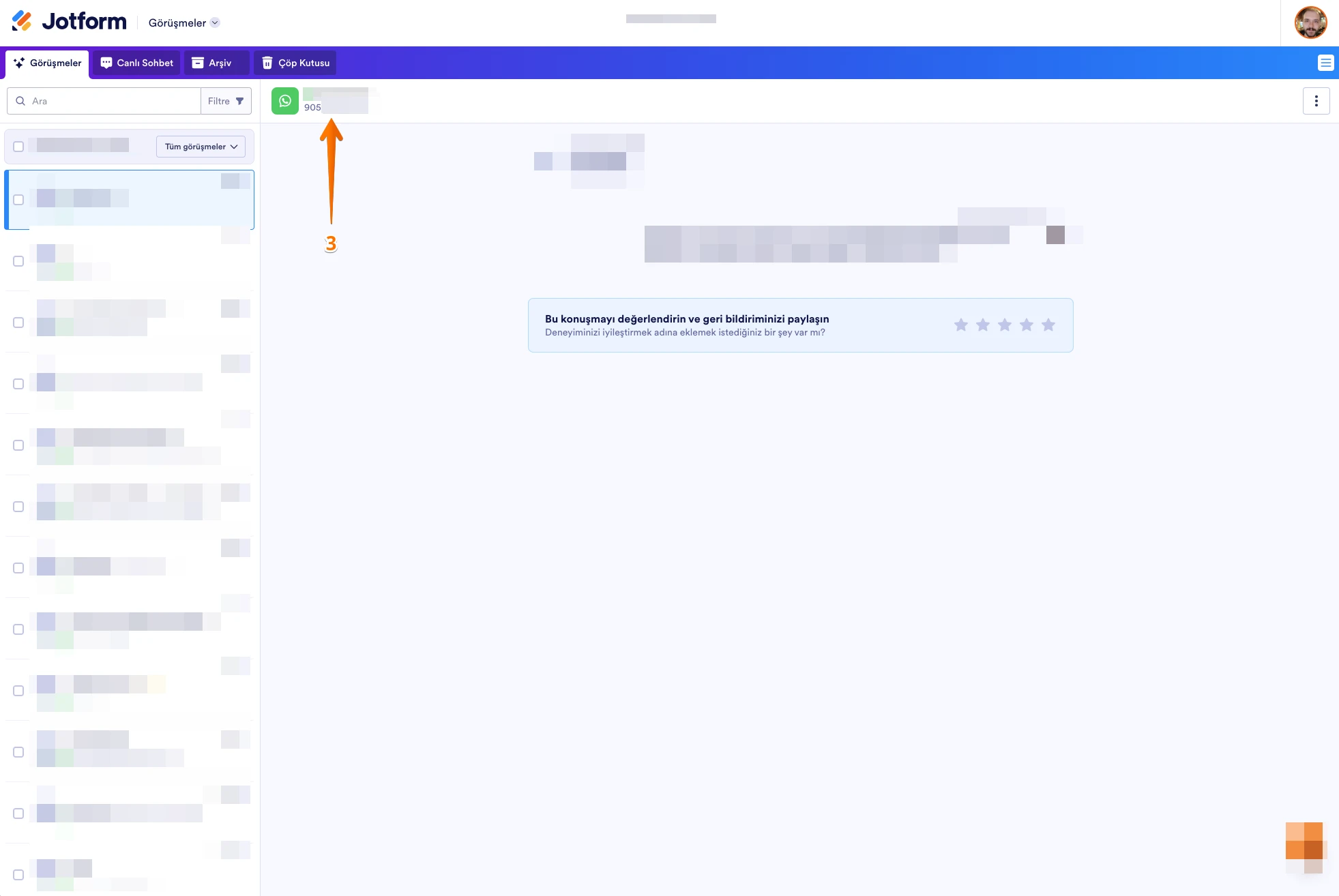
3. Açılan sayfada müşterinizin isminin altında numarasını görebilirsiniz.
Eğer mobil uygulama üzerinden numaraya ulaşamadıysanız, bu şekilde tarayıcı üzerinden tekrar deneyebilir misiniz?Daha fazla desteğe gereksinim duymanız halinde bizimle iletişime geçmekten çekinmeyin.
-
rafikdernegi
bu şekilde ulaşıyorum sorun yok mobilde görünmüyor
-
Arthur AI Operations Specialist
Merhaba Erol,
Mobil uygulama üzerinden Görüşmeler ekranına gelindiğinde telefon numaralarının görünmemesi sorunu için ilgili ekibimize ulaştım. Bir gelişme olduğunda bu destek bileti üzerinden sizi bilgilendireceğim.
Bu aralıkta daha fazla desteğe gereksinim duymanız halinde bizimle iletişime geçmekten çekinmeyin.
 Eğer mobil uygulama üzerinden numaraya ulaşamadıysanız, bu şekilde tarayıcı üzerinden tekrar deneyebilir misiniz?