
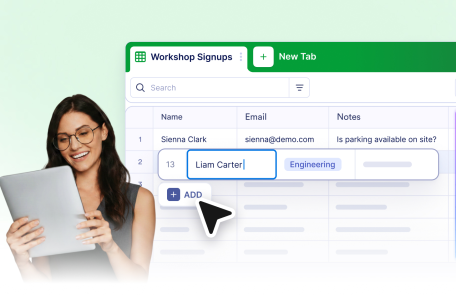
Add Entries Manually to Jotform Tables
Easily add new entries directly to Jotform Tables without submitting a form.
Entry Actions
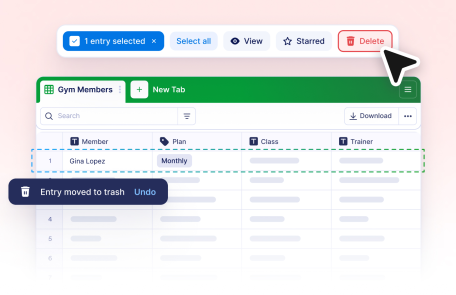
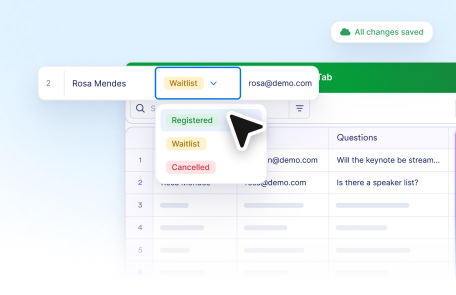
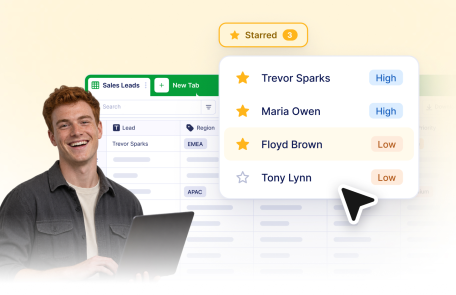
Add, edit, delete, and manage entries in Jotform Tables. Update submission data, mark important records as favorites, and undo or redo changes to keep your workflow organized.
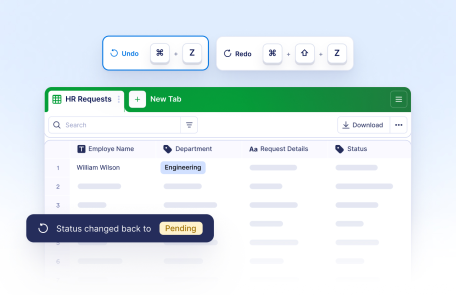
Correct mistakes and recover recent changes in Jotform Tables with Undo and Redo. Reverse accidental edits, restore changes, and manage your data confidently using familiar keyboard shortcuts.
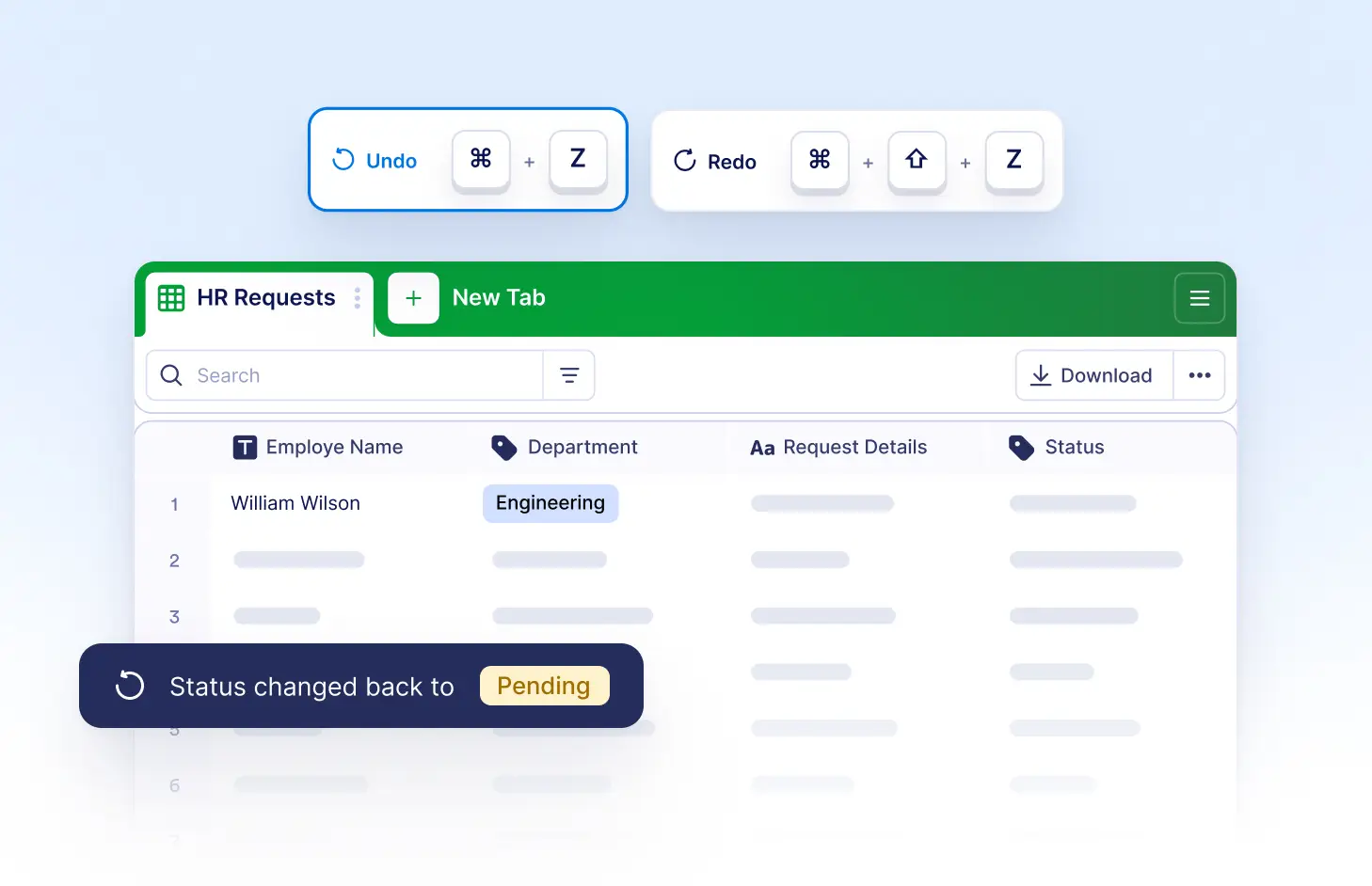
Edit your tables with flexibility. Undo unwanted changes or redo actions you've reversed, so you can correct mistakes and make adjustments without disrupting your workflow.
Keep your workflow moving with quick Undo and Redo actions. Correct recent cell edits or column name changes, and restore an undone action when you decide to keep the original adjustment.
Quickly reverse recent edits using Ctrl + Z on Windows or Cmd + Z on Mac. Fix accidental data changes and column renames without manually restoring their previous values.
Changed your mind after undoing an edit? Use Redo to bring back the reversed action. Easily move between recent changes and refine your table without repeating the same work.
Use Ctrl + Z on Windows or Cmd + Z on Mac to undo a recent supported action. This is useful for quickly correcting accidental edits without manually changing the data back.
Yes. You can use Redo to restore a change you've just undone. The keyboard shortcuts are Ctrl + Y on Windows and Cmd + Shift + Z on Mac.
Undo is intended for recent changes within your current editing session. For example, inline edits and column name changes can be undone before closing or reloading the table. Undo should not be treated as a permanent backup of your data.