-
 ercanhoglu
merhaba,
ekte yer alan ekran görüntüsünde gördüğünüz üzere oluşturduğum formlarda arka plan rengi bu şekil çıkıyor ama normalde mesela örnek olarak attığım form bordomsu bir renk, diğer formlardada aynı sorun var yeşil olması gereken form yine ekteki gibi farklı renkte ve mavi olması gereken formada yine ektedi form renginde,
Liva Tunalı Özel Pasta Sipariş Formu
Liva GOP Özel Pasta Sipariş Formu
Liva Esat Özel Pasta Sipariş Formu
bu 3 formdada aynı sorunu yaşıyoruz
bu durumu düzeltmenizi istiyorum
kolay gelsin
-
 Kenneth Jotform Support
Hi Ercan,
Thank you for reaching out to Jotform Support. Our Turkish Support agents are busy helping other Jotform users right now, so I'll try to help you in English using Google Translate, but you can reply in whichever language you feel comfortable using. Or, if you'd rather have support in Turkish, let us know, and we can have them do that. But it might take a while until they're available again.
Now, coming back to your question, the background colors on your forms aren't displaying as expected. This usually happens when there’s a conflict between the selected form theme, injected CSS, or cached style data. In some cases, browser caching or the use of embedded forms can also cause the wrong color to appear. Let’s go through a few checks to fix this issue and make sure your forms display the correct colors.
Here’s what you can do:
- Check your form theme settings by going to the Form Designer. Check out these helpful guides on How to Apply a Theme to Your Form and How to Access and Use Advanced Designer for more details.
- Review any custom CSS code. Still in Form Designer, go to the Styles tab, and if you see any injected CSS, remove or comment it out temporarily. Save your changes and preview the form. If the colors display correctly afterward, the issue was likely caused by a conflicting CSS rule.
If the changes are still not reflected. You can clear the form and browser cache. Although Clearing Your Form Caches isn't done automatically, it's easy to do it manually. Let me show you how:
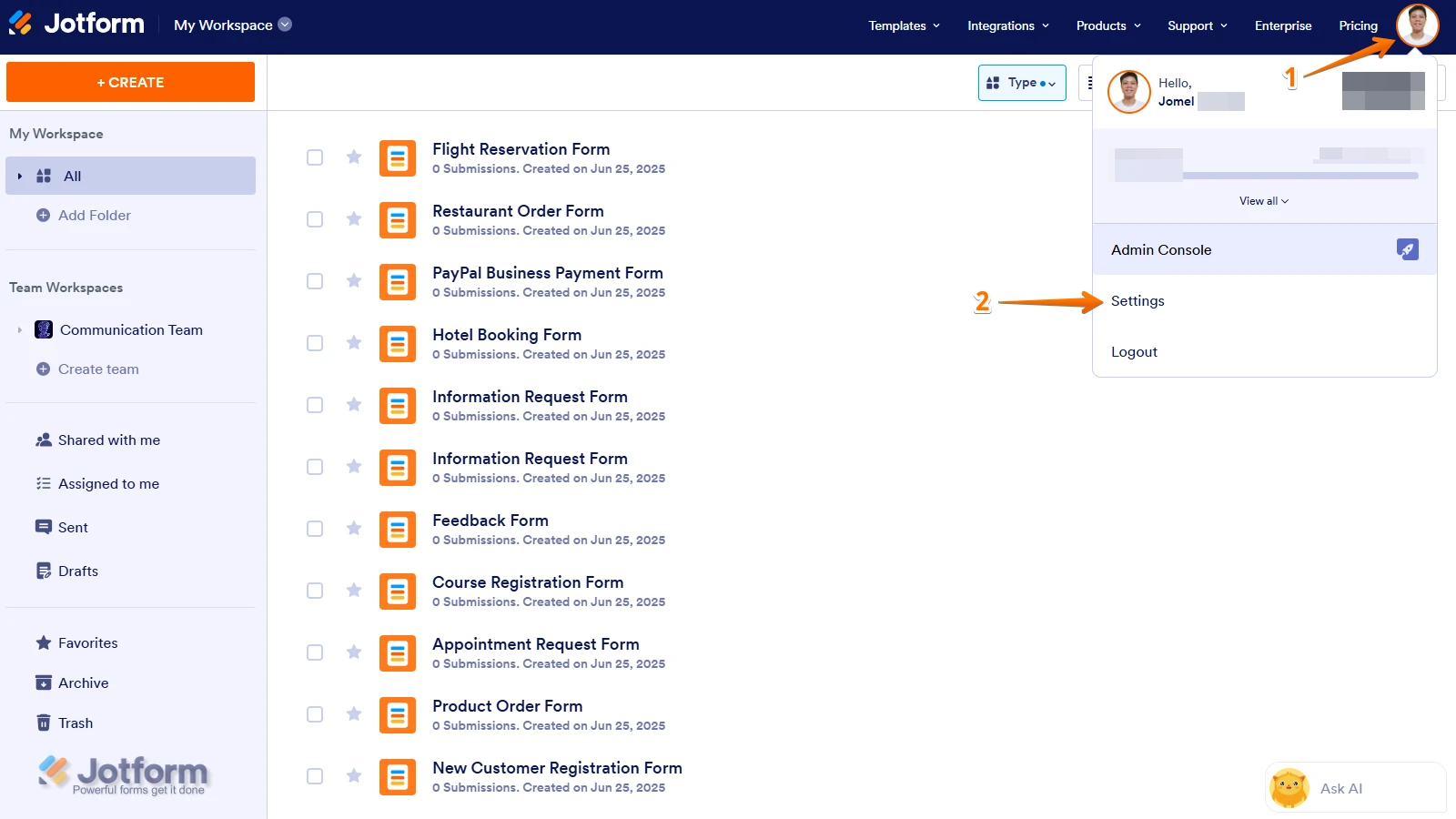
1. On your Workspace page, click on your Avatar/Profile Image icon.
2. In the dropdown menu, click on Settings.

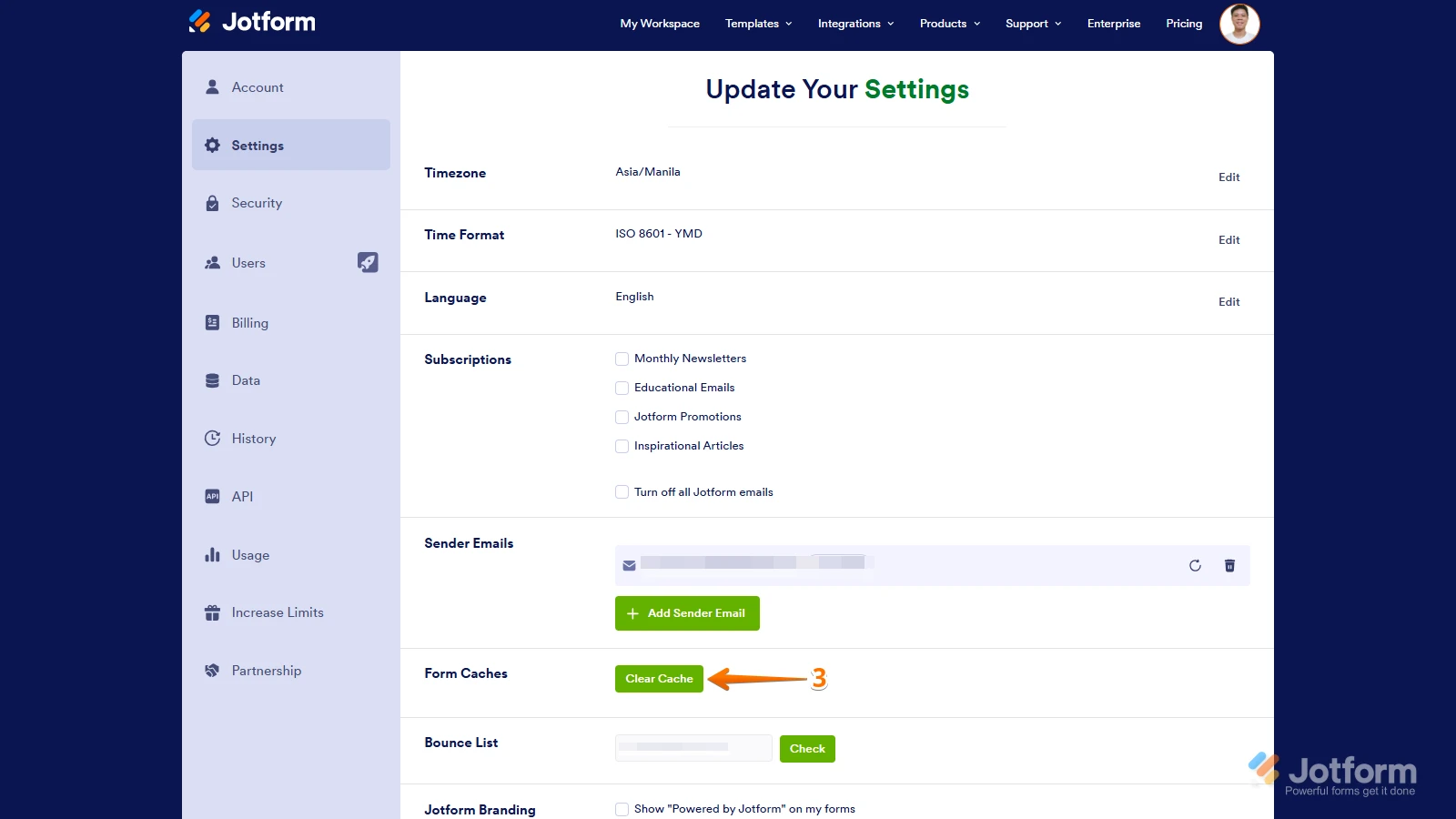
3. In the Settings menu, click on Clear Cache. And that's it, you're done.
Give it a try and let us know if you have any other questions.