
Prüfen Sie Protokolle für alle Ihre Drittanbieter-Integrationen und verwalten Sie alle Datenströme in Ihrer Organisation.
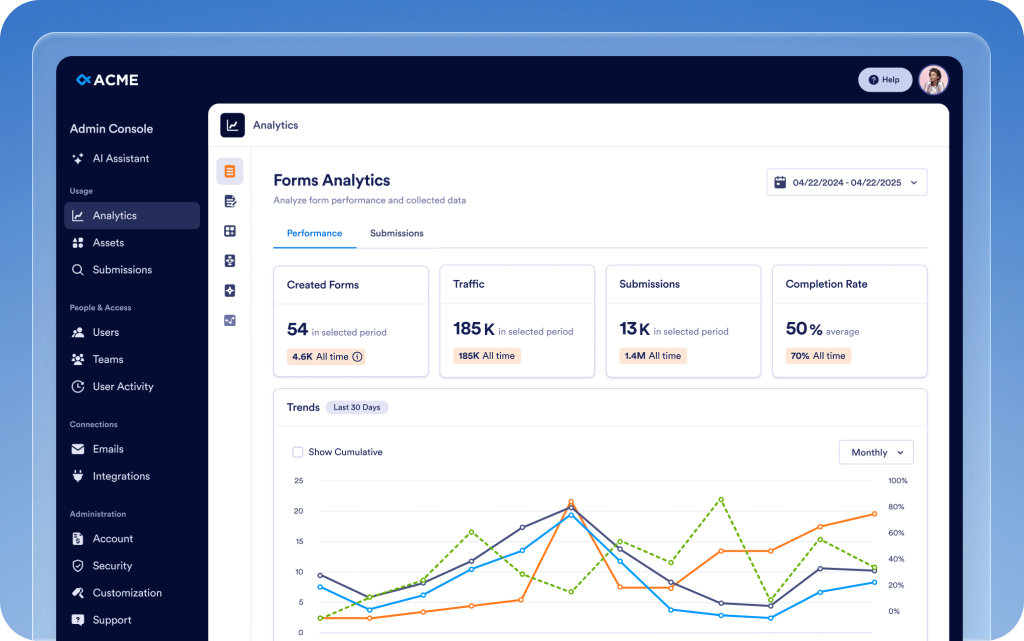
Vereinen Sie Analysen, Management und Sicherheitskontrollen für jedes Team, Asset und jede Integration in einem zentralen Hub. Die Admin Konsole beschleunigt die Arbeit, sorgt für mehr Sicherheit und ermöglicht es Ihnen, Ihr Unternehmen intelligenter zu führen.
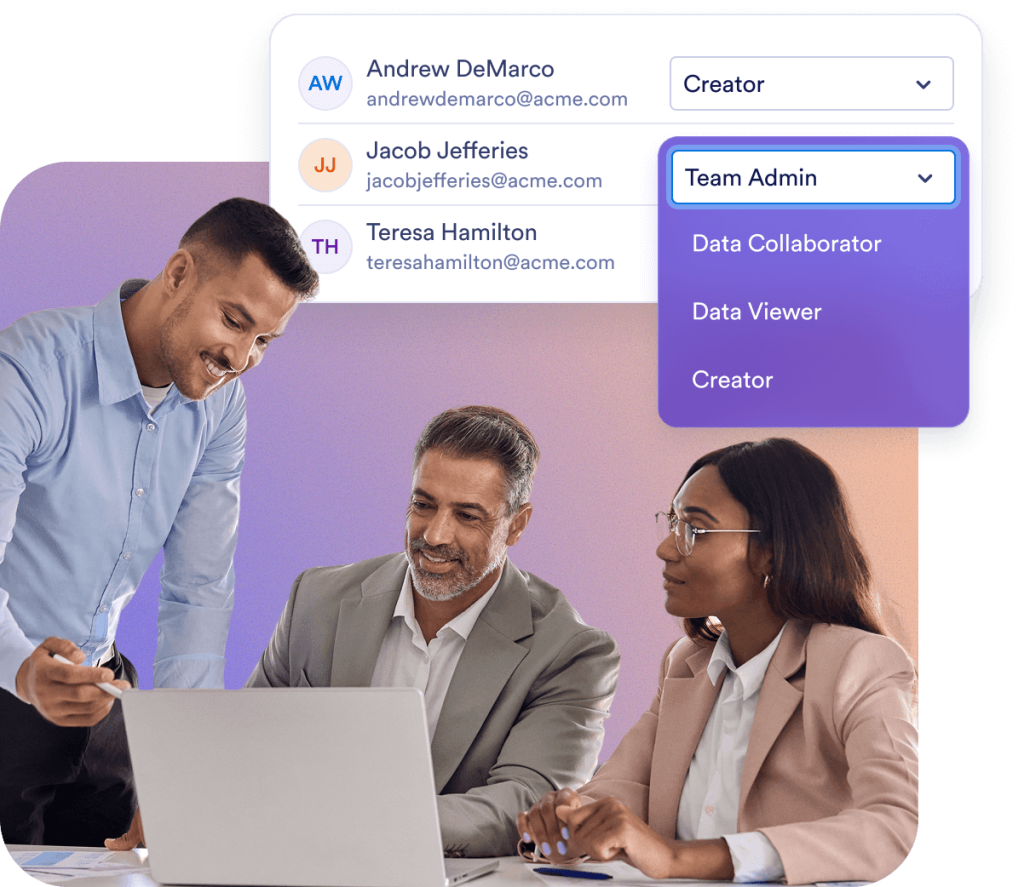
Sorgen Sie für sicheren Zugriff für Teammitglieder und gleichzeitig nahtlose Zusammenarbeit. In der Admin Konsole können Sie Benutzerrollen, Gastkonten und Workspaces über eine zentrale Plattform verwalten.
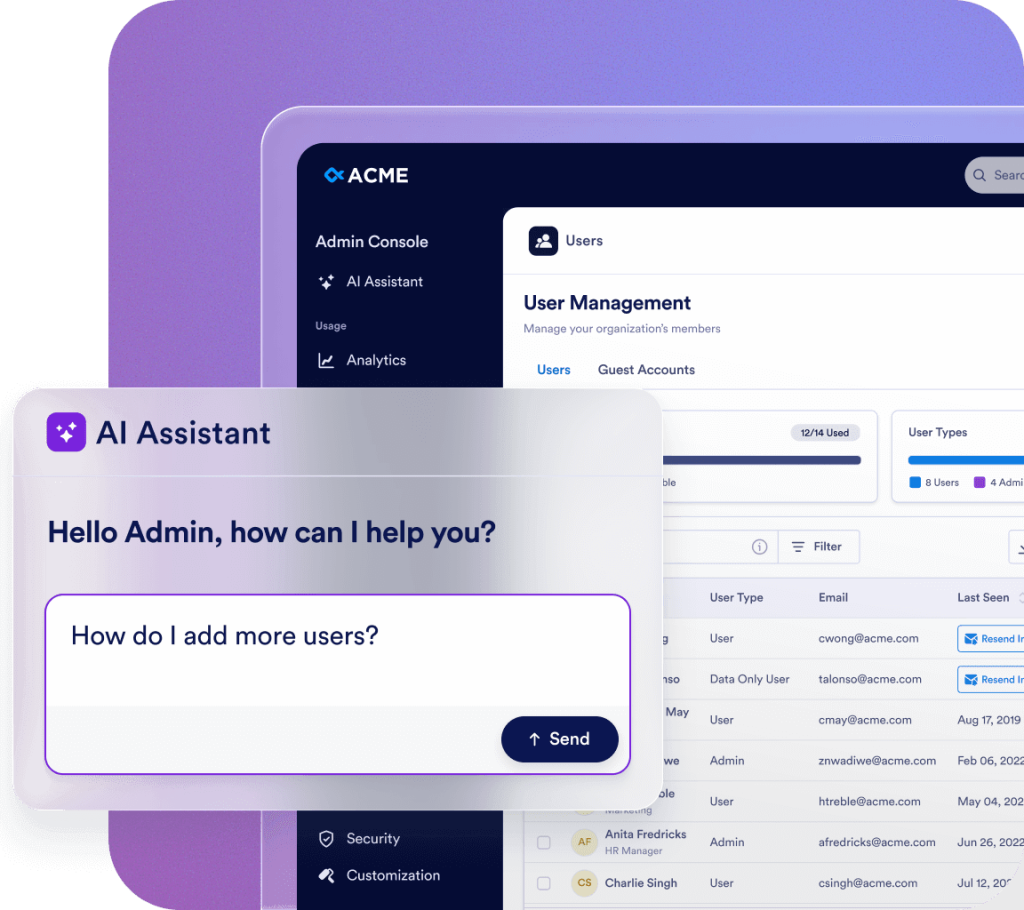
Sofortige Antworten, Anleitungen und Aktionen – alles an einem Ort. Möchten Sie erfahren, wie Sie in der Admin Konsole navigieren? Oder müssen Sie Benutzer verwalten oder die Einstellungen Ihrer Organisation aktualisieren? Der KI Helfer gibt Ihnen die Antwort oder erledigt es für Sie. Sie müssen nur fragen.
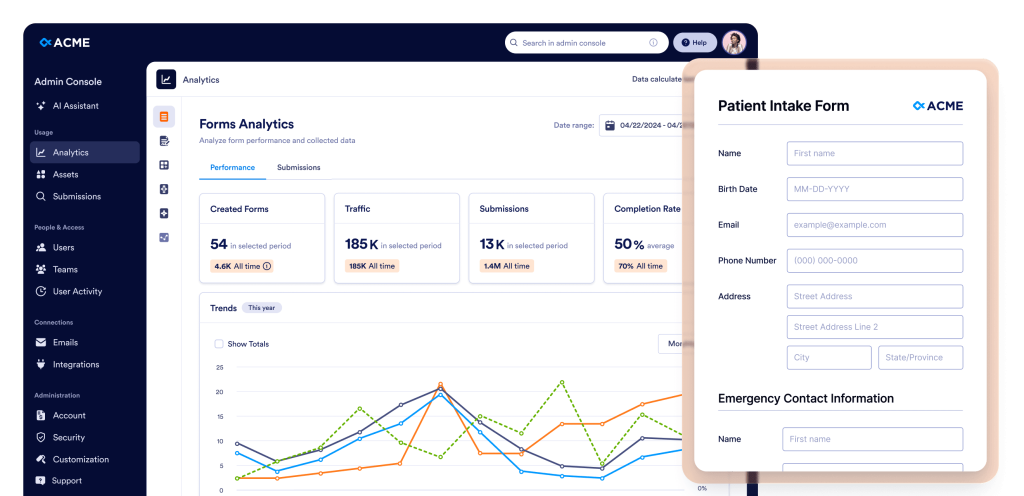
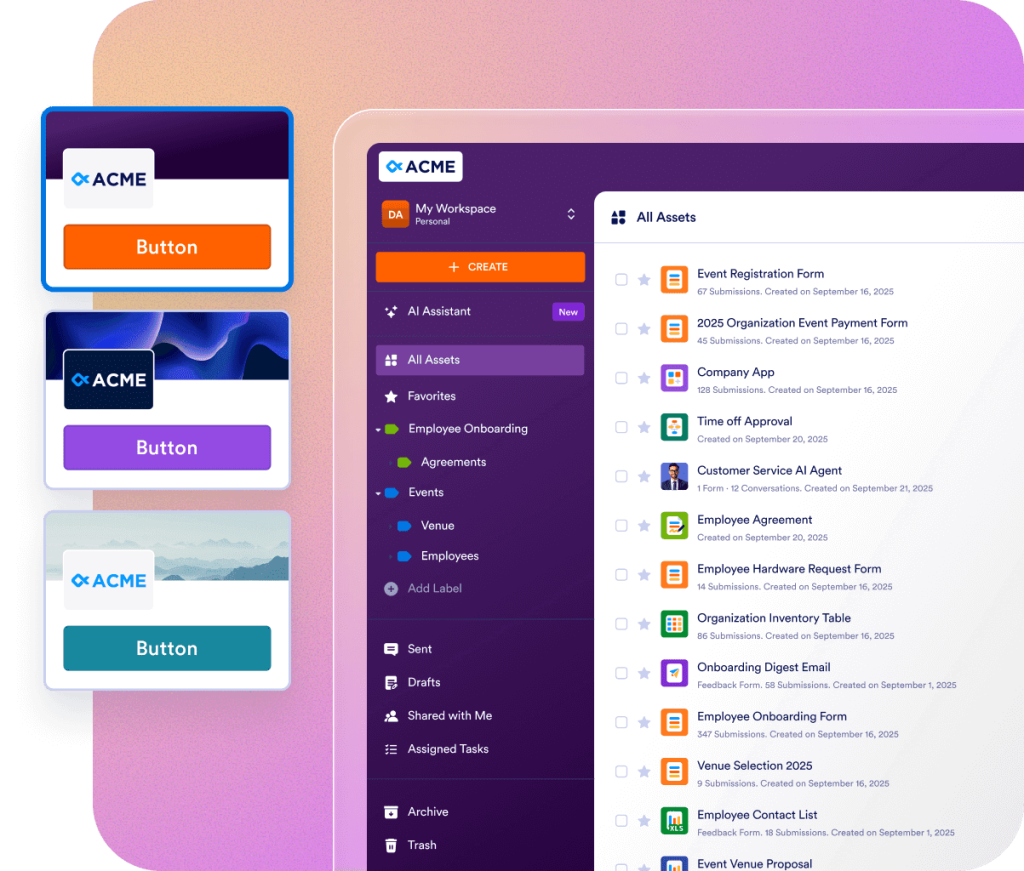
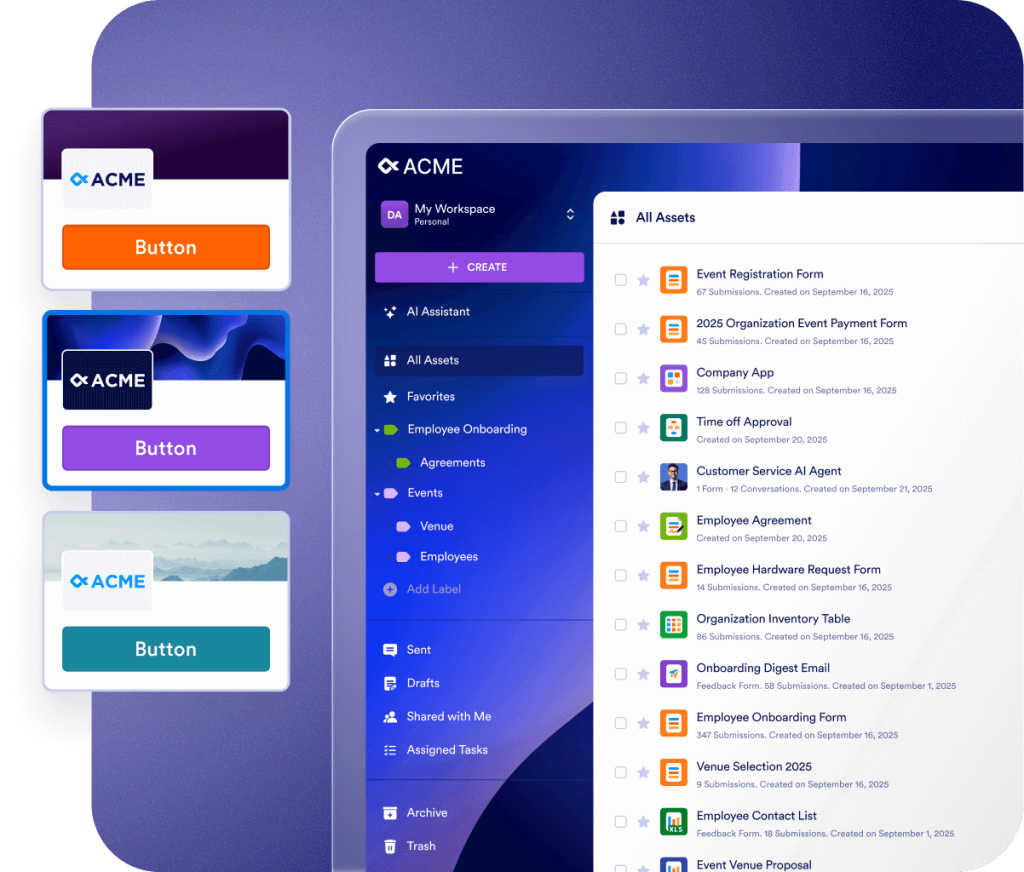
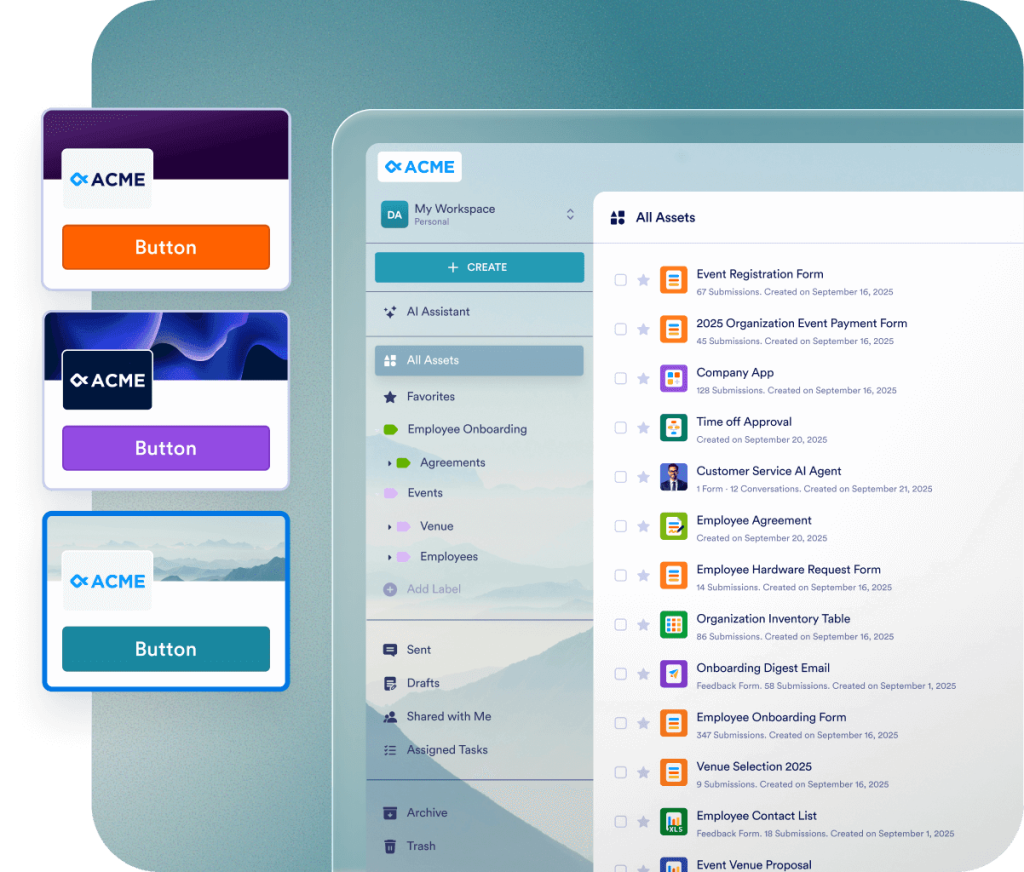
Bieten Sie ein einheitliches Markenerlebnis in Ihrer gesamten Organisation mit vollständig anpassbaren visuellen Elementen, Login-Bildschirmen und Formulardesigns. Ermöglichen Sie Usern, das Erscheinungsbild ihres eigenen Workspace zu wählen, oder setzen Sie ein einheitliches Design durch, um die Identität Ihrer Organisation an jedem Touchpoint widerzuspiegeln.
Jotform Enterprise lässt sich problemlos an Ihre Anforderungen anpassen und sorgt für einen schnelleren ROI. Verschieben Sie Daten, passen Sie Workflows an und gestalten Sie Widgets individuell – mit unserer benutzerfreundlichen API und Hunderten von Integrationen. Nutzen Sie Webhooks, um den Datenfluss auszulösen oder um Benachrichtigungen über Formularantworten an eine bestimmte URL zu senden.
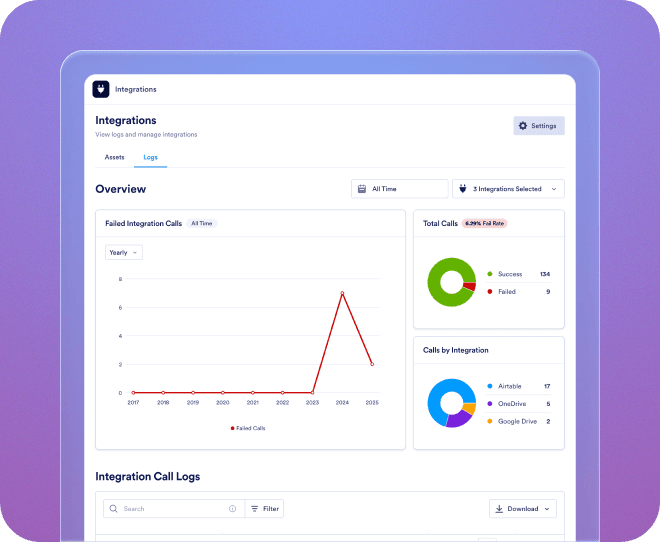
Prüfen Sie Protokolle für alle Ihre Drittanbieter-Integrationen und verwalten Sie alle Datenströme in Ihrer Organisation.
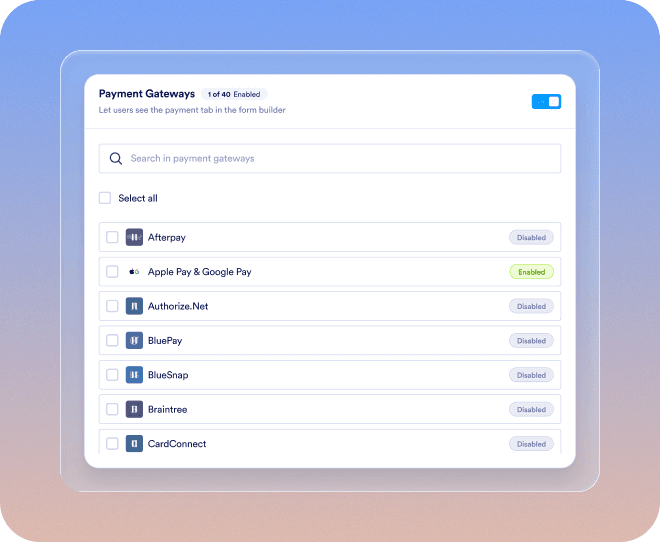
Erstellen Sie mühelos neue Zahlungsportale, verknüpfen Sie diese mit Assets, konfigurieren Sie Zahlungseinstellungen und behalten Sie den Überblick über Ihr gesamtes Unternehmen.
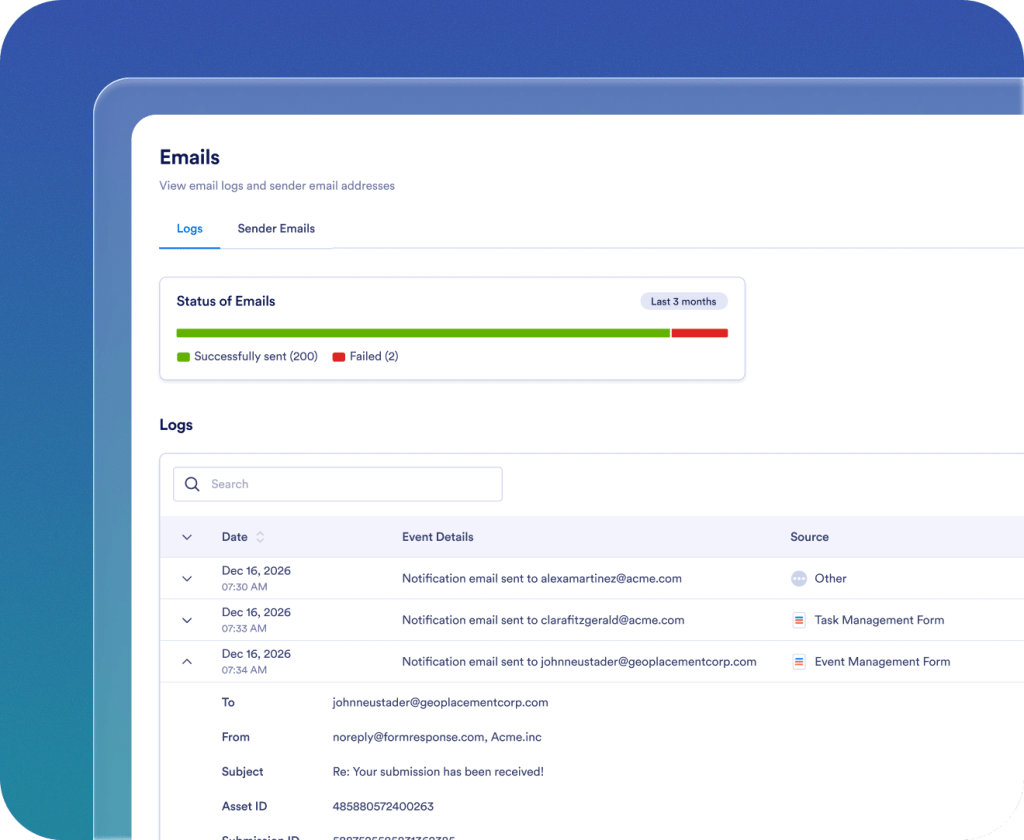
Erstellen, verfolgen und verwalten Sie Absender-E-Mails in Ihrem gesamten Unternehmen.

Genießen Sie einen reibungslosen Einstieg vom ersten Tag an. Ihr persönlicher Customer Success Manager unterstützt Ihr Unternehmen direkt. Erhalten Sie Live-Anleitungen über Zoom oder schnelle Antworten auf Ihre eingereichten Fragen. Außerdem können Sie umfassende, aktuelle Ressourcen wie E-Books, Anleitungen und Newsletter nutzen.

Sicherheit auf Enterprise-Level umfasst serverweite Kontrollen wie Single Sign-on (SSO), rollenbasierte Berechtigungen, Zwei-Faktor-Authentifizierung, Sitzungszeitlimits und IP-Beschränkungen. Jotform Enterprise entspricht den DSGVO- und CCPA-Vorschriften und bietet optionale HIPAA-gerechte Formulare. Sie können außerdem alle Ihre Daten in einem lokalen Datenresidenzzentrum speichern.
Sales kontaktieren
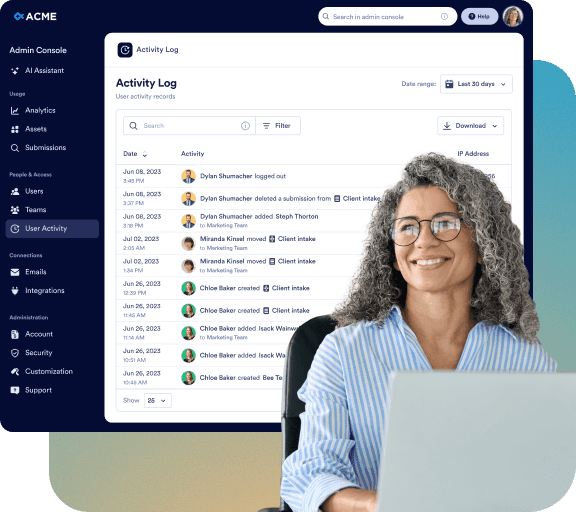
Überwachen Sie jede Änderung in Ihrer Organisation mithilfe detaillierter Protokolle:
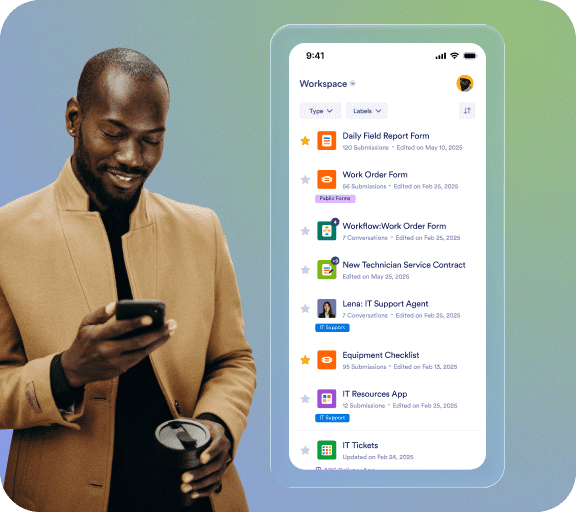
Auf Anfrage erstellt und pflegt das Jotform-Team eine individuelle, native Mobile App für Ihre Organisation. Greifen Sie jederzeit und überall in einer sicheren Umgebung auf Jotform Enterprise zu, die Ihre Unternehmensidentität widerspiegelt. Sie können ganz einfach User und Geräte verfolgen und Ihr Team einladen, die App herunterzuladen.

Unser engagiertes Team steht Ihnen zur Seite, um eine reibungslose und auf die Bedürfnisse Ihrer Organisation zugeschnittene Implementierung zu gewährleisten. Sie erhalten fachkundige Begleitung bei jedem Schritt – von der Formularerstellung bis zur Workflow-Optimierung. Wir bereiten Ihr Unternehmen auf den Erfolg vor.
Die Admin Konsole ist der zentrale Verwaltungsbereich, in dem Admins alle organisationsbezogenen Einstellungen verwalten können. Von hier aus können Sie Benutzer und Gastkonten verwalten, Sicherheitseinstellungen konfigurieren, Protokolle überwachen, Assets verwalten, Nutzungsanalysen einsehen und auf alle Konto- und Rechnungsinformationen Ihrer Organisation zugreifen.
Wenn Sie Administratorrechte haben, klicken Sie auf Ihren Avatar-Tab und wählen Sie dann die Option Admin Konsole aus dem Dropdown-Menü. Sie werden zur Startseite der Admin Konsole weitergeleitet.
Ja, gehen Sie in der Admin Konsole zum linken Menü und wählen Sie Benutzer. Sie finden dort zwei separate Tabs: Benutzer und Gastkonten. Von dort aus können Sie neue Mitglieder hinzufügen, ihre Rollen aktualisieren und sicherheitsrelevante Änderungen vornehmen.
Ja. Gehen Sie in der Admin Konsole zu Nutzer > Gastkonten. Sie können alle Gastbenutzer in Ihrer Organisation einsehen, deren zugewiesene Assets überprüfen und bei Bedarf deren Zugriff widerrufen.
Ja, gehen Sie in der Admin Konsole im linken Menü zum Abschnitt Nutzer. Sie können die Liste aller Benutzer einsehen. Wenn Sie auf die drei Punkte rechts neben jedem aufgeführten User klicken, öffnet sich die Seitenleiste, in der Sie den Tab Assets aufrufen können, um die eigenen, geteilten und zugewiesenen Assets jedes berechtigten Users einzusehen und bei Bedarf den Zugriff zu widerrufen.
Nein, beim Löschen eines Users erscheint ein Bestätigungsfenster, in dem Sie alle zugehörigen Assets an einen anderen aktiven User übertragen können, bevor Sie den Löschvorgang abschließen.
Ja, gehen Sie in der Admin Konsole zum Menü auf der linken Seite und wählen Sie Konto & Abrechnung > Rechnungen. Dort können Sie eine Liste aller Rechnungen einsehen, einschließlich ihres Zahlungsstatus.
Gehen Sie in der Admin Konsole im linken Menü zu Konto & Abrechnung > Konto. Sie können sowohl die monatlichen SMS- (1.000 Nachrichten) als auch die Sprachlimits (1.000 Minuten) für Assistenten überwachen und Benachrichtigungen zu Nutzungsschwellenwerten anzeigen. Diese Limits sind auf dieser Seite sichtbar, wenn Sie Assistenten für Ihre Organisation unter Assets > Assistenten > Einstellungen aktiviert haben.
Ja, gehen Sie in der Admin Konsole im linken Menü zu Konto & Abrechnung > Rechnungsinformationen. Auf dieser Seite können Sie die Rechnungsadresse Ihrer Organisation, die Kontaktdaten der Rechnungsperson und andere zugehörige Informationen überprüfen und aktualisieren, um sicherzustellen, dass Ihre Rechnungsdaten korrekt und auf dem neuesten Stand bleiben.
Ja, gehen Sie in der Admin Konsole im linken Menü zu Anpassung. In diesem Bereich können Sie die Tabs Workspace, Anmeldeseite oder Fehlerseite öffnen, um das Erscheinungsbild und die Inhalte der einzelnen Seiten für Ihre Organisation zu gestalten und anzupassen.
Ja, gehen Sie in der Admin Konsole im linken Menü zu Assets und wählen Sie Formulare > Formulareinstellungen. Öffnen Sie dann den Tab Formulardesign, um ein individuelles Formulardesign für Ihre Organisation zu erstellen. Sie können das Logo, die Größe, die Hintergrundfarbe und den Gesamtstil anpassen. Das Design gilt nur für klassische Formulare und kann als Standard festgelegt oder für alle User verpflichtend gemacht werden.
Ja, gehen Sie in der Admin Konsole im linken Menü zu Anpassung und öffnen Sie den Tab Brand Kit. Mithilfe von KI können Sie automatisch ein vollständiges Brand Kit unter Verwendung des Logos oder der Website Ihrer Organisation erstellen. Von dort aus können Sie die vorgeschlagenen Farben, Schriftarten und Stile überprüfen und anpassen, um sie an die visuelle Identität Ihrer Organisation anzugleichen. Nach der Fertigstellung können Sie dieses Brand Kit auf Ihre Login-, Fehler-, Workspace- und andere anpassbare Seiten anwenden.
Ja, gehen Sie in der Admin Konsole im linken Menü zu Integrationen und wählen Sie den Tab Logs. Sie können alle verbundenen Integrationen in Ihrer Organisation einsehen, detaillierte Logs für jede Integration prüfen, den Nutzungsverlauf nachverfolgen und fehlgeschlagene Aufrufe oder Fehler schnell identifizieren. So können Sie die Leistung von Integrationen überwachen und Probleme effektiv beheben.
Ja, gehen Sie in der Admin Konsole im linken Menü zu Integrationen und öffnen Sie den Tab Einstellungen. Hier können Sie alle verfügbaren Integrationen für Ihre Organisation einsehen und deren Sichtbarkeit konfigurieren. Sie können wählen, ob Sie bestimmte Integrationen für Benutzer im Formulargenerator ausblenden oder anzeigen möchten, oder sogar den gesamten Integrationsbereich bei Bedarf ausblenden. So können Sie steuern, welche Integrationen für Benutzer zugänglich sind, und ein optimiertes Erlebnis im Formulargenerator gewährleisten.
Ja, gehen Sie in der Admin Konsole im linken Menü zu E-Mails und wählen Sie den Tab Logs. Sie können alle organisationsweiten E-Mails nachverfolgen, einschließlich automatischer Antworten und Empfängerbenachrichtigungen. Die Logs ermöglichen es Ihnen, E-Mails nach Zeitraum zu filtern, den Zustellstatus zu überprüfen, Fehler oder Ausfälle zu identifizieren und die Logdaten für Reporting- oder Auditing-Zwecke herunterzuladen. So erhalten Sie vollständige Transparenz über die E-Mail-Aktivitäten Ihres Unternehmens.
Ja, gehen Sie in der Admin Konsole im linken Menü zu E-Mails und öffnen Sie den Tab Einstellungen. Hier können Sie neue Absender-E-Mail-Adressen hinzufügen, egal ob individuell, Microsoft oder Google, und festlegen, ob jede E-Mail-Adresse optional oder für alle Benutzer erforderlich sein soll. Dies trägt dazu bei, die Absenderinformationen einheitlich zu halten und erleichtert die Verwaltung der E-Mail-Einstellungen in Ihrem gesamten Unternehmen.
Ja, gehen Sie in der Admin Konsole im linken Menü zu Assets. Sie können auf alle Asset-Typen zugreifen, einschließlich Formulare, KI Assistenten, Sign Dokumente, Apps und Workflows. Für jedes Asset können Sie Details anzeigen, Einstellungen bearbeiten, es löschen oder herunterladen. Sie können auch Antworten überprüfen und die Analyseseite öffnen, um die Nutzung und Performance in Ihrer Organisation zu überwachen.
Sie können nur den Eigentümer von Formular Assets ändern. Wenn ein Formular mit einem anderen Asset verknüpft ist, z. B. mit einem Workflow, wird die Eigentümerschaft des zugehörigen Workflows automatisch geändert, sobald der Eigentümer des Formulars geändert wird.
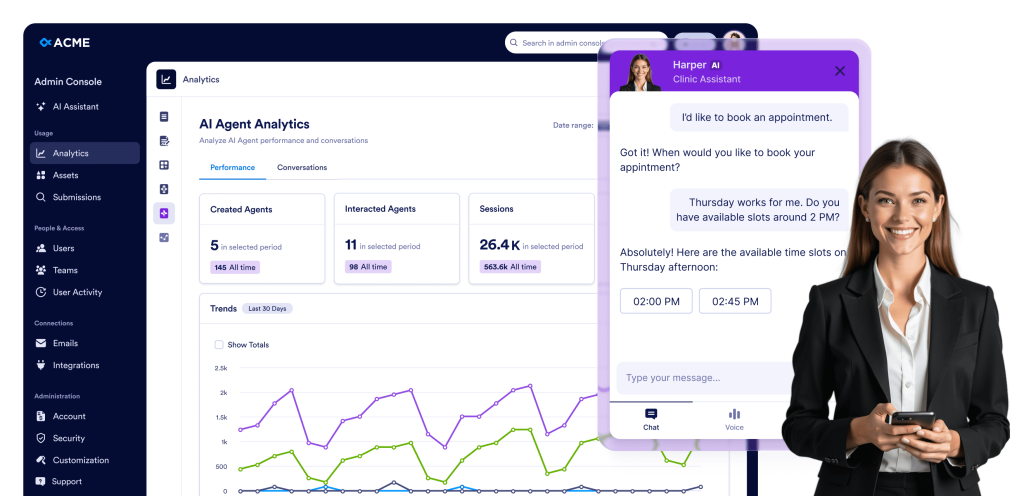
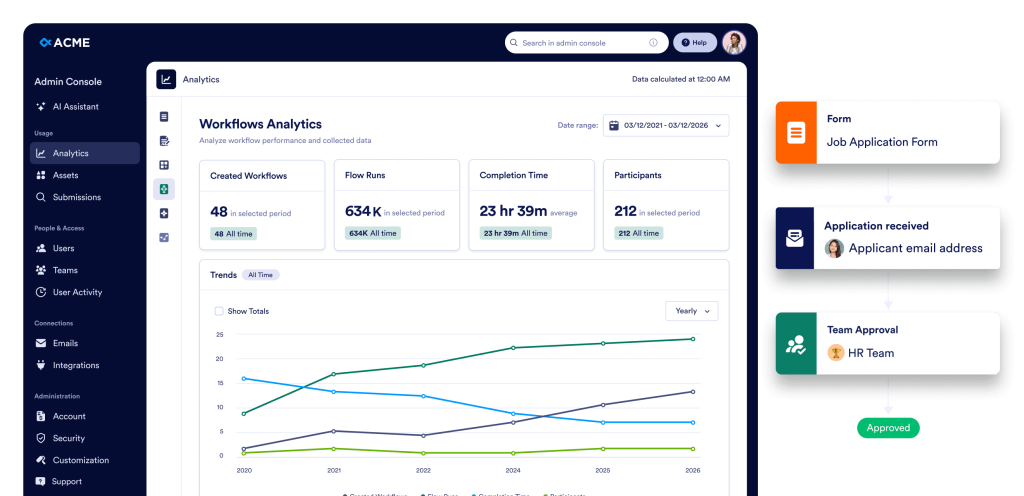
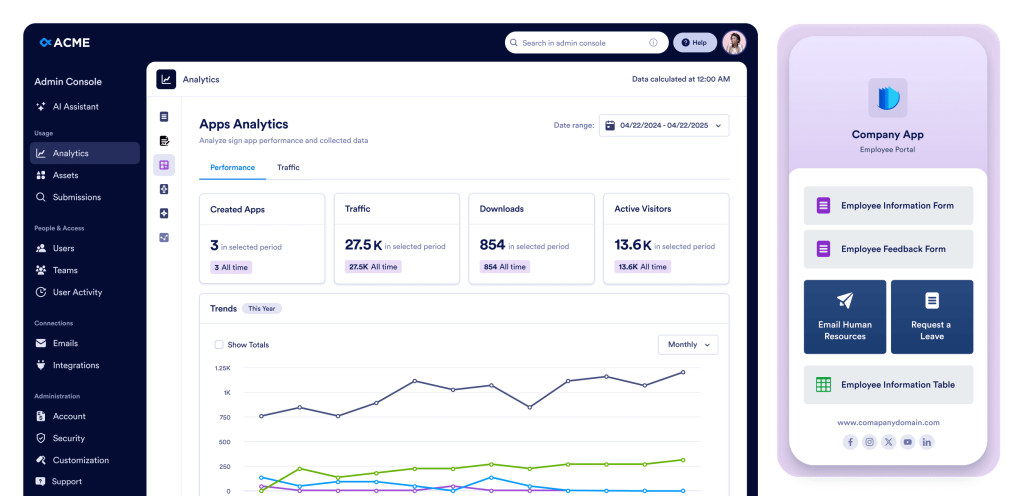
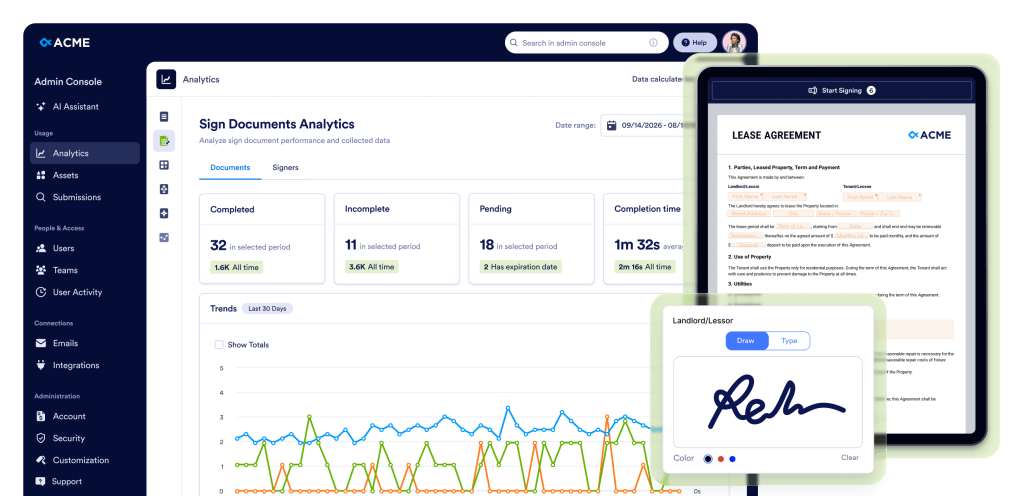
Ja, gehen Sie in der Admin Konsole im linken Menü zu Analysen. Sie können organisationsweite Nutzungsdaten für Formulare, KI Assistenten, Sign Dokumente, Apps und Workflows einsehen. Zusätzlich können Sie die Detailseite jedes Assets öffnen, um individuelle Nutzungskennzahlen, Einreichungsdaten und Performance-Insights einzusehen, die Ihnen helfen, Aktivitäten zu überwachen und fundierte Entscheidungen zu treffen.
Ja, gehen Sie in der Admin Konsole im linken Menü zu Assets > Mobile App. Sie können Ihre Enterprise App herunterladen, User aus Ihrer Organisation einladen und sogar gegen eine zusätzliche Gebühr eine individuelle mobile App erstellen. Sie können diese mit dem Branding Ihrer Organisation personalisieren, einschließlich Logo, Name und Farben, um Ihre visuelle Identität widerzuspiegeln.
Ja, gehen Sie in der Admin Konsole im linken Menü zu Sicherheit. In diesem Bereich können Sie alle organisationsweiten Sicherheitseinstellungen konfigurieren, einschließlich Zugriffskontrollen, Authentifizierungsoptionen und anderer Richtlinien, um sicherzustellen, dass die Daten und Assets Ihrer Organisation sicher bleiben.
Sie können SSO aktivieren, sobald es für Ihr Konto aktiviert wurde. Wenn SSO noch nicht aktiviert ist, wenden Sie sich an Ihren Account Manager, um die Aktivierung zu beantragen. Nach der Aktivierung wird der Button SSO-Anbieter hinzufügen im Abschnitt Sicherheit freigeschaltet, sodass Sie Ihren SSO-Anbieter für Ihre Organisation verbinden und konfigurieren können.
Ja, gehen Sie in der Admin Konsole im linken Menü zu Sicherheit > Zwei-Faktor-Authentifizierung (2FA). Sie können 2FA für Ihre Organisation aktivieren und optional für alle Benutzer durchsetzen, um die Kontosicherheit zu erhöhen und Organisationsdaten zu schützen.
Ja, gehen Sie zunächst in der Admin Konsole über das linke Menü zu Sicherheit und aktivieren Sie 2FA für Ihre Organisation. Gehen Sie dann zu Benutzer, klicken Sie auf das Drei-Punkte-Menü neben einem bestimmten Benutzer und wählen Sie 2FA-Einstellungen, um die Zwei-Faktor-Authentifizierung individuell für diesen Benutzer zu konfigurieren.
Ja, gehen Sie in der Admin Konsole im linken Menü zu Sicherheit > Sitzungszeitbegrenzung. Sie können die Sitzungszeitbegrenzung für alle Benutzer in Ihrer Organisation festlegen, mit Optionen wie Nie, 15 Minuten, 30 Minuten, 1 Stunde oder 2 Stunden, um Sicherheit und Benutzeraktivität effizient zu verwalten.
Ja, gehen Sie in der Admin Konsole im linken Menü zu Sicherheit > IP-Adressbeschränkungen. Sie können bestimmte Netzwerkadressen über den Tab Netzwerk hinzufügen hinzufügen und als Vertrauenswürdig oder Beschränkt markieren. So können Sie den Serverzugriff effektiv kontrollieren und Netzwerkberechtigungen in Ihrer gesamten Organisation verwalten.
In der Admin Konsole gehen Sie im linken Menü zu Support. Sie können alle Support-Tickets anzeigen, die innerhalb Ihrer Organisation erstellt wurden, neue Tickets erstellen und sogar Zoom-Anrufe mit dem Support-Team planen, um Probleme effizient zu lösen.
Ja, gehen Sie in der Admin Konsole im linken Menü zu Teams. Sie können alle Teams in Ihrer Organisation einsehen, Teammitglieder aktualisieren, Berechtigungen ändern und Sichtbarkeitseinstellungen anpassen (privat oder Organisation). Um ein neues Team zu erstellen, verwenden Sie die Schaltfläche Team erstellen. Sie können auch auf die Schaltfläche Einstellungen auf derselben Seite klicken, um allgemeine teambezogene Optionen und Einstellungen zu konfigurieren.
Gehen Sie in der Admin Konsole im linken Menü zum Abschnitt Aktivitätsprotokolle. Sie können alle organisationsweiten Aktivitätsprotokolle einsehen, nach User, Aktivität (z. B. Erstellung, Löschung oder Aktualisierung von Assets), Asset-Typ und Zeitraum filtern und bei Bedarf gefilterte Protokolle herunterladen.


