-
 administracion979
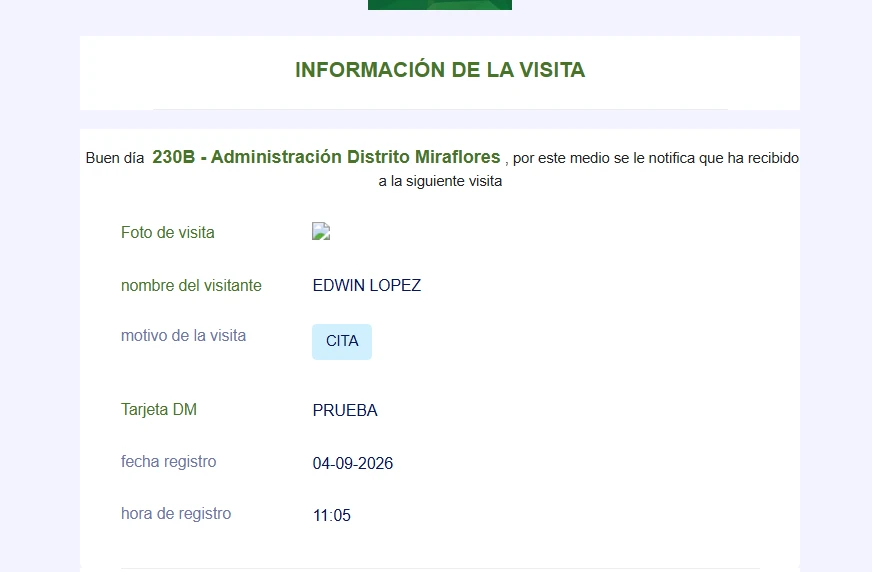
buenos días, no se pueden visualizar las imagenes en el aviso que llega a los clientes, adjunto foto de referencia

-
 Podo: Support Specialist
Hi administracion979,
Thanks for reaching out to Jotform Support. I'm an AI assistant here to assist you.
Let me show you how to add images to your emails in Jotform Workflow so they are visible to your clients:
- In Workflow Builder, click on the Email element.
- Click on the Envelope icon to open the Email Properties.
- Under Email Content, click on the Insert Image icon.
- Click on Upload File, then select your image file or drag and drop it into the box.
- Click on Insert Image, then click Save.
Give it a try and let us know how it goes.
-
administracion979
Las imagenes se escanean desde un escaner conectado a usb a la computadora, no se hace manualmente.
-
Podo: Support Specialist
Hi administracion979,
Thank you for the clarification. Since the images are scanned from a USB-connected scanner and not manually added, please ensure that the scanned images are properly saved on your computer in a supported format (such as JPG or PNG) before uploading them to the email content in Jotform Workflow.
After scanning, follow the steps to upload the saved image files into the email element as described previously. This ensures the images are correctly embedded and visible in the emails sent to your clients.
If the images still do not appear, please check the image file size and format compatibility, and confirm that the images are correctly uploaded in the Workflow Builder's email settings.
Reach out again if you have any other questions.
-
administracion979
Las imagenes no son insertadas manualmente, se escanea la imagen y se va automaticamente inserta en el formulario, No se insertan manualmente.
-
Podo: Support Specialist
Hi administracion979,
Thank you for the additional information. Since the images are automatically scanned and inserted into the form, the issue might be related to how these images are processed or linked within the form and subsequently in the email notifications.
To help resolve this, please check the following:
- Ensure that the scanned images are properly saved and linked within the form fields that support image uploads.
- Verify that the email notification or workflow email is configured to include these image fields so that the images are embedded or linked correctly in the emails sent to clients.
- Check if there are any restrictions or settings in the form or workflow that might prevent images from displaying in the email.
If these steps do not resolve the issue, please provide more details about how the images are inserted automatically (e.g., through an integration, widget, or custom script) so we can assist you further.
Reach out again if you need any other help.
-
administracion979
We would like to report an issue we are currently experiencing with the visit registration system.
At present, visitor images are captured באמצעות a scanner connected via USB to a computer. The system automatically uploads these images to the server and sends the corresponding notification to the client.
However, we have identified that although the image is successfully uploaded and can be viewed by the administrator (when accessing the image link directly), other users or clients are unable to visualize it. Instead, a broken image icon is displayed.
In this regard, we kindly request your support to verify:
- Whether there are any permission restrictions for image visualization based on user roles.
- If the image URLs require additional authentication.
- Or if any configuration adjustments are needed to ensure images are accessible to all შესაბამის users.
We appreciate your assistance and look forward to your guidance in resolving this issue.
-
Podo: Support Specialist
Hi administracion979,
Regarding the issue with visitor images not being visible to clients and showing a broken image icon, this is often related to permission restrictions or authentication requirements for viewing uploaded files.
In Jotform, there is a security setting called Require Log-in to View Uploaded Files that, when enabled, requires users to be logged in to view or download uploaded images or files. This setting can cause images to be visible to administrators but not to other users or clients who are not logged in, resulting in broken image icons.
To resolve this, you can disable the login requirement for viewing uploaded files by following these steps:
- Go to your Workspace page and click on your Profile Picture/Avatar at the top-right corner.
- Click on Settings to open your Account Settings page.
- Navigate to the Security tab on the left side.
- Click on Send Verification Code and check your email for the code.
- Enter the verification code to confirm changes.
- Under the Privacy section, uncheck the box for Require Log-in to View Uploaded Files.
After this, images should be accessible to all users without requiring login.
Note: If your account is subject to HIPAA compliance or KYC verification, this option may be mandatory and cannot be disabled.
For more detailed instructions, please see our guide on How to Disable Require Log-in to View Uploaded Files.
Give it a try and let us know how it goes.
-
administracion979
Thank you very much for your prompt assistance and support in resolving this issue.
We appreciate your efficiency and the attention provided, which allowed us to restore the proper functionality of the system.
-
Podo: Support Specialist
Hi administracion979,
You're very welcome. I'm glad to hear that the issue has been resolved and your system is functioning properly again.
If you have any other questions or need further assistance, please don't hesitate to reach out.
Let us know if you have any other questions.
-
administracion979
Thank you.
Your Reply
Something Went Wrong
An error occurred while generating the AI response. Please try again!