
Lihat log untuk semua integrasi pihak ketiga Anda dan kelola pipeline data di seluruh organisasi Anda.
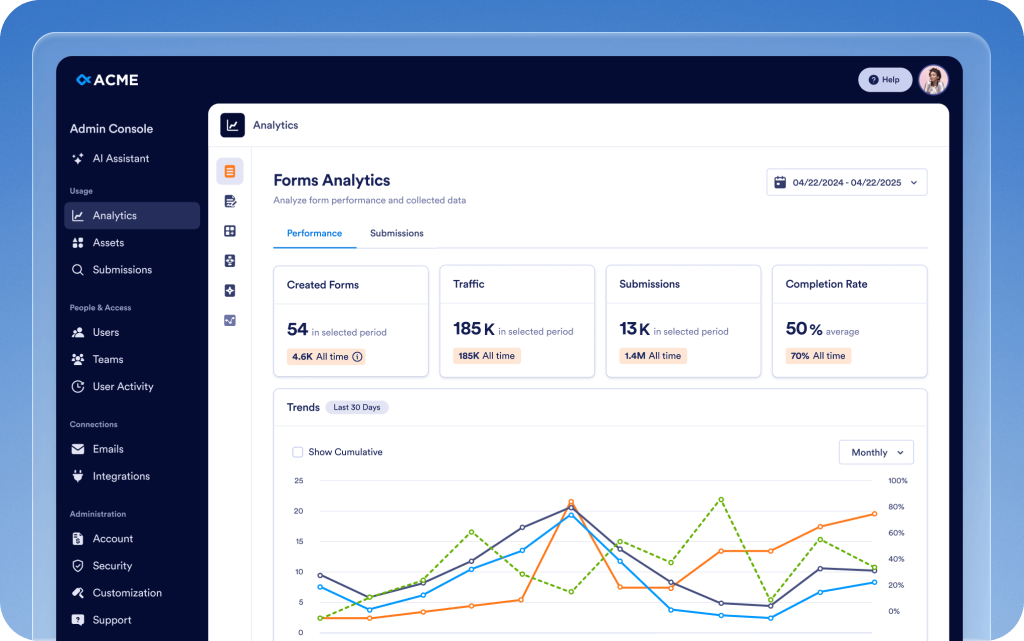
Satukan analitik, manajemen, dan kontrol keamanan untuk setiap tim, aset, dan integrasi dalam hub terpusat. Konsol Admin mempercepat pekerjaan, memastikan keamanan yang lebih besar, dan memungkinkan Anda menjalankan perusahaan Anda dengan lebih cerdas.
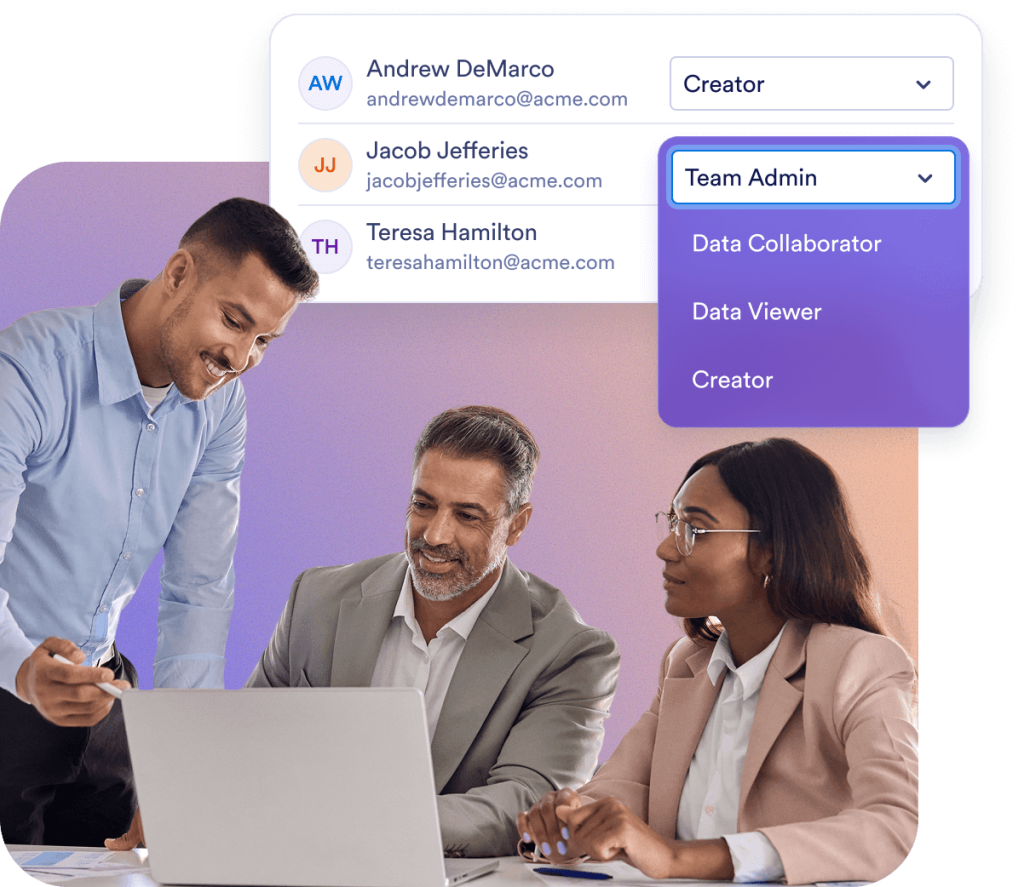
Pastikan akses yang aman untuk anggota tim sambil menjaga kolaborasi tetap lancar. Di Konsol Admin, Anda dapat mengelola peran pengguna, akun tamu, dan Ruang Kerja dari platform terpusat.
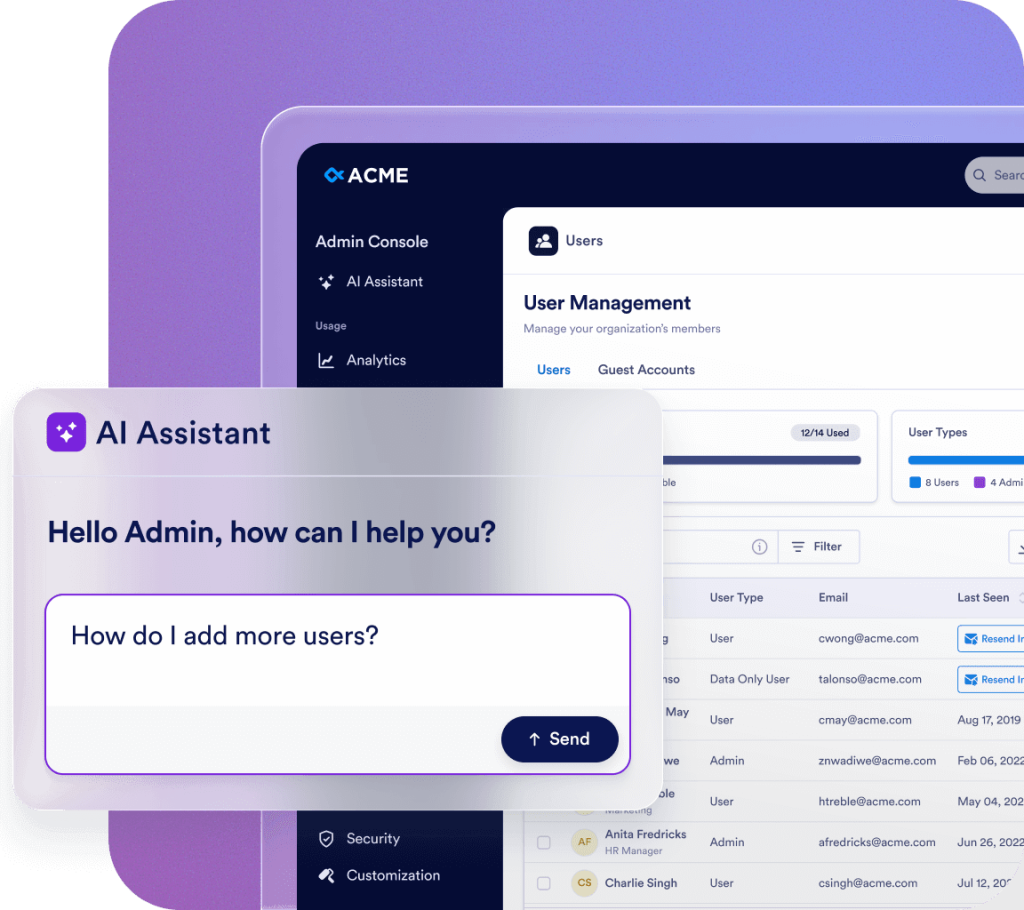
Streamline your administration with Jotform AI. Whether you need to navigate the Admin Console, manage users, or update organization settings, just ask. Get instant answers or let AI handle the task for you—all in one place.
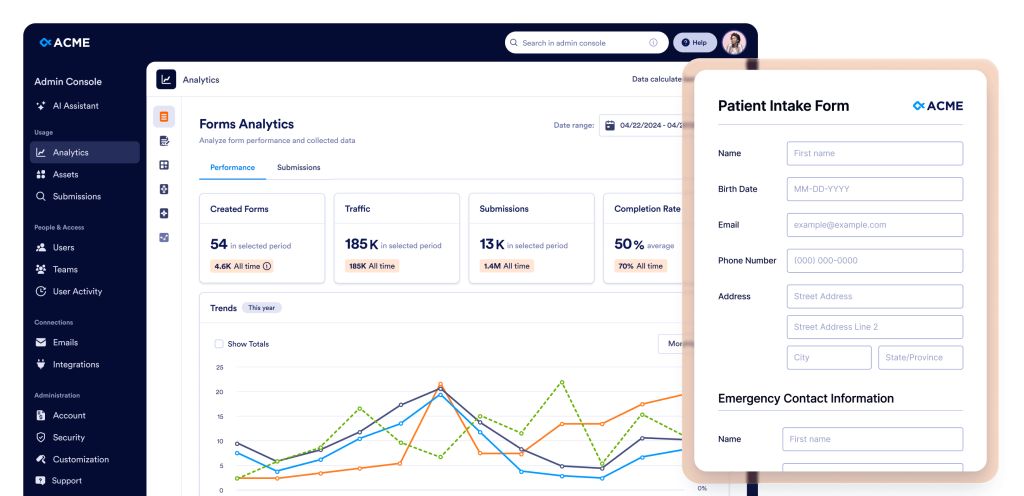
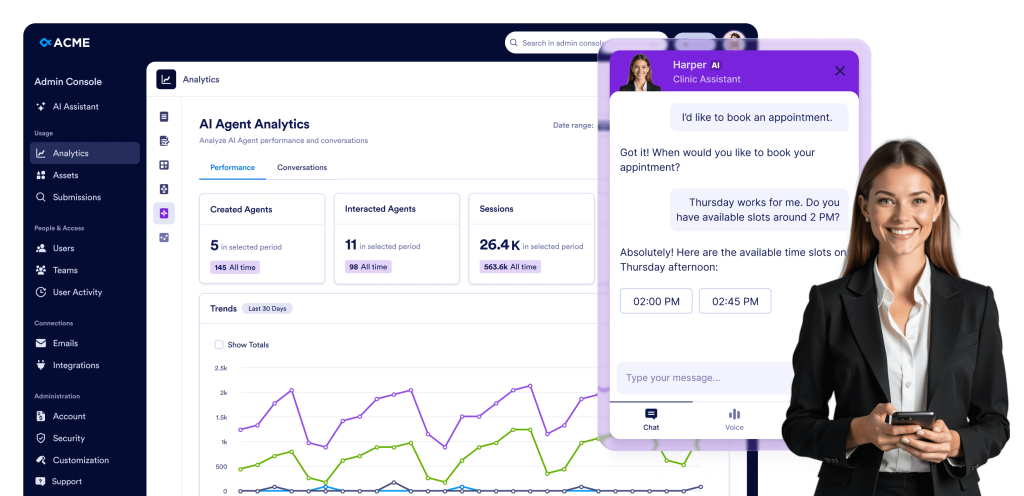
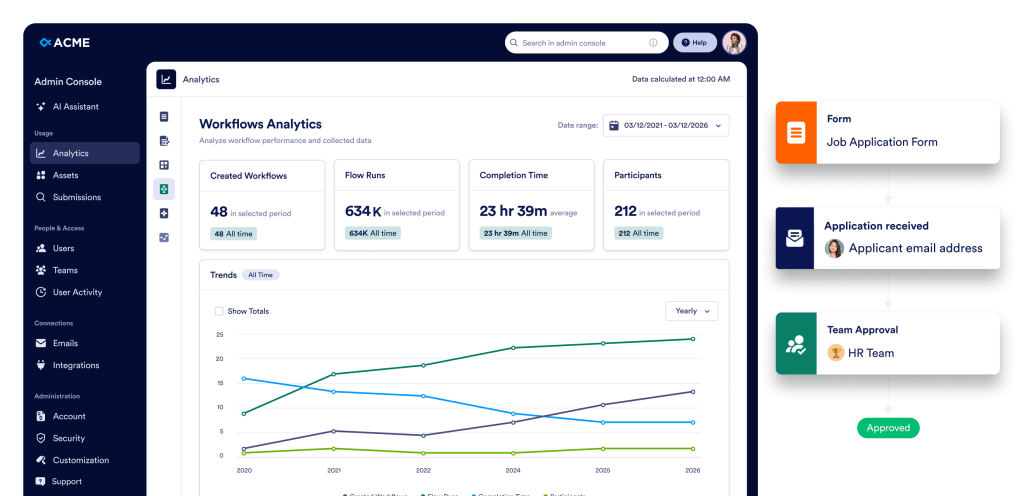
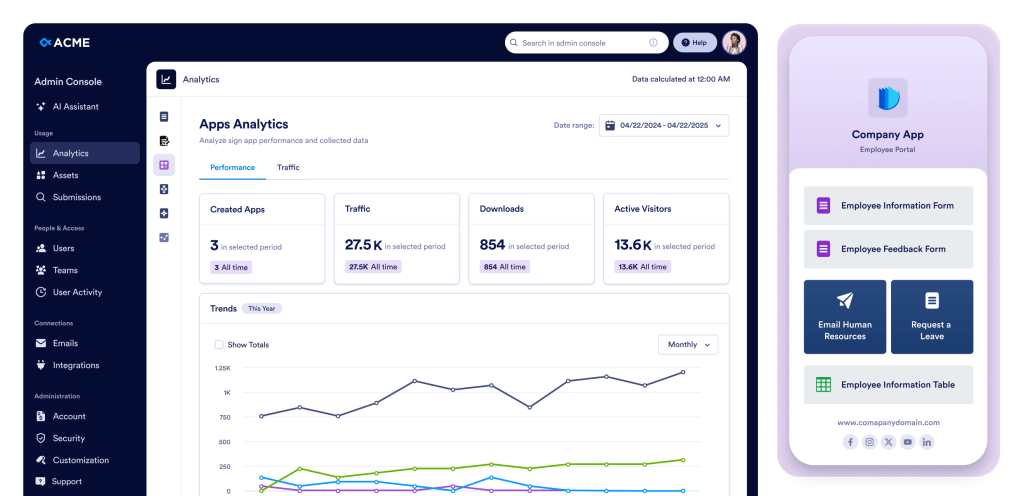
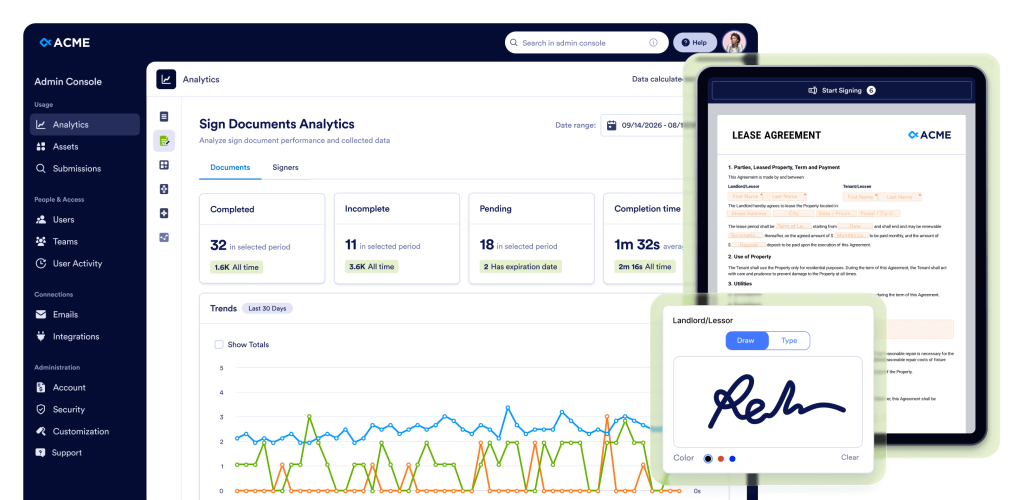
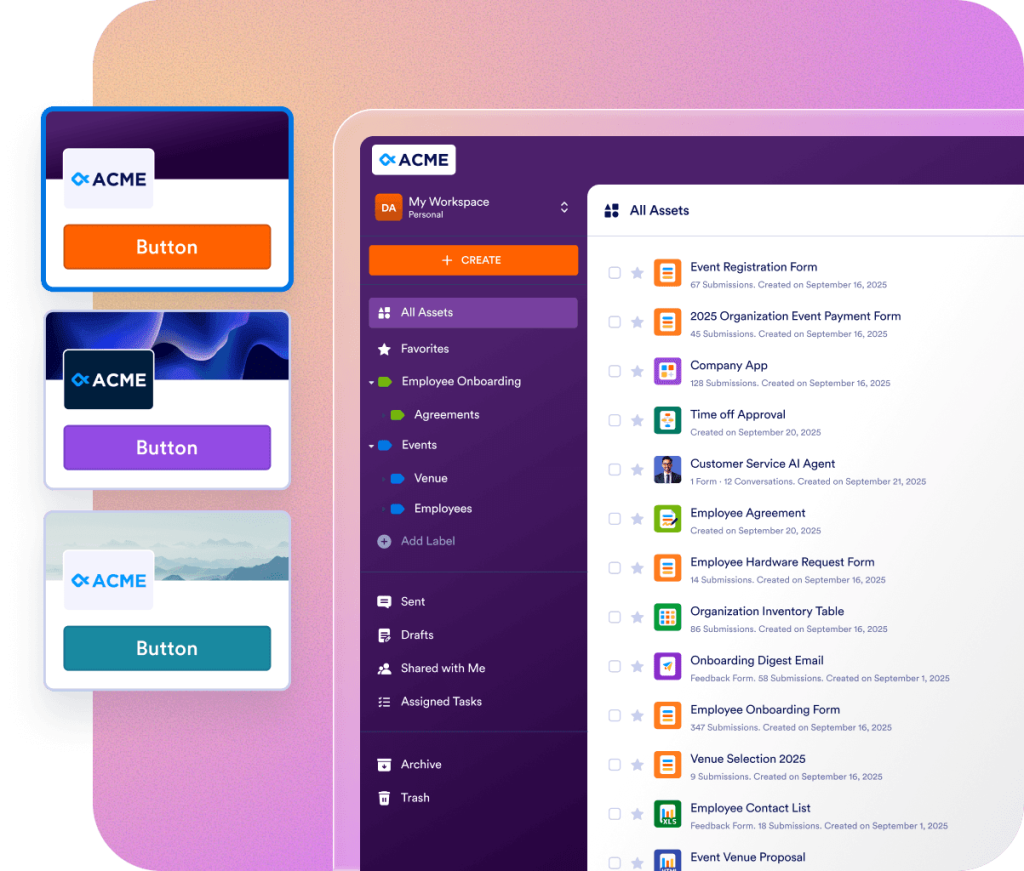
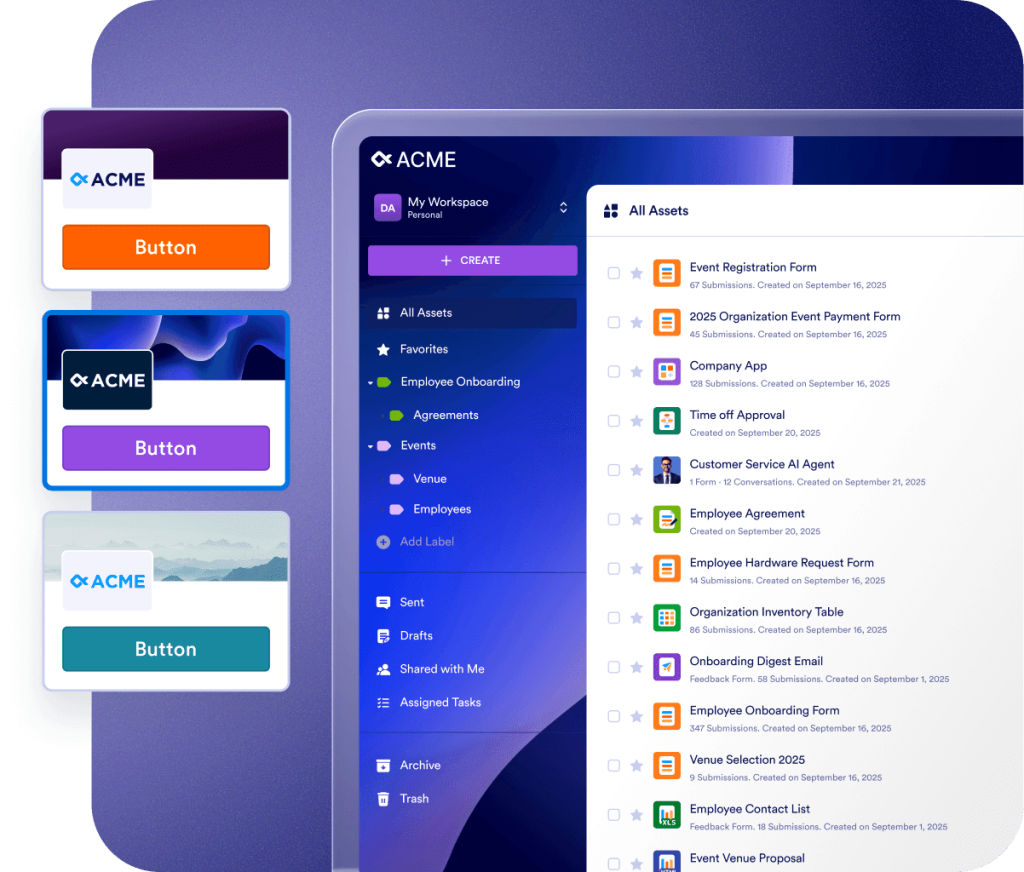
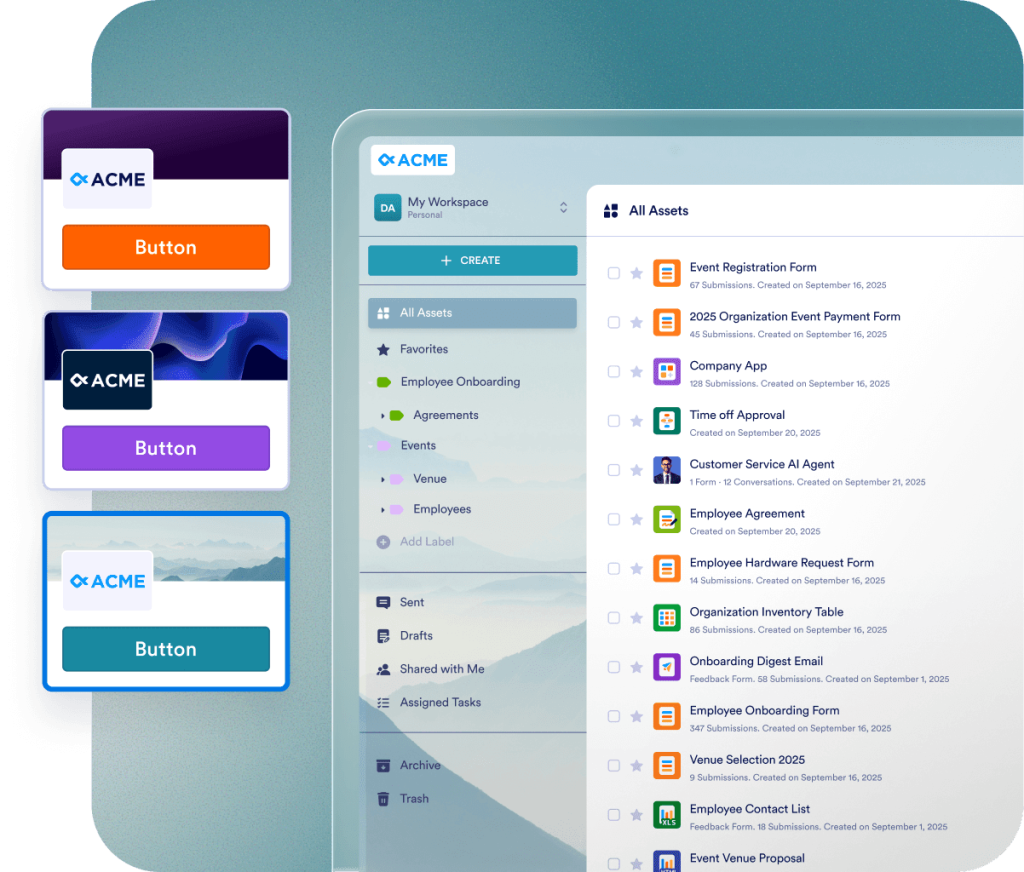
Berikan pengalaman merek yang konsisten di seluruh organisasi Anda dengan visual yang dapat disesuaikan sepenuhnya, layar login, dan tema formulir. Izinkan pengguna untuk memilih tampilan Ruang Kerja mereka sendiri atau terapkan tampilan yang seragam untuk mencerminkan identitas organisasi Anda di setiap titik sentuh.
Jotform Enterprise mudah beradaptasi dengan kebutuhan Anda untuk ROI yang lebih cepat. Pindahkan data, sesuaikan alur kerja, dan kustomisasi widget dengan API kami yang mudah digunakan dan ratusan integrasi. Gunakan webhook untuk memicu aliran data atau mengarahkan notifikasi tanggapan ke URL tertentu.
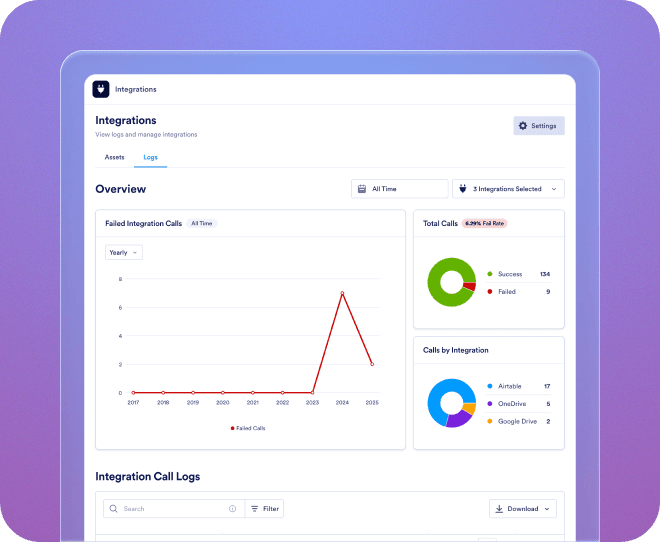
Lihat log untuk semua integrasi pihak ketiga Anda dan kelola pipeline data di seluruh organisasi Anda.
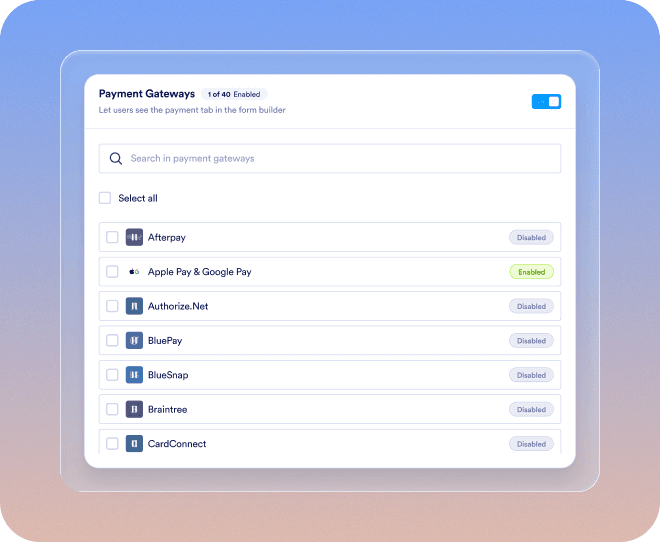
Tambahkan gateway pembayaran baru, tautkan ke aset, konfigurasikan pengaturan pembayaran, dan pertahankan pengawasan di seluruh organisasi dengan mudah.
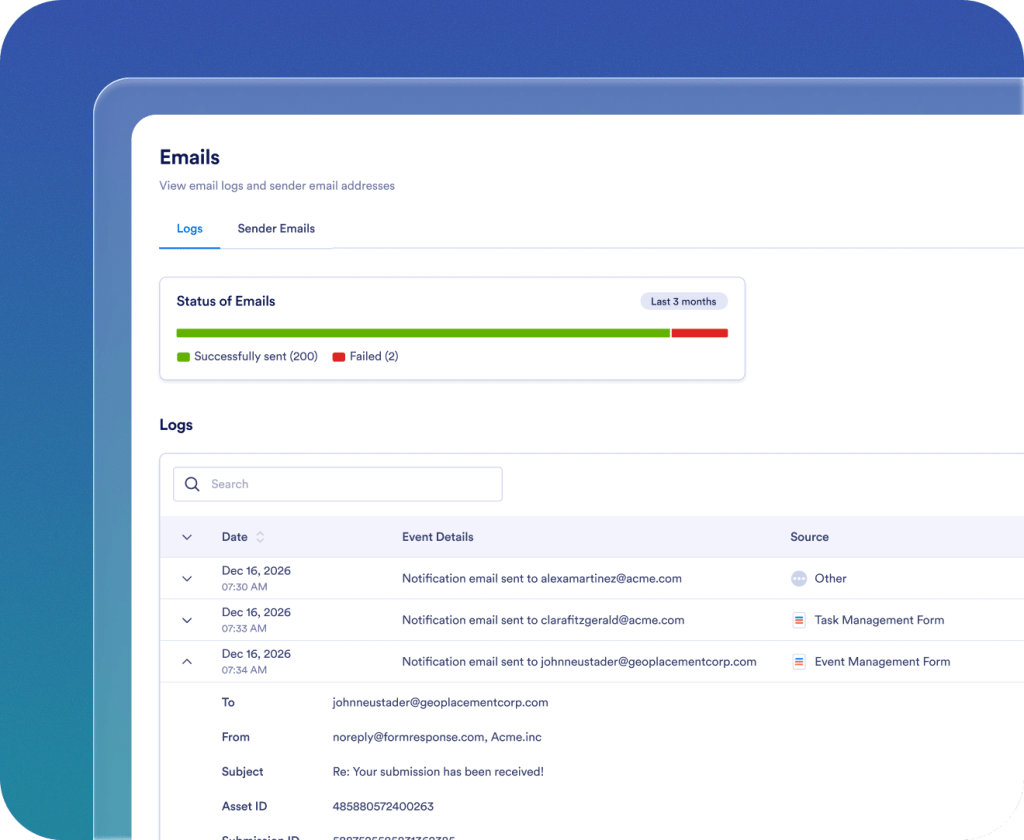
Tambahkan, lacak, dan kelola email pengirim di seluruh organisasi Anda.
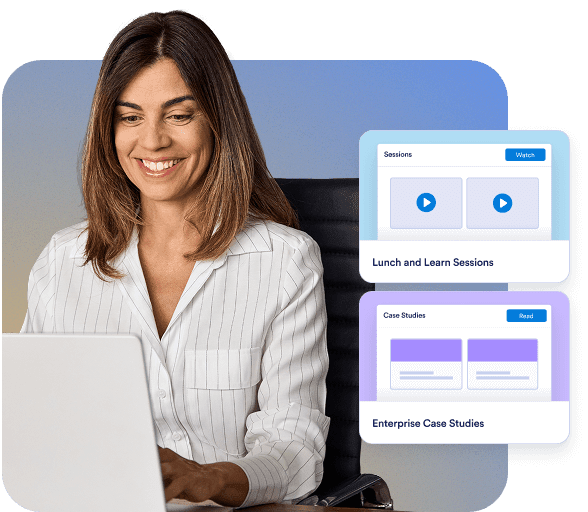
Nikmati pengalaman orientasi yang lancar sejak hari pertama. Manajer kesuksesan pelanggan khusus Anda memberikan dukungan langsung untuk organisasi Anda. Dapatkan panduan langsung melalui Zoom atau jawaban cepat untuk pertanyaan yang Anda kirimkan. Anda juga dapat memanfaatkan sumber daya komprehensif dan terkini, termasuk e-book, panduan pengguna, dan buletin.

Keamanan tingkat enterprise mencakup kontrol seluruh server seperti single sign-on (SSO), izin berbasis peran, autentikasi dua faktor, batas waktu sesi, dan pembatasan IP. Jotform Enterprise mematuhi peraturan GDPR dan CCPA, dan menawarkan formulir yang ramah HIPAA sebagai opsi. Anda juga dapat menyimpan semua data Anda di pusat residensi data lokal.
Hubungi Sales
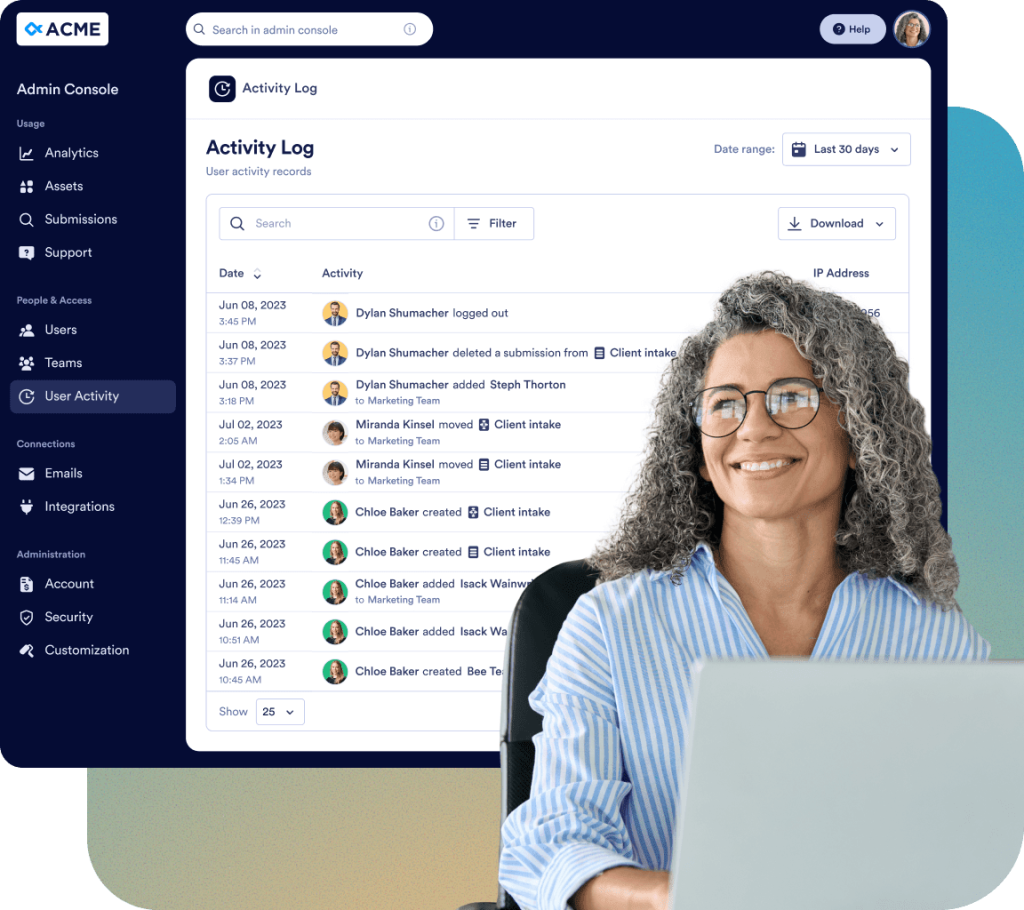
Pantau setiap perubahan di seluruh organisasi Anda dengan log terperinci:
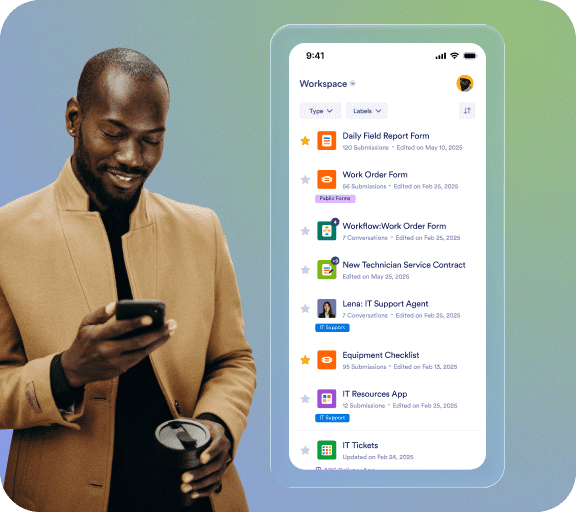
Berdasarkan permintaan, tim Jotform akan membuat dan memelihara aplikasi seluler native kustom untuk organisasi Anda. Akses Jotform Enterprise kapan saja dan di mana saja dalam lingkungan yang aman dan bermerek untuk mencerminkan identitas organisasi Anda. Anda dapat dengan mudah melacak pengguna dan perangkat, dan mengundang tim Anda untuk mengunduh aplikasi.

Tim kami yang berdedikasi hadir untuk memastikan implementasi yang lancar yang disesuaikan dengan kebutuhan organisasi Anda. Dapatkan panduan ahli di setiap langkah, mulai dari pembuatan formulir hingga optimasi alur kerja. Biarkan kami mempersiapkan perusahaan Anda untuk sukses.
Konsol Admin adalah area manajemen pusat tempat pengguna admin dapat mengelola semua pengaturan terkait organisasi. Dari sini, Anda dapat mengelola pengguna dan akun tamu, mengonfigurasi pengaturan keamanan, memantau log, mengelola aset, melihat analitik penggunaan, dan mengakses semua informasi akun dan tagihan yang terkait dengan organisasi Anda.
Jika Anda memiliki peran Admin, klik tab Avatar Anda, lalu pilih opsi Konsol Admin dari menu dropdown. Anda akan diarahkan ke halaman beranda Konsol Admin.
Ya. Di Konsol Admin, buka menu kiri dan pilih Pengguna. Anda akan menemukan dua tab terpisah: Pengguna dan Akun Tamu. Dari sana, Anda dapat menambahkan anggota baru, memperbarui peran mereka, dan membuat perubahan terkait keamanan.
Ya. Di Konsol Admin, buka Pengguna > Akun Tamu. Anda dapat melihat semua pengguna tamu di organisasi Anda, memeriksa aset yang ditugaskan kepada mereka, dan mencabut akses mereka bila diperlukan.
Ya. Di Konsol Admin, buka menu kiri dan klik pada bagian Pengguna. Anda dapat melihat daftar semua pengguna, dan mengeklik tombol tindakan tiga titik di sebelah kanan setiap pengguna yang terdaftar akan membuka sidebar tempat Anda dapat memeriksa tab Aset untuk melihat aset yang dimiliki, dibagikan, dan ditugaskan setiap pengguna yang diizinkan, dan mencabut akses jika perlu.
Tidak. Saat menghapus pengguna, akan muncul modal konfirmasi, yang memungkinkan Anda mentransfer semua aset terkait ke pengguna aktif lain sebelum menyelesaikan penghapusan.
Ya. Di Konsol Admin, buka menu kiri dan pilih Akun & Tagihan > Faktur. Anda dapat melihat daftar semua faktur, termasuk status berbayar dan belum berbayar.
Di Konsol Admin, dari menu sebelah kiri, buka Akun & Tagihan > Akun. Anda dapat memantau batasan agen SMS Bulanan (1.000 pesan) dan Suara (1.000 menit), serta melihat peringatan terkait ambang batas penggunaan. Batasan ini terlihat di halaman ini jika Anda telah mengaktifkan agen untuk organisasi Anda dari Aset > Agen > Pengaturan.
Ya. Di Konsol Admin, dari menu kiri, buka Akun & Tagihan > Info Tagihan. Dari halaman ini, Anda dapat meninjau dan memperbarui alamat tagihan organisasi Anda, rincian kontak tagihan, dan informasi terkait lainnya untuk memastikan catatan tagihan Anda tetap akurat dan terbaru.
Ya. Di Konsol Admin, dari menu kiri, buka Kustomisasi. Di bagian ini, Anda dapat membuka tab Ruang Kerja, Halaman Login, atau Halaman Error untuk mendesain dan menyesuaikan tampilan dan konten setiap halaman untuk organisasi Anda.
Ya. Di Konsol Admin, buka Aset dari menu kiri dan pilih Formulir > Pengaturan Formulir. Kemudian, buka tab Tema Formulir untuk membuat tema formulir kustom untuk organisasi Anda. Anda dapat menyesuaikan logo, ukuran, warna latar belakang, dan gaya keseluruhan. Tema ini hanya berlaku untuk Formulir Klasik dan dapat diatur sebagai default atau diterapkan untuk semua pengguna.
Ya. Di Konsol Admin, buka Kustomisasi dari menu kiri dan buka tab Kit Merek. Dengan bantuan AI, Anda dapat secara otomatis menghasilkan kit merek lengkap menggunakan logo atau situs web organisasi Anda. Dari sana, Anda dapat meninjau dan menyesuaikan warna, font, dan gaya yang disarankan agar sesuai dengan identitas visual organisasi Anda. Setelah selesai, Anda dapat menerapkan kit merek ini di seluruh halaman Login, Error, Ruang Kerja, dan halaman lain yang dapat disesuaikan.
Ya. Di Konsol Admin, buka Integrasi dari menu kiri dan pilih tab Log. Anda dapat melihat semua integrasi yang terhubung di seluruh organisasi Anda, meninjau log terperinci untuk setiap integrasi, melacak riwayat penggunaan, dan dengan cepat mengidentifikasi setiap panggilan yang gagal atau kesalahan. Ini memungkinkan Anda memantau kinerja integrasi dan memecahkan masalah secara efektif.
Ya. Di Konsol Admin, buka Integrasi dari menu kiri dan buka tab Pengaturan. Dari sini, Anda dapat melihat semua integrasi yang tersedia untuk organisasi Anda dan mengonfigurasi visibilitasnya. Anda dapat memilih untuk menyembunyikan atau menampilkan integrasi tertentu untuk pengguna di pembuat formulir, atau bahkan menyembunyikan seluruh bagian Integrasi jika diperlukan. Ini memungkinkan Anda mengontrol integrasi mana yang dapat diakses oleh pengguna dan memastikan pengalaman yang efisien di pembuat formulir.
Ya. Di Konsol Admin, buka Email dari menu kiri dan pilih tab Log. Anda dapat melacak semua email di seluruh organisasi, termasuk penerima penjawab otomatis dan notifikasi. Log memungkinkan Anda memfilter email berdasarkan rentang tanggal, meninjau status pengiriman, mengidentifikasi kesalahan atau kegagalan, dan mengunduh data log untuk tujuan pelaporan atau audit. Ini memberikan visibilitas penuh ke dalam aktivitas email organisasi Anda.
Ya. Di Konsol Admin, buka Email dari menu kiri dan buka tab Pengaturan. Dari sini, Anda dapat menambahkan alamat email pengirim baru, baik kustom, Microsoft, atau Google, dan memutuskan apakah setiap email harus bersifat opsional atau wajib untuk semua pengguna. Ini membantu menjaga konsistensi informasi pengirim dan mempermudah pengelolaan pengaturan email di seluruh organisasi Anda.
Ya. Di Konsol Admin, dari menu kiri, buka Aset. Anda dapat mengakses semua jenis aset, termasuk Formulir, Agen AI, Dokumen Tanda Tangan, Aplikasi dan Alur Kerja. Untuk setiap aset, Anda dapat melihat rincian, mengubah pengaturan, menghapus, atau mengunduhnya. Anda juga dapat meninjau tanggapan dan membuka halaman analitik untuk memantau penggunaan dan kinerja di seluruh organisasi Anda.
Anda hanya dapat mengubah pemilik aset Formulir. Jika formulir terhubung ke aset lain, seperti alur kerja, kepemilikan alur kerja terkait akan diperbarui secara otomatis setiap kali pemilik formulir diubah.
Ya. Di Konsol Admin, dari menu kiri, buka Analitik. Anda dapat melihat data penggunaan di seluruh organisasi untuk Formulir, Agen AI, Dokumen Tanda Tangan, Aplikasi dan Alur Kerja. Selain itu, Anda dapat membuka halaman rincian setiap aset untuk meninjau metrik penggunaan individual, data tanggapan, dan wawasan kinerja, membantu Anda memantau aktivitas dan membuat keputusan berdasarkan informasi.
Ya. Di Konsol Admin, dari menu kiri, buka Aset > Aplikasi Selular. Anda dapat mengunduh Aplikasi Enterprise Anda, mengundang pengguna dari organisasi Anda, dan bahkan membuat aplikasi seluler kustom dengan biaya tambahan. Anda dapat mempersonalisasikannya dengan merek organisasi Anda, termasuk logo, nama, dan warna, agar sesuai dengan identitas visual Anda.
Ya. Di Konsol Admin, dari menu kiri, buka Keamanan. Dari bagian ini, Anda dapat mengonfigurasi semua pengaturan keamanan di seluruh organisasi, termasuk kontrol akses, opsi otentikasi, dan kebijakan lain untuk memastikan data dan aset organisasi Anda tetap aman.
Anda dapat mengaktifkan SSO setelah diaktifkan untuk akun Anda. Jika SSO belum diaktifkan, hubungi Manajer Akun Anda untuk meminta aktivasi. Setelah diaktifkan, tombol Tambah Penyedia SSO akan menjadi aktif di bagian Keamanan, memungkinkan Anda untuk menghubungkan dan mengonfigurasi penyedia SSO Anda untuk organisasi Anda.
Ya. Di Konsol Admin, dari menu kiri, buka Keamanan > Autentikasi Dua Faktor (2FA). Anda dapat mengaktifkan 2FA untuk organisasi Anda dan memilih untuk menerapkannya untuk semua pengguna, membantu meningkatkan keamanan akun dan melindungi data organisasi.
Ya. Pertama, di Konsol Admin, dari menu kiri, buka Keamanan dan aktifkan 2FA untuk organisasi Anda. Kemudian, buka Pengguna, klik menu tiga titik di sebelah pengguna tertentu, dan pilih Pengaturan 2FA untuk mengonfigurasi otentikasi dua faktor secara individual untuk pengguna tersebut.
Ya. Di Konsol Admin, dari menu kiri, buka Keamanan > Batas Waktu Sesi. Anda dapat menentukan durasi waktu sesi untuk semua pengguna di organisasi Anda, dengan opsi termasuk Tidak Pernah, 15 Menit, 30 Menit, 1 Jam, atau 2 Jam, membantu mengelola keamanan dan aktivitas pengguna secara efisien.
Ya. Di Konsol Admin, dari menu kiri, buka Keamanan > Pembatasan Alamat IP. Anda dapat menambahkan alamat IP tertentu menggunakan tab Tambah Alamat IP dan menandainya sebagai Terpercaya atau Terbatas. Ini memungkinkan Anda untuk secara efektif mengontrol akses server dan mengelola izin jaringan di seluruh organisasi Anda.
Di Konsol Admin, dari menu kiri, buka Support. Anda dapat melihat semua tiket dukungan yang dibuat dalam organisasi Anda, membuat tiket baru, dan bahkan menjadwalkan panggilan Zoom dengan tim dukungan untuk menyelesaikan masalah secara efisien.
Ya. Di Konsol Admin, dari menu kiri, buka Tim. Anda dapat melihat semua tim di organisasi Anda, memperbarui anggota tim, memodifikasi izin, dan menyesuaikan pengaturan visibilitas (pribadi atau organisasi). Untuk membuat tim baru, gunakan tombol Buat Tim. Anda juga dapat mengklik tombol Pengaturan di halaman yang sama untuk mengonfigurasi opsi dan preferensi umum terkait tim.
Di Konsol Admin, buka bagian Log Aktivitas dari menu sebelah kiri. Anda dapat melihat semua log aktivitas di seluruh organisasi, memfilternya berdasarkan Pengguna, Aktivitas (misalnya, pembuatan, penghapusan, atau pembaruan aset), Jenis Aset, dan Rentang Tanggal, serta mengunduh log yang difilter jika diperlukan.


