-
 CityDogs_Entrenamiento_
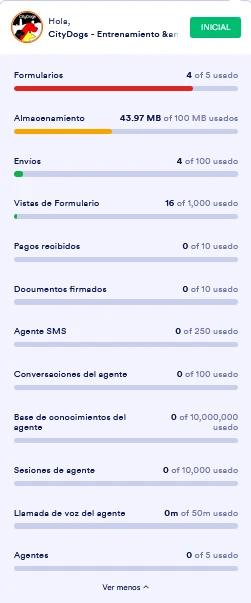
Hola! Mi cuenta CityDogs_Entrenamiento_ aparece como OVERLIMIT pese a tener uso muy bajo y todos mis formularios muestran “Form over quota”. En la captura de pantalla se ve mi dashboard que indica que está todo dentro del rango.

-
 Podo: Especialista de soporte
Hi CityDogs_Entrenamiento_,
Thanks for reaching out to Jotform Support. I'm an AI assistant here to assist you.
Although your dashboard shows that your usage is within limits, your account is currently on the Free Plan and has almost reached its plan limits. You have only 1 form count remaining out of your total all-time limit, which is why your forms are showing the "Form over quota" message.
This error typically means your account has reached a limit for submissions, form views, upload space, or other usage quotas. Here are some ways to resolve this:
- Clear your form caches: On your Workspace page, hover over your account avatar on the upper right side, click Settings from the dropdown menu, then click the Clear Cache button next to the Form Caches option.
- Clear your browser cache and log in again to see if the issue resolves.
- Check your account usage and limits: Go to your Profile Picture/Avatar on the top-right side, click Settings, then Usage to see your monthly limit reset date and current usage.
- Wait for your monthly limits to reset: Limits reset on the same day each month.
- Consider upgrading your account to a Bronze, Silver, or Gold plan to increase your limits.
If your issue is related to upload space, you can delete and purge submissions with uploaded files to free up space, or clear your form caches to recalculate usage.
For more details, you can check our guides on Understanding Your Account Usage and Limits and How to Clear Your Form Cache.
Give it a try and let us know how it goes.
-
CityDogs_Entrenamiento_
Ninguna de esas opciones me funcionó
-
Podo: Especialista de soporte
Hi CityDogs_Entrenamiento_,
Upgrading your account is easy. Let me show you how:
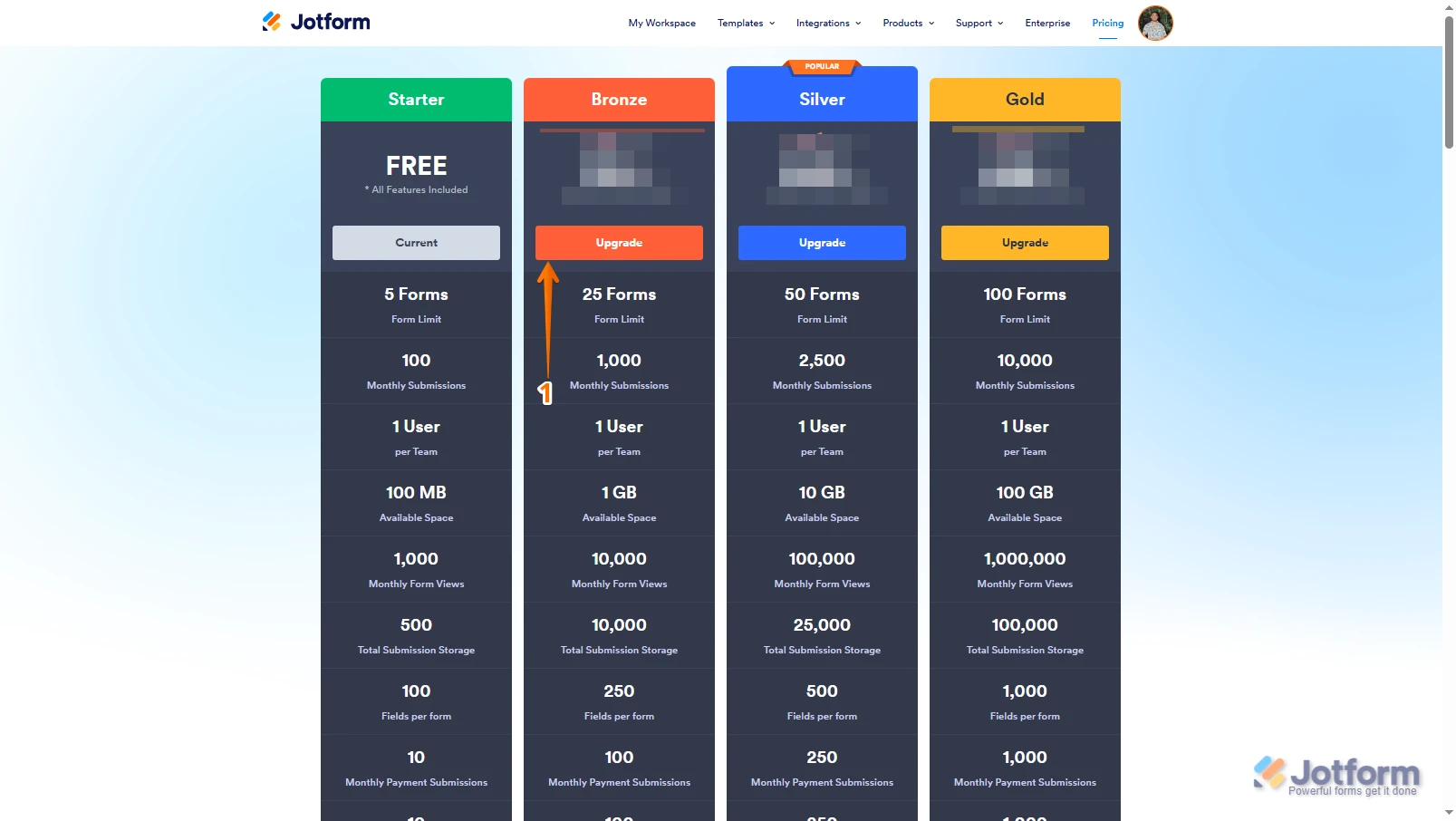
1. Log in to your Jotform account, go to the Pricing page, and click on Upgrade under the subscription plan you want.
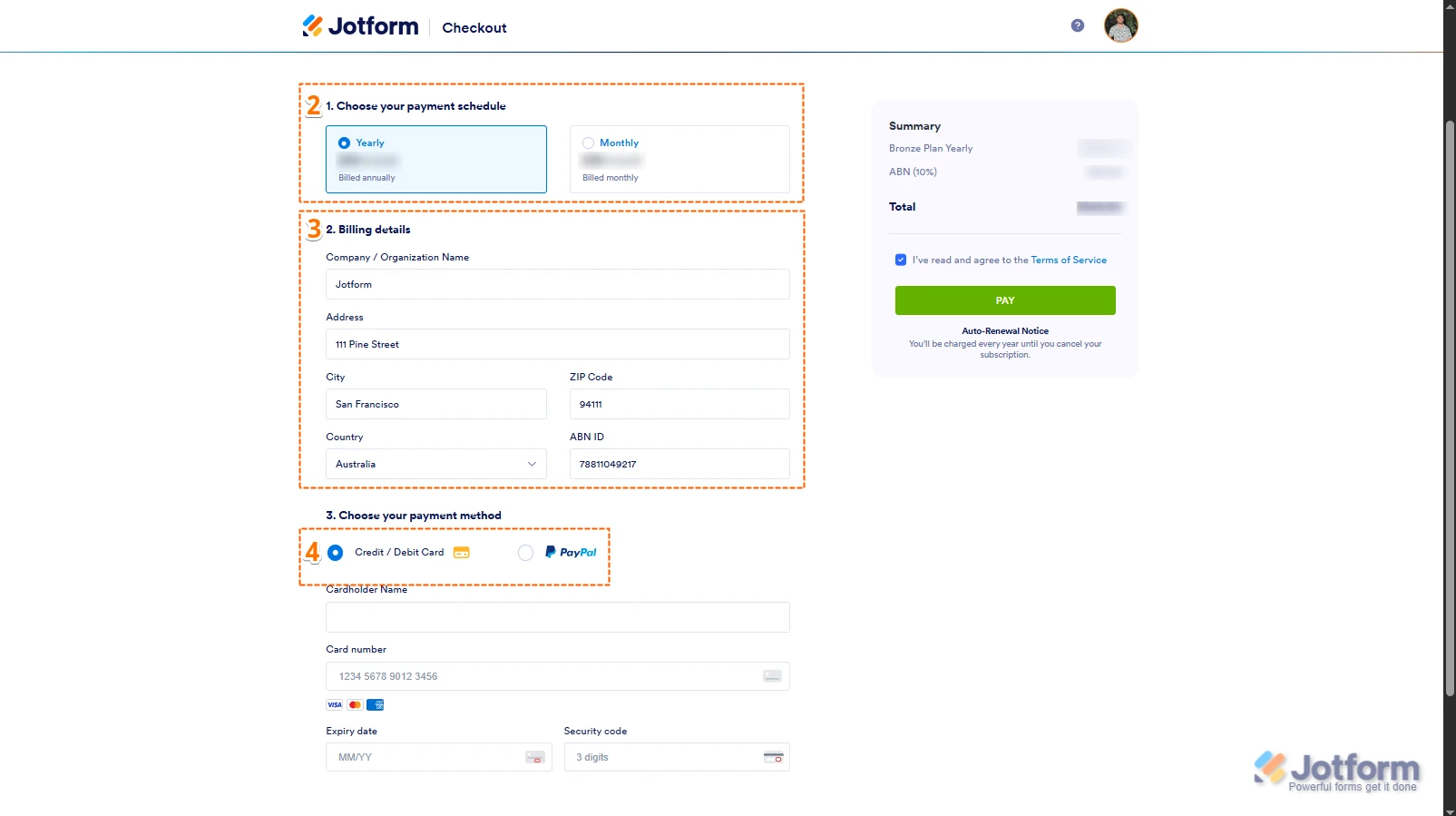
2. In the Choose Your Payment Schedule section, select Yearly or Monthly.
3. Then, enter your billing details in the Billing details section.
4. In the Choose your Payment Method section, select Credit/Debit Card or PayPal.
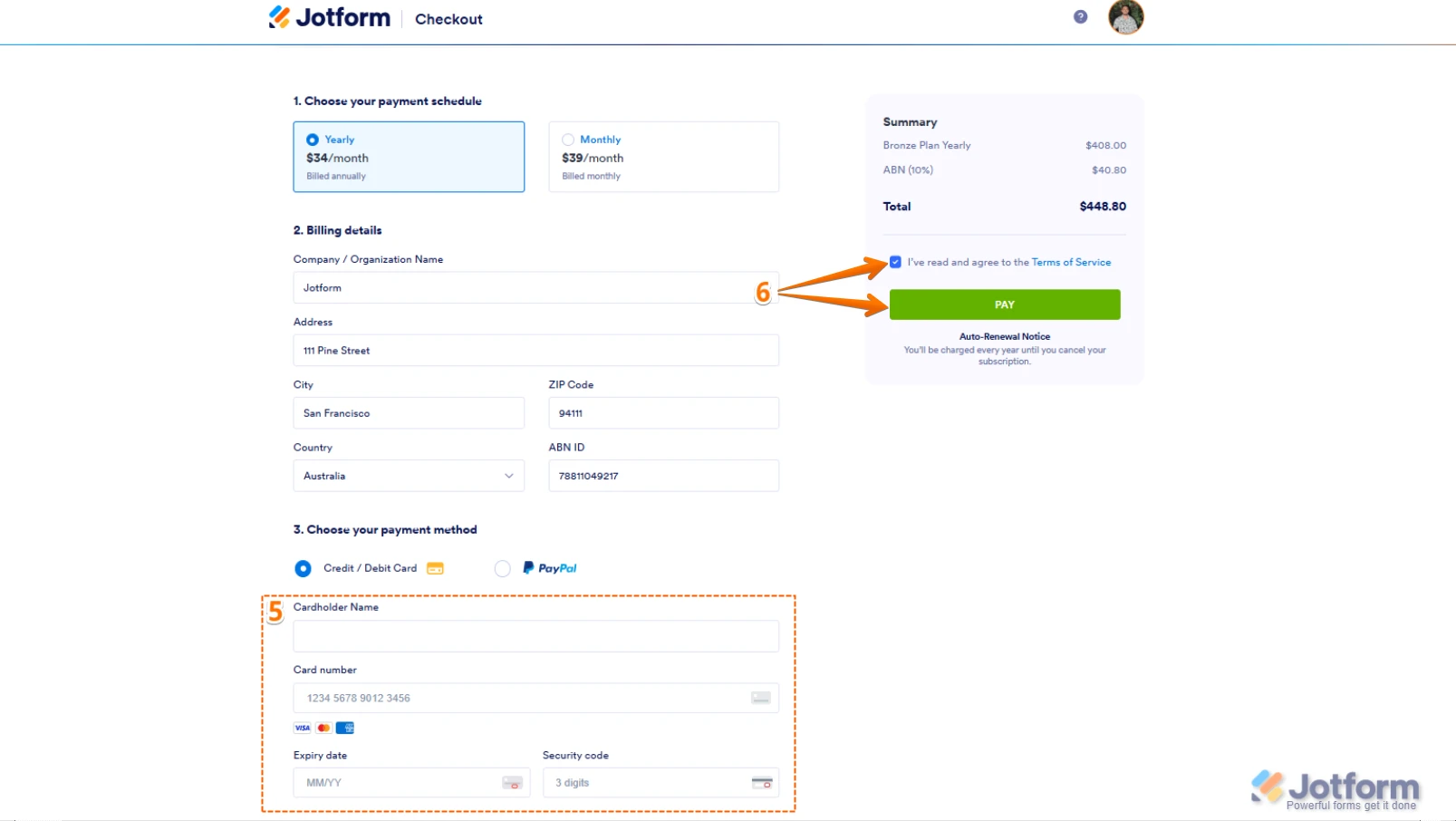
5. If you choose Credit/Debit Card, you can enter your card information below the Credit/Debit Card option.
6. Next, in the top-right corner of the page, in the Summary section, tick the box next to Terms of Service, and click on Pay.
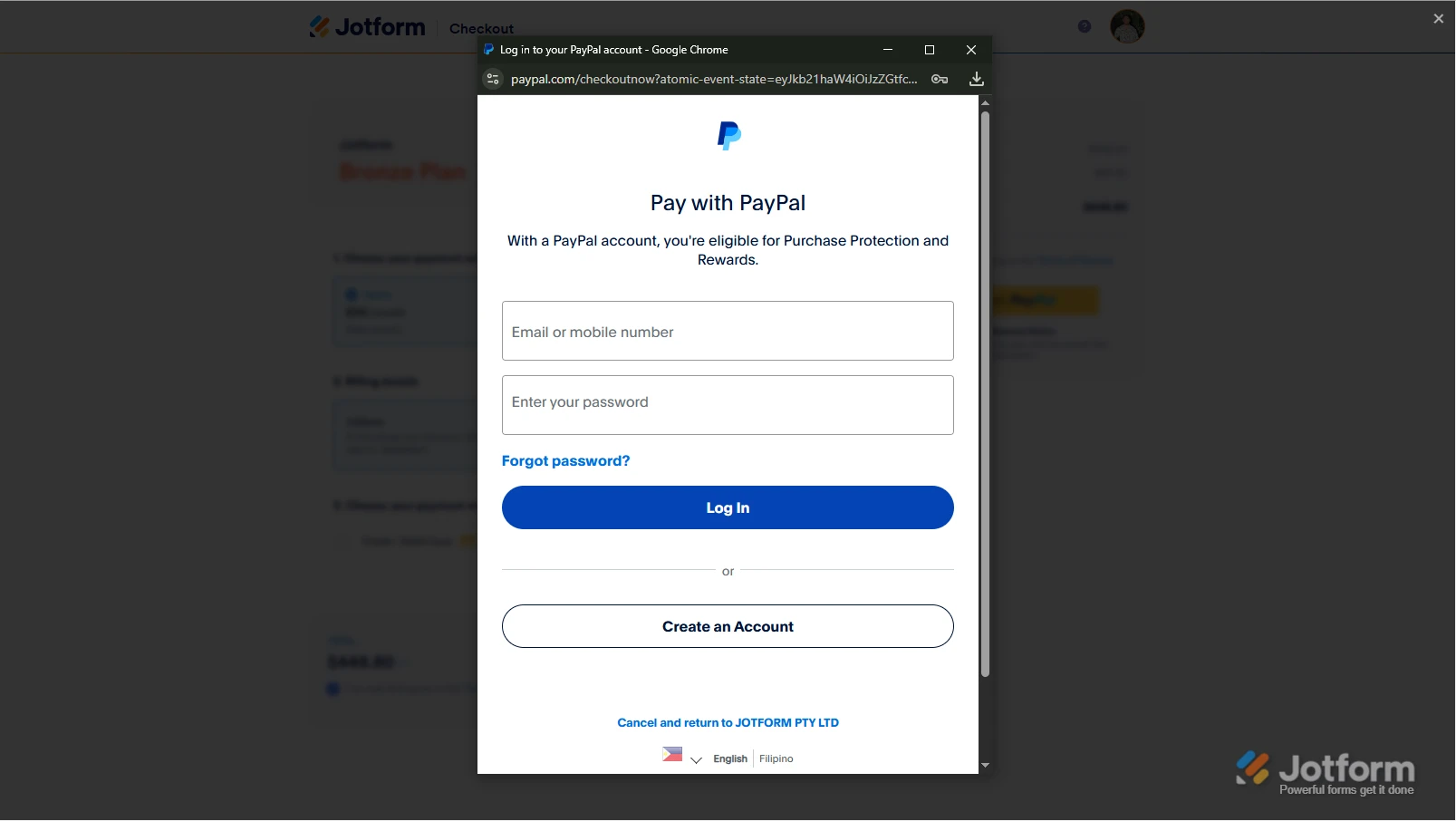
If you select PayPal, a PayPal Payment window will open where you can log in and complete your payment after clicking the Pay with PayPal button.
After the subscription is successfully paid, the features and limits for the chosen plan will be applied to your account right away.
Reach out again if you have any other questions.
-
 Brandon Customer Success Manager
Hi there,
Unfortunately, our Spanish Support agents are busy helping other Jotform users at the moment. I'll try to help you in English using Google Translate, but you can reply in whichever language you feel comfortable using. Or, if you'd rather have support in Spanish, let us know and we can have them do that. But, keep in mind that you'd have to wait until they're available again.
Did you also try deleting and then purging old submissions? If not, you can do so via deleting and then purging your form entries with file uploads to free up your Upload Space.
If deleting the old submissions does not free up space, let us know.