-
 IncoltCO
Estamos presentando un inconveniente con uno de nuestros formularios de registro diario.
El formulario contiene varias condiciones y, al momento de diligenciarlo completamente e intentar enviarlo, no permite realizar el envío. En algunos casos, después de hacer clic en Enviar, el formulario se reinicia y queda completamente en blanco, por lo que se pierde toda la información ingresada y no se registra ninguna respuesta.
Agradecemos su ayuda para identificar la causa de este comportamiento y orientarnos sobre cómo solucionarlo. Si requieren información adicional, como el enlace del formulario, capturas de pantalla o acceso para revisar la configuración, con gusto se la proporcionaremos.
Quedamos atentos a su pronta respuesta.
-
 Podo: Especialista de soporte
Hola Incolt,
Gracias por contactar con el soporte de Jotform. Soy un asistente de IA y estoy aquí para ayudarte.
Por lo que describes, el formulario se completa, se hace clic en Enviar y luego se reinicia quedando en blanco sin registrar respuesta. Este tipo de comportamiento suele estar relacionado con un fallo al procesar la solicitud en el navegador o en la carga del formulario.
Déjame ayudarte con eso:
Primera fase: descartar problemas de caché y navegador
- Borra la caché del formulario: Desde tu cuenta, borra la caché de tus formularios y luego vuelve a probar el envío. Hay una guía específica sobre cómo hacerlo en Jotform (borrar caché de formularios).
- Prueba en otro navegador: Abre el formulario en un navegador distinto (por ejemplo, si usas Chrome, prueba Edge, Firefox o Safari) y realiza un envío de prueba para ver si el comportamiento se repite.
- Limpia la caché del navegador: En el navegador donde se presenta el inconveniente, limpia la caché y las cookies y vuelve a intentar. También puedes probar en una ventana de navegación privada/incógnito para descartar extensiones o datos almacenados.
Segunda fase: aislar si el problema es del formulario
- Haz una prueba sin condiciones complejas: Crea una copia del formulario y, en esa copia, desactiva temporalmente algunas de las condiciones más críticas o complejas, luego intenta enviar una respuesta de prueba para ver si sigue reiniciándose.
- Verifica si aparece algún mensaje de error: Cuando haces clic en Enviar, revisa si se muestra algún mensaje (por ejemplo, en la parte superior del formulario) antes de que se limpie. Si ves algún texto de error, indícanos exactamente qué dice.
- Comprueba el tiempo que tarda en diligenciarse: Si el llenado toma mucho tiempo, puede influir en la estabilidad de la sesión del formulario. Intenta un envío de prueba llenándolo más rápido para ver si hay diferencia.
Tercera fase: información que necesitamos de tu parte
- Comparte el enlace directo del formulario: Copia la URL pública del formulario de registro diario para que podamos revisarlo con más detalle.
- Envía capturas de pantalla: Si es posible, adjunta capturas donde se vea el formulario justo antes de hacer clic en Enviar y, si aparece, cualquier mensaje o comportamiento extraño inmediatamente después.
- Indica entorno de prueba: Cuéntanos en qué navegadores y dispositivos se ha probado (por ejemplo, Chrome en Windows, Safari en iPhone, etc.) y si el inconveniente ocurre con todos o solo con algunos.
Con esa información podremos acotar si el origen está en el navegador, en la configuración del formulario (condiciones, campos, etc.) o en algo más específico y orientarte con pasos más concretos.
Una vez que tengamos esos datos, podremos avanzar mejor con una solución.
Inténtalo y cuéntanos cómo te va.
-
Ya se realizaron las respectivas revisiones y aun no se ha podido resolver el formulario.
Anexo link de formulario: https://form.jotform.com/IncoltCO/Nuevo-Registro-Actividad-Laboral
Entorno de prueba: Chrome, safari,microdoft edge
Anexo Capturas: Le doy en siguiente y no me deja llegar a la pagina de enviar y se queda en balnco.

-
 Eliza Enterprise Support
Hi Karoll,
Our Spanish Support agents are busy helping other Jotform users right now, so I'll try to help you in English using Google Translate, but you can reply in whichever language you feel comfortable using. Or, if you'd rather have support in Spanish, let us know and we can have them do that. But, it might take a while until they're available again.
Now, coming back to your question, I cloned your form to test, and the same thing happened for me. I've attached a screencast of my results below:
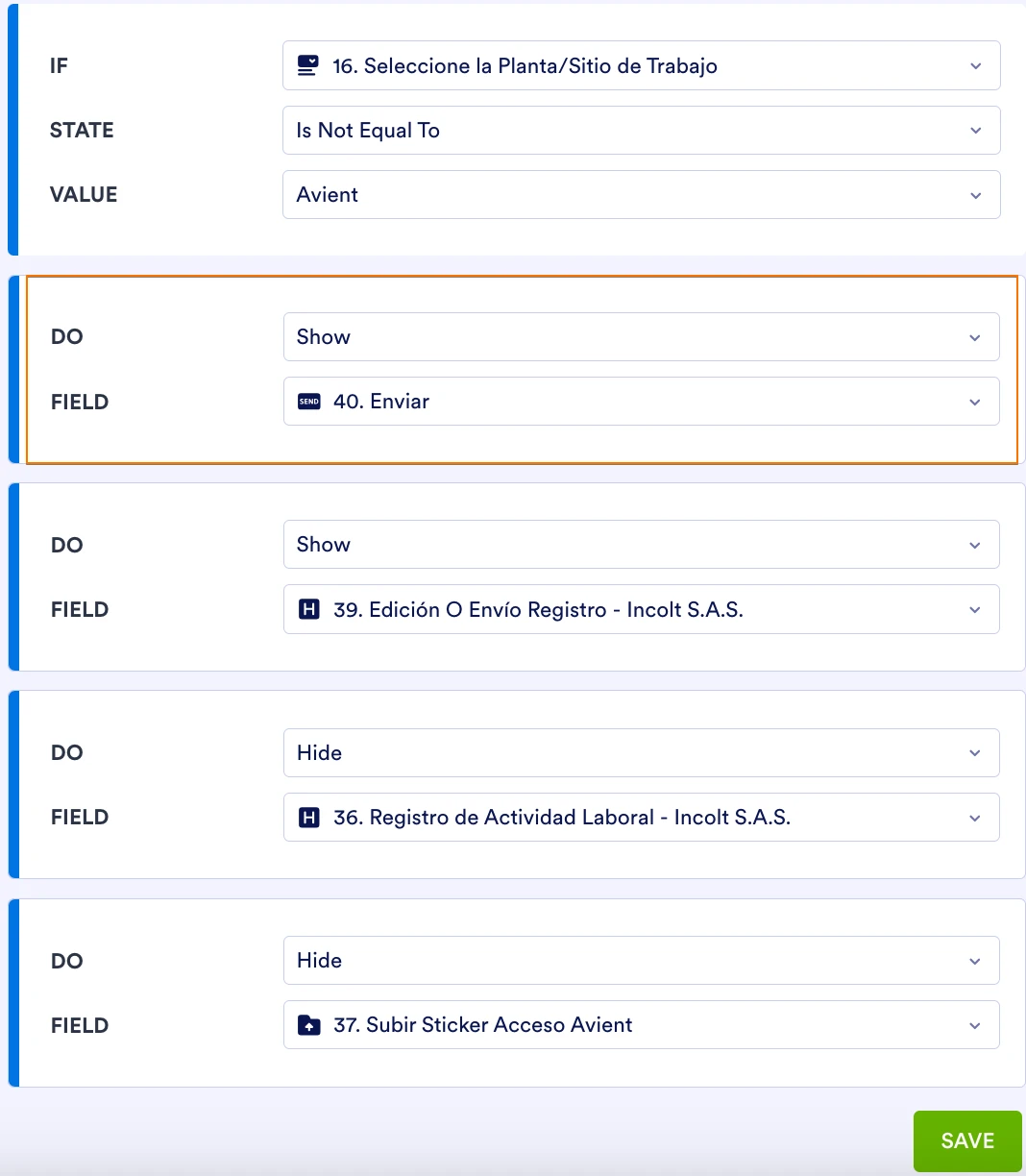
When I looked at your conditions, I noticed that the Submit button is only set to be shown if Seleccione la Planta/Sitio de Trabajo is not equal to Avient. Take a look at the screenshot below:
As a result, the Submit button will be hidden if Seleccione la Planta/Sitio de Trabajo is equal to Avient. To resolve this, you need to exclude the Submit button from this condition. Let me show you how:1. In Form Builder, click on the Submit or Submit button.
2. Next, select the Conditional Logic icon to its right.
3. Hover your mouse over the condition and click on the Pencil icon on the right.
4. Now, remove Send by clicking on the Minus icon.
5. Finally, click on Save at the bottom.
Try that out and get back to us if you have any issues. -
IncoltCO
Thanks! But when I select the Avient plant, the option to upload the Avient sticker doesn't appear; I wonder why that might be.
-
 Jerlan Jotform Support
Hi IncoltCO,
I have tested the form and can replicate the issue. I have checked your conditions, and it looks like multiple conditions were incorrectly configured. The field for Seleccione las Plantas/Sitios de Trabajo has multiple options to select, and the user needs to select at least 2. Can you share which fields need to be shown and hidden for each option?
When we hear back from you, we’ll be ready to move forward.
-
The idea is that when "Avent" is selected, the sticker for uploading the file should appear. For the other plants, if the sticker section does not appear after completing the process, they should proceed with the submission.
-
 Kevin Jotform Support
Hi Karoll,
I checked your conditions, and the issue is that you are handling the Subir Sticker Acceso Avient in multiple conditions. Here's a screenshot where you can see that multiple conditions are showing the same field:
I recommend that you delete the 37. Subir Sticker Acceso Avient field from your conditions, and keep only one condition. Here's a screenshot of how the condition should be configured:
This should fix any conflicts with other conditions. After making the changes, all your conditions related to the 37. Subir Sticker Acceso Avient field should look like this:
Give it a try and let us know how it goes.