-
 simonelippold
Hallo zusammen,
ich würde gerne eine Tabelle einfügen, in der ich Produktvorschläge anzeigen kann.
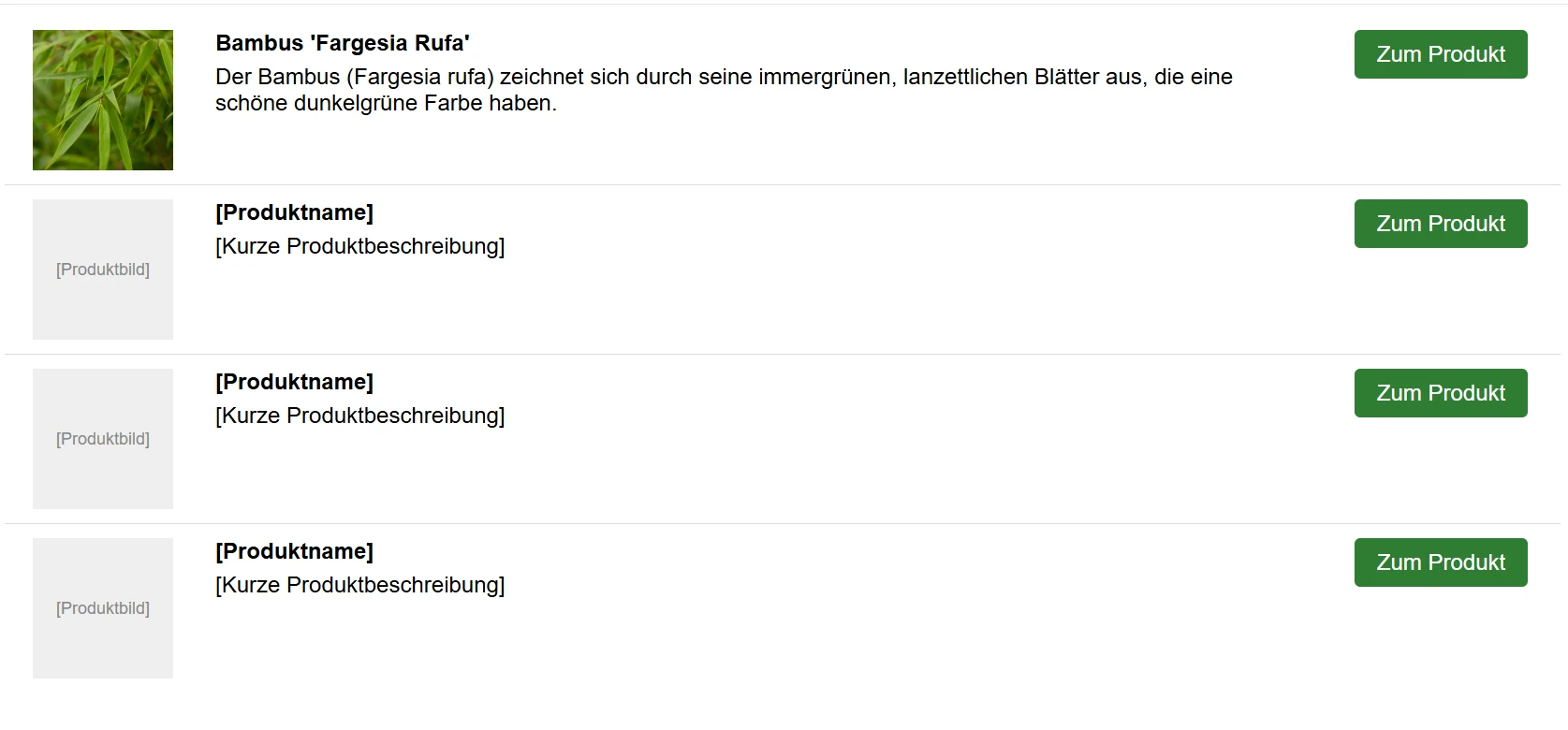
Ich möchte eine Tabelle mit 3 Spalten und 4 Zeilen haben.
Spalte 1: Produktbild
Spalte 2: Produkttitel + Beschreibung
Spalte 3: Button mit Link zum Shop
Ich hatte versucht mit dem Code Editor einen HTML Code einzufügen, allerdings wird mir dieser nicht angezeigt.
Können Sie mir bitte helfen, wie ich so eine Anzeige hinbekommen kann.
Im Screenshot wird anzeigt, wie ich es gerne hätte

-
 Lorenz Jotform Support
Hi Simone,
Thanks for reaching out to us for help. While we do offer Support in many foreign languages, and we're working hard to add more every day, we don't currently have German Support agents who can help you. So I'll try to help you in English using Google Translate, but you can reply in whichever language you feel comfortable using.
Now, coming back to your question, if the data of the table you're planning to add are just for static display, you can use the Paragraph element's table element. Let's start first by adding the Paragraph element and Table:
1. In Form Builder, in the left side of the page, click on the Add Element button.
2. Now, in the Form Elements menu on the left, under the Basic tab, look for Paragraph element and add it to the form.
3. Next, click on the Paragraph element's Pencil icon to edit it.
4. Then, inside the Paragraph Editor, click on the Table icon in the Toolbar and choose the number of rows and columns of the table you want to add.
After adding the table, you need to add the image of the items on each row. Let me show you how to do it:
1. Still in the Paragraph Editor, select the column where you want to insert the image, and click on the Insert Image button.
2. Next, in the Insert Image window, upload the image file or choose from the existing images from your account gallery and click on the Insert Image button.
3. Then, simply resize the image to how you see it fit.
Now, as for adding a button, we may need to do it using Custom HTML and CSS. Let me walk you through it:
1. First, copy this code:
<a class="button-link"
style="display: inline-block;
       padding: 12px 24px;
       border-radius: 6px;
       background-color: #007bff;
       color: #ffffff;
       font-family: sans-serif;
       font-size: 16px;
       font-weight: bold;
       text-decoration: none;
       cursor: pointer;
       transition: background-color 0.2s ease;" href="https://www.productinfogoeshere.org">Click Here
</a>
2. In the Paragraph Editor, click on the Source Code icon.
3. Next, in the Source Code window, look for the corresponding column of where the code should be added, and paste it inside the <td> </td> HTML tag.
4. Finally, click on Ok and hit Save.
Give it a try and let us know if there's anything else we can help you with.