

Plantillas de seguimiento

Hoja de Seguimiento del Progreso de los Estudiantes
¡Registre y monitoree el desempeño de sus estudiantes con la Hoja de Seguimiento de Progreso de los Estudiantes de Jotform gratuita y en línea! Está plantilla de tabla gratuita trabaja de la mano con el Formulario de Evaluación de Desempeño del Estudiante, el cual puede ser completado desde cualquier dispositivo para auto-completar su tabla con los datos enviados. Usted también puede importar archivos externos a la tabla para ayudarle a tener un mejor seguimiento de toda la información del estudiante en un solo lugar fácil de acceso… Está Hoja de Seguimiento del Progreso de los Estudiantes se divide en diferentes pestañas para cada uno de sus estudiantes, pero siéntase libre de personalizar la plantilla para que se adapte a sus necesidades. Puede añadir filas y columnas, crear pestañas para los nuevos estudiantes, configurar filtros avanzados y fórmulas que automáticamente organizaran los datos para usted. Usted podrá cambiar la visualización de tabla a calendario, tarjeta o visualización de carga para que usted pueda ver sus datos exactamente como los necesita. ¡Manejar la información en línea de sus estudiantes no tiene que ser complicado con una Hoja de Seguimiento del Progreso de los Estudiantes personalizada para su clase!
Ir a la categoría:Plantillas de seguimiento
Seguimiento de Vacunación COVID-19
El seguimiento de Vacunación para COVID-19 es usado por organizaciones médicas para llevar un registro de pacientes que ya han sido o serán vacunados. Con el Seguimiento de Vacunación COVID-19 gratuito y en línea de Jotform, usted podrá manejar los registros de vacunación covid en una tabla profesional y en línea — y elegir ver la información en una hoja de cálculo, calendario, o tarjetas fáciles de leer. Recolectar registros de vacunación a través del Formulario de Registro de Vacunación COVID-19 adjunto y ver como la información aparece en su tabla automáticamente, lista para ser visualizada, editada o compartida con sus colegas. El proceso de vacunación de cada médico es diferente, siéntase libre de personalizar su plantilla de tabla reorganizando el diseño, añadiendo más columnas y clasificando la información en diferentes pestañas, asignando etiquetas con código de color y más. ¡Asegúrese de actualizar para contar con compatibilidad HIPAA para mantener la información sensible de sus pacientes protegida! Todo el mundo está ansioso por obtener sus vacunas — así que facilite el proceso con el Seguimiento de Vacunación COVID-19 en línea que puede ser usado desde cualquier dispositivo.
Ir a la categoría:Plantillas de seguimiento
Seguimiento de Progreso del Estudiante
Registre y supervise el rendimiento de sus estudiantes con la tabla de Seguimiento de Progreso del Estudiante en línea gratuita de Jotform. Esta plantilla de tabla funciona mano a mano con el Formulario de Evaluación de Rendimiento del Estudiante, que puede rellenar desde cualquier dispositivo para autocompletar su tabla con los datos de envío. También puede importar archivos externos a la tabla para ayudarle a realizar un seguimiento de toda la información de los estudiantes en un lugar de fácil acceso… Esta hoja de Seguimiento del Progreso del Estudiante está dividida en diferentes pestañas para cada uno de sus estudiantes, aunque siéntase libre de personalizar la plantilla como mejor le funcione. Puedes añadir filas y columnas, crear pestañas para nuevos estudiantes y configurar filtros avanzados y fórmulas para organizar automáticamente tus datos. Incluso podrás cambiar de vista de tabla a vista de calendario, vista de tarjeta o vista de carga para que puedas ver tus datos exactamente como los necesitas. ¡Gestionar los datos de los alumnos en línea no tiene por qué ser complicado con una hoja de Seguimiento de Progreso del Estudiante en línea personalizada para su clase!
Ir a la categoría:Plantillas de seguimiento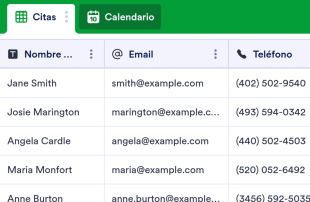
Hoja de registro del salón de belleza
Hoja de registro sin contacto para salones de belleza, peluquerías y más. Funciona en cualquier dispositivo. Fácil de personalizar y compartir con el personal o los visitantes. No requiere conocimientos de programación.
Ir a la categoría:Salón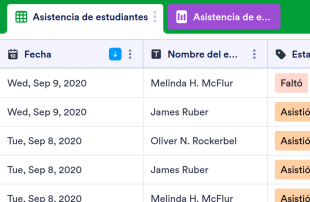
Asistencia de estudiantes
Una tabla de asistencia de alumnos es un formulario en el que un alumno o profesor anota o marca la asistencia de cada alumno en un día o semana determinados en un entorno escolar. Este formulario se utiliza habitualmente en escuelas primarias, institutos y colegios. Independientemente del nivel educativo en el que impartas clases, nuestra tabla de asistencia de alumnos online gratuita te ayudará a llevar un control más sencillo de la asistencia de tus alumnos. Solo tiene que introducir el nombre del alumno y la información de asistencia en la hoja de cálculo utilizando su ordenador o dispositivo móvil, o bien configurar un formulario de asistencia en línea para que los alumnos lo rellenen al final de la clase. Las entradas se almacenarán instantáneamente en la hoja de cálculo, a la que podrá acceder fácilmente, descargar en formato PDF, CSV o Excel, o imprimir para los registros de su clase. No necesitará aprender a programar para personalizar su hoja de asistencia de alumnos para su clase. Simplemente arrastre y suelte para añadir filas y columnas, crear etiquetas codificadas por colores, separar las clases por pestañas y filtrar los datos por grupos. Cuando haya terminado, dispondrá de una hoja de asistencia de alumnos eficiente que le permitirá tomar rápidamente la asistencia sin perder un tiempo valioso de clase, de modo que podrá centrarse en enseñar a sus alumnos. ¡Nunca volverá a utilizar hojas de asistencia en papel!
Ir a la categoría:Educación
Hoja Informativa de Mascotas en Adopción
¿Listo para encontrar un nuevo hogar a sus mascotas? Si administra un refugio o un centro de rescate de animales, nuestra Hoja Informativa de Mascotas en Adopción gratuita le ayudará a organizar mejor la información. Para empezar, solo tiene que personalizar el formulario correspondiente para adaptarlo a sus necesidades — ya está formateado para recopilar información de contacto del adoptante, hacerle preguntas sobre su situación de vida actual, conocer sus preferencias sobre mascotas y aceptar firmas en línea. Cuando los posibles propietarios de mascotas rellenen su formulario, sus datos se enviarán instantáneamente a su Hoja Informativa de Mascotas en Adopción, haciendo más fácil que nunca el acceso y la organización de información importante sin tener que depender de múltiples herramientas. Si su organización necesita más información para el proceso de adopción, solo tiene que utilizar nuestro Constructor de formularios de arrastrar y soltar para añadir más preguntas y campos. Cada campo de formulario creará automáticamente una nueva columna en su Hoja Informativa de Mascotas en Adopción. Incluso podrá generar pestañas adicionales que le ayudarán a separar los datos de envío en varias hojas de cálculo, o mostrar los envíos en un calendario o en un formato de tarjeta fácil de leer — ¡perfecto para entrevistas y citas! Así sea que su refugio de animales se ocupa de perros, gatos o palomas, use nuestra Hoja Informativa de Mascotas en Adopción para recopilar la información que necesita, organizar los registros de su refugio y encontrar a los mejores dueños para sus animales — todo a la vez.
Ir a la categoría:Plantillas de seguimiento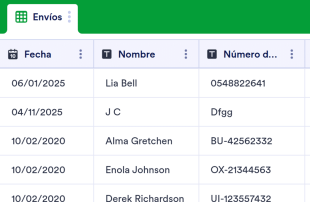
Hoja de registro para clases
Lleva un registro de la asistencia a clases con esta plantilla de tabla gratuita. Fácil de personalizar, descargar y compartir. No requiere conocimientos de programación. Ideal para escuelas, institutos y universidades.
Ir a la categoría:Educación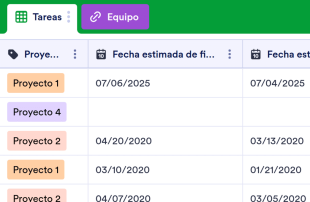
Hoja de seguimiento de proyectos
Gestione mejor sus proyectos con nuestra plantilla gratuita de Hoja de seguimiento de proyectos. Perfecta para equipos de todos los tamaños. Fácil de editar y compartir. Funciona en cualquier dispositivo sin necesidad de programar.
Ir a la categoría:Gestión de proyectosAcerca de Plantillas de seguimiento
Las plantillas de seguimiento son plantillas de tablas para categorías específicas, diseñadas para ayudar a los propietarios de formularios y a sus equipos a organizar y gestionar los registros recopilados a través de los formularios de Jotform. Al usar estas plantillas, las organizaciones pueden gestionar de forma eficaz una gran variedad de envíos, como registros, solicitudes, inscripciones, comentarios, pedidos e inspecciones. Esta funcionalidad resulta especialmente beneficiosa para profesionales de diversos sectores, entre los que se incluyen la educación, la sanidad, la gestión de eventos y la atención al cliente. Las plantillas de seguimiento aseguran que la información recopilada se gestione de manera eficaz, proporcionando un enfoque optimizado para la gestión de envíos sin convertir la tabla en un formulario, una aplicación o un gestor de tareas.
Jotform Tablas actúa como la plataforma principal en la que se rellenan automáticamente los envíos procedentes de los formularios de Jotform conectados, permitiendo una gestión fluida de los datos entrantes. Cada respuesta enviada a través de un formulario de Jotform se transforma en una entrada en la tabla conectada, que puede consultarse en la vista de tabla o en la vista detallada. Los usuarios tienen la flexibilidad de organizar y analizar los envíos utilizar la búsqueda, los filtros, la agrupación, los tipos de columna, la vista de calendario, la vista de reporte o la vista de archivos subidos. Aunque se puede introducir información manualmente o importarla desde archivos CSV o Excel para añadir datos ya existentes, el objetivo principal es automatizar el flujo de trabajo de «formulario a tabla», garantizando una transición fluida desde la recopilación de datos hasta su gestión.
Why Use Tracker Templates?
- Tracker Templates eliminate the need for manual data transfer by automatically populating responses from Jotform Forms into Jotform Tables. This automation ensures that all submissions are captured accurately and reduces the potential for human error.
- Keeping responses together in a centralized location allows for quick and efficient access to all data. This centralized approach saves time and effort when needing to locate specific records for review or reporting.
- The ability to search, filter, and group entries in Tracker Templates simplifies the process of finding and analyzing specific data points. This functionality ensures that records can be quickly accessed based on defined criteria.
- Reviewing complete submission details, including any associated uploads, within Jotform Tables allows form owners to make informed decisions based on comprehensive data.
- Coordinating follow-up actions and tracking changes in submissions is streamlined through Jotform Tables, enhancing communication and accountability within teams.
- Reporting on collected data becomes more efficient with the use of Tracker Templates, allowing for the generation of insights and statistics necessary for informed decision-making.
Common Problems Solved by Tracker Templates
- Manually copying submissions into spreadsheets is time-consuming and prone to errors. Tracker Templates automate this process by directly importing form responses into Jotform Tables.
- Scattered responses across different platforms or documents can lead to inefficiencies. Tracker Templates centralize all submissions in one place, making them easily accessible.
- Difficulty locating records quickly is a common challenge that is addressed by Tracker Templates, which offer robust search and filtering capabilities.
- Inconsistent review processes can result from missing context or incomplete data. With Tracker Templates, all relevant information is organized and readily available for thorough review.
- Hard-to-review uploads and unclear ownership of submissions are resolved by the structured format of Tracker Templates, which supports comprehensive data analysis and clear assignment of responsibilities.
Matching Form Submission Use Cases to Jotform Tables Features
- When collecting event registration data through a Jotform Form, submissions automatically appear in the connected table, ensuring that event organizers have real-time access to attendee information.
- Submissions related to customer feedback can be organized using Table View or Detail View, allowing customer service teams to analyze responses and improve service delivery efficiently.
- Healthcare professionals can use filters and data grouping to manage patient records, ensuring that critical information is easily accessible for medical evaluations and follow-ups.
- Access settings and assignees facilitate team collaboration by allowing only authorized personnel to modify records while maintaining a clear history of changes and assignments.
- Generating reports from collected survey data is simplified through the use of Report View, enabling marketing teams to present findings in a structured and professional format.
How to Use Tracker Templates with Jotform Forms
- Start by selecting a category-relevant Jotform Tables template, a blank table, or the table connected to an existing Jotform Form. The Jotform Form will collect the category-specific information, and new responses will automatically appear in the connected table.
- Configure the table for submission review by naming columns, selecting appropriate column types, and choosing relevant views such as Table View, Detail View, Calendar View, Uploads View, or Report View to best fit the data being managed.
- Manage submissions effectively by using search, filters, grouping, formulas, access settings, assignees, revision history, linked tables, action buttons, or outputs, depending on the specific needs of your category.
Top Use Cases for Tracker Templates
- For Form Owners: Form owners benefit from Tracker Templates by having a streamlined process for reviewing incoming responses. They can edit submission data, check details or uploads, and keep records organized within Jotform Tables. This ensures that all information is up-to-date and easily accessible, aiding in decision-making and data management.
- For Teams: Authorized team members can efficiently find and maintain entries using Tracker Templates. They can coordinate responsibility with assignees, ensuring tasks are completed by the right people. Additionally, using access settings and revision history supports shared work by providing a clear audit trail of changes and maintaining data integrity.
- For Managers: Managers utilize Tracker Templates to monitor collected data and review category-specific patterns. By checking progress and ownership, they can ensure that operations run smoothly. Report View and other relevant views provide oversight, helping managers make informed decisions based on comprehensive data analysis.
Summarizing Tracker Templates
Las plantillas de seguimiento constituyen una valiosa solución para recopilar y gestionar información relacionada con categorías específicas mediante los formularios y Jotform Tablas. Al automatizar el proceso de recopilación de respuestas y ofrecer herramientas sólidas para la organización y el análisis de datos, estas plantillas mejoran la efectividad y la precisión. Jotform Tablas actúa como plataforma central para la gestión de los envíos, lo que permite a los usuarios optimizar sus flujos de trabajo y centrarse en la toma de decisiones basada en datos.
Preguntas Frecuentes
1) ¿Cuáles son los distintos tipos de hojas de seguimiento?
Jotform cuenta con un plan Inicial que permite a los usuarios empezar a usar las plantillas de seguimiento con Jotform Tablas. Este plan ofrece acceso a funciones imprescindibles, lo que lo convierte en una opción asequible para particulares y equipos pequeños. Para quienes tengan necesidades más avanzadas, hay disponibles otros planes, aunque aquí no se detallan los límites ni las cuotas particulares.
2) ¿Quién debe utilizar una hoja de seguimiento?
Submissions from Jotform Forms automatically appear in Tracker Templates due to their connected relationship. Once a respondent submits a form, the response is recorded as an entry in the linked table, ensuring a seamless data flow. Future responses continue to auto-populate the table, maintaining an up-to-date record set.
3) ¿Cómo diseñar y utilizar una hoja de seguimiento?
Yes, Tracker Templates allow you to edit submissions and organize data using various tools such as search, filters, and data grouping. You can also apply formulas and calculations to process the data further. While these features enhance data management, they do not automate decision-making processes.
Casos de uso de hojas de presupuesto
Data within Tracker Templates can be exported as CSV or Excel files, providing flexibility in data management. This capability allows you to add existing information to the table or use the export for external analysis and reporting. The integration of connected-form submissions with manually imported data is seamless.
5) Which Jotform Tables views can I use with Tracker Templates?
Tracker Templates support several views, including Table View, Detail View, Calendar View, Report View, and Uploads View. Table View is ideal for a broad overview of all entries, while Detail View allows for in-depth analysis of individual records. Calendar View helps in tracking dates, Report View aids in generating structured reports, and Uploads View is useful for managing attachments efficiently.
6) Can teams collaborate on submissions in Tracker Templates?
Teams can collaborate effectively on submissions using Tracker Templates by leveraging access settings and assigning tasks to specific team members. Real-time tracking and revision history help manage shared work, ensuring that changes are transparent and easily traceable. This collaborative environment enhances team productivity and data accuracy.
7) Can I connect Tracker Templates to related data or other applications?
Tracker Templates support linked tables and integrations, allowing you to connect to related data or third-party applications. Action buttons provide additional functionality to trigger specific tasks, enhancing the workflow. This connectivity ensures that Tracker Templates can be part of a broader data management strategy.
8) Can I create reports, PDFs, and manage files from Tracker Templates?
You can create detailed reports using Report View and generate PDFs for sharing or archival purposes. Uploads View allows you to manage files associated with table data, ensuring that all relevant documents are easily accessible. While not every category requires all capabilities, these features enhance the management and presentation of collected data.