-
 gianpi701
Hello, I need to replicate data that user fill in in form 1 into the same fields of form 2, but without readdressing condition
Usually I use for example
but i need to not use the readdress function, I need fields duplicated from form 1 in the same time to form 2
The base form (form1) is "Richiesta preventivo gratuito APE", The users fill fiels as Name, Surname, Email, Telephone, and Regione. I need to populate the same fields in form "Inolta richiesta APE 89" without using the follow condition:

-
 Vincenzo Jotform Support
Hi gianpi701,
Thanks for reaching out to Jotform Support. Unfortunately, I didn’t fully understand the issue. Can you explain a bit more about the issue so I can get a better idea of what's happening? Also, can you share the form URL of the starting form and the form URL of the form that needs to get filled with the same information? You can easily find your form's URL in Form Builder. Let me show you how:
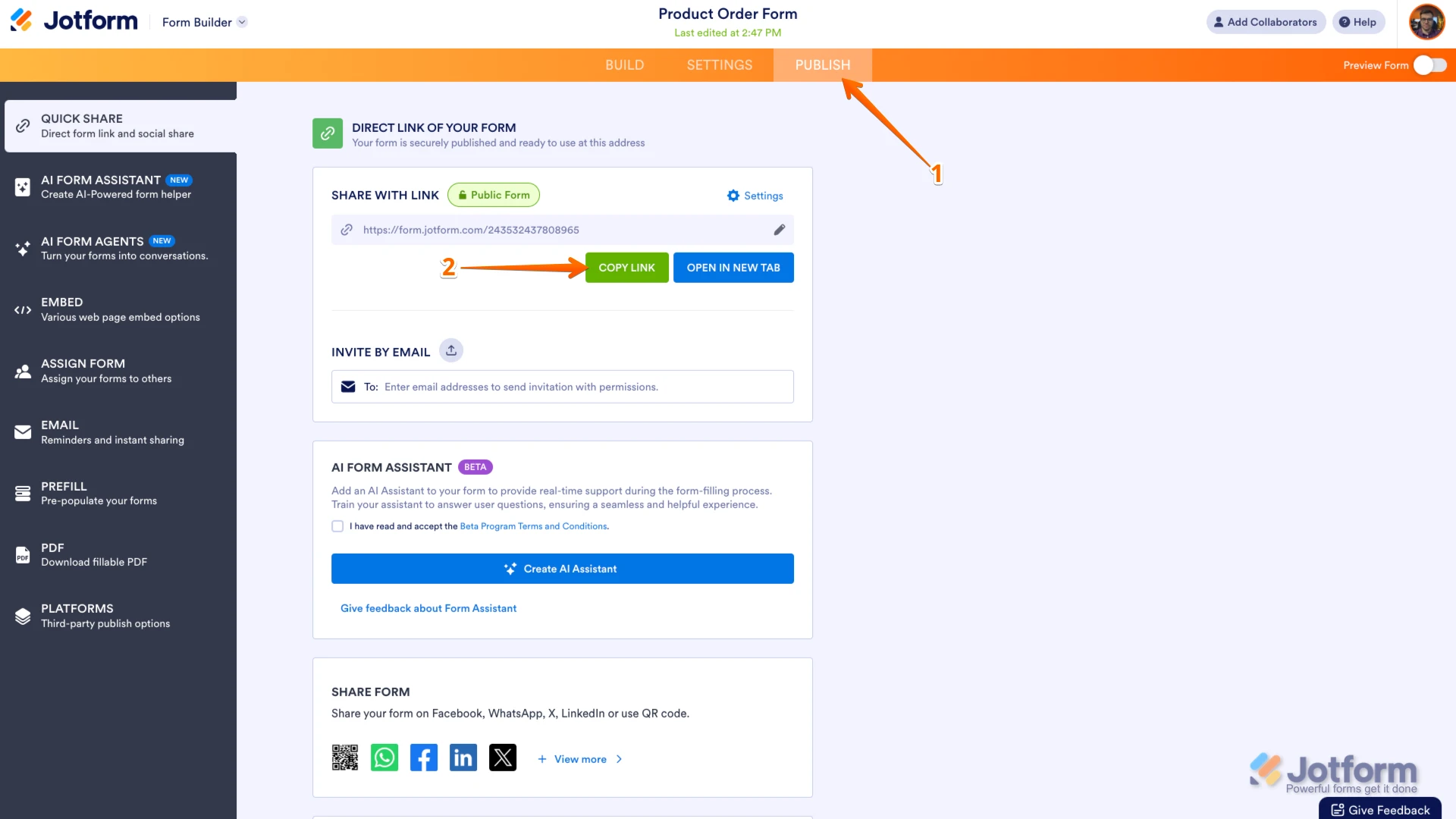
- In Form Builder, in the orange navigation bar at the top of the page, click on Publish.
- In the Quick Share tab, click on Copy Link in the Share With Link section.
Do note that the second form can only be prefilled with data from the first form after the first form has been submitted and the user is redirected via the Prefilled URL to the second form. So, if this is not what you want to do, can you give us a clear example of what you are looking for?
Once we hear back from you, we'll be able to move forward with a solution.
-
gianpi701
Ciao, io ho bisogno di trasferire i dati di un modulo ad un altro modulo (dati riferiti agli stessi campi), senza utilizzare la condizione "Reindirizza a ", è possibile?
-
Vincenzo Jotform Support
Buongiorno gianpi701,
Per inviare i dati da un modulo all'altro va fatto il reindirizzamento. Ma non è necessario crere per forza una condizione, puó farlo anche direttamente. Ecco come:
- Nel Costruttore di Moduli, nella barra di navigazione arancione in cima alla pagina, fare clic su Impostazioni.
- Poi, nel menu sulla sinistra, fare clic su Pagina di Ringraziamento.
- Selezionare Reindirizza a un link esterno dopo l'invio del modulo.
- Infine, inserire l'URL con I parametri sotto a Inserisci URL.
-
gianpi701
Purtroppo Reindirizza a un link esterno dopo l'invio del modulo funziona solo se reindirizzo direttamente al form e non ad una pagina dove risidede il pulsante che a sua volta punta sul form che dovrebbe prendere i dati dal form di origine.
-
 Jotform Support Former Jotform Support
Hi gianpi701,
At the moment, Jotform can only pass data from Form 1 to Form 2 in real time by using a redirect with prefilled URL parameters. There isn’t a built-in way to automatically duplicate field values into another form at the same time without either redirecting the user to the second form or using an external automation/integration.
Since you mentioned that the redirect only works when going directly to the form (and not to an intermediate page with a button), that is expected behavior. The prefill parameters must be appended directly to the actual Form 2 URL. If you redirect to a separate webpage first, the parameters will not automatically carry over unless that page is specifically coded to forward them.
To better guide you, I have a quick clarification question. Do you want the user to see and submit Form 2 manually with prefilled values? Or automatically create a submission in Form 2 without the user interacting with it?
After we hear back from you, we’ll know what’s going on and how to help.
-
gianpi701
more simple
I need to transfer for instance
user choose one of those options in FORM1
and find put the same choose in FORM2 when FORM2 is open
-
 Reymae Jotform Support
Hi gianpi701,
Another way to dynamically prefill the second form based on the form 1 submission is via Workflow Prefill. It's really easy to do. Let me show you how:
1.In Form Builder and in the orange navigation bar at the top of the screen, tap on Settings.
2. Under the Settings tab, click on Workflows.
3. Then, select Create Workflow and choose Start From Scratch. This will open the Workflow Builder with your form as the starting point.
1. In Workflow Builder, click on Add Element on the upper-left side of the screen.
2. Drag and drop a Form Element then select your second form, and add the form filler's email.
3. Go to Prefill tab to enable the feature and map the fields.
4. Click the Save button to apply the changes.
Give it a try and let us know if you have any other questions.


 They can click the View Form button, and the prefilled form will open. If that’s not quite what you’re looking for, can you share a bit more info so I can help you better?