

So erstellen Sie das Widget Barrierefreiheit
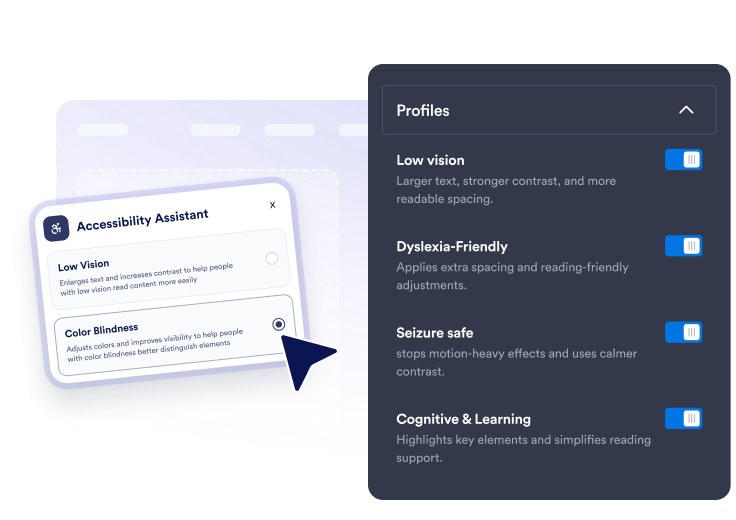
Voreinstellungen und Funktionen wählen
Aktivieren Sie schnelle Voreinstellungen und detaillierte Einstellungen für Schriftgröße, Abstände, Lesehilfen, Tastaturfokus, hervorgehobene Links, Animationen und Farbmodi.
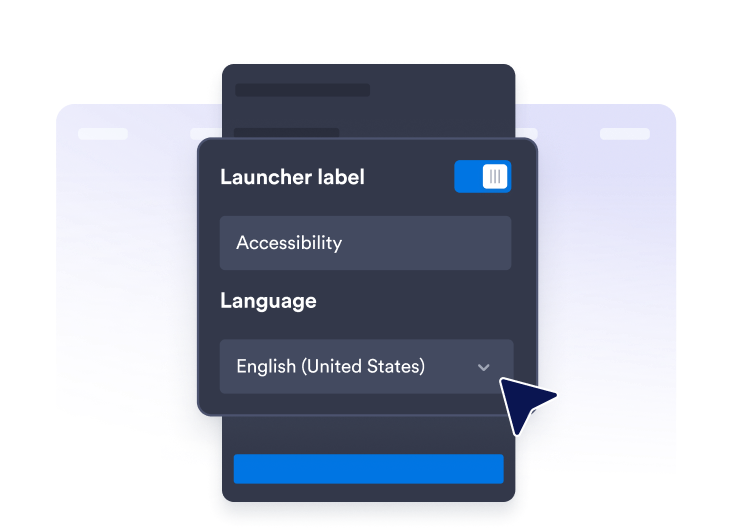
Assistenten anpassen
Bearbeiten Sie die Texte im Panel, die Hinweise zur Bewertung, die Sprache, die Position der Schaltfläche, die Designfarben, die Breite des Panels, die Buttongröße und die Speicherdauer der Einstellungen.
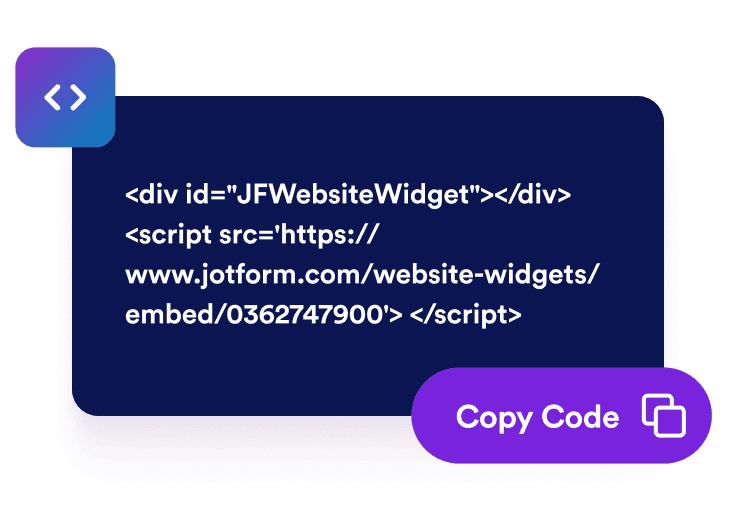
Veröffentlichen Sie ihn überall
Kopieren Sie den Einbettungscode und fügen Sie den schwebenden Barrierefreiheits-Assistenten auf jeder Seite Ihrer Website ein, die übersichtlichere Lese- und Navigationsoptionen braucht.
Besucherinnen und Besucher passen Ihre Website an ihre Bedürfnisse an
Schnelle Voreinstellungen zur Barrierefreiheit anbieten
Besucherinnen und Besucher können die Voreinstellungen „Sehbeeinträchtigung”, „Farbsehschwäche”, „Legasthenie”, „Weniger Blink- und Animationseffekte”, „Weniger Ablenkung”, „Motorische Unterstützung”, „Kognition und Lernen” und „Tastaturbedienung” nutzen.
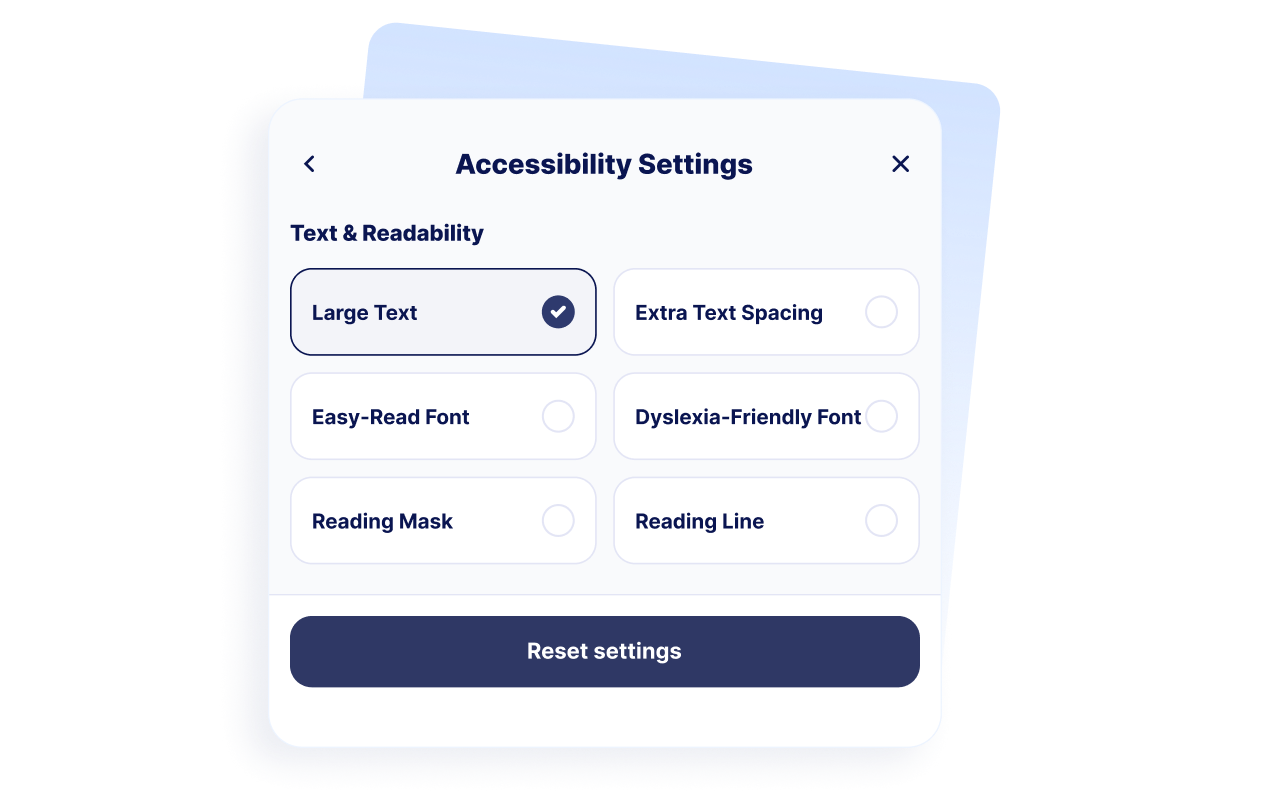
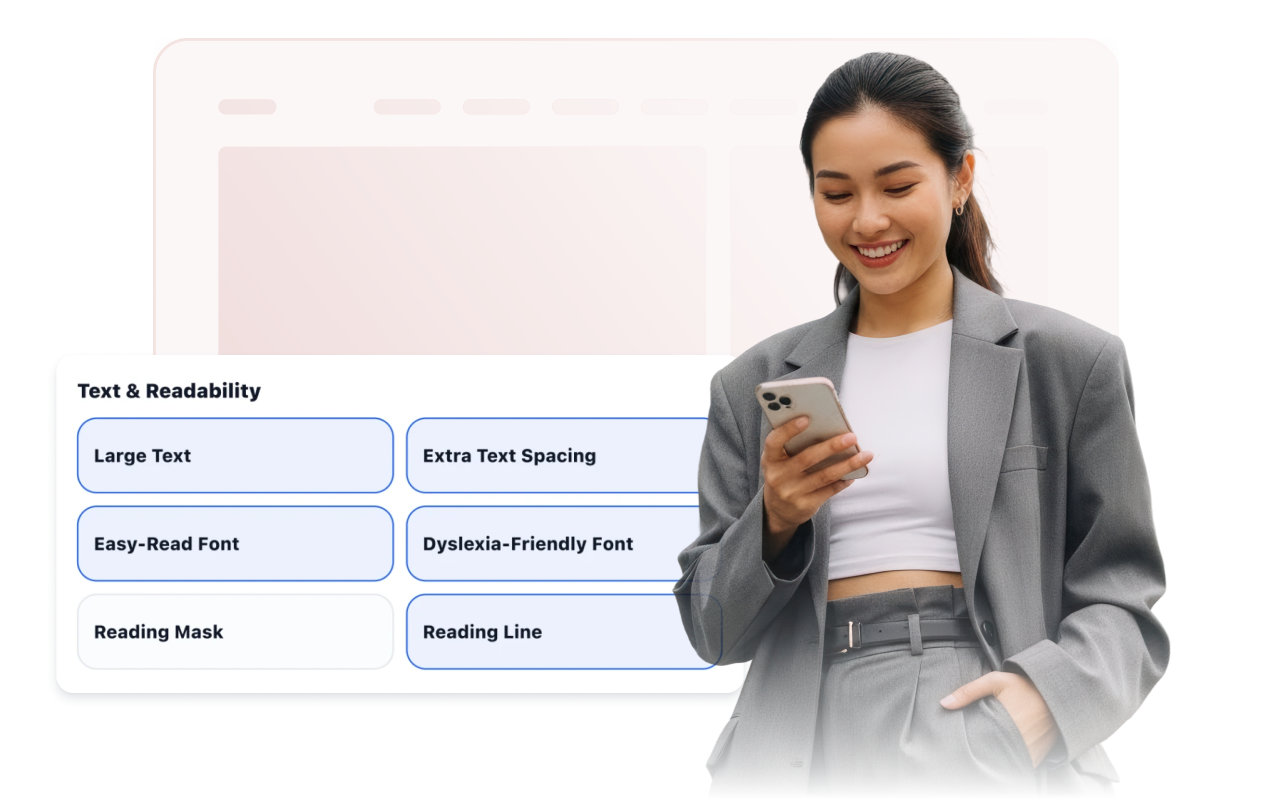
Angenehmeres Lesen unterstützen
Bieten Sie Besucherinnen und Besuchern Einstellungen für große Schrift, erweiterte Zeichenabstände, leichter lesbare Schrift, legastheniefreundliche Abstände, eine Lesemaske und Lesehilfslinien.
Navigation, Farben und Bewegung verbessern
Machen Sie den Tastaturfokus sichtbar und bieten Sie große Klickflächen, einen großen Mauszeiger, hervorgehobene Links, das Stoppen von Animationen, hohen Kontrast, Graustufen, invertierte Farben und Modi für Farbsehschwächen.

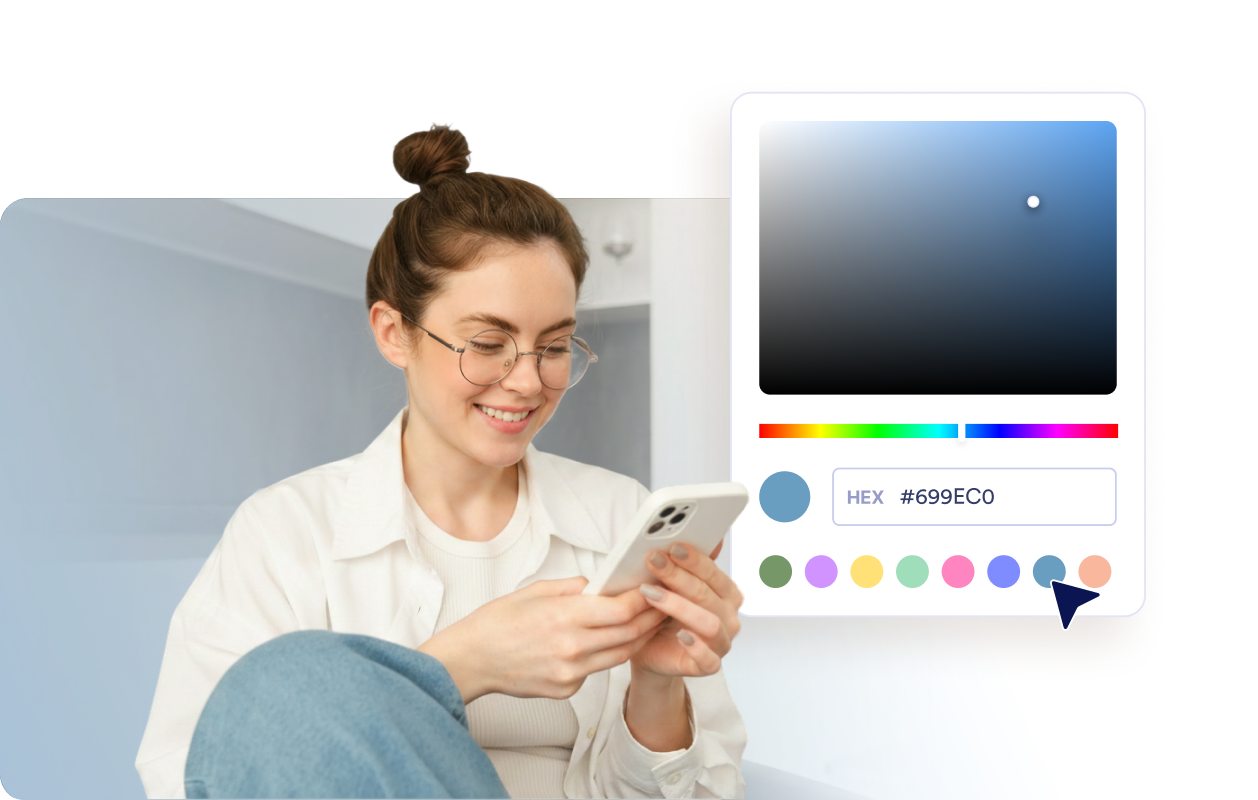
Schaltfläche und Assistent gestalten
Passen Sie die Position der Schaltfläche, die Sichtbarkeit der Beschriftung, das Design, die Breite des Panels, Farben, Buttongröße, Eckenradius, Anzeigeregeln und die Speicherdauer der gewählten Einstellungen an.
Warum sich Jotform Website Widgets auszeichnen
Mit den Widgets von Jotform wird Ihre Website interaktiver und Sie steigern Ihre Conversion-Rate. Zur Auswahl stehen zahlreiche Tools wie Sternebewertungen, Slideshows mit Erfahrungsberichten, Pop-ups mit Social Proof und eingebettete Medien. Fügen Sie Widgets zu Ihren Formularen oder Landingpages hinzu, um Daten zu sammeln, Erfahrungsberichte anzuzeigen und Leads zu gewinnen – ganz ohne Programmierkenntnisse.
Fügen Sie Jotform-Widgets mithilfe eines Einbettungscodes in Ihre Website ein. Passen Sie das Widget an, sehen Sie sich die Vorschau an und fügen Sie den Code in jede Seite ein, die benutzerdefiniertes HTML oder Einbettungsblöcke unterstützt – ganz ohne Entwicklerinnen oder Entwickler.
Mit Jotform Website Widgets sammeln Sie Leads, zeigen Kundenfeedback, präsentieren Social Proof, binden Medien ein oder fügen nützliche Webseiten-Tools hinzu. Über jedes Widget können Besucher direkt auf Ihrer Website mit Ihrem Unternehmen interagieren.
Wenn Sie Unterstützung bei der Einrichtung, Anpassung, Einbettung oder Fehlerbehebung Ihres Widgets benötigen, steht Ihnen das Kundensupport-Team von Jotform rund um die Uhr zur Verfügung. So können Sie beruhigt weiterarbeiten, denn Sie wissen: Hilfe ist da, wenn Sie sie brauchen.
Wo Sie Ihr Barrierefreiheits-Widget einsetzen
Setzen Sie das Widget auf wichtigen Seiten ein, auf denen Besucherinnen und Besucher bequem lesen, vergleichen, navigieren oder Aufgaben erledigen müssen.
Bildungswebsites mit umfangreichen Informationsseiten, Inhalten zur Zulassung und Kursinformationen.
Websites im Gesundheitswesen, auf denen Patientinnen und Patienten gut lesbare Informationen und Termindetails brauchen.
Seiten von Behörden und öffentlichen Einrichtungen, die für mehr Besucherinnen und Besucher leichter zu bedienen sein sollen.
E-Commerce-Seiten, auf denen Produktdetails, Vergleiche und Bestellschritte gut lesbar bleiben müssen.
Hilfecenter, in denen Besucherinnen und Besucher Hilfeartikel und Schritte zur Fehlerbehebung überfliegen.
Inhaltsreiche Websites mit Artikeln, Ratgebern, Dokumentationen oder Richtlinienseiten.
Gewinnen Sie Leads als zahlende Kunden mit dem Jotform Formulargenerator
Machen Sie mit Jotform aus Interesse Taten. Erstellen Sie leistungsstarke Formulare, die Leads gewinnen, Zahlungen entgegennehmen und Antworten automatisieren – alles an einem Ort. Jede Antwort landet in Ihrem Jotform Posteingang, wo Sie nachfassen oder sie mit Ihren Lieblings-Apps verbinden können.
Jetzt starten – Kostenlos!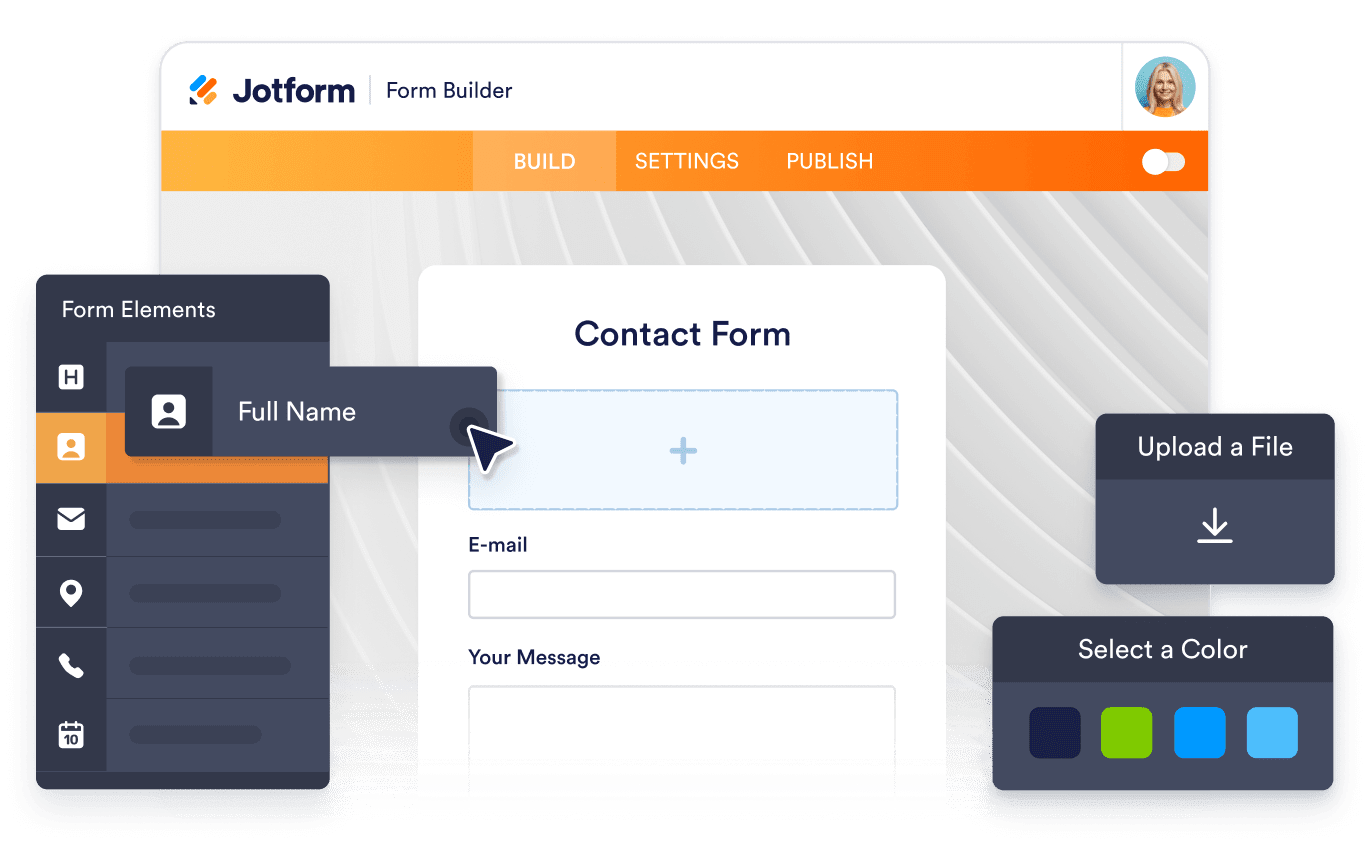
FAQ
Was ist ein Barrierefreiheits-Widget?
Ein Barrierefreiheits-Widget ergänzt Ihre Website um eine schwebende Leiste mit Einstellungen für Lesbarkeit, Kontrast, Farben, Bilder, Animationen und weitere Anzeigeoptionen. Besucherinnen und Besucher öffnen das Panel und wählen einzelne Anpassungen oder aktivierte Voreinstellungen.
Ist das Barrierefreiheits-Widget von Jotform kostenlos?
Welche Voreinstellungen zur Barrierefreiheit kann ich anbieten?
Welche Lesehilfen können Besucherinnen und Besucher nutzen?
Kann sich das Widget die Einstellungen der Besucherinnen und Besucher merken?
Kann ich die Barrierefreiheits-Leiste anpassen?
Stellt das Barrierefreiheits-Widget die Einhaltung von WCAG, BFSG oder ADA (USA) sicher?
Ersetzt das Widget eine Prüfung der Barrierefreiheit?
Muss ich Code schreiben?
Funktioniert das Barrierefreiheits-Widget auf Mobilgeräten?
Auf welchen Website-Plattformen funktioniert das Barrierefreiheits-Widget?
Bekomme ich Hilfe beim Einrichten meines Barrierefreiheits-Widgets?