-
 olympicsfanclubMobile Offline
1
Message
je voudrais pouvoir ouvrir les 3 soumissions reçu car je narrive pas
Platform
Android
Appversion
2.12.24
Deviceinfo
User Device: samsung - SM-S931B - Handset - 15
Source
Report
App
Jotform
-
 Jotform Support Former Jotform Support
Hi Isabelle,
Thanks for reaching out to Jotform Support. Unfortunately, our French Support agents are busy helping other Jotform users at the moment. I'll try to help you in English using Google Translate, but you can reply in whichever language you feel comfortable using. Or, if you'd rather have support in French, let us know and we can have them do that. But, keep in mind that you'd have to wait until they're available again.
Now, getting back to your question. To view your submissions in Offline Mode using the Jotform Mobile App, make sure the form is enabled for offline access. All submission data will be saved to your device and sent to your Inbox once you're connected to the internet. Let me show you how to set it up:
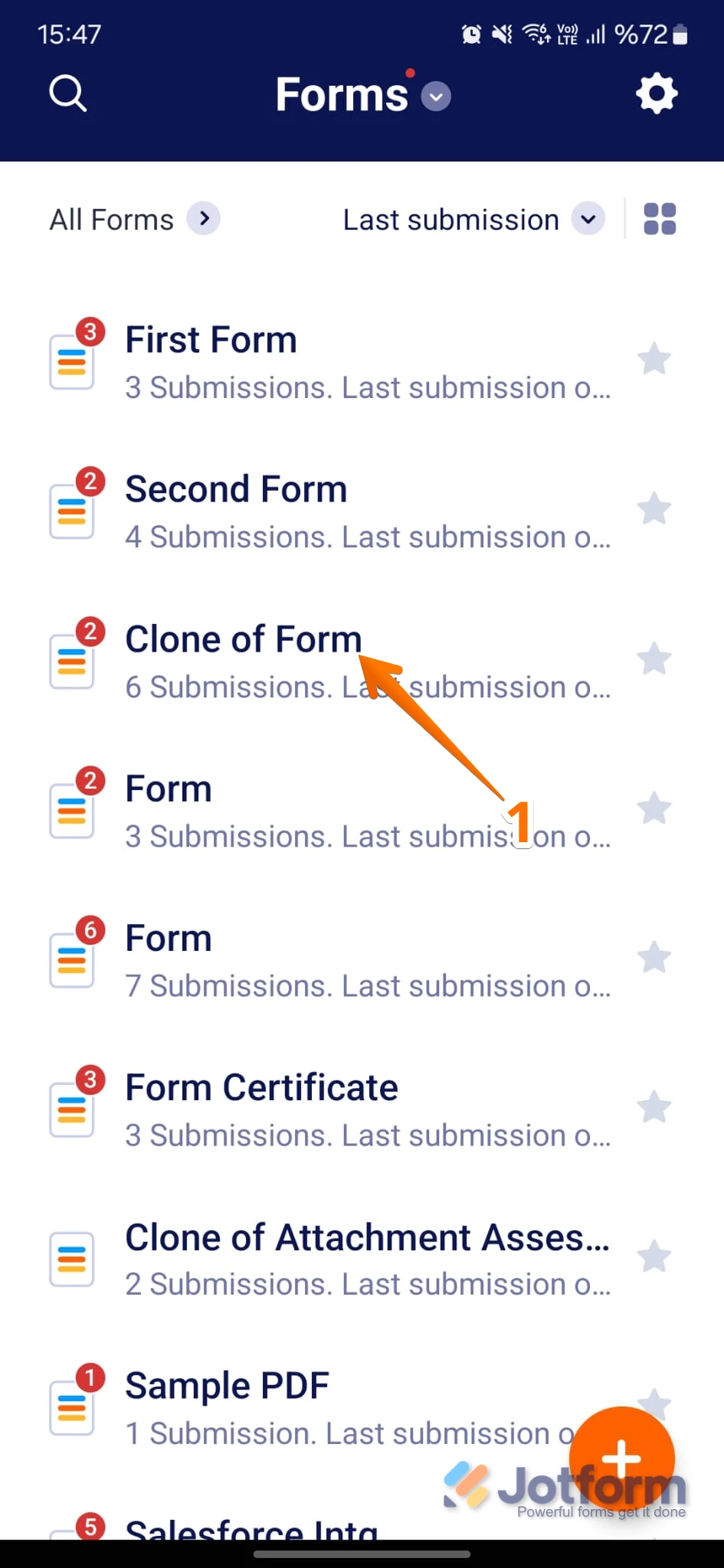
1. On your My Forms page, tap on the form that you want to access in Offline Mode.

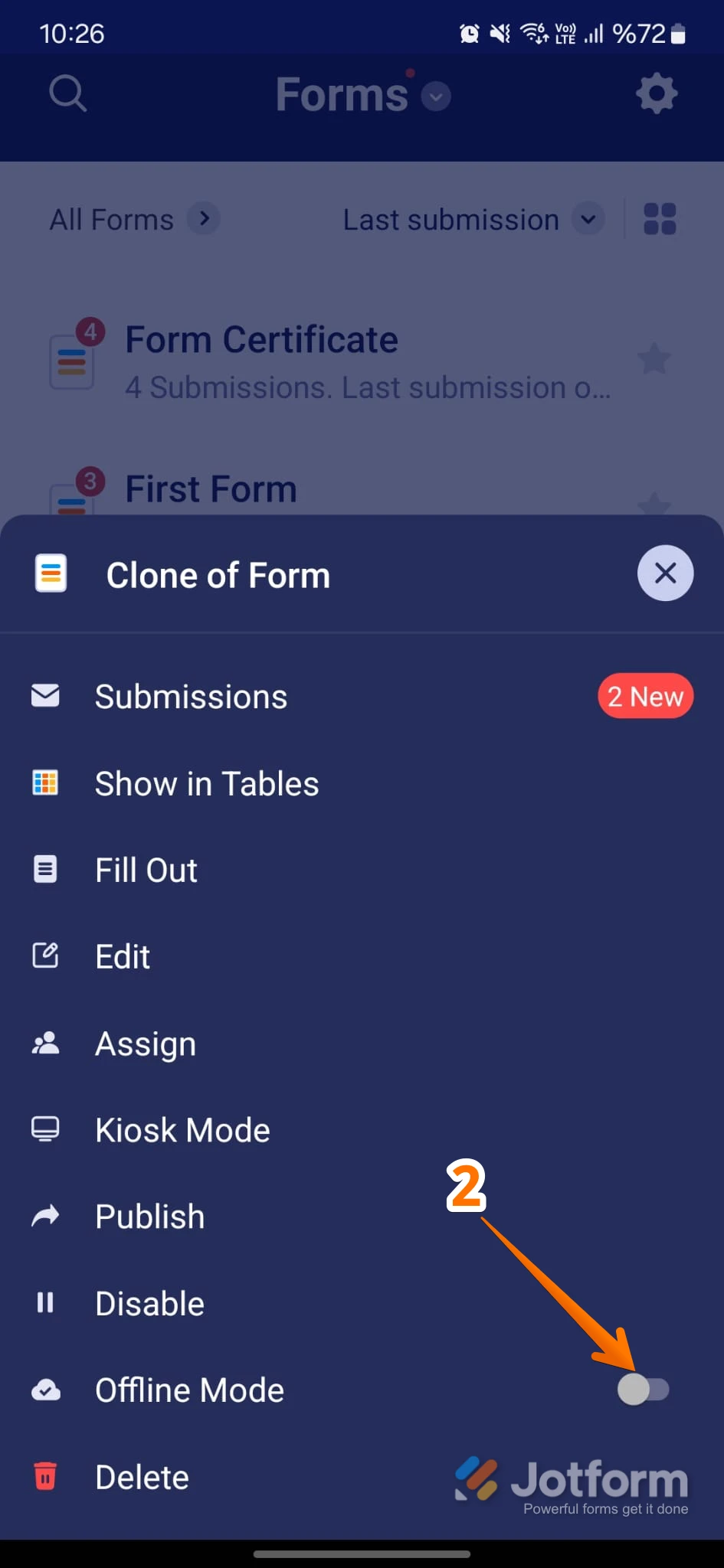
2. On the bottom-right side of the menu that opens, toggle Offline Mode to the On position.
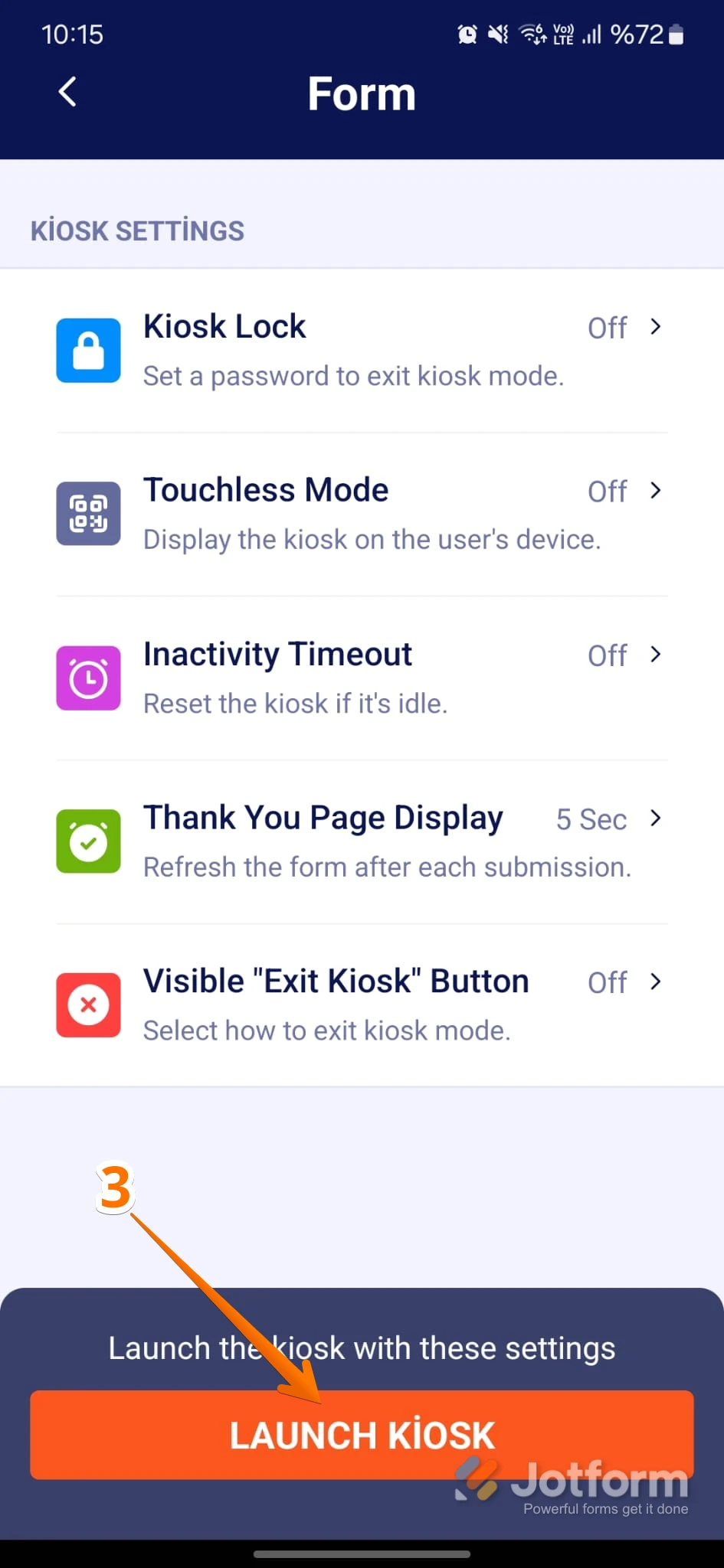
You can't use certain widgets and elements in Offline Mode because they require an internet connection to function properly. Let me show you how to use Kiosk Mode when you don't have an internet connection:
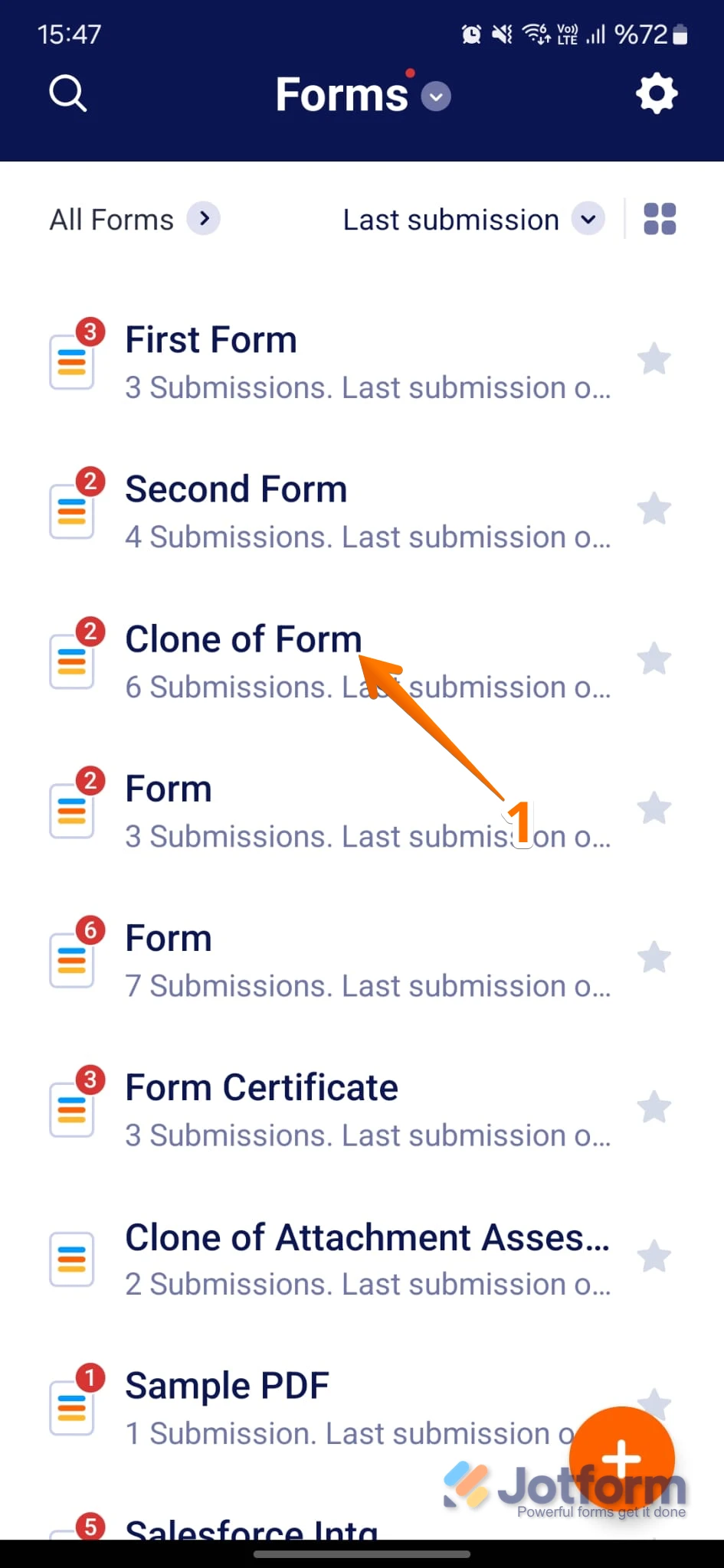
1. On your My Form page, tap on the form that you want to open in Kiosk Mode.
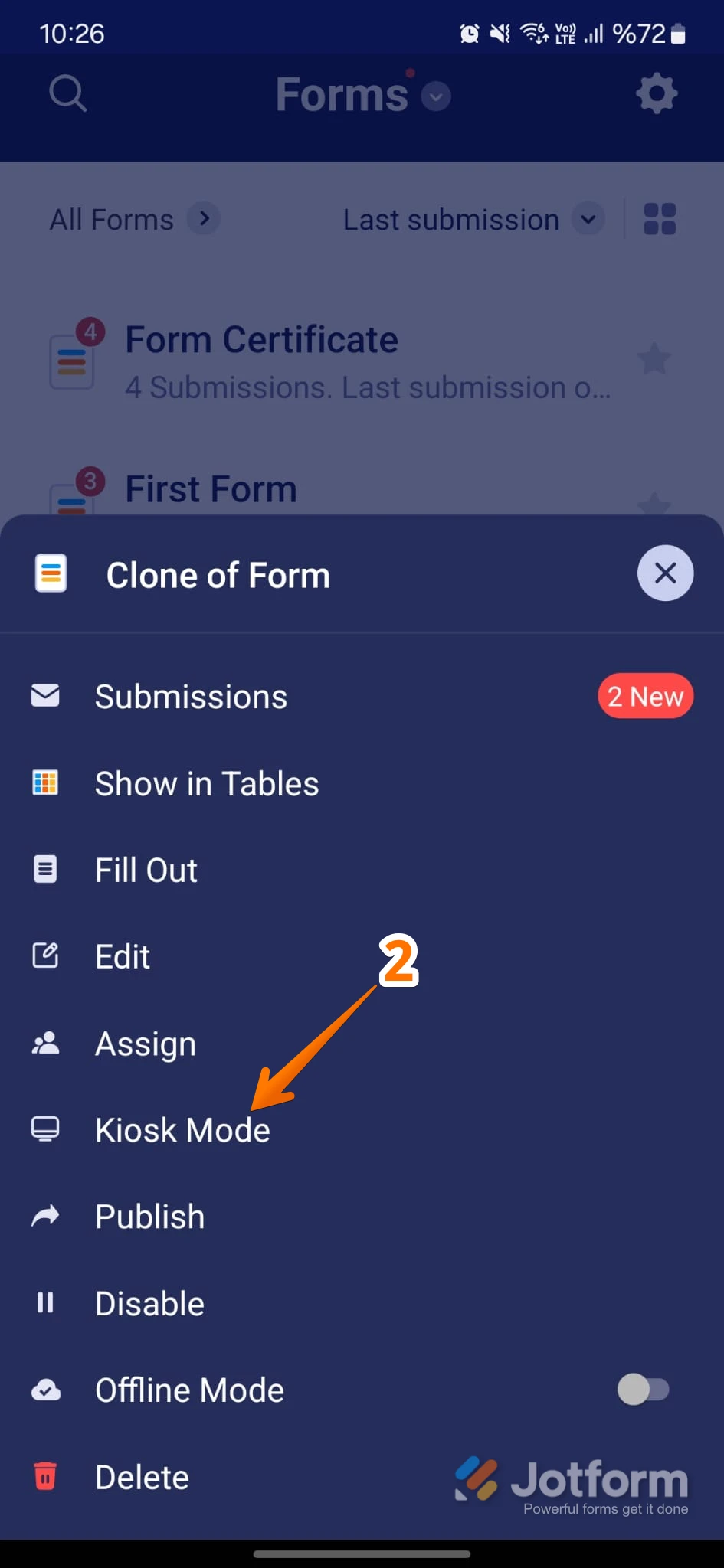
2. About halfway down in the menu that comes up, tap on Kiosk Mode.
3. Adjust the Kiosk Settings as you like and then tap on Launch Kiosk at the bottom. And that's it.
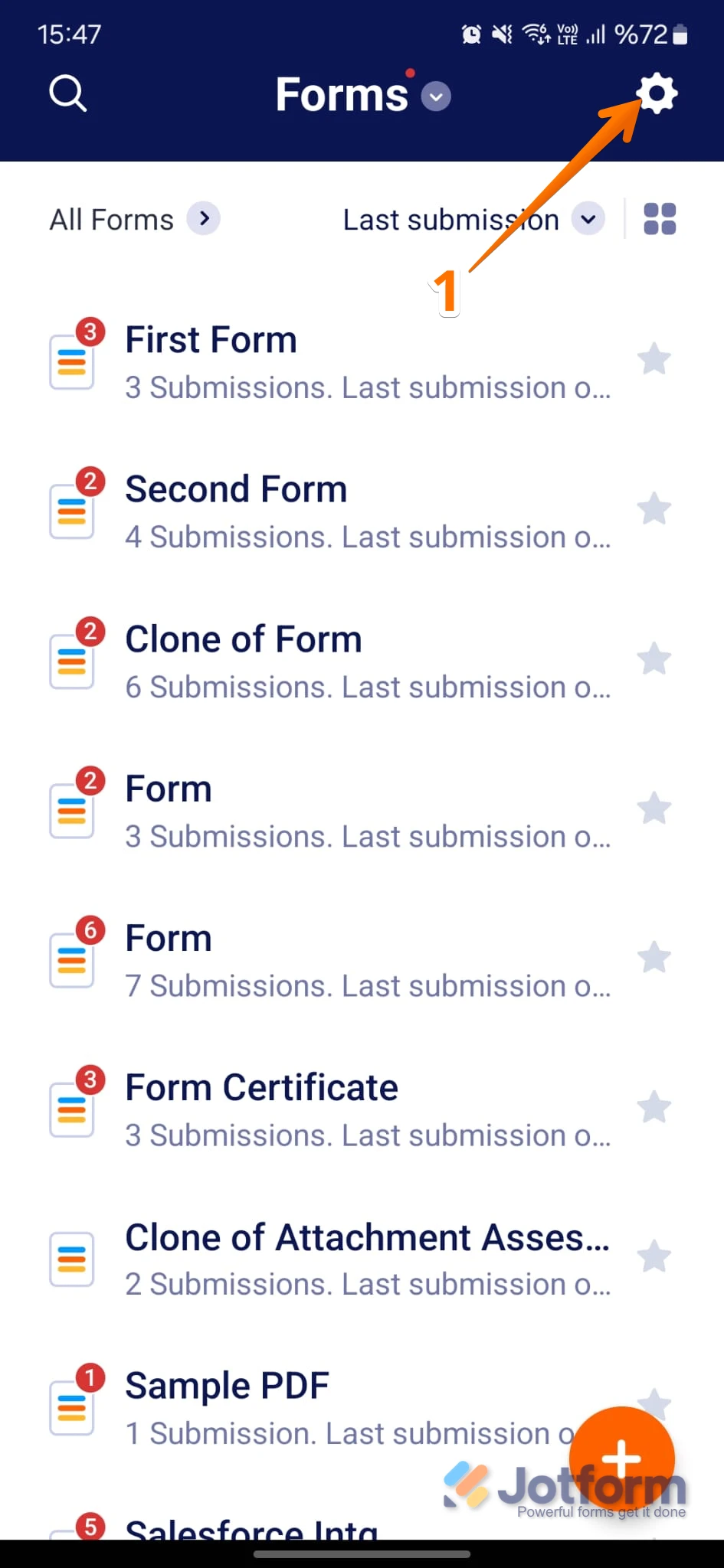
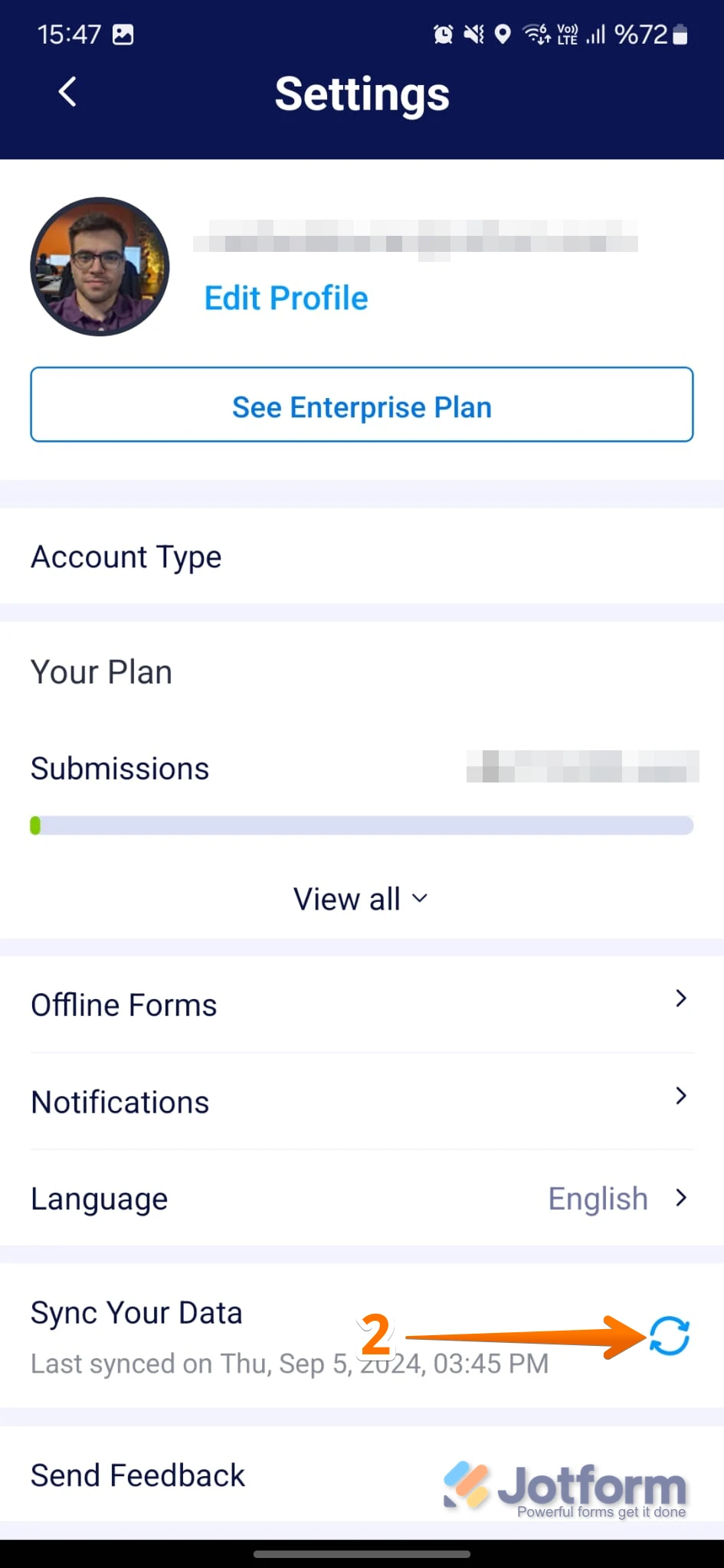
Once offline access is enabled, the submissions will be downloaded to your device, and you’ll be able to open and view them without an internet connection. If you already enabled offline mode but still can’t view the three submissions, try syncing your data by reconnecting to the internet, then tap Sync Your Data under the app’s settings before going offline again. Here's how:
1. On your My Forms page, tap on the Gear icon in the top right corner of the screen to open Settings.
2. While in Settings, scroll down and tap on the Refresh icon in the Sync Your Data section.
If you want the app to refresh and get the latest data without any issues, you should enable the Background App Refresh feature for the Jotform App in your phone settings.
Reach out again if there’s anything else we can do for you.