

Modelli Tracciamento

Foglio delle Prenotazioni del Ristorante
Indipendentemente dal tipo di cucina in cui è specializzato il tuo ristorante, è importante disporre di un sistema di prenotazione efficiente per il tuo locale. Con il nostro Foglio delle Prenotazioni del Ristorante gratuito, gli ospiti possono prenotare un tavolo utilizzando il modulo online presente nel tuo sito web e le loro risposte verranno automaticamente visualizzate in un database facilmente accessibile tramite Tabelle Jotform! Puoi passare dal foglio di calcolo, al calendario alla visualizzazione cartolina per visualizzare i dati dei clienti nel modo più adatto a te e al resto del personale del ristorante. Questo Foglio delle Prenotazioni del Ristorante è pronto per l'uso così com'è, ma sentiti libero di utilizzare la nostra interfaccia trascina e rilascia per personalizzare il design del modulo e della tabella. Senza bisogno di programmare, puoi aggiungere righe, colonne, schede, etichette, formule, filtri e altro ancora. Potrai accedere al registro delle prenotazioni da qualsiasi dispositivo, visualizzando facilmente i contatti dei clienti e le informazioni di pagamento a colpo d'occhio. Puoi anche condividere la tabella con il personale con un solo clic e inviare e-mail di promemoria automatiche agli ospiti. Con un Foglio delle Prenotazioni del Ristorante online personalizzato, puoi eliminare i registri cartacei a favore di un sistema di prenotazione senza contatto e senza interruzioni!
Vai alla Categoria:Modelli Tracciamento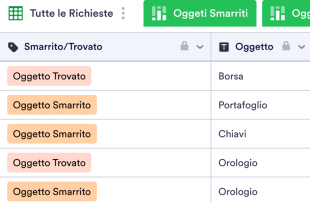
Registro Oggetti Smarriti
Un Registro Oggetti Smarriti viene utilizzato per registrare gli oggetti smarriti e aiutare i visitatori a trovare tutto ciò che potrebbero aver lasciato nel tuo stabilimento. Non importa dove lavori, tieni traccia degli oggetti smarriti o delle richieste presso la tua struttura con il nostro Registro Oggetti Smarriti gratuito. Tu e il tuo staff potete facilmente aprire il registro e inserire le informazioni di contatto di coloro che segnalano gli oggetti smarriti insieme a dettagli importanti sugli oggetti. Tutte le voci verranno archiviate nel tuo Registro Oggetti Smarriti sicuro, che può essere visualizzato da qualsiasi dispositivo, scaricato e condiviso in pochi clic. Questo Registro Oggetti Smarriti è pronto per ricevere le informazioni sugli oggetti e sui visitatori, ma se desideri apportare modifiche al modello, puoi farlo facilmente senza bisogno di programmare! Con pochi clic puoi modificare gli elementi visivi fino a creare il registro perfetto per la tua attività. Con un Registro Oggetti Smarriti personalizzato, facile da visualizzare e modificare da qualsiasi computer o dispositivo mobile, sarai più preparato e potrai aiutare i visitatori a trovare i loro oggetti smarriti e a ottenere recensioni positive per i tuoi servizi di assistenza clienti.
Vai alla Categoria:Modelli Tracciamento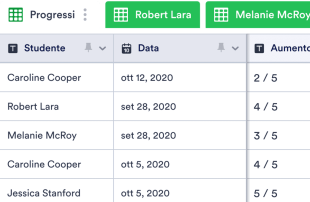
Foglio di Monitoraggio dei Progressi degli Studenti
Registra e monitora le prestazioni dei tuoi studenti con il Foglio di Monitoraggio dei Progressi degli Studenti online gratuito di Jotform! Questo modello di tabella gratuito funziona di pari passo con il modulo di valutazione delle prestazioni degli studenti, che puoi compilare da qualsiasi dispositivo per popolare automaticamente la tua tabella con i dati di invio. Puoi anche importare file esterni nella tabella per aiutarti a tenere traccia di tutte le informazioni sugli studenti in un posto di facile accesso. Questo Foglio di Monitoraggio dei Progressi degli Studenti è suddiviso in diverse schede per ciascuno dei tuoi studenti, ma sentiti libero di personalizzare il modello in modo che funzioni al meglio per te. Puoi aggiungere righe e colonne, creare schede per i nuovi studenti e impostare filtri e formule avanzati per organizzare automaticamente i tuoi dati. Sarai anche in grado di passare dalla visualizzazione tabella a quella a calendario, cartolina o rapporto in modo da poter vedere i tuoi dati esattamente come ti serve. La gestione dei dati degli studenti online non deve essere complicata con un Foglio di Monitoraggio dei Progressi degli Studenti online personalizzato per la tua classe!
Vai alla Categoria:Modelli Tracciamento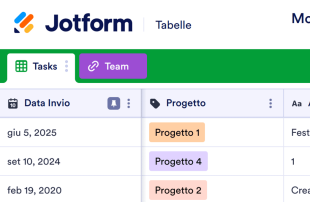
Monitoraggio progetto
Un modello di Monitoraggio del progetto viene utilizzato per gestire piani e programmazioni di progetto, soprattutto da parte di responsabili che seguono più progetti contemporaneamente. Che tu voglia adottare migliori pratiche di project management per la tua azienda o semplicemente trovare un modo per organizzare i tuoi progetti personali, il modello di Monitoraggio del progetto online gratuito di Jotform migliorerà il tuo modo di gestire i progetti e ti aiuterà a raggiungere i tuoi obiettivi. Per iniziare, inserisci semplicemente i dettagli del progetto come nome, attività, assegnatario, date di inizio e fine stimate e stato nel foglio di calcolo. Tu e il tuo team lavorate sodo per adattare i progetti alle esigenze della vostra azienda, quindi perché non fare lo stesso con il vostro modello di Monitoraggio del progetto? Personalizzarlo richiede solo pochi minuti e non necessita di alcuna programmazione, ti basta trascinare e rilasciare per aggiungere colonne, righe, schede ed etichette al foglio di calcolo. Una volta completato, tu e i tuoi colleghi potrete accedere, modificare e condividere il modello di Monitoraggio del progetto da qualsiasi computer o dispositivo mobile. Con un modello di Monitoraggio del progetto facilmente accessibile, cambierai il modo di tenere sotto controllo le attività importanti e raggiungerai gli obiettivi di progetto in pochissimo tempo!
Vai alla Categoria:Gestione Progetti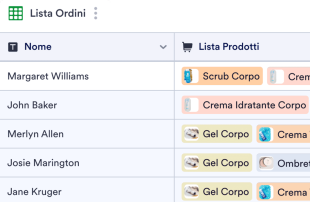
Scheda di Monitoraggio Ordini
Che tu gestisca un negozio o un ristorante con opzioni di ordinazione online, questa Scheda di Monitoraggio Ordini gratuita ti aiuterà a gestire gli ordini meglio che mai! Per iniziare, personalizza e pubblica semplicemente il modulo d'ordine allegato per i tuoi clienti. Gli ordini effettuati verranno visualizzati automaticamente nel foglio di calcolo, visualizzando le informazioni sul cliente, i dettagli dell'ordine, le conferme di pagamento e altro ancora. Sarai aggiornato in tempo reale, permettendoti di tenere d'occhio ogni singolo ordine che arriva attraverso il tuo sito web! Questo modello di Scheda di Monitoraggio Ordini è pronto per essere utilizzato così com'è, ma sentiti libero di personalizzarlo per adattarlo meglio alle tue esigenze aziendali. Senza bisogno di programmare: basta trascinare e rilasciare per aggiungere nuove colonne o schede, creare filtri e tag con codice colore e passare dal foglio di calcolo al calendario alla visualizzazione a cartolina. Una volta che hai iniziato a elaborare gli ordini online, puoi scaricare la Scheda di Monitoraggio Ordini e condividerla con altri membri del tuo staff. Con una Scheda di Monitoraggio Ordini online personalizzata, passerai meno tempo a controllare manualmente gli ordini e più tempo a consegnare prodotti di qualità a clienti soddisfatti!
Vai alla Categoria:Modelli Tracciamento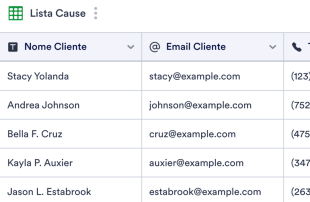
Scheda di Gestione Cause
Una Scheda di Gestione Cause viene utilizzata dai tribunali e da altre persone giuridiche per raccogliere e tenere traccia di informazioni importanti sui casi. Con questa Scheda di Gestione Cause gratuita di Jotform, tu e il tuo team potete inserire dettagli importanti sulla causa tramite il modulo allegato, come nome del cliente, stato, numero di protocollo e le informazioni di contatto di tutte le parti coinvolte. Puoi anche caricare file per creare un database online completo con tutte le informazioni relative ai tuoi casi. Vuoi personalizzare questo modello? Aggiorna righe e colonne, aggiungi nuove schede, passa alla visualizzazione calendario o cartolina e personalizza altri elementi senza bisogno di programmare. Jotform mantiene i dati protetti con una connessione SSL a 256 bit e l'opzione per crittografare i tuoi moduli, così puoi stare tranquillo sapendo che le tue informazioni sono mantenute al sicuro. Migliora il modo in cui gestisci i tuoi casi con una potente Scheda di Gestione Cause online.
Vai alla Categoria:Modelli Tracciamento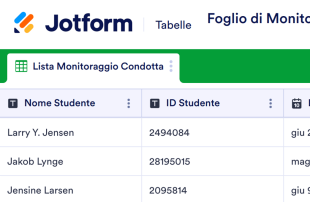
Foglio di Monitoraggio della Condotta degli Studenti
Un Foglio di Monitoraggio della Condotta degli Studenti viene utilizzato dagli insegnanti per tenere traccia del comportamento dei loro studenti. Questo Foglio di Monitoraggio della Condotta degli Studenti online gratuito di Jotform, può essere compilato direttamente oppure tramite il modulo allegato. Puoi inserire le informazioni sugli studenti come nomi, dati, il loro comportamento generale e durante periodi specifici e se sono stati contattati i genitori. Puoi visualizzare la tua tabella come foglio di calcolo, calendario o cartoline di facile lettura per ogni singolo studente e modificarla senza bisogno di programmare. Hai bisogno di personalizzare il tuo Foglio di Monitoraggio della Condotta degli Studenti per adattarlo meglio alla tua classe? Sentiti libero di aggiungere nuove righe e colonne, dividere le informazioni in schede separate, aggiungere etichette con codice colore o valutazioni a stelle ed esplorare altre opzioni di personalizzazione. Puoi anche sincronizzare i dati con altre piattaforme come Google Drive, Google Calendar, Trello, Slack e molte altre grazie alle oltre 100 integrazioni disponibili. Tieni un registro approfondito del comportamento dei tuoi studenti mantenendo i tuoi registri organizzati e sicuri con un Foglio di Monitoraggio della Condotta degli Studenti gratuito di Jotform.
Vai alla Categoria:Modelli Tracciamento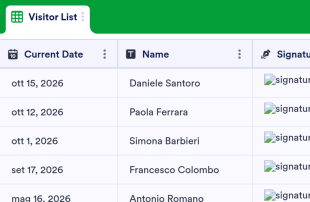
Registro di ingresso visitatori
Tieni traccia delle informazioni sui visitatori con il foglio di registrazione gratuito di Jotform. Compilalo da qualsiasi dispositivo e personalizzalo facilmente. Visualizza i dati in formato foglio di calcolo, calendario o schede.
Vai alla Categoria:Modelli per ElenchiInformazioni sui Modelli Tracciamento
I modelli di monitoraggio vengono utilizzati per monitorare e gestire informazioni importanti, che si tratti di attività, dettagli di contatto, domande, personale o presenze. I modelli di tracker gratuiti di Jotform consentono una personalizzazione completa e le loro funzionalità avanzate aiutano a semplificare il flusso di lavoro.
Scegli tra tipi di colonne e formule già pronti, cerca e filtra i tuoi dati e aggiungi schede o etichette con codice colore per organizzare in modo professionale tutto ciò che stai monitorando. Puoi anche collaborare al modello della tua tabella con i compagni di squadra, utilizzando la nostra funzione di condivisione con un click.
Why Use Tracker Templates?
- Tracker Templates eliminate the need for manual data transfer by automatically populating responses from Jotform Forms into Jotform Tables. This automation ensures that all submissions are captured accurately and reduces the potential for human error.
- Keeping responses together in a centralized location allows for quick and efficient access to all data. This centralized approach saves time and effort when needing to locate specific records for review or reporting.
- The ability to search, filter, and group entries in Tracker Templates simplifies the process of finding and analyzing specific data points. This functionality ensures that records can be quickly accessed based on defined criteria.
- Reviewing complete submission details, including any associated uploads, within Jotform Tables allows form owners to make informed decisions based on comprehensive data.
- Coordinating follow-up actions and tracking changes in submissions is streamlined through Jotform Tables, enhancing communication and accountability within teams.
- Reporting on collected data becomes more efficient with the use of Tracker Templates, allowing for the generation of insights and statistics necessary for informed decision-making.
Common Problems Solved by Tracker Templates
- Manually copying submissions into spreadsheets is time-consuming and prone to errors. Tracker Templates automate this process by directly importing form responses into Jotform Tables.
- Scattered responses across different platforms or documents can lead to inefficiencies. Tracker Templates centralize all submissions in one place, making them easily accessible.
- Difficulty locating records quickly is a common challenge that is addressed by Tracker Templates, which offer robust search and filtering capabilities.
- Inconsistent review processes can result from missing context or incomplete data. With Tracker Templates, all relevant information is organized and readily available for thorough review.
- Hard-to-review uploads and unclear ownership of submissions are resolved by the structured format of Tracker Templates, which supports comprehensive data analysis and clear assignment of responsibilities.
Matching Form Submission Use Cases to Jotform Tables Features
- When collecting event registration data through a Jotform Form, submissions automatically appear in the connected table, ensuring that event organizers have real-time access to attendee information.
- Submissions related to customer feedback can be organized using Table View or Detail View, allowing customer service teams to analyze responses and improve service delivery efficiently.
- Healthcare professionals can use filters and data grouping to manage patient records, ensuring that critical information is easily accessible for medical evaluations and follow-ups.
- Access settings and assignees facilitate team collaboration by allowing only authorized personnel to modify records while maintaining a clear history of changes and assignments.
- Generating reports from collected survey data is simplified through the use of Report View, enabling marketing teams to present findings in a structured and professional format.
How to Use Tracker Templates with Jotform Forms
- Start by selecting a category-relevant Jotform Tables template, a blank table, or the table connected to an existing Jotform Form. The Jotform Form will collect the category-specific information, and new responses will automatically appear in the connected table.
- Configure the table for submission review by naming columns, selecting appropriate column types, and choosing relevant views such as Table View, Detail View, Calendar View, Uploads View, or Report View to best fit the data being managed.
- Manage submissions effectively by using search, filters, grouping, formulas, access settings, assignees, revision history, linked tables, action buttons, or outputs, depending on the specific needs of your category.
Top Use Cases for Tracker Templates
- For Form Owners: Form owners benefit from Tracker Templates by having a streamlined process for reviewing incoming responses. They can edit submission data, check details or uploads, and keep records organized within Jotform Tables. This ensures that all information is up-to-date and easily accessible, aiding in decision-making and data management.
- For Teams: Authorized team members can efficiently find and maintain entries using Tracker Templates. They can coordinate responsibility with assignees, ensuring tasks are completed by the right people. Additionally, using access settings and revision history supports shared work by providing a clear audit trail of changes and maintaining data integrity.
- For Managers: Managers utilize Tracker Templates to monitor collected data and review category-specific patterns. By checking progress and ownership, they can ensure that operations run smoothly. Report View and other relevant views provide oversight, helping managers make informed decisions based on comprehensive data analysis.
Summarizing Tracker Templates
Non sono necessarie molteplici app: raccogli, condividi e gestisci le tue informazioni in uno spazio di lavoro all-in-one con i modelli di tracker di Jotform.
Domande Frequenti
1) Quali sono i differenti tipi di fogli di monitoraggio?
Anche se puoi utilizzare i fogli di monitoraggio per gestire qualsiasi informazione, alcuni utilizzi comuni sono
2) Chi dovrebbe usare un foglio di monitoraggio?
Submissions from Jotform Forms automatically appear in Tracker Templates due to their connected relationship. Once a respondent submits a form, the response is recorded as an entry in the linked table, ensuring a seamless data flow. Future responses continue to auto-populate the table, maintaining an up-to-date record set.
3) Come faccio a creare e usare un foglio di monitoraggio?
Yes, Tracker Templates allow you to edit submissions and organize data using various tools such as search, filters, and data grouping. You can also apply formulas and calculations to process the data further. While these features enhance data management, they do not automate decision-making processes.
Utilizzi dei fogli di budget
Data within Tracker Templates can be exported as CSV or Excel files, providing flexibility in data management. This capability allows you to add existing information to the table or use the export for external analysis and reporting. The integration of connected-form submissions with manually imported data is seamless.
5) Which Jotform Tables views can I use with Tracker Templates?
Tracker Templates support several views, including Table View, Detail View, Calendar View, Report View, and Uploads View. Table View is ideal for a broad overview of all entries, while Detail View allows for in-depth analysis of individual records. Calendar View helps in tracking dates, Report View aids in generating structured reports, and Uploads View is useful for managing attachments efficiently.
6) Can teams collaborate on submissions in Tracker Templates?
Teams can collaborate effectively on submissions using Tracker Templates by leveraging access settings and assigning tasks to specific team members. Real-time tracking and revision history help manage shared work, ensuring that changes are transparent and easily traceable. This collaborative environment enhances team productivity and data accuracy.
7) Can I connect Tracker Templates to related data or other applications?
Tracker Templates support linked tables and integrations, allowing you to connect to related data or third-party applications. Action buttons provide additional functionality to trigger specific tasks, enhancing the workflow. This connectivity ensures that Tracker Templates can be part of a broader data management strategy.
8) Can I create reports, PDFs, and manage files from Tracker Templates?
You can create detailed reports using Report View and generate PDFs for sharing or archival purposes. Uploads View allows you to manage files associated with table data, ensuring that all relevant documents are easily accessible. While not every category requires all capabilities, these features enhance the management and presentation of collected data.