
Your email inbox is bursting with important information: invoices, purchase orders, customer signups, service requests, and more. However, your email is also full of information that may not be as important to your day-to-day work.
How do you pull out the key data from your emails, without manually reading each one, and send that data where it needs to go?
Enter Zapier’s free Email Parser. This tool automatically scans your emails for vital structured data, pulls it out, and sends the data to another system, like your CRM. You’re free to focus on more important work.
In this guide, we’ll show you how to use Email Parser by Zapier and explore its common applications and limitations. We’ll also introduce you to an AI-driven alternative to Email Parser: the Jotform Gmail Agent, which gives you more control over data extraction.
What is Email Parser by Zapier?
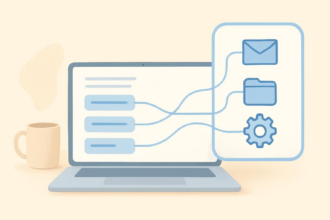
Email Parser by Zapier extracts specific structured data from email and sends it to other tools, such as email marketing solutions, CRM tools, and spreadsheet software.
The types of structured data that Zapier’s Email Parser extracts include order numbers, contact details, shipping info, and tracking info. You decide what details you want to extract and program the parser to look for and pull out that data. To complete the process, you also create a downstream trigger and action, specifying what Zapier should do with the data.
The Zapier Email Parser is ideal for simple, rule-based sorting, such as pulling out numbers and words.
Some of the benefits of Zapier’s Email Parser include
- Time savings: Email Parser by Zapier doesn’t require any manual intervention. So you can set it and forget it, and focus on more strategic tasks.
- Reduced manual error: Copying and pasting data manually can lead to mistakes, but Email Parser takes that out of the equation, guaranteeing error-free data entry.
- Seamless integration: Zapier is easy to connect to thousands of other applications, so you can set up automations to send your structured data where it needs to go.
- Cost efficiency: Zapier’s Email Parser has a free plan, so it works for all budgets. If you want advanced features, you may need to purchase a paid plan.
How to use Email Parser by Zapier: A step-by-step guide
If you deal with a large amount of structured data that comes in through email, consider automating the downstream actions. Think about it: What else could you be doing with your time if you didn’t have to pull out data manually from your emails and paste it into other applications? Review these steps, and see how easily you can set up Email Parser by Zapier.
Step 1: Set up your Parser mailbox.
Begin by setting up an account with Zapier. You can sign up for a free Zapier plan, which includes basic functionality as well as unlimited “Zaps” or connections. Zapier also offers three paid plans with advanced features, starting at $19.99 per month.
Log in and create a mailbox with Zapier. You’ll be assigned a custom email address that is a random combination of letters and numbers, but you can change this email address if you prefer.
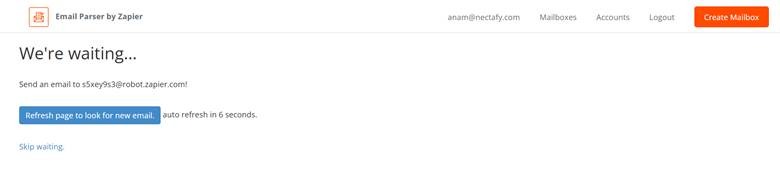
Go to your email inbox, and forward an email to your Zapier email address. This email should contain the structured data you want Zapier to extract.
Step 2: Teach the Parser what to grab.
Zapier’s Email Parser will learn what data you want to extract from the examples you provide.
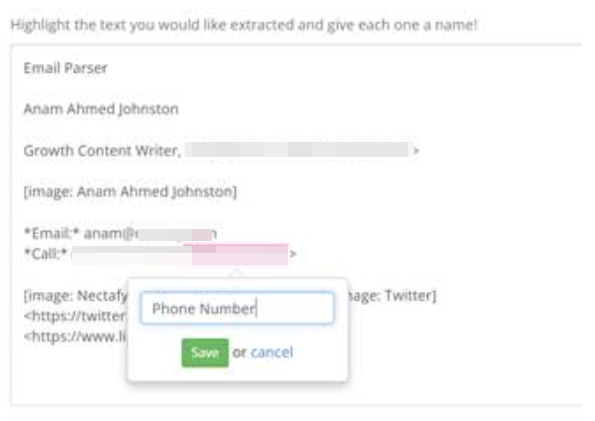
Open the forwarded email in your Zapier Email Parser dashboard. Highlight the data you want the tool to extract, such as a name, phone number, order number, or invoice number. Name each field you extract, for proper mapping. Then click Save.
Repeat this process for each type of structured data you want Zapier Email Parser to extract.
Step 3: Build your Zap.
Once you’ve taught Zapier’s Email Parser which structured data to extract, it’s time to set up a trigger and action to tell Zapier where to send the data.
In Zapier, create a new Zap.
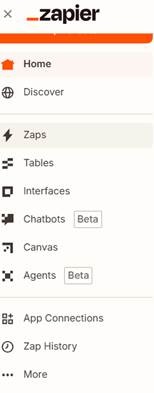
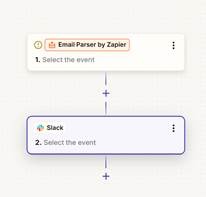
Under Trigger, select Email Parser by Zapier and choose your Email Parser mailbox. Under Action, select where you want to send the parsed data, such as Google Sheets, Slack, your CRM, or an email marketing automation tool.
Step 4: Test and refine.
After you’ve set up both the trigger and action in Zapier and connected each to the appropriate apps and accounts, be sure to test and refine the workflow to make sure everything works as it should. Send several emails that contain the chosen structured data, and ensure that Zapier’s Email Parser sends to the appropriate place.
If the data is not coming through as expected, you may need to adjust field selections or rules in Email Parser. If the data is being parsed but not delivered to the proper place, you may need to check that your Zap is properly connected.
Common use cases for Zapier’s Email Parser
Email Parser by Zapier is a versatile tool that can be used by all types of businesses across a range of industries. Here are a few real-life applications:
- E-commerce and retail: Use Email Parser to send automated email tracking updates to customers, so they know when their products will arrive. You can also pull user feedback or reviews about products into spreadsheets, to use for marketing content.
- Healthcare: Process patient appointment requests from your email and input them automatically into scheduling software. You can also use Zapier’s Email Parser to extract lab test results and send them to patient management systems.
- Travel and hospitality: If your clients send booking preferences via email, you can send that data to booking systems to plan trips and events. Email Parser by Zapier is also useful for tracking refund requests or itinerary changes.
- Real estate: Extract information on property inquiries from email, and input the contact details into your lead database. You can also use Email Parser by Zapier to log showing requests or scheduling confirmations into your booking tools.
- IT: Extract support ticket data to create to-dos in a task management platform like Asana, to make sure no tasks get left behind. You can also auto-log web form emails into a spreadsheet software like Google Sheets.
- Sales: Extract names, email addresses, and other key information from web submission forms, and send them to a CRM tool like HubSpot or Salesforce. Also use Email Parser by Zapier to pull product or service details from emailed quote requests and send the details to a task management tool for follow-up.
- Accounting/finance: Capture invoice numbers, due dates, and payment amounts, and send them to an accounting system like QuickBooks or Xero. You can also extract vendor details from emails and push the information into an expense tracker.
- HR: If you receive job applications via email, parse candidate details, and send them to recruiting systems. Use Email Parser to extract candidate availability and sync the information with an interview booking tool.
Limitations of Zapier’s Email Parser
Zapier’s Email Parser is a good tool for extracting simple structured data from your email and using that data to execute a downstream action. However, like any tool, it’s not perfect. Before you commit to Zapier’s Email Parser, consider these limitations:
- It works best for highly structured or template-based emails: Zapier’s Email Parser is designed to be used with emails that follow a consistent layout. Ideally, each data point should be on its own line for the best results. If the email structure changes often, it’s possible the Email Parser may miss some data or miscapture data.
- It requires manual setup and maintenance for new formatting and templates: If your email template or format changes, you’ll have to redo the parsing setup manually each time, to make sure the Email Parser extracts the correct data.
- It does not consider context: Zapier’s Email Parser doesn’t have the ability to understand the context or intent in emails. It is not an AI tool and cannot expand its learning or provide personalized responses or information.
- It is sensitive to small variations: If there are things like extra spaces, new punctuation, or a slight rewording in the email format or template, the Email Parser can get confused and miscapture or not capture the information.
A sophisticated alternative to Zapier’s Email Parser: Jotform Gmail Agent

Zapier’s Email Parser is a good choice if you’re in need of basic data extraction from highly templated emails. However, if you’re looking for a more sophisticated alternative tool that can streamline data processes within your email, consider the Jotform Gmail Agent.
What are AI agents? These complex tools can complete administrative and strategic tasks (such as responding to emails, and filtering and labeling emails) without human intervention. Here’s why people choose the Jotform Gmail Agent:
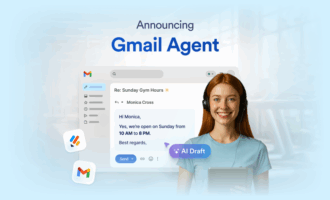
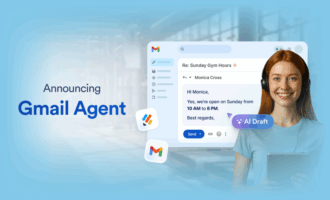
- It provides smart, context-aware replies: The Jotform Gmail Agent doesn’t just parse emails; it sends complete AI-generated replies. Use it to help your customer support or sales team when their inboxes are overflowing.
- It’s capable of on-brand messaging: Instead of sending generic email responses, the Jotform Gmail Agent drafts emails that reflect your organization’s brand, policies, and tone. You can train it to sound like an extension of your business.
- It allows you to maintain full control: You don’t need to worry about emails being sent without your review. The Jotform Gmail Agent drafts and holds emails until you give the go-ahead to send, following a human-in-the-loop workflow. There is no risk of sending incorrect or outdated information.
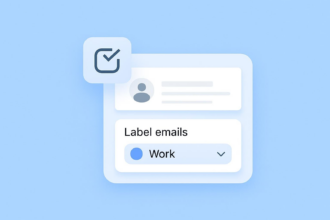
- It uses smart filtering and labeling: The Jotform Gmail Agent drafts emails only when a reply is needed, so it generates no email clutter. It also auto-labels and prioritizes your inbox, saving you time.
- It works in conjunction with other Jotform AI Agents: You can extend the automation to web forms, and the agent chats directly from your Gmail. You can also deliver a consistent experience to customers across media channels, no matter how they reach out to you.
- It seamlessly integrates with Gmail: Jotform uses an OAuth-based setup. Email drafts appear right in your Gmail Drafts folder, so everything remains in the same interface.
Ideal for professionals in customer support, in sales, at help desks, and in IT, and for anyone else tired of repetitive, manual email tasks, the Jotform Gmail Agent supports high-volume workloads. Zapier’s Email Parser is a solid starting point for simple email data extraction, but the Jotform Gmail Agent is the next leap forward if you’re looking for smarter, context-aware, and controllable automation.
Streamline your team’s email with the Jotform Gmail Agent
Email takes up a lot of your team’s time. Automating your email workflow starts with the basics, like using Zapier to parse structured emails for key data. It’s a great tool for simple automations and straightforward triggers and actions. However, as your needs grow, consider an upgrade to the Jotform Gmail Agent.
With AI-powered drafting, consistent on-brand messaging, and a human approval loop, the Jotform Gmail Agent will transform how your team uses email.
Streamline your communication workflow, never miss a key reply, and reclaim your team’s time with Jotform. Give the Gmail Agent a try today!
This article is for email marketers, operations teams, and professionals who want to automate structured email workflows using Zapier’s Email Parser, while exploring smarter AI-driven alternatives for handling high-volume, nuanced communication with greater control and brand consistency.



































Send Comment: