

Śledzenie

Arkusz Śledzenia Szczepień COVID-19
Arkusz śledzenia szczepień przeciwko COVID-19 może być wykorzystywany przez organizacje służby zdrowia do śledzenia pacjentów, którzy zostali lub zostaną zaszczepieni. Dzięki darmowemu szablonowi arkusza Jotform, możesz zarządzać rejestracjami w profesjonalnej tabeli i wyświetlać dane w formie arkusza kalkulacyjnego, kalendarza lub czytelnych kart. Przeprowadź rejestrację przez połączony formularz, by automatycznie wprowadzić dane do tabeli, a następnie przeglądaj, edytuj lub udostępniaj je współpracownikom. Proces rejestracji w każdej praktyce przebiega inaczej - na szczęście, możesz dostosować szablon tabeli zmieniając układ, dodając nowe kolumny, rozdzielając dane na osobne zakładki, przypisując kolorowe etykiety i nie tylko. Pamiętaj, żeby ulepszyć konto i aktywować zgodność z HIPAA, by chronić wrażliwe dane medyczne pacjentów! Niemal każdy boi się szczepień - spraw więc, by ten proces był tak bezbolesny, jak to możliwe z pomocą działającego na każdym urządzeniu arkusza śledzenia szczepień przeciwko COVID-19.
Go to Category:Śledzenie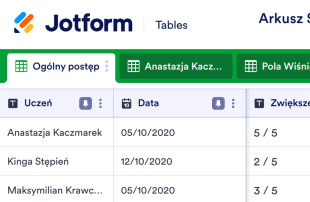
Arkusz Śledzenia Postępów Uczniów
Śledź i monitoruj postępy uczniów przy pomocy darmowego arkusza śledzenia postępów w nauce od Jotform! Ten darmowy szablon współpracuje z formularze ewaluacyjnym, który możesz wypełnić z dowolnego urządzenia, by automatycznie wprowadzić dane do tabeli. Możesz także zaimportować zewnętrzne pliki, by zarządzać danymi wszystkich uczniów z jednego, łatwo dostępnego miejsca. Ten arkusz śledzenia postępów w nauce jest podzielony na kilka zakładek - każda z nich zawiera dane jednego ucznia. Masz możliwość dostosowania szablonu do swoich potrzeb - dodaj wiersze i kolumny, twórz nowe zakładki oraz skonfiguruj zaawansowane filtry i formuły, by automatycznie porządkować dane. Możesz nawet zmienić tryb wyświetlania danych z tabeli na kalendarz, karty lub pliki, by przeglądać informacje w komfortowy sposób. Dzięki własnemu arkuszowi śledzenia postępów w nauce, zarządzanie danymi uczniów staje się proste!
Go to Category:ŚledzenieAbout Śledzenie
Tracker Templates are category-specific table templates designed to help form owners and their teams organize and manage records collected through Jotform Forms. By using these templates, organizations can efficiently handle a variety of submissions such as records, requests, applications, registrations, feedback, orders, and inspections. This functionality is particularly useful for professionals across diverse industries, including education, healthcare, events management, and customer service. The Tracker Templates ensure that the collected information is managed effectively, providing a streamlined approach to submission management without turning the table into a form, app, or task tracker.
Jotform Tables serves as the primary platform where submissions from connected Jotform Forms automatically populate, allowing for seamless management of incoming data. Each response submitted through a Jotform Form becomes an entry in the connected table, which can be reviewed in Table View or Detail View. Users have the flexibility to organize and analyze submissions using search, filters, grouping, column types, Calendar View, Report View, or Uploads View. While manual entry and CSV or Excel import are available for adding existing data, the primary focus is on automating the form-to-table workflow, ensuring a smooth transition from data collection to data management.
Why Use Tracker Templates?
- Tracker Templates eliminate the need for manual data transfer by automatically populating responses from Jotform Forms into Jotform Tables. This automation ensures that all submissions are captured accurately and reduces the potential for human error.
- Keeping responses together in a centralized location allows for quick and efficient access to all data. This centralized approach saves time and effort when needing to locate specific records for review or reporting.
- The ability to search, filter, and group entries in Tracker Templates simplifies the process of finding and analyzing specific data points. This functionality ensures that records can be quickly accessed based on defined criteria.
- Reviewing complete submission details, including any associated uploads, within Jotform Tables allows form owners to make informed decisions based on comprehensive data.
- Coordinating follow-up actions and tracking changes in submissions is streamlined through Jotform Tables, enhancing communication and accountability within teams.
- Reporting on collected data becomes more efficient with the use of Tracker Templates, allowing for the generation of insights and statistics necessary for informed decision-making.
Common Problems Solved by Tracker Templates
- Manually copying submissions into spreadsheets is time-consuming and prone to errors. Tracker Templates automate this process by directly importing form responses into Jotform Tables.
- Scattered responses across different platforms or documents can lead to inefficiencies. Tracker Templates centralize all submissions in one place, making them easily accessible.
- Difficulty locating records quickly is a common challenge that is addressed by Tracker Templates, which offer robust search and filtering capabilities.
- Inconsistent review processes can result from missing context or incomplete data. With Tracker Templates, all relevant information is organized and readily available for thorough review.
- Hard-to-review uploads and unclear ownership of submissions are resolved by the structured format of Tracker Templates, which supports comprehensive data analysis and clear assignment of responsibilities.
Matching Form Submission Use Cases to Jotform Tables Features
- When collecting event registration data through a Jotform Form, submissions automatically appear in the connected table, ensuring that event organizers have real-time access to attendee information.
- Submissions related to customer feedback can be organized using Table View or Detail View, allowing customer service teams to analyze responses and improve service delivery efficiently.
- Healthcare professionals can use filters and data grouping to manage patient records, ensuring that critical information is easily accessible for medical evaluations and follow-ups.
- Access settings and assignees facilitate team collaboration by allowing only authorized personnel to modify records while maintaining a clear history of changes and assignments.
- Generating reports from collected survey data is simplified through the use of Report View, enabling marketing teams to present findings in a structured and professional format.
How to Use Tracker Templates with Jotform Forms
- Start by selecting a category-relevant Jotform Tables template, a blank table, or the table connected to an existing Jotform Form. The Jotform Form will collect the category-specific information, and new responses will automatically appear in the connected table.
- Configure the table for submission review by naming columns, selecting appropriate column types, and choosing relevant views such as Table View, Detail View, Calendar View, Uploads View, or Report View to best fit the data being managed.
- Manage submissions effectively by using search, filters, grouping, formulas, access settings, assignees, revision history, linked tables, action buttons, or outputs, depending on the specific needs of your category.
Top Use Cases for Tracker Templates
- For Form Owners: Form owners benefit from Tracker Templates by having a streamlined process for reviewing incoming responses. They can edit submission data, check details or uploads, and keep records organized within Jotform Tables. This ensures that all information is up-to-date and easily accessible, aiding in decision-making and data management.
- For Teams: Authorized team members can efficiently find and maintain entries using Tracker Templates. They can coordinate responsibility with assignees, ensuring tasks are completed by the right people. Additionally, using access settings and revision history supports shared work by providing a clear audit trail of changes and maintaining data integrity.
- For Managers: Managers utilize Tracker Templates to monitor collected data and review category-specific patterns. By checking progress and ownership, they can ensure that operations run smoothly. Report View and other relevant views provide oversight, helping managers make informed decisions based on comprehensive data analysis.
Summarizing Tracker Templates
Tracker Templates offer a valuable solution for collecting and managing category-specific information through Jotform Forms and Jotform Tables. By automating the response collection process and providing robust tools for data organization and analysis, these templates enhance efficiency and accuracy. Jotform Tables serves as a central hub for managing submissions, allowing users to streamline their workflows and focus on data-driven decision-making.
Najczęściej Zadawane Pytania
1) Is it free to use Tracker Templates with Jotform Tables?
Jotform offers a Starter plan that allows users to begin utilizing Tracker Templates with Jotform Tables. This plan provides access to essential features, making it an accessible option for individuals and small teams. For those with more advanced needs, additional plans are available, but specifics on limits and quotas are not detailed here.
2) How do submissions from Jotform Forms appear in Tracker Templates?
Submissions from Jotform Forms automatically appear in Tracker Templates due to their connected relationship. Once a respondent submits a form, the response is recorded as an entry in the linked table, ensuring a seamless data flow. Future responses continue to auto-populate the table, maintaining an up-to-date record set.
3) Can I edit, search, filter, group, and calculate data in Tracker Templates?
Yes, Tracker Templates allow you to edit submissions and organize data using various tools such as search, filters, and data grouping. You can also apply formulas and calculations to process the data further. While these features enhance data management, they do not automate decision-making processes.
4) Can I export the data inside the tables as CSV or Excel?
Data within Tracker Templates can be exported as CSV or Excel files, providing flexibility in data management. This capability allows you to add existing information to the table or use the export for external analysis and reporting. The integration of connected-form submissions with manually imported data is seamless.
5) Which Jotform Tables views can I use with Tracker Templates?
Tracker Templates support several views, including Table View, Detail View, Calendar View, Report View, and Uploads View. Table View is ideal for a broad overview of all entries, while Detail View allows for in-depth analysis of individual records. Calendar View helps in tracking dates, Report View aids in generating structured reports, and Uploads View is useful for managing attachments efficiently.
6) Can teams collaborate on submissions in Tracker Templates?
Teams can collaborate effectively on submissions using Tracker Templates by leveraging access settings and assigning tasks to specific team members. Real-time tracking and revision history help manage shared work, ensuring that changes are transparent and easily traceable. This collaborative environment enhances team productivity and data accuracy.
7) Can I connect Tracker Templates to related data or other applications?
Tracker Templates support linked tables and integrations, allowing you to connect to related data or third-party applications. Action buttons provide additional functionality to trigger specific tasks, enhancing the workflow. This connectivity ensures that Tracker Templates can be part of a broader data management strategy.
8) Can I create reports, PDFs, and manage files from Tracker Templates?
You can create detailed reports using Report View and generate PDFs for sharing or archival purposes. Uploads View allows you to manage files associated with table data, ensuring that all relevant documents are easily accessible. While not every category requires all capabilities, these features enhance the management and presentation of collected data.