When you set up the PayPal Business integration, you’ll need to have a fully verified PayPal Business account. This ensures that your payment processing runs smoothly, helps prevent delays or transaction issues, and allows you to access all features supported by PayPal, including accepting credit cards, managing subscriptions, and tracking sales. It also adds an extra layer of security for both you and your customers.
Notes
- You’ll need the following key information to successfully open a PayPal Business account: an Employer Identification Number (EIN), the last four digits of a primary contact’s Social Security Number, and the key contact’s date of birth.
- The sign-up flow may look slightly different on your end, but the steps are essentially the same. Simply provide the requested information as you go.
Signing up for a PayPal Business Account
PayPal’s sign-up process is pretty straightforward. Just have your business details ready, and you should receive approval once you have completed the application. To sign up, you’ll just need to follow these simple steps:
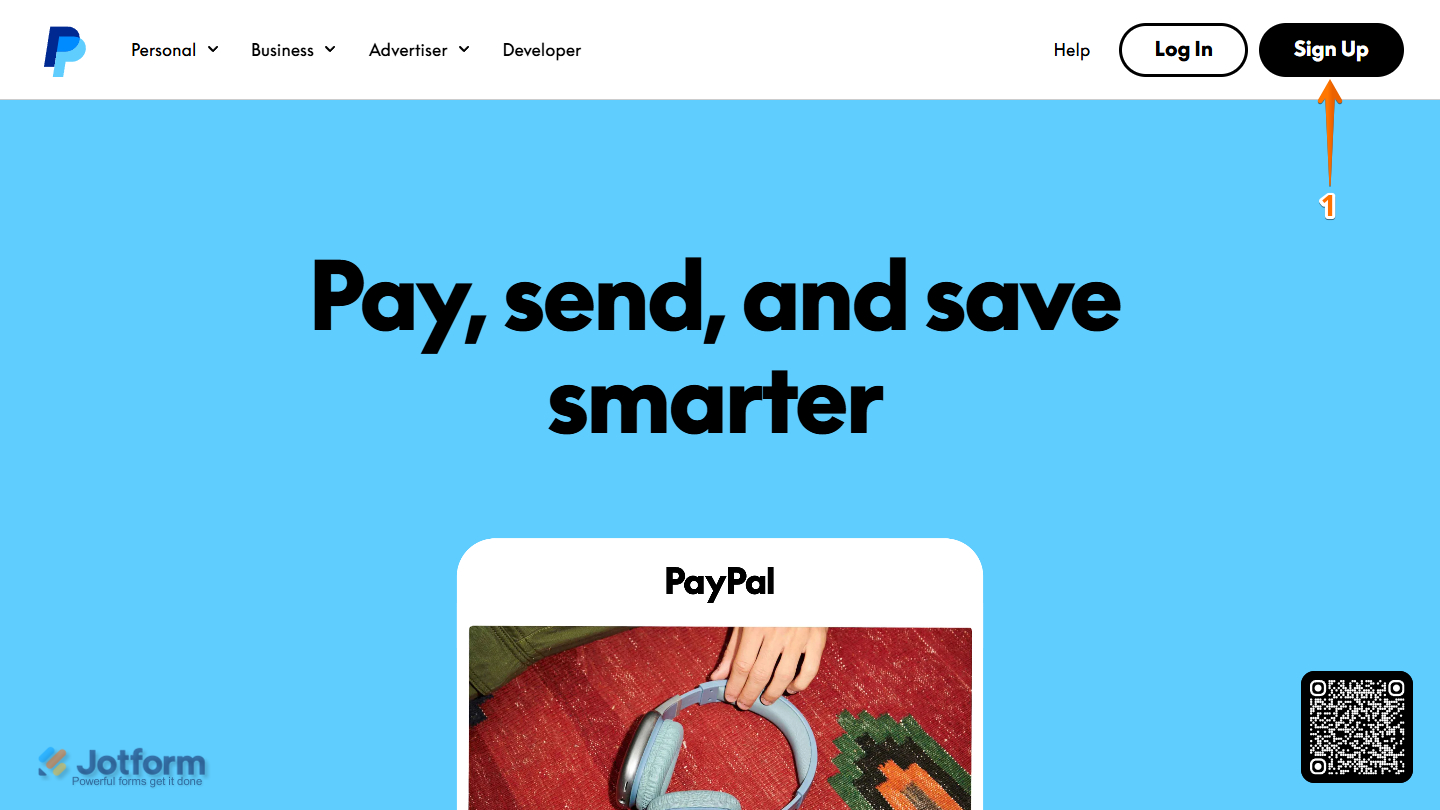
- Go to PayPal’s website, and in the top navigation menu, click on Signup.
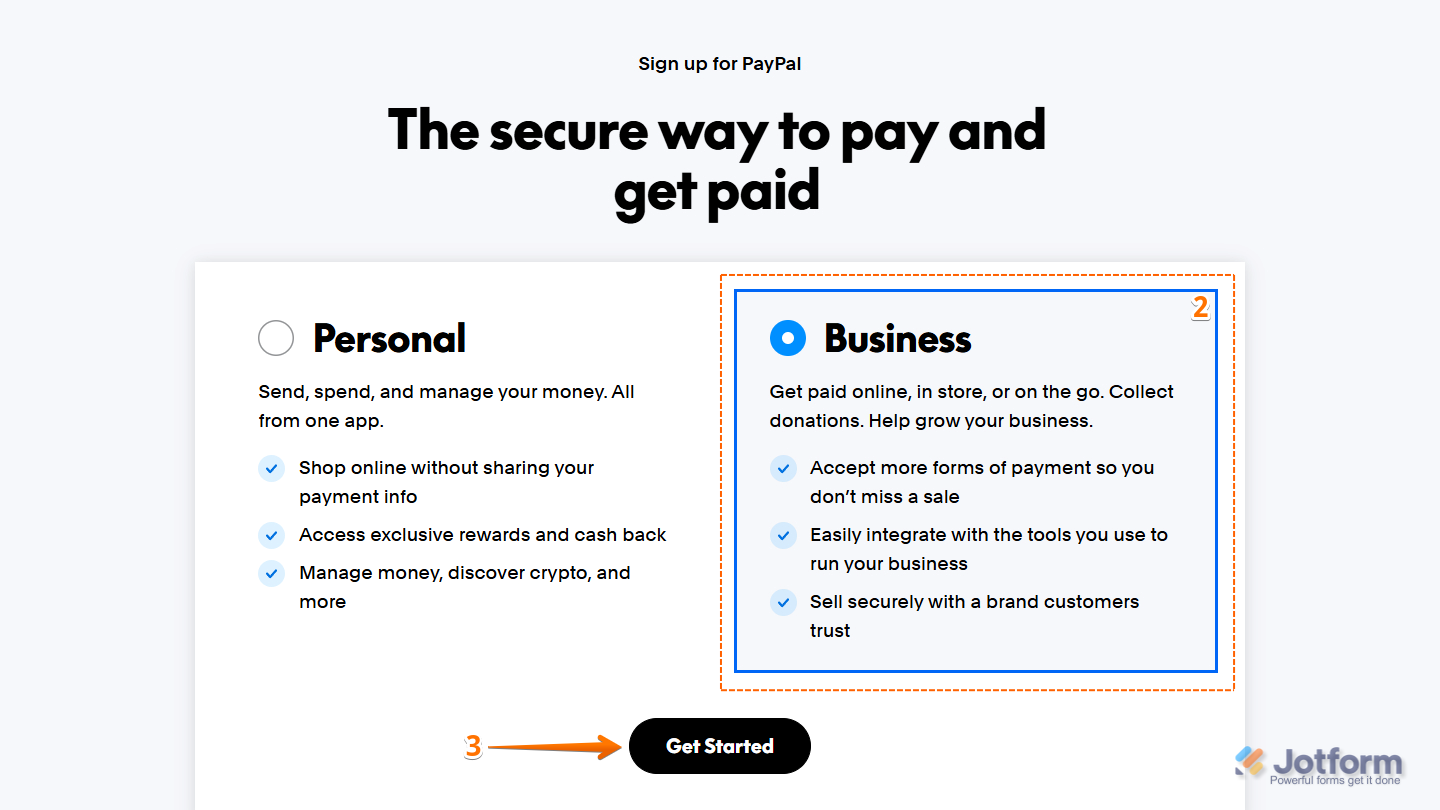
- On the sign-up page, select Business.
- Then, click on Get Started at the bottom of the page.
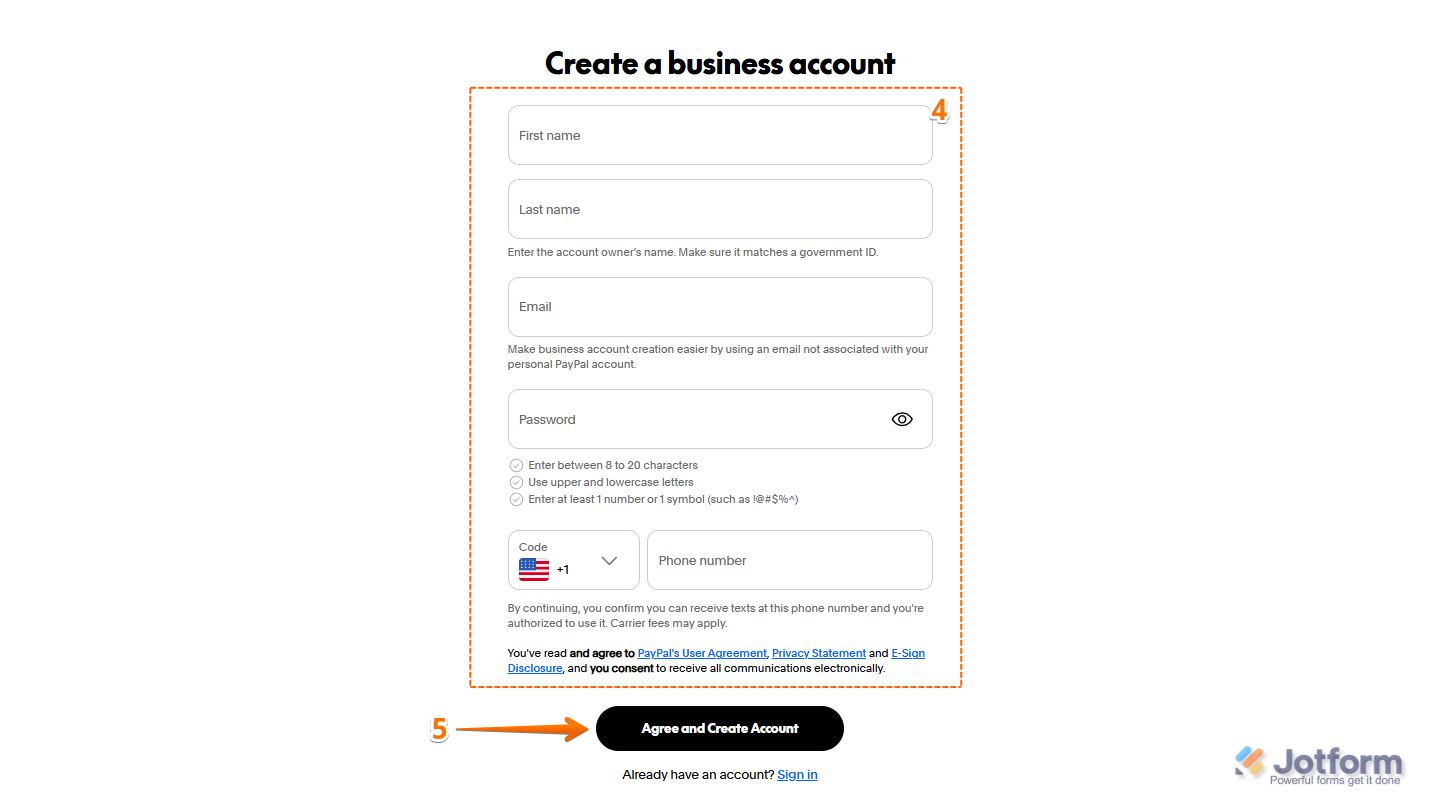
- Next, on the Create a Business Account page, enter your basic registration details: Full Name, Email, Password, and Phone Number.
- Now, click on the Agree and Create Account button.
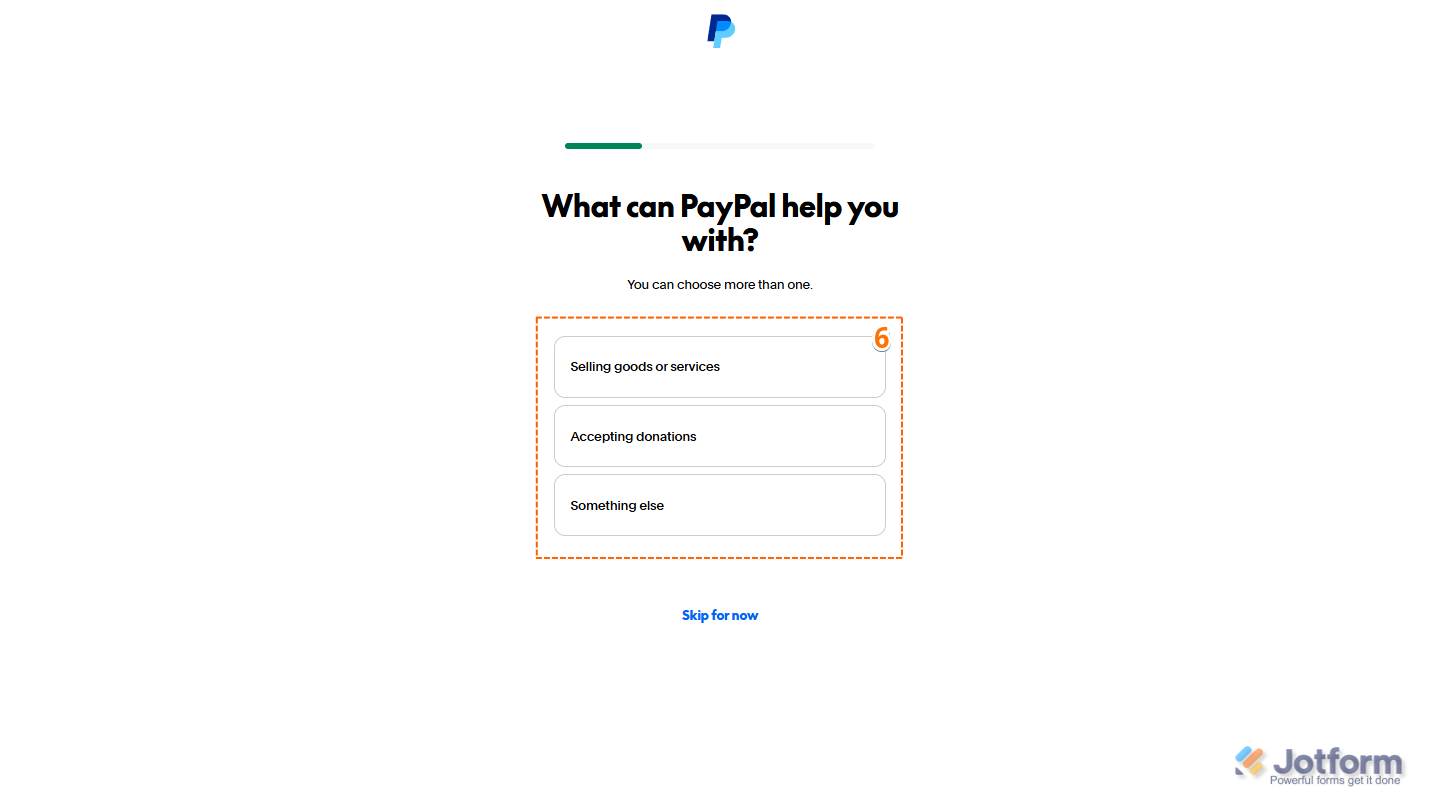
- On the What Can PayPal Help You With? page, select whether you are Selling Goods or Services, Accepting Donations, or Something Else. You can also skip this step and set it up later if you prefer.
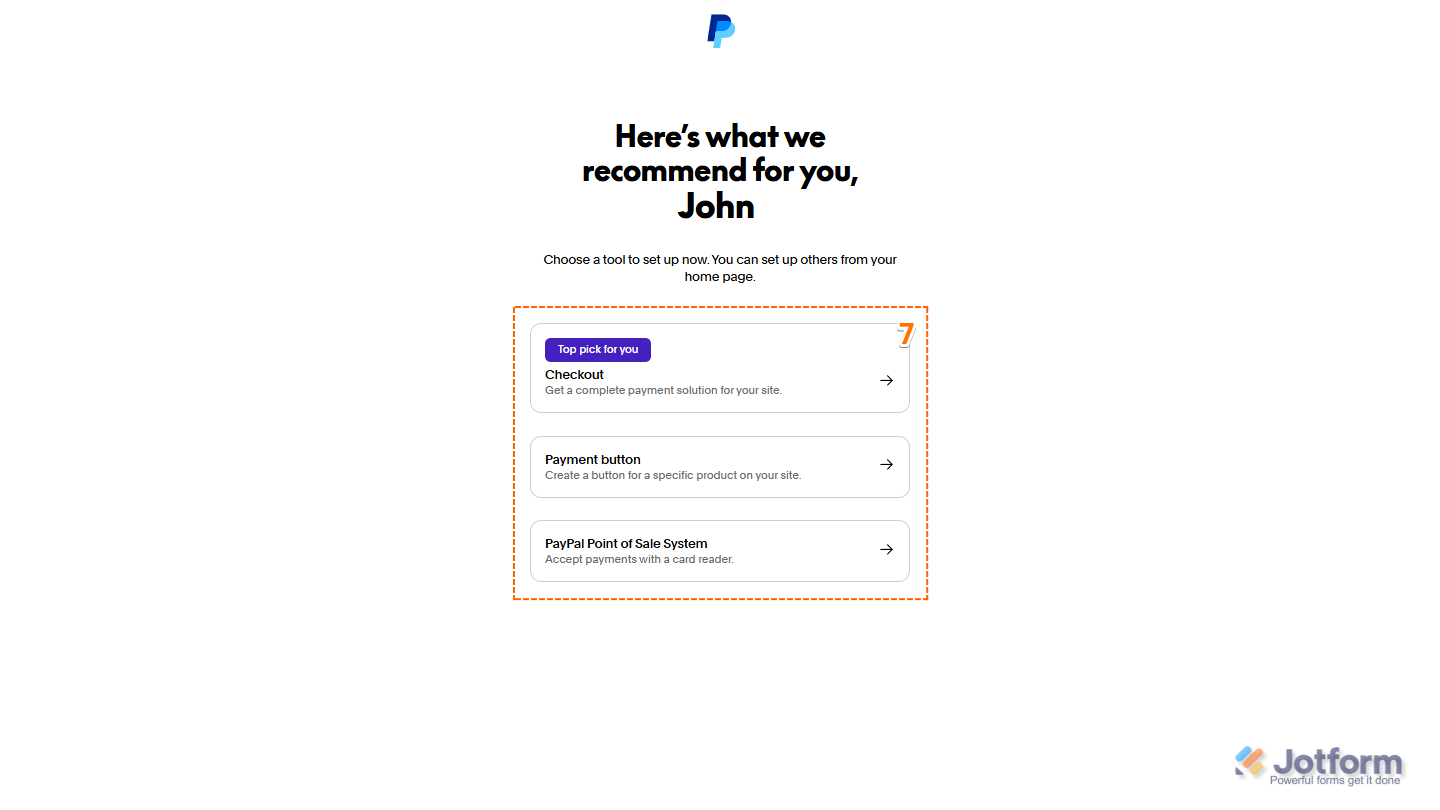
- Then, on the next page, select the tool you want to set up: Checkout, Payment Button, or PayPal Point of Sale System.
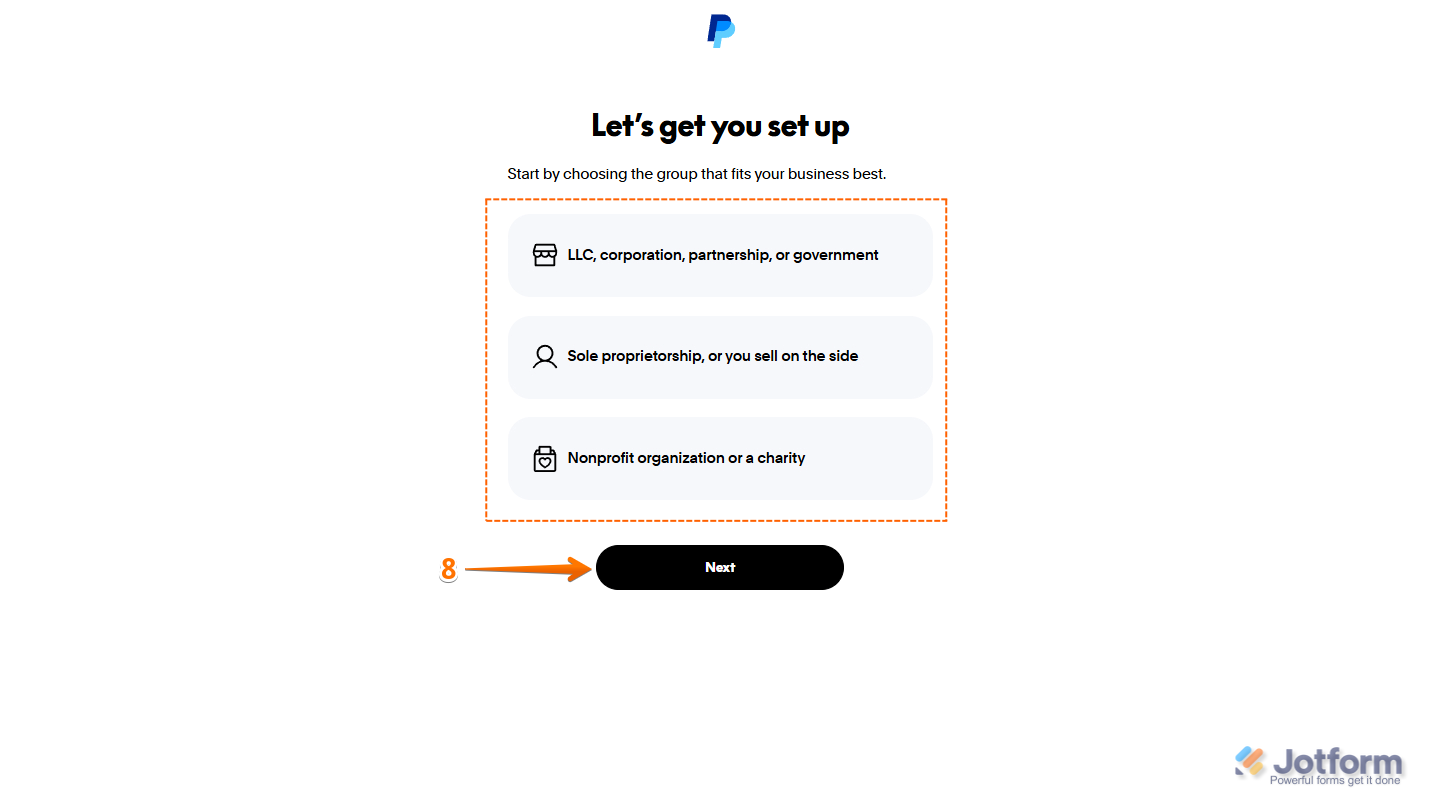
- Next, on the Let’s Get You Set Up page, select the group that best fits your business, and then click on Next.
Note
- Based on the selected group, you’ll be required to choose a business type from a dropdown menu.
- If you select Nonprofit Organization or Charity, you’ll be asked whether it’s a registered organization or charity.
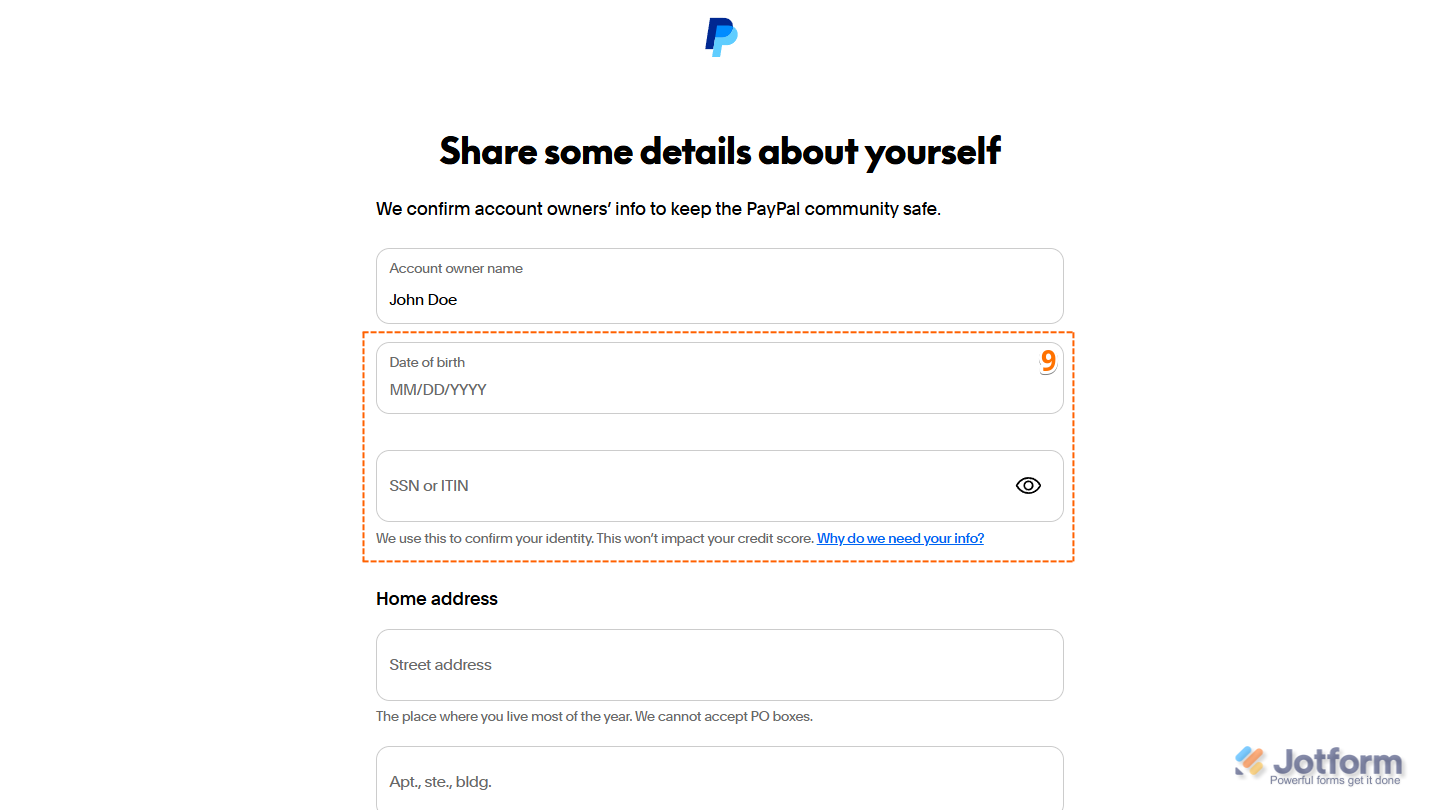
- On the next page, enter your Personal Information, such as: Date of Birth and SSN or ITIN.
Note
Make sure the personal information you provide belongs to a key individual in the business, such as the owner (for sole proprietorships) or the comptroller (for corporations).
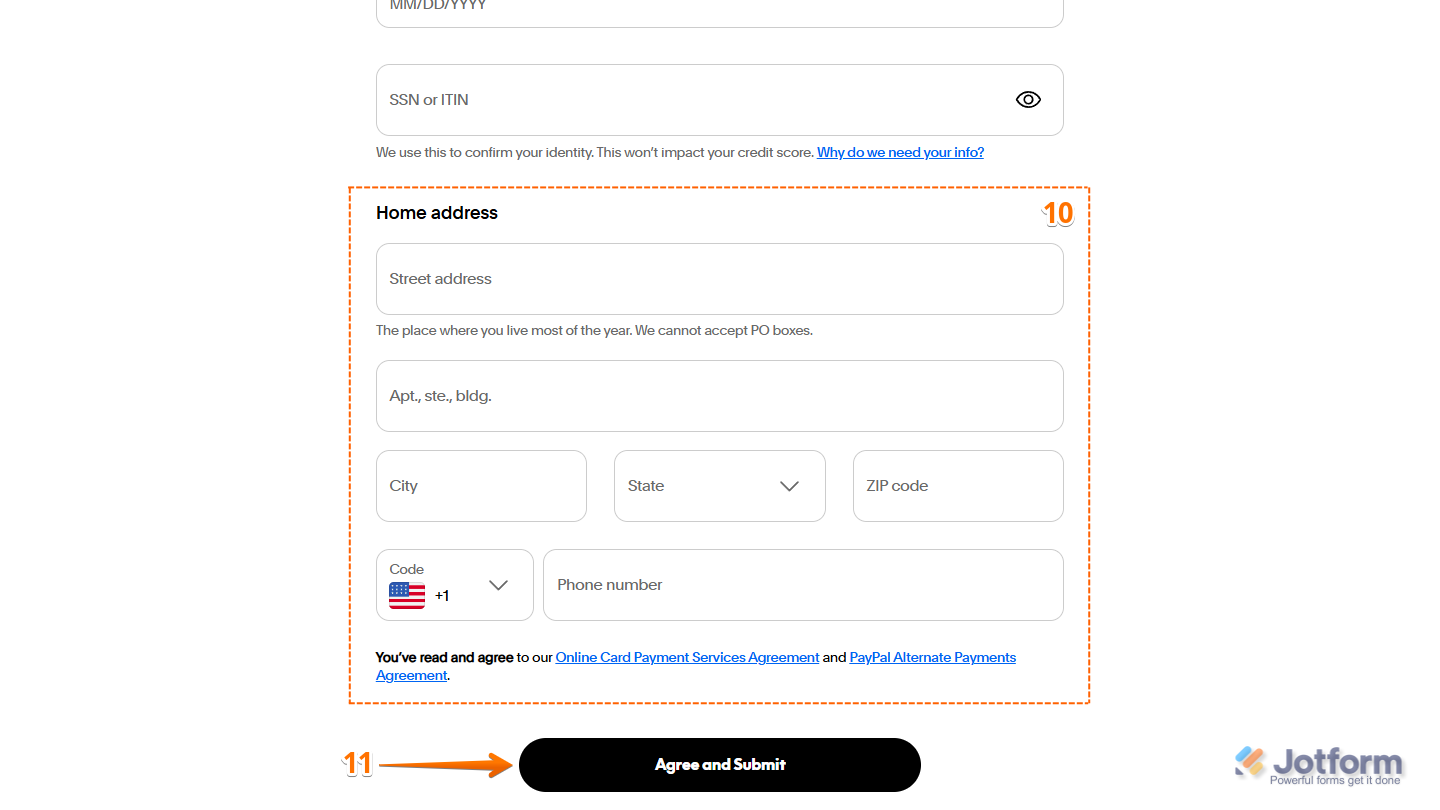
- Then, scroll down, and enter your Home Address along with your Personal Phone number.
- Once you’re done, click on Agree and Submit.
- On the next page, complete these fields:
- Business Name
- Business Industry
- Primary Currency
- Do You Sell on a Business Website?
- Business Website
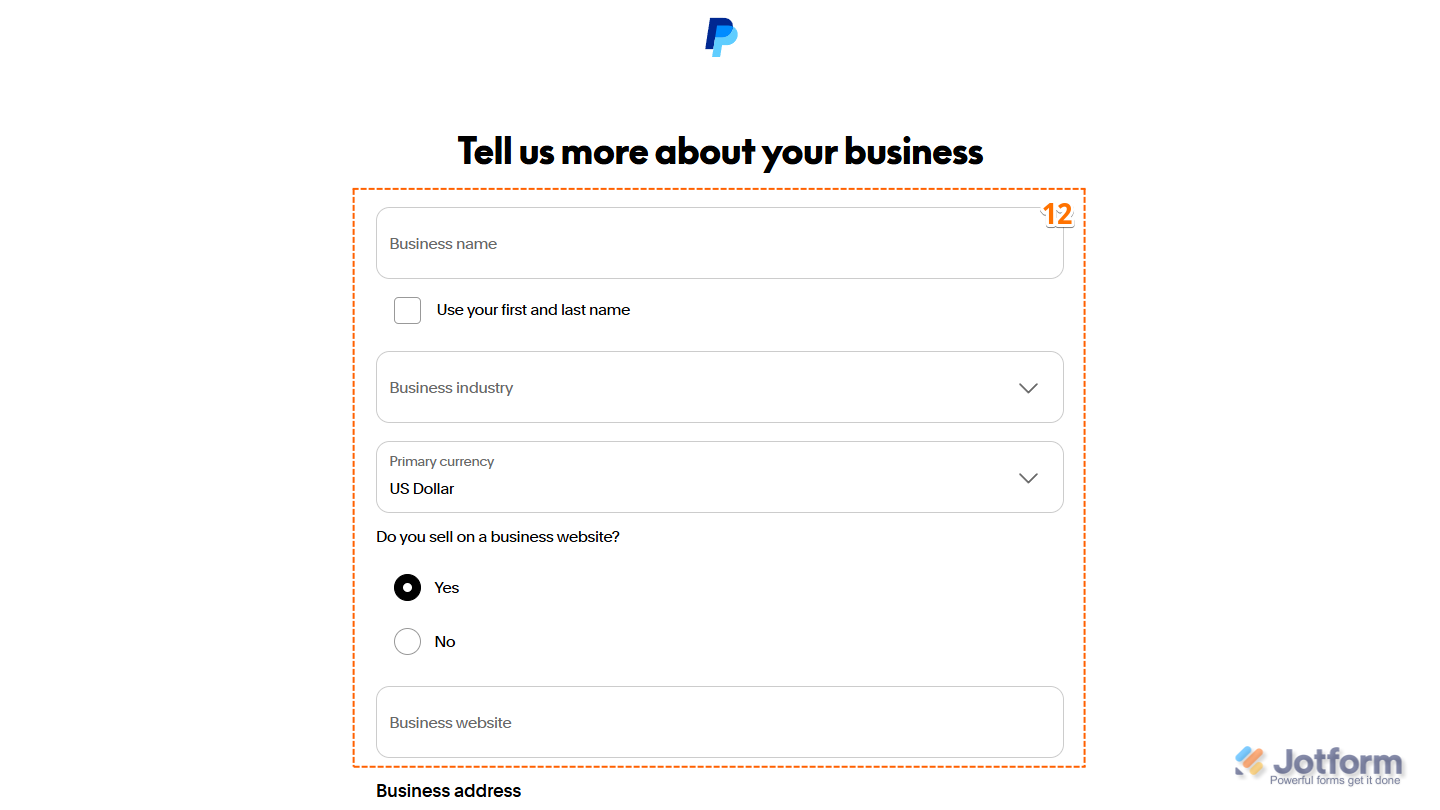
- Then, scroll down to the bottom and continue to set up these options:
- Business Address
- Customer Service Email
- Customer Service Phone Number
Note
The business address must match the business contact’s information; otherwise, the account may fail verification. The business address also cannot be a P.O. Box.
- Once you’re done, click on Next.
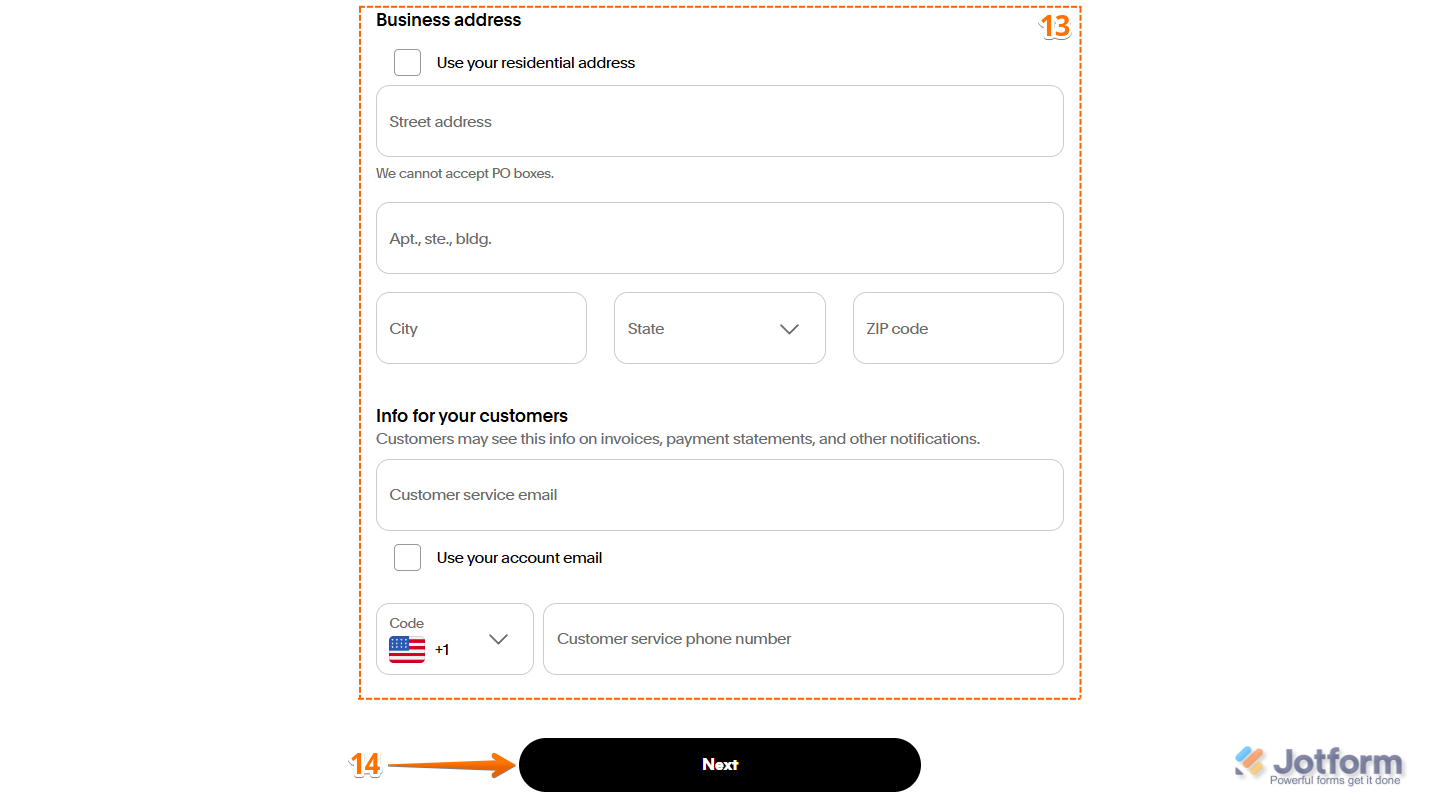
Note
- That completes the initial account setup. You’ll be redirected to your PayPal Business homepage, but you won’t be able to use the account until it’s fully verified.
- You should also receive an email verification at this stage. Check your inbox and click the link from PayPal to complete the verification.
Completing PayPal Business Account Set Up
After the initial account setup, PayPal will display a notification outlining the additional requirements needed to complete your Business account. These may include adding and verifying your mobile and home phone numbers, linking a bank account, and, most importantly, completing the Customer Identification Process (CIP). Here’s what to do next:
- On your PayPal account dashboard, click the Bell icon located at the top right side of the page.
- Then, in the Dropdown menu that opens, under the individual notification item, click on See Details.
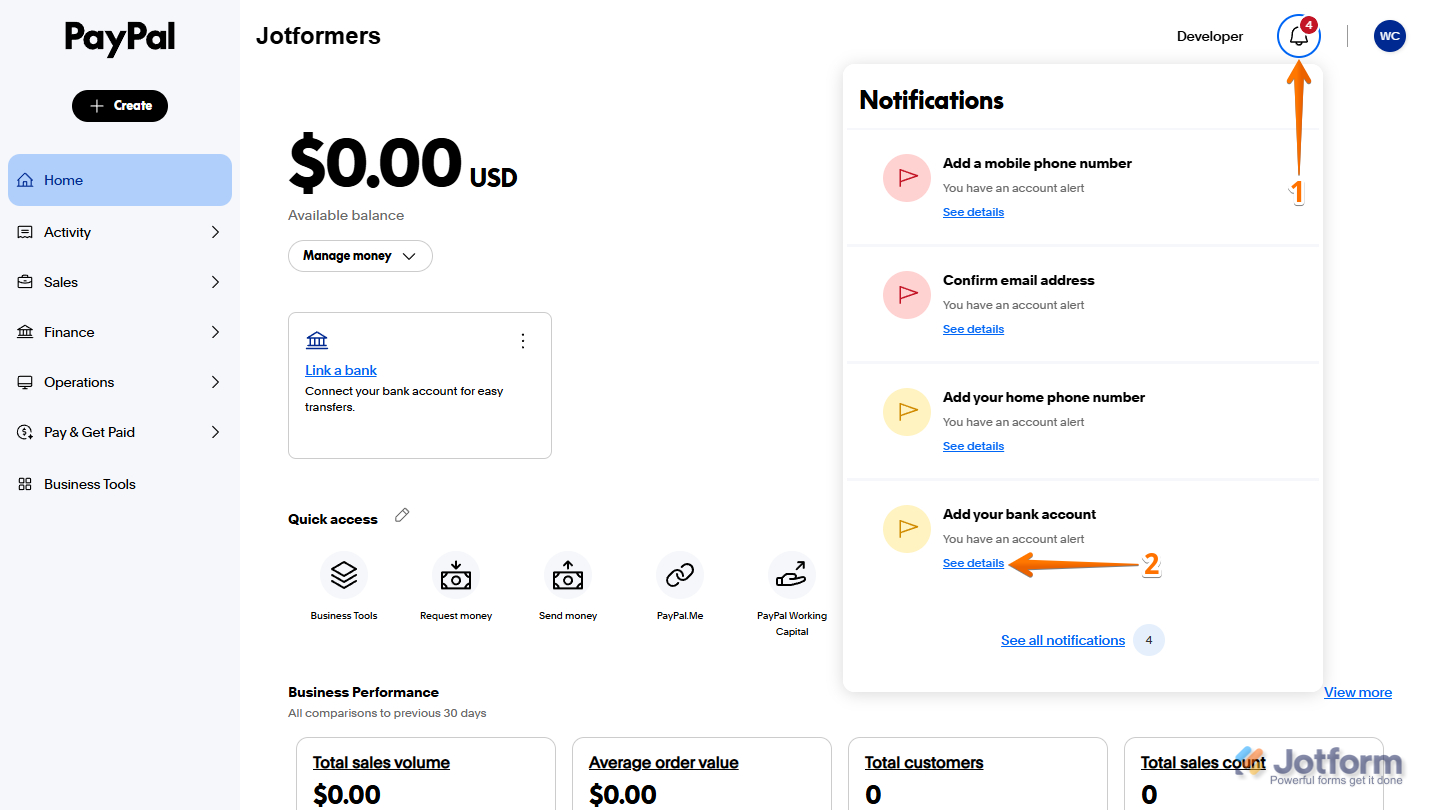
Here’s an example if you click the See Details on the Add Bank Account notification. It will ask you to select the bank from your country of registration. Ensure that you complete the steps and verify the bank information when requested.
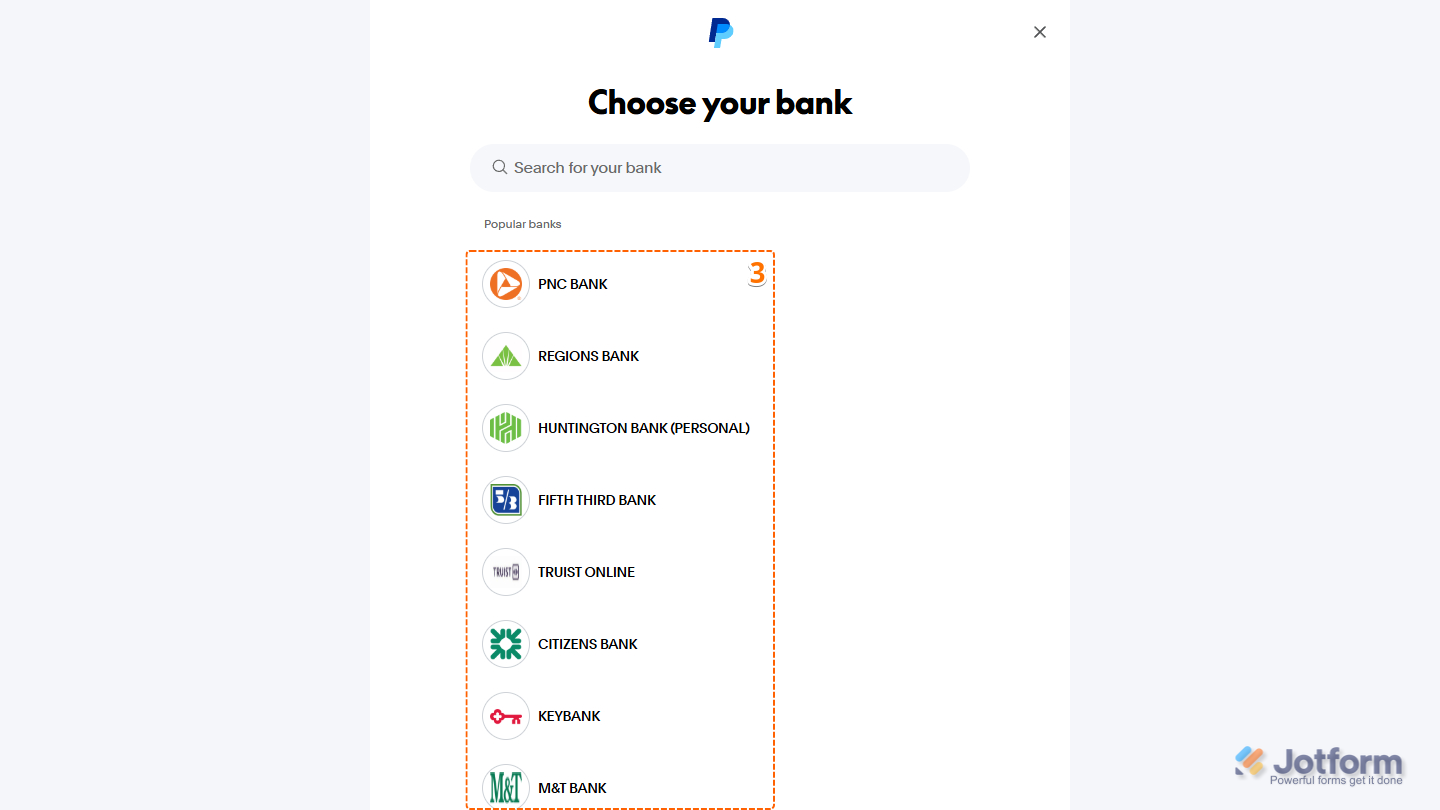
Notes
- Depending on your bank selection, you may see one of two bank verification screens.
- For some banks, you’ll be prompted to enter your bank user ID and password to verify the account in real time.
- For other banks, you’ll need to manually enter your bank details and confirm small test deposits sent by PayPal.
Completing the Customer Identification Process (CIP)
The Customer Identification Process (CIP) requires Business accounts to submit official business documents to verify their identity. This is a compliance requirement designed to help PayPal meet regulatory standards, prevent fraud, and ensure the security of all accounts on the platform.
If you’ve completed the CIP and PayPal has approved such, you’ll see the following screen on your next visit:
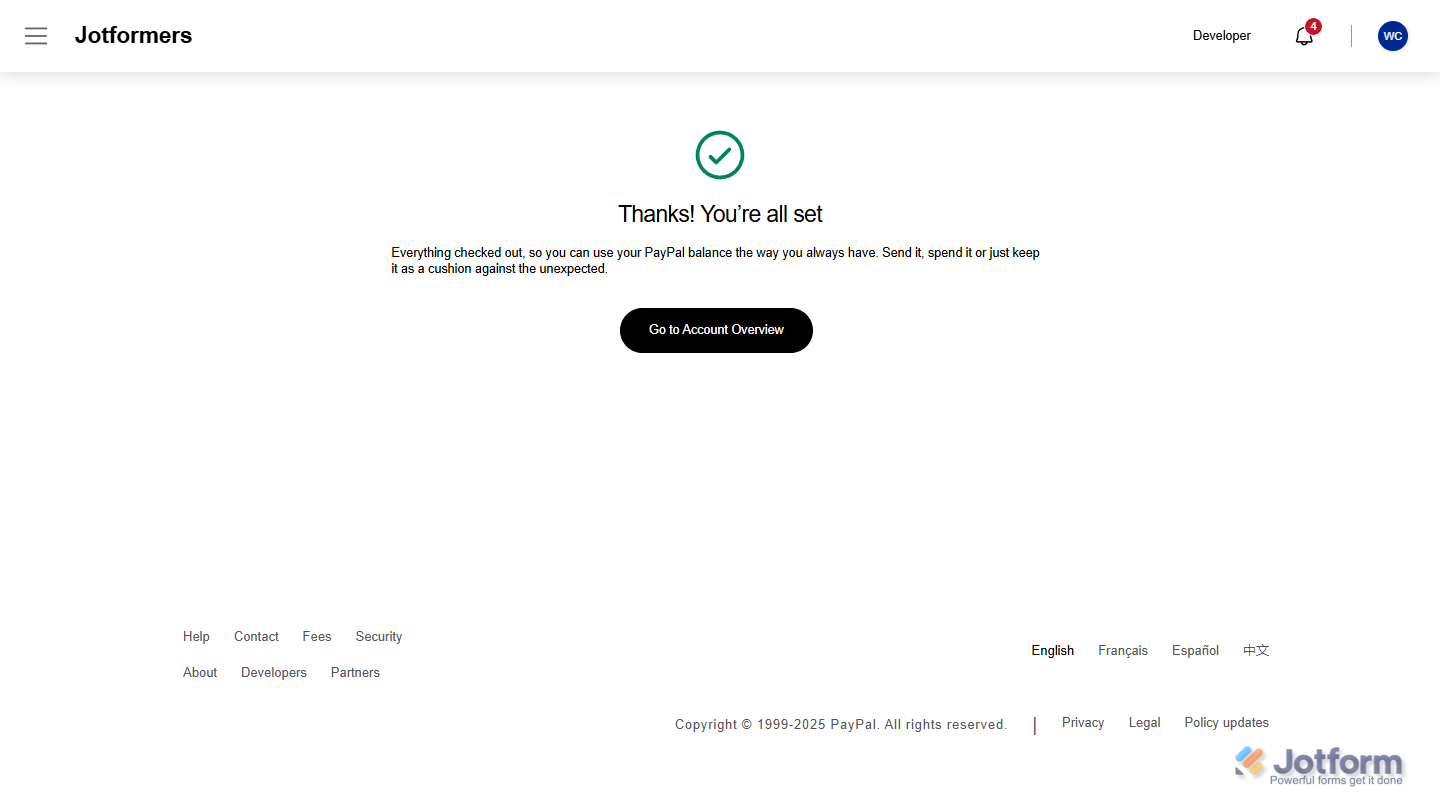
Take a look at PayPal’s guide on How Do I Confirm My Identity for more details. You can also confirm if there’s a missing document through the CIP Verification Page.

Send Comment: