Adding a print button to your form gives people the option to download or print a clean, ready-to-use copy whenever they need it. It’s helpful for respondents who prefer completing forms on paper, want to review the details offline, or need a physical copy for their records. At the same time, it benefits form owners by making the process more flexible and reducing the chance of incomplete or confusing submissions. Offering both digital and printable versions makes your form easier to use, more accessible to a wider audience, and smoother for everyone involved.
Adding a Print button to your form is really easy. Here’s how to do it:
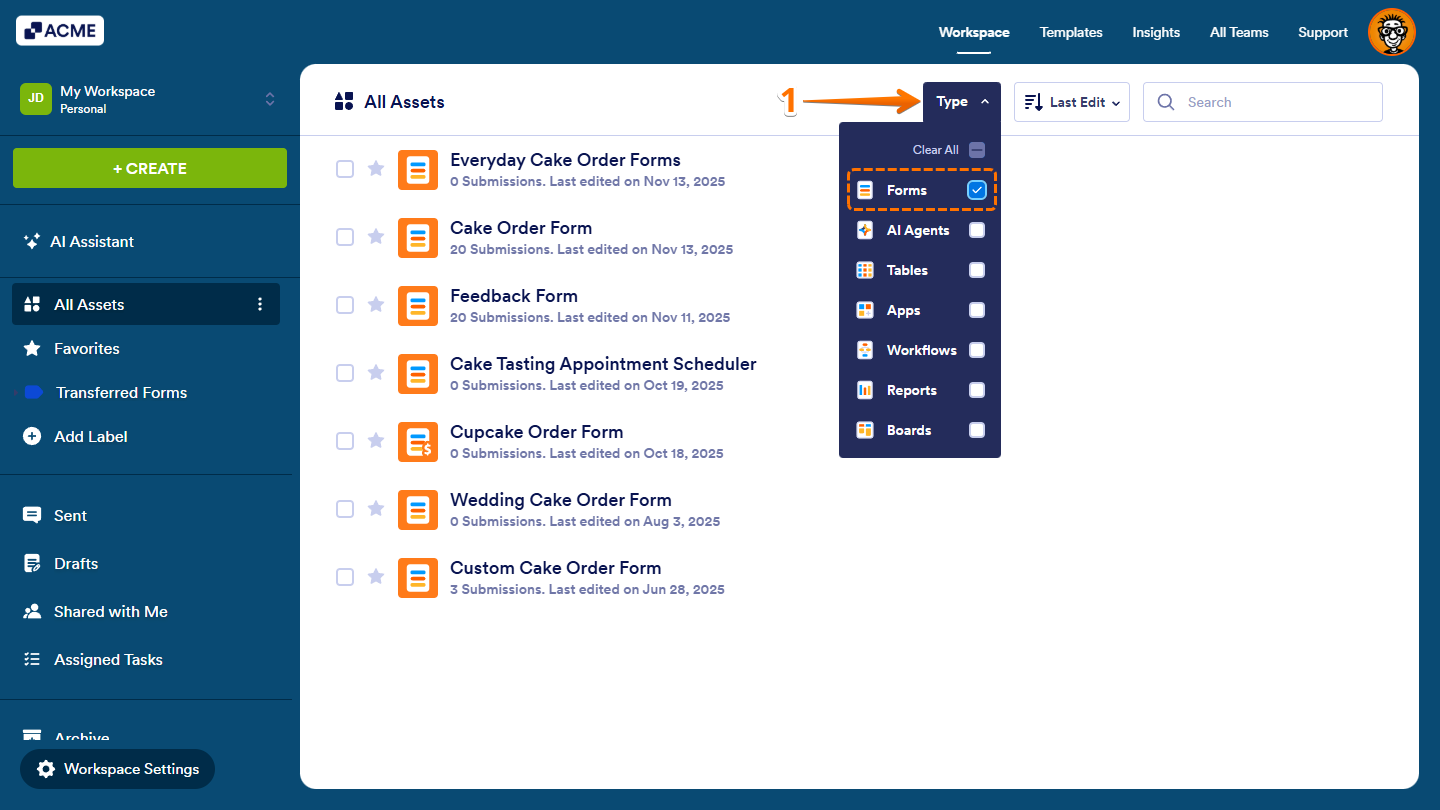
- On your Workspace page, click on Type at the top, and in the Dropdown menu that opens, uncheck the boxes next to all the assets except Forms, so only they’ll be shown on the page.
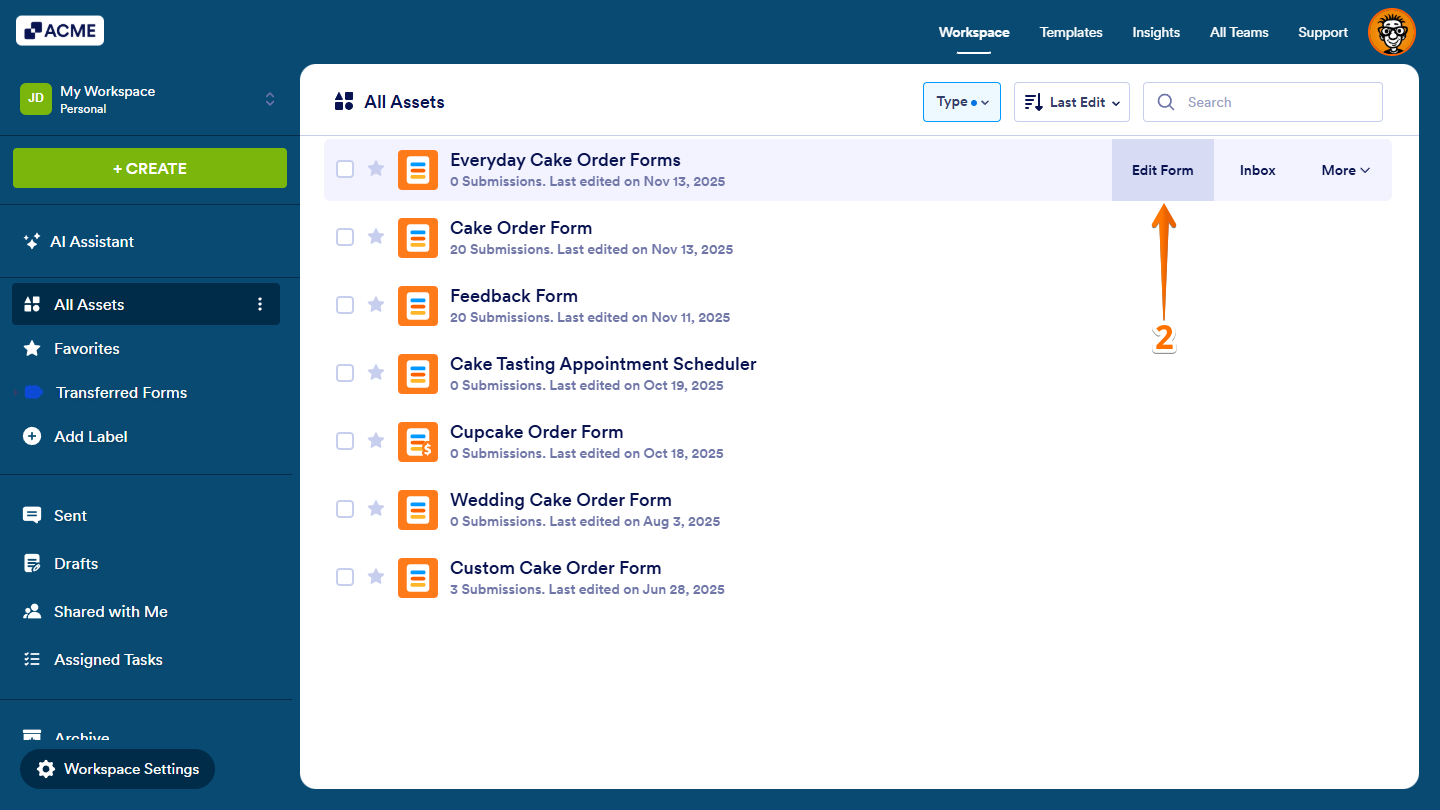
- Hover your mouse over the form where you want to add the print button and click on Edit Form on the right side of the page.
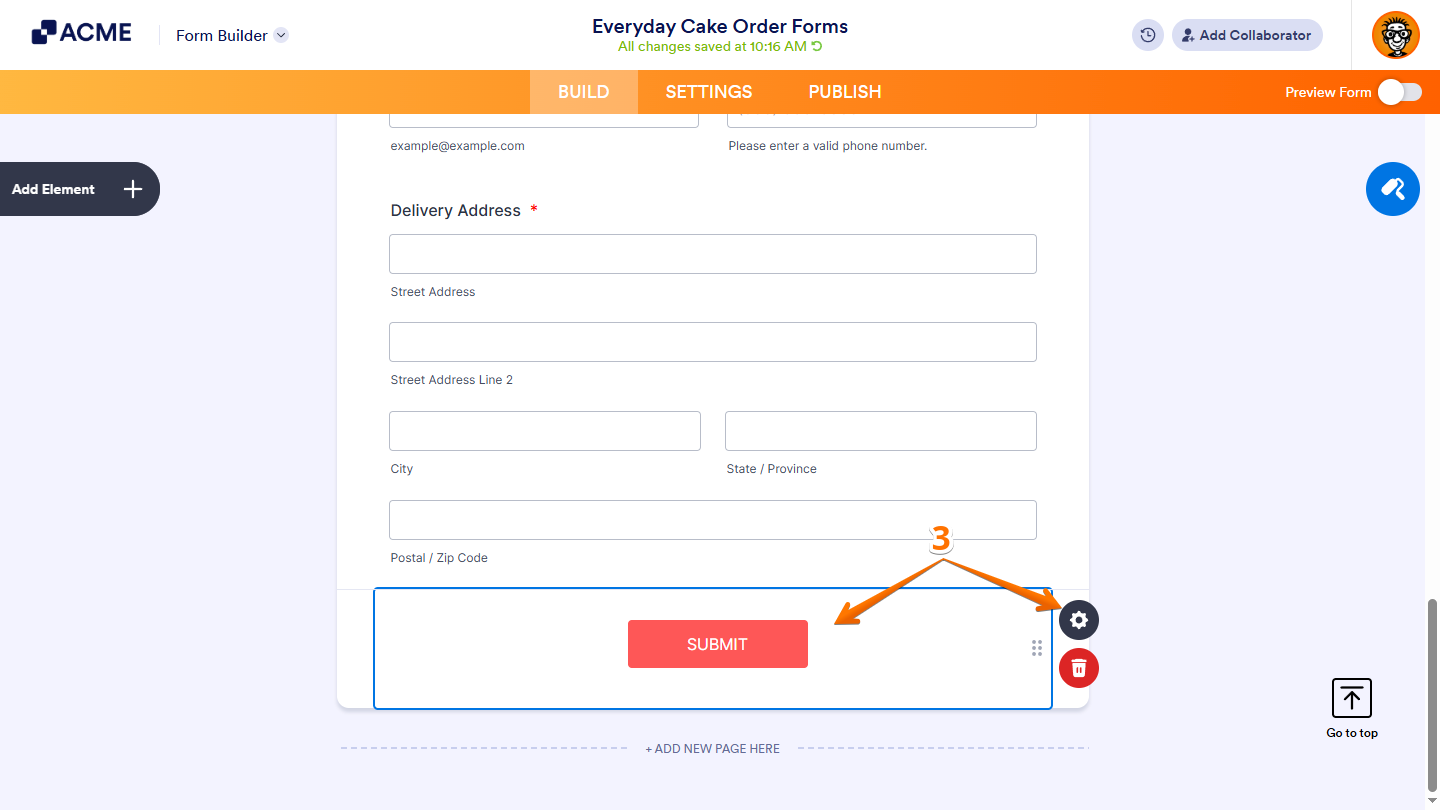
- In Form Builder, select the Submit button, and then click on the Gear icon to open Submit Properties.
- Next, in the Submit Properties window that opens on the right side of the page, under the Advanced tab, toggle on the Print button.
- Now, change the Print button text to what you want it to be, and you’re all set.
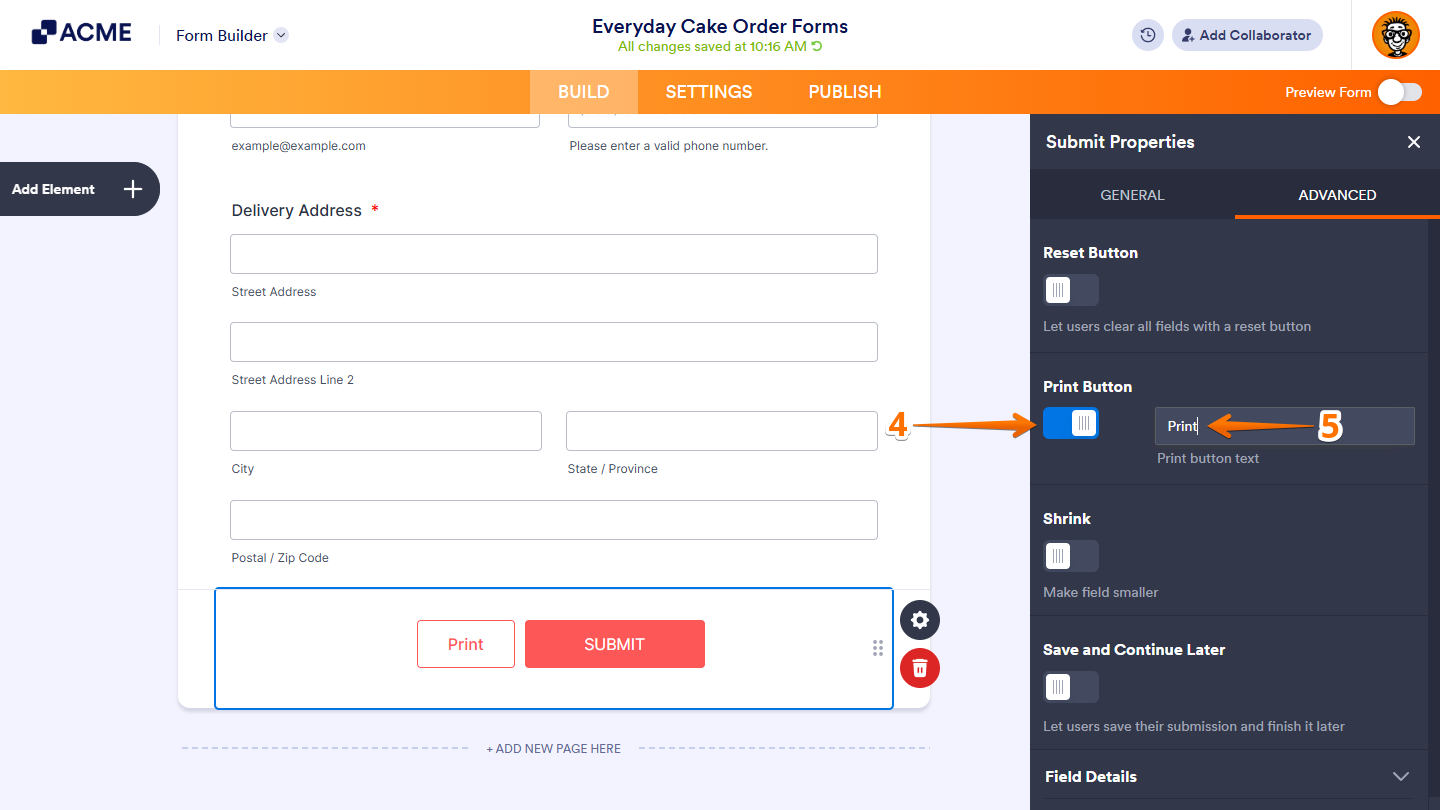
And that’s it! Your form now has a Print button, so anyone who wants a physical copy can easily print it out.

Send Comment: