Viewing form submissions involves managing and organizing your form data efficiently. The Tables are the central workspace for your submission data, is accessible from different areas within your account, making it easy to stay on top of your form submissions.
Accessing Form Submissions From Your Workspace Page
Accessing your form submissions from your Workspace page is easy. Let’s do it:
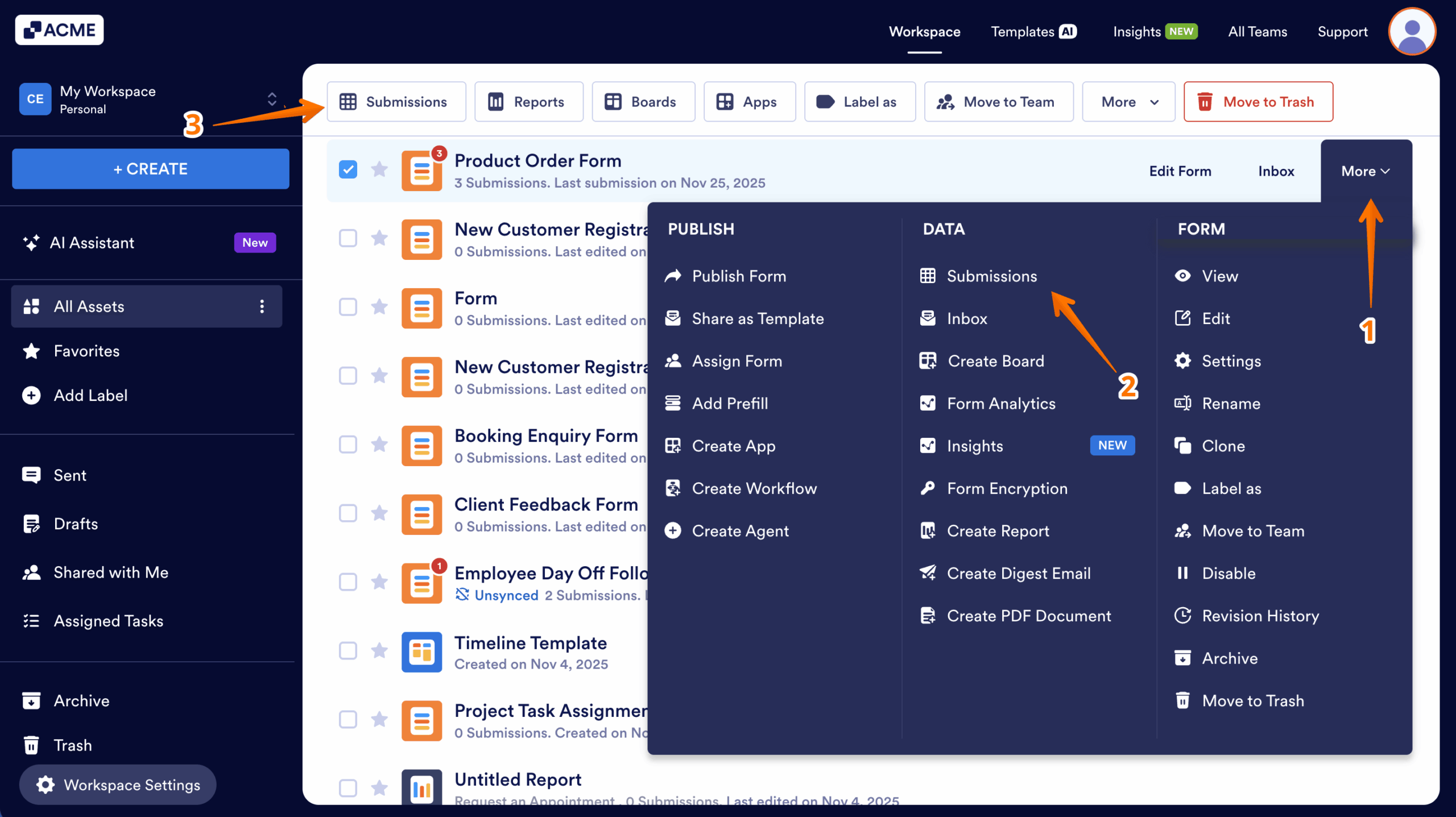
- On your Workspace page, hover your mouse over the form and click on More on the right side of the screen.
- In the Dropdown menu that opens up, click on Submissions.
- Or, you can also click on the Submissions in the menu at the top of the page.
As an alternative, you can also click on the Submissions link directly below the form title.
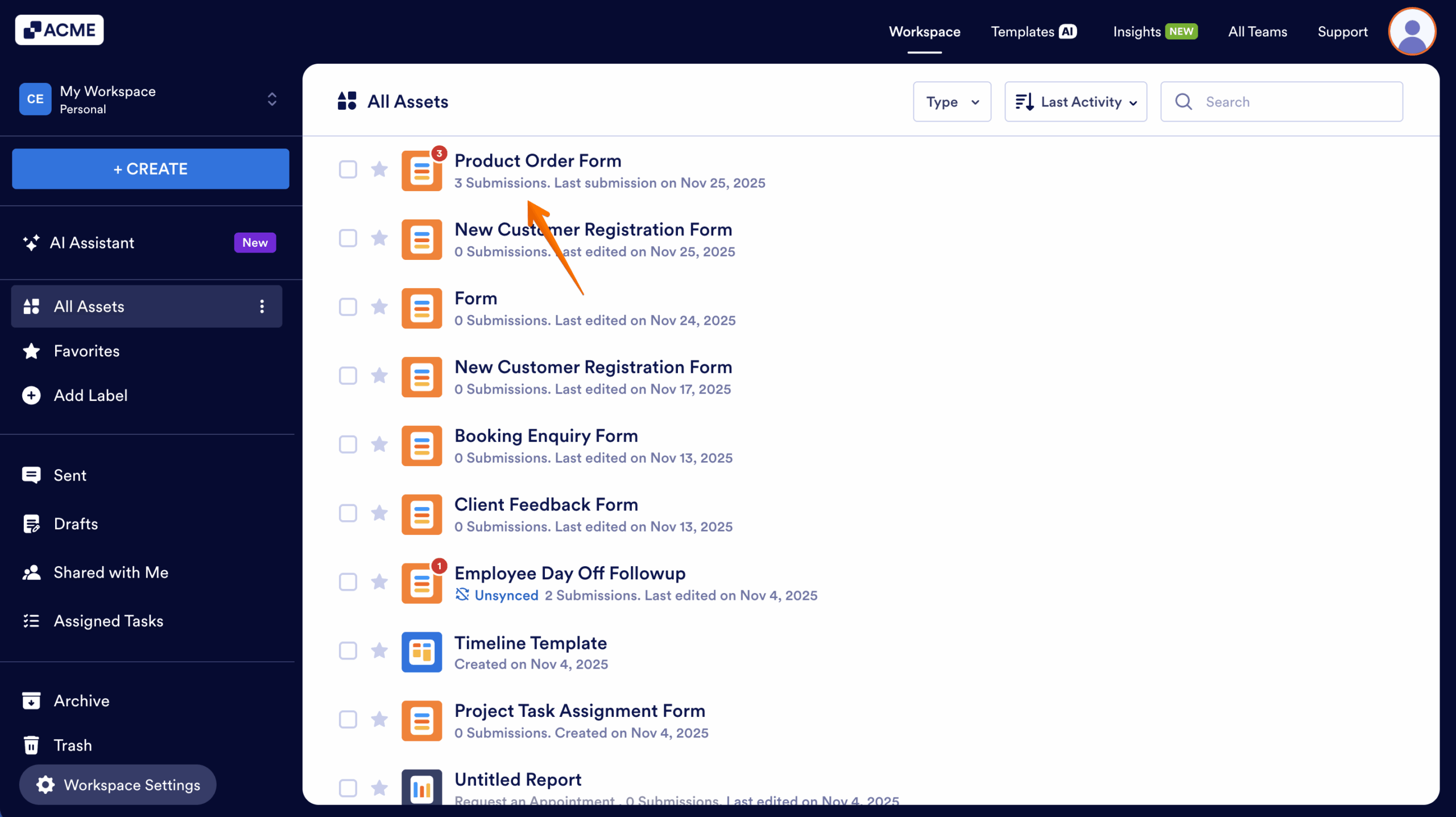
That’s it. Using your Workspace is a quick and easy way to access your form submissions, giving you direct control over your data.
Accessing Form Submissions from Any Open Form Page
You can access your Tables to view your form submissions from any page where your form is open, such as Form Builder, Inbox, Workflow Builder, PDF Editor, or Report Builder. Here’s how to do it:
- On any page where your form is open, click on the Downward Arrow icon on the top-left side of the screen.
- Then, in the menu that opens, select Tables. That’ll redirect you to the Table Submissions view.
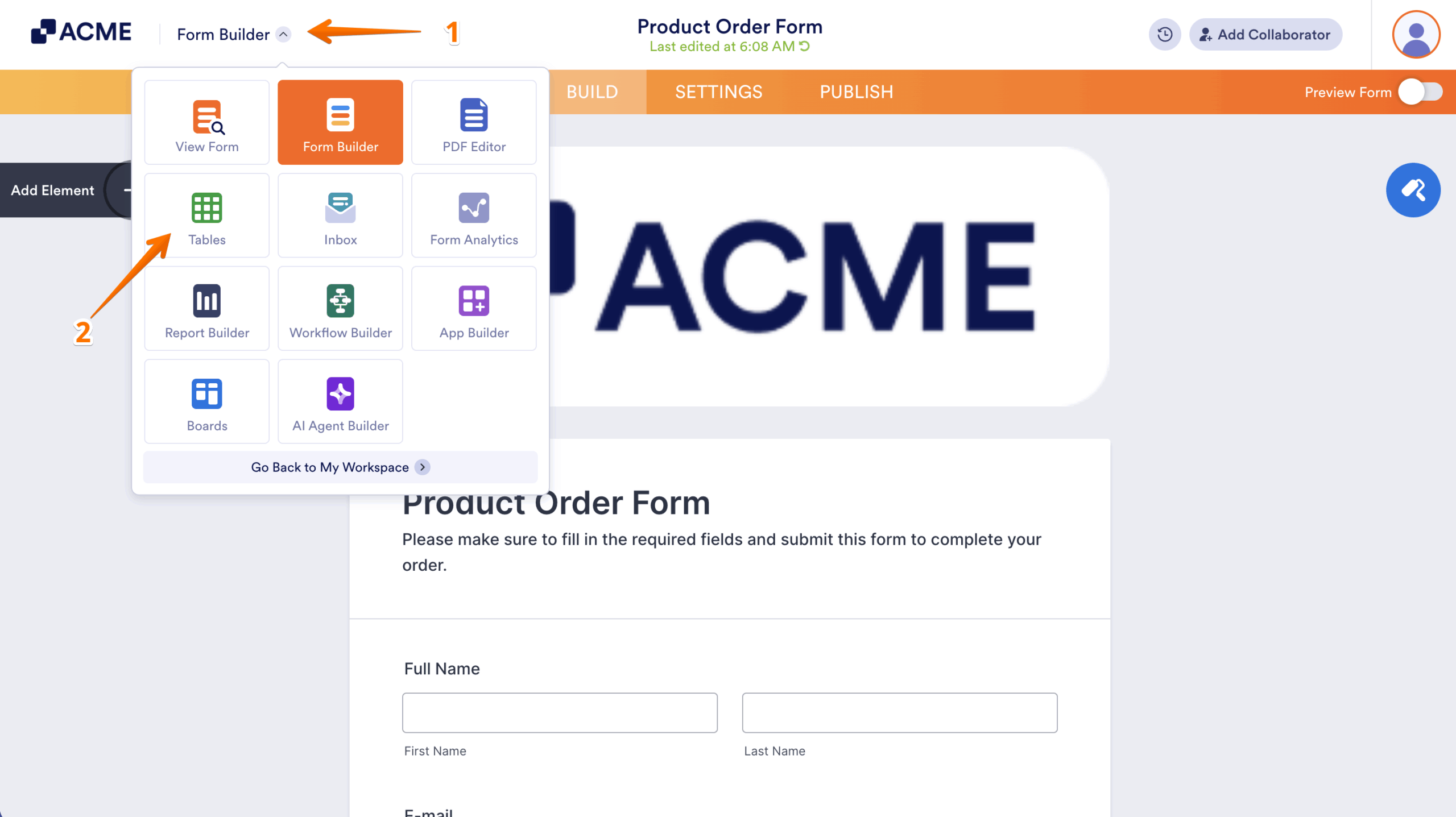
And that’s it. By doing this, you’ll be able to quickly access Tables and manage your form submissions without going back to the Workspace page first.
Note: Tables allows you to track tasks, analyze information, and respond to or forward submissions. You can also search, filter, and add formulas to your data, and send it to other platforms. Additionally, Tables lets you make edits, request, and share changes to submissions, and collaborate with your team—all in one seamless environment. You can customize how your data is presented by adding or changing views. To make use of your data further, you can export submissions to Excel, CSV, or PDF formats, download files from form uploads, and print entries.

Send Comment: