Input Masking is often overlooked, but it can be extremely useful when you need to collect information in a specific format. It helps ensure consistent and accurate entries, especially for fields like custom dates, numbers, or phone numbers, where a fixed structure is required.
Enabling the Input Masking
The basics start by enabling the Input Masking for your Short Text element. You can do it in a few simple steps:
- In Form Builder, select the Short Text element and click on the Gear icon.
- Then, in the Properties window that opens on the right side of the page, under the Options tab, toggle the Input Mask to On.
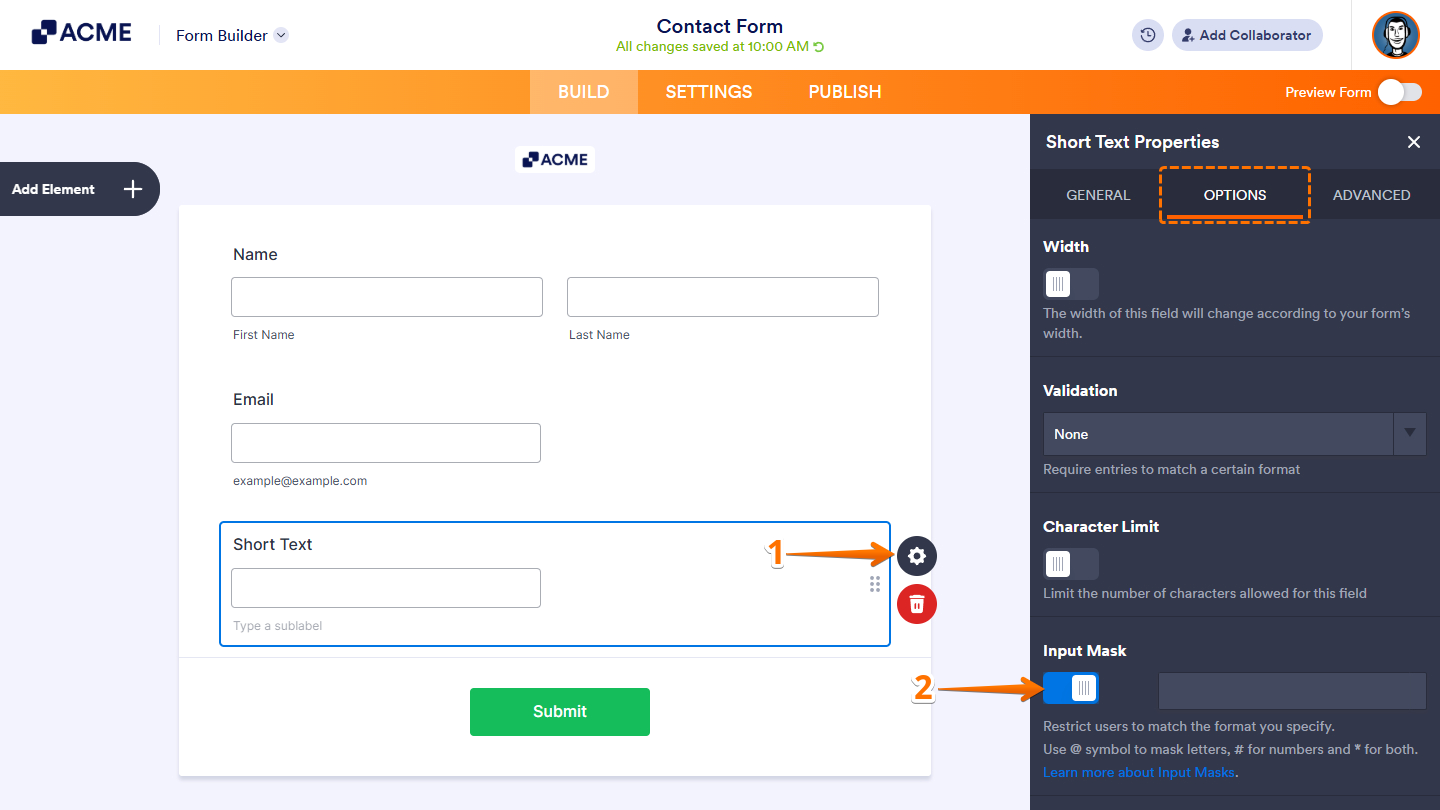
With input masking, you only need three HTML characters, all of which are explained just below the Input Mask toggle.
- @ — The at sign masks letters.
- # — The number or pound sign masks numbers.
- * — The asterisk masks letters and numbers.
To put it simply, Input Masking gives you greater control over what users can enter by restricting their input to the specific characters defined in the mask.
Input Masking Scenario #1
The scenarios below showcase the most common ways Input Masking is used to guide users and ensure consistent, properly formatted data.
Example A:
In this example, let’s say, for instance, you want to name cities that start with “St” (Saint), such as “St Augustine,” which would look like this @@ @@@@@@@@@.
The back-end of your form:

Front-end of your form:
Example B:
Now let’s take a glance at this in another instance where you might want to show a set of spaced-out numbers that would show up like this: # # # # #.
The back-end of your form:

Front-end of your Form:
Example C:
A good use for the Numbers Mask would be for advanced custom dates where you might not want to use the standard date fields such as ##/##/####.
The back-end of your Form:

Front-end of your Form:
Example D:
Both the above are good, but what if you needed more than that but didn’t need that much information, such as when you only want the street address where someone’s business is located?
So, in this particular case, you would want to combine the above by using both @ and # together, and that could look something like #### @@@@@@@@@ @@.
The back-end of your Form:

Front-end of your Form:
Example E:
Also, don’t forget that you can additionally allow either of these but still control yet limit this with the third option using the * (asterisk), and that would look a bit like *** ** **** ** ***.
The back-end of your Form:

Front-end of your Form:
Example F:
But what if none of the above was good enough for your situation? What if you work for a government, legal, or car parts company? You can do that too by compartmentalizing your characters to create something systematic, such as #@-#**#-#@.
The back-end of your Form:

Front-end of your Form:
Example G:
Some of the above examples are fixed input masking, so what about if you would like a way for users to enter characters but not require it all? For example, a membership number that ends with one or two characters. You can do the input masking as @@-#####-@[@]. As you can see, we’re using a Square Bracket for the optional character.
The back-end of your Form:

Front-end of your Form:
Input Masking Scenario #2
Sure, using the masking capability is handy, but what if you’re a phone directory provider searching for 1-800 numbers to list, or you have users with foreign phone numbers and such?
Instances like this are where input masking on a phone field would be helpful just as much to give you control over how your phone numbers are entered and used.
Example A:
For the first example, let’s start again, but this time around, add a phone field. You should be able to access the Input Mask option the same way we described earlier in this guide.
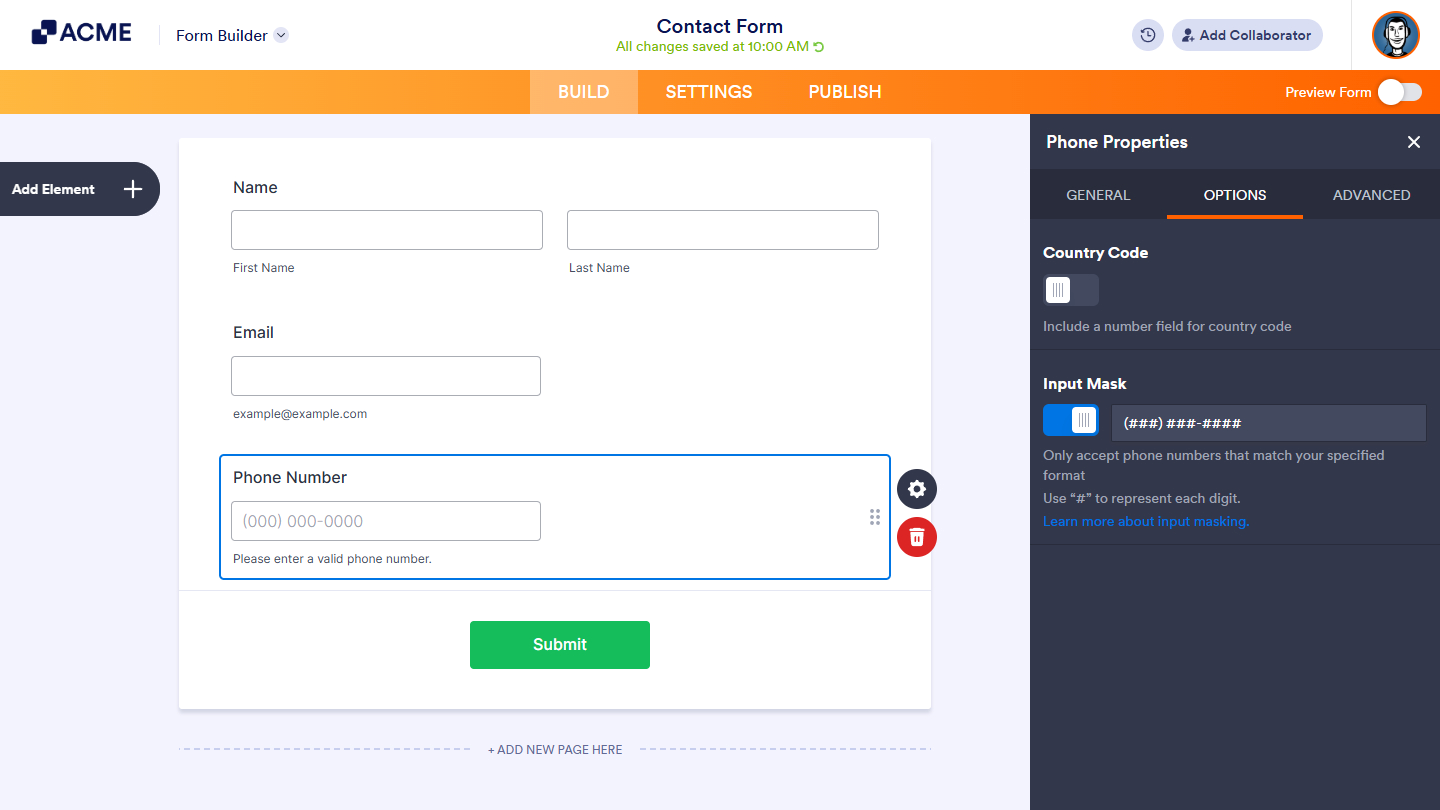
You’ll notice this time around that you can only use a Number Masking with #, and you will also see the default phone number input change from two inputs to one input, which is additionally prepopulated with (###) ###-####.
The back-end of your Form:

Front-end of your Form:
Example B:
Now, for using this for 1-800 numbers with a phone number, you could make it something like 1-(8##)-###-#### to let your users know that’s the type of info needed.
The back-end of your Form:

Front-end of your Form:
Example C:
As another example, let’s say you plan on running an outreach call program in Australia. You’d need to gather phone numbers limited to that formatting, so for this, it would end up looking something like +(##)#########, but you can format it to any country if elsewhere.
The back-end of your Form:

Front-end of your Form:
That’s about it for the Input Masking. It’s convenient in many cases, and you could apply it to your form.

Send Comment: