Form warnings help guide people while filling out a form by pointing out missing details or errors before submission. They ensure that important fields aren’t left blank and that inputs, like email addresses or phone numbers, follow the right format. By customizing these messages, you can make your forms clearer, more consistent, and more aligned with your brand’s tone or preferred language.
This feature is especially helpful for teams and organizations that collect responses regularly or rely on accurate data from multiple users. Whether you want your messages to sound friendly, formal, or straightforward, adjusting form warnings helps create a smoother experience for respondents and keeps your data collection process accurate and reliable.
You can change your form’s warning messages in just a few steps. Here’s how to do it:
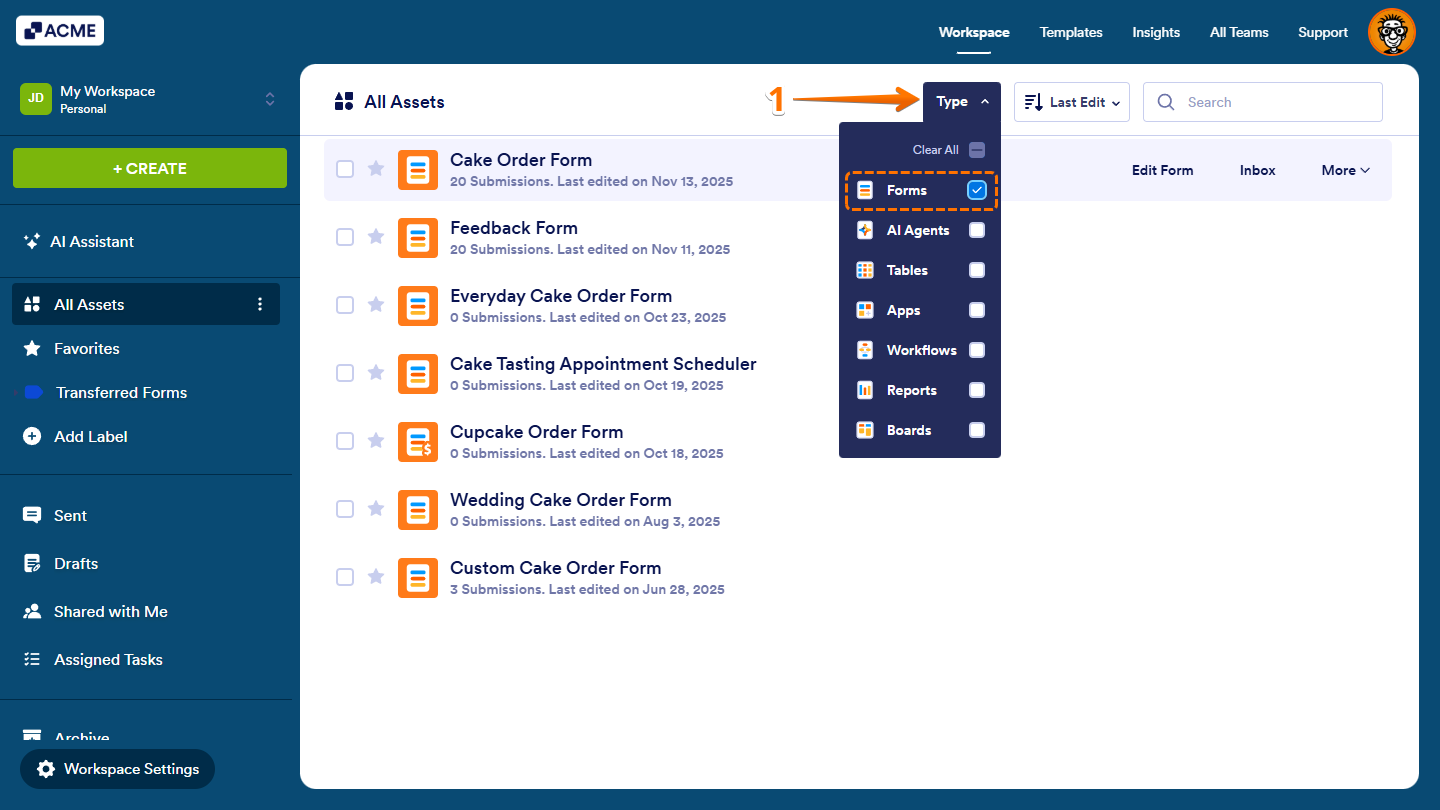
- On your Workspace page, click on Type at the top, and in the Dropdown menu that opens, uncheck the boxes next to all the assets except Forms, so only they’ll be shown on the page.
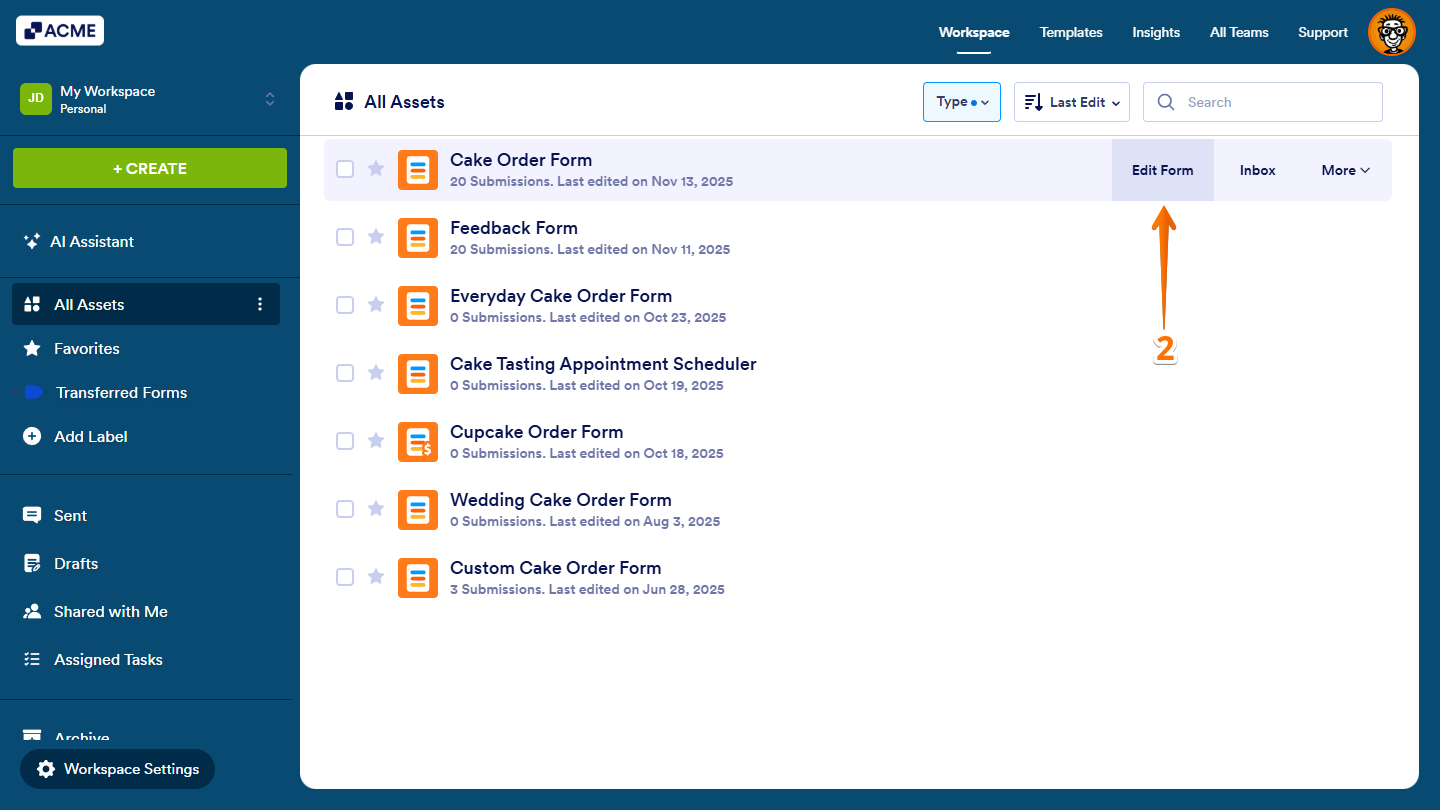
- Hover your mouse over the form where you want to change the warning messages and click on Edit Form on the right side of the page.
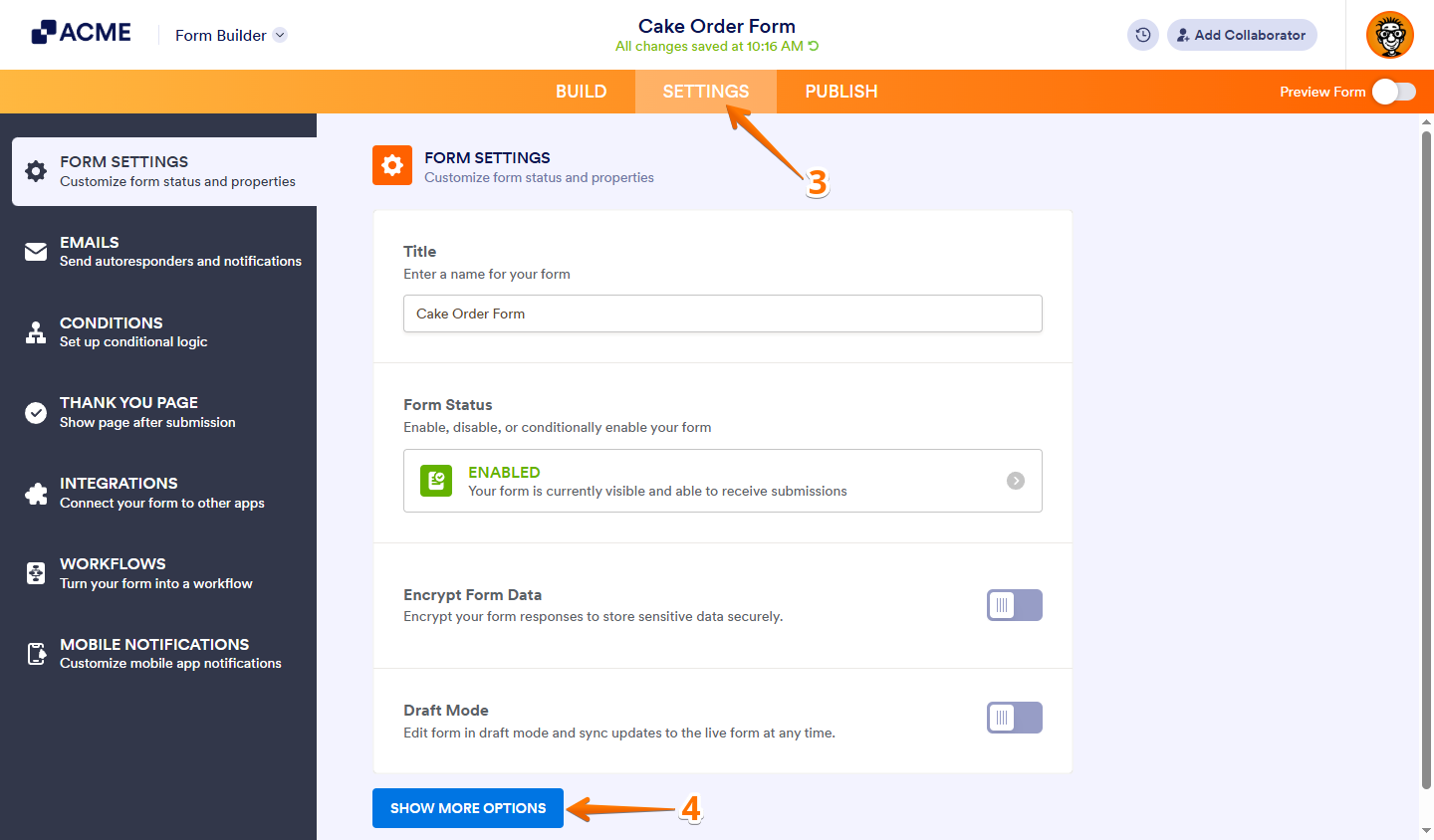
- In Form Builder, in the orange navigation bar at the top of the page, click on Settings.
- Now, under Form Settings, click on Show More Options at the bottom.
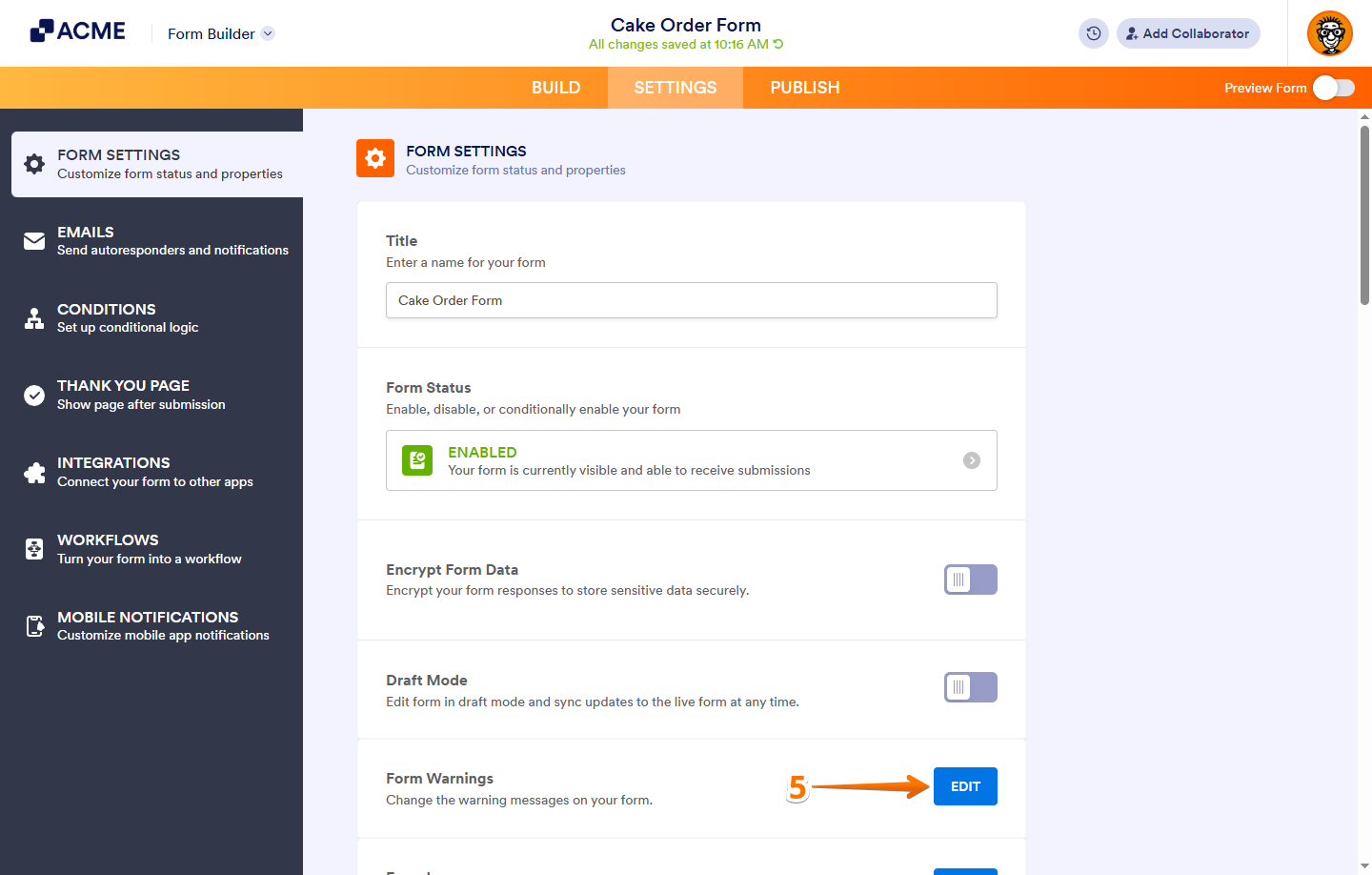
- Then, click on Edit on the right side of Form Warnings.
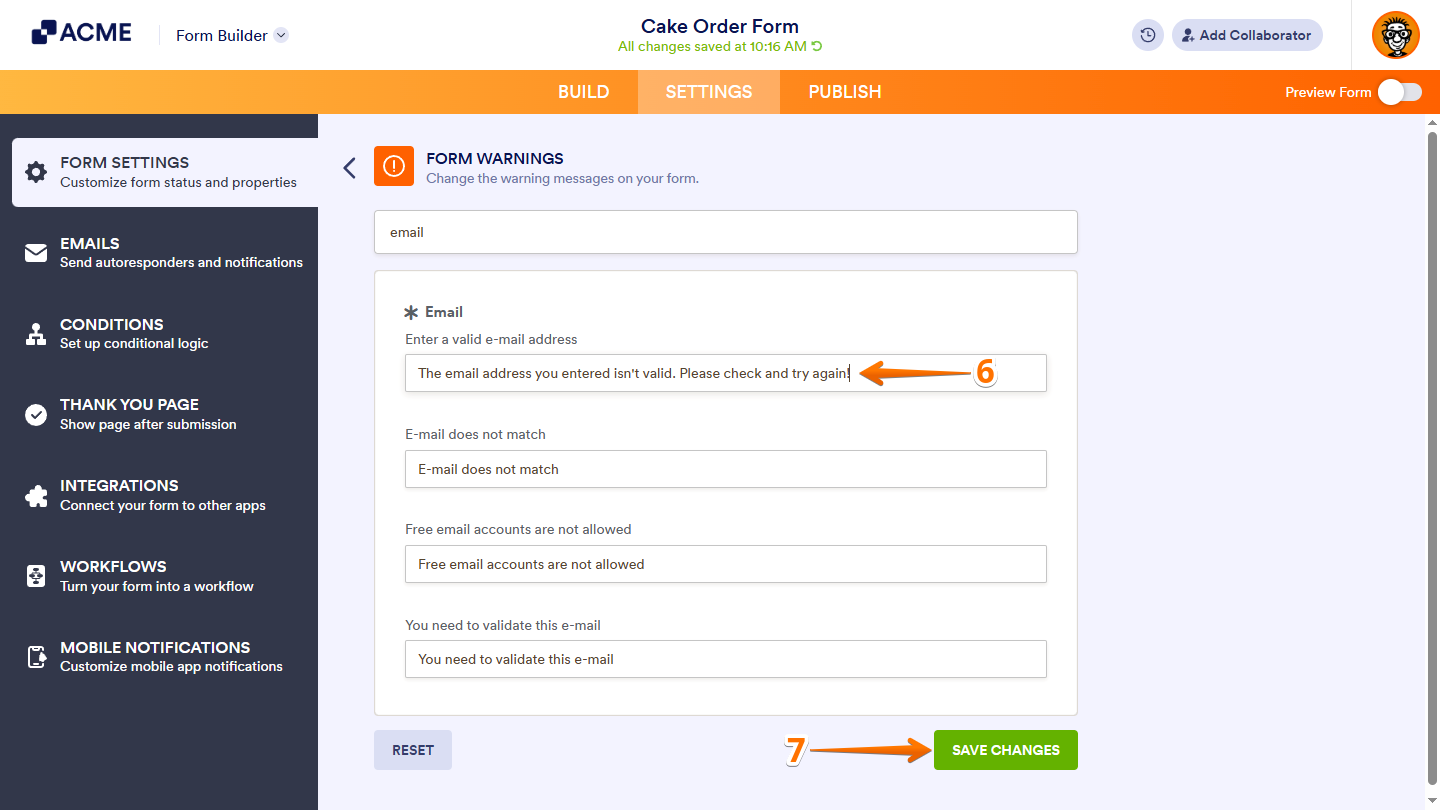
- In the Form Warnings section, enter a new message in the box of the corresponding warning message you want to change. You can use the search bar at the top to find a specific warning message easily.
- Once you’re done, click on Save Changes at the bottom.
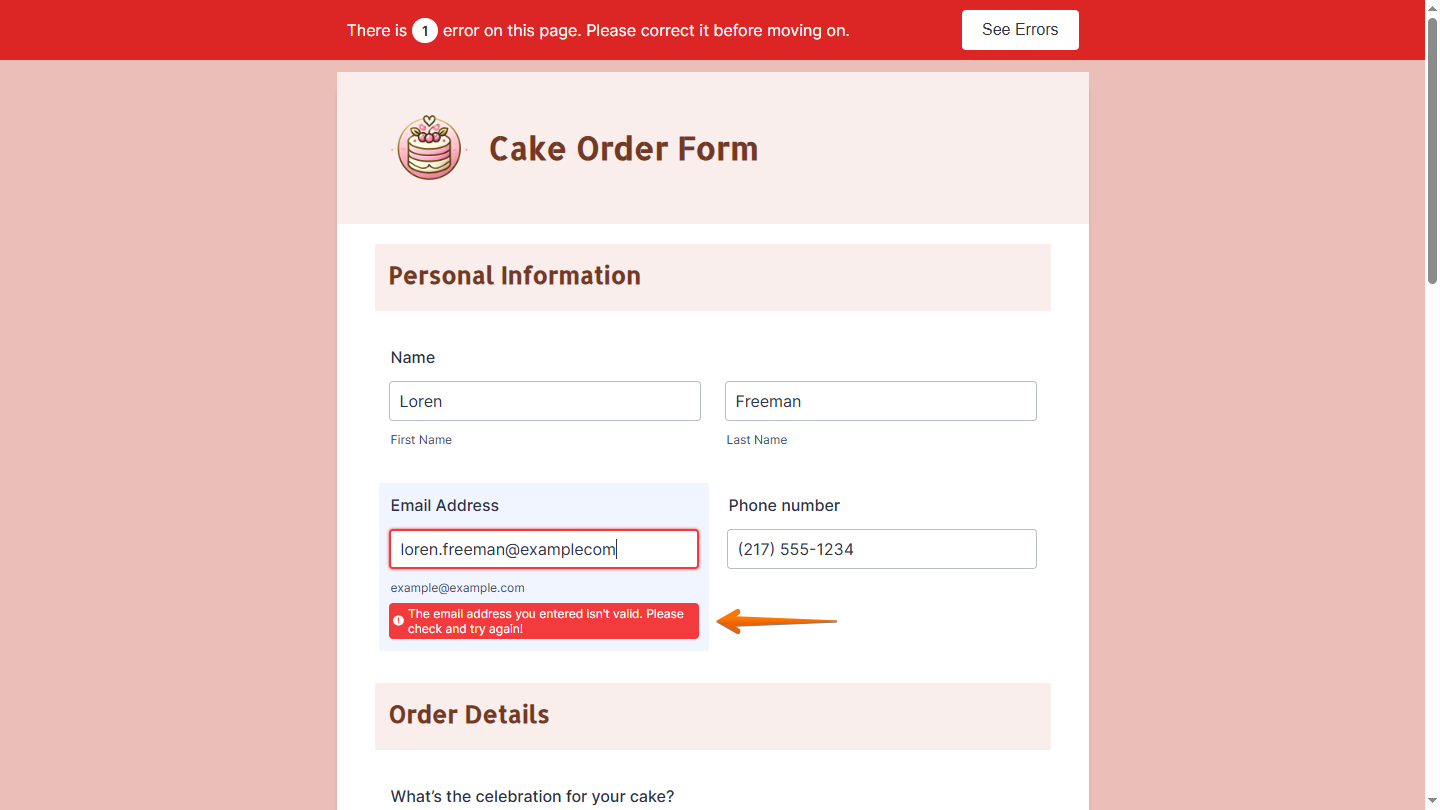
That’s it. Your form warning messages are now updated and will appear on your live form.
Note
Only plain text is supported in form warning messages. HTML Text Formatting elements won’t work and will show up as plain text.

Send Comment: