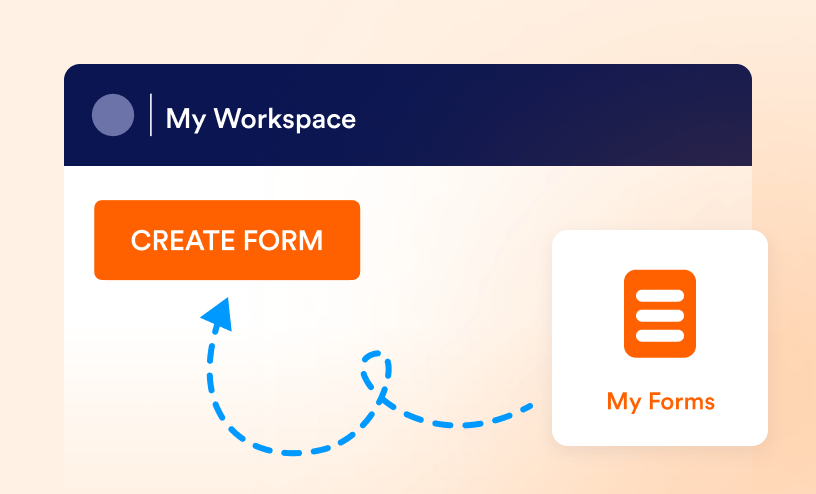
Create Forms
Creating Forms, learning more about form fields.
Guides
How to Hide Form Elements
Hide Form Fields lets you control what users see and interact with on your forms. It allows you to include fields that work behind the scenes without being visible to form users. These hidden fields can have default values, be filled...
How to Position Form Elements
The ability to position elements is one of the best features of a form builder. It allows you to quickly add and move fields anywhere in the form. There are a few different ways to position elements on your form. Check out the list below:...

How to Manage Multiple Fields
The Form Builder makes it easy to manage and organize your form fields. You can select multiple fields at once, rearrange them, or apply settings like duplicating, hiding, or deleting fields. With tools like multi-select and a custom...

How to Limit the Number of Selections in a Checkbox Field
You can easily control how many options users select in a Multiple Choice field. For example, if you have eight options, you can require users to choose at least three and no more than five. Want them to select an exact number? Simply set the...

How to Limit Specific Dates in Date Picker
The Date Picker element lets your form fillers easily select dates on your form. If you want to limit which dates can be chosen, like only weekends or certain date ranges, you can set these restrictions in the Advanced Options of the Date Picker....

How to Set Entry Limits on Short and Long Text Fields
The Short and Long Text fields are two of the most commonly used fields in the Form Builder. The Short Text field is ideal for brief or minimal text input, such as a subject line. The Long Text, on the other hand, is for accepting lengthy texts....

How to Change the Spacing Between Questions
Form Builder is very flexible, and you can customize your forms as you wish. Standard field spacing can also be changed to fit your needs and match your design better. When you reduce the spacing between questions, your form will be changed....

Setting Up Form Columns
Multi-column forms are ideal for longer forms that might be overwhelming in a single-column layout. By breaking up the form into multiple columns, users can easily navigate and complete it with ease. Aside from custom CSS, the Form Builder has...

What Is a Form Builder
A form builder is a powerful tool used to create professional-looking web forms without writing a single line of code. Questions and fields can be placed anywhere on the page with simple drag-and-drop actions, while layouts, colors, and structure...

Setting up the Thank You Page
The Thank You Page wraps up a form submission in a simple but meaningful way. It gives people a smooth transition right after they submit the form, helping create a better overall experience. Instead of leaving them hanging, you can display a...

How to Take Pictures on Your Forms
Take Photo widget makes it easy for users to snap and upload photos right from your form, no extra steps needed. Whether you’re doing inspections, gathering event photos, or just adding a visual touch to your submissions, this handy tool gets...

How to Change the Allowed File Types in File Upload
This guide walks you through how to change the allowed file types on your form when using the File Upload element. Whether you’re collecting resumes, images, videos, or documents, setting the right file types helps make sure you get exactly what...
How to Set a Required Field
When you add new fields to your form, they are optional by default. This means users in your organization can submit the form without completing those fields. However, there may be cases where certain information—such as a name, email address,...

How to Enable Form Encryption
Security and privacy are top priorities when it comes to form building and data collection—that’s why the platform follows strict industry standards and regulations, including GDPR and HIPAA. There’s also an option to enable Form...
How to Change the File Size Limit in File Upload Fields
The File Upload element lets you collect documents, images, and other media directly through your forms. It’s great for job applications that require resumes, event registrations that need signed waivers, or support forms where users upload...

How to Set Different Input Types in an Input Table
The Input Table element has an input type called Multi-type Columns. This allows you to set different input types for each column, such as Single Choice, Checkbox, Textbox, and Dropdown. To set up Multi-type columns: Click your Input...

How to Add Time Field to a Form
The Time field allows users to enter a valid time format in the form. It will display the time based on timezone and time format in your account settings. The new Default Theme requires users to enter the time. It is optimized to display a...

How To Add and Set up the Address Field
The Address is one of the elements in the Form Builder with multiple fieldsets. This field is recommended when setting up a third-party integration as it is optimized to match the appropriate fields automatically. The field also responds to your...
How to Add a License Agreement to Your Form
For forms like contracts or agreements, you may need to make sure that form fillers accept your licensing terms. Jotform makes that easy using a License Agreement checkbox. Just use the Terms & Conditions widget to display your terms and require...
How to Enable Geo Stamping on Your Forms
The Geo Stamp is a valuable data point for your form that captures the location of form fillers. Each time the form is opened, it automatically adds geolocation data, tagging responses with the responder’s longitude and latitude. This helps...

How to Find Field IDs and Unique Names
Field IDs and unique names are identifiers for the different fields in your form. They are automatically generated and can be used for referencing values and customizing appearance with CSS. Finding the Field's Unique Name A field's...

The Importance of Form Widths
What's so important about form widths? Imagine filling out a form that's too wide for your mobile device. It'd be frustrating, right? Think about your forms and your audience. Do you provide a positive user experience? Do you know which...

How to Create a Custom URL for Your Form
You can replace the default form link with a personalized URL to make your Form easier to recognize and share. A Custom URL allows you to use personalized names instead of Form IDs. First, in the Form Builder, in the orange navigation bar at...
How to Enable Draft Mode on Your Form
What is Draft Mode? Sometimes, you need a bit of time between making a change on a form and publishing that change. Draft Mode separates your work-in-progress from your live form. When it is turned on, any edits made to the form are...
How to Apply Your Draft Changes to the Live Form
When your form is in Draft Mode, any edits or changes are not visible to form fillers. To update your Live form, you must apply your changes. Let’s walk through the different ways to apply your draft changes, starting with My Workspace. How...

How to Restore Your Previous Published Version from Revision History
When working in Draft mode, you might need to restore a previously published version of a Form. Using Revision History, you can view the form’s edit history and go back to an older version of the Form. Access to Revision History In...
How to Preview and Compare Drafts with the Live Form
Before publishing your Draft version, you can preview and compare it with the current Live version. This helps you to make sure that everything looks and functions as expected before going Live. Comparing Versions in Preview Quickly check...
How to See Your Draft Forms from the Workspace
All your forms, along with drafts, are displayed in the Workspace Dashboard. This way, you can easily identify which forms are ready to be published and which are Live. Locating Draft Forms In My Workspace, in the left menu, click on...

How to Identify Which Version of Your Form is Live
When working on your form, it’s important to know if you’re viewing the Live or the Draft version. The Live version is visible to form fillers, while the Draft contains edits that haven’t been published yet. Let’s walk through a few ways...

How to Collaborate with Teammates on a Draft Form
Collaborating in Draft mode allows multiple people to edit the form simultaneously, without making changes to the Live Form. Using the Add Collaborator feature, you can generate a private link or invite teammates by email to help build or review...

Side by Side Form Field Positioning
When a field is shrunk, its width is reduced to the minimum possible size. This means the field no longer spans the full width of the form. The example below illustrates the difference between a regular and a shrunk field. You can position...
How to Create an API Key
API keys allow you to authenticate your data and establish secure connections between your forms and external services or custom applications. They act as authentication tokens, granting authorized access to specific features and data within your...

How to Make Your Forms Multilingual
Creating forms that speak your users’ language helps make your forms more accessible and user-friendly. With multilingual support, you can translate your form into multiple languages so respondents can view and fill it out in the language...