As an Admin, you can view and manage all integrations connected to assets within your organization directly from the Admin Console. This allows you to monitor which Integrations are in use, manage access, and ensure data connections remain secure and up to date.
Accessing Asset Integrations
- In the Admin Console, on the left side of the screen, click on Integrations.
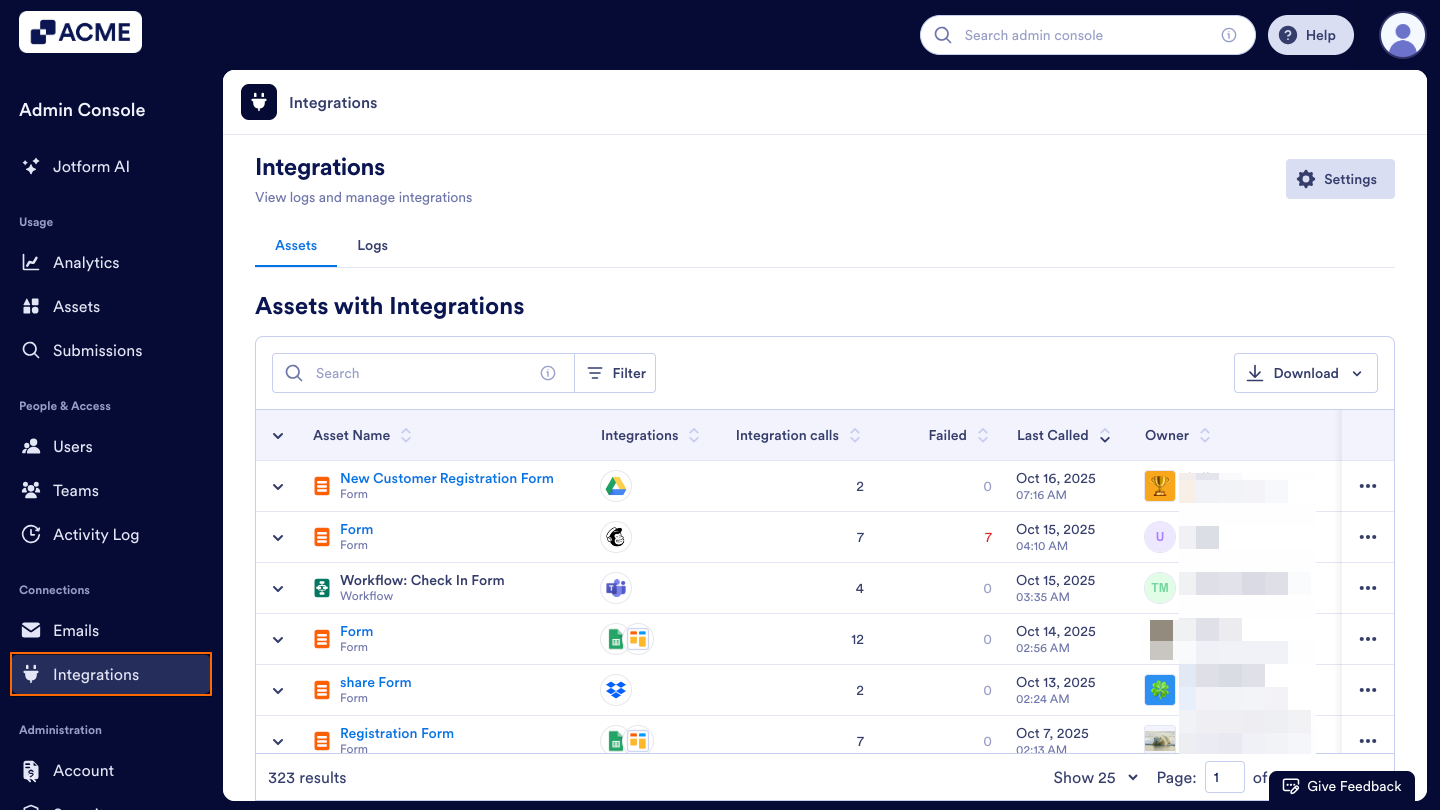
- Then, click on the Assets tab.
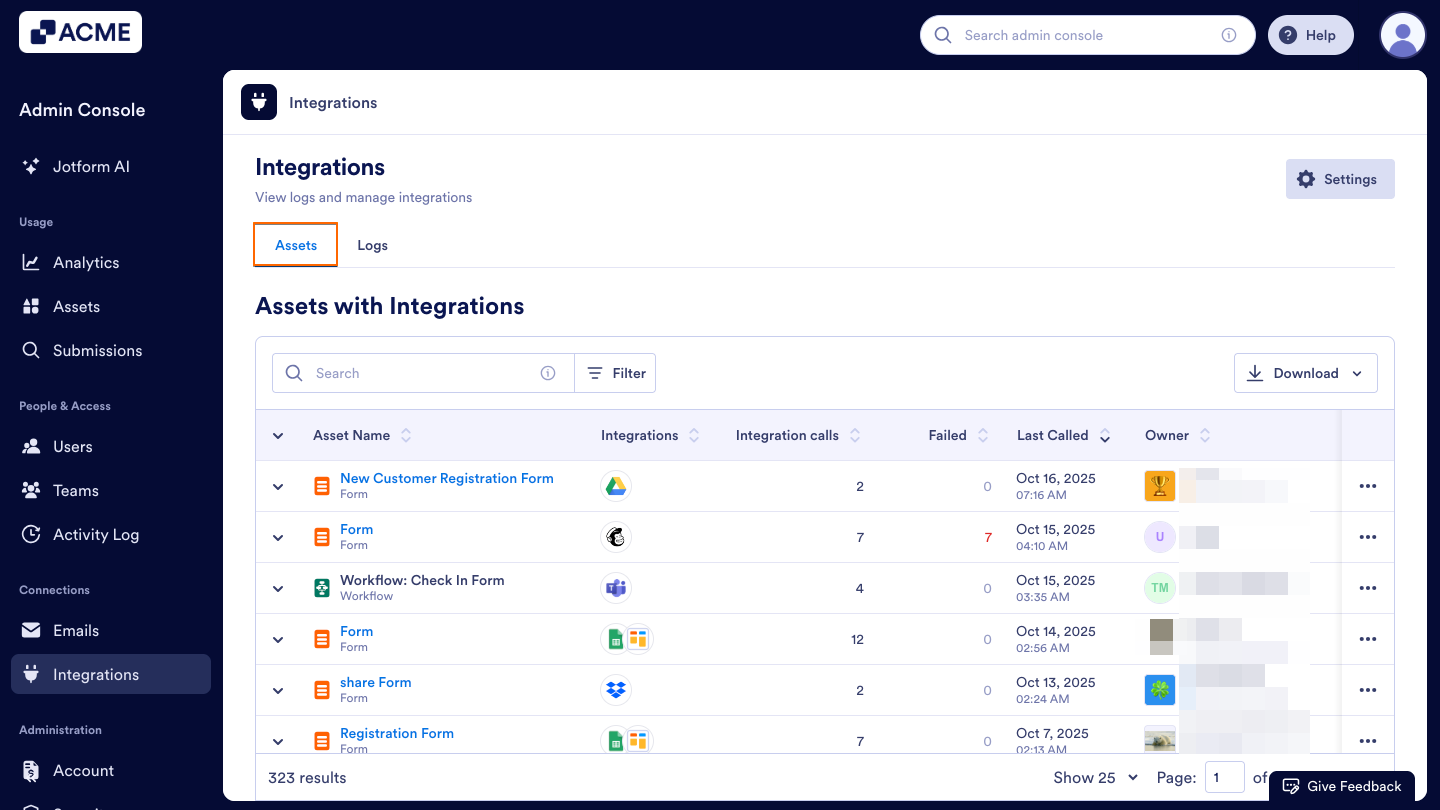
Assets with Integrations
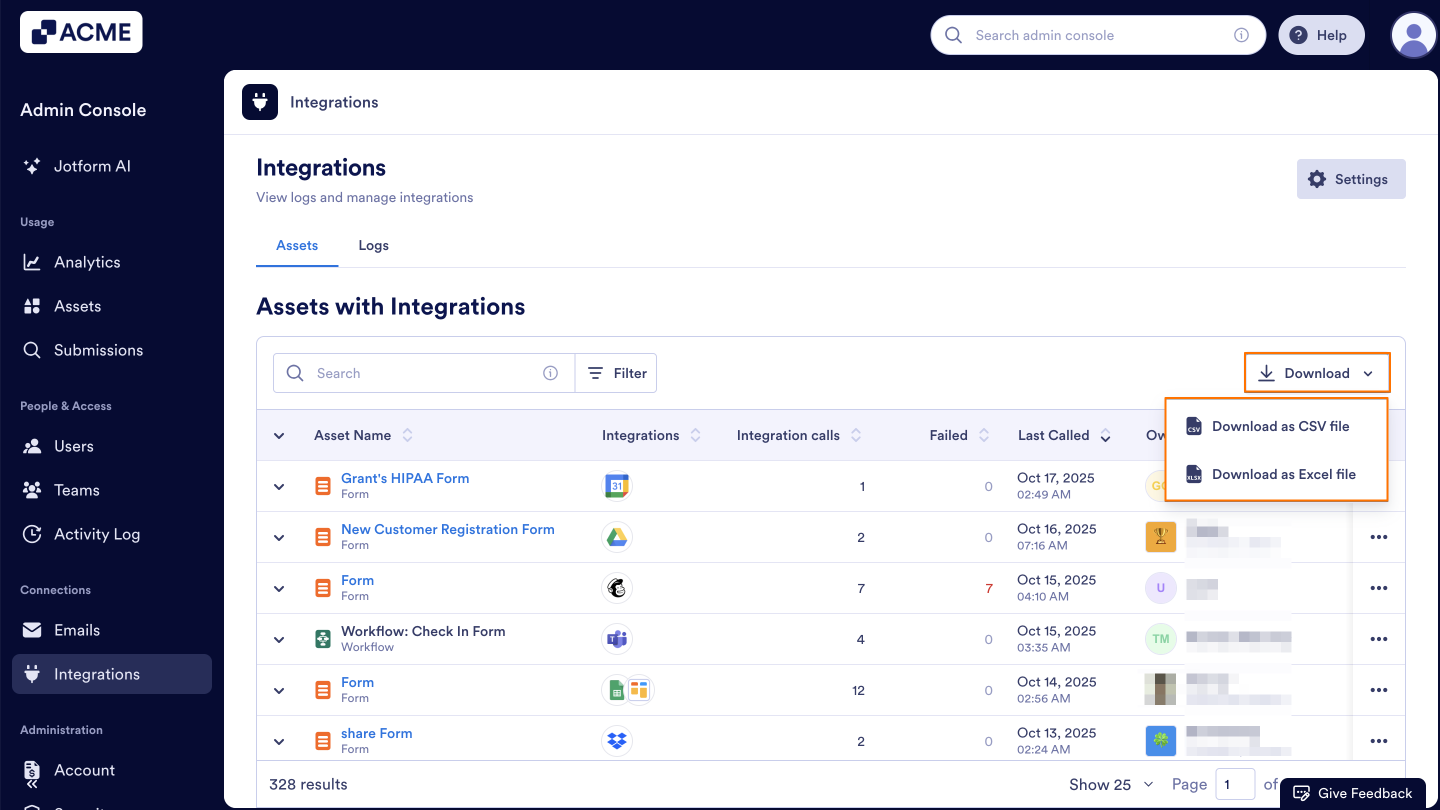
You can view what each column in the Assets with Integrations list represents below:
- Asset Name: Displays the name and type of the asset, such as a Form, Workflow, or App.
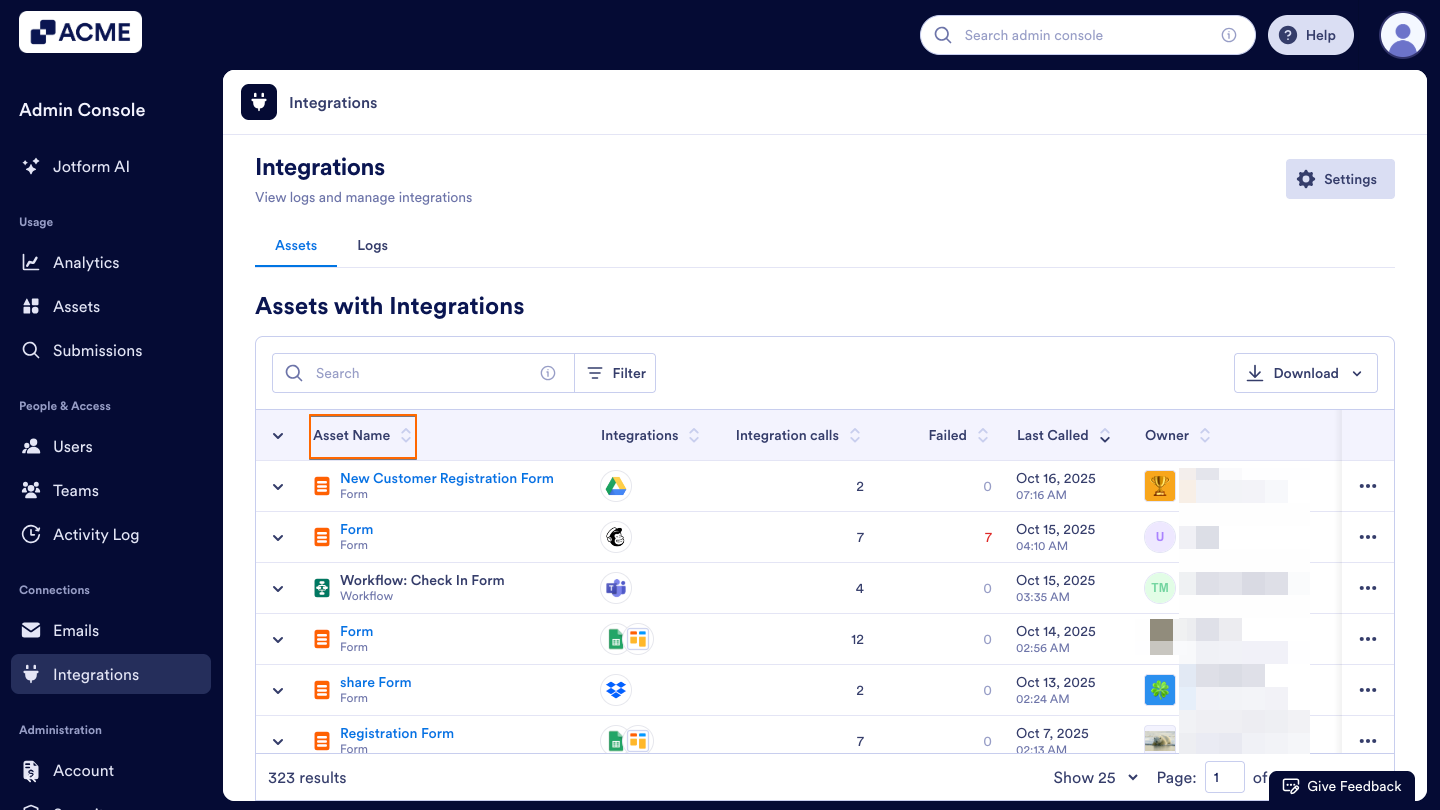
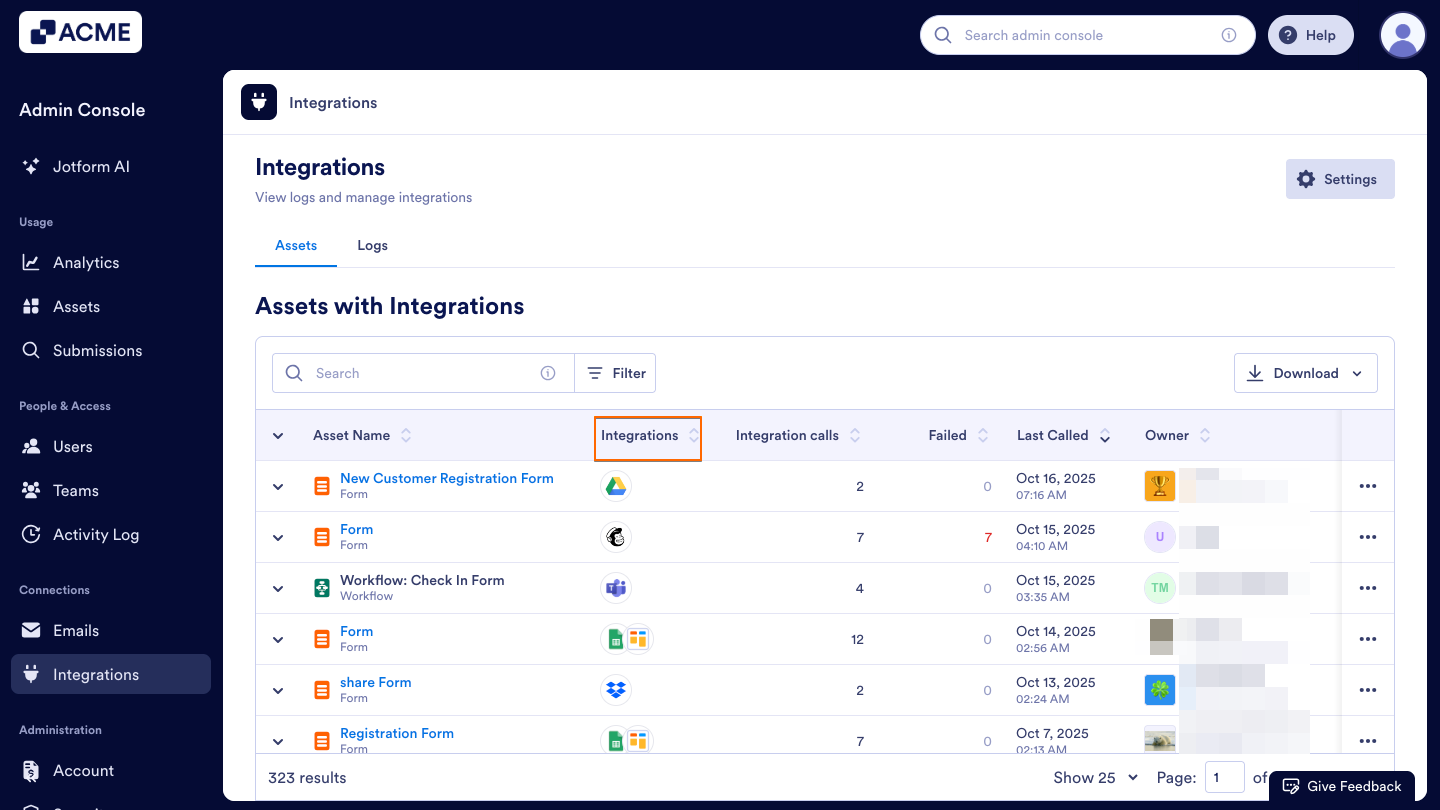
- Integrations: Shows the icons of all active Integrations connected to the asset. Hover over an icon to view the Integration’s name.
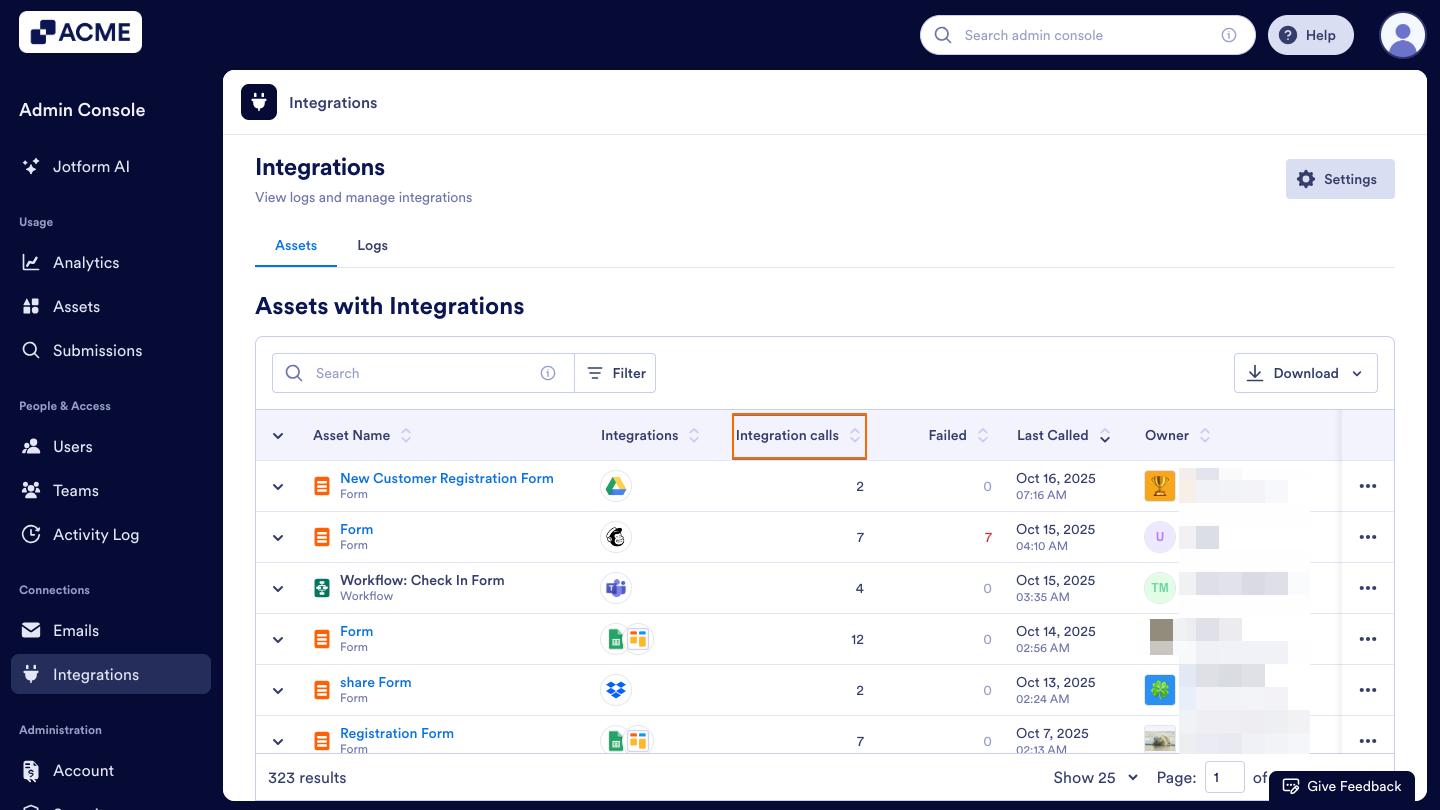
- Integration Calls: Indicates the total number of Integration calls made by the asset.
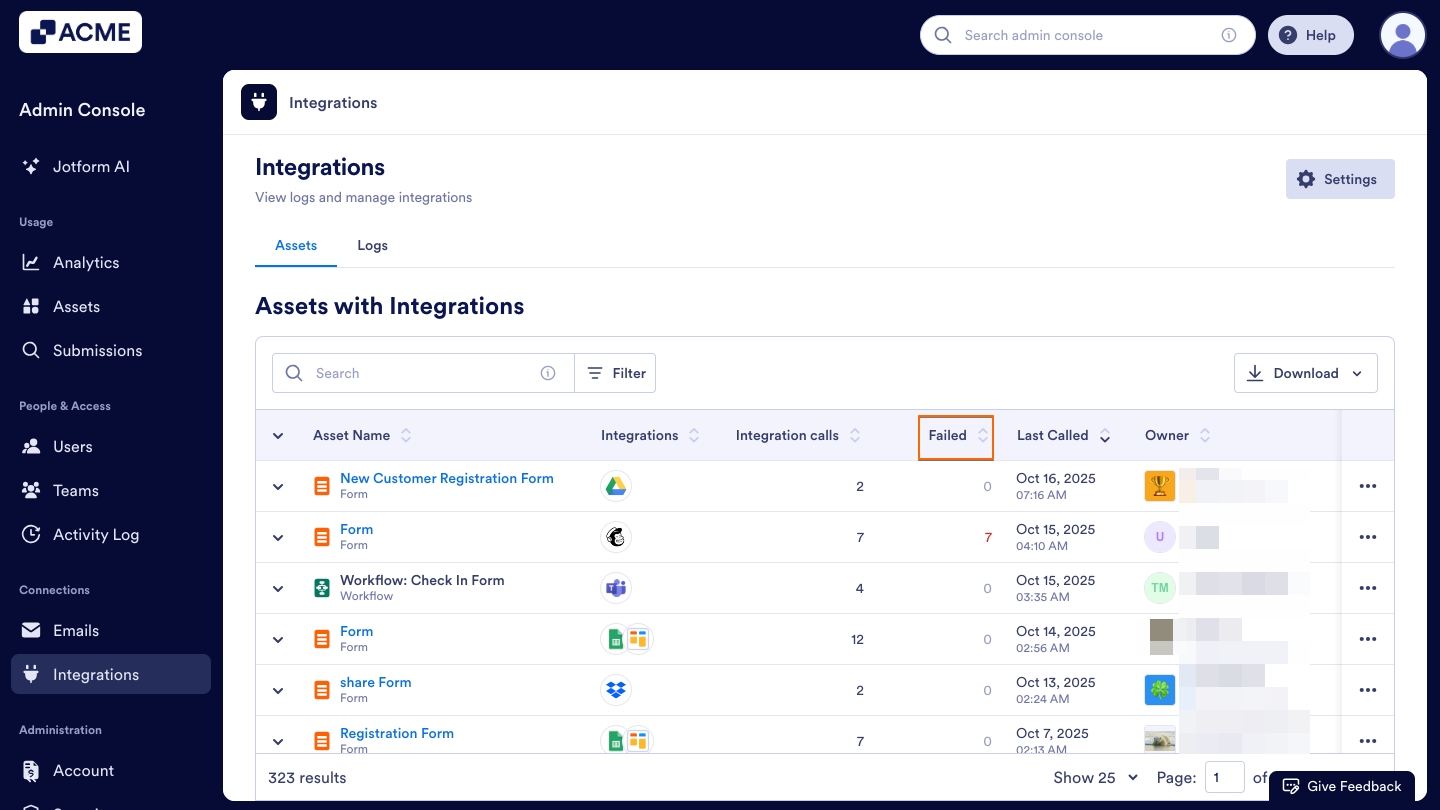
- Failed: Shows the number of failed Integration attempts.
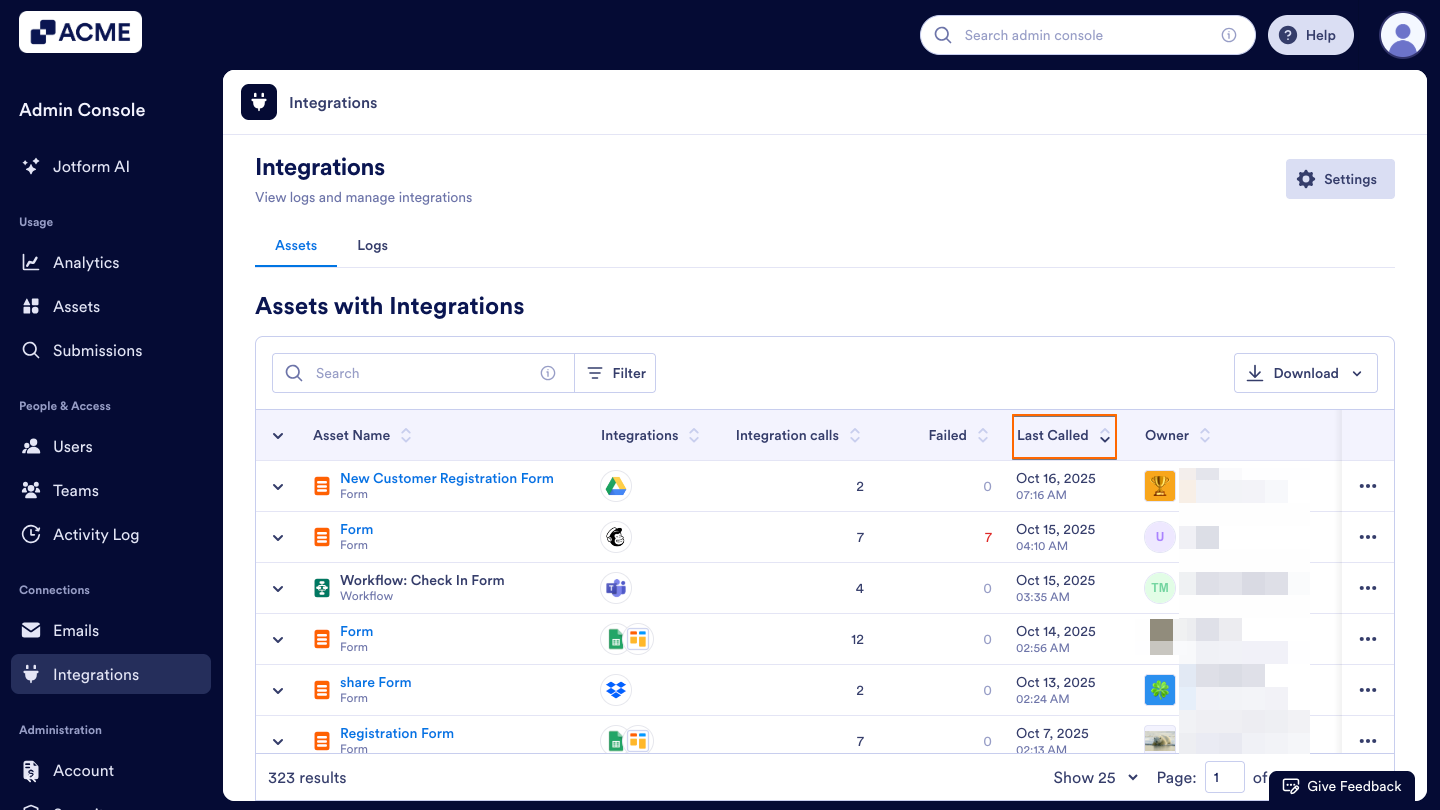
- Last Called: Displays the most recent date and time an Integration was triggered.
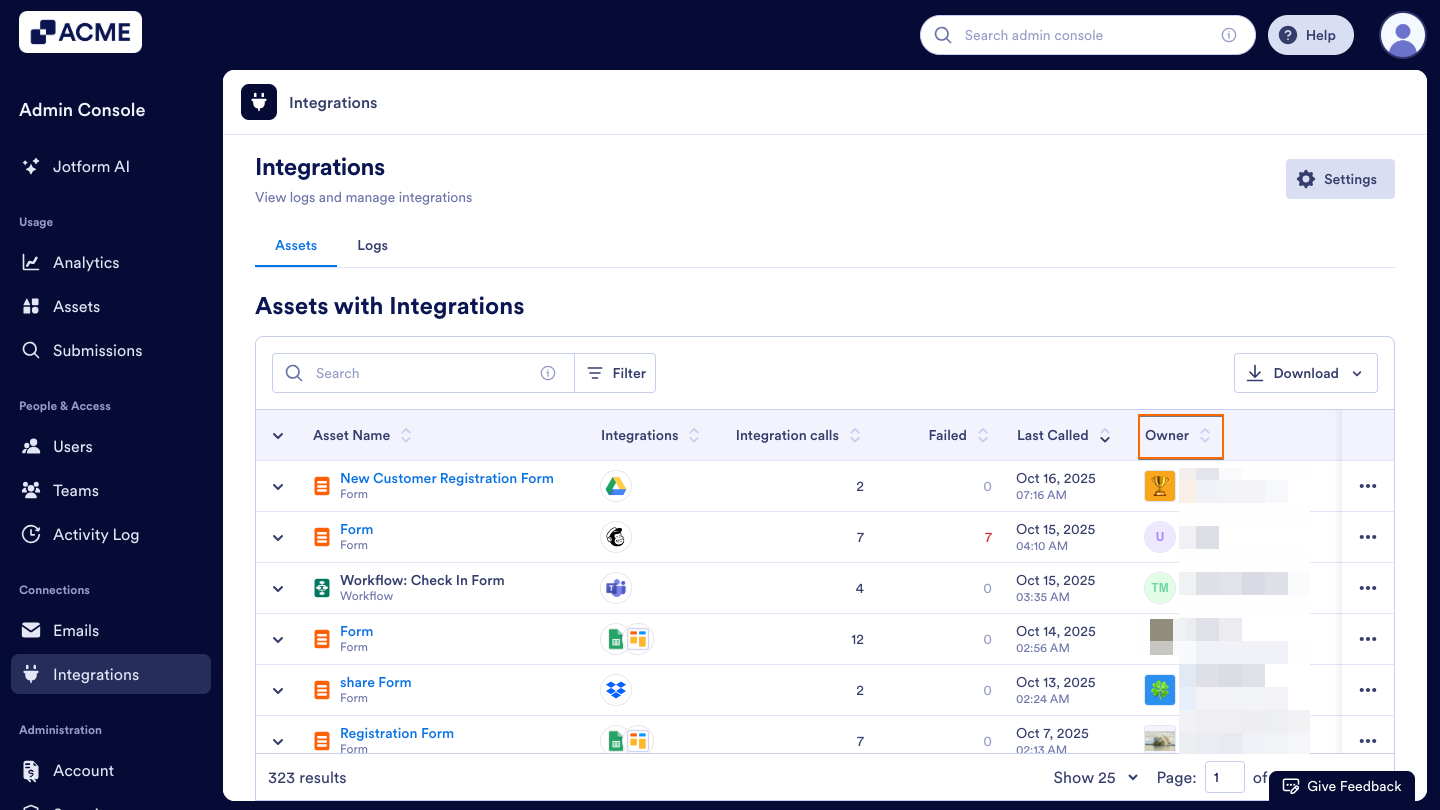
- Owner: Lists the user or Team that owns the asset.
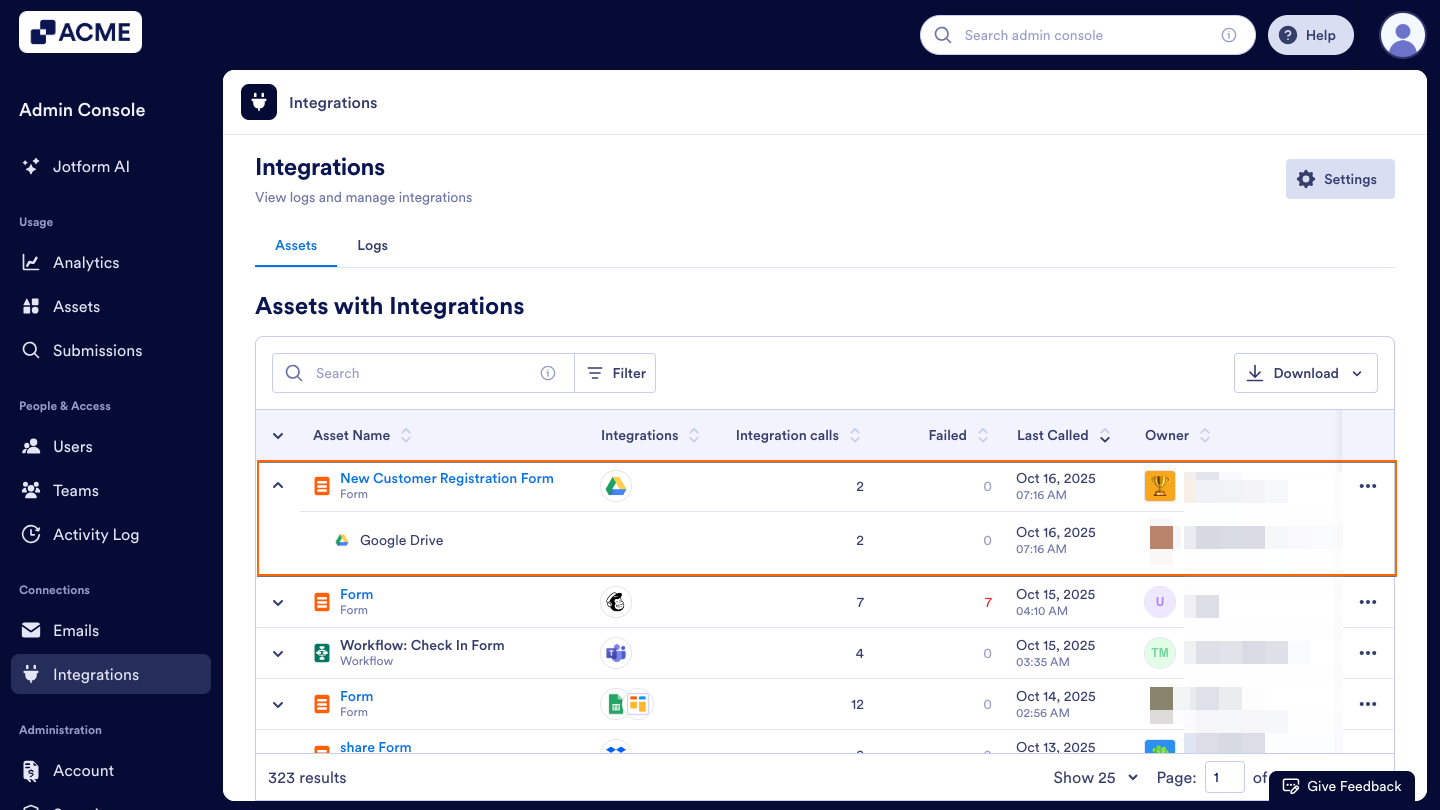
Tip: Click on the Downward Arrow icon next to an asset to quickly expand and view the Integrations directly from the table.
Filtering Assets
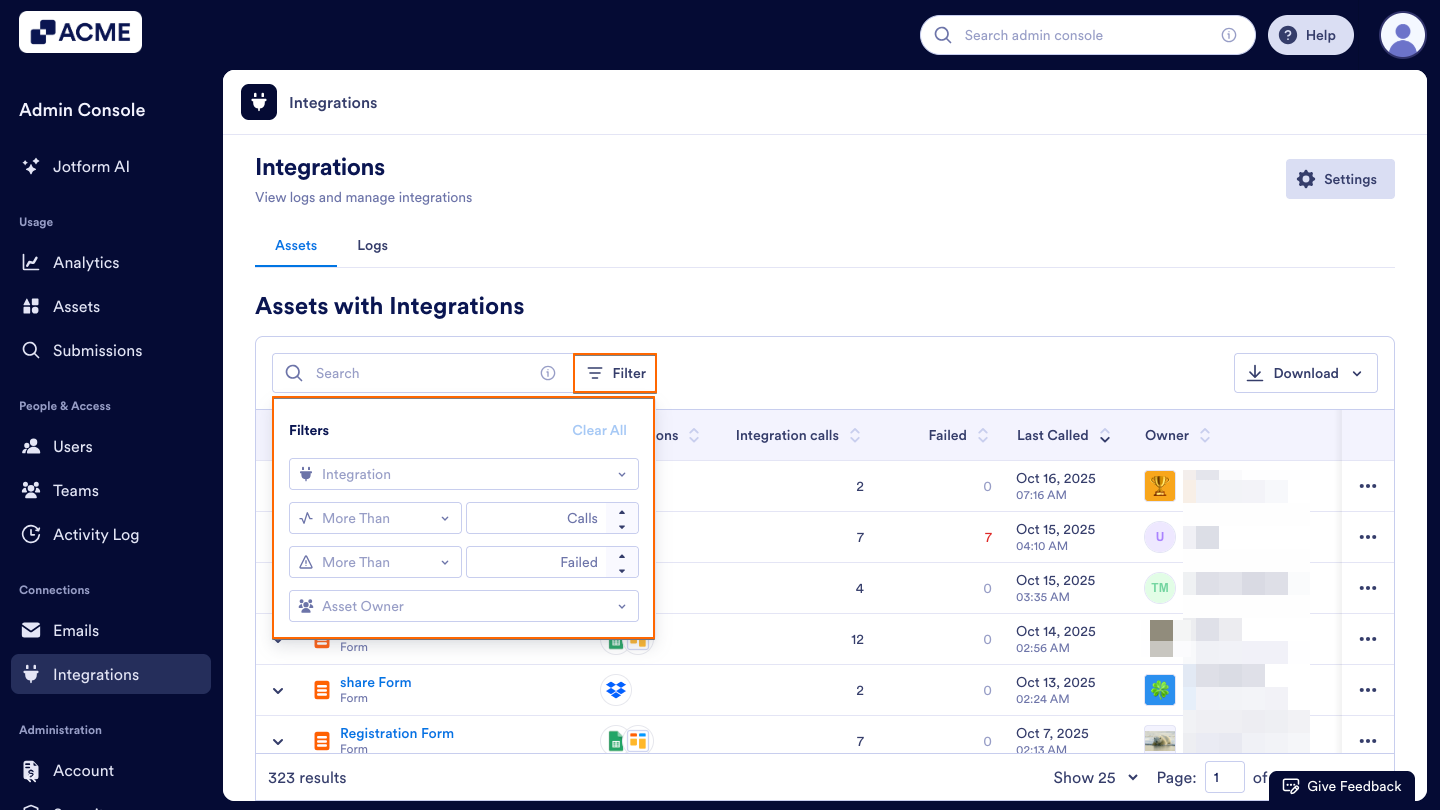
With Filters, you can search specific assets that are connected to the Integrations you selected, that are owned by specific users, or have a specific call and failed call number. To filter assets you can click on the Filter icon next to the search bar, and you’ll see the options below:
Viewing an Individual Asset’s Integration Logs
- Under the Integrations tab, click on Assets.
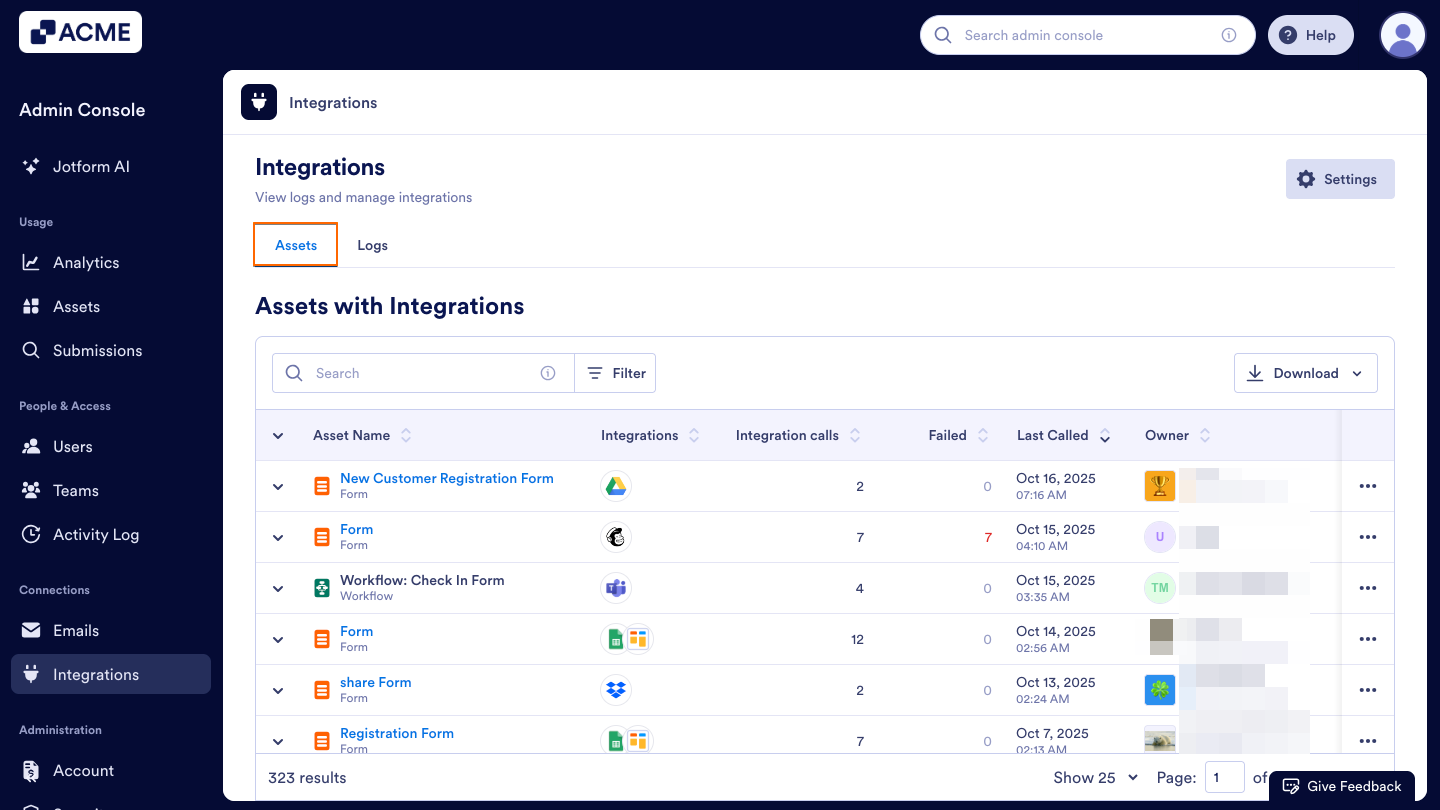
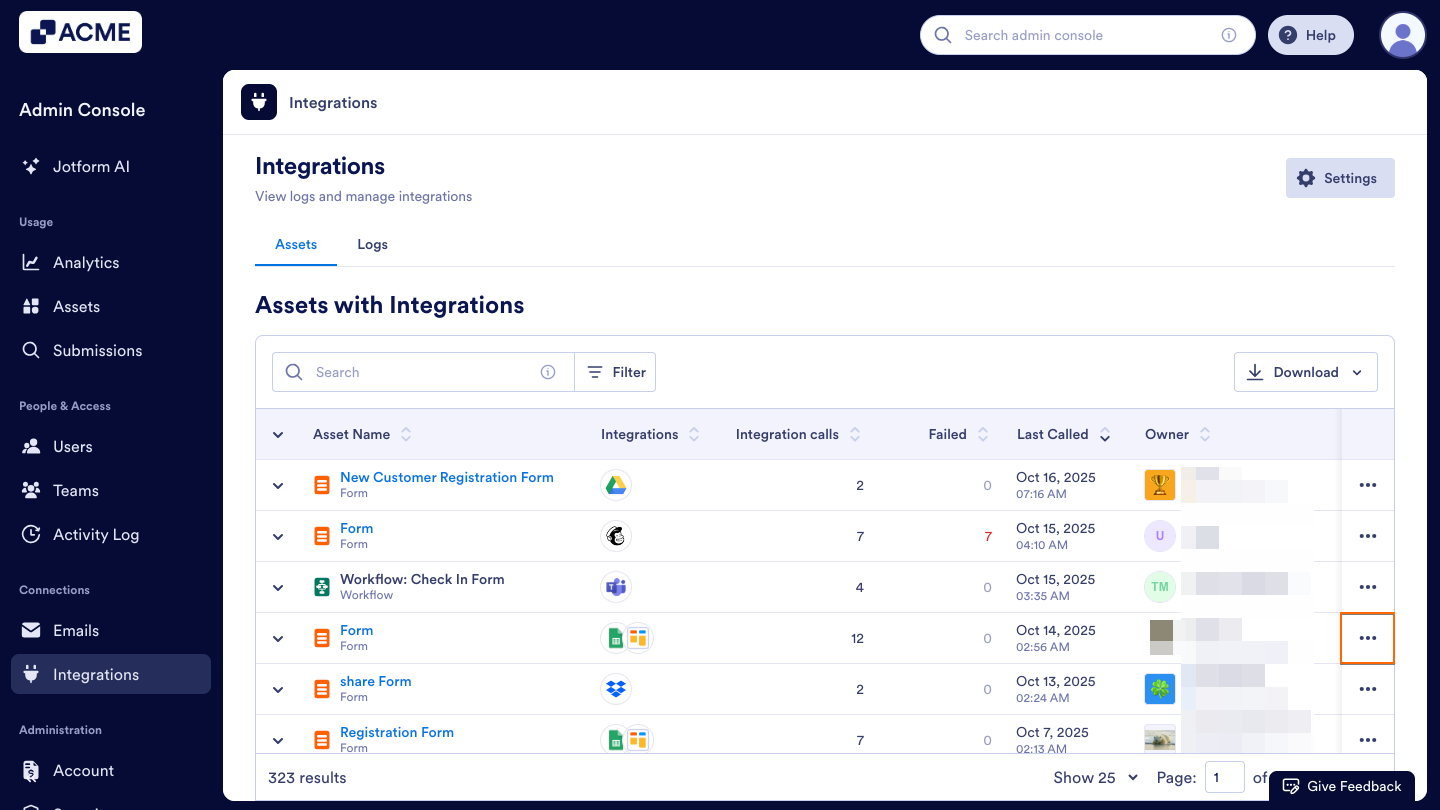
- In the Assets page, click on the Three Dots icon next to the asset you want to view.
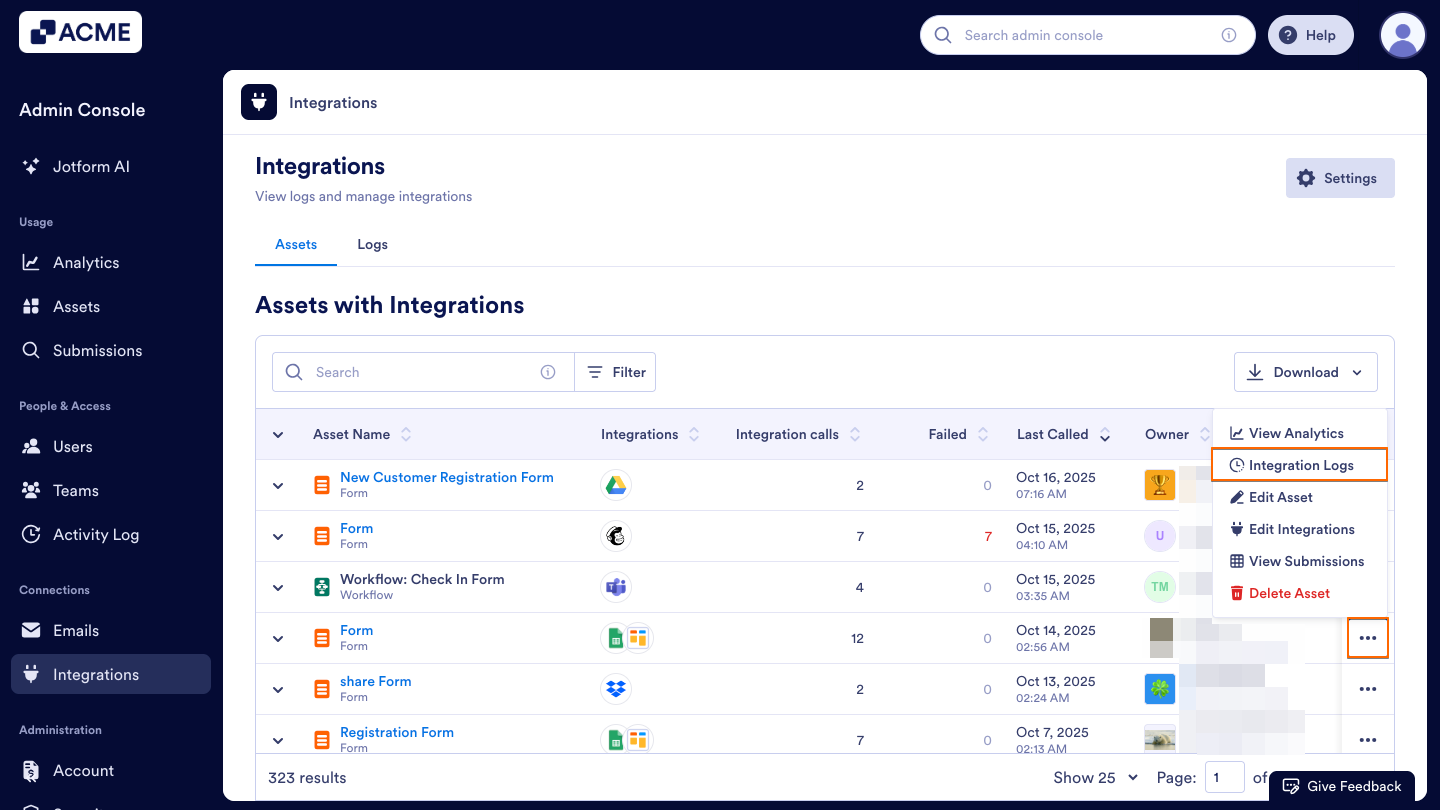
- Then, click on Integration Logs from the dropdown.
- Scroll down to view the Integration Logs for the selected asset.
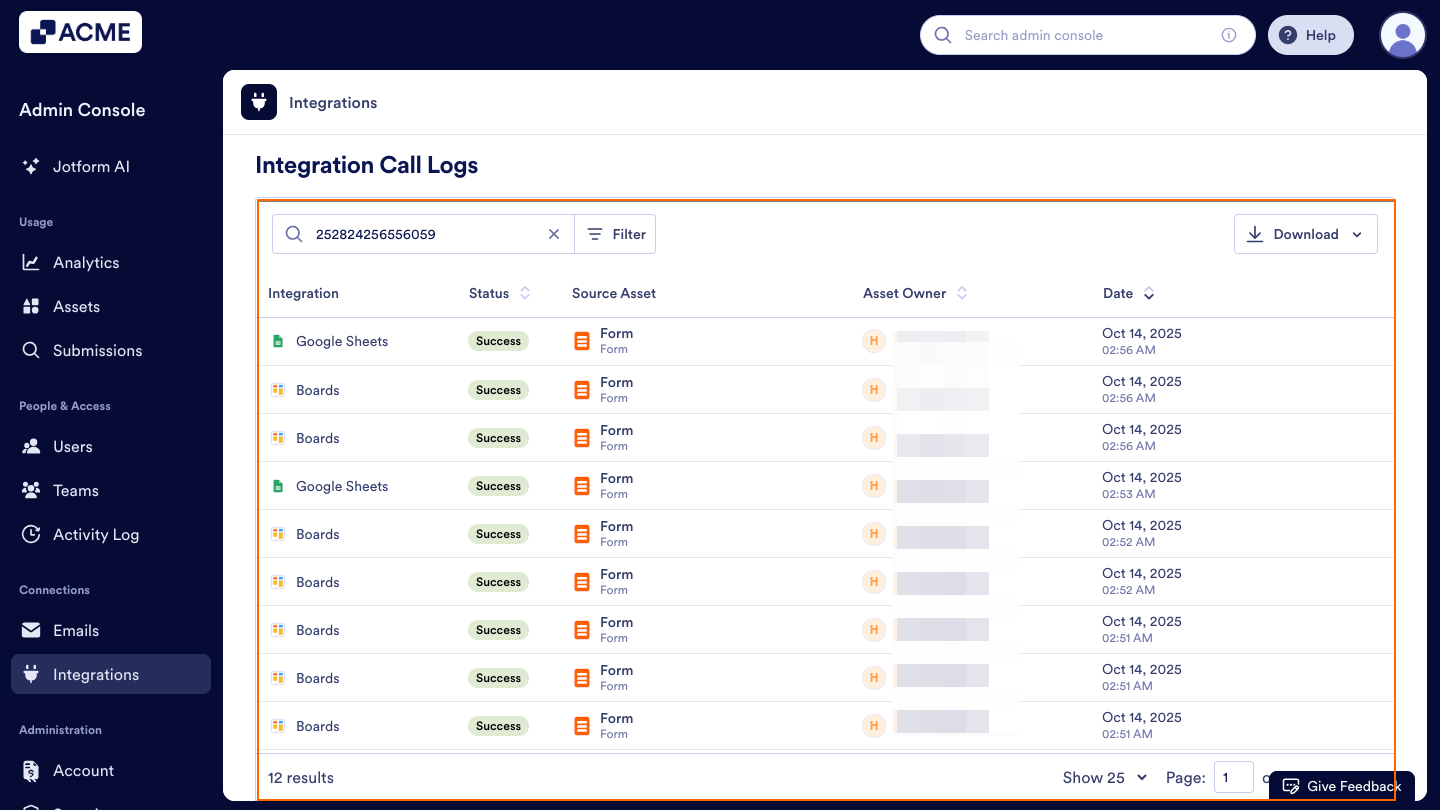
Other Asset Actions
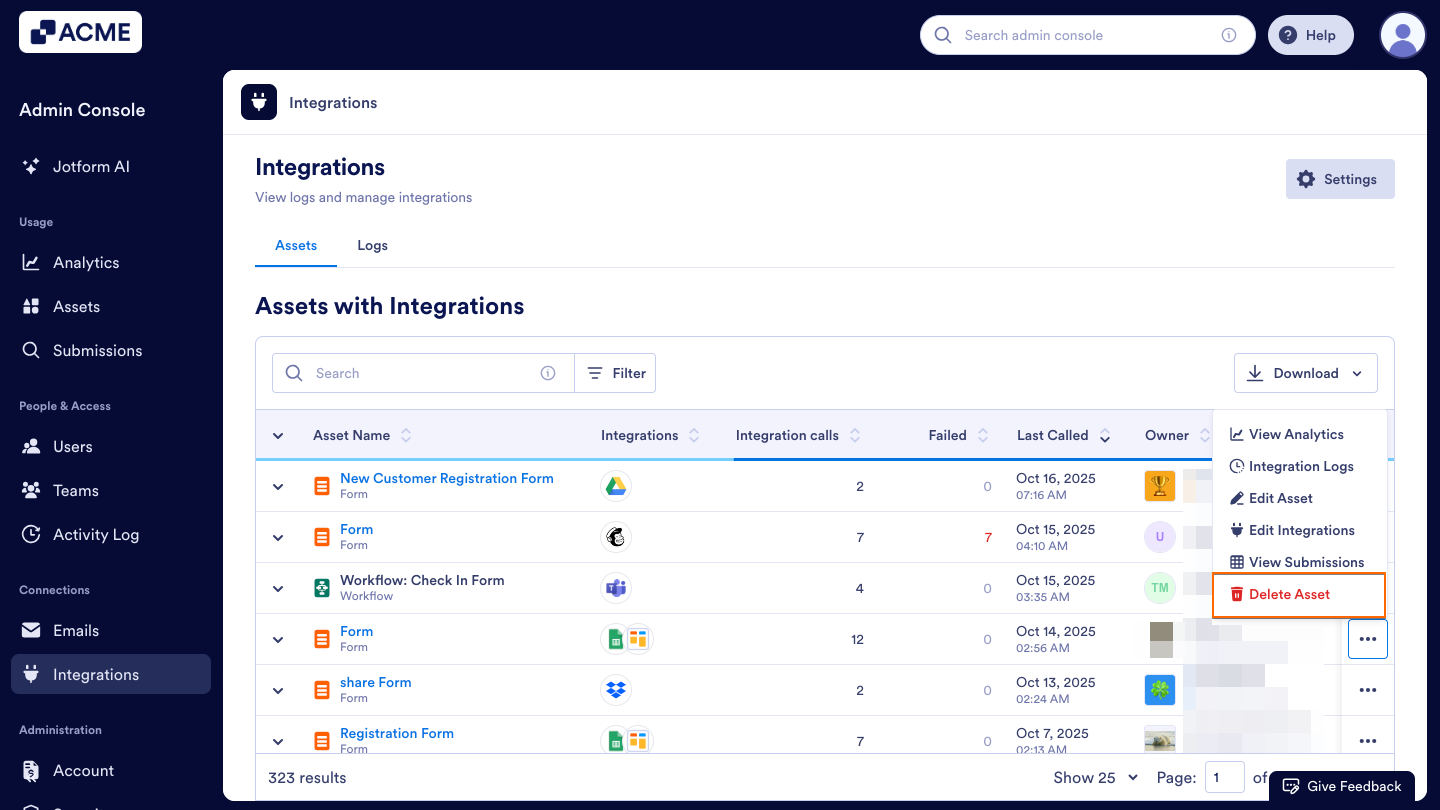
From the same menu, you can perform the following actions for each asset:
- View Analytics: Opens the Analytics page for the selected asset to review its available data and metrics.
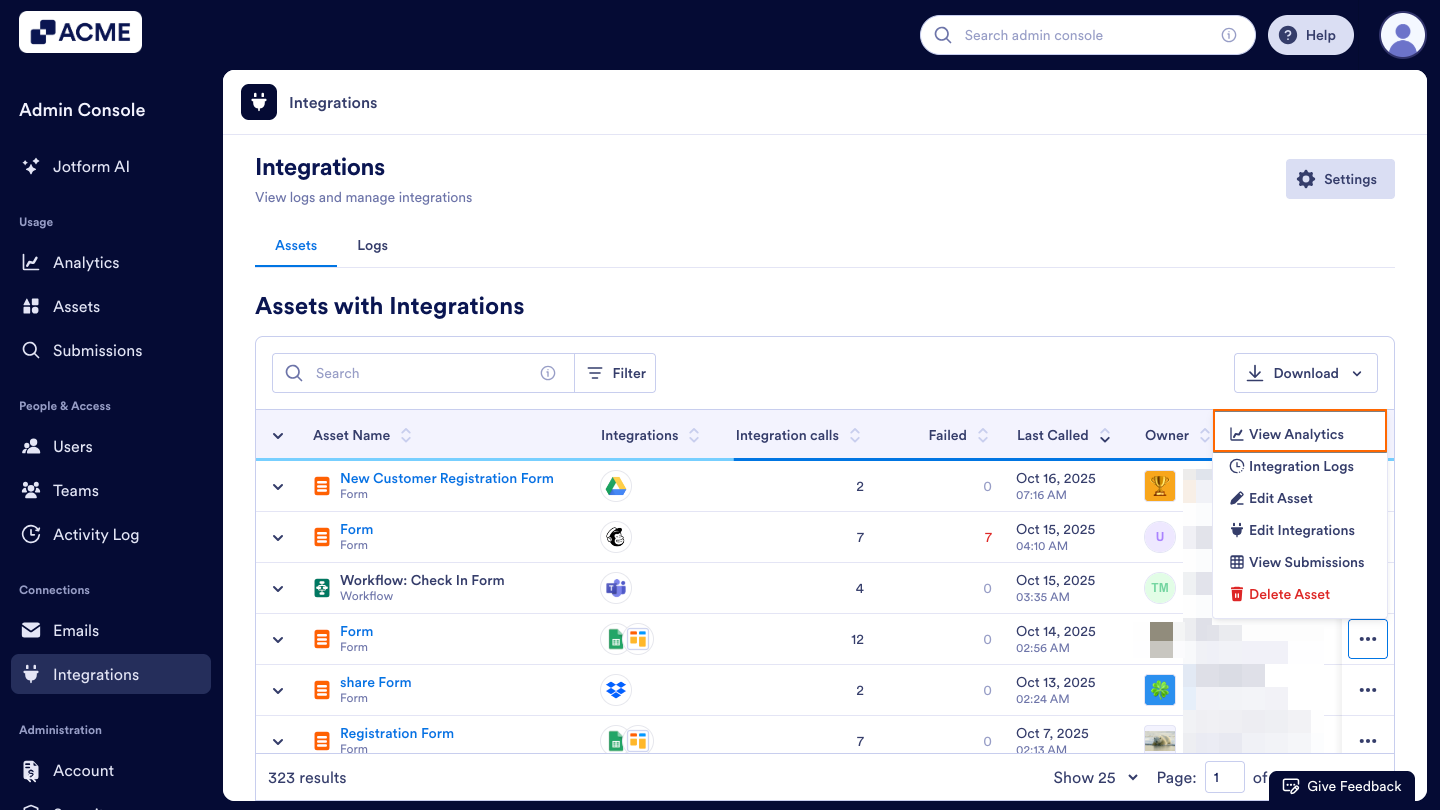
- Edit Asset: Opens the asset in the appropriate builder so you can make edits or updates.
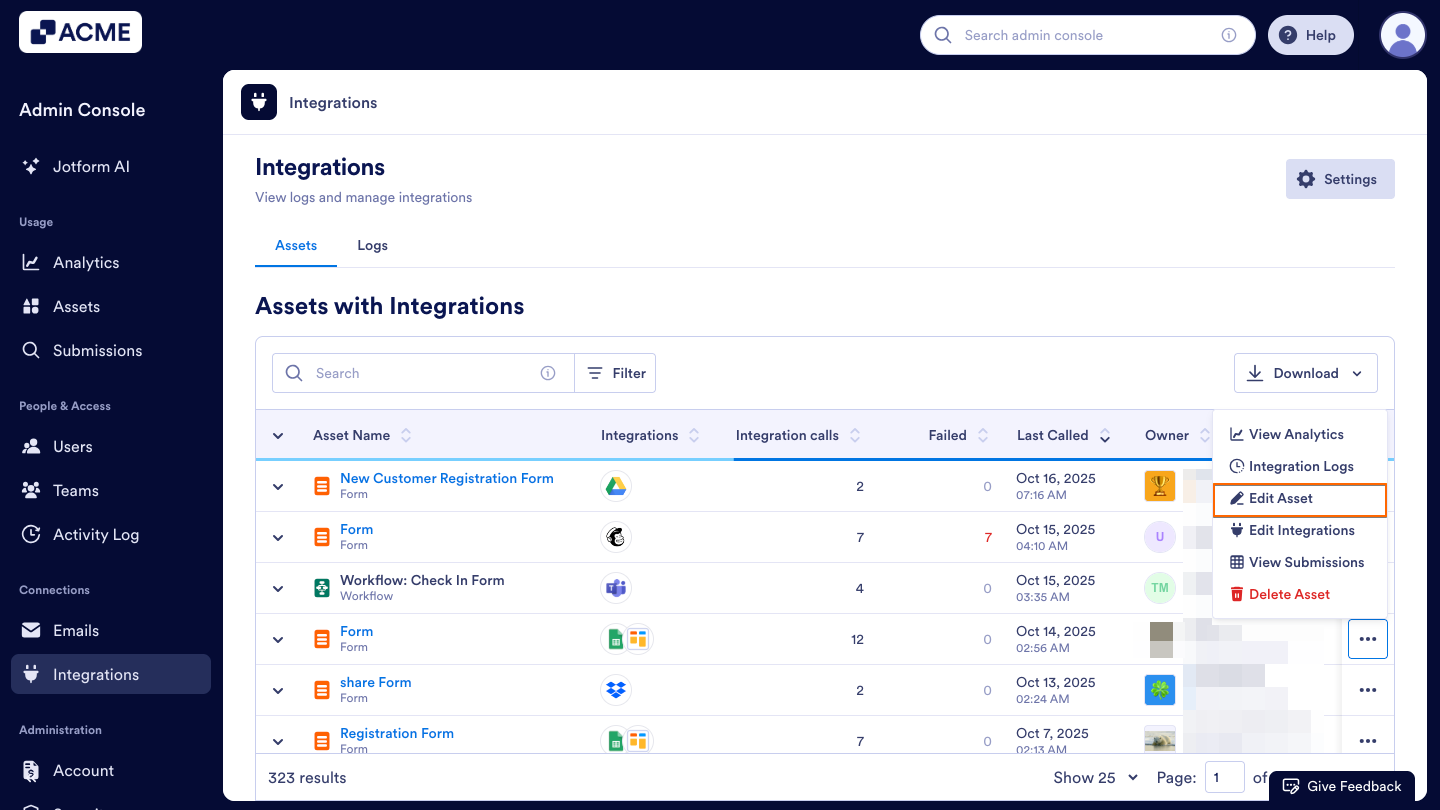
- Edit Integrations: Opens the Integration Settings page to update or modify existing integrations.
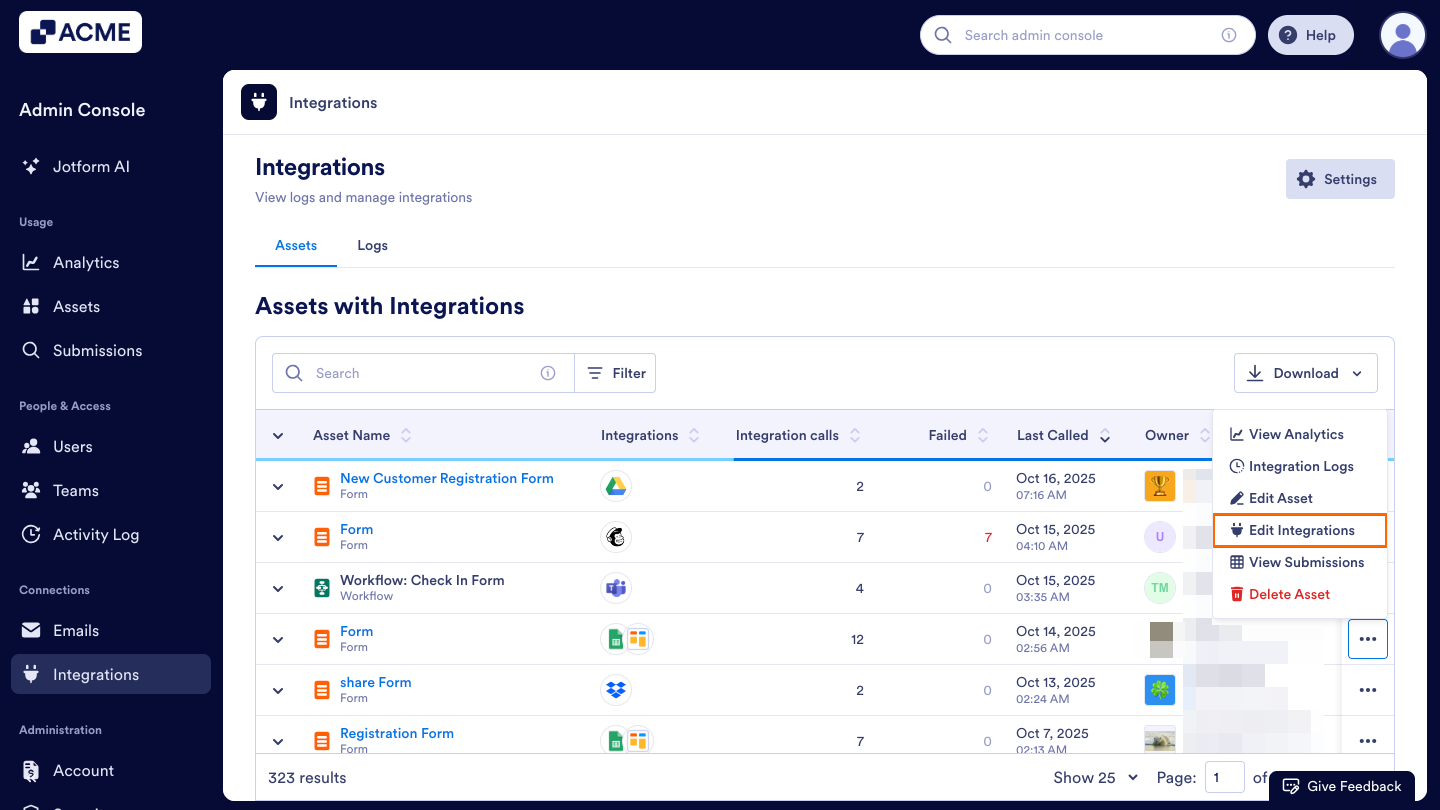
- View Submissions: Opens the Submission page to review responses or data collected through the asset.
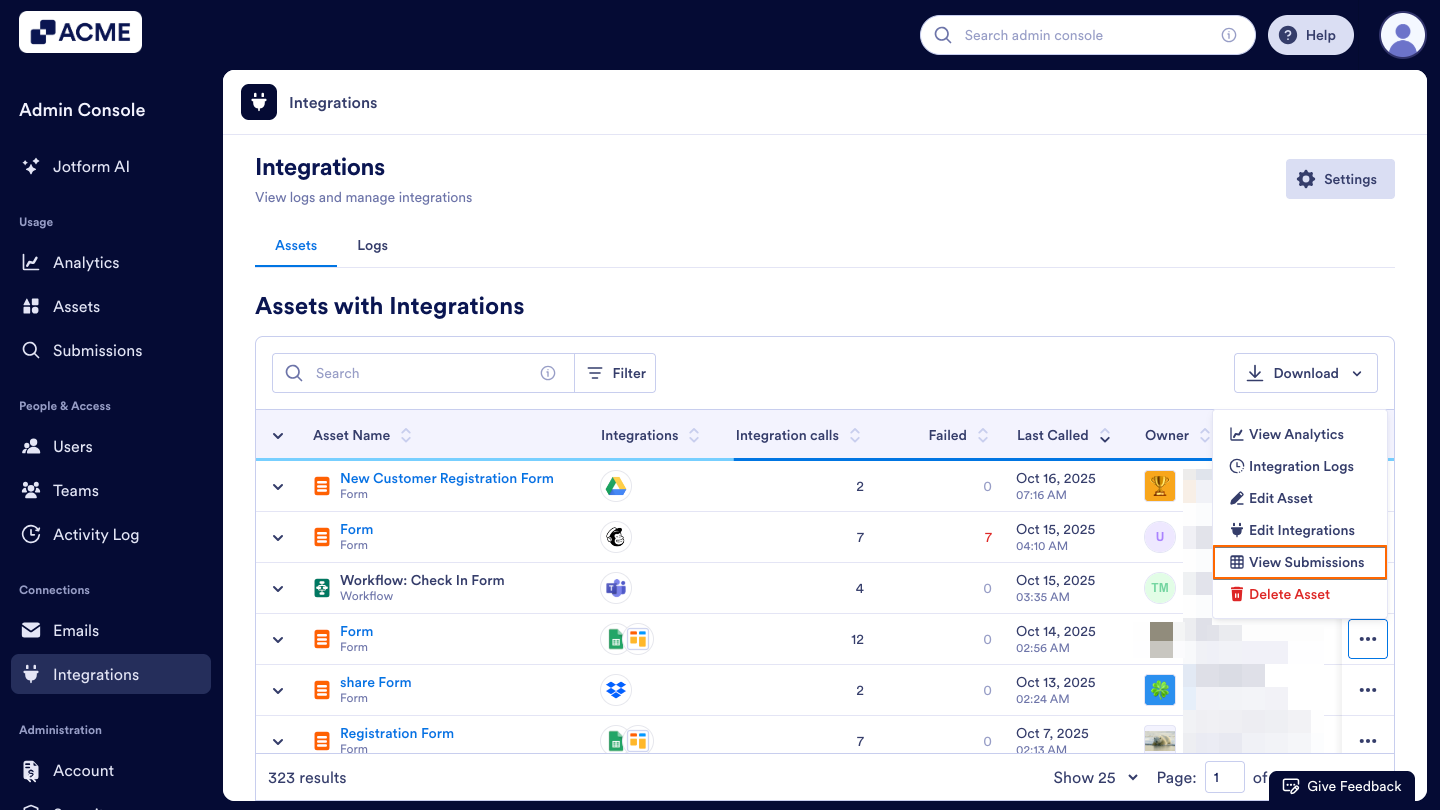
- Delete Asset: Permanently removes the asset from your organization.
Downloading Assets with Integrations
Here, you can download a list of assets that are connected to external integrations. Use this option to review, audit, or keep a record of all integrated assets within your organization.
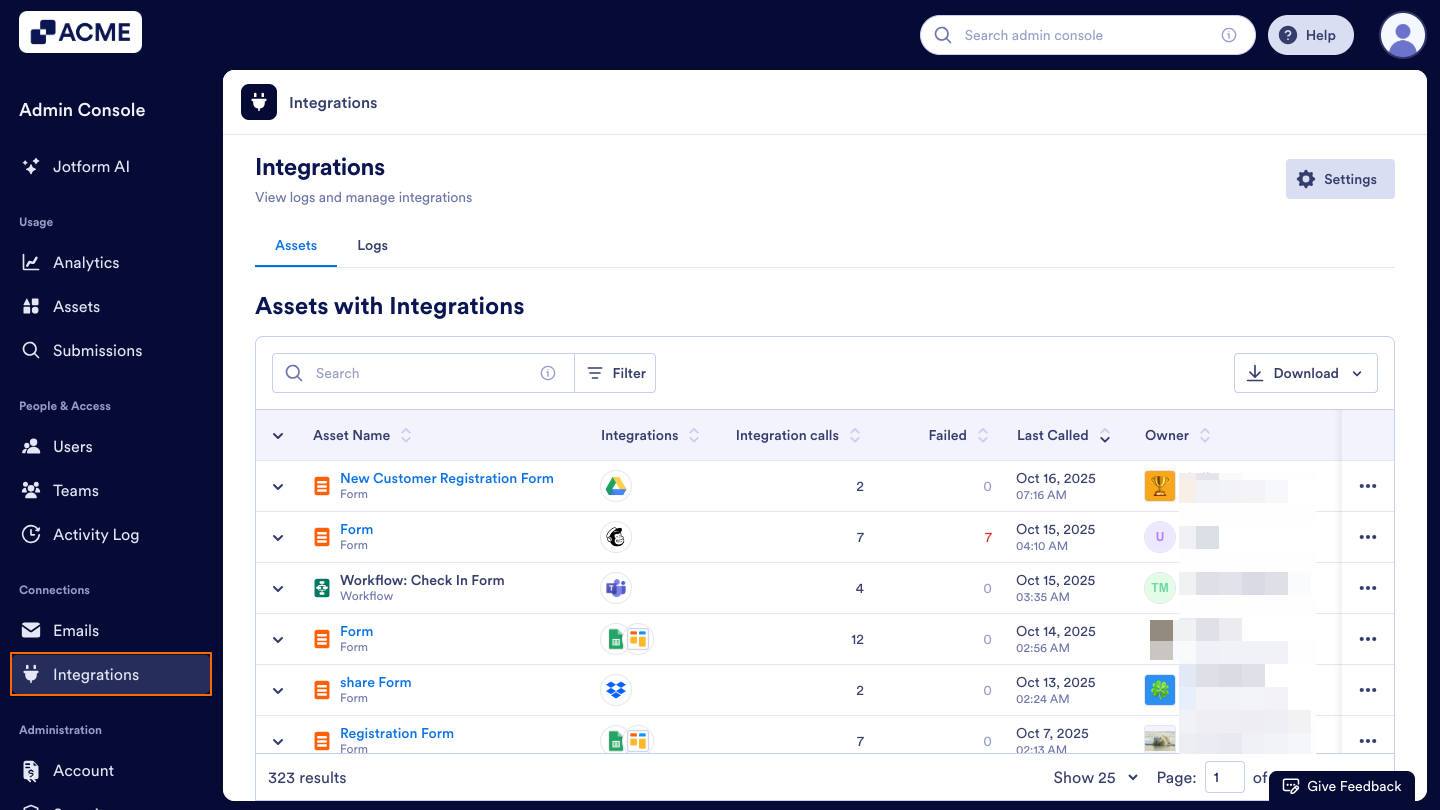
- In the Admin Console, click on Integrations from the menu located on the left-hand side of the page.
- Under the Integrations tab, click on Assets.
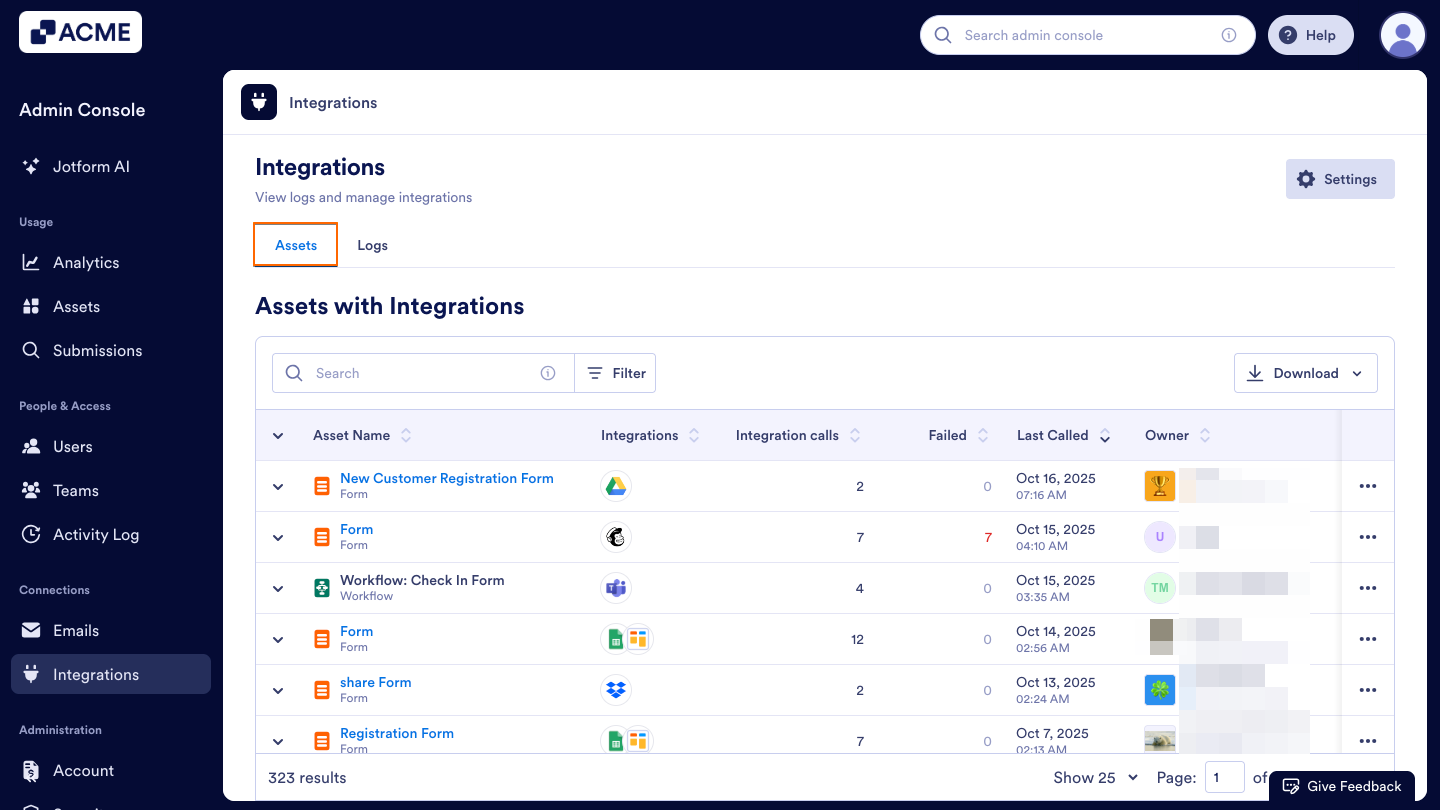
- Then, click on the Download button on the upper right side of the list and select the file type from the download options.
See also:
- How to View Your Organization's Integration Logs from the Admin Console
- How to Show or Hide Integrations in Your Organization from the Admin Console
- How to Manage Payment Integration Settings Organization-Wide in the Admin Console
- How to Configure Organization-Wide Email Settings in the Admin Console
- How to View Organization-Wide Logs in the Admin Console

Send Comment: