Boards lets you set due dates for any task within your workspace. This feature helps track deadlines, prioritize tasks, and maintain organization as projects progress. Whether managing a personal to-do list or collaborating with a team, adding due dates ensures that nothing slips through the cracks.
You can manually set or update the due date of a task in a few easy steps. Here’s how to do it:
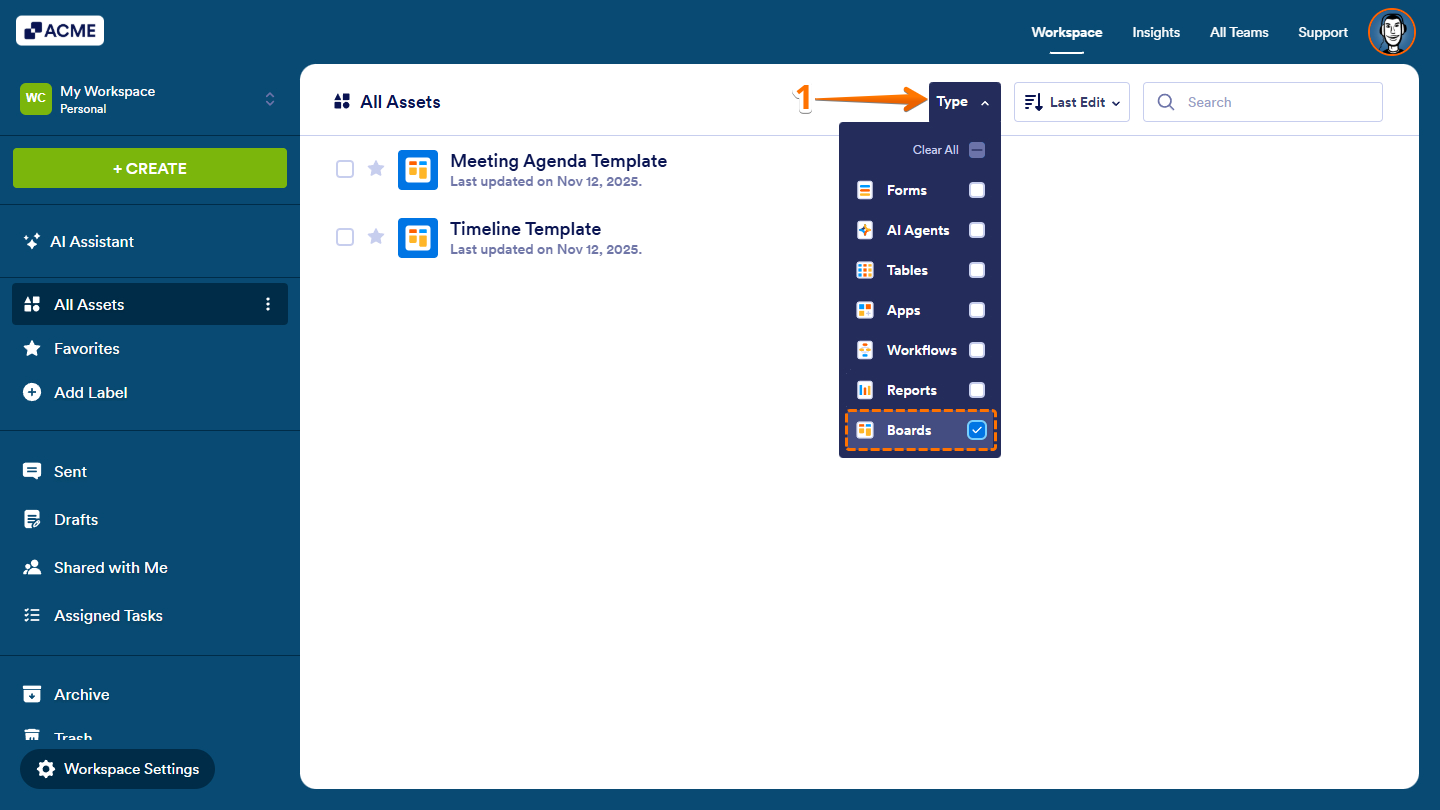
- On your Workspace page, click on Type at the top, and in the Dropdown menu that opens, uncheck the boxes next to all the assets except Boards, so only they’ll be shown on the page.
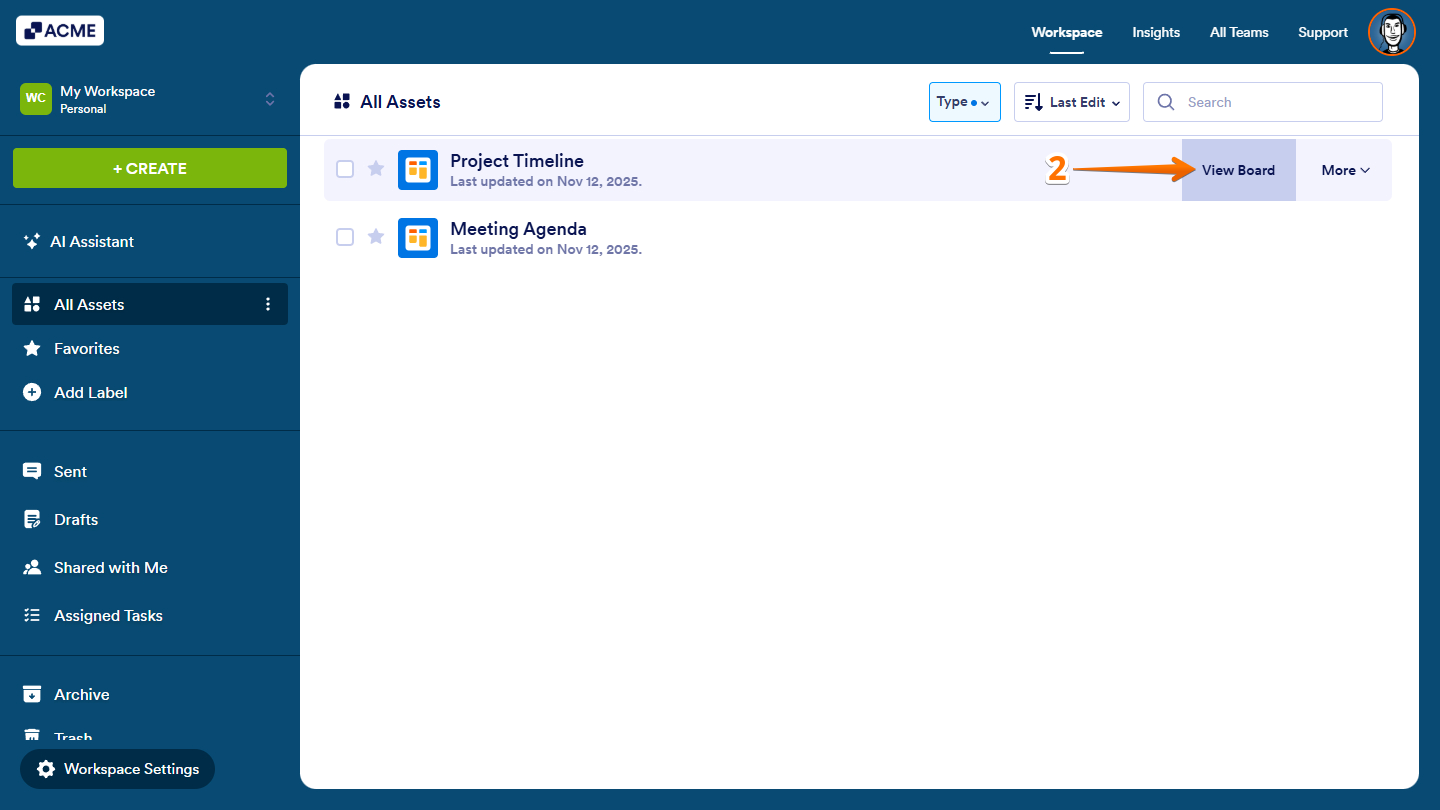
- Now, hover your mouse over the board with the tasks you want to set due dates for, and click on View Board on the right side of the page.
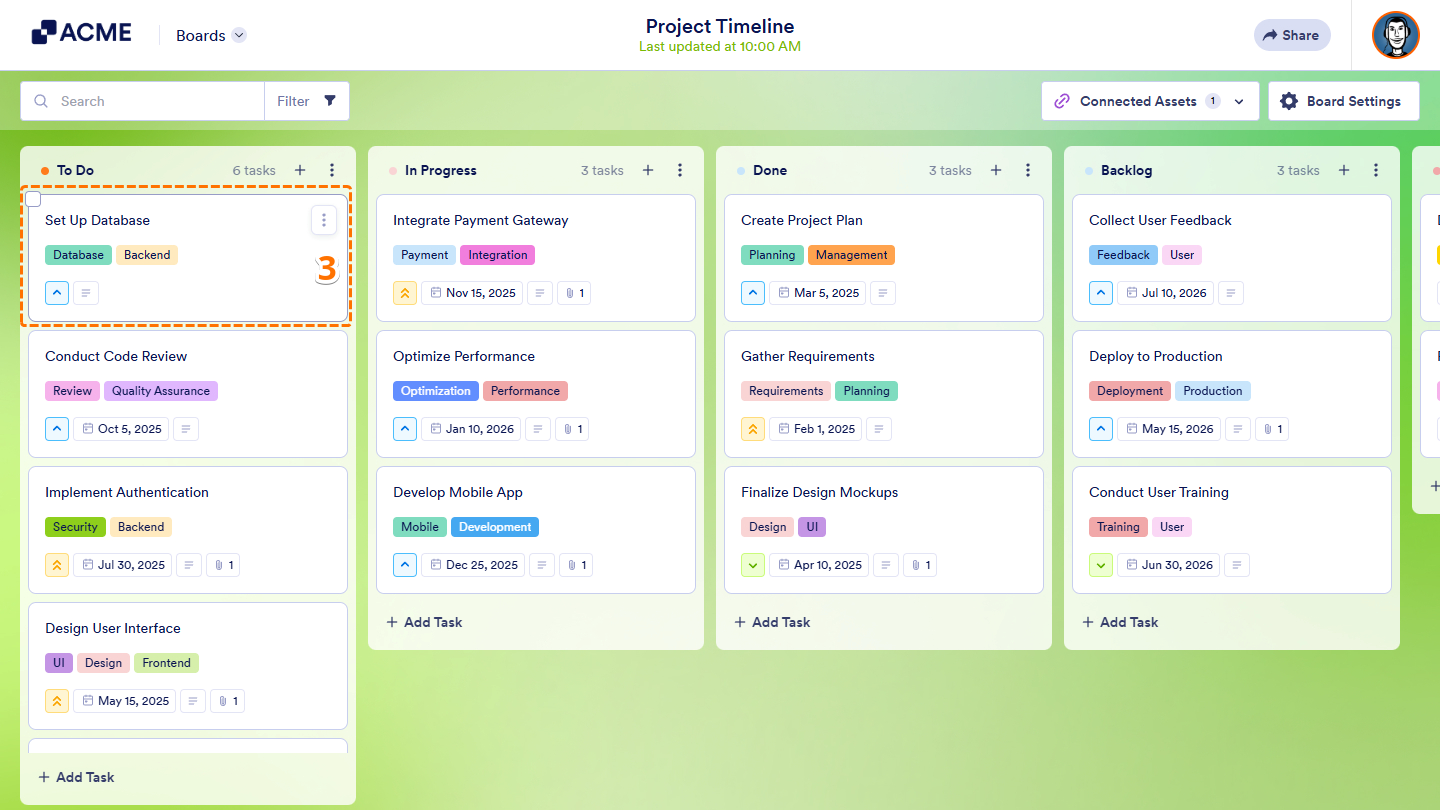
- On your Board, click on a card under a group to view the task.
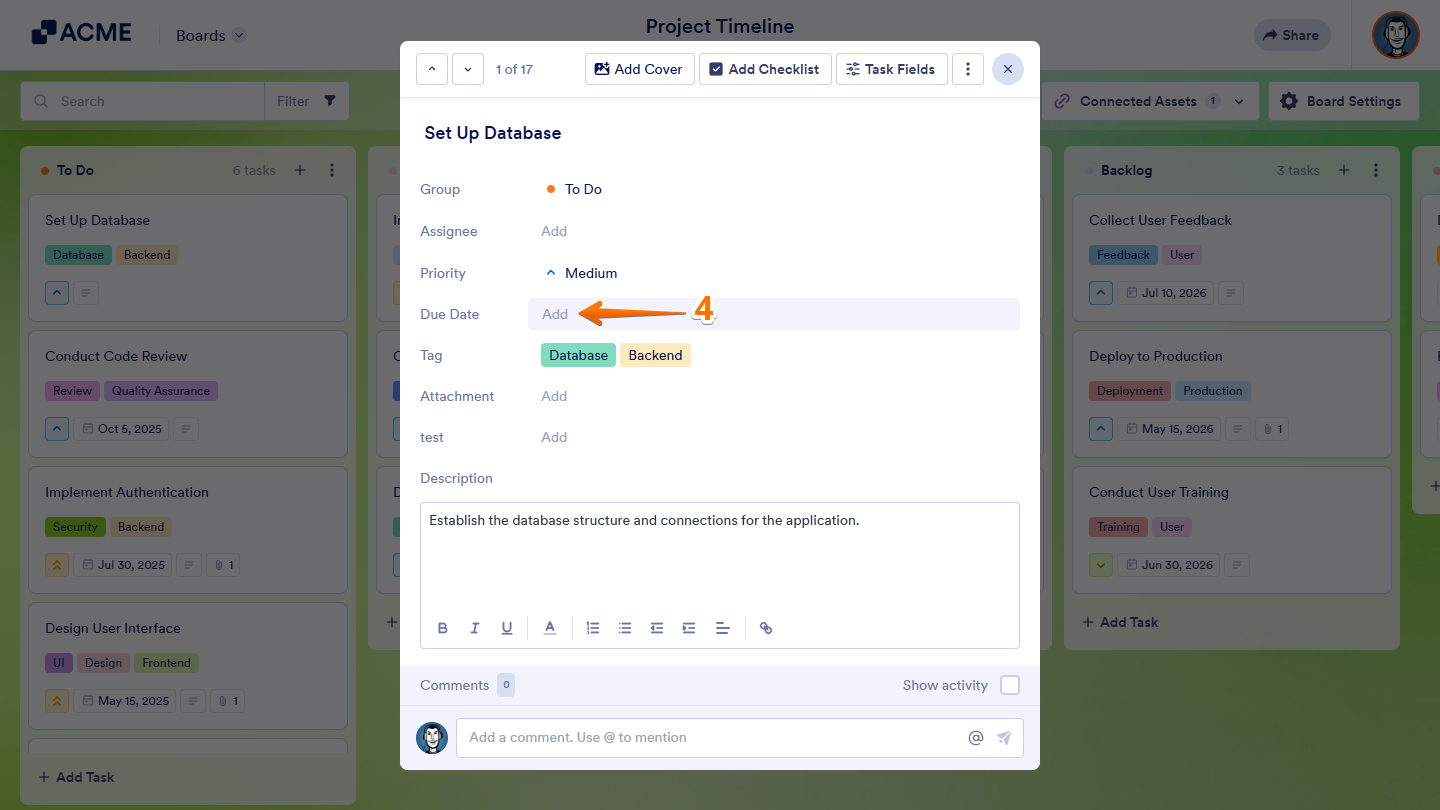
- Now, in the Task Details window that opens, click on Add next to the Due Date field.
- Then, select a date in the Calendar menu that comes up. To add time to a task’s due date, click on the Clock icon on the bottom-left side of the calendar and select a predefined Time option in the Dropdown menu next to it.
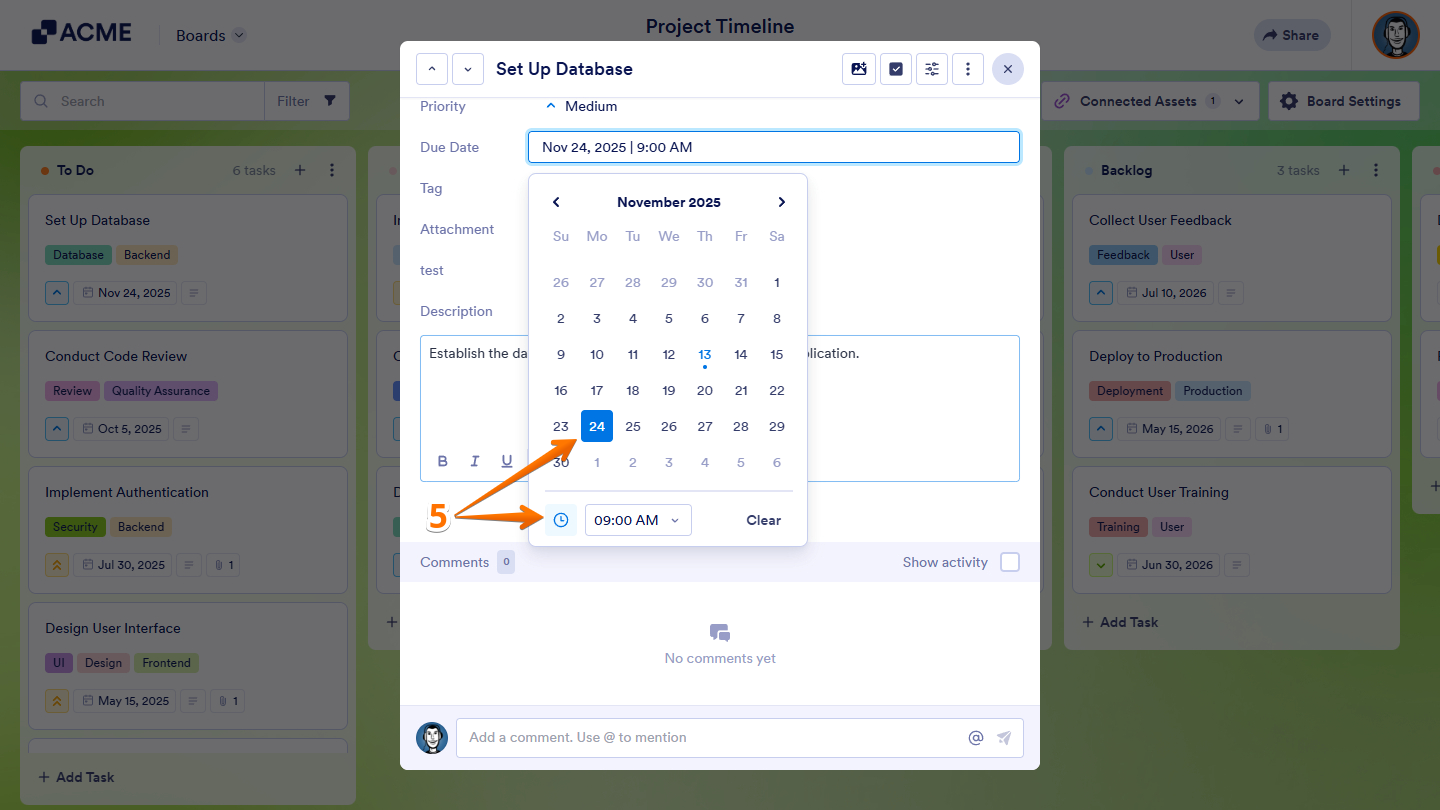
- After selecting a date, press Enter on your keyboard or click anywhere outside the calendar to save your selection. That’s it!
Notes:
- You can also set up the Due Date task field to automatically pull a date from a Date or Appointment field on a form connected to your board.
- Click on a set due date in a task to open the Calendar menu. You can then select a new date to update it, or click on the Clear button on the bottom-right side of the calendar to remove it.

Send Comment: