Collaborating in Draft mode allows multiple people to edit the form simultaneously, without making changes to the Live Form. Using the Add Collaborator feature, you can generate a private link or invite teammates by email to help build or review the Draft form. Let’s walk through the process of sharing the Draft and managing collaboration safely.
Sharing a Draft with Teammates
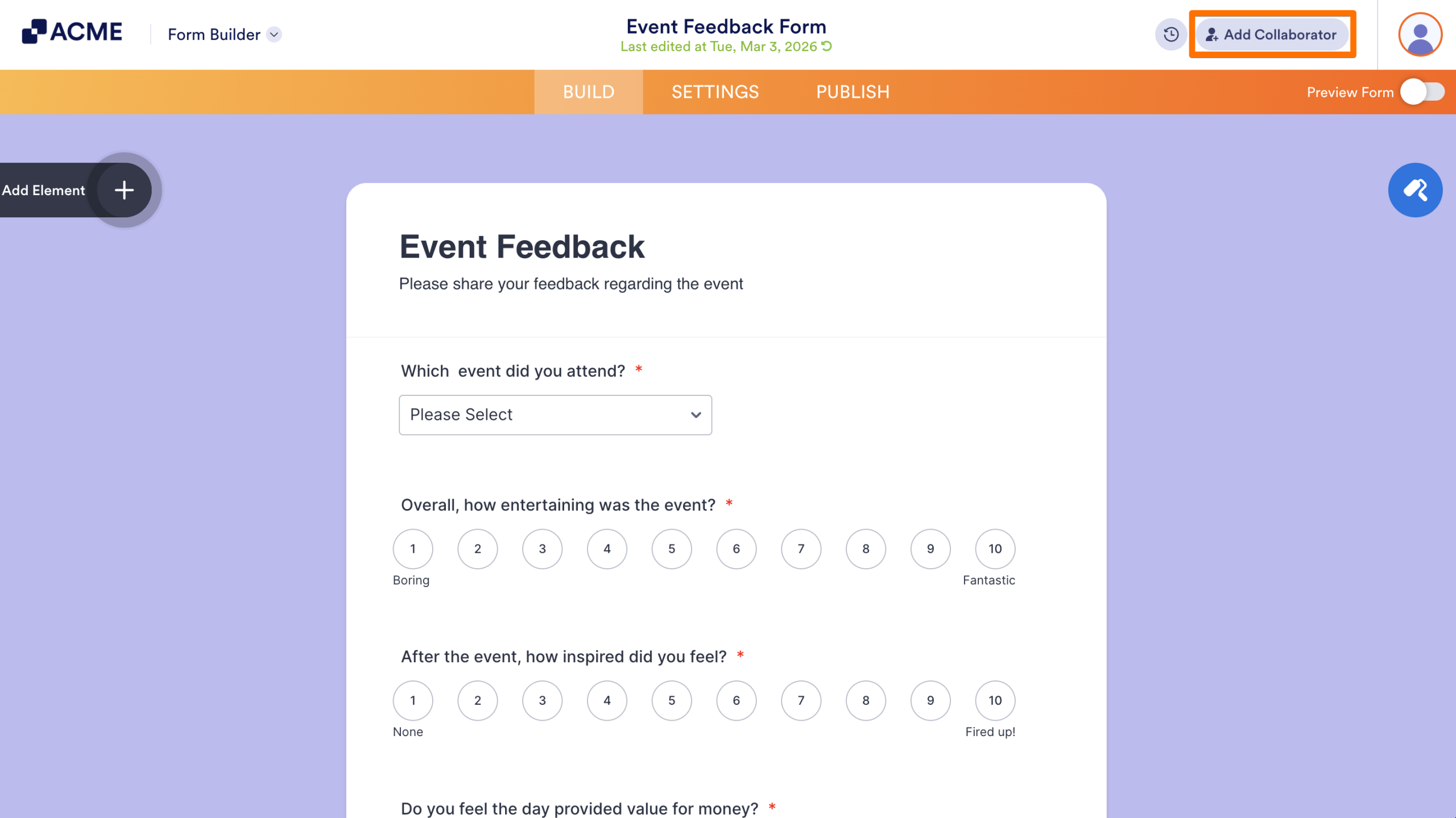
- In the Form Builder, click on the Add Collaborator button in the top right-hand corner of the screen.
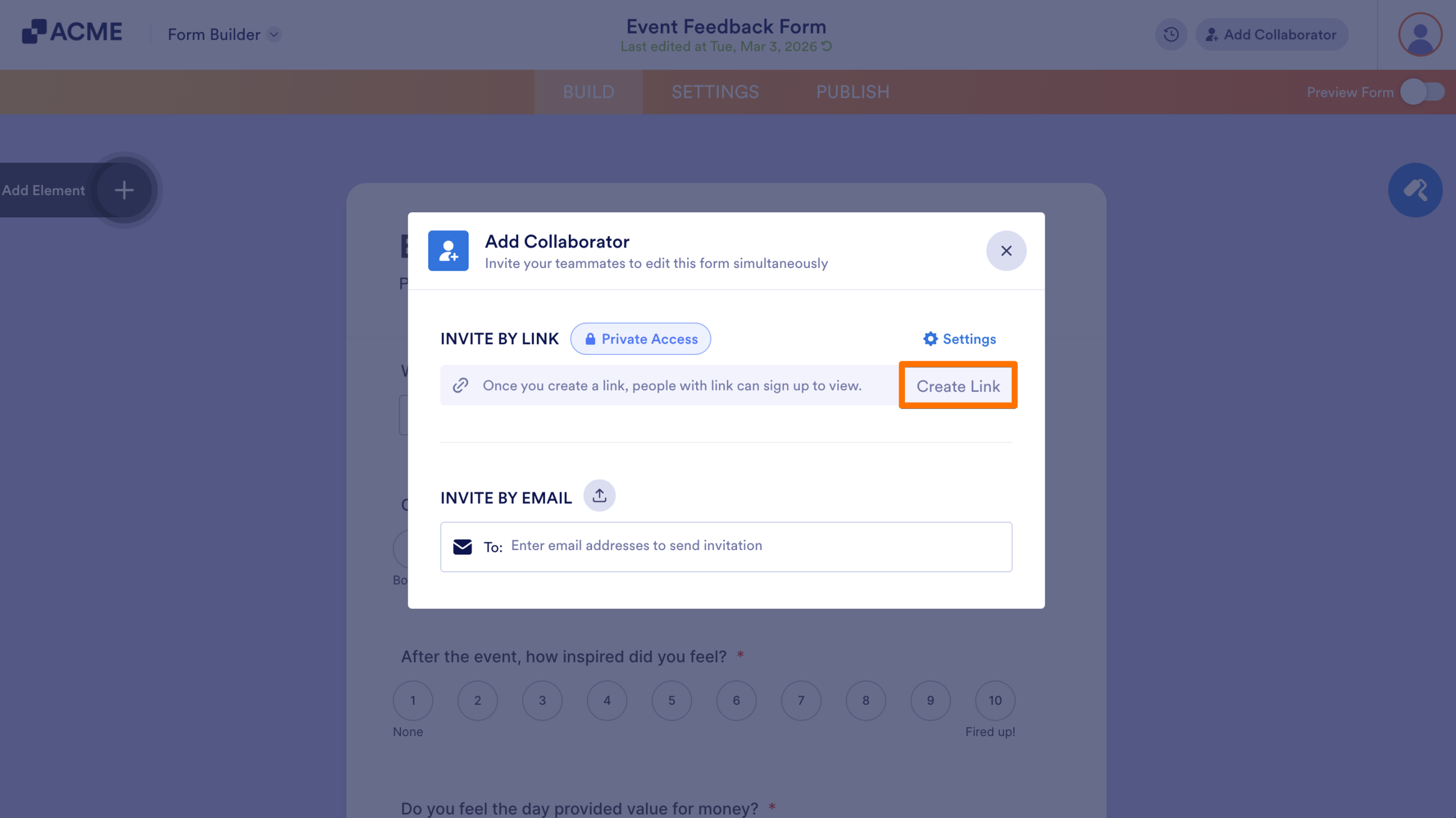
- Under Invite by Link, click on Create Link to generate a private collaborator link.
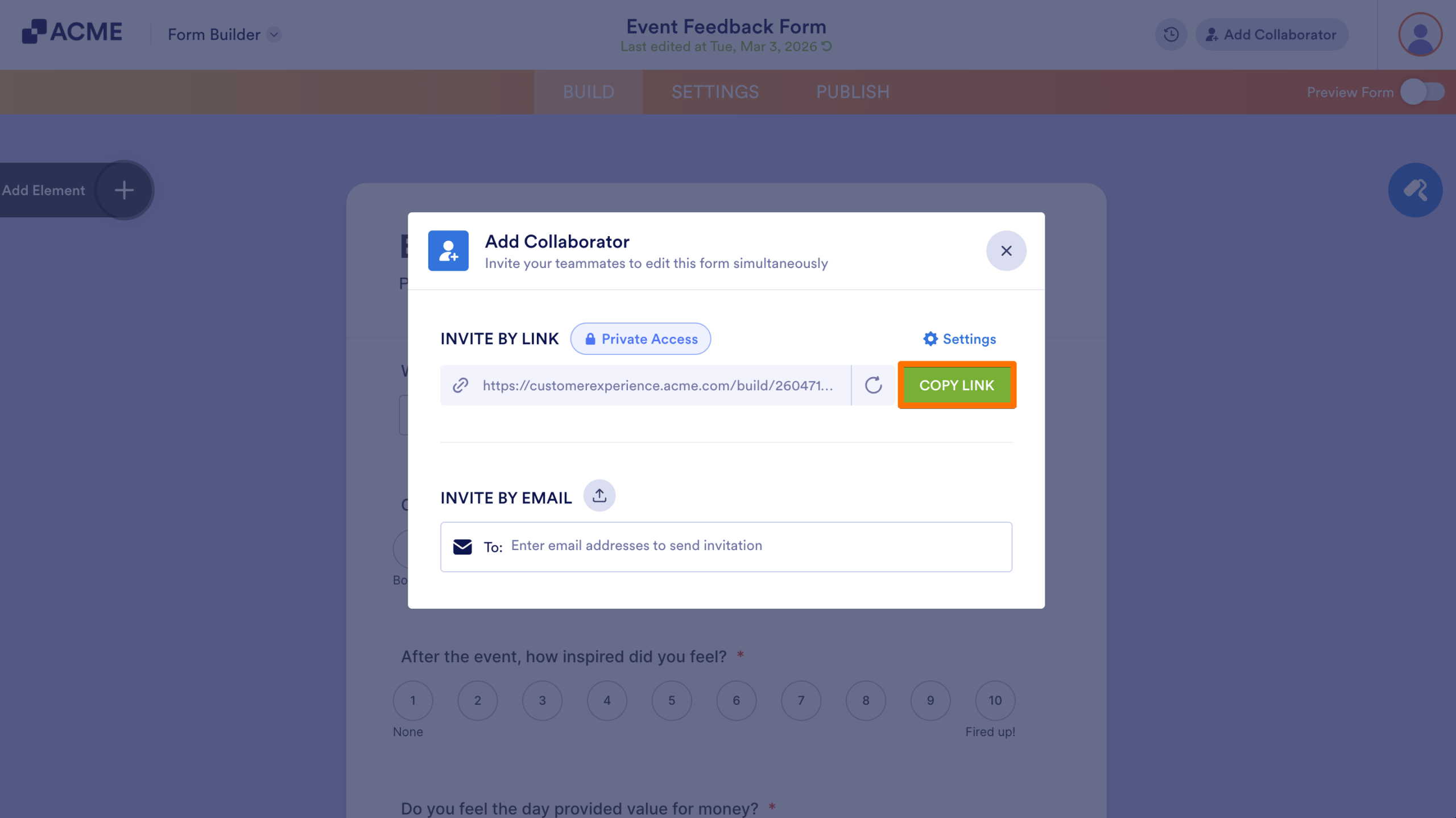
- Copy the link and share it with teammates via your preferred communication method.
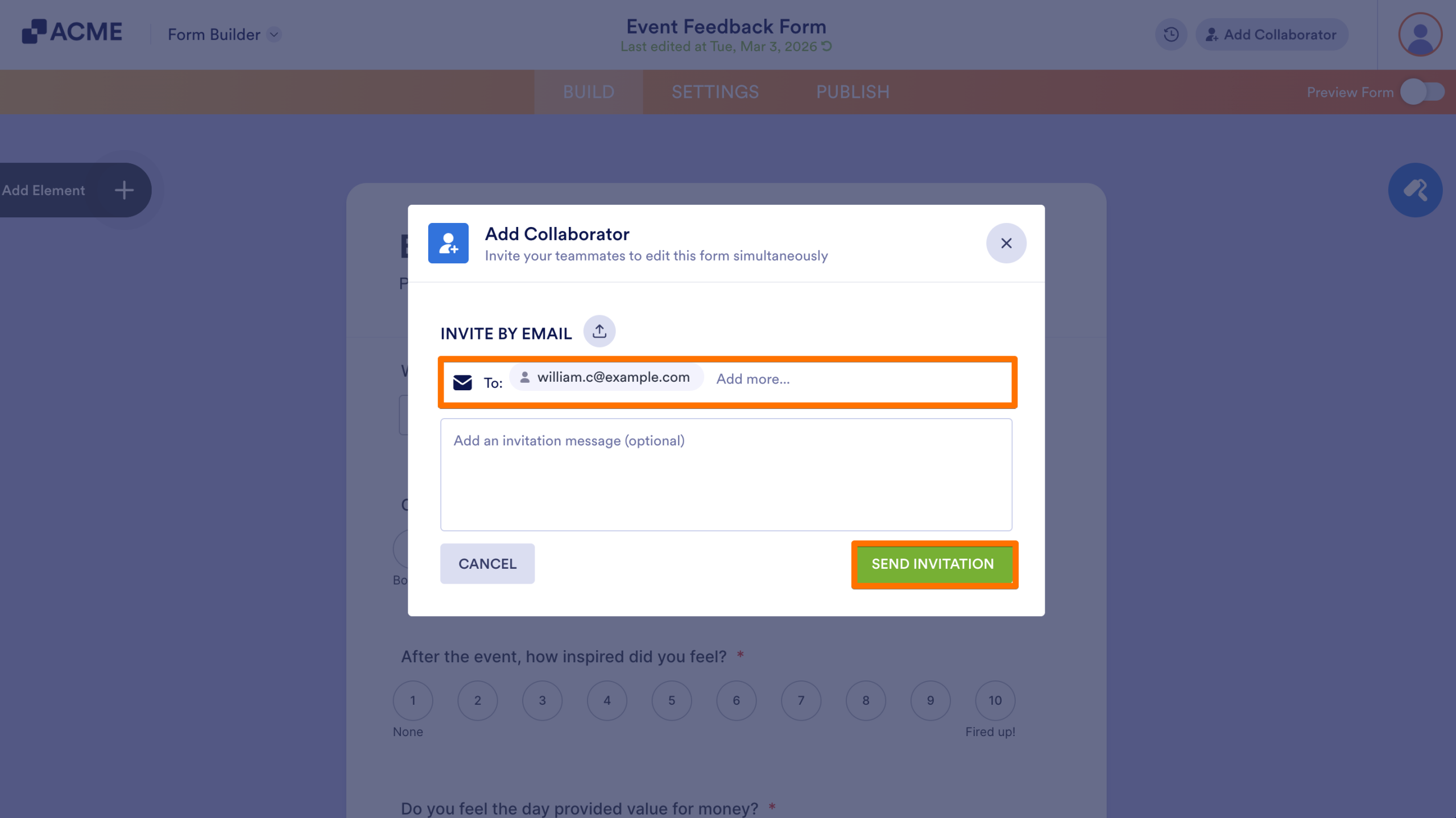
- Alternatively, under Invite by Email, enter your teammate’s email address.
- Then, click Send Invitation to invite your team to collaborate on the Draft form.
How Collaboration Works
When collaborators open the form, they can edit the draft form simultaneously. All collaborators see real-time updates in the Builder. These edits remain in draft until the form owner clicks on Apply. Submissions made before applying changes aren’t impacted by new fields or edits, and remain the same.
Best Practices for Collaborating on Drafts
- Inform collaborators that they are working on a draft and draft changes are not live.
- Use the Revision History to monitor individual edits and revert if necessary.

Send Comment: