As an admin, you can create, customize, and manage a unified form theme for your entire organization. This helps ensure visual consistency across all forms your users build.
Follow the steps below to set up and control the organization form theme inside the Admin Console.

Enable Form Themes Settings
- In the Admin Console, in the left navigation panel, select Assets.
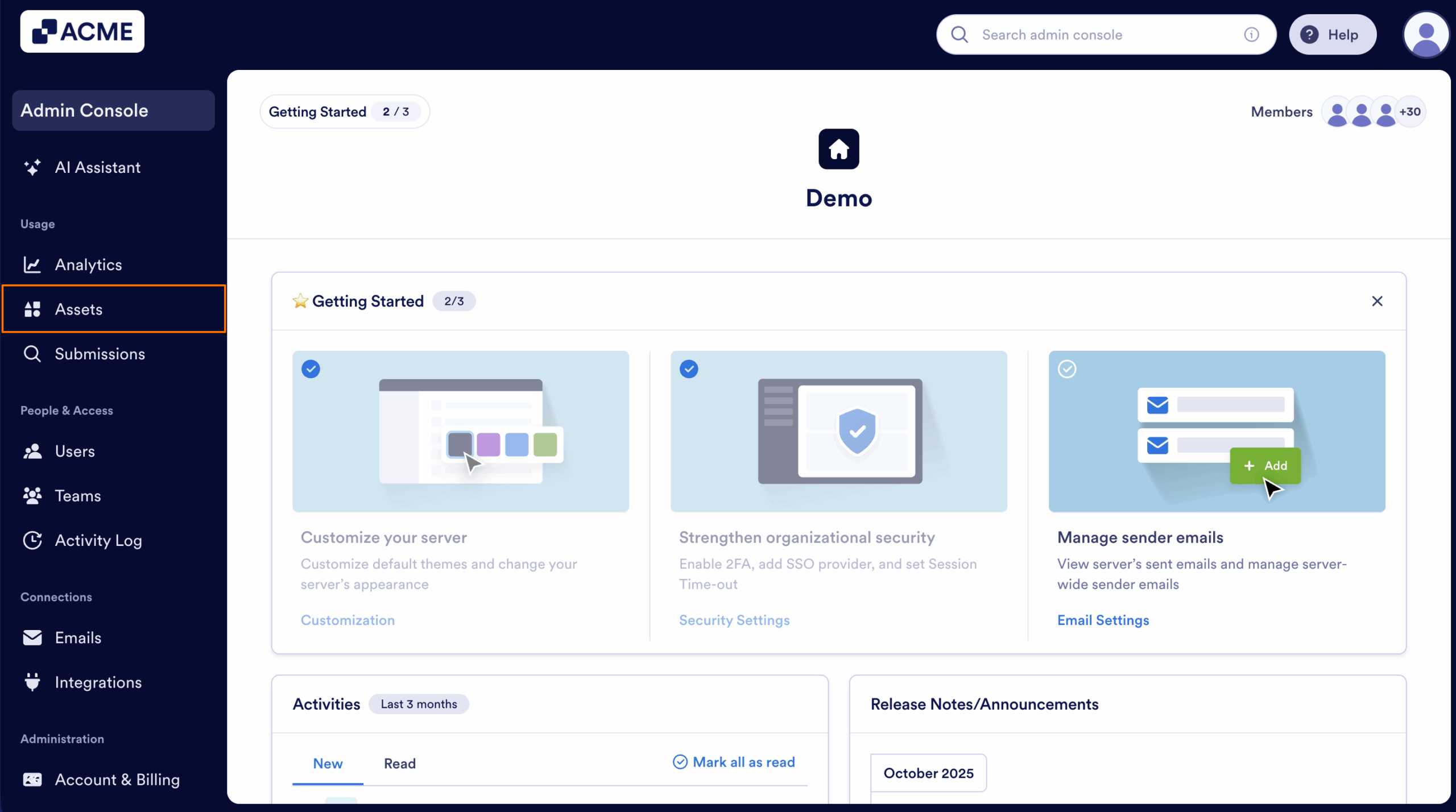
- Next, select Forms.
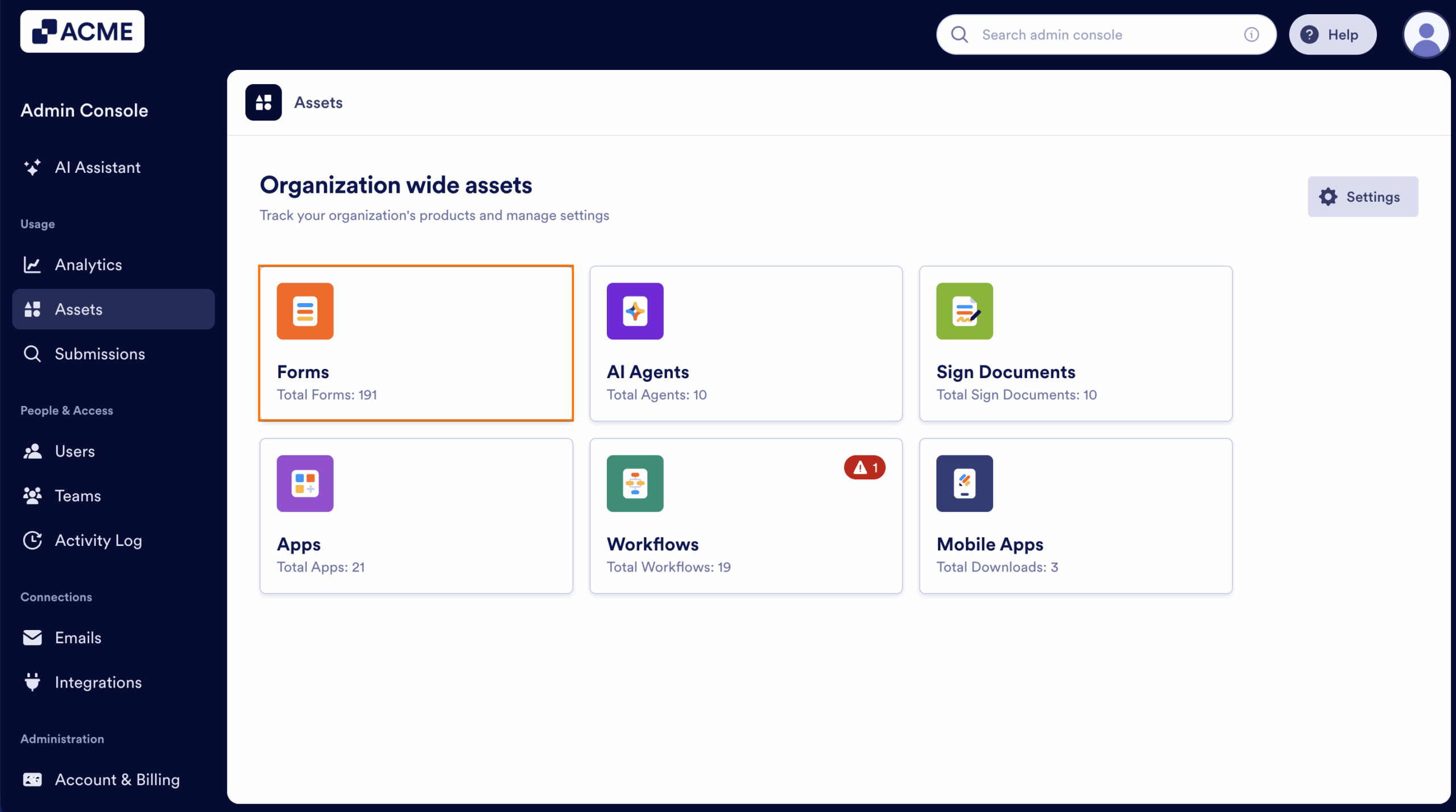
- On the right side of the page, click on Settings.
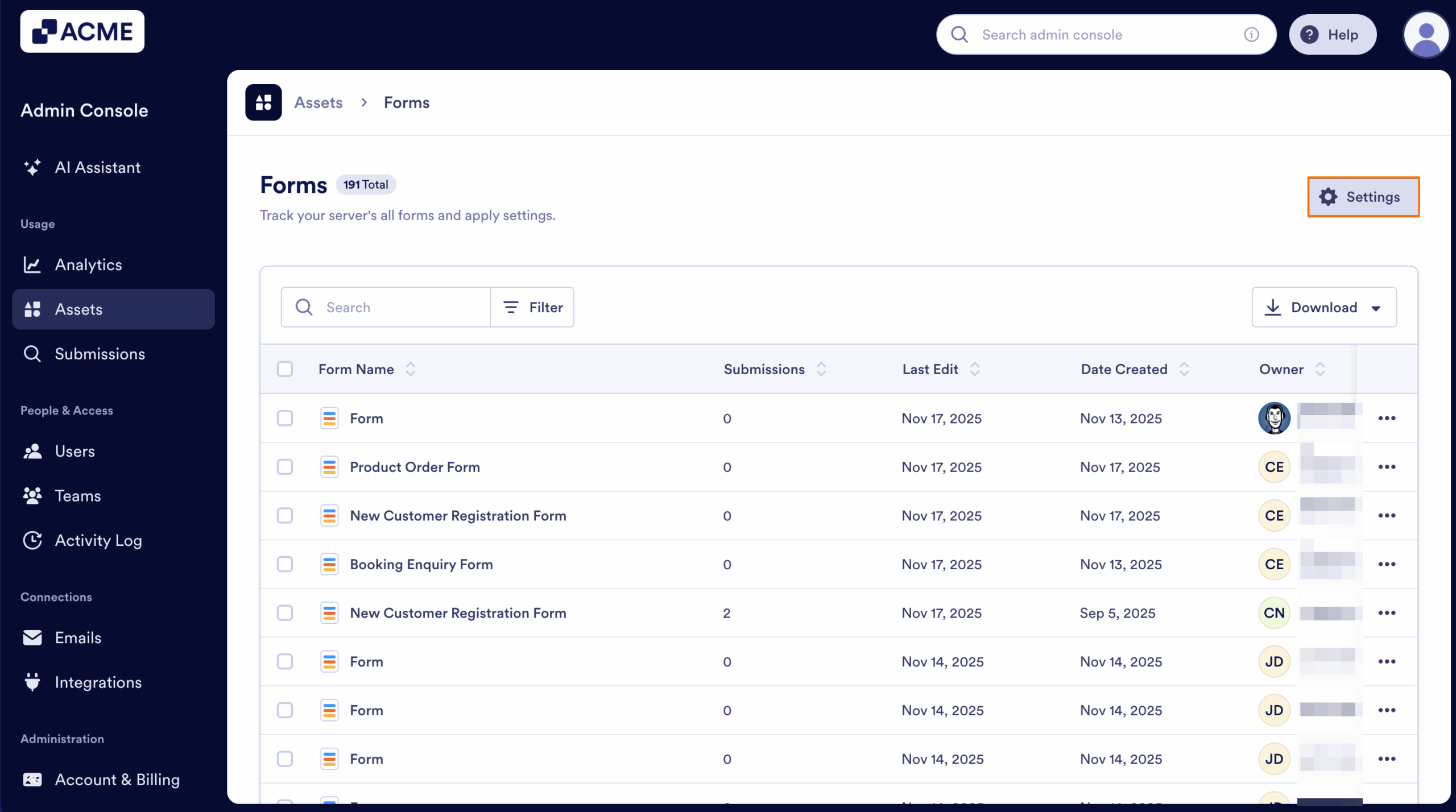
- Select the Theme tab.
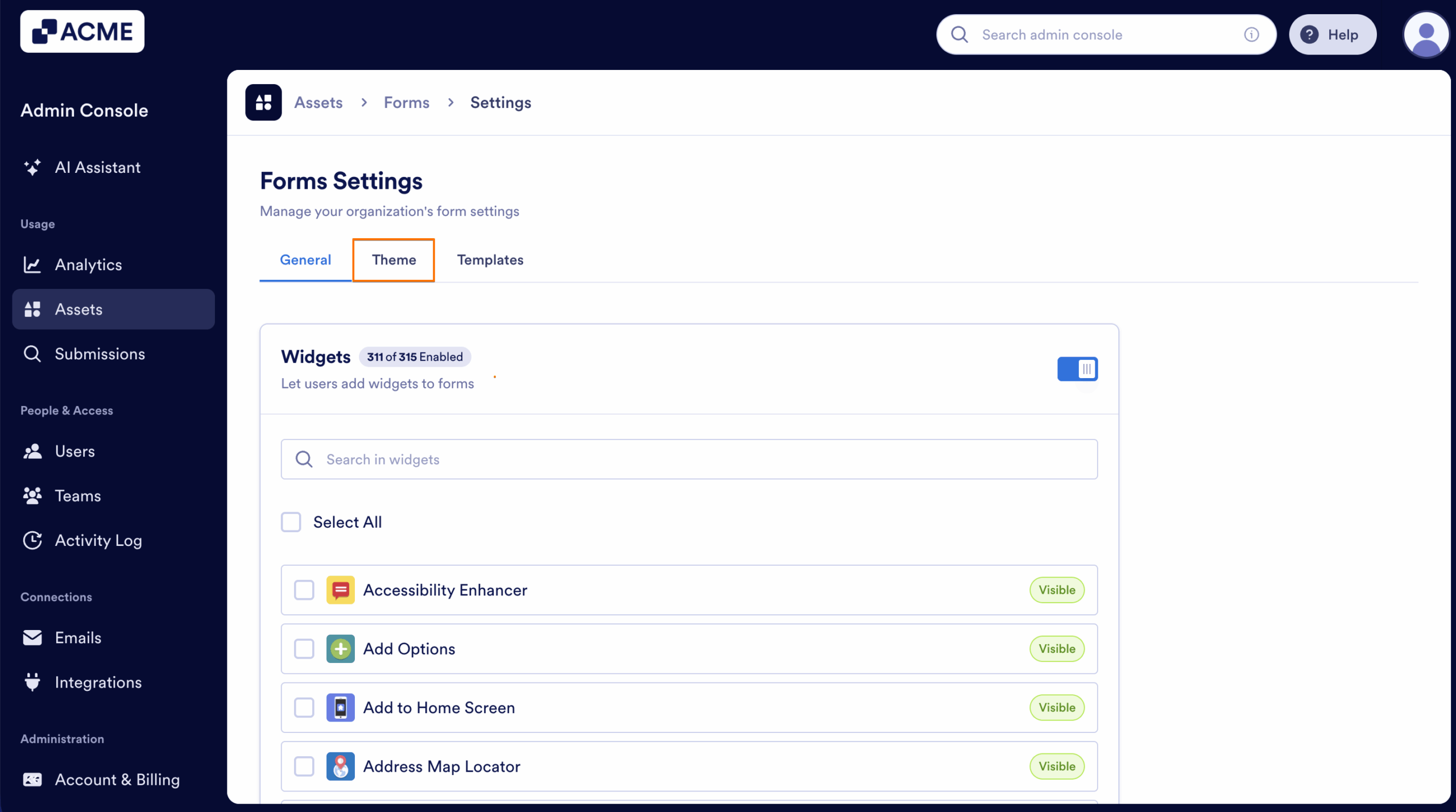
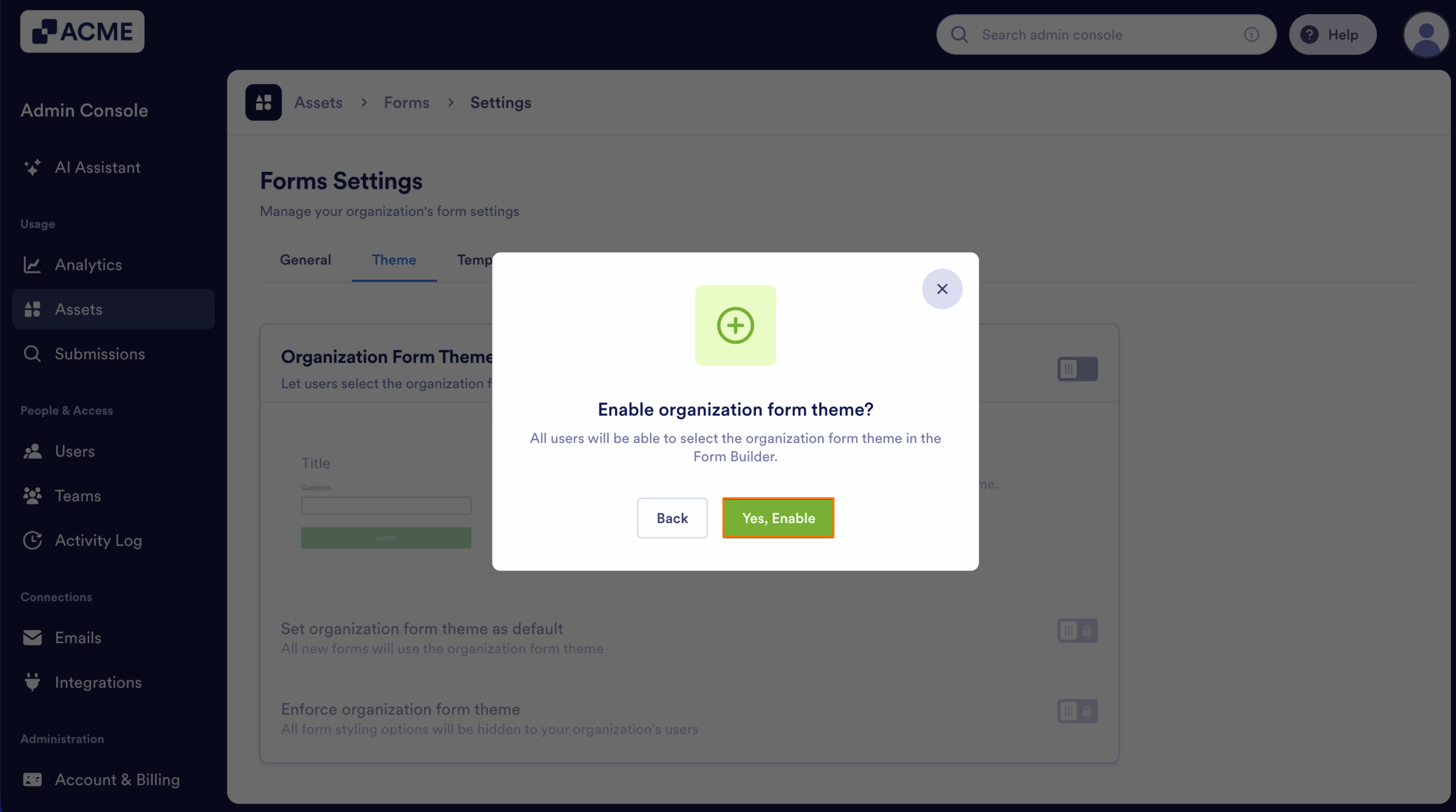
- Toggle on Organization Form Theme.
- Click on Yes, Enable.
Edit Form Theme
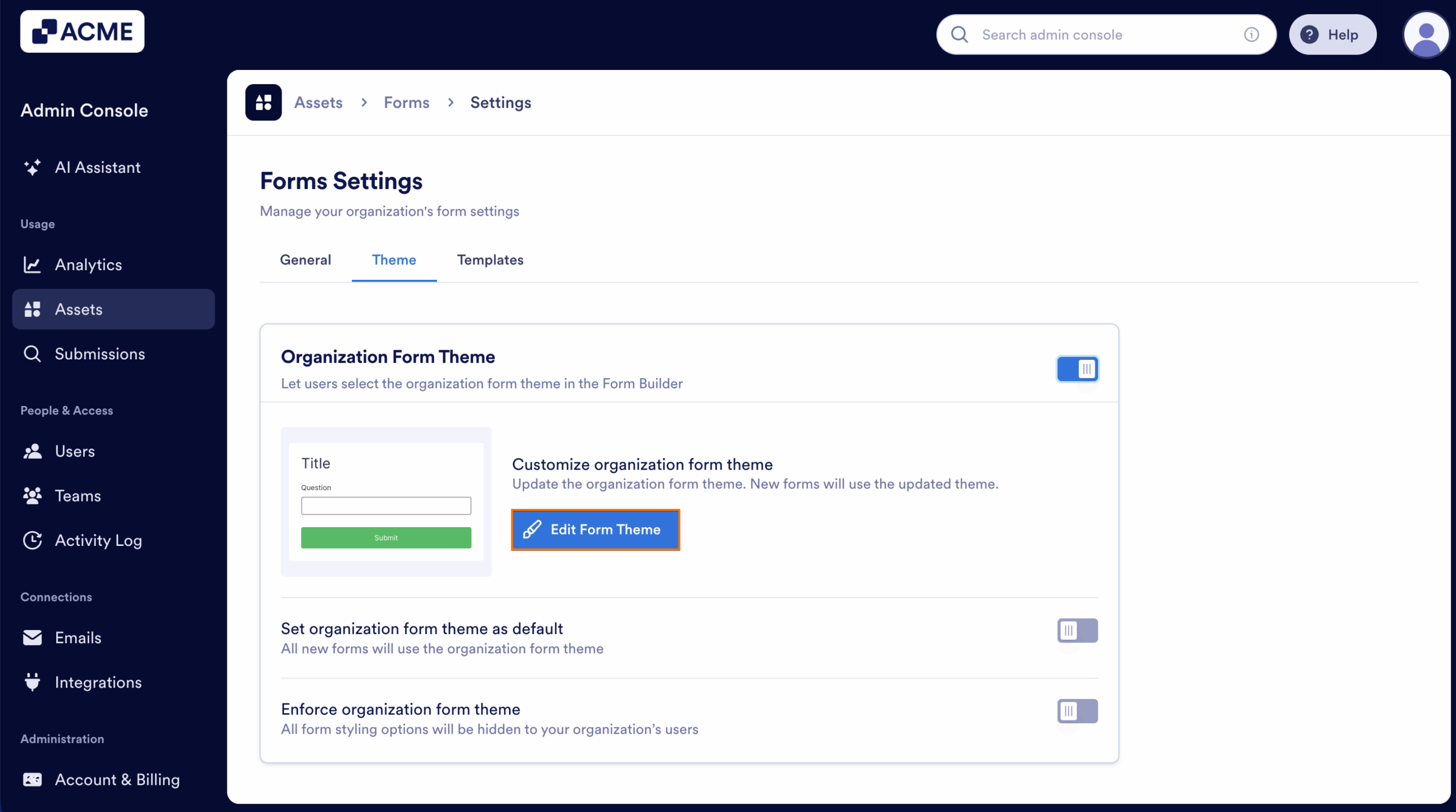
- Under Customize Organization Form Theme, click on Edit Form Theme.
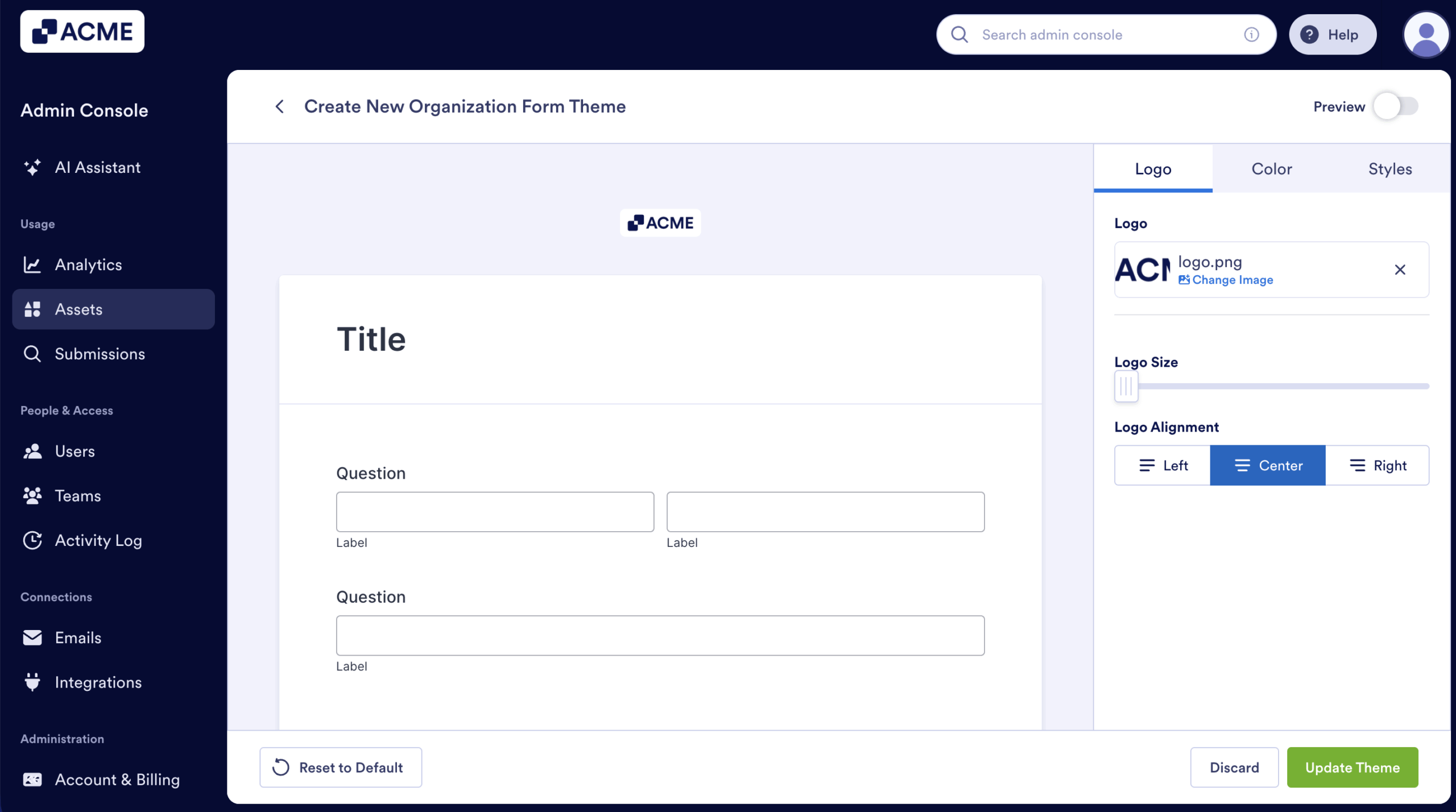
This opens the theme editor in the Form Builder.
Logo Tab
The Logo tab lets you add and customize the branding that appears at the top of all organization-wide forms. This ensures a consistent brand identity across every form your users create.
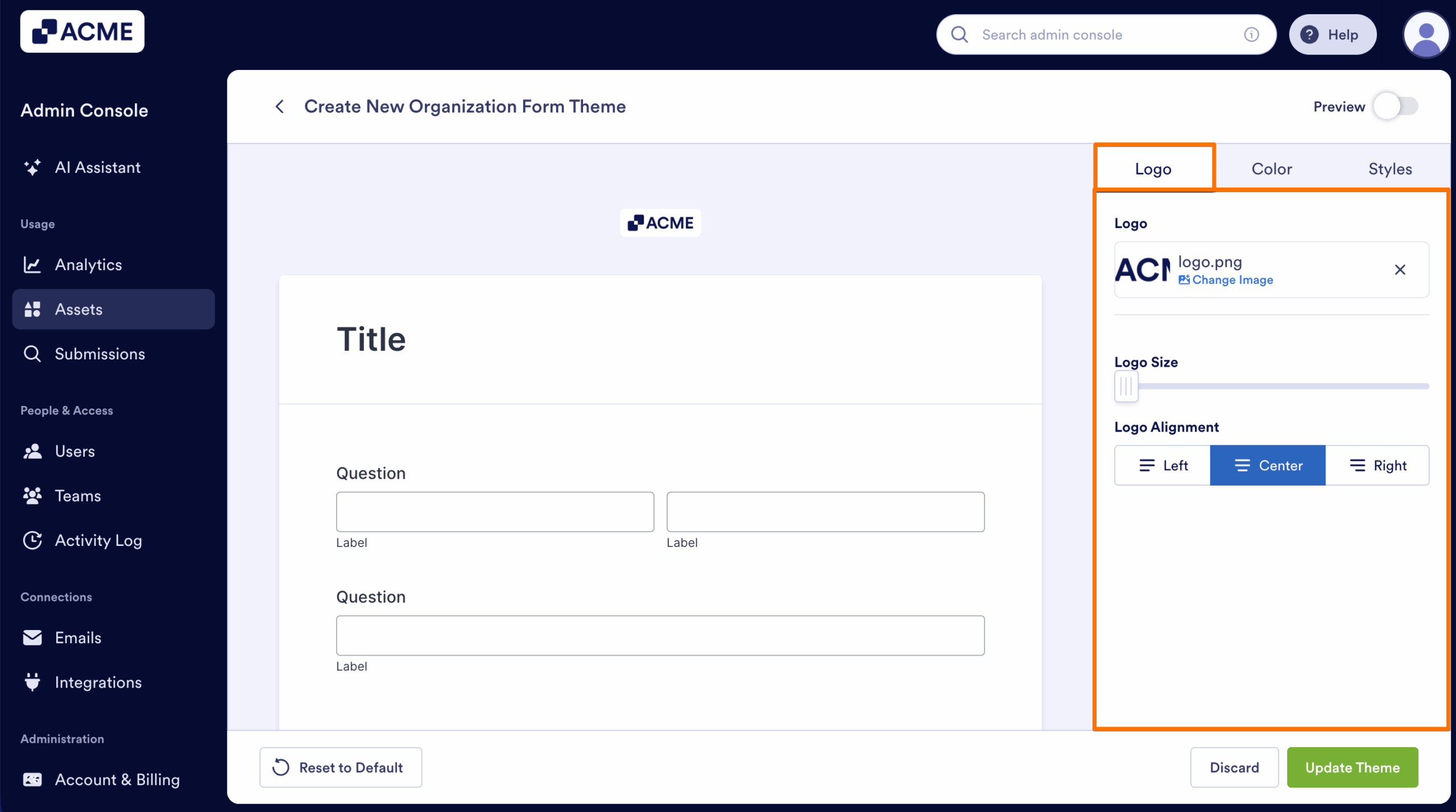
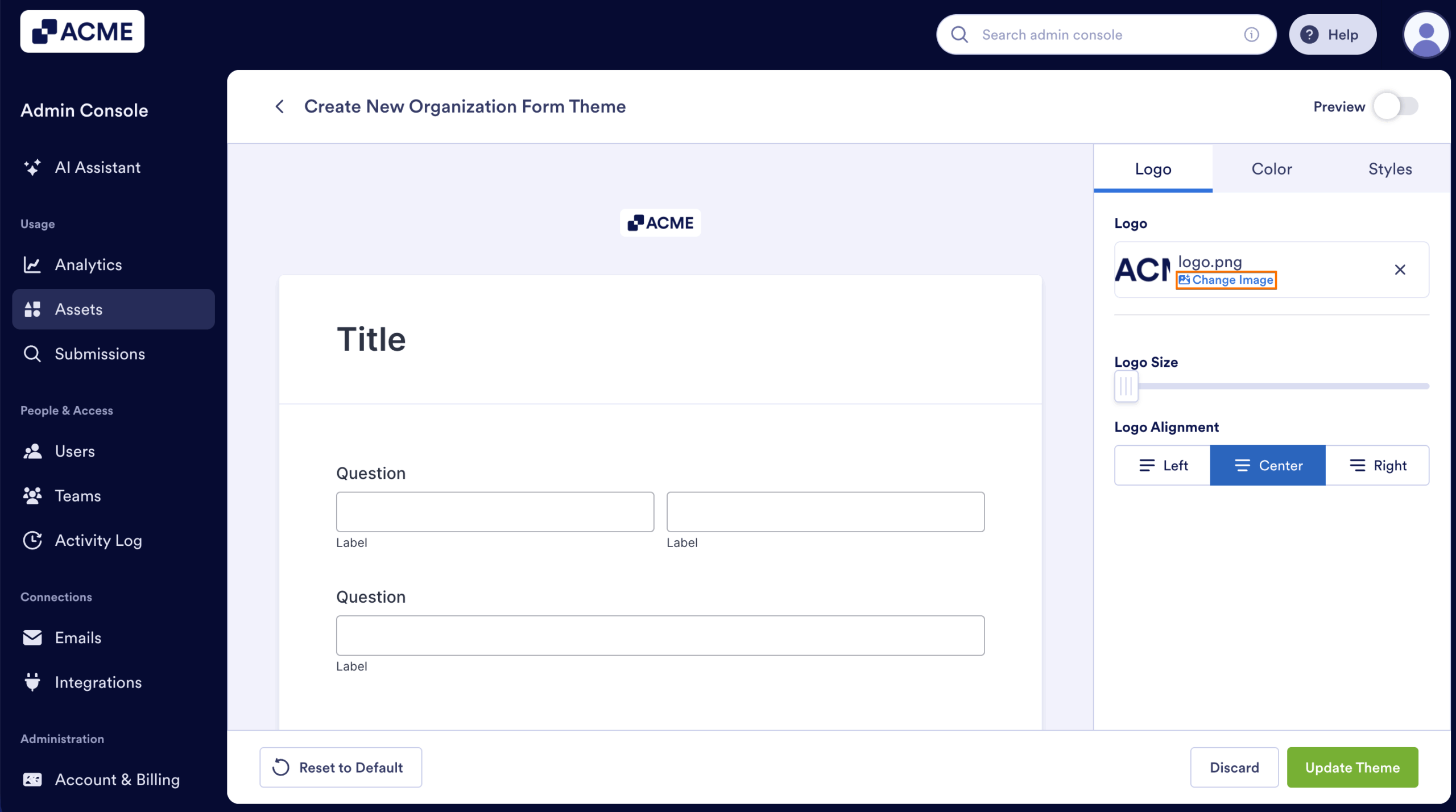
Upload or Replace the Logo
- Click on Change Image to upload a new logo file or replace the existing one.
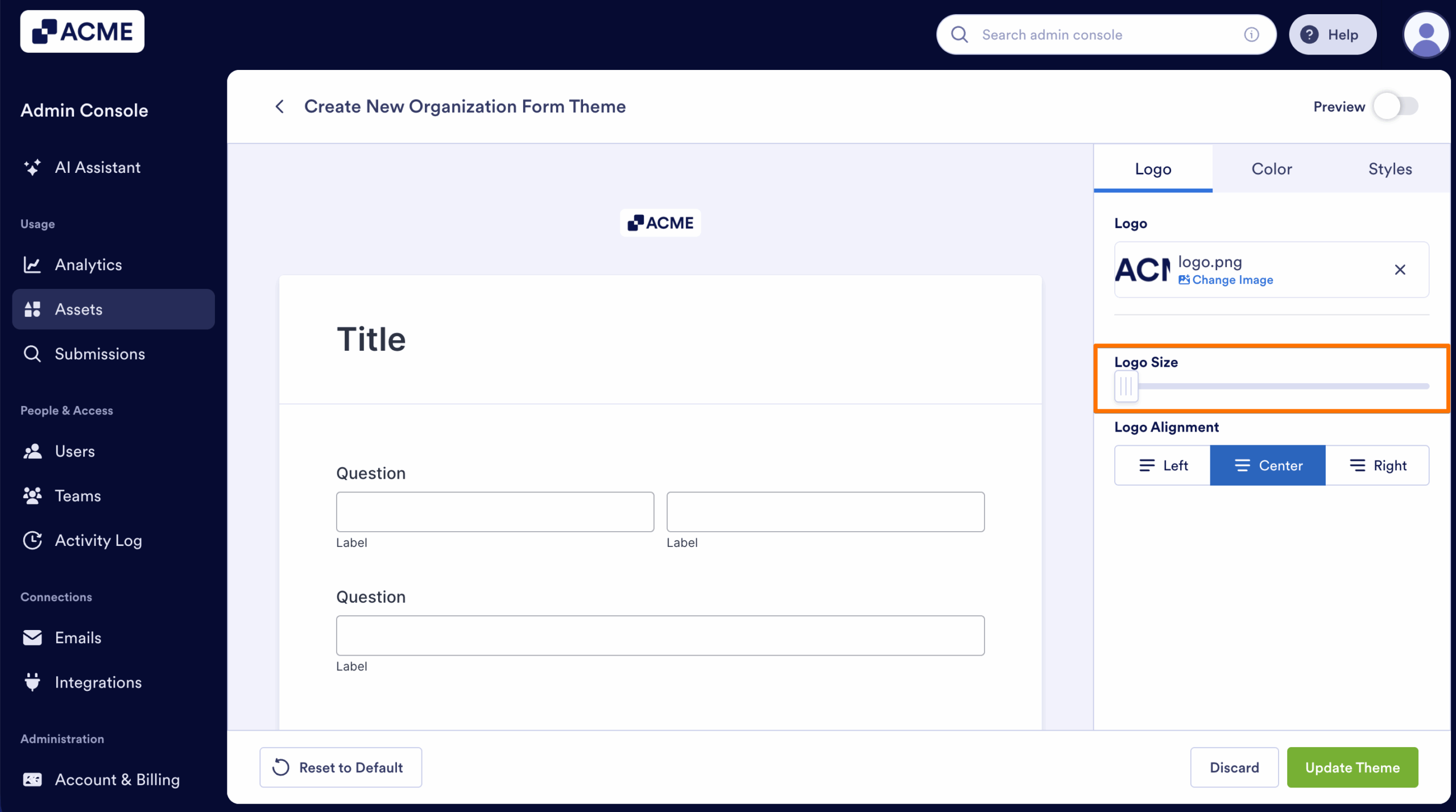
Adjust Logo Size
- Use the Logo Size slider to increase or decrease the display size of the logo.
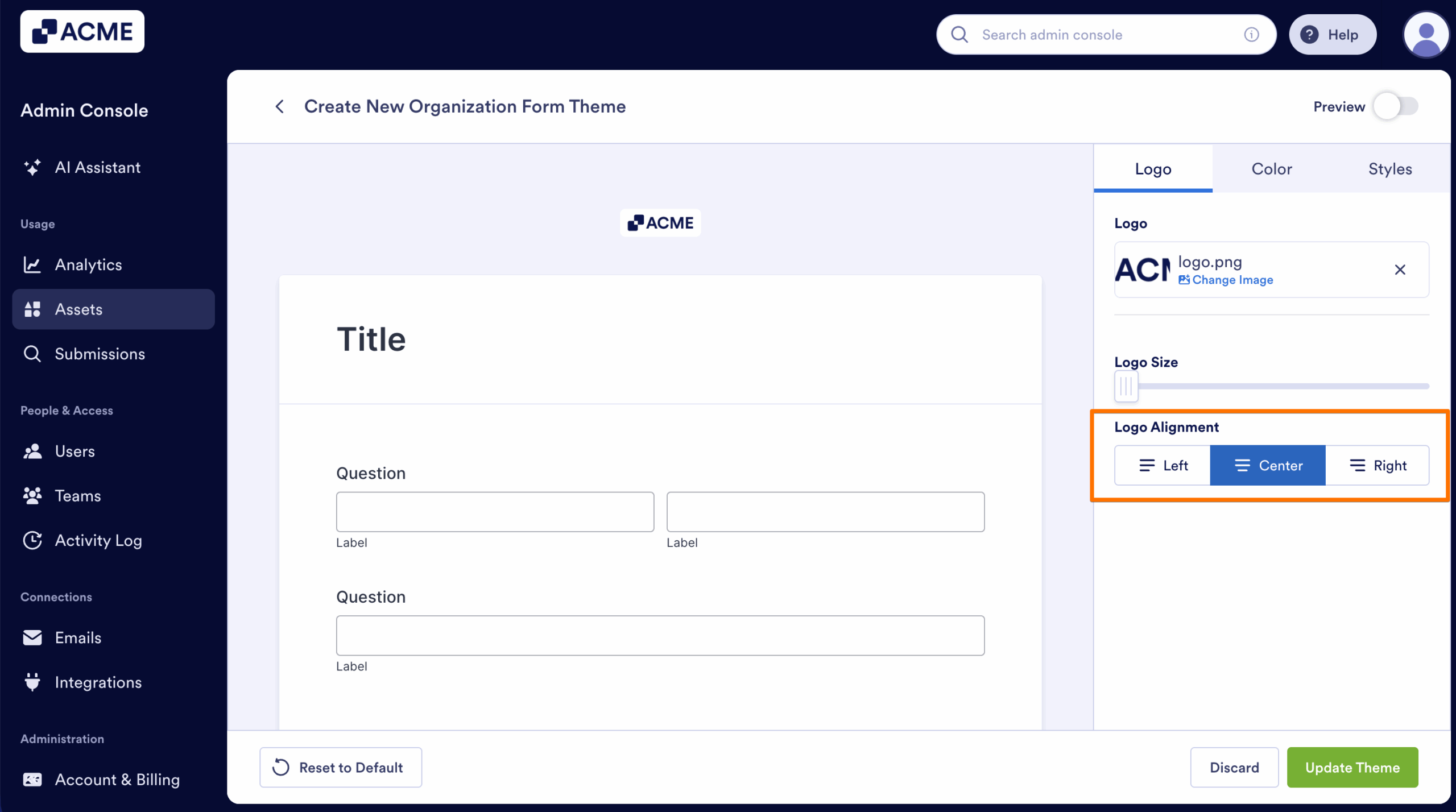
Set Logo Alignment
Choose where the logo appears on the form:
- Left – Aligns the logo to the left side of the page.
- Center – Centers the logo (default).
- Right – Aligns the logo to the right side of the page.
Color Tab
The Color tab allows you to define the visual tone of your organization-wide form theme, including background colors, font colors, and optional images. These settings help reinforce brand identity and ensure consistent styling across all forms.
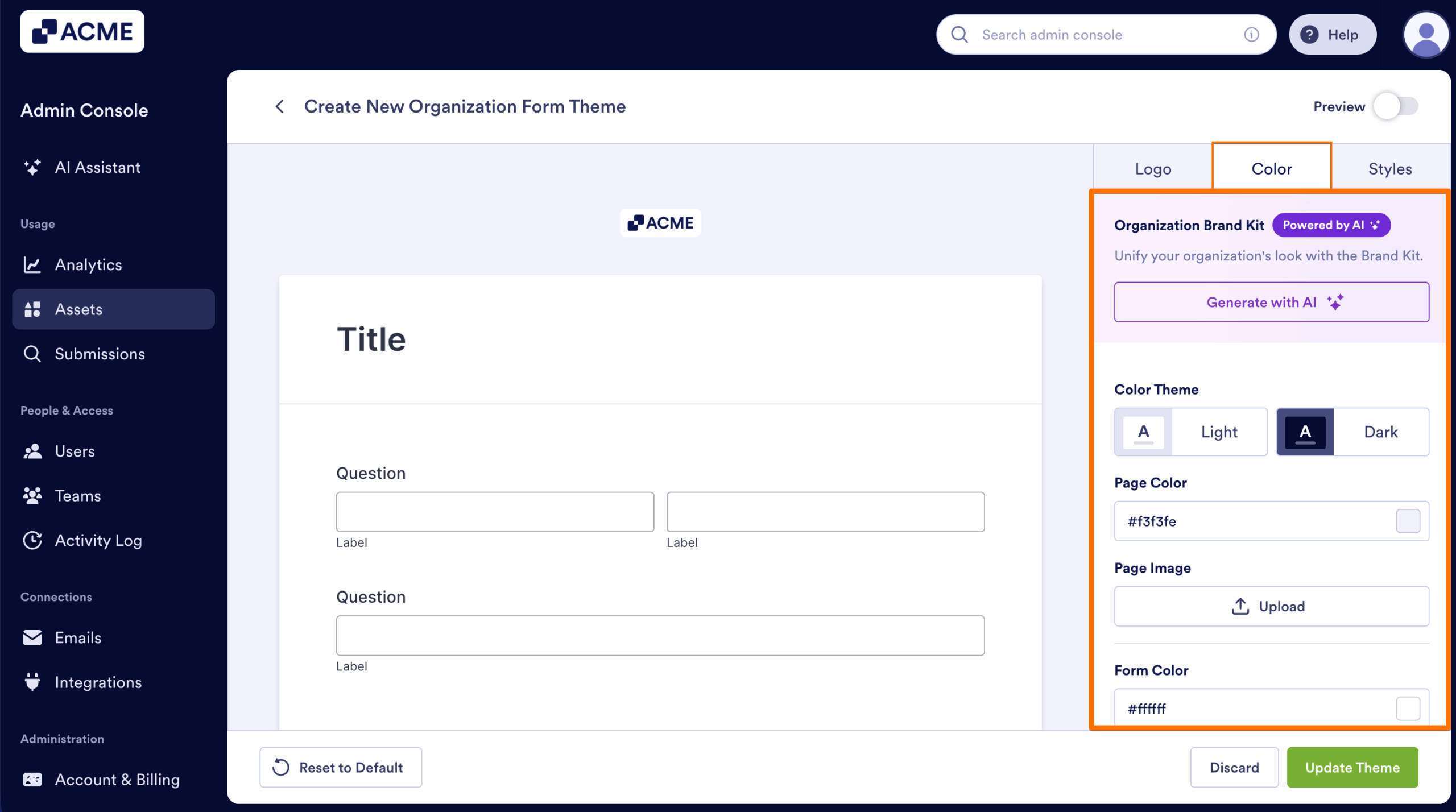
Organization Brand Kit (Powered by AI)
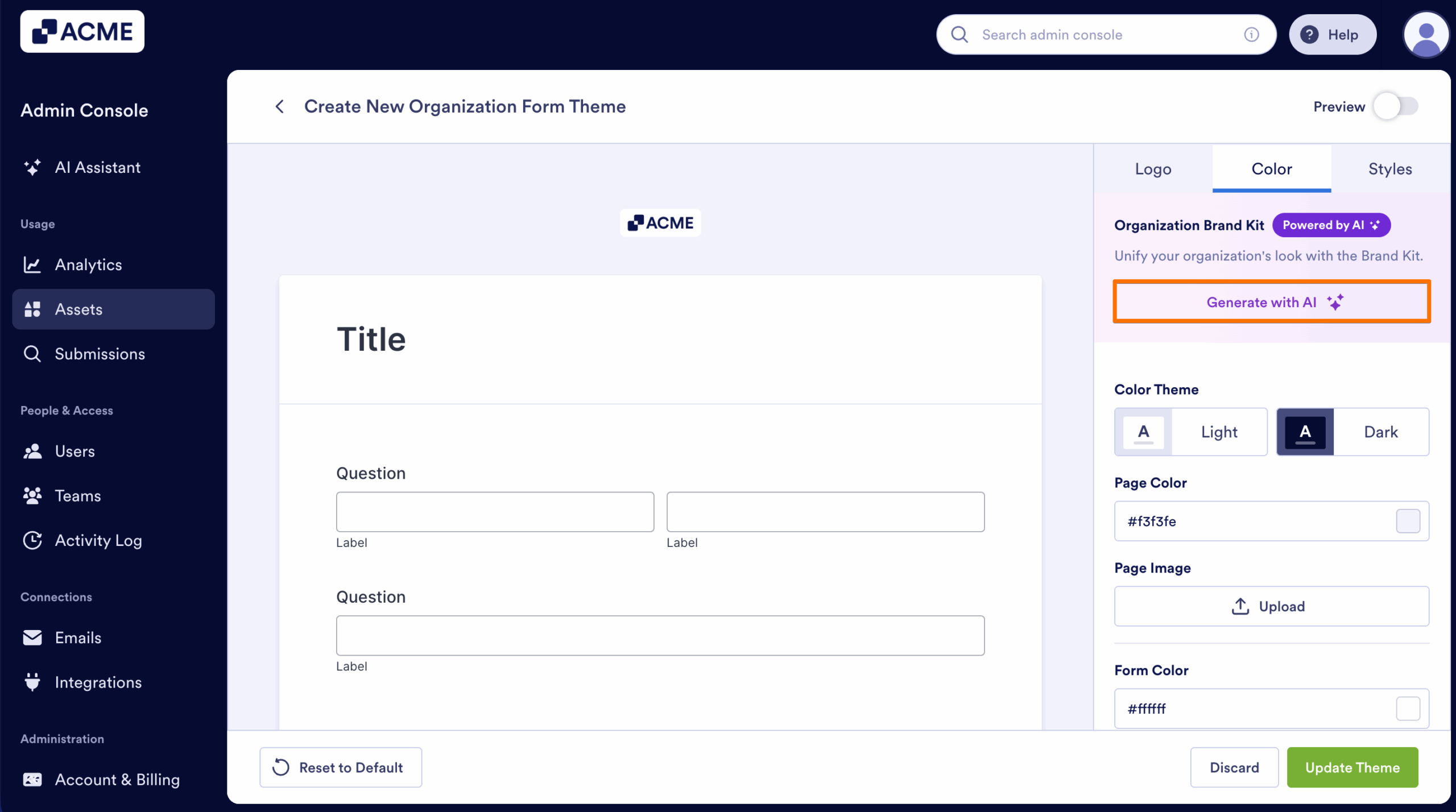
This section helps you quickly generate a complete color set that aligns with your organization’s branding. To learn more about organization brand kit, check out How to Create a Brand Kit for Your Organization from the Admin Console.
- Click on Generate with AI to automatically create a cohesive theme.
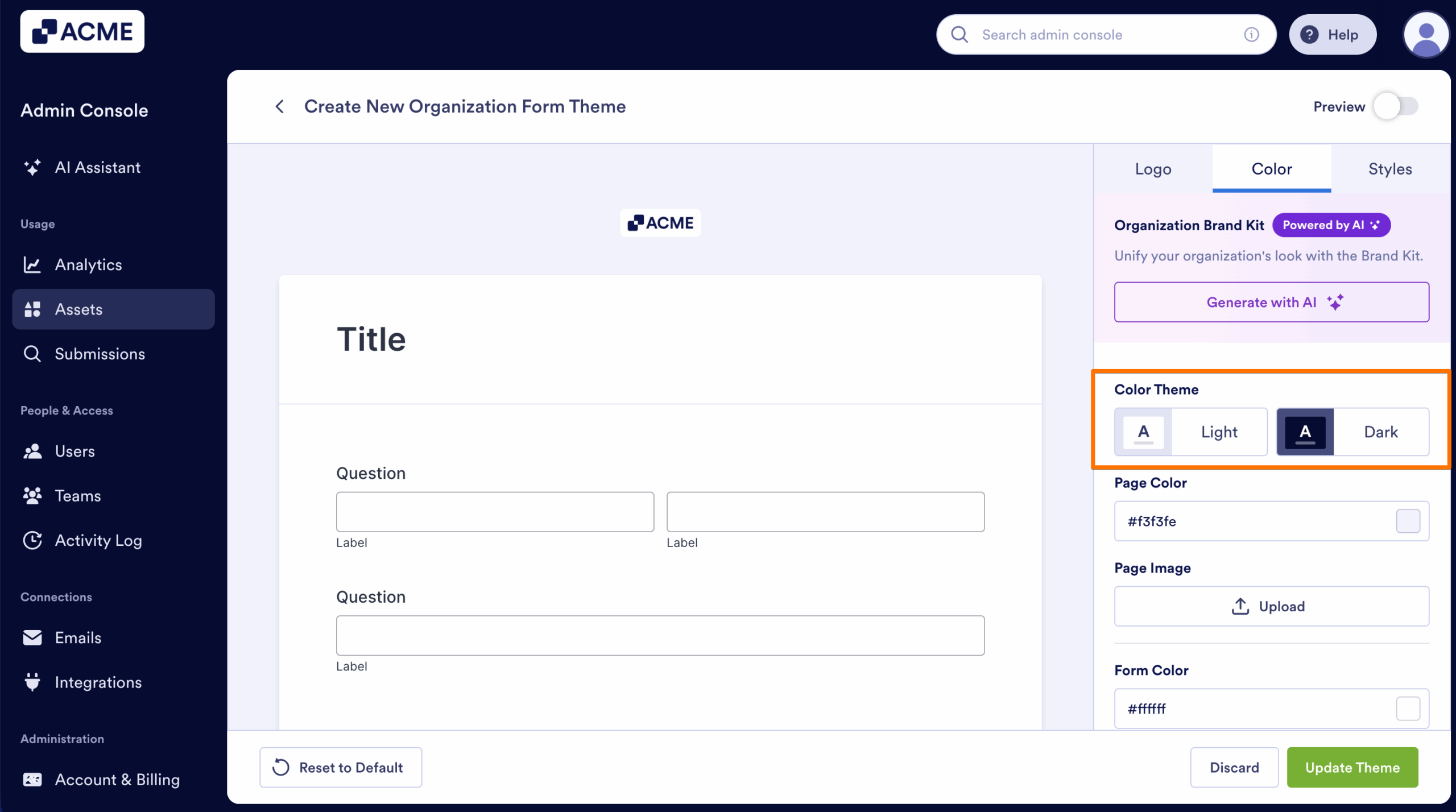
Color Theme
Choose the color mode of your forms:
- Light – Uses brighter backgrounds and dark text.
- Dark – Uses darker backgrounds and light text.
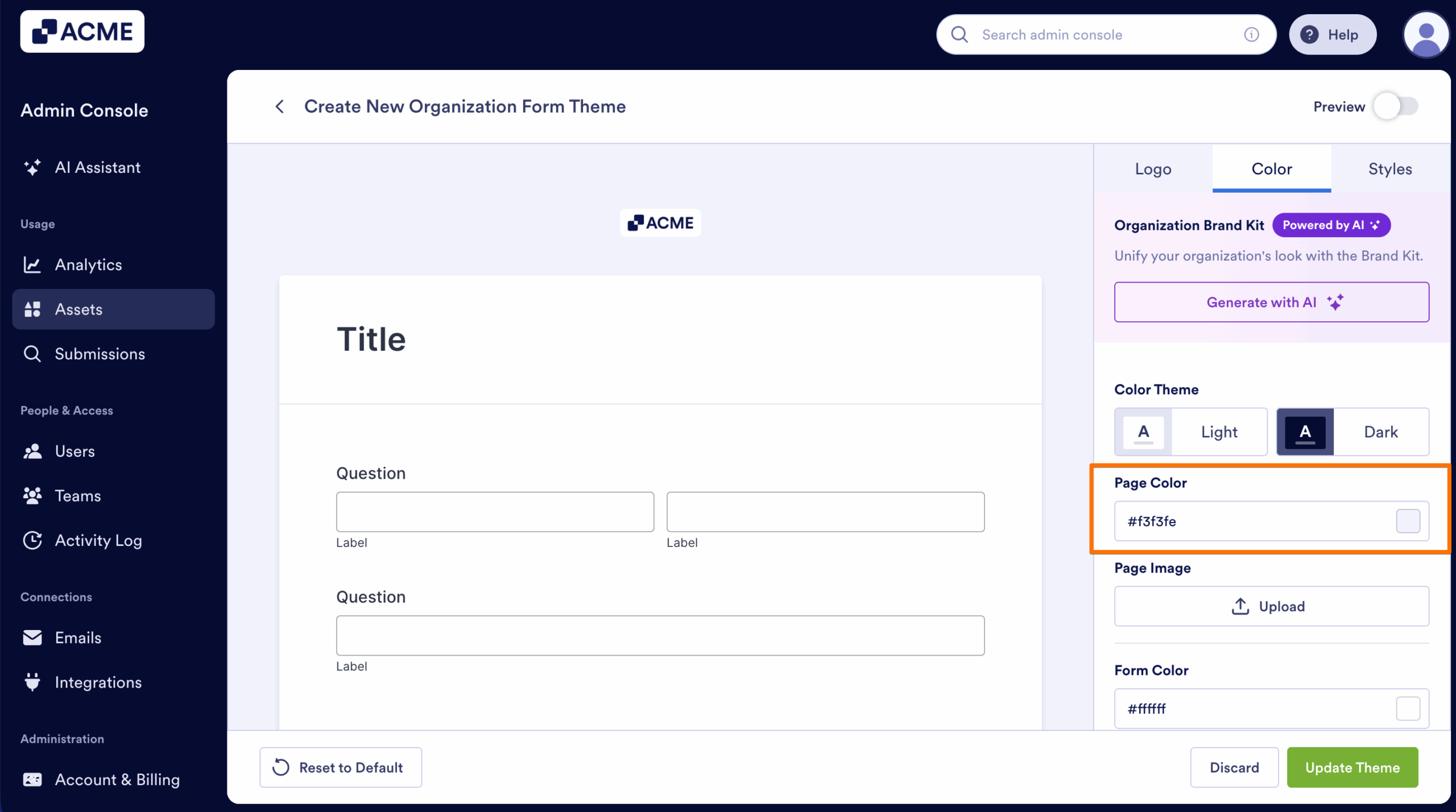
Page Color
Customize the background color of the page surrounding the form.
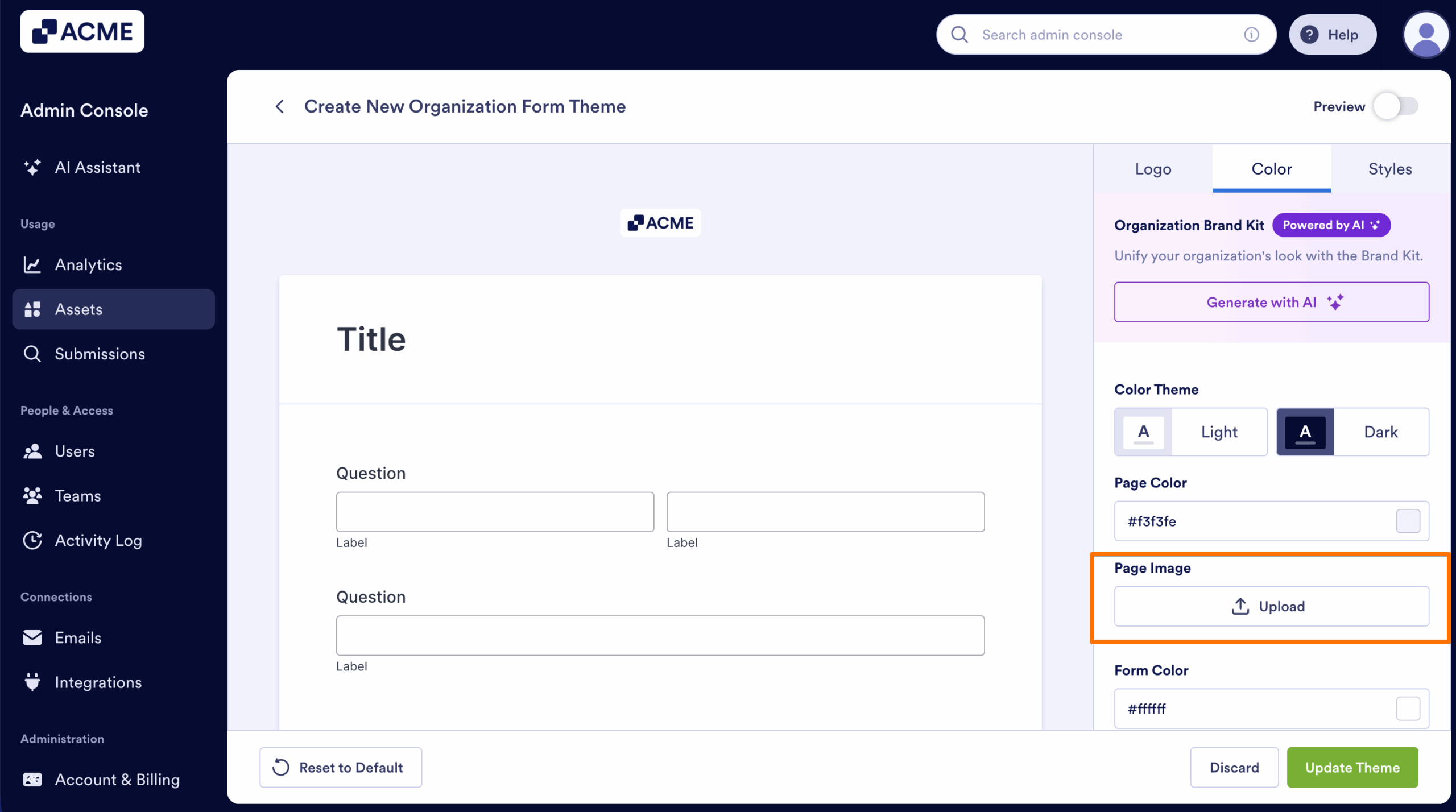
Page Image
If you prefer an image instead of solid color:
- Click on Upload to add a background image for the page.
Note
Uploaded images override the page color.
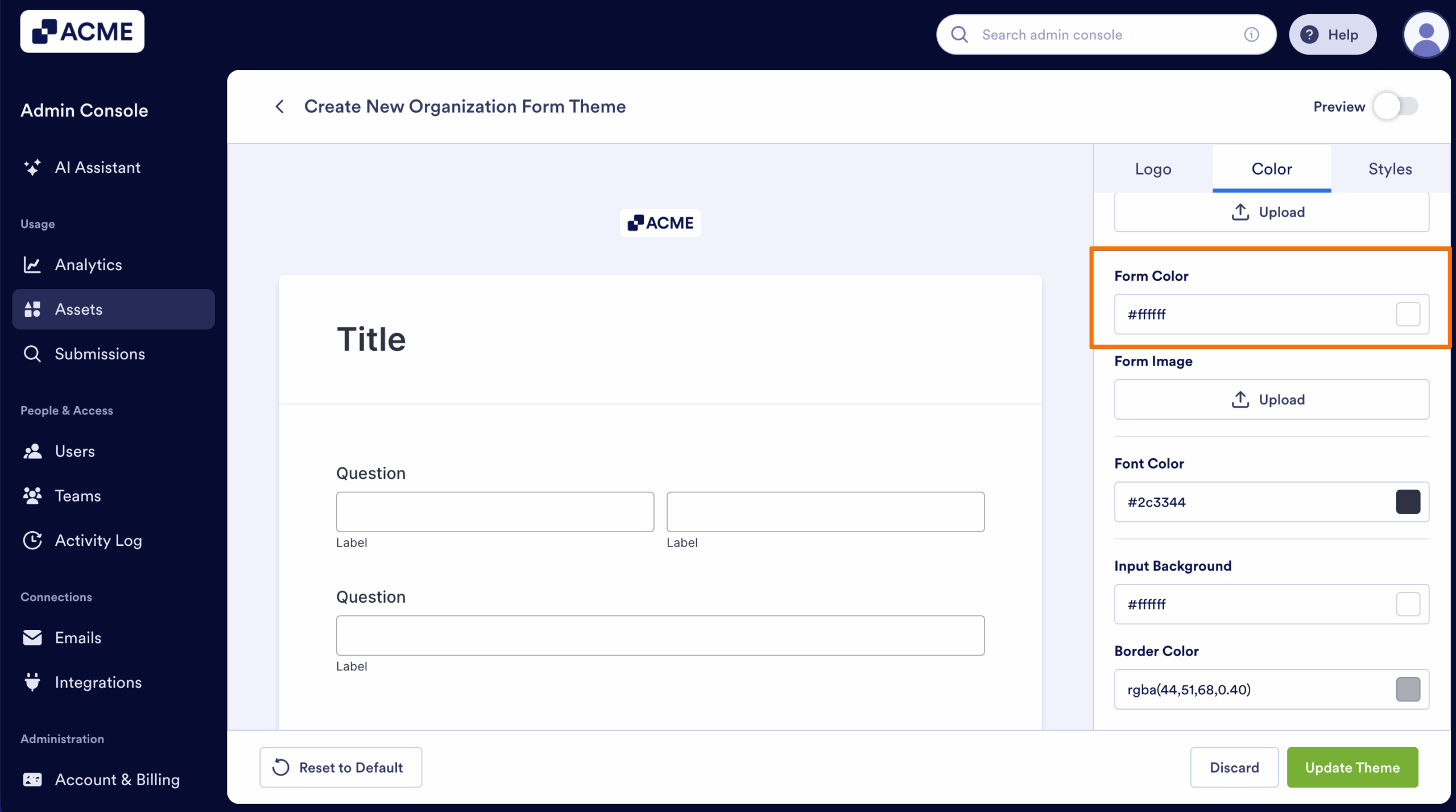
Form Color
Set the background color of the form container itself.
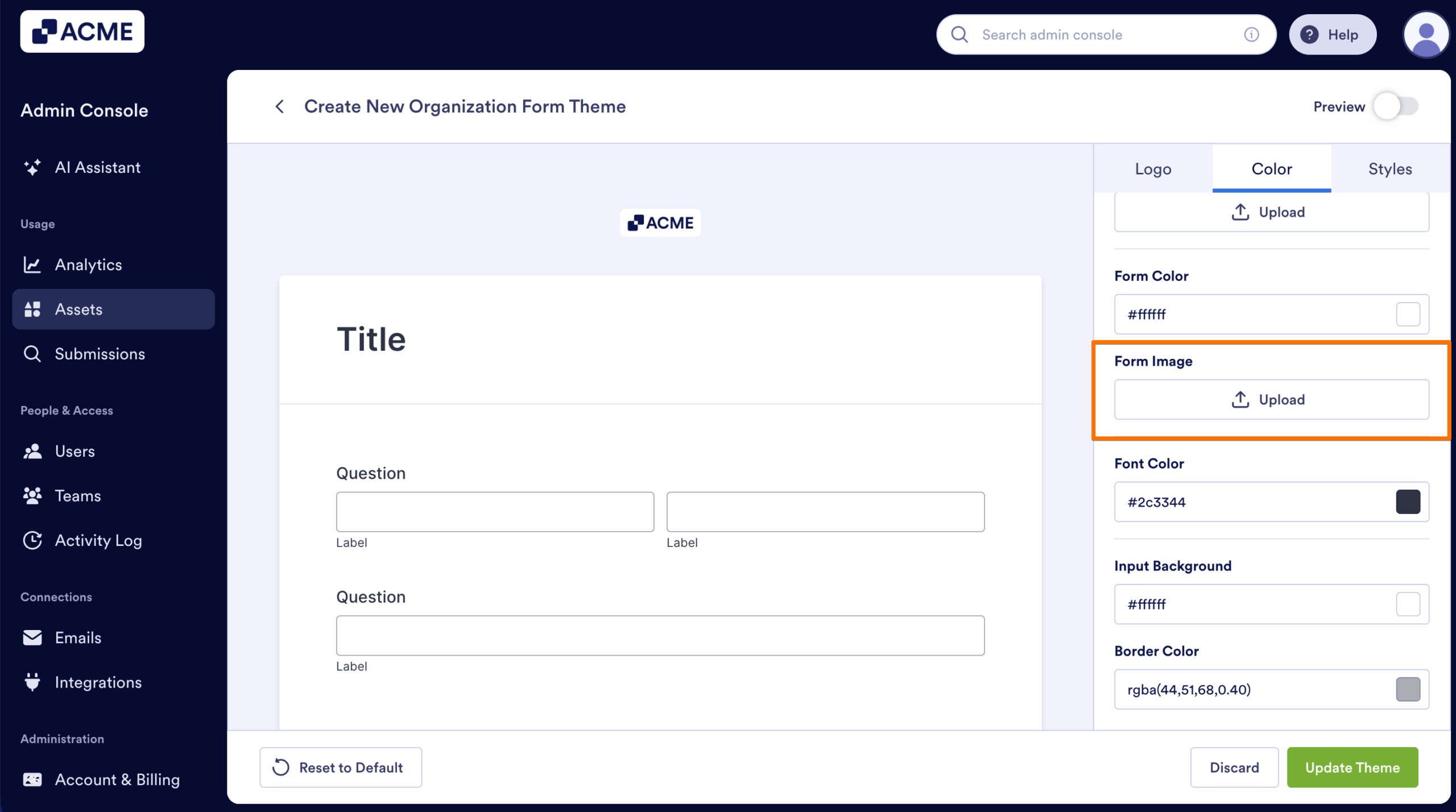
Form Image
Upload an image to use as the background of the form.
Note
Uploaded images override the page color.
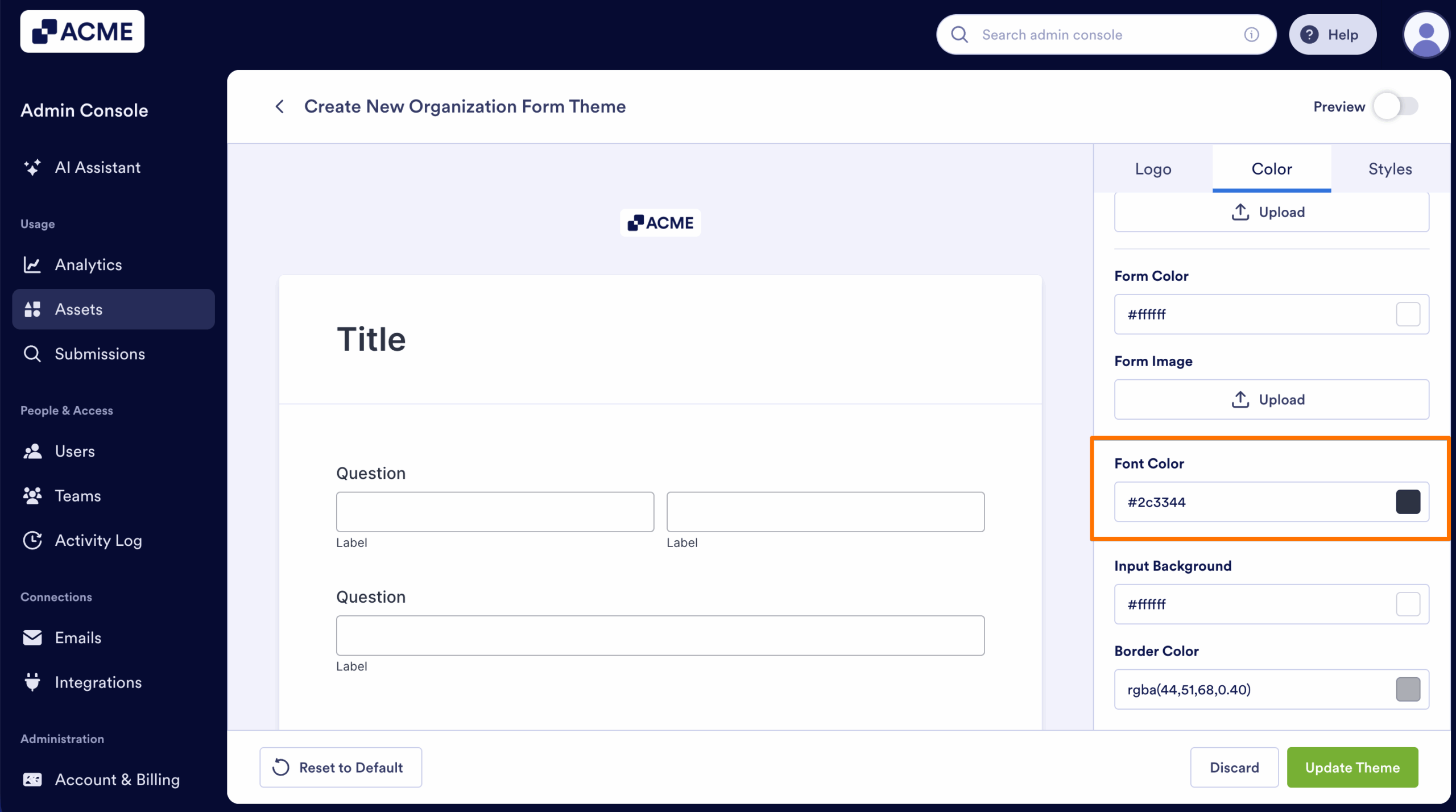
Font Color
Choose the primary color for text used throughout the form.
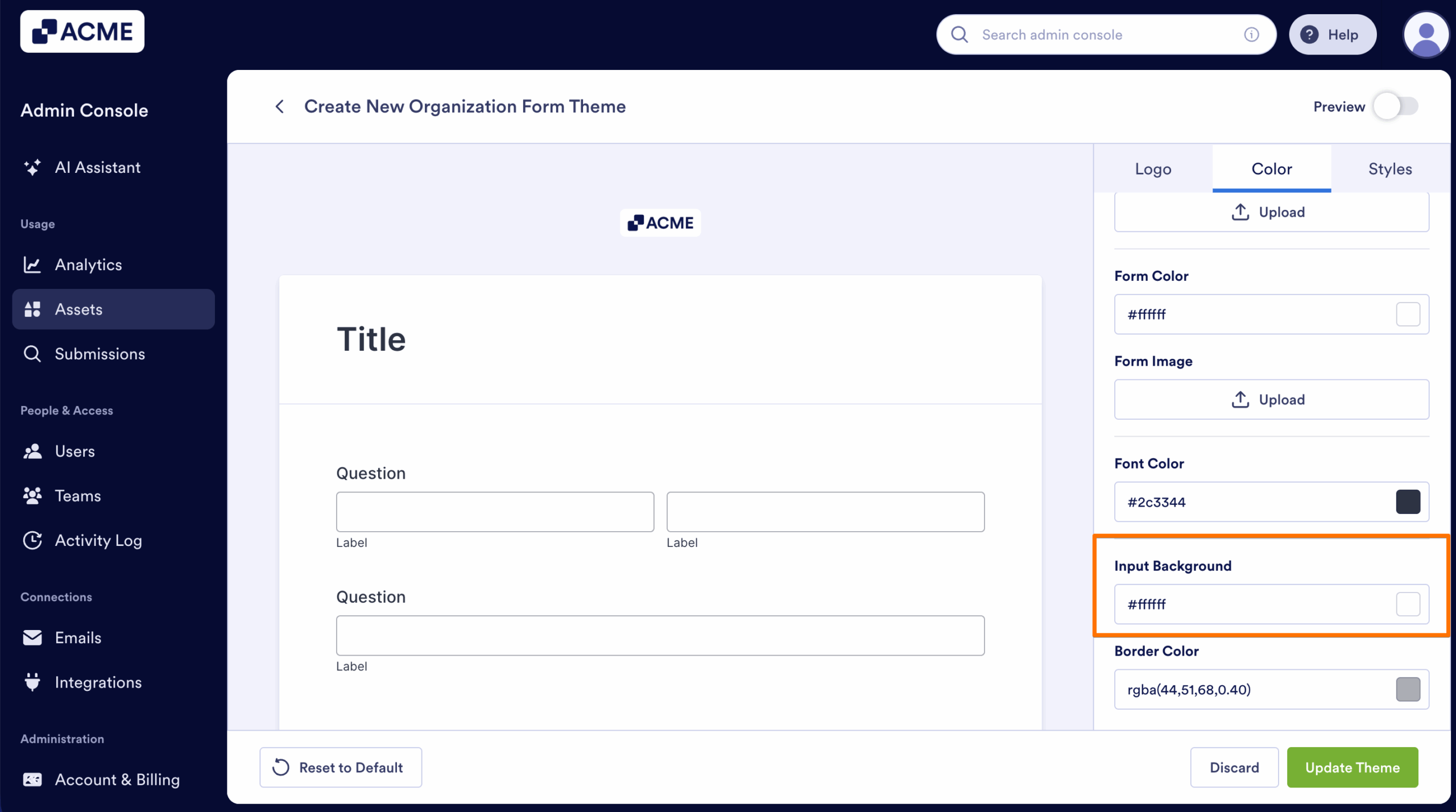
Input Background
Define the background color for form fields such as inputs, dropdowns, and text areas.
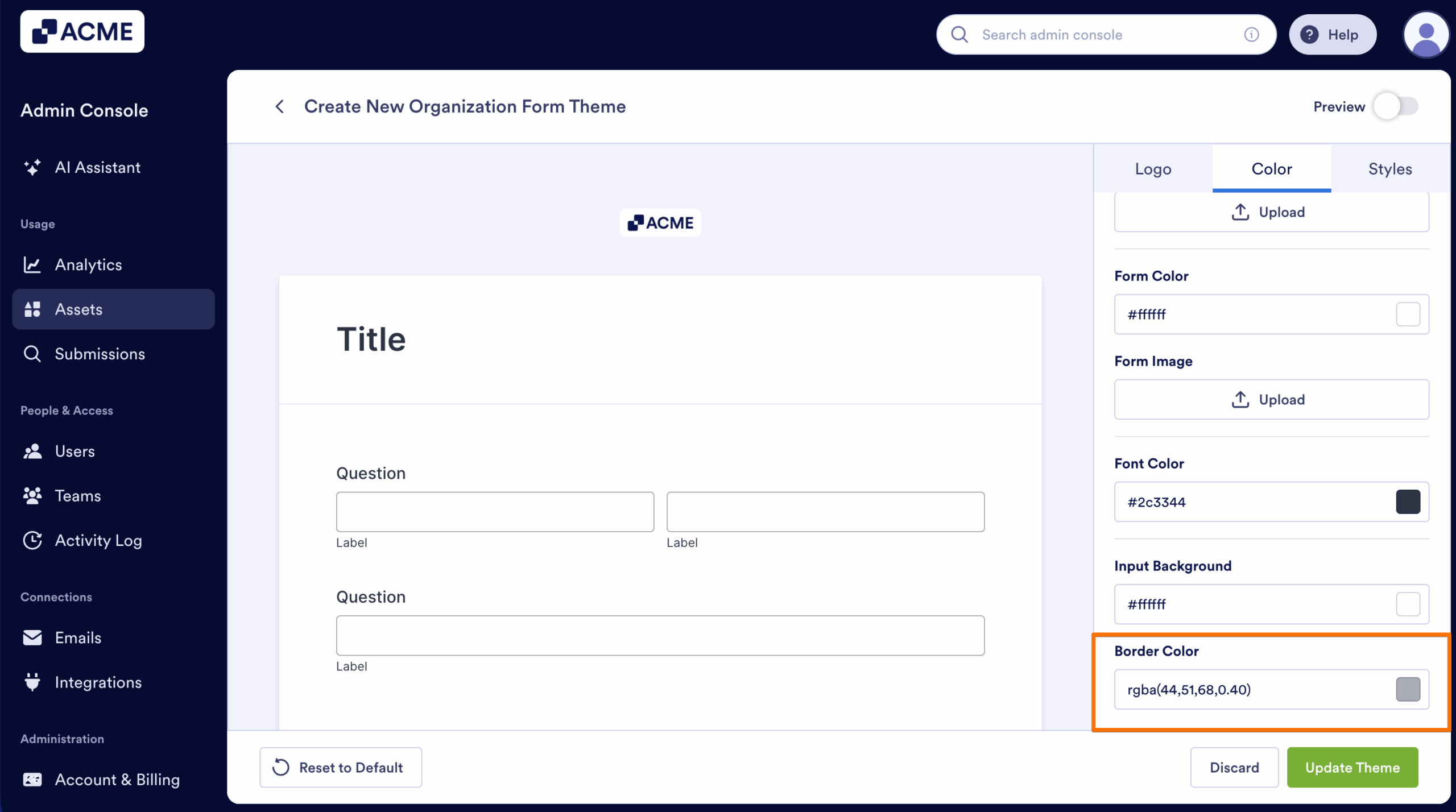
Border Color
Customize the outline color around form fields.
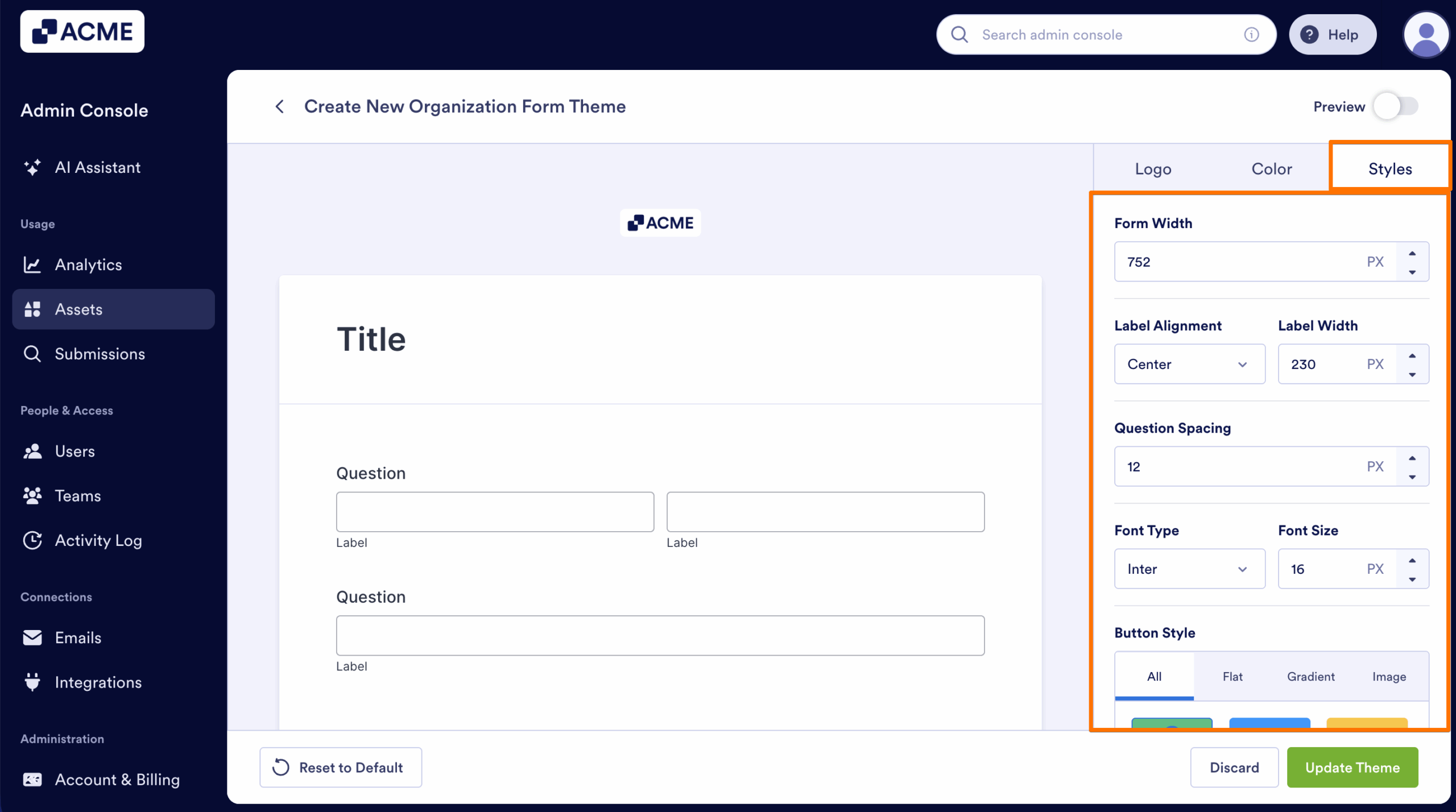
Styles Tab
The Styles tab allows you to fine-tune the layout, typography, and button appearance of your organization-wide form theme. These settings help you control how form elements are arranged and how users visually experience your forms.
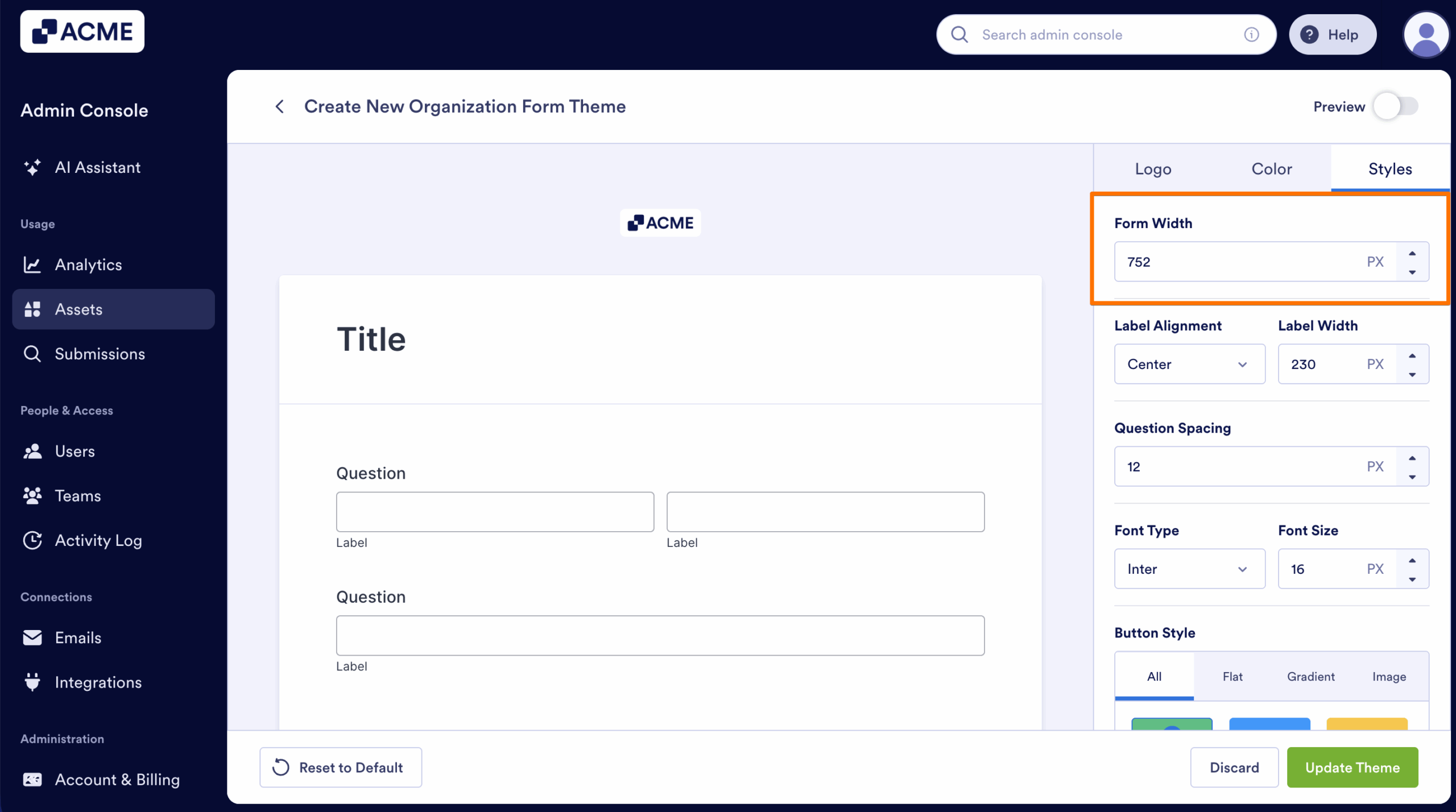
Form Width
Set the overall width of the form container in pixels.
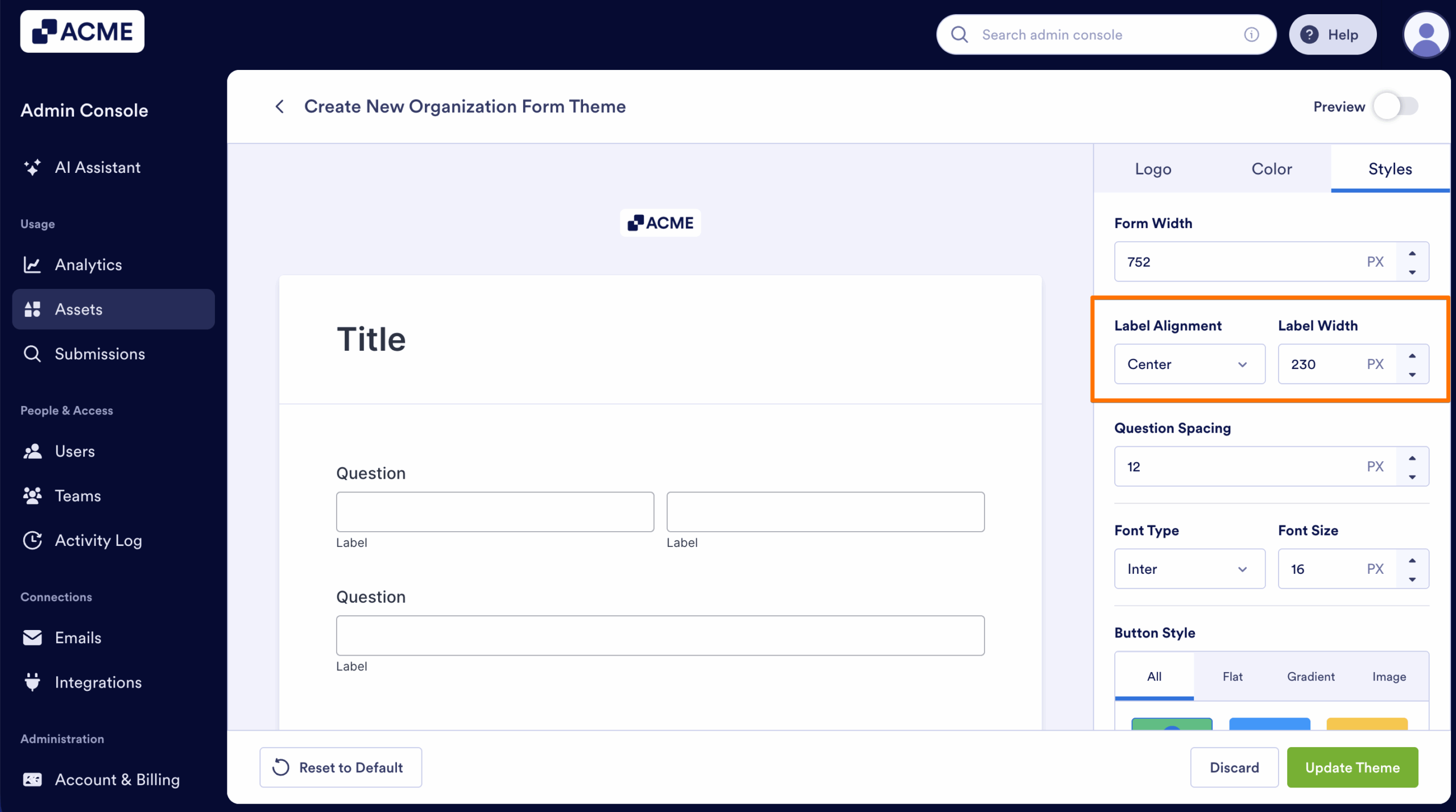
Label Alignment and Width
Choose how field labels appear relative to input fields and set their width when labels are positioned beside fields.
- Left – Places the label to the left of the field.
- Center – Centers the label above the field.
- Right – Aligns the label to the right above the field.
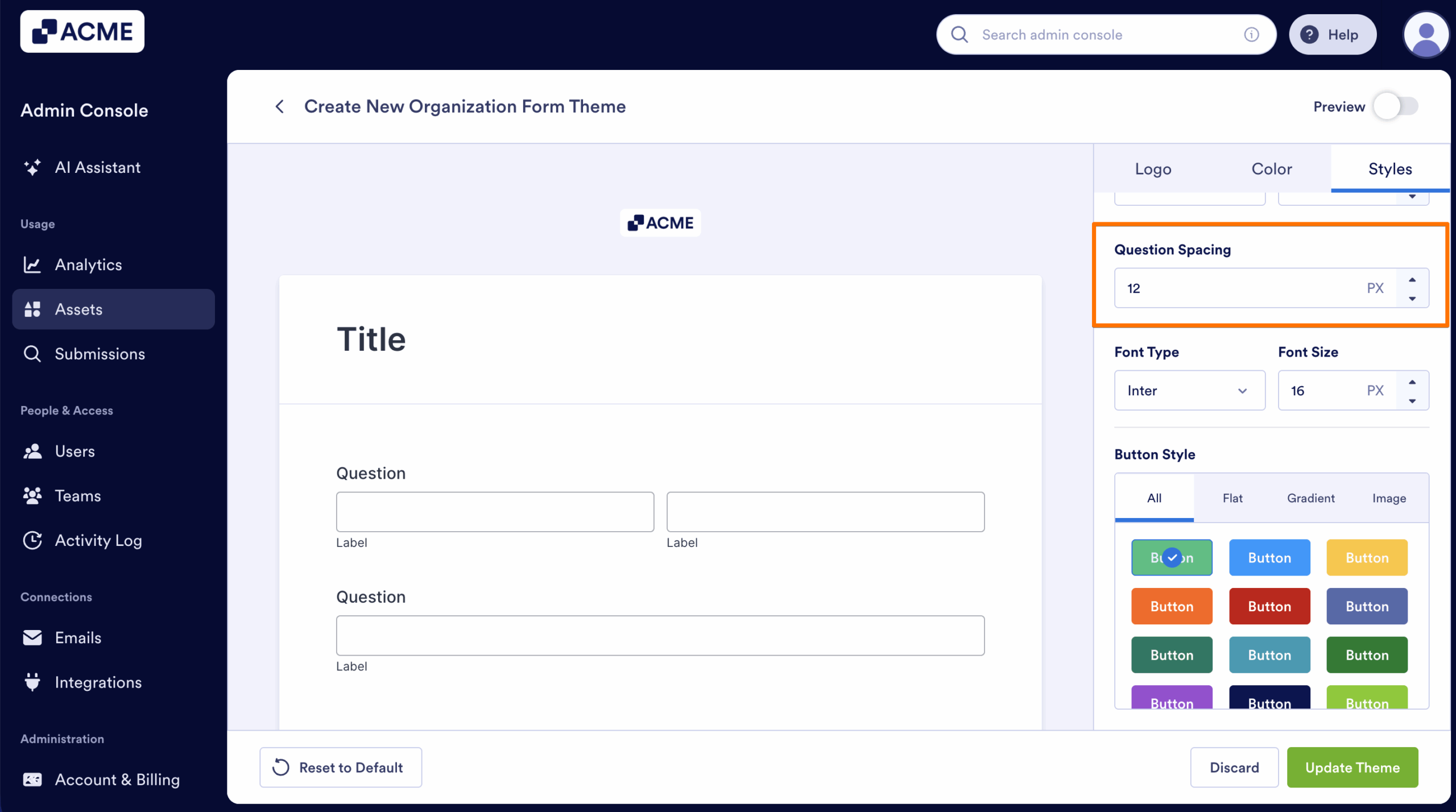
Question Spacing
Control the vertical space between form questions.
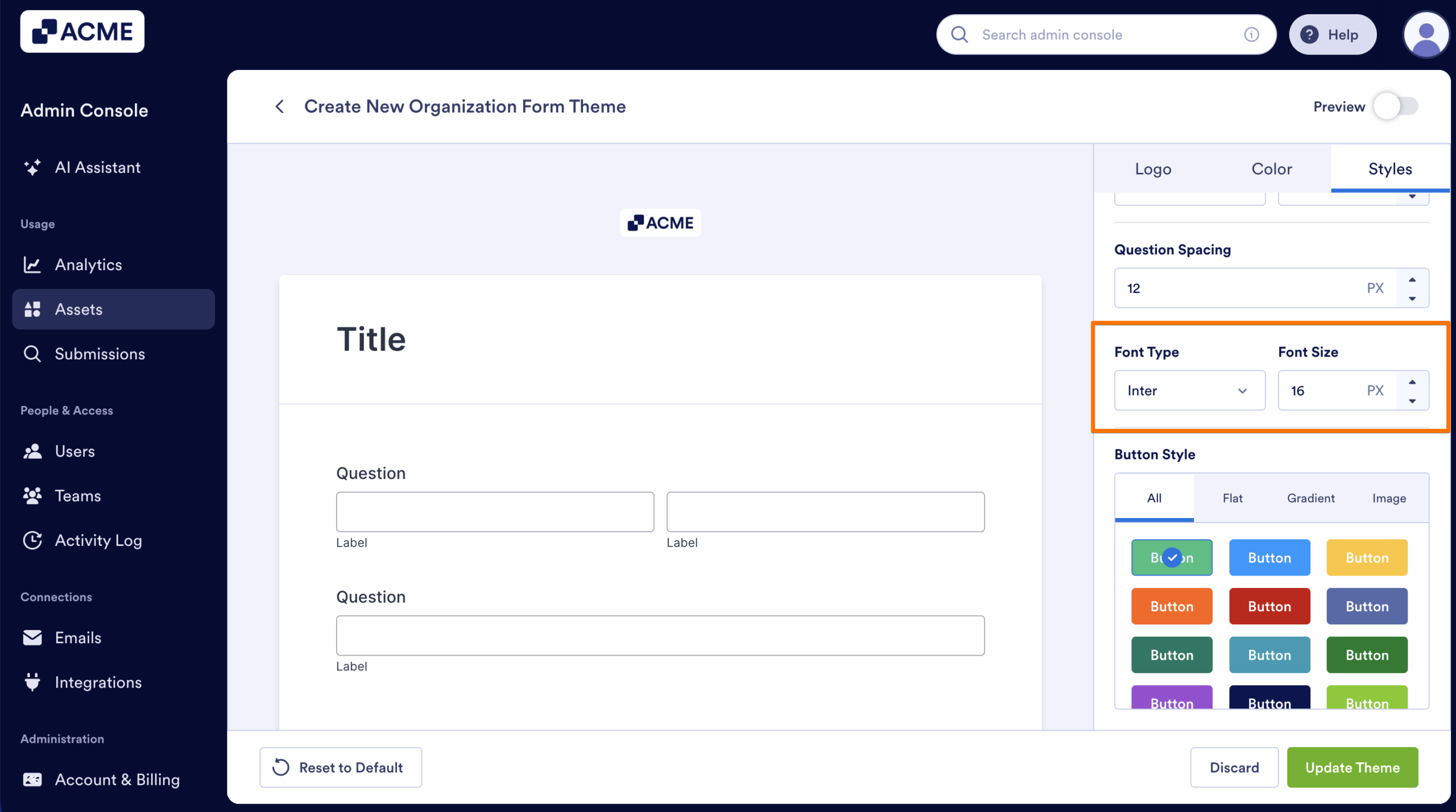
Font Type
Select the typeface used across all form text and adjust its size throughout the form.
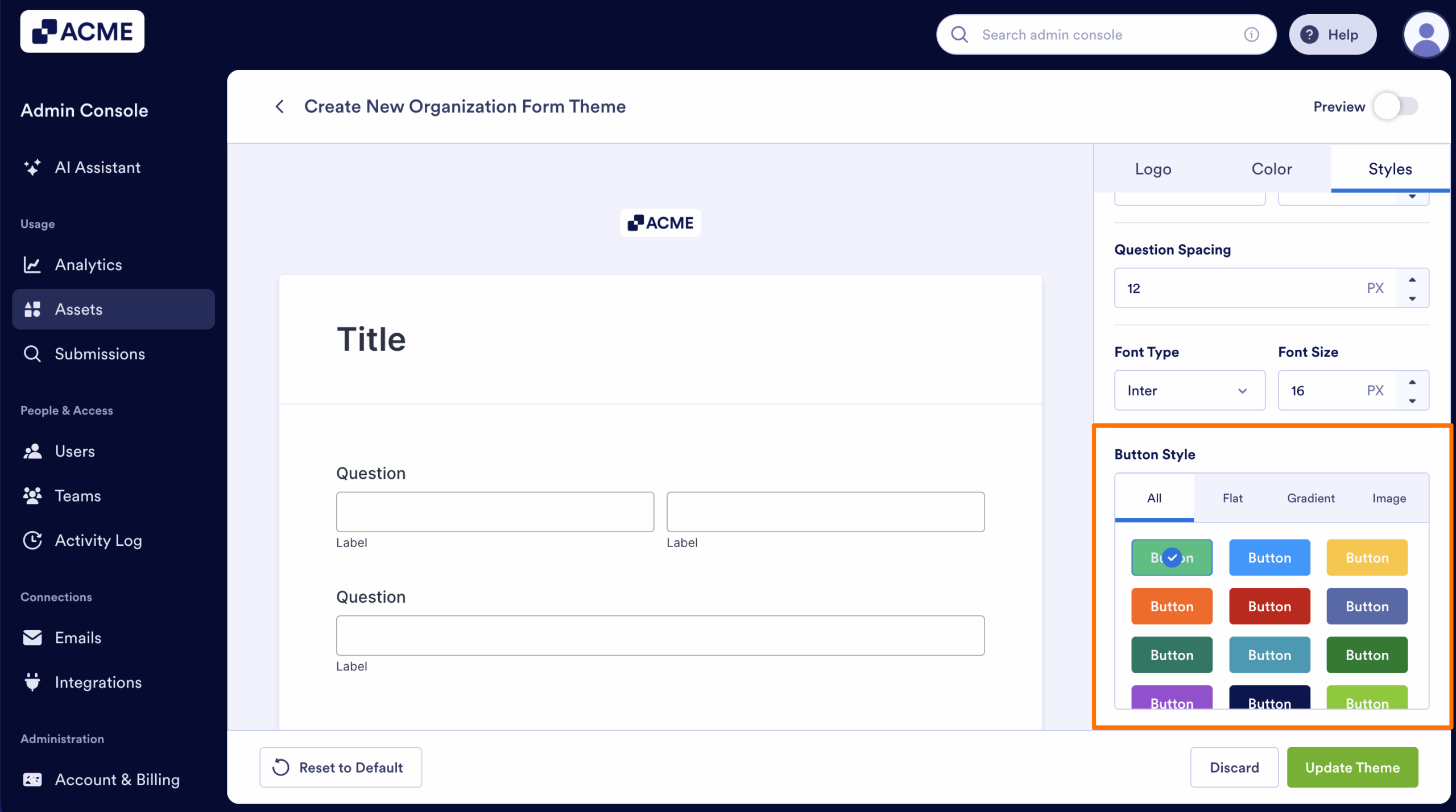
Button Style
Customize the appearance of form action buttons.
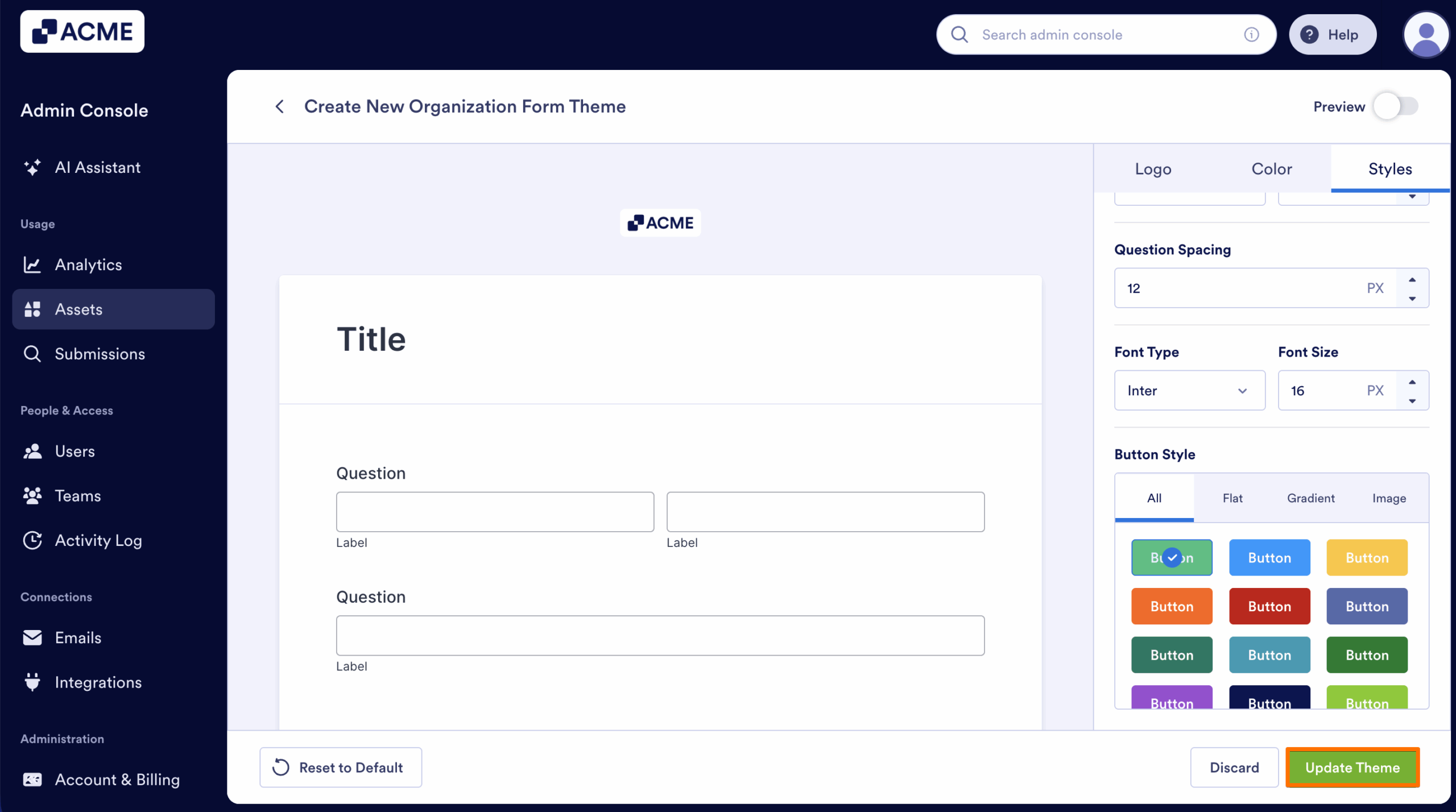
Once you’re satisfied with your changes, click on Update Theme to apply them to all organization-wide forms.
Organization Form Theme Controls
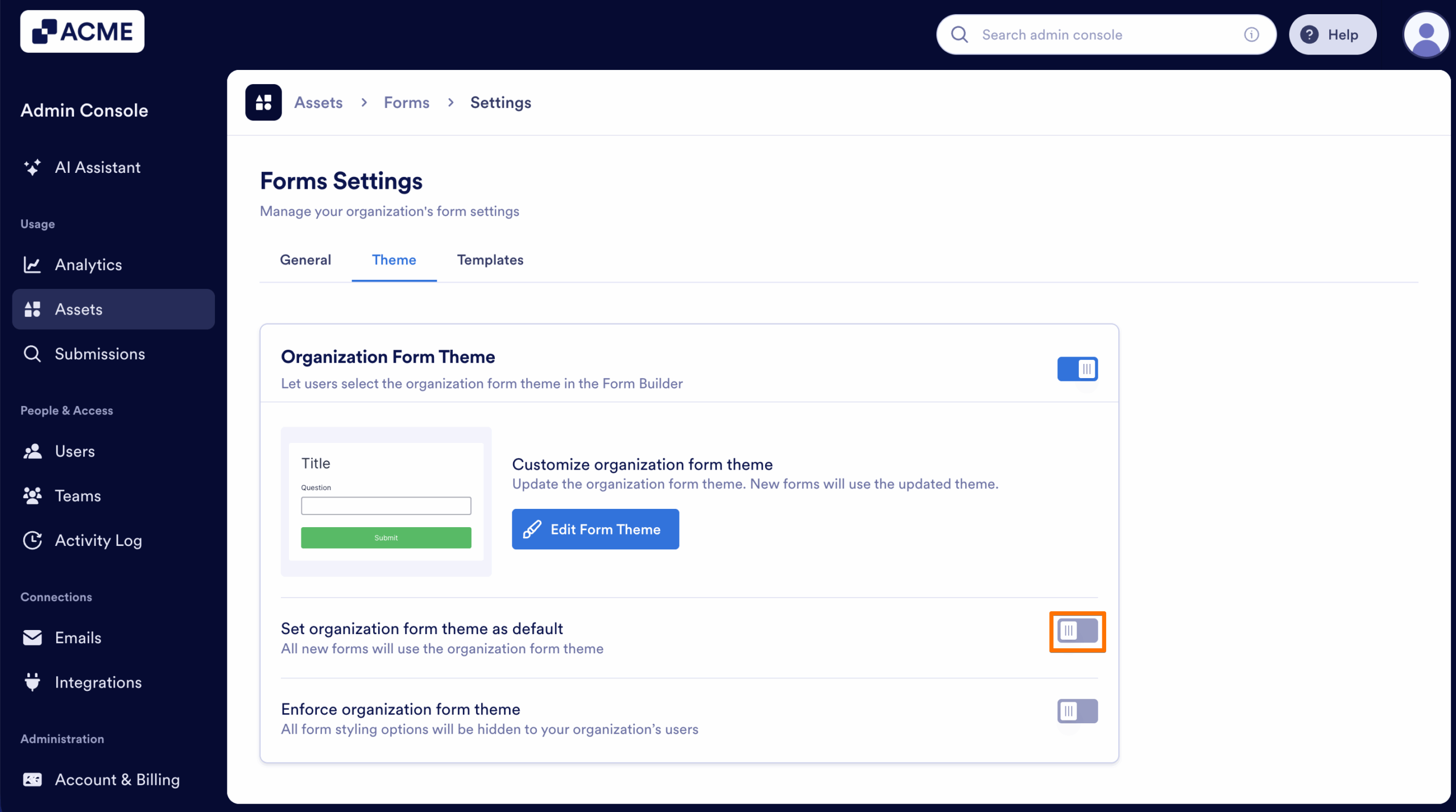
Set Organization Form Theme as Default
When this option is enabled, all newly created forms in your organization will automatically use the organization form theme. Users can still change the theme later if needed, but this ensures every new form begins with your standard branding.
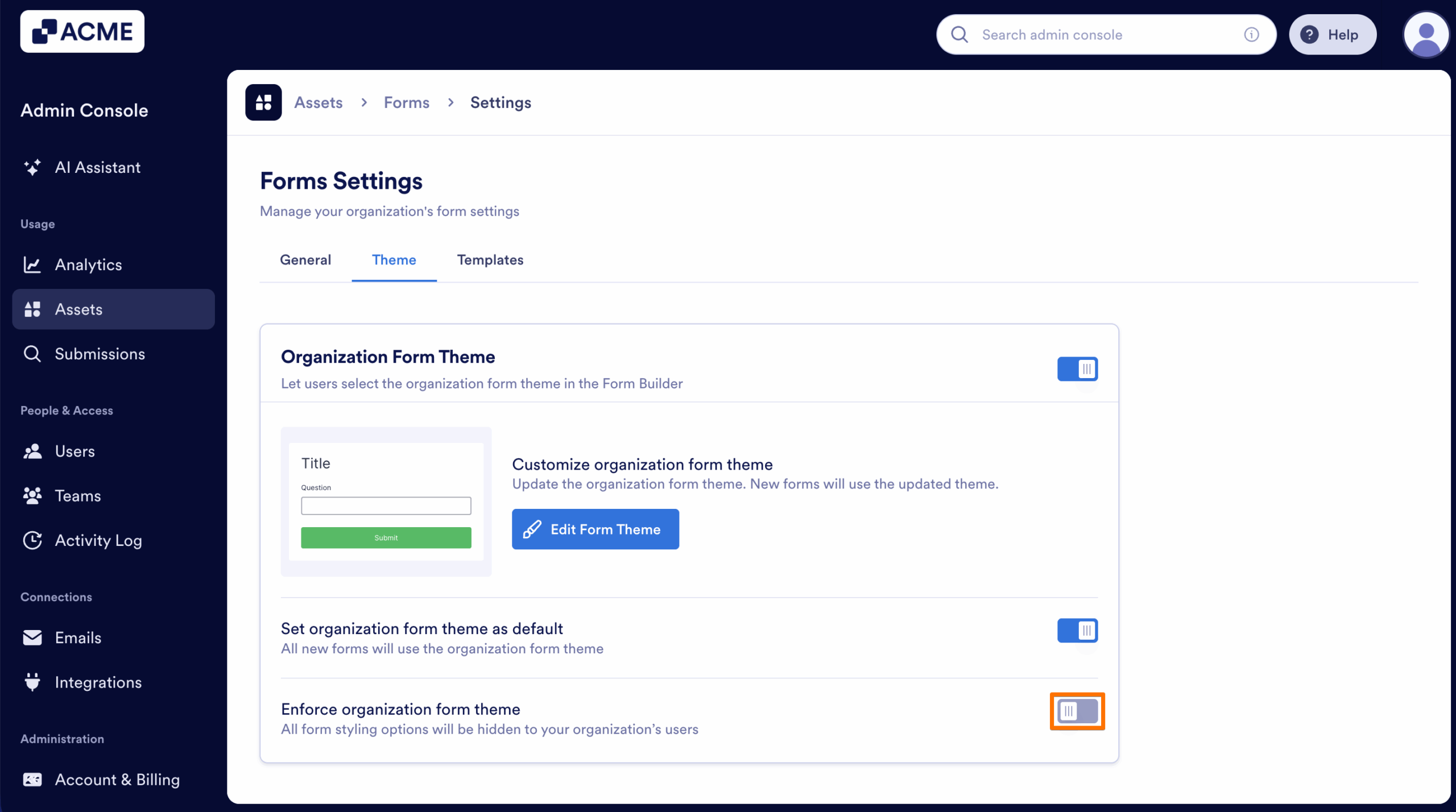
Enforce Organization Form Theme
Enabling this option locks the organization form theme for all users. When enforced, form styling controls are hidden in the Form Builder, preventing users from making design changes. This guarantees full brand consistency across all forms in your organization.
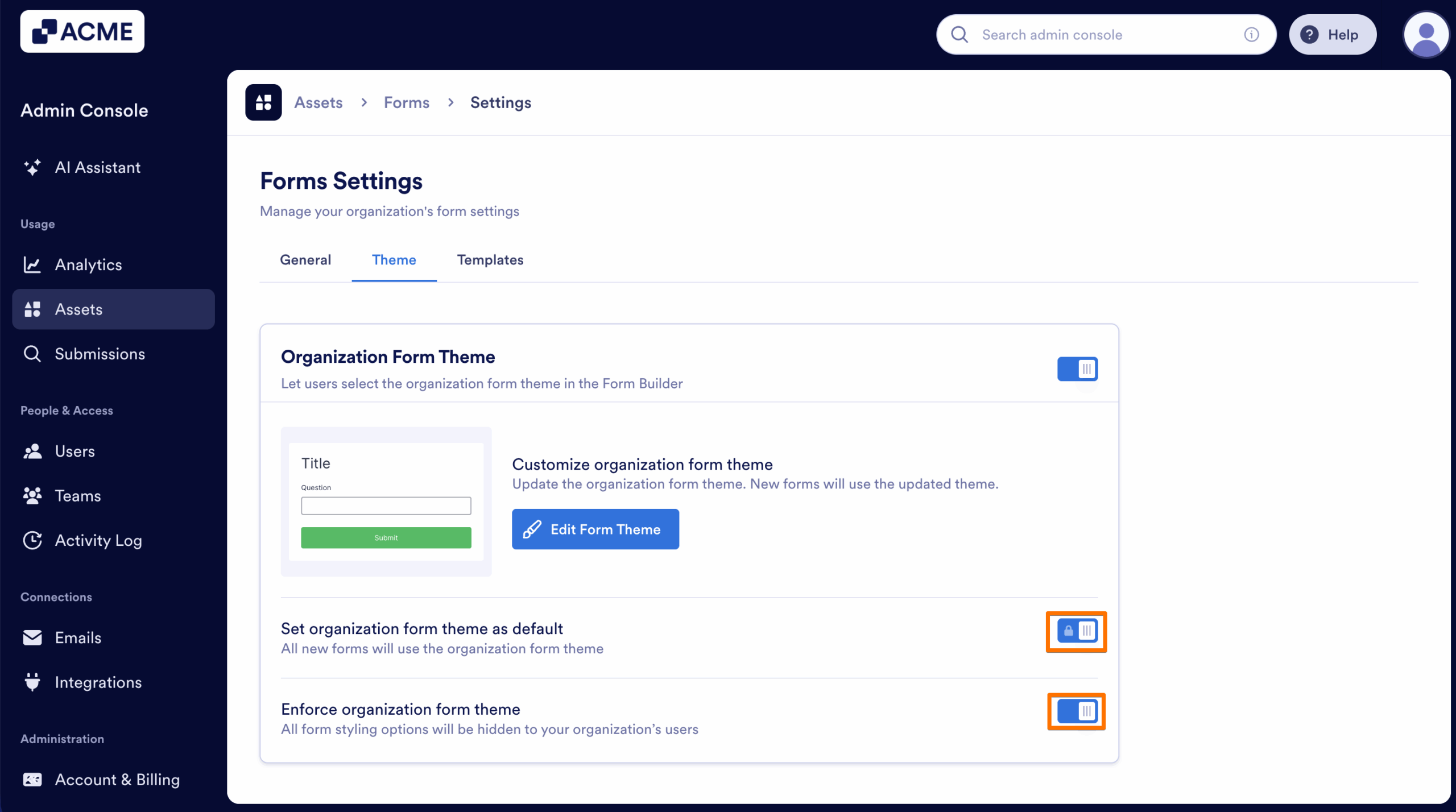
Note
If this option is enabled first, the Set Organization Form Theme as Default toggle becomes enabled and locked automatically.

Send Comment: