Boards allow you to organize your Forms and assets into a visual, column-based interface, making it easier to track projects and workflows. You can create a board from your workspace or directly from existing forms.
Create a Board from the Workspace
You can create a standalone Board in both your personal and Team environments. The Board will be located in whichever Workspace is currently active.
Create a Board in My Workspace
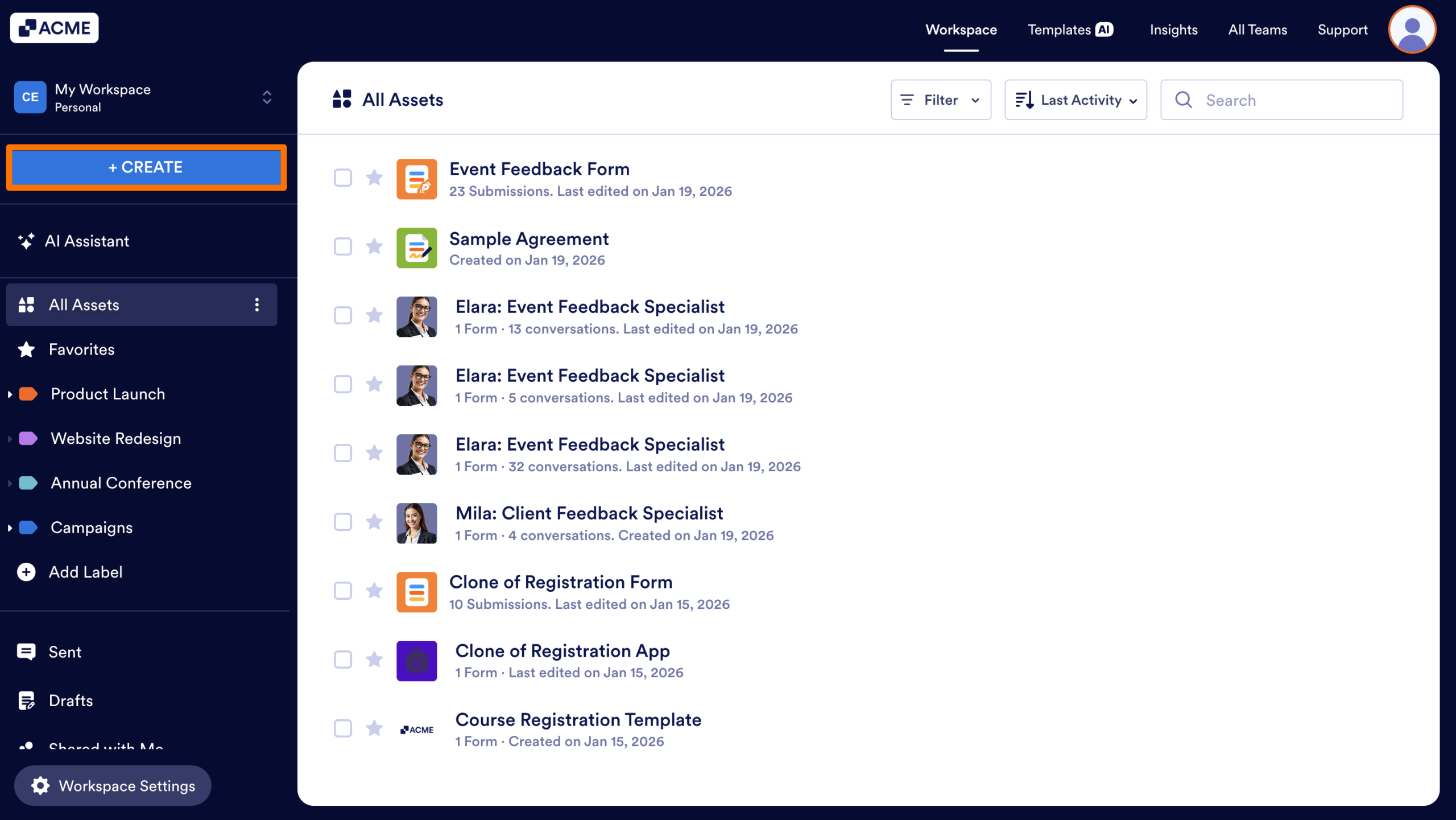
- First, in My Workspace, click the Create button in the upper left corner of the screen.
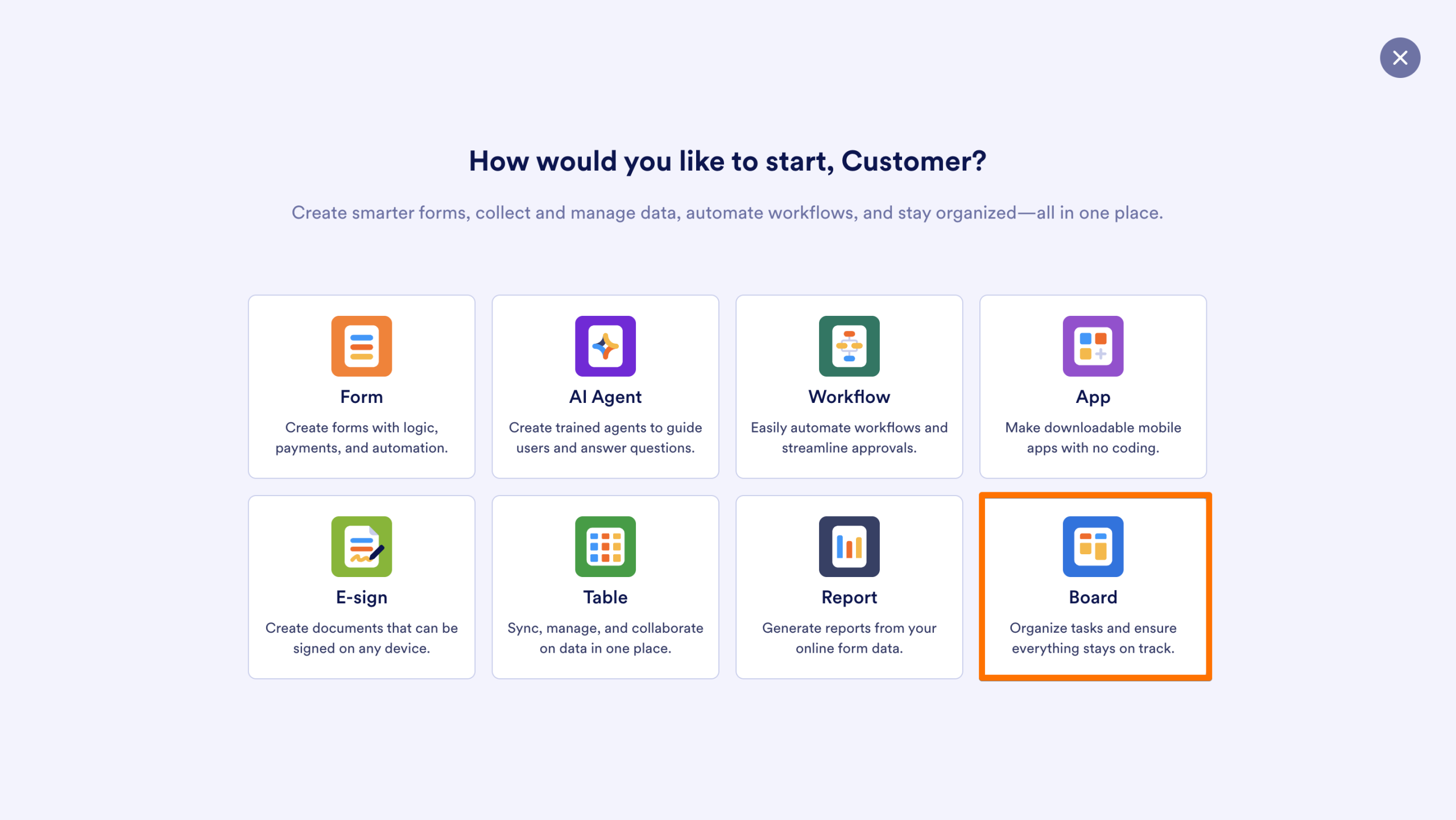
- Next, select Board.
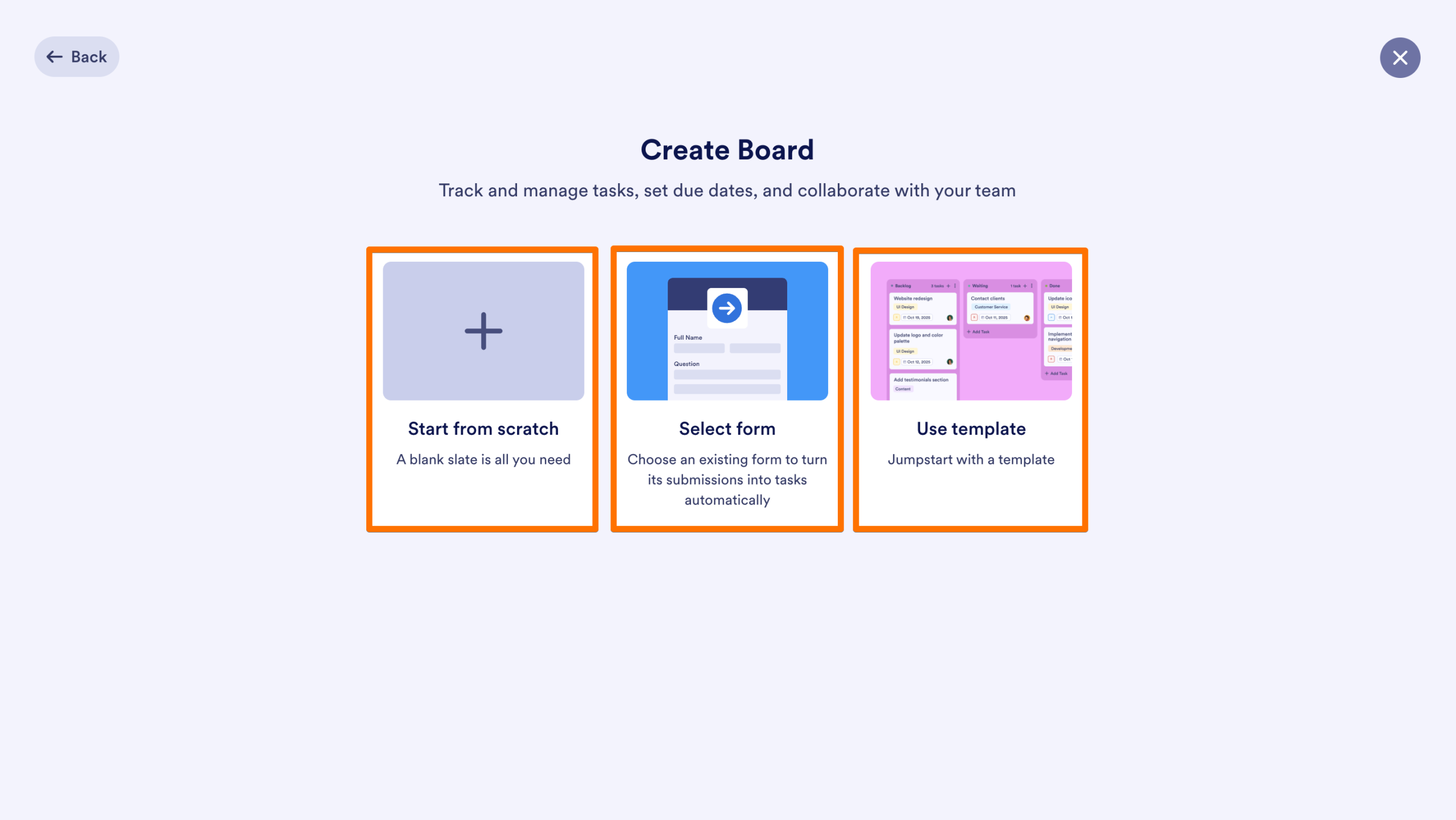
- Then, choose your starting point:
- Start from scratch: Build a Board from a blank canvas.
- Select Form: Create a Board by automatically pulling in an existing Form as your first item.
- Use template: Choose from a variety of pre-designed Board layouts.
The new Board will be added to your personal Workspace.
Create a Board from Existing Forms
If you already have a Form created, you can quickly turn it into a Board using Toolbar shortcuts or the asset menu.
From the Toolbar
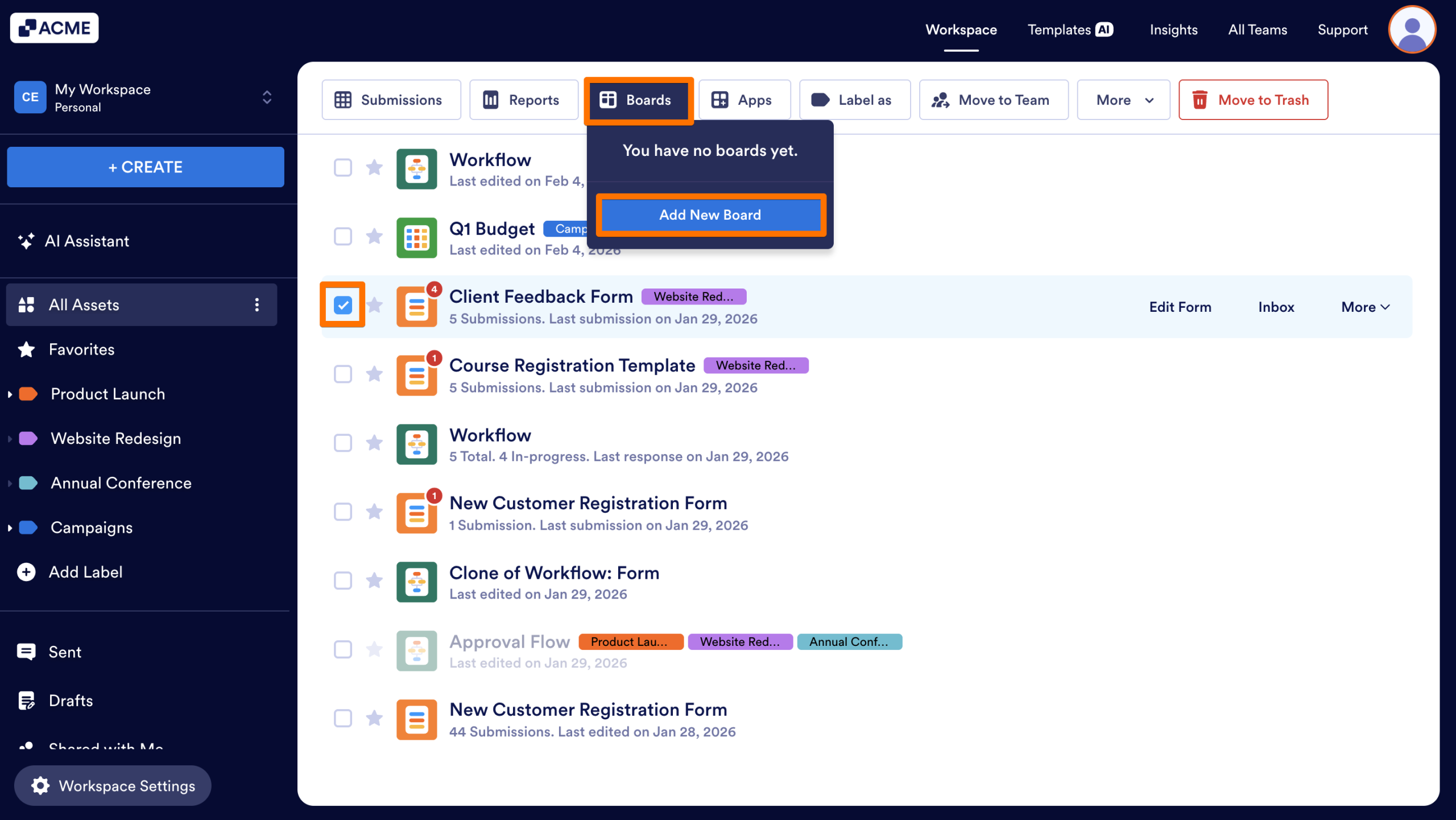
- In the Workspace, select a Form (or multiple Forms) by clicking on the checkboxes next to them.
- Next, in the toolbar at the top of the screen, click on Boards.
- Then, select Add New Board.
From the More Menu
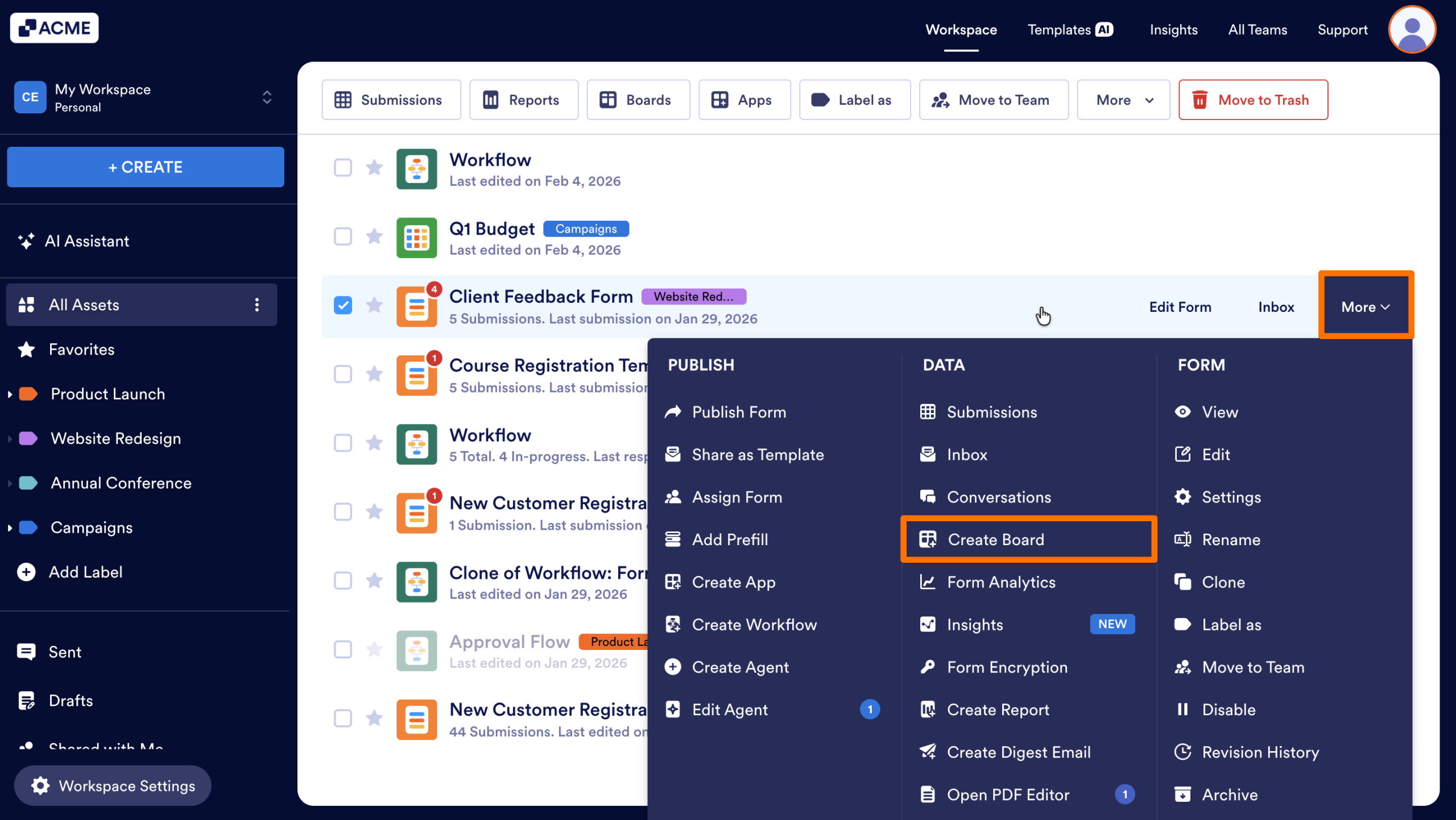
- First, hover over a specific form in your Workspace.
- Next, click the More dropdown.
- Then, under the Data, select Create Board.
Create a Board from the Form Builder
You can access the Board Builder without leaving the design environment of a specific Form.
- First, in the Form Builder, click on the List Picker on the top left.
- Next, select Boards from the menu.
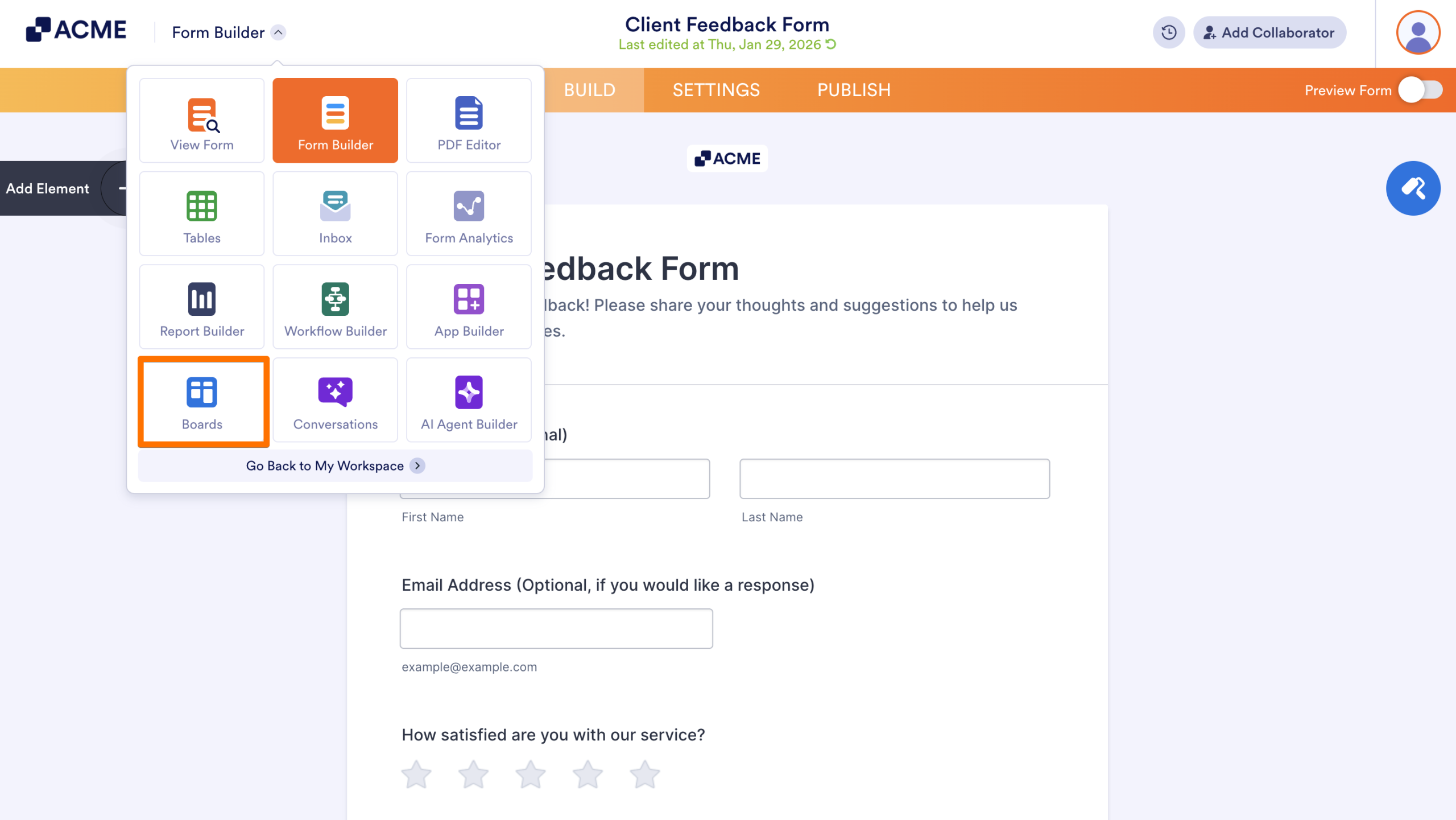
This opens the Board Builder directly, where you can incorporate the current Form into a new Board structure.

Send Comment: