For administrative or security reasons, it may be necessary to remove a user from your organization. As an Admin, you can delete users from the server. This is a permanent action and cannot be undone.
Deleting Individual Users
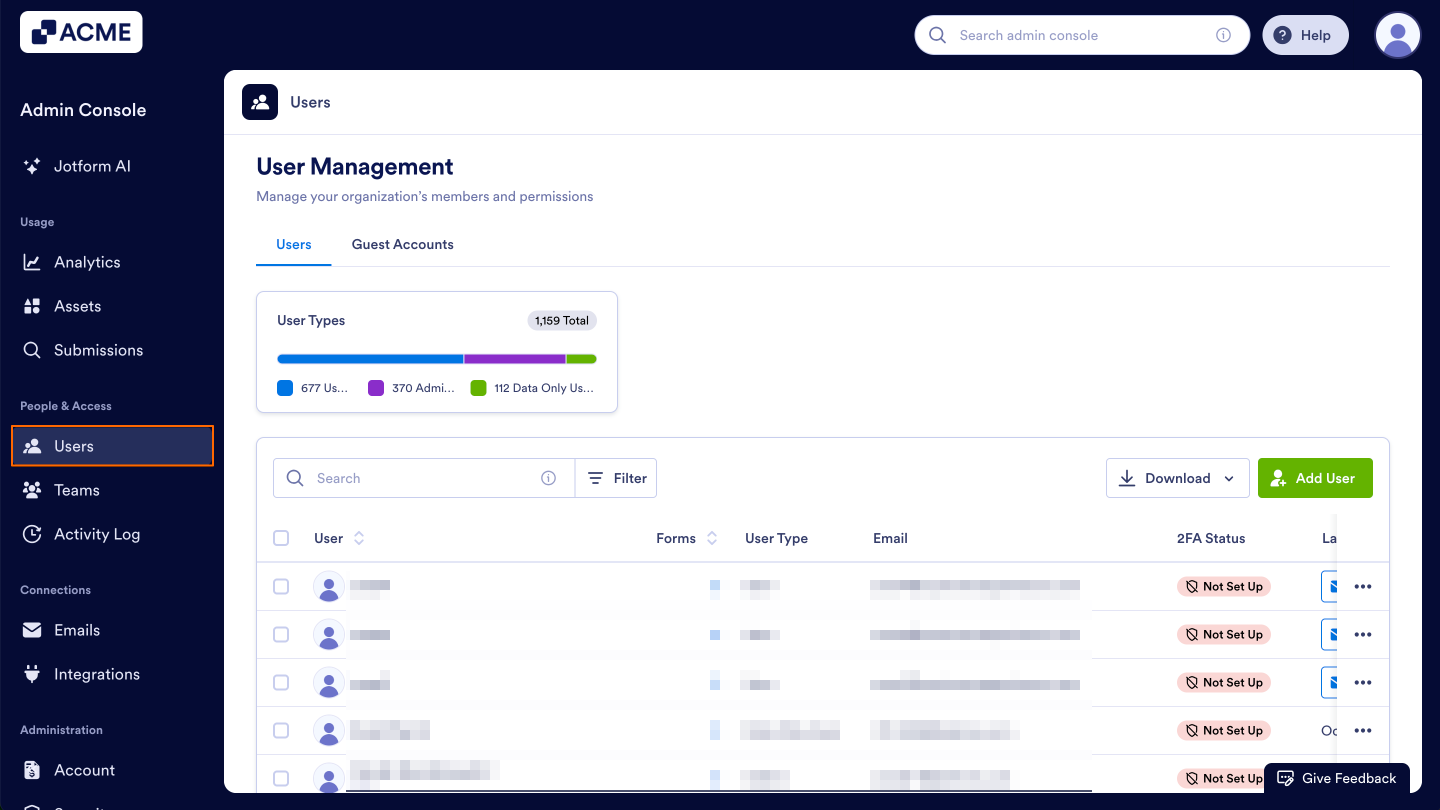
- In the Admin Console, click on Users from the left side menu.
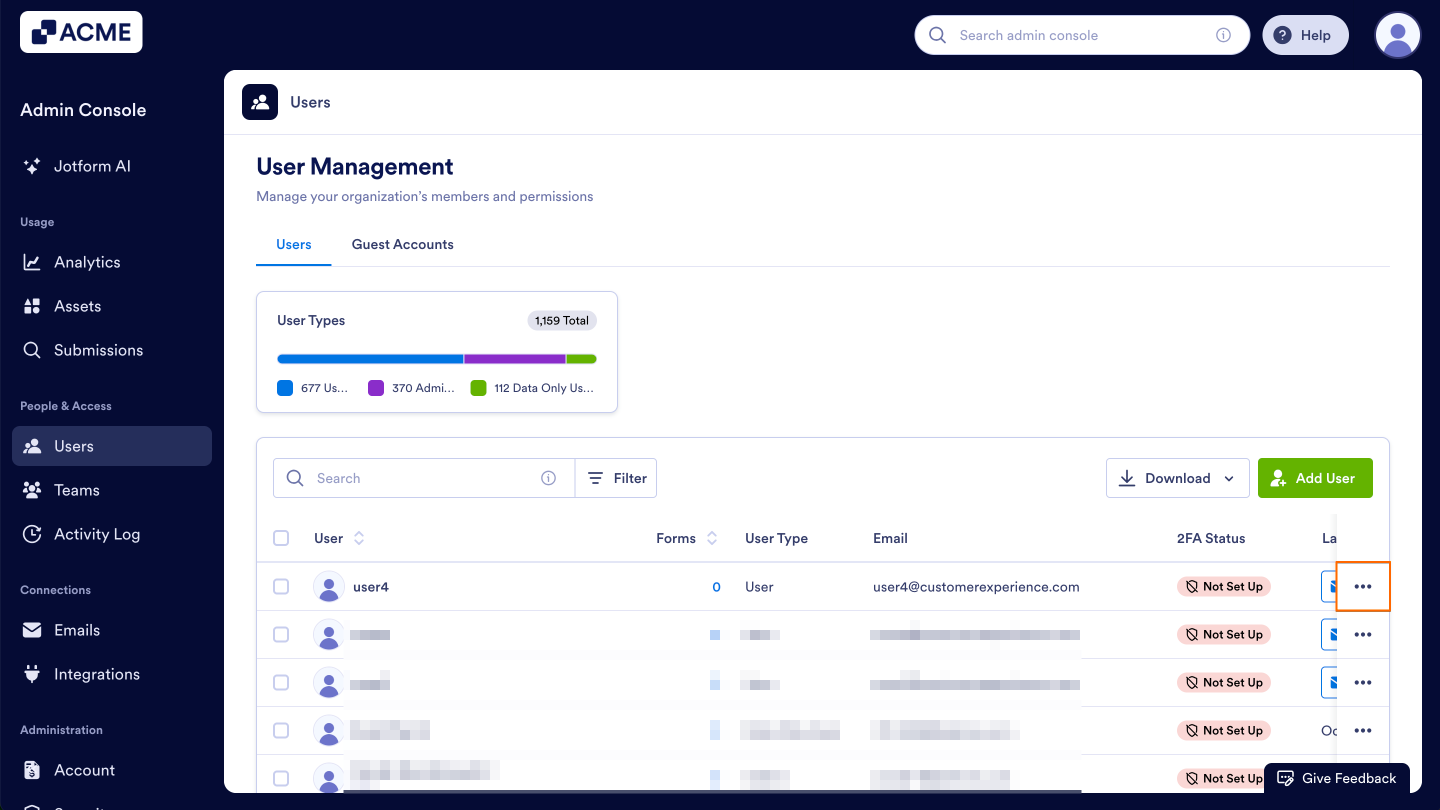
- Click on the three dot menu next to the user.
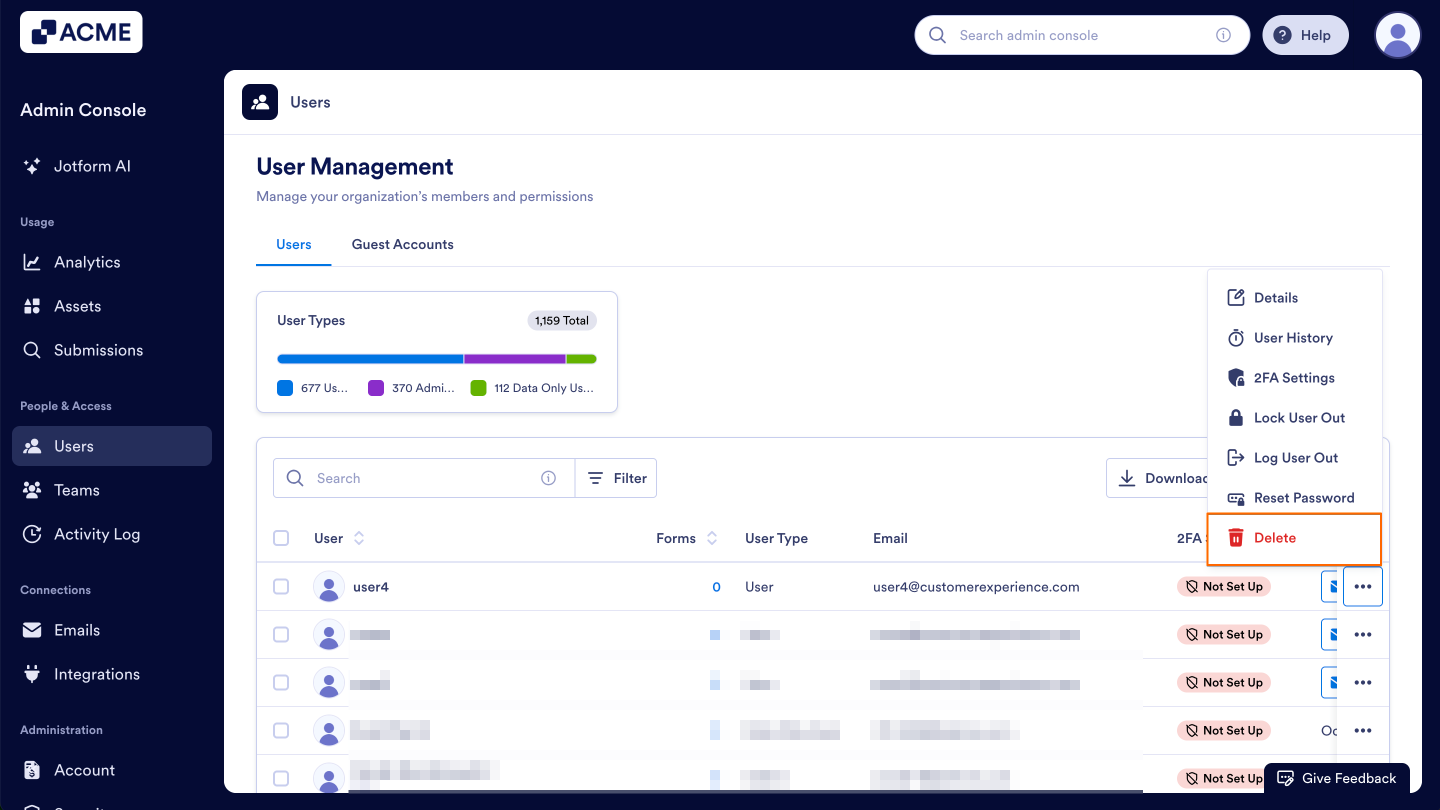
- Select Delete.
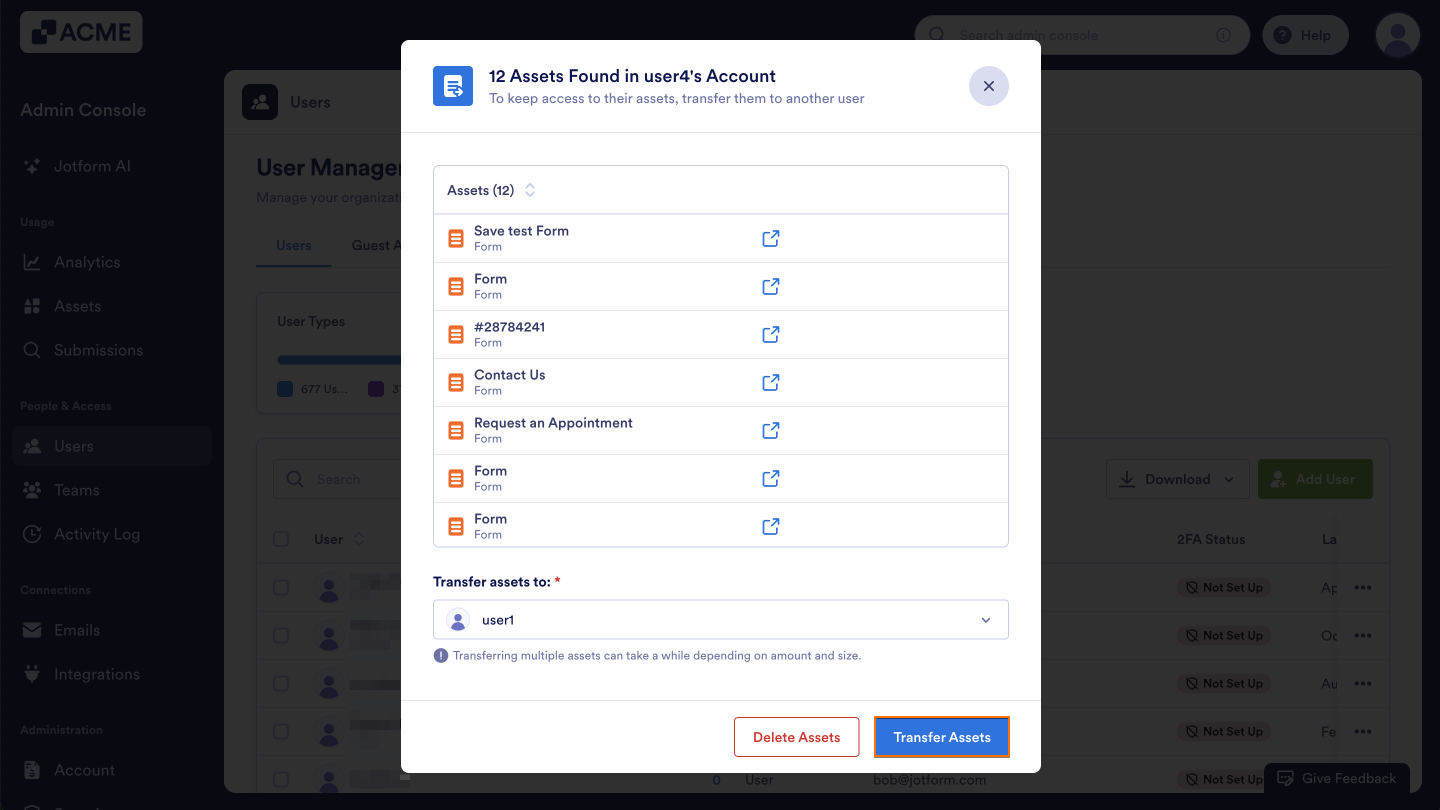
- If the user owns any assets, select the new owner from the drop-down menu in the pop-up window if you want to keep the assets.
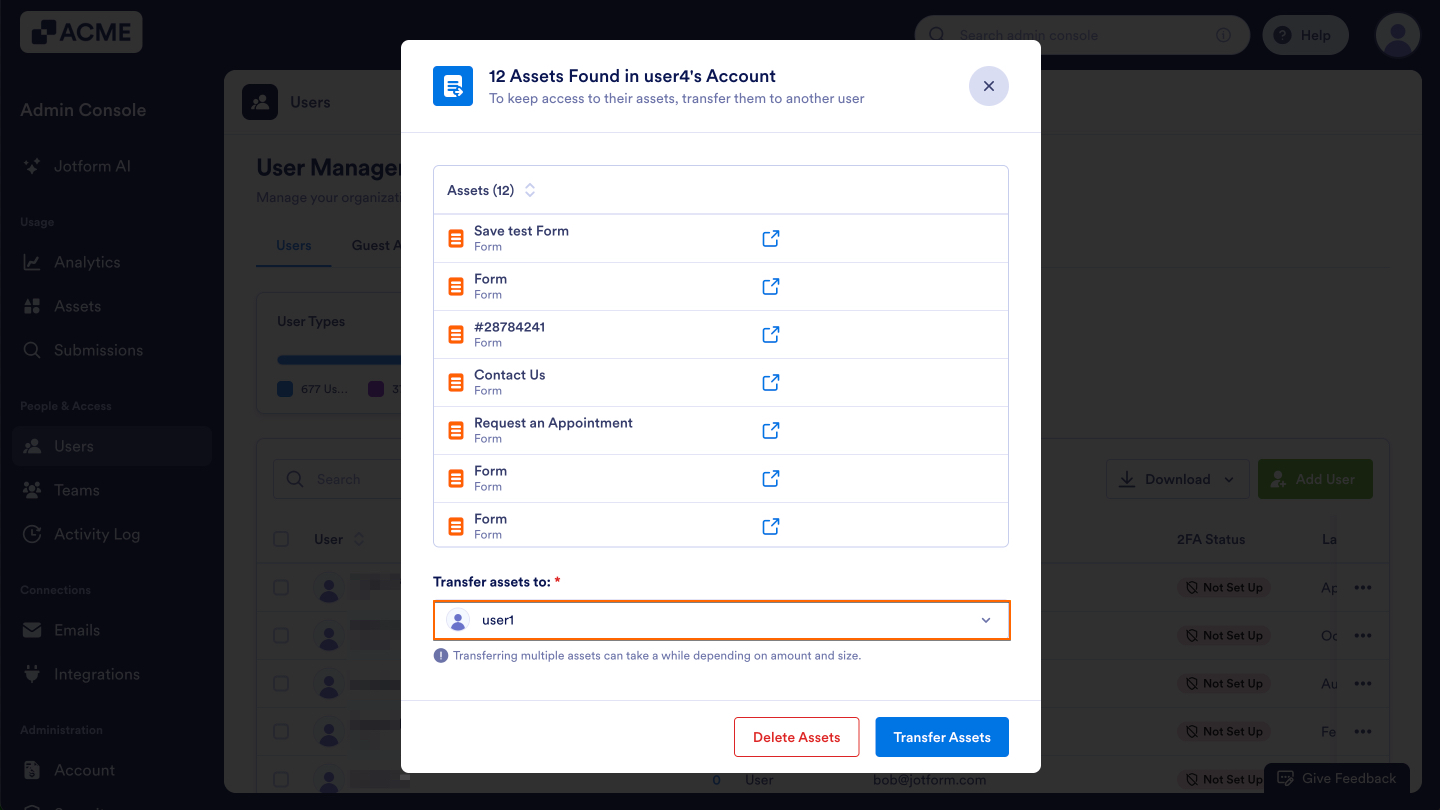
- Then, click Transfer Assets.
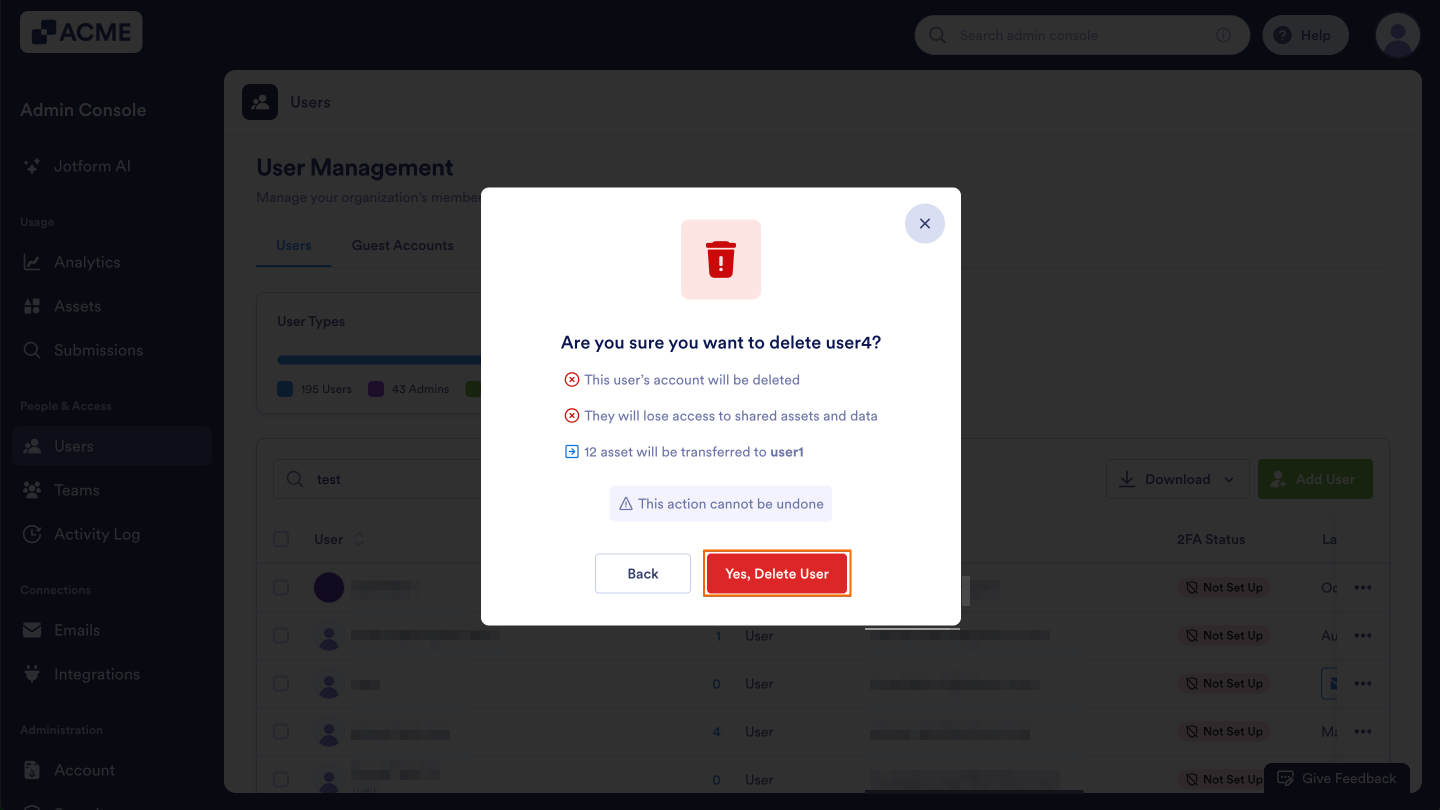
- Finally, click Yes, Delete User on the next page.
Bulk Deleting Users
As an Admin, you can also delete users in bulk. As a reminder, this is a permanent process and cannot be undone. Let’s walk through this process together:
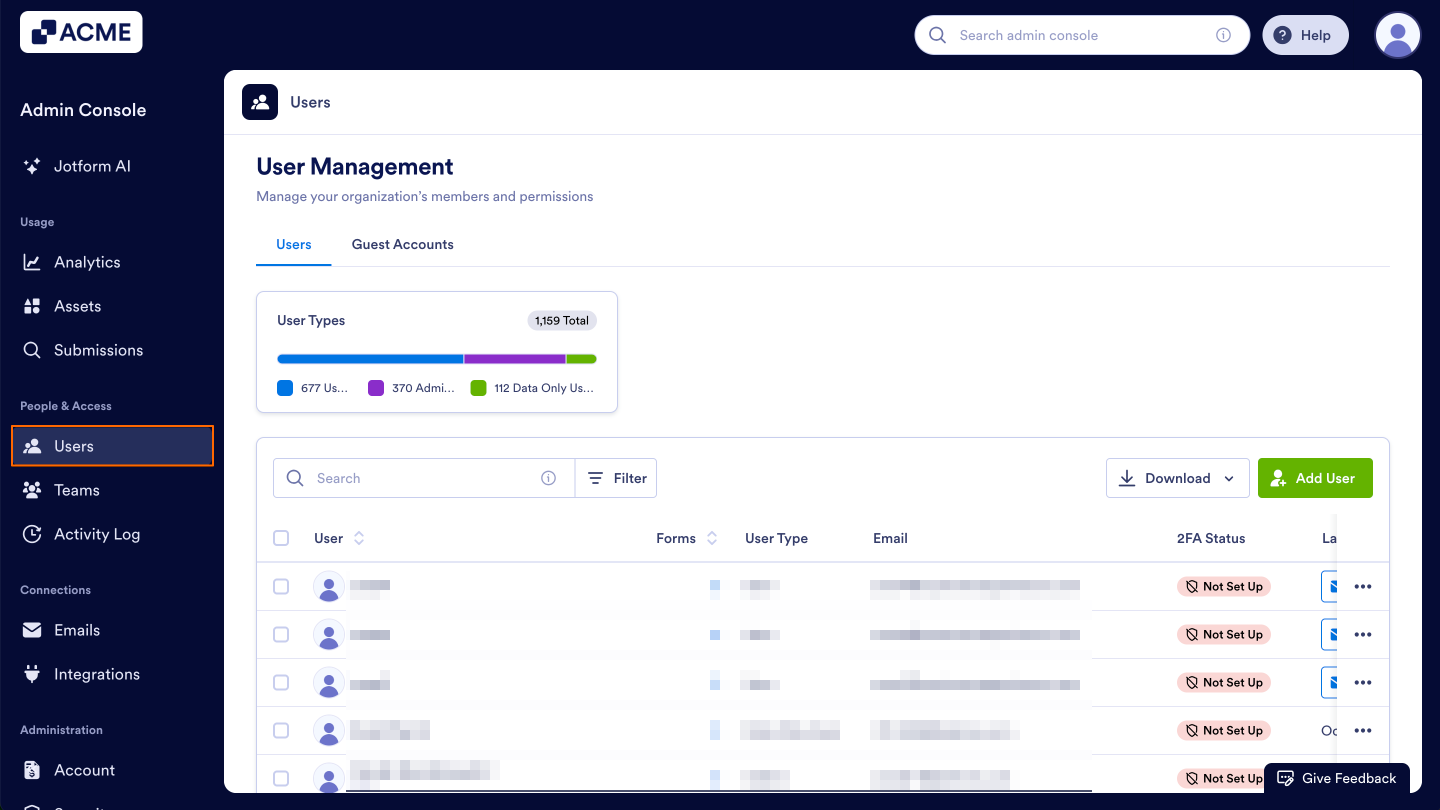
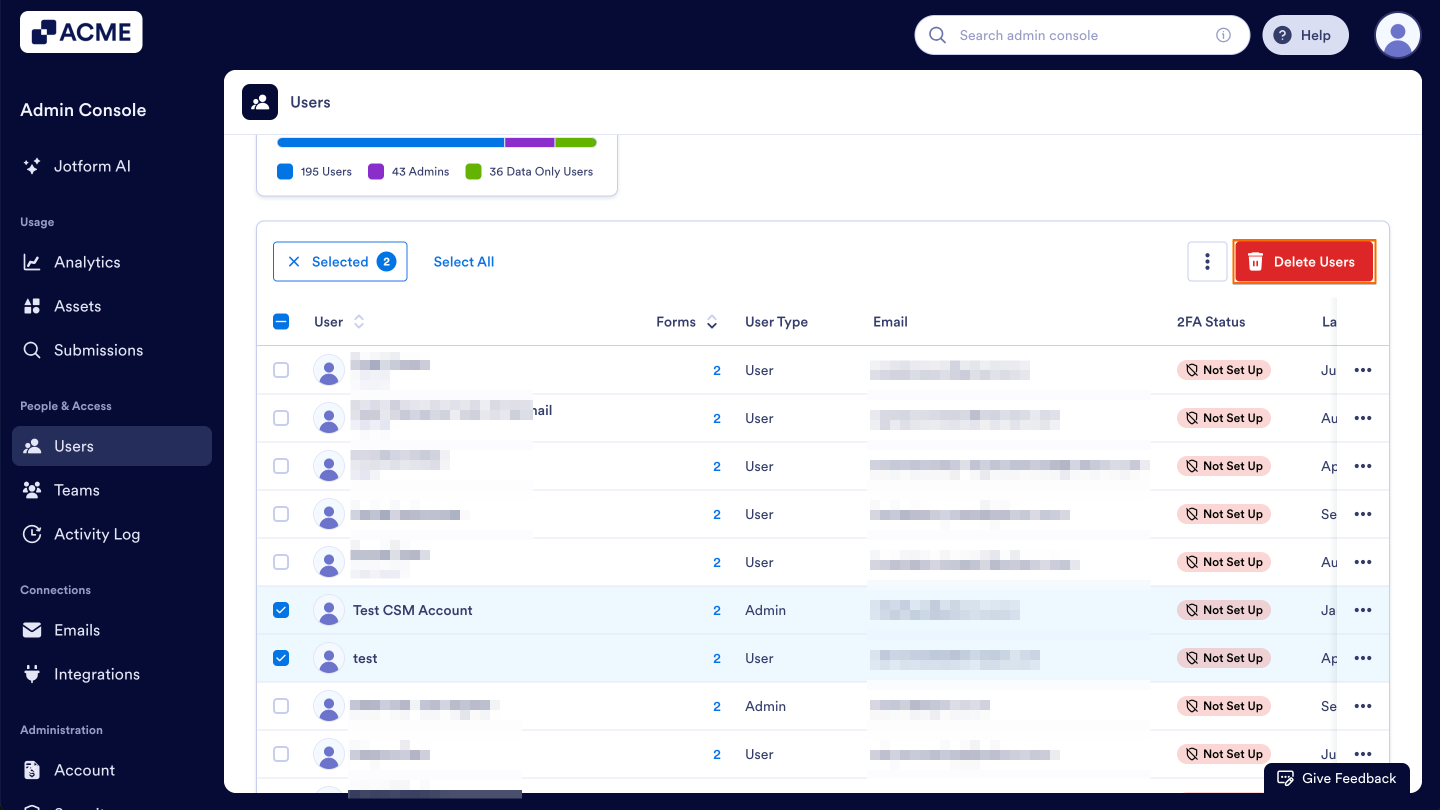
- In the Admin Console, click on Users on the left-hand side of the page.
- Next, click on the checkbox next to the users you’d like to delete.
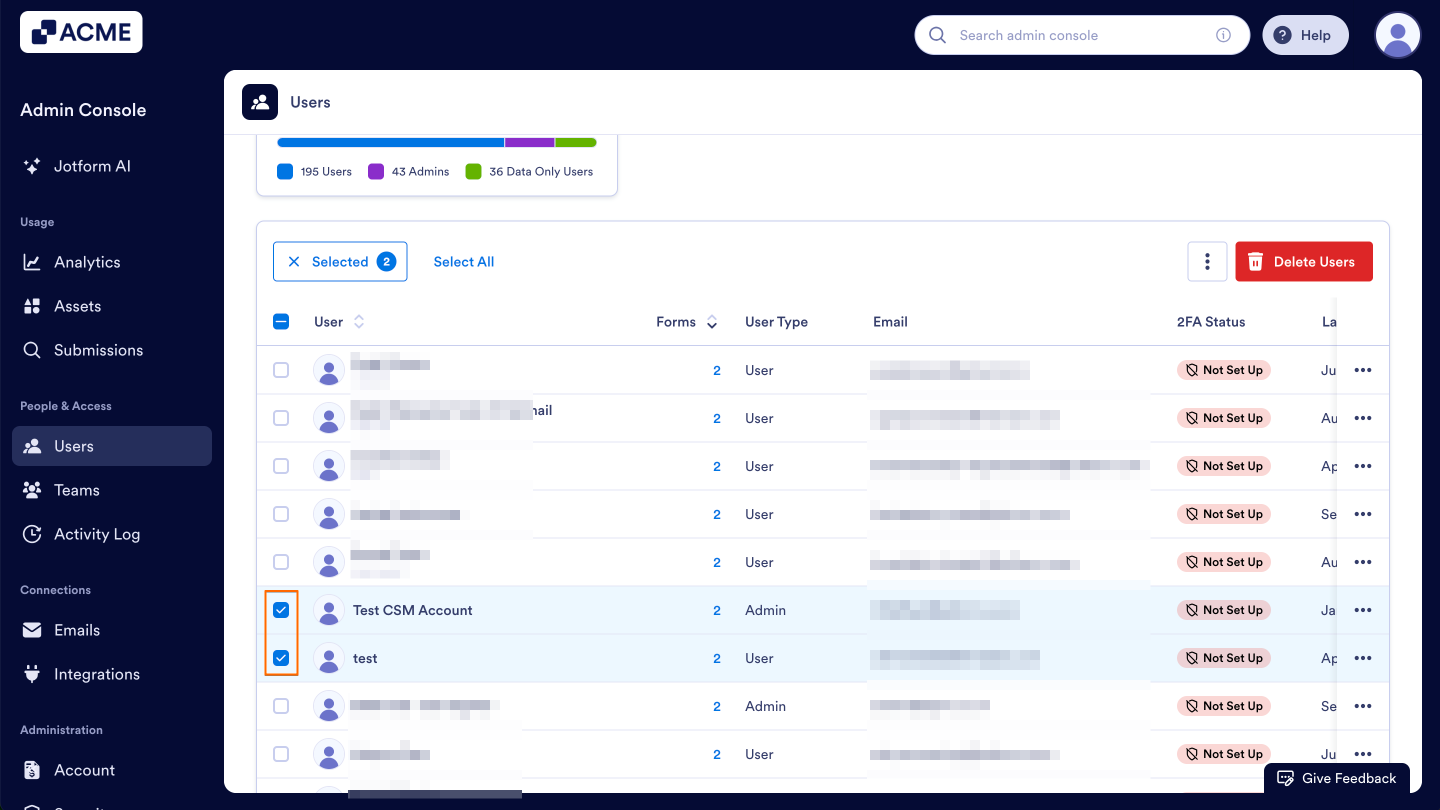
- Then, select Delete Users.
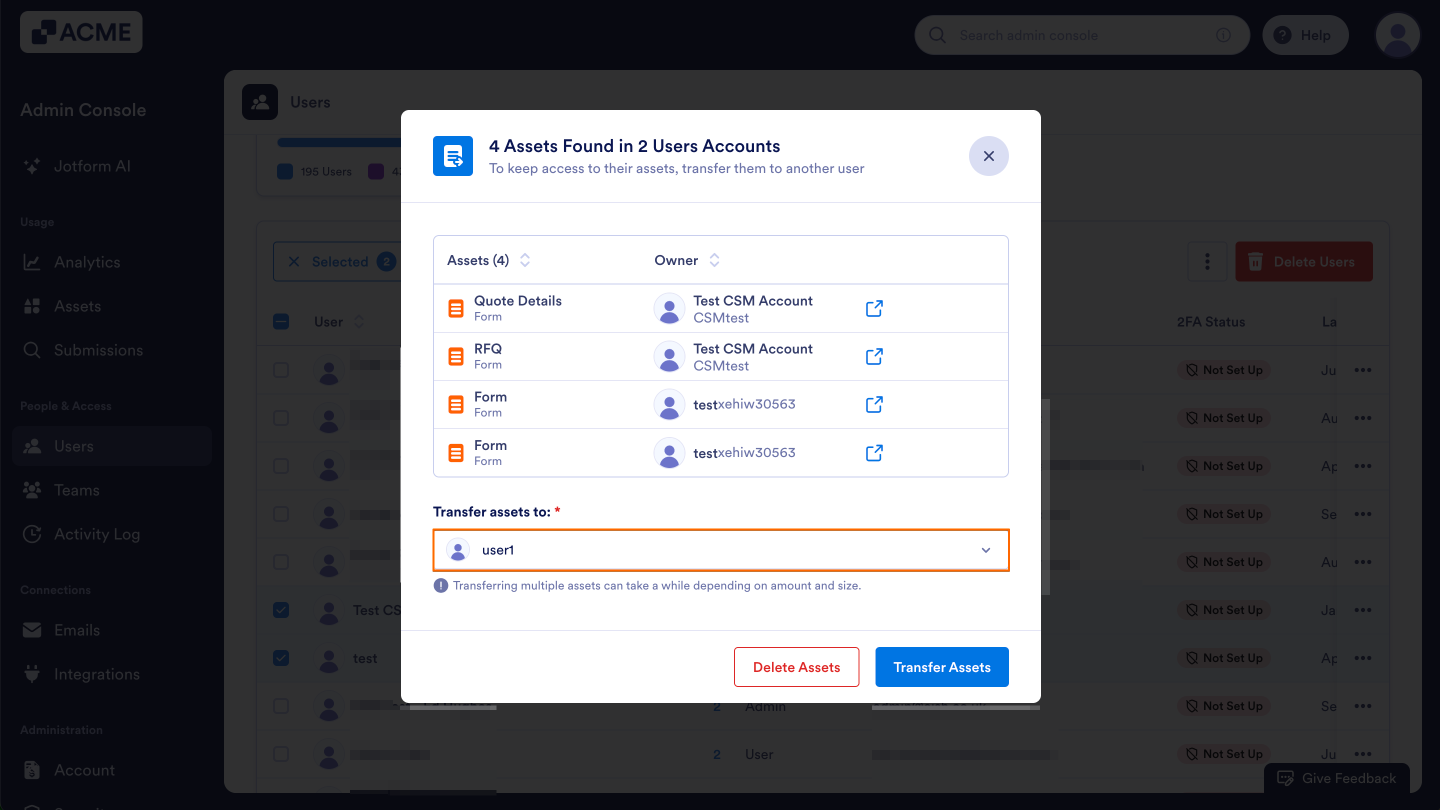
- If these users own any assets, select the new user from the drop-down menu.
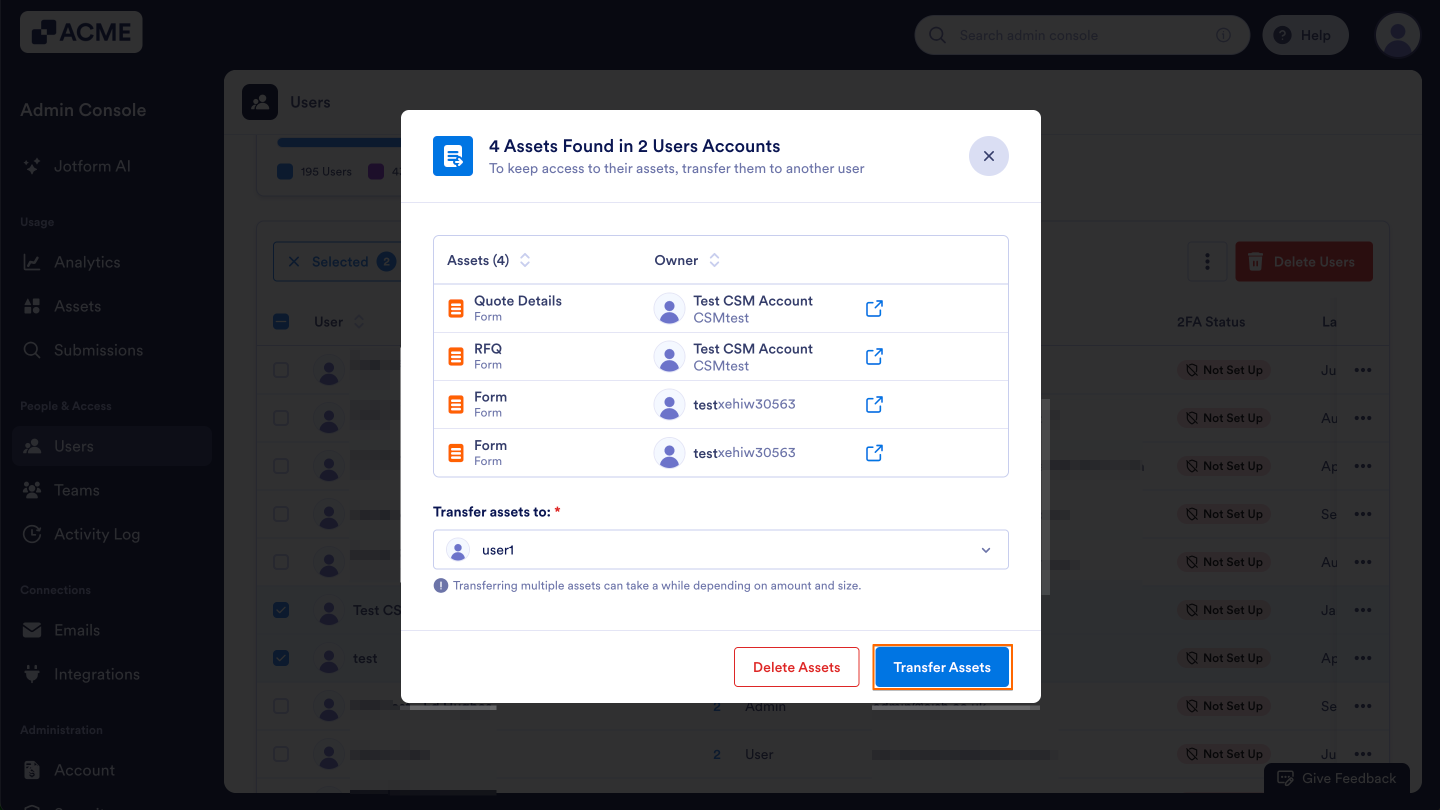
- Then, click Transfer Assets.
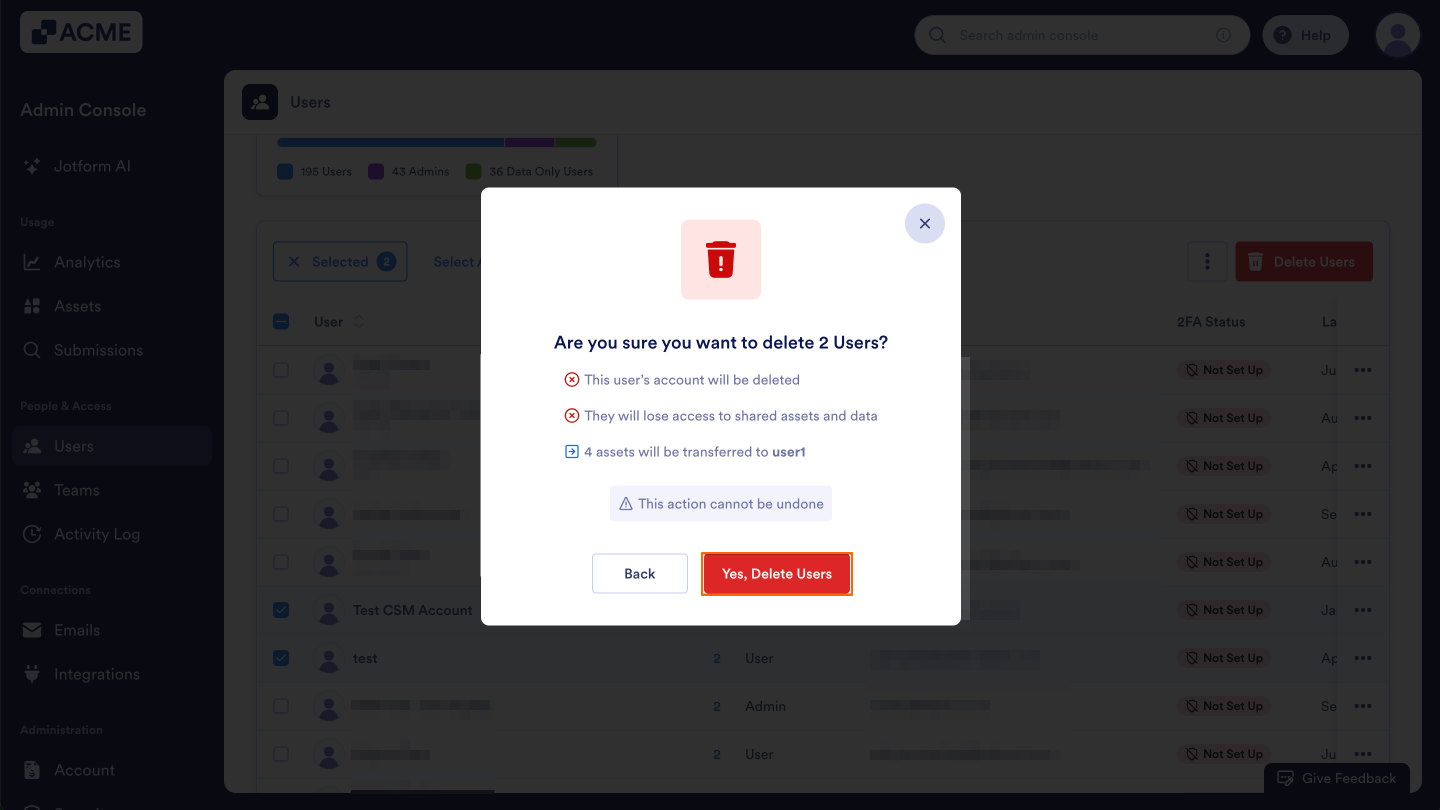
- On the next page, click Yes, Delete Users.
See also:
- How to Lock Users in the Organization from the Admin Console
- How to Unlock Users in the Organization from the Admin Console
- How to Revoke Users Access to Assets in Your Organization from the Admin Console
- How to View Users Owned Assets in Your Organization from the Admin Console
- How to Update User Information in the Admin Console

Send Comment: