How to Disable Log-in Requirements to View Submission Data

December 19, 2025

You can allow users to view submission data without logging in by adjusting the team’s security settings. Here’s how:

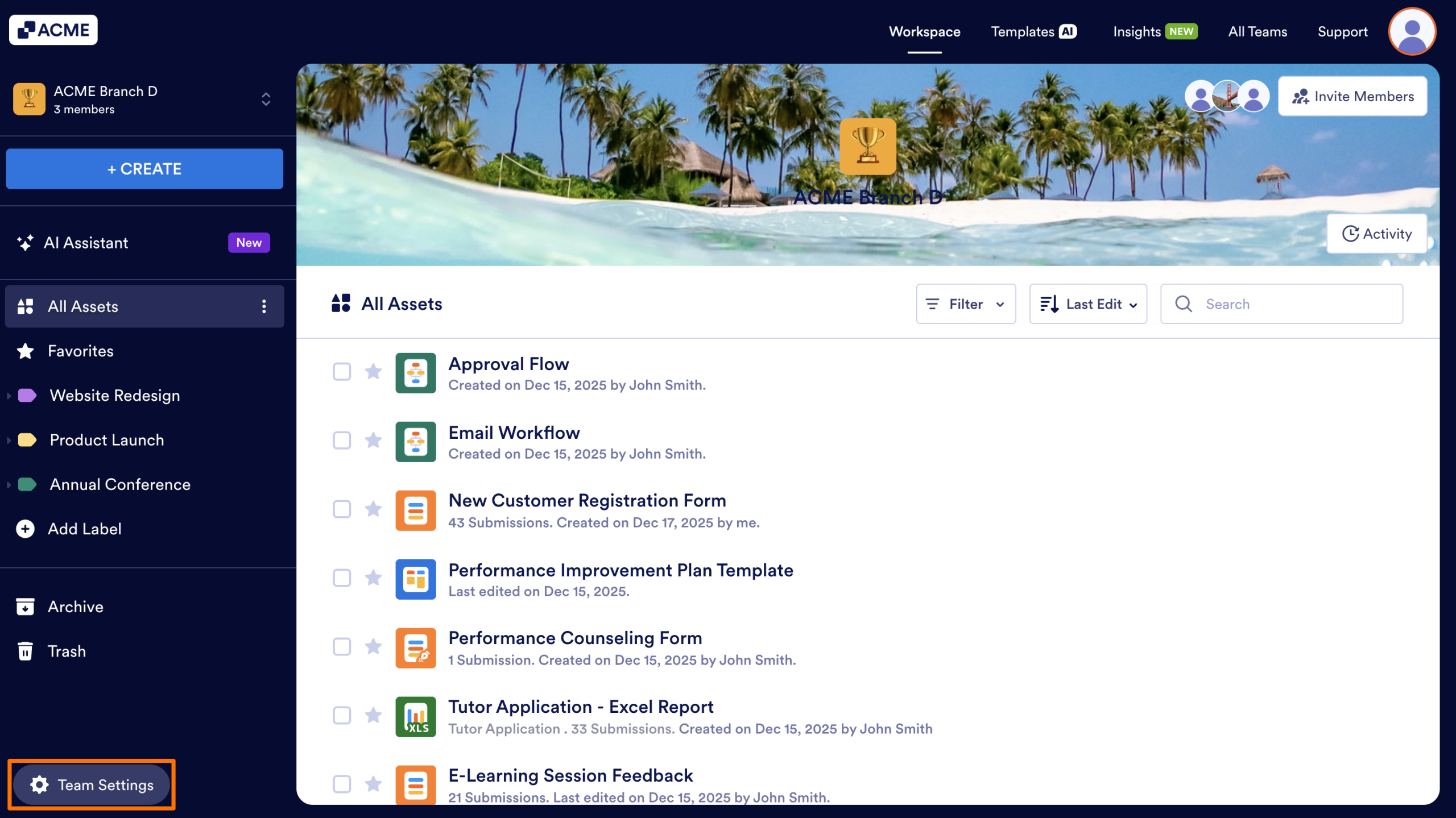
  1. First, in the Team Workspace, click on the Team Settings button in the bottom-left corner of the screen. 
How to Disable Log-in Requirements to View Submission Data Image-1
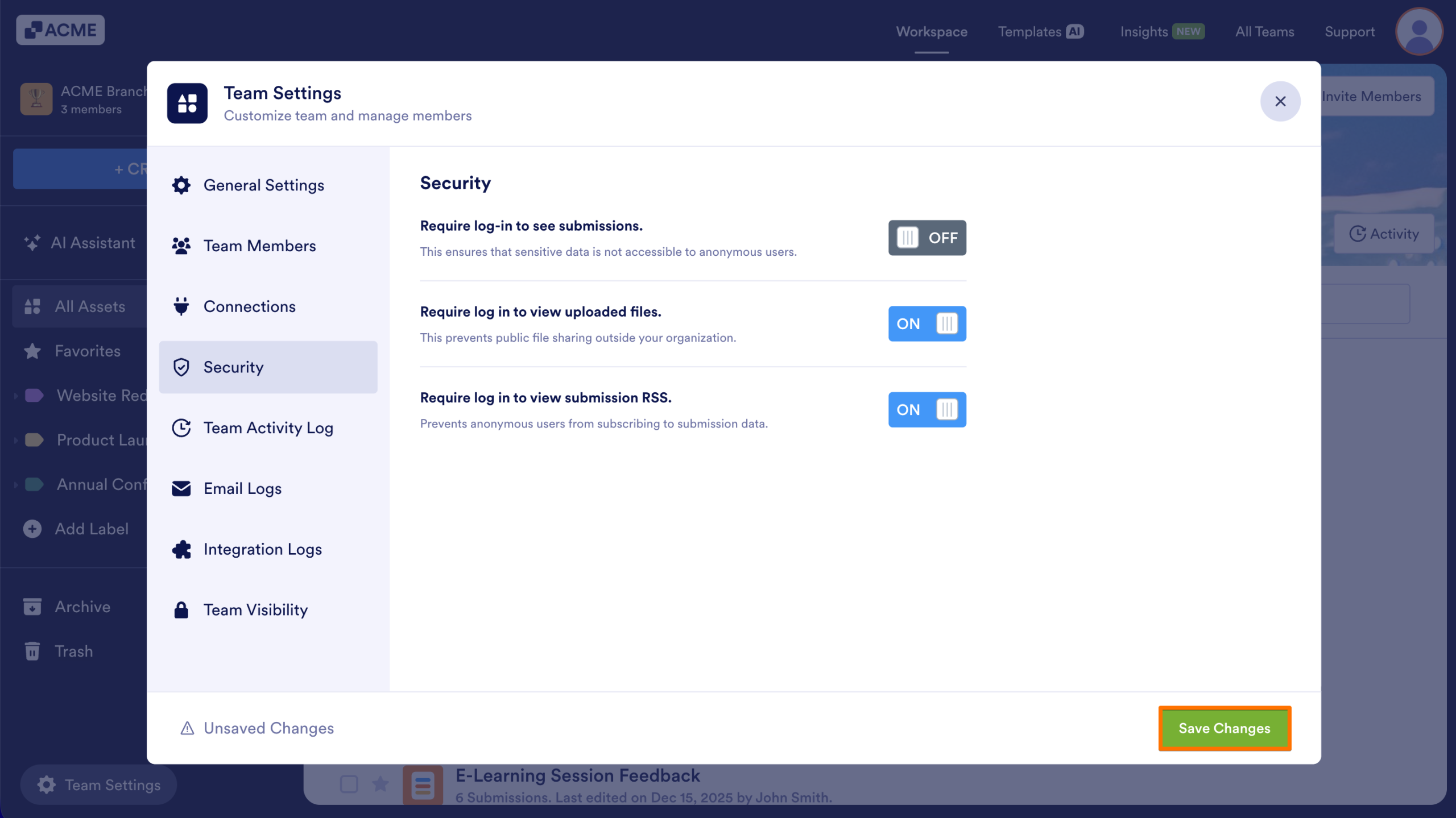
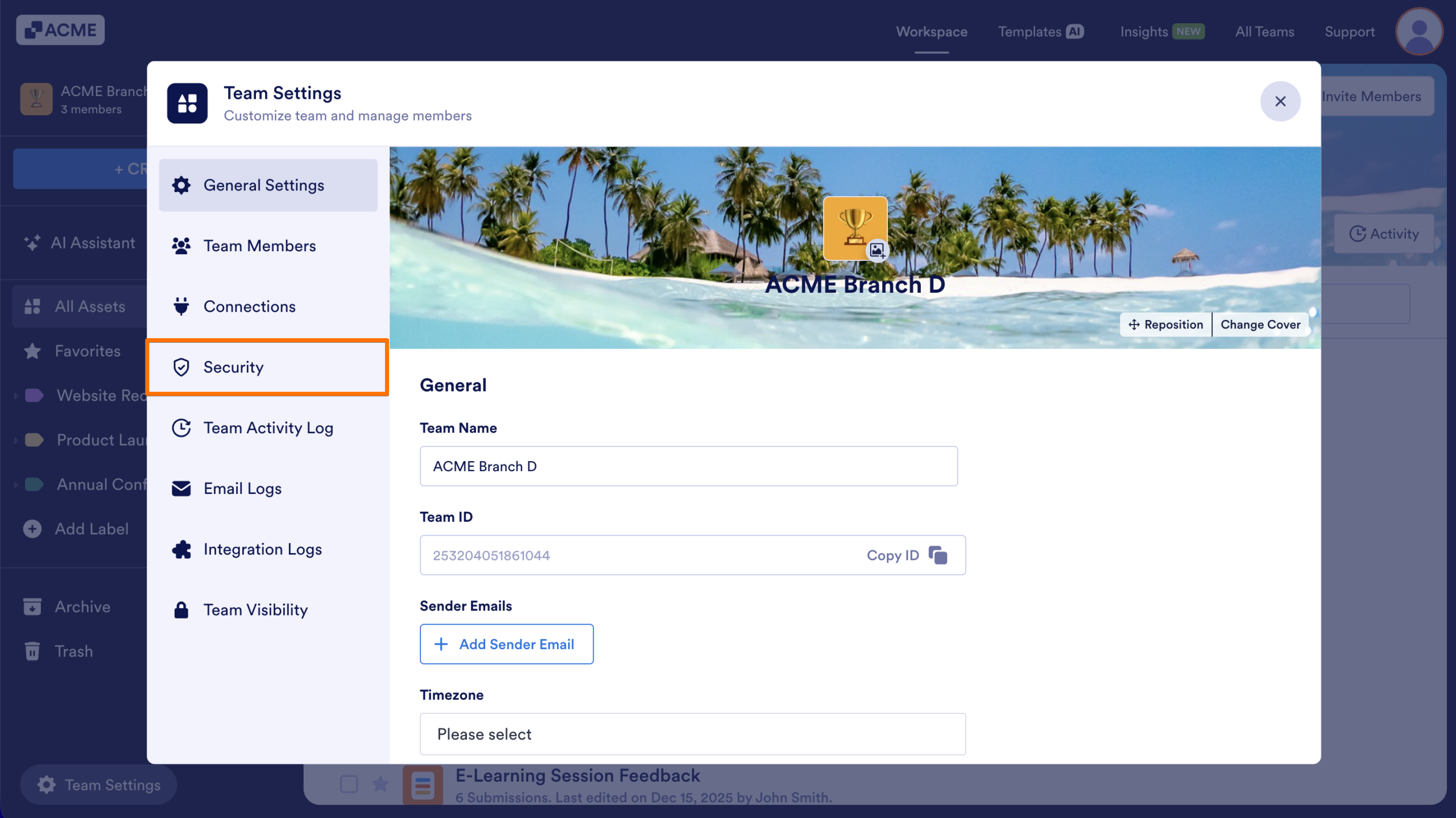
  1. Next, click on Security in the sidebar of the menu that appears on your screen.
How to Disable Log-in Requirements to View Submission Data Image-2
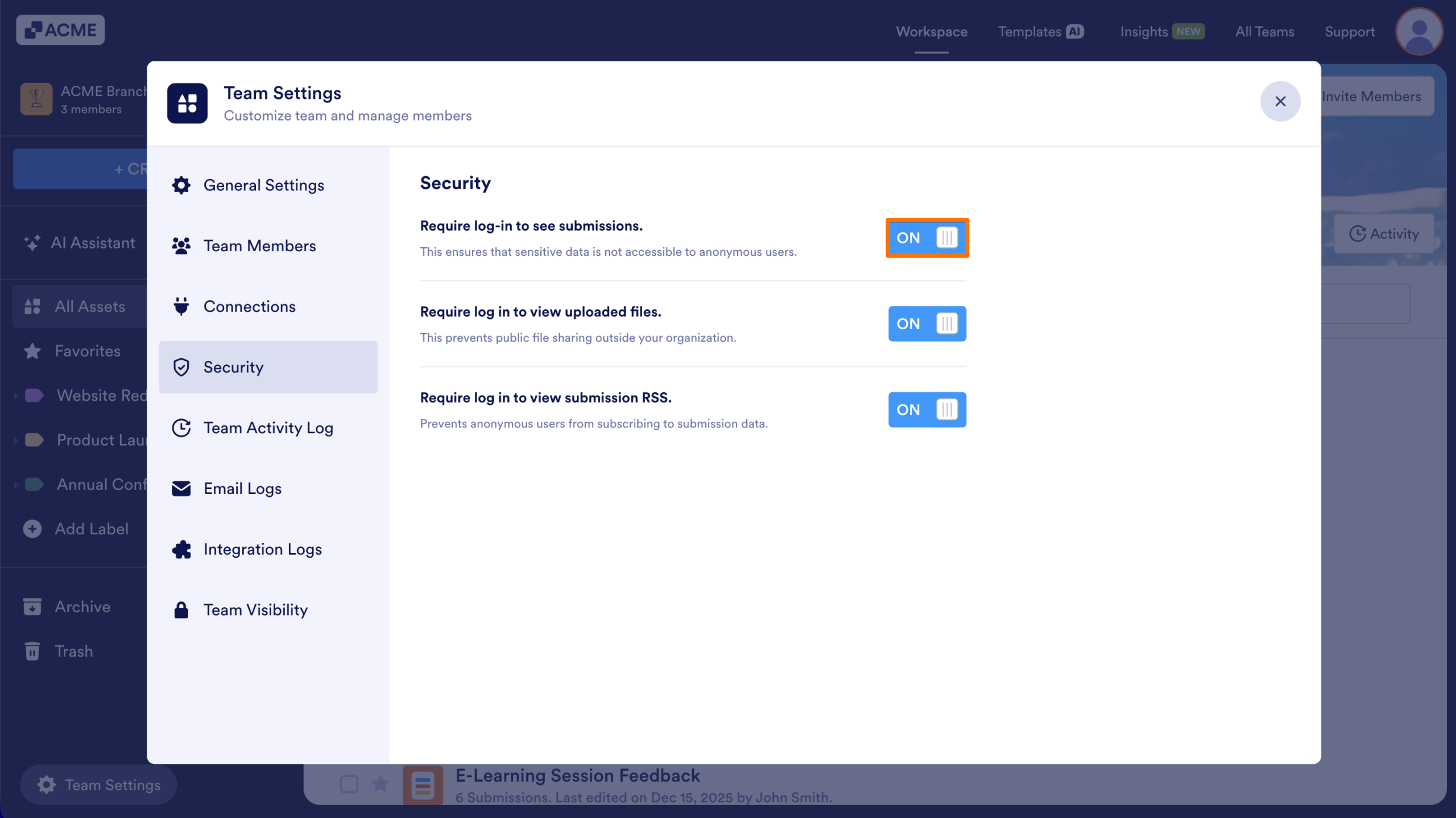
  1. Then, toggle Require log-in to see submissions to off.
How to Disable Log-in Requirements to View Submission Data Image-3
  1. Save changes.
How to Disable Log-in Requirements to View Submission Data Image-4

Users with the Share Link will now be able to view submission data without needing an account.

How to Get Share Links for Submission Data

Sharing a Table

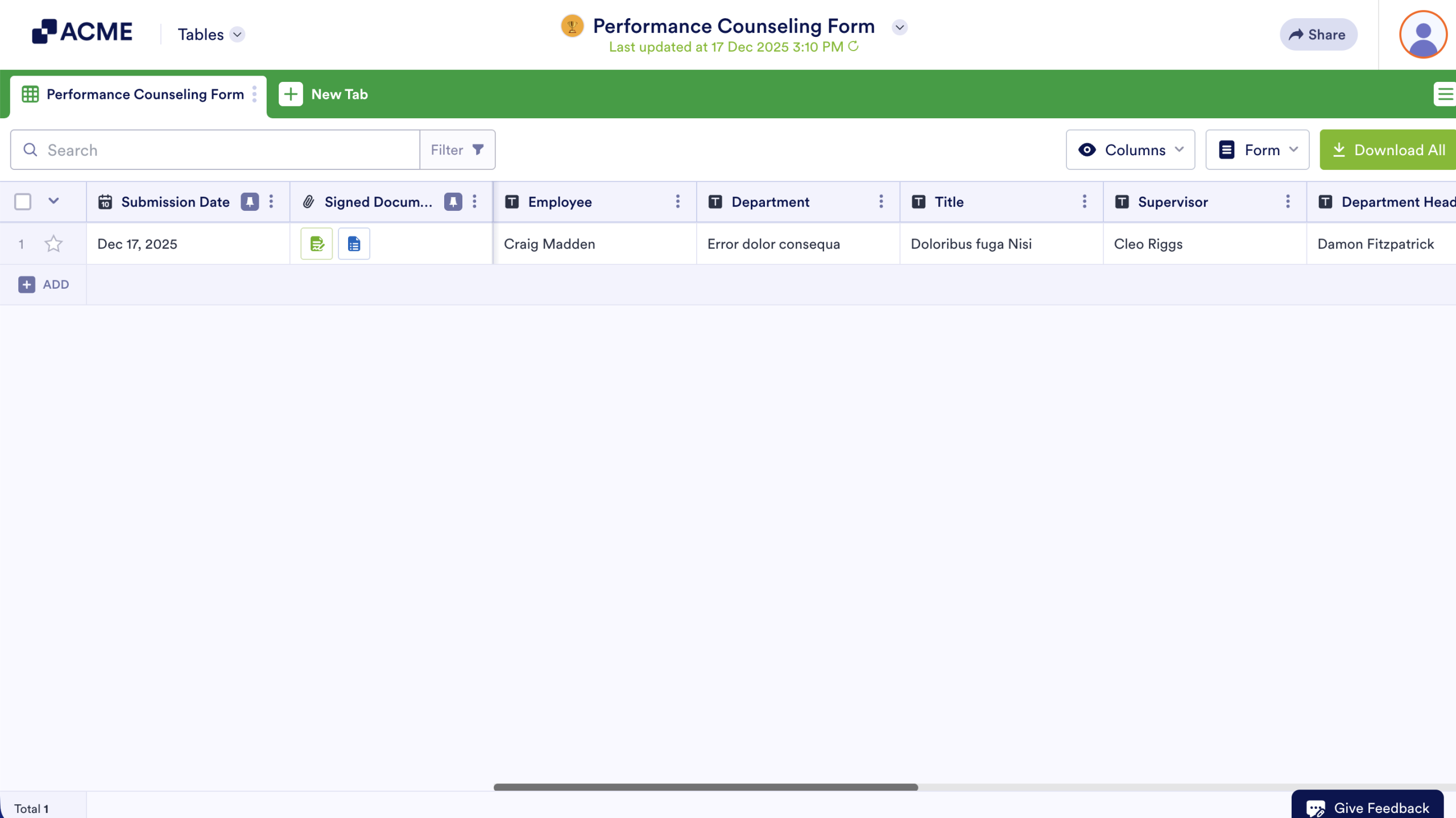
  1. First, open the Table where submission data is stored.
How to Disable Log-in Requirements to View Submission Data Image-5
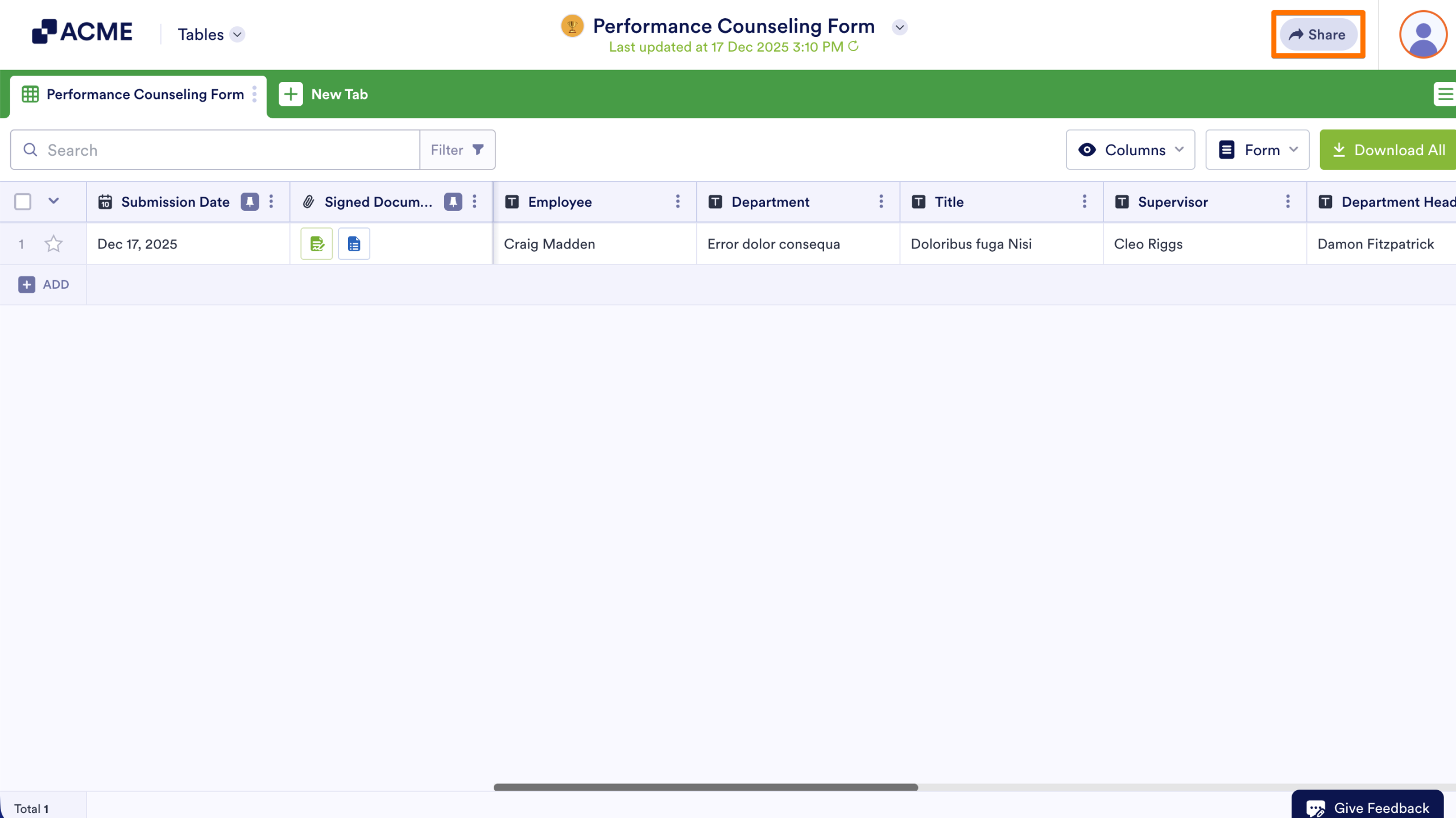
  1. Next, click the Share button in upper right corner of the screen.
How to Disable Log-in Requirements to View Submission Data Image-6
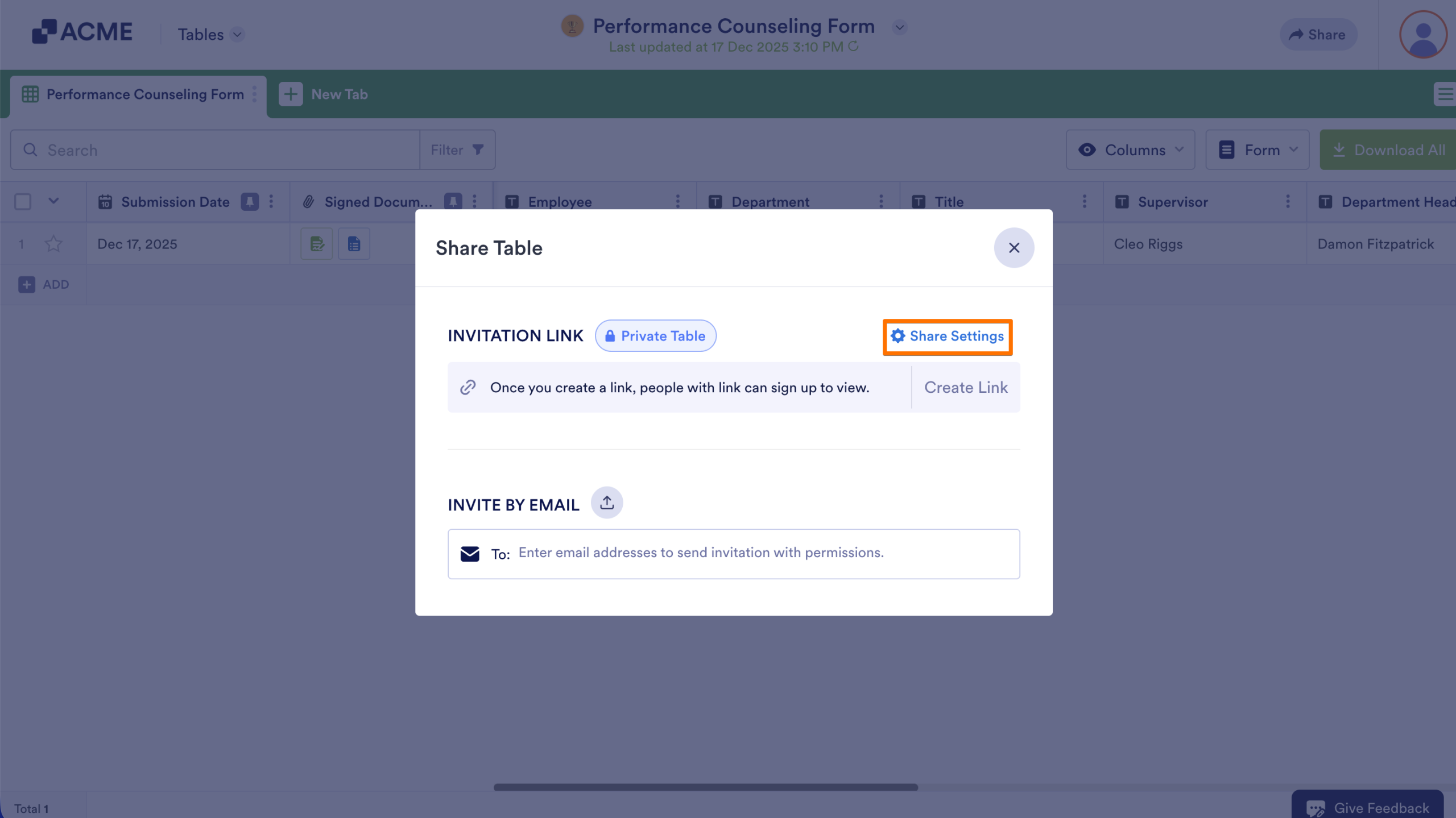
  1. Then, click on Share Settings.
How to Disable Log-in Requirements to View Submission Data Image-7
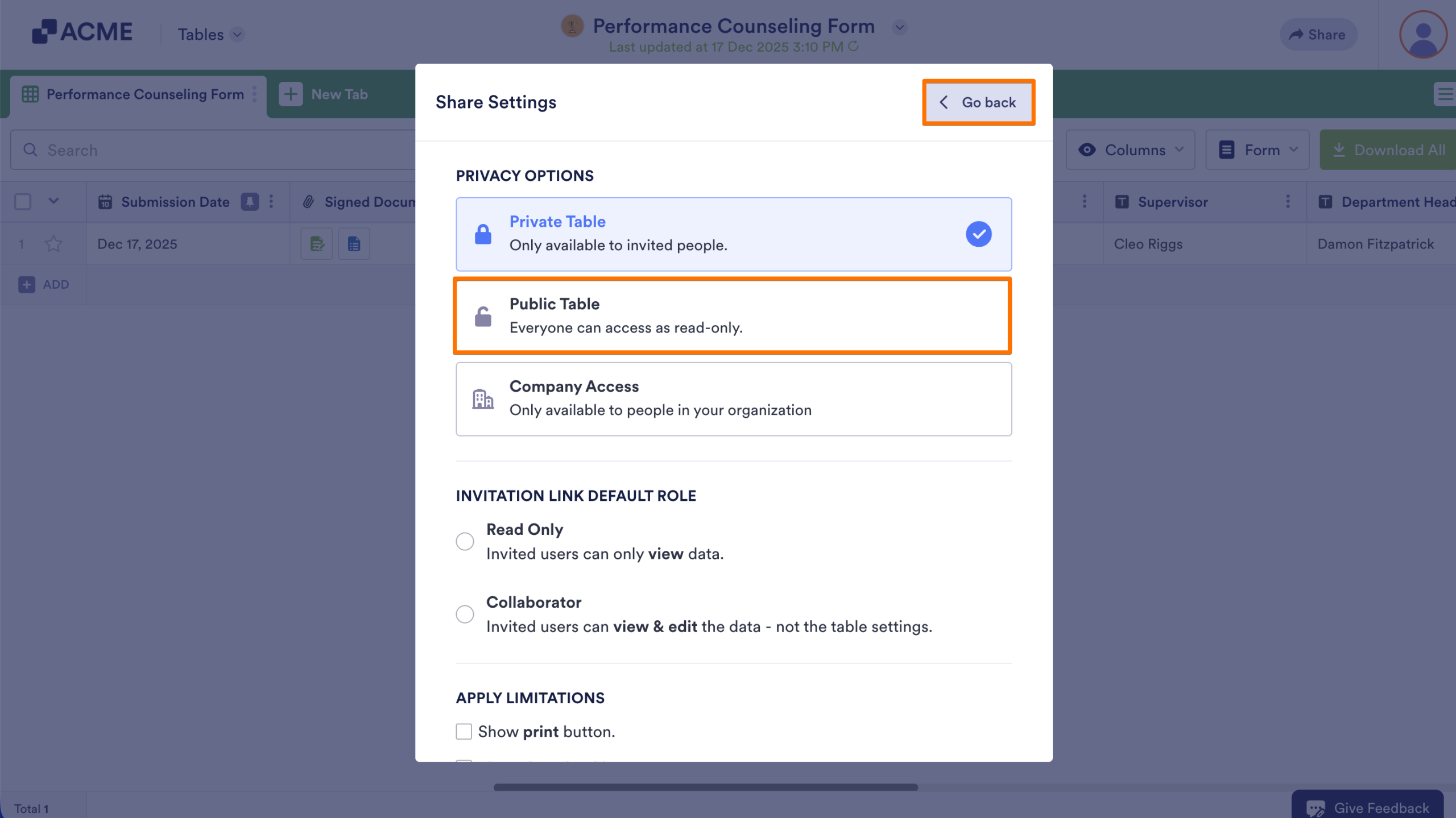
  1. Select the Public Table and go back to the Share menu.
How to Disable Log-in Requirements to View Submission Data Image-8
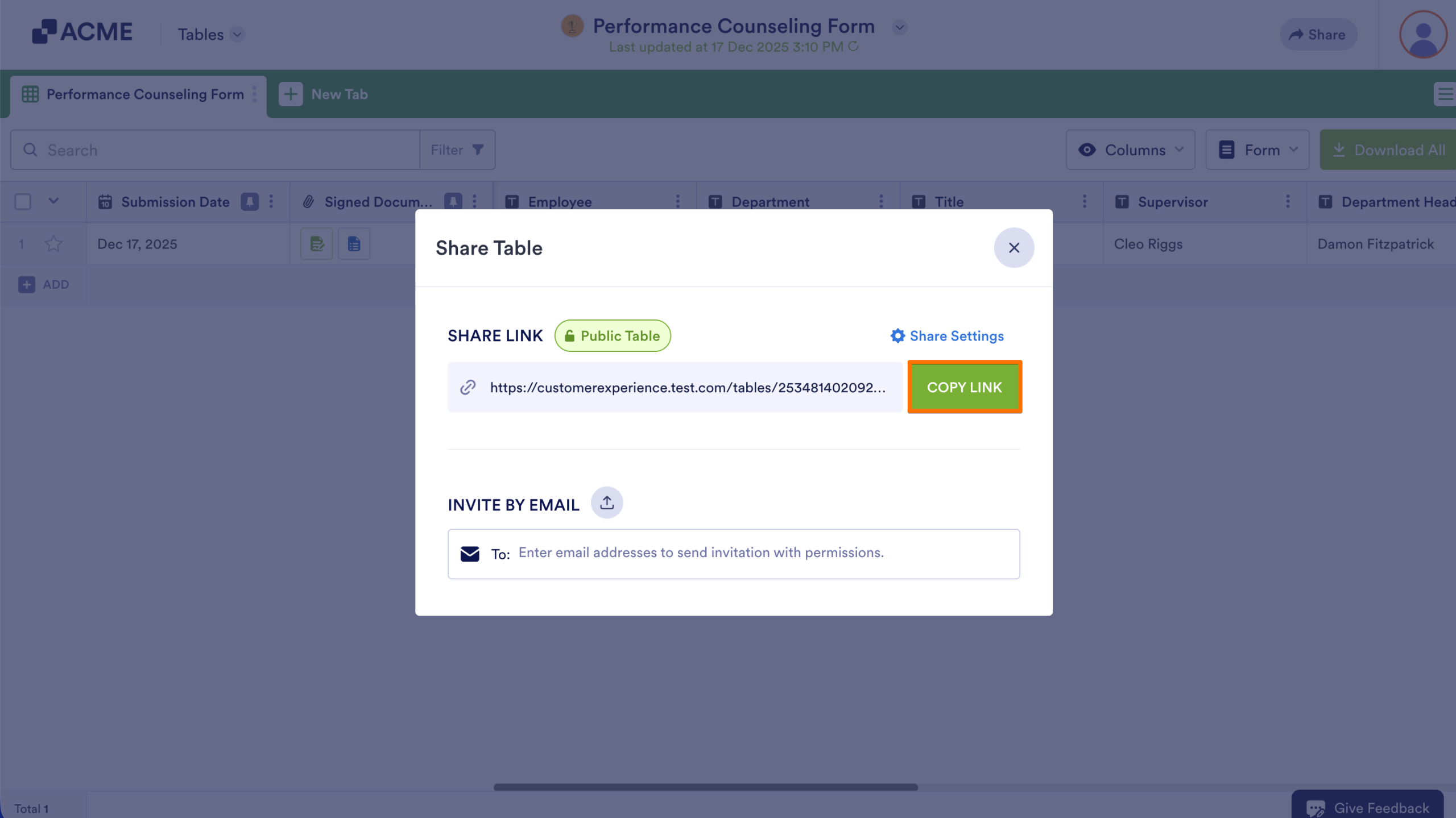
  1. Finally, copy the link that appears and provide it to anyone who needs to access to the Table.
How to Disable Log-in Requirements to View Submission Data Image-9

Sharing a Report

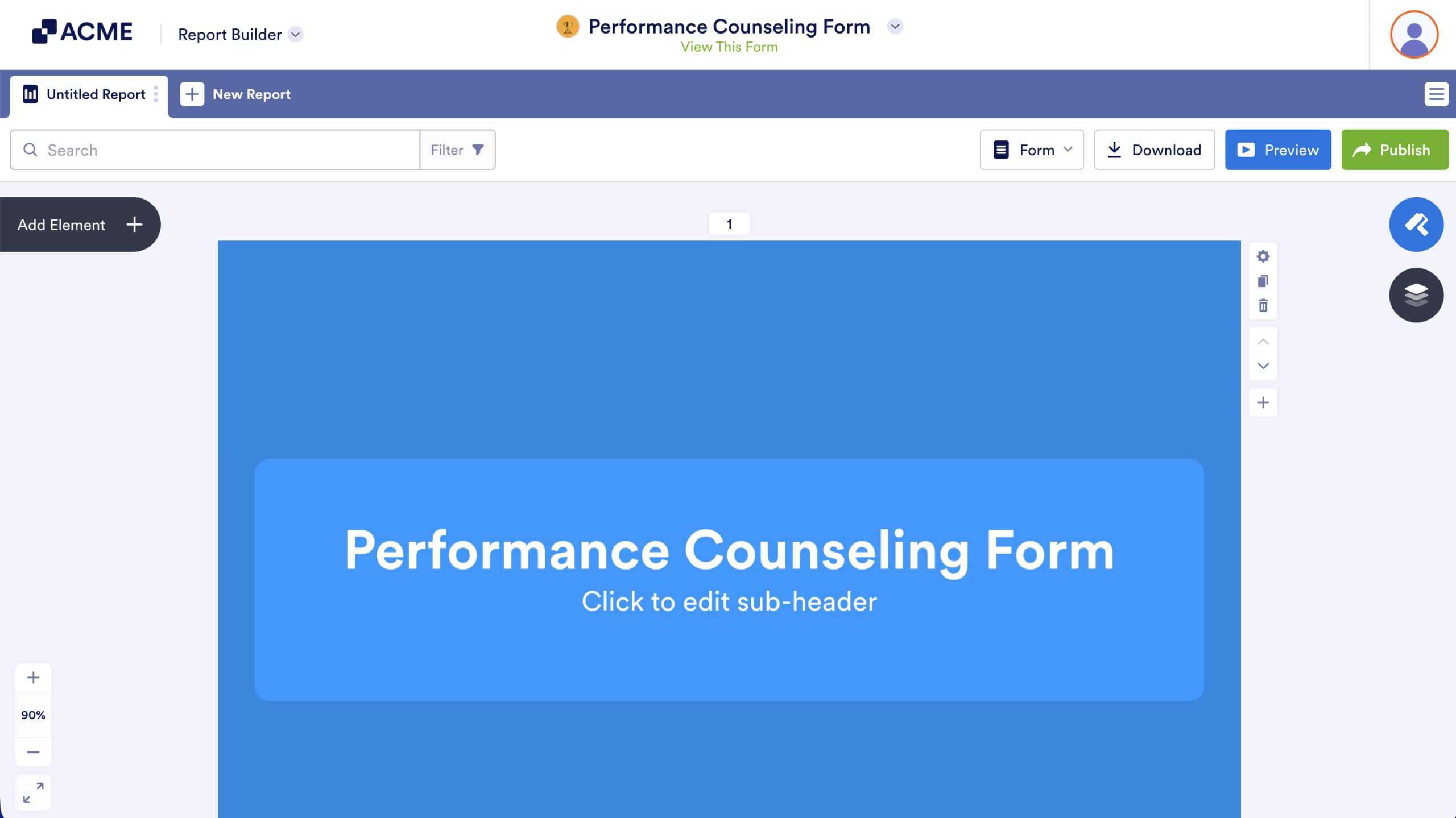
  1. First, open the Report you want to share.
How to Disable Log-in Requirements to View Submission Data Image-10
  1. Next, click on the Publish button in the upper right corner of the screen.
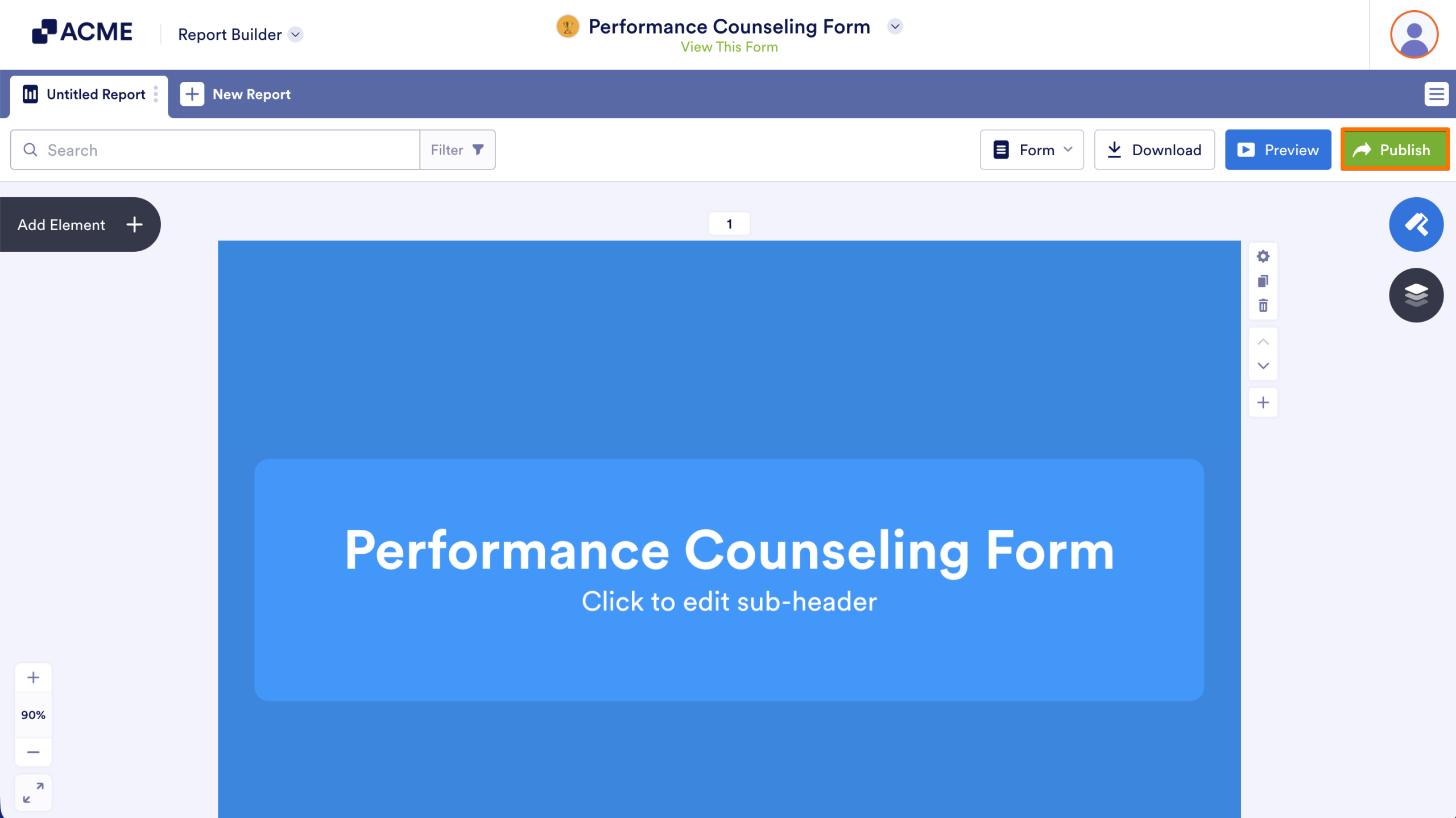
How to Disable Log-in Requirements to View Submission Data Image-11
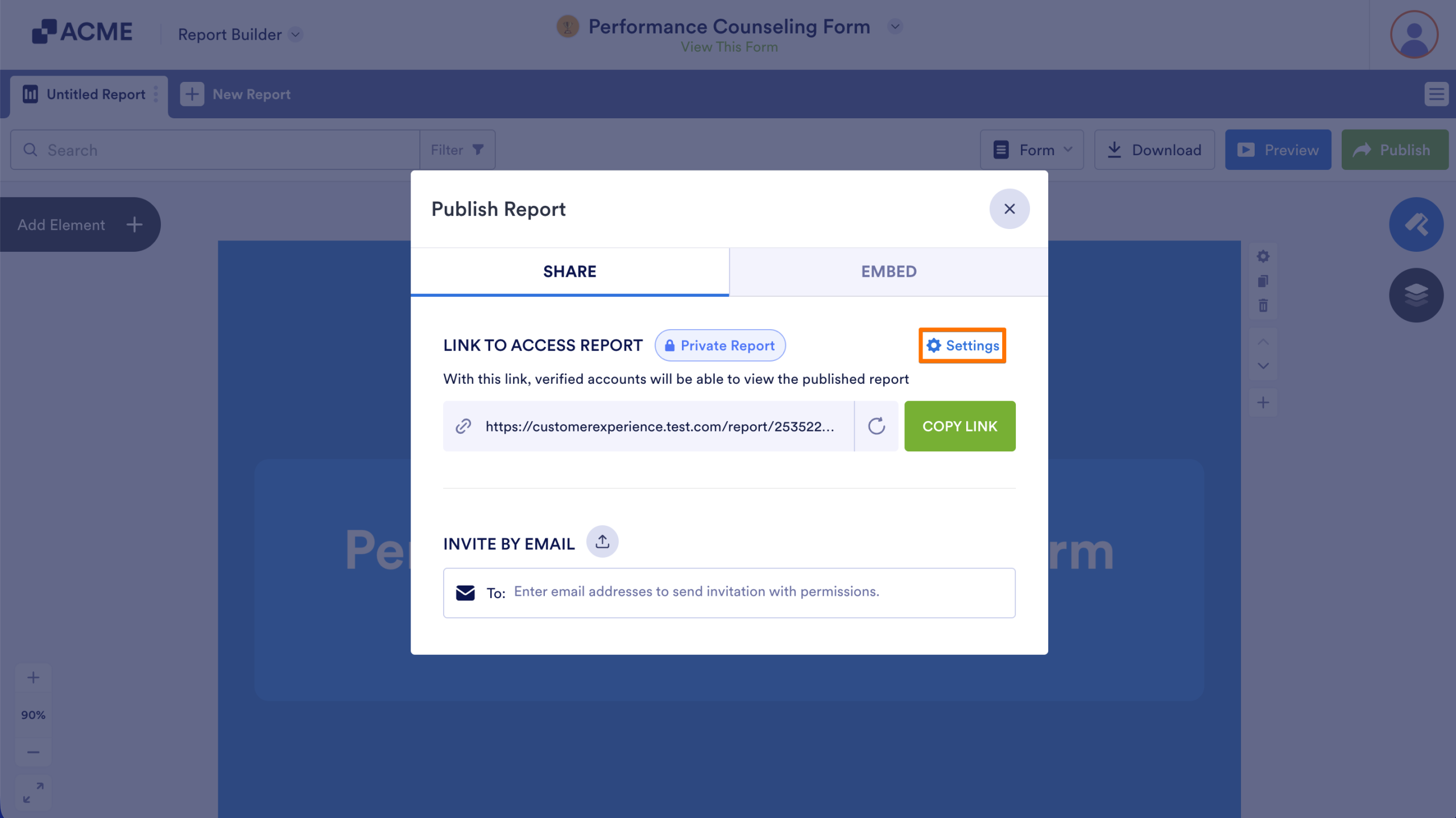
  1. Then, click on Settings 
How to Disable Log-in Requirements to View Submission Data Image-12
  1. Select the Public Report and go back to the Publish menu.
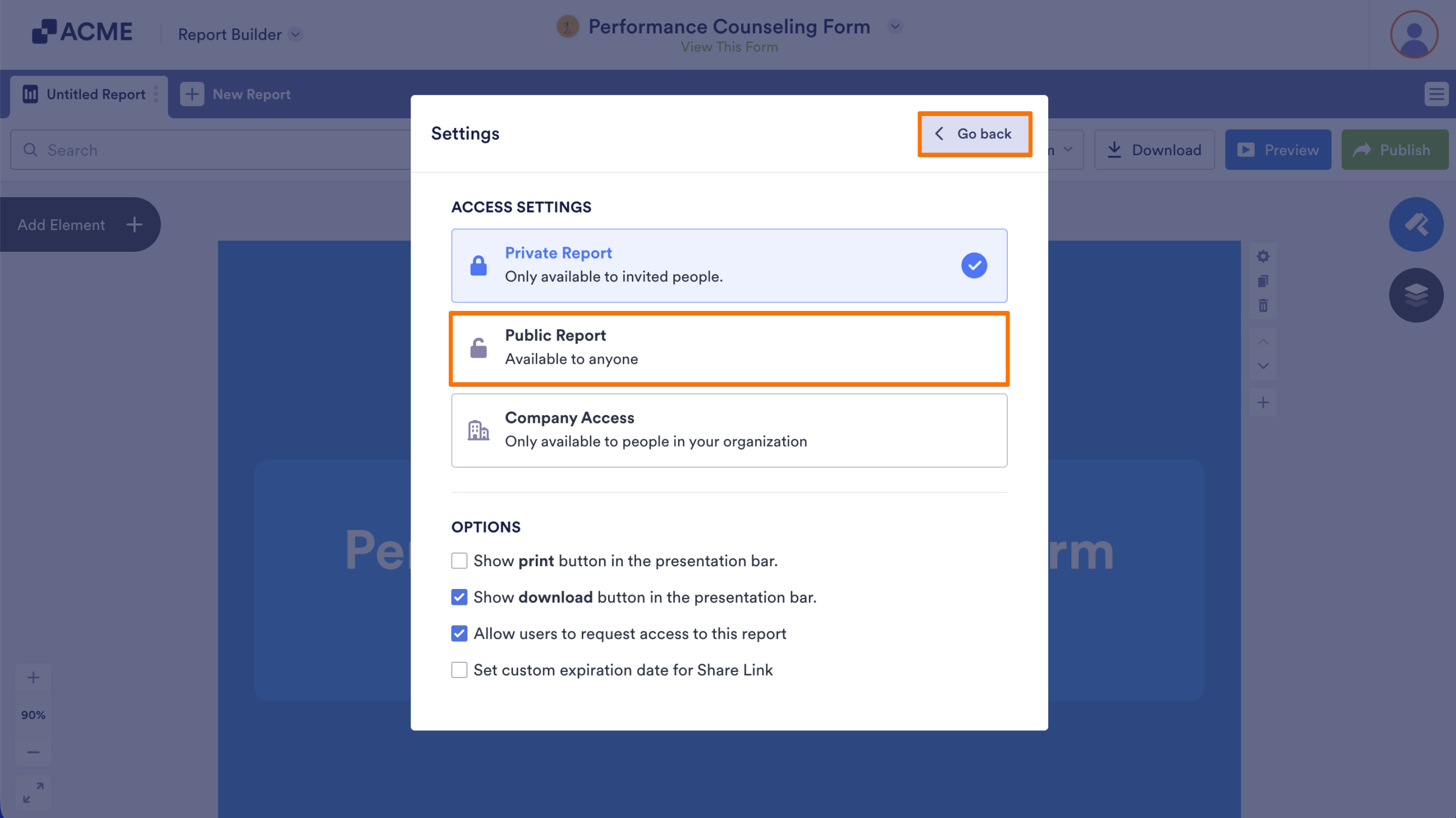
How to Disable Log-in Requirements to View Submission Data Image-13

Copy the generated link and provide it to anyone who needs to access to your Report.
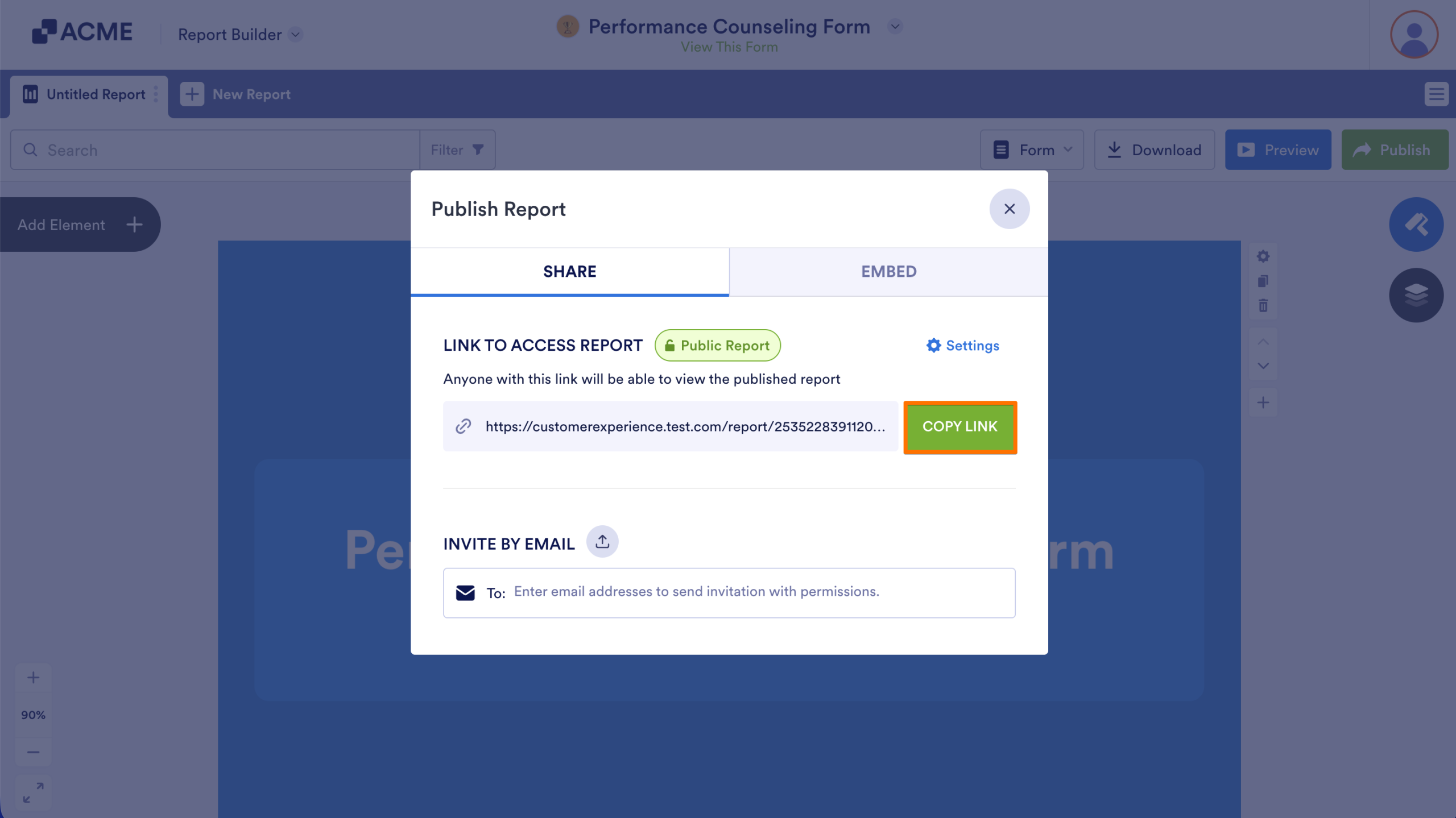
How to Disable Log-in Requirements to View Submission Data Image-14

Sharing an Inbox

  1. ​​First, open the Inbox for the Form whose submissions you want to share.
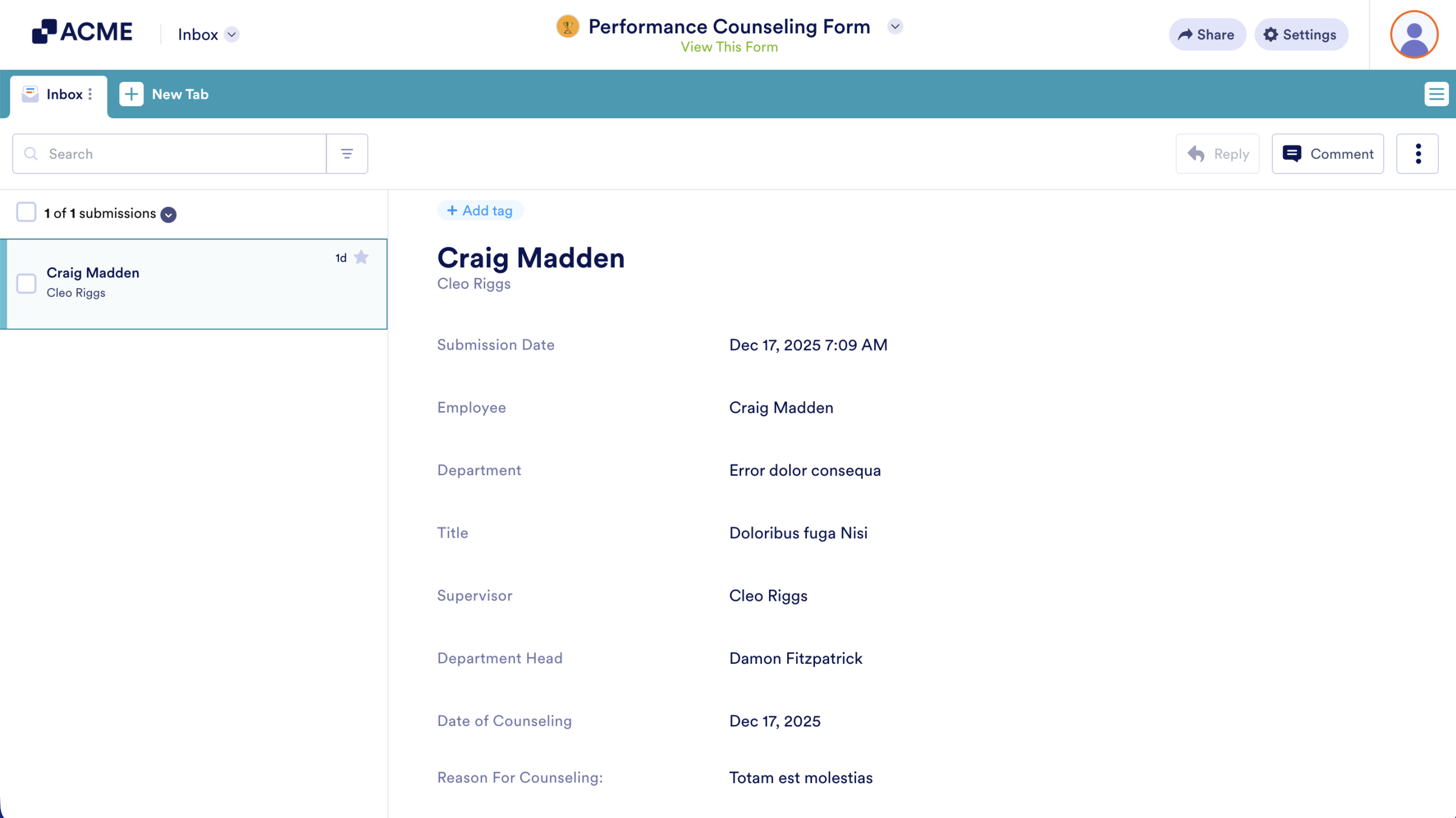
How to Disable Log-in Requirements to View Submission Data Image-15
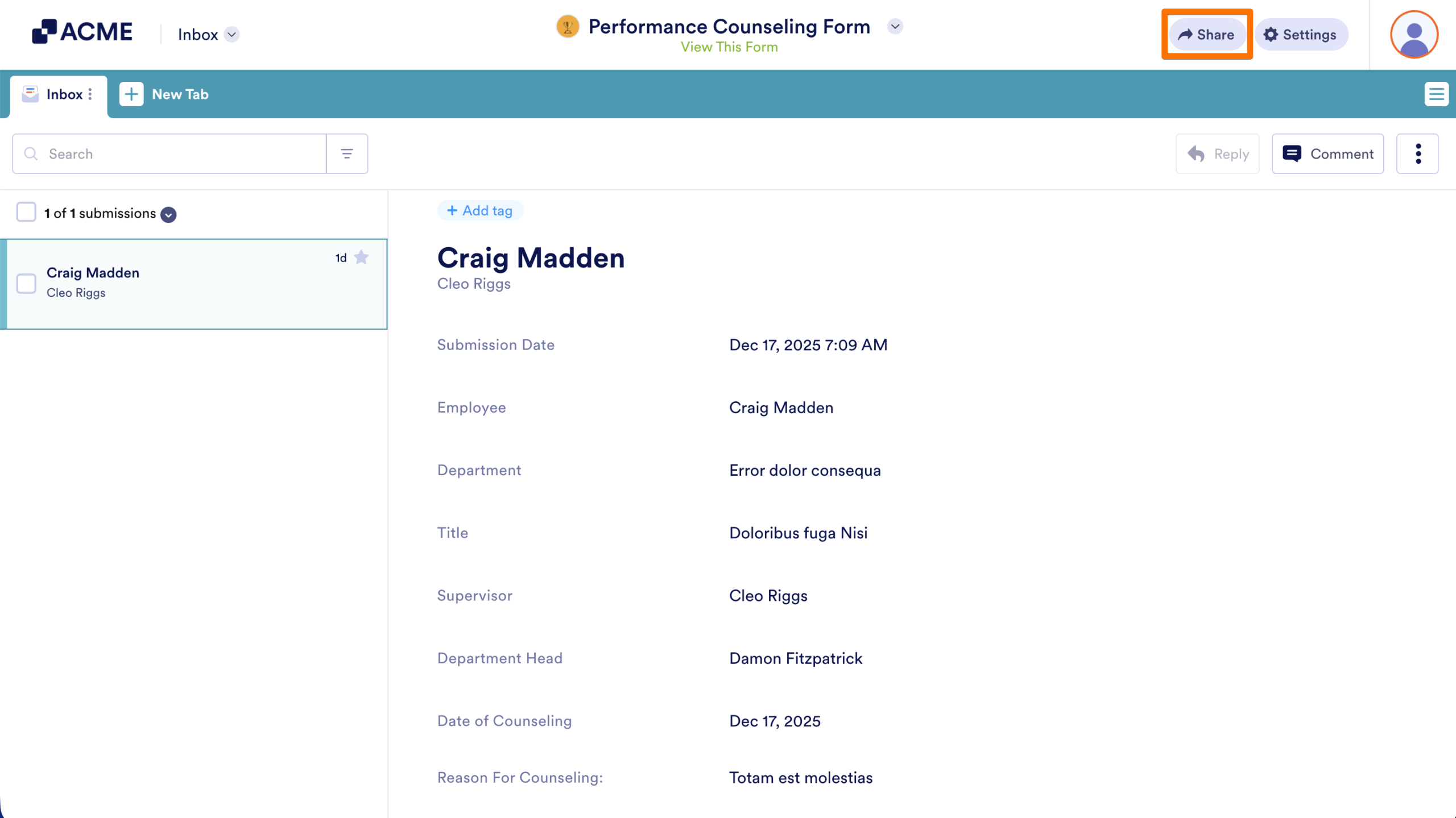
  1. Next, in the top right corner of the screen, click the Share button.
How to Disable Log-in Requirements to View Submission Data Image-16
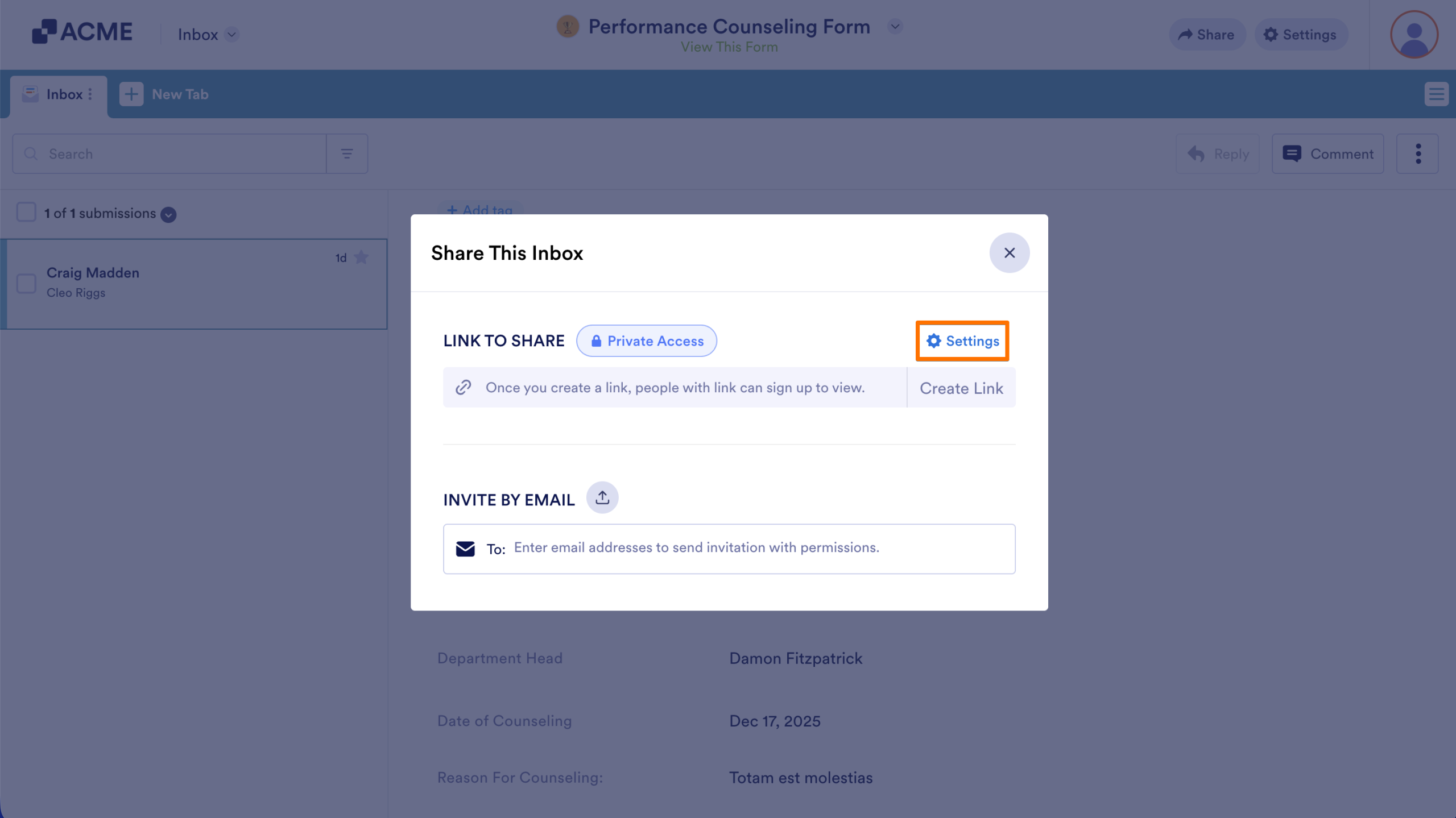
  1. Then, click on Settings
How to Disable Log-in Requirements to View Submission Data Image-17
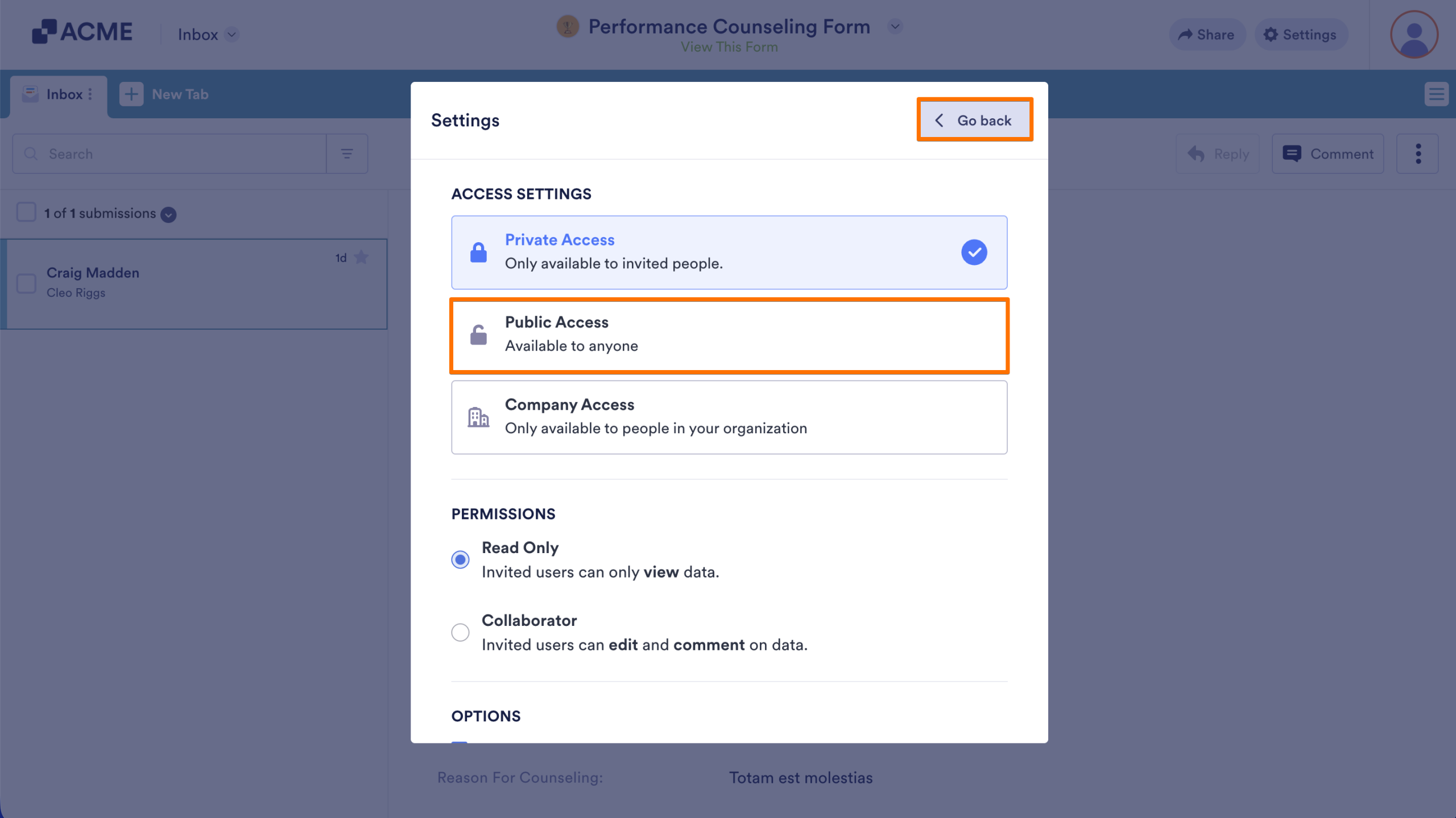
  1. Select Public Access and go back to the Publish menu.
How to Disable Log-in Requirements to View Submission Data Image-18
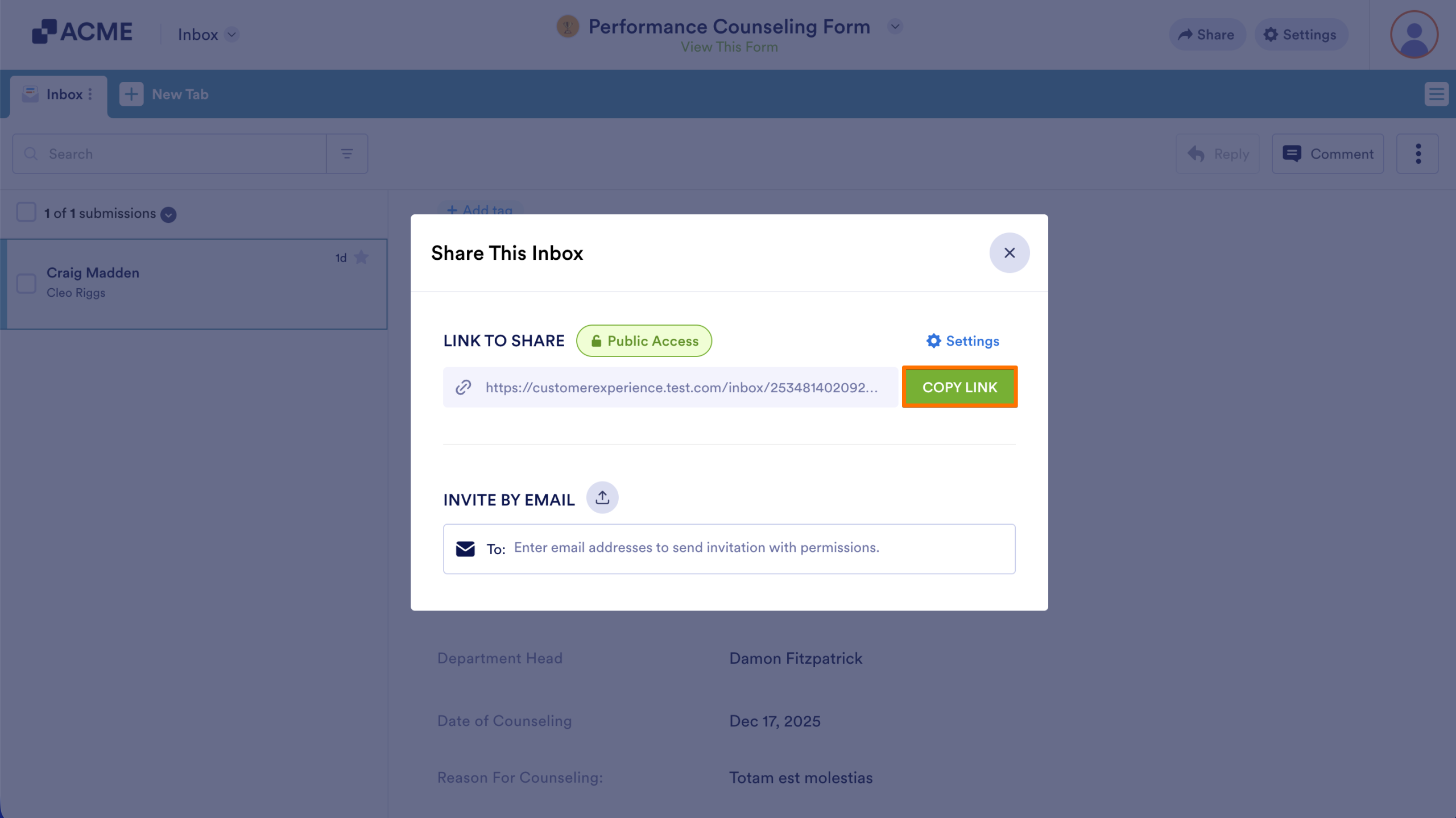
  1. Finally, copy the generated link and provide it to anyone who needs to access to your Form’s Inbox
How to Disable Log-in Requirements to View Submission Data Image-19

Send Comment:

Jotform Avatar
This site is protected by reCAPTCHA and the Google Privacy Policy and Terms of Service apply.

Podo Comment Be the first to comment.
Still have unanswered questions?

We’re here for you 24/7, anytime you need us day or night. Have a question or need a hand with something? Our team is always ready to help out.