Save and Continue Later, also known as Autofill or Continue Forms Later, offers ways for your form fillers to save their partially filled-out form. It is useful for long forms or forms with multiple pages.
Your form fillers can save their draft to their account, copy the draft link, or send it to their email address. Click the link below to jump to a specific topic of this guide:
- Enable Save and Continue Later
- Customize Save and Continue Later Email
- Discard & Start Over and Continue With Draft
- Save and Continue Later in Mobile Forms
- View Saved Drafts in Mobile Forms
Notes
The incomplete submission data or drafts that aren’t submitted within two months will be automatically deleted.
The Save and Continue Later feature does not work with the following elements and widgets:
- Appointment element
- Unique ID widget
- Inventory widget
- Weekly Appointment Planner widget
- Gift Registry widget
The Save and Continue Later feature will not work when embedding your form using the default script method. We recommend the iframe method if you want the save button to appear when the form is embedded on your website.
Enable Save and Continue Later
To enable save and continue later:
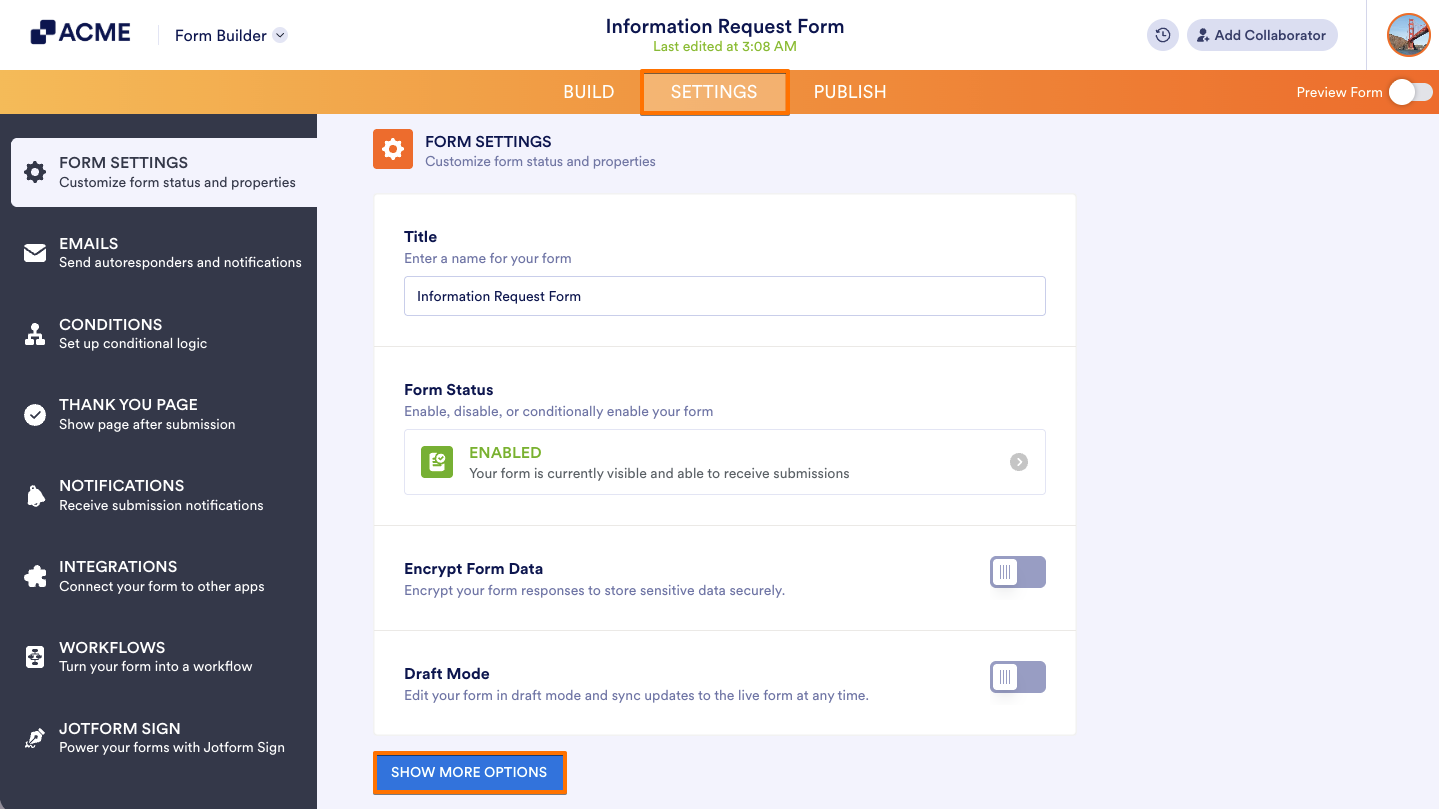
- In the Form Builder, in the orange navigation bar at the top of the screen, click on the Settings.
- In the page that opens, at the bottom, select Show More Options.
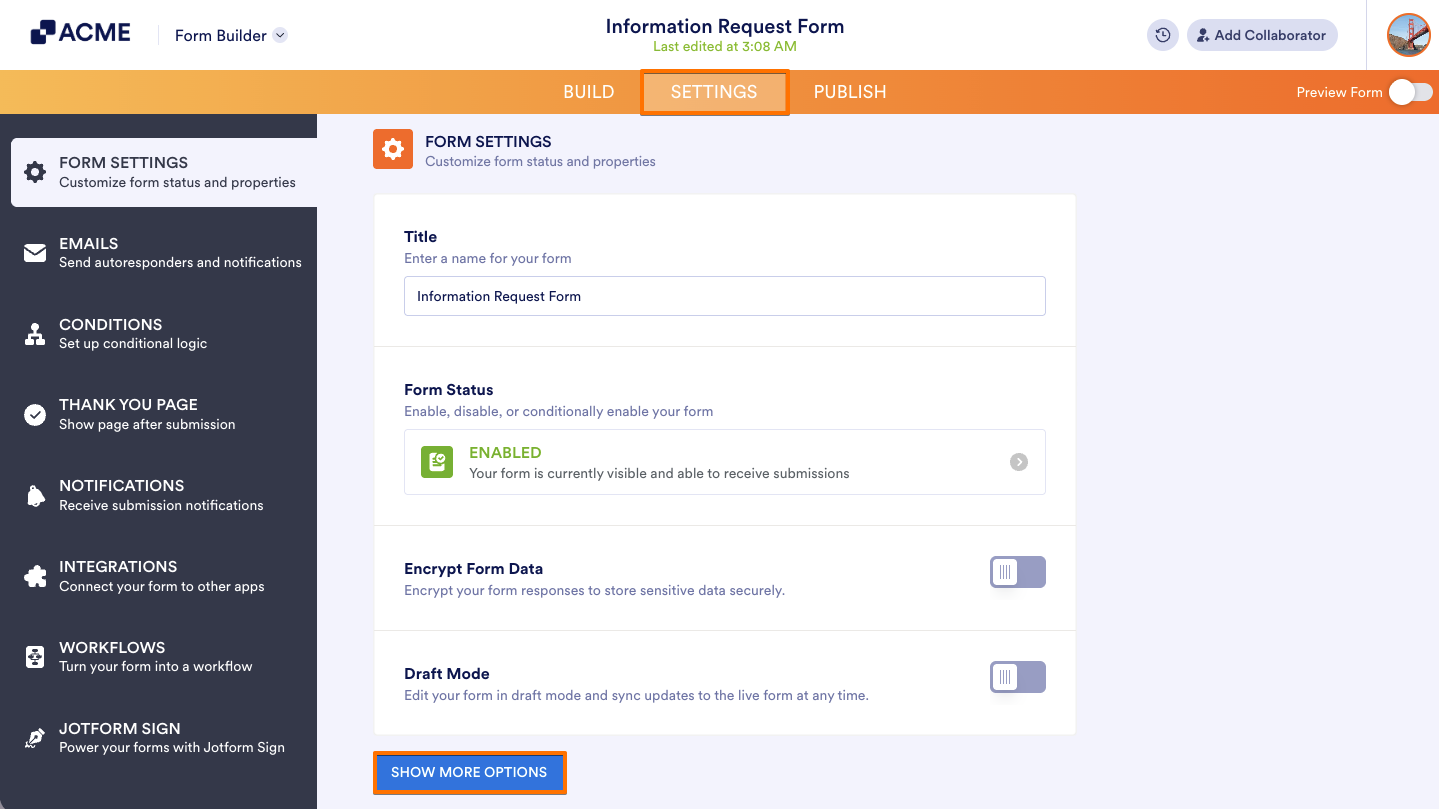
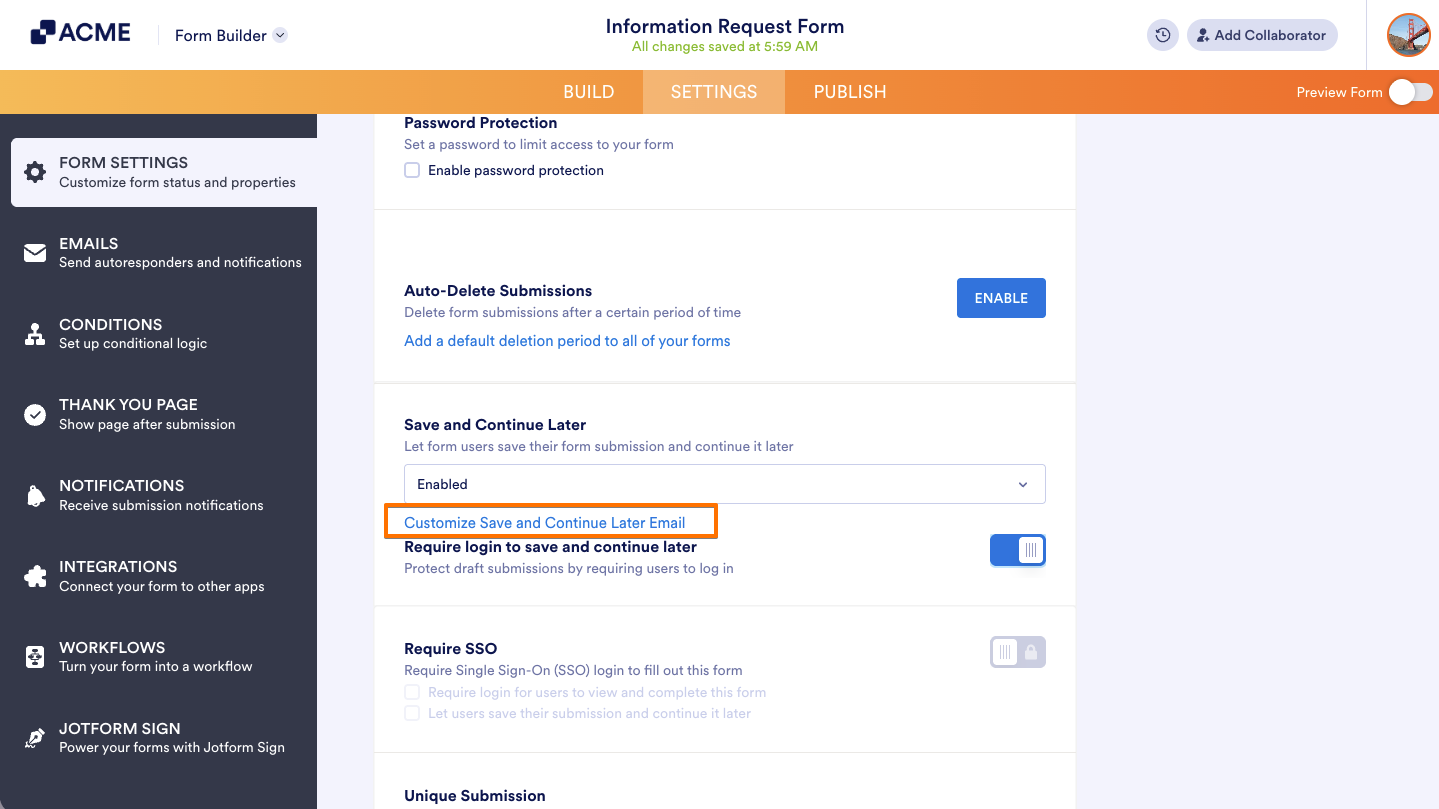
- Scroll down to Continue Forms Later and click on the dropdown menu.
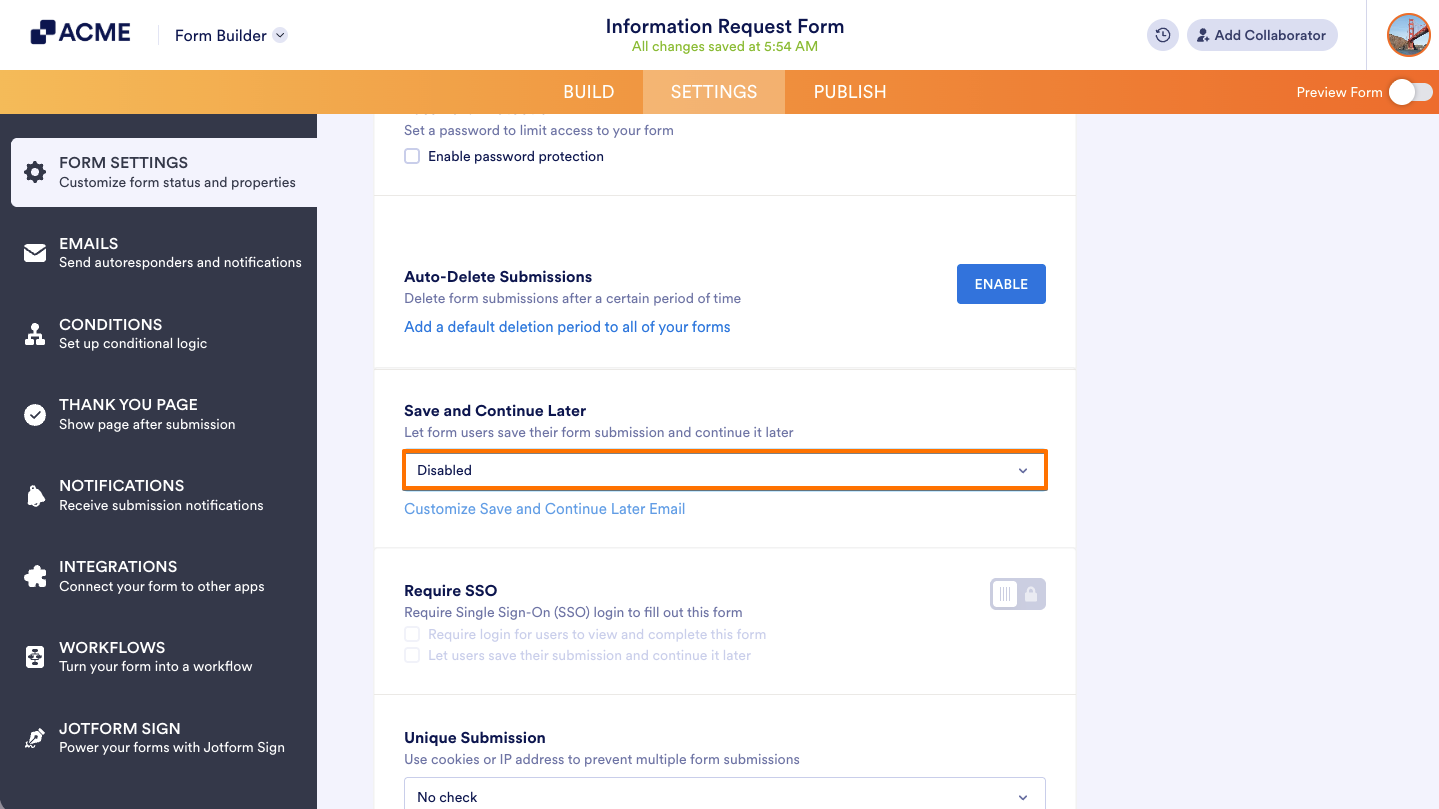
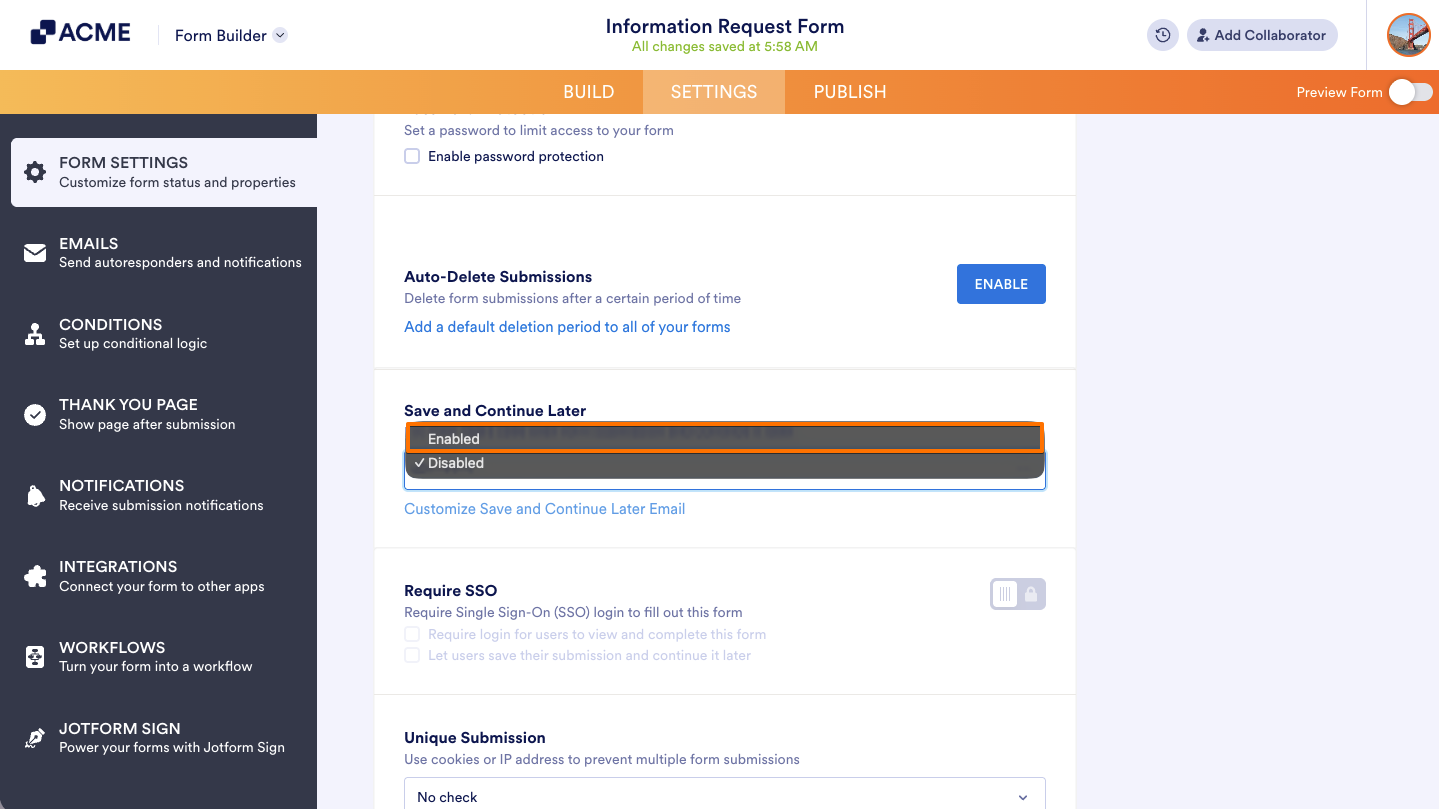
- And select Enabled.
Note
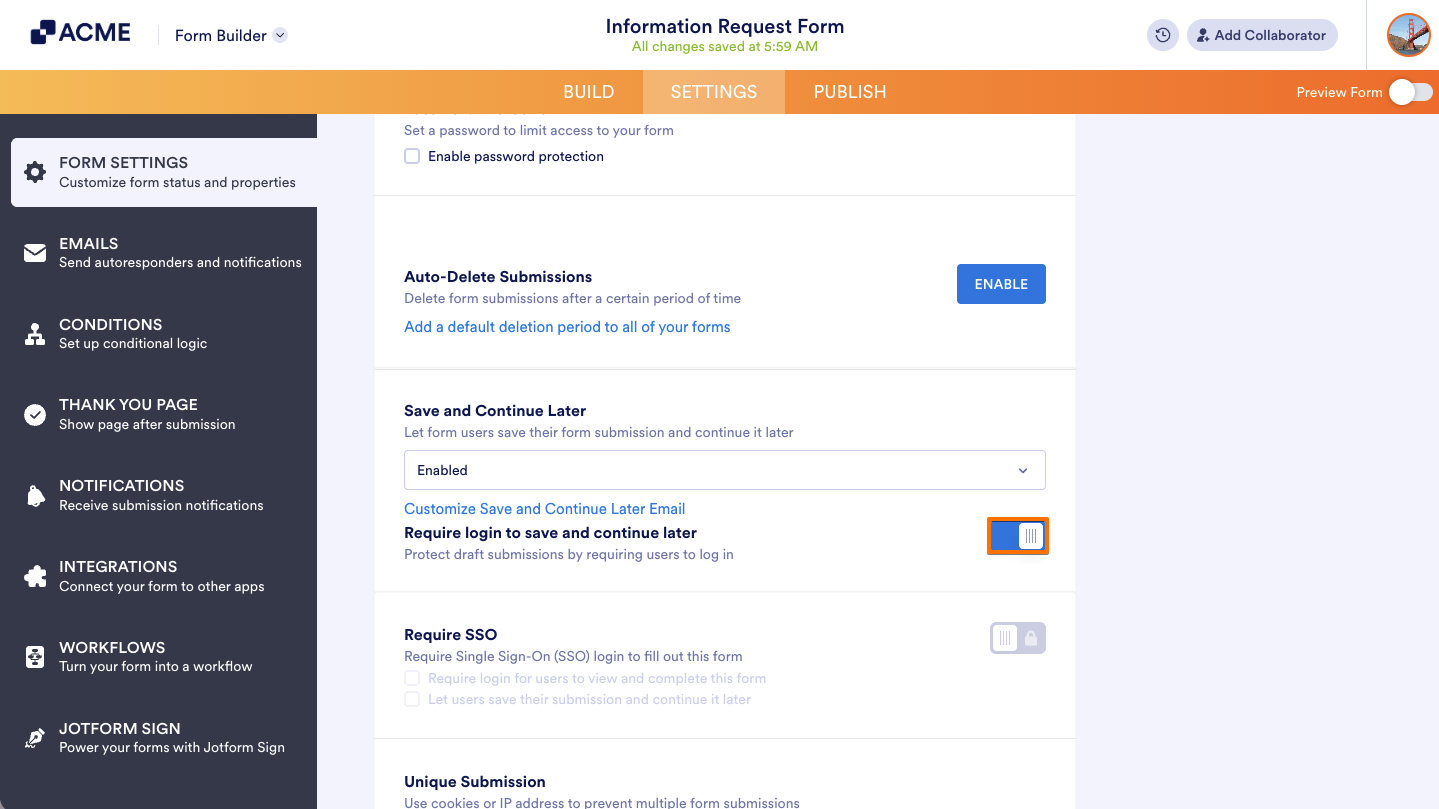
You can toggle on Require login to save and continue later to protect draft submissions by requiring users to log in.
Customizing the Save and Continue Later Email
Once Save and Continue Later is enabled on your form, you can customize the message for your form fillers if they decide to save their partial data and have their draft link sent to their email. To edit the email template:
- In the Form Builder, in the orange navigation bar at the top, go to Settings.
- In the page that opens, at the bottom, select Show More Options.
- Scroll down to Continue Forms Later and then select Customize Save and Continue Later Email.
- Edit the email template on the next page.
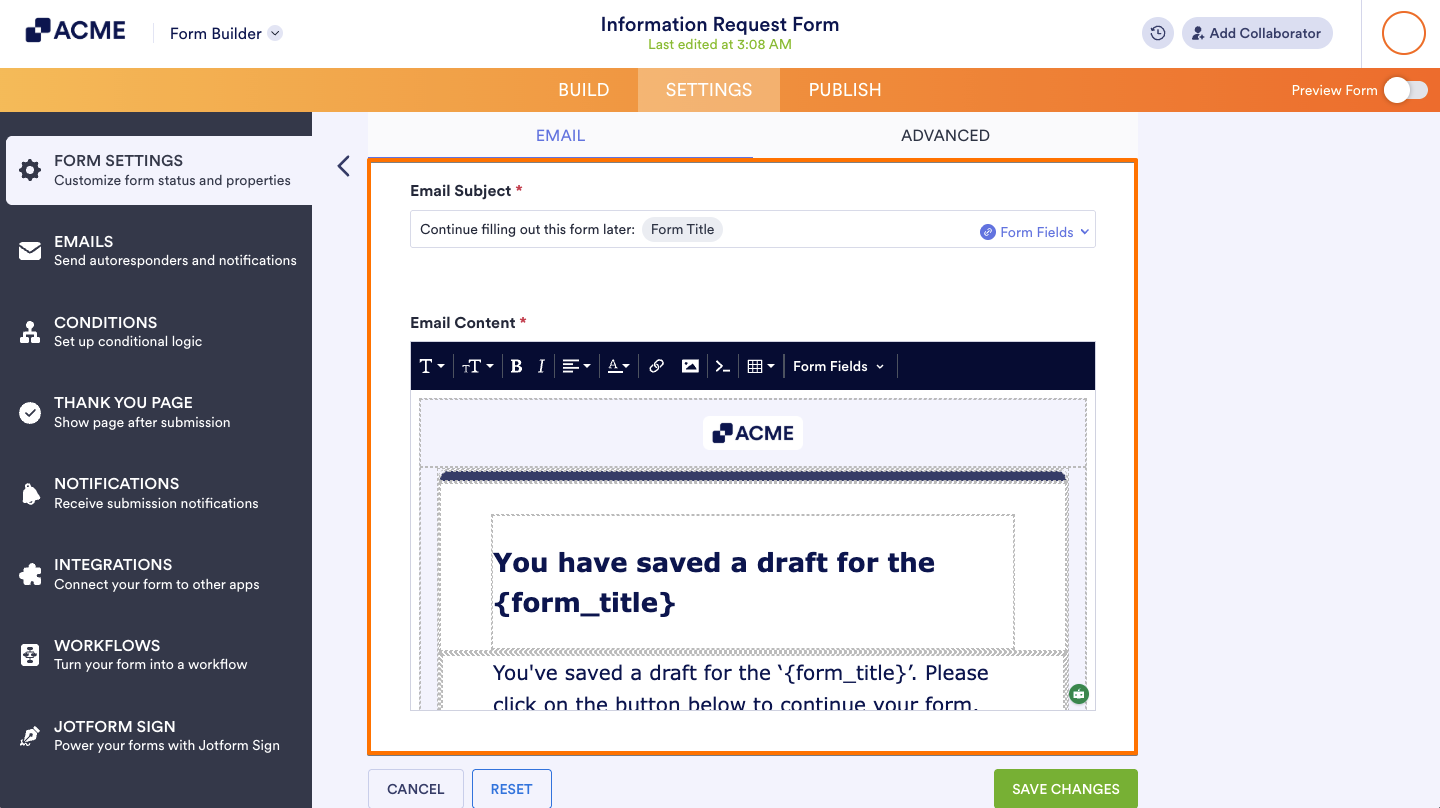
Here are the elements you can customize in the email editor:
- Email Subject — The email’s subject line.
- Email Content — The main body of the email. You can edit, format, or style it as you like.
Note
The Continue Form button holds the form fillers’ draft link. Keeping it is highly recommended.
- Sender Email — Can be found under the Advanced tab. You can configure it so your users receive emails from your own SMTP email instead of your organization’s email.
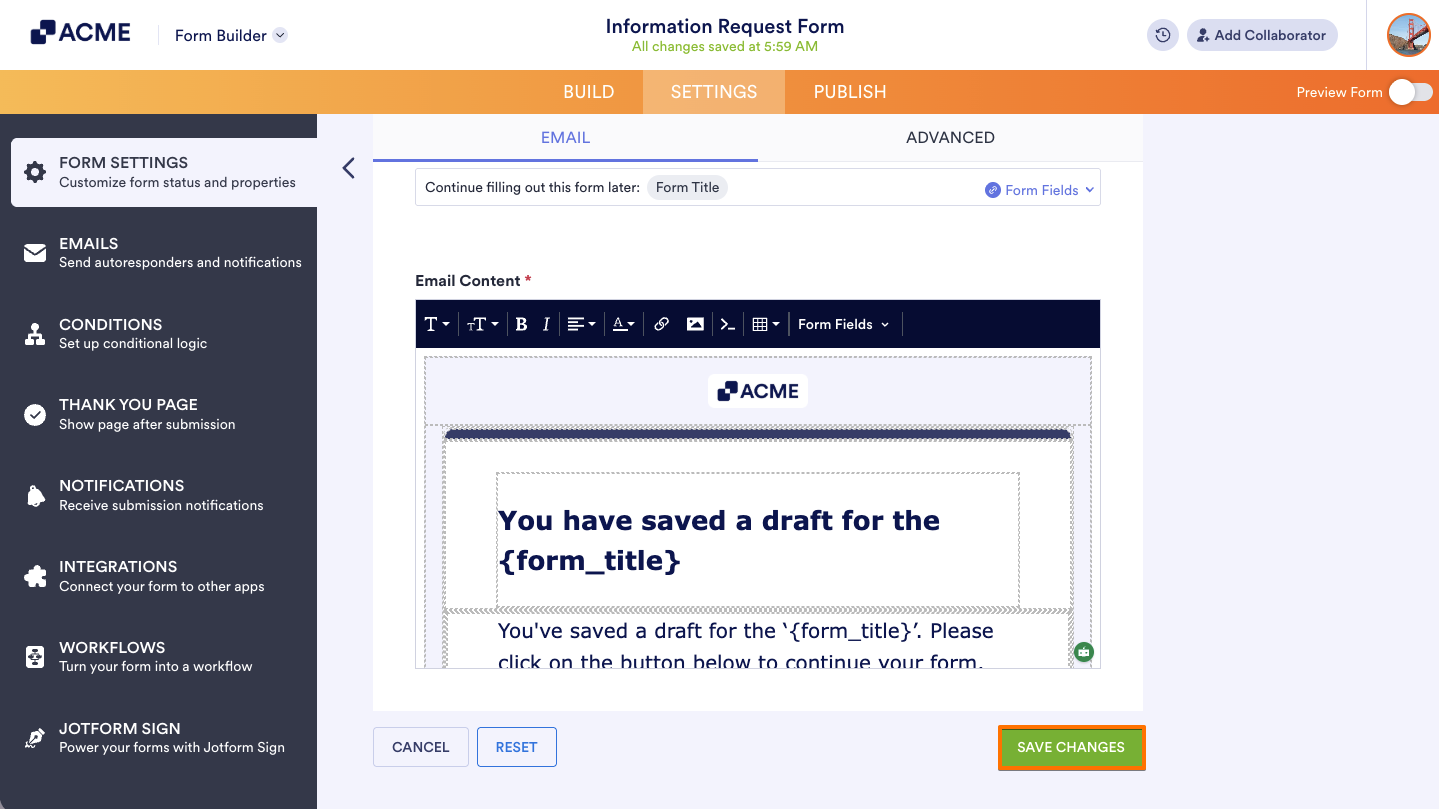
- When you’re done, scroll down to the bottom and select Save Changes.
Discard & Start Over and Continue With Draft
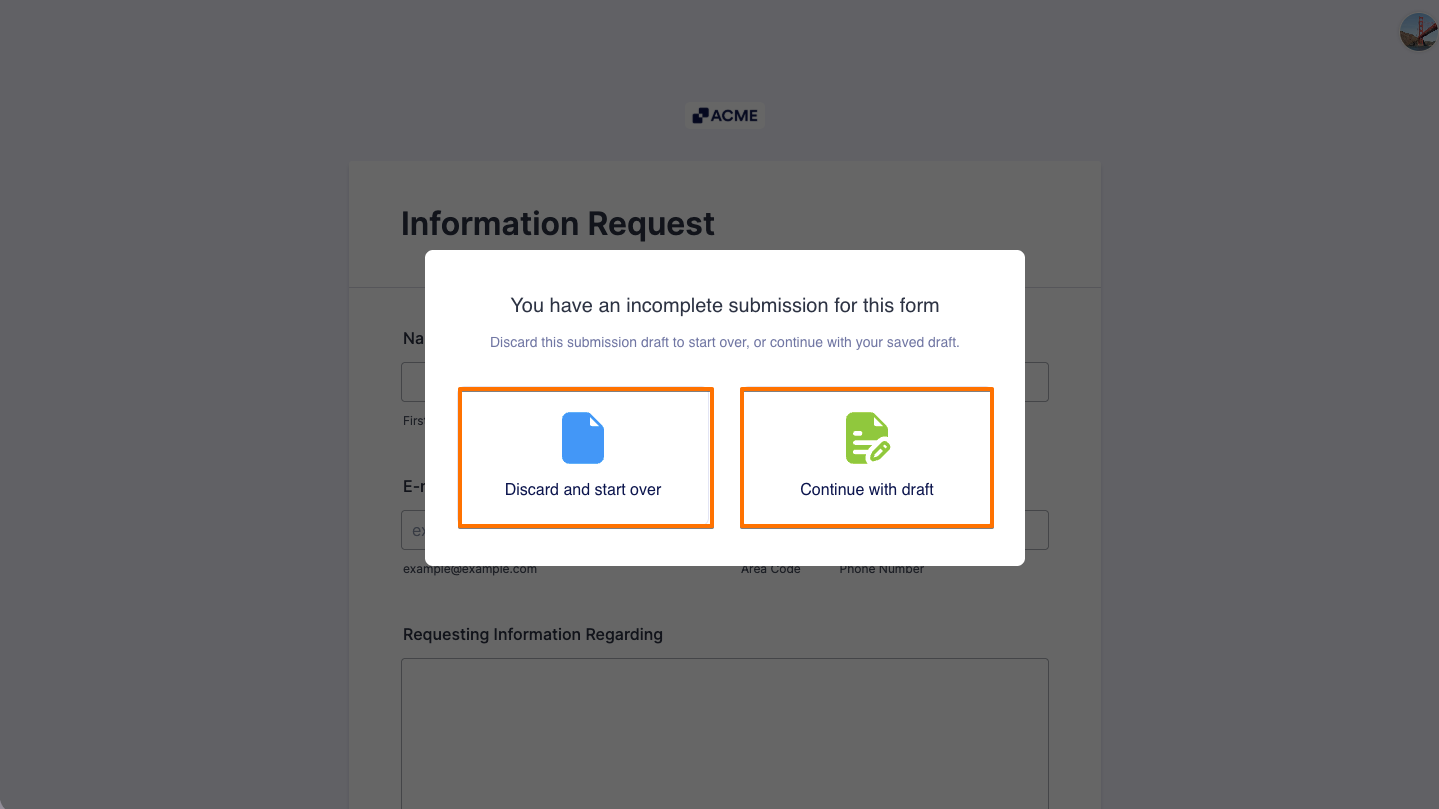
If a form filler accesses your form while logged in to their account and the system finds an existing draft, they’ll see an option to start over and restart filling out your form or to continue where they left off.
Saving Partially Filled-Out Forms in Mobile Forms
Save and Continue Later have additional features in Mobile Forms. It’s built-in on the app and you, as the form owner or assignee, can save multiple submission drafts for forms launched from the main dashboard and viewed directly on the app.
Note
Forms that need to be opened in browsers or require an internet connection, like payment forms, are not supported.
To create a submission draft in Mobile Forms:
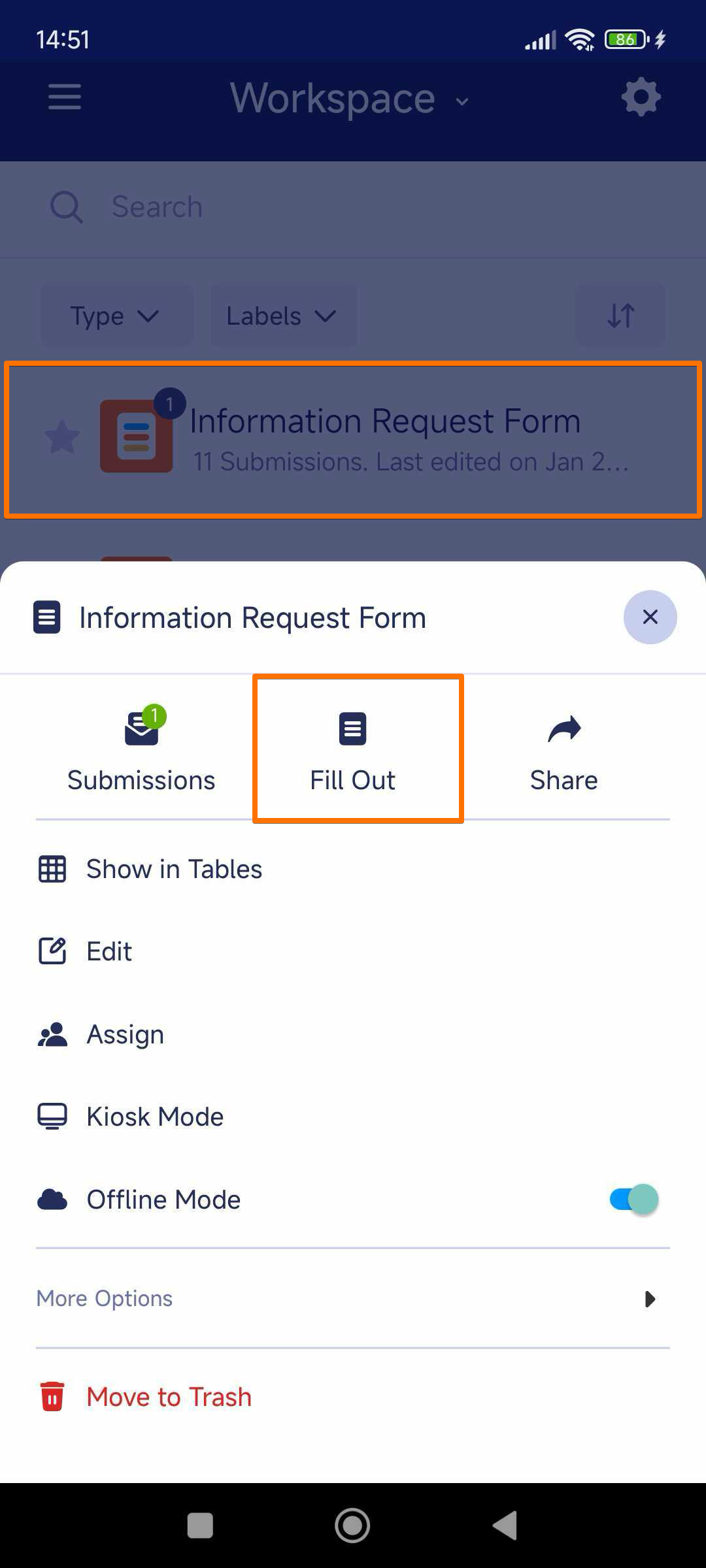
- In My Workspace, tap on your form.
- Select Fill Out from the bottom menu.
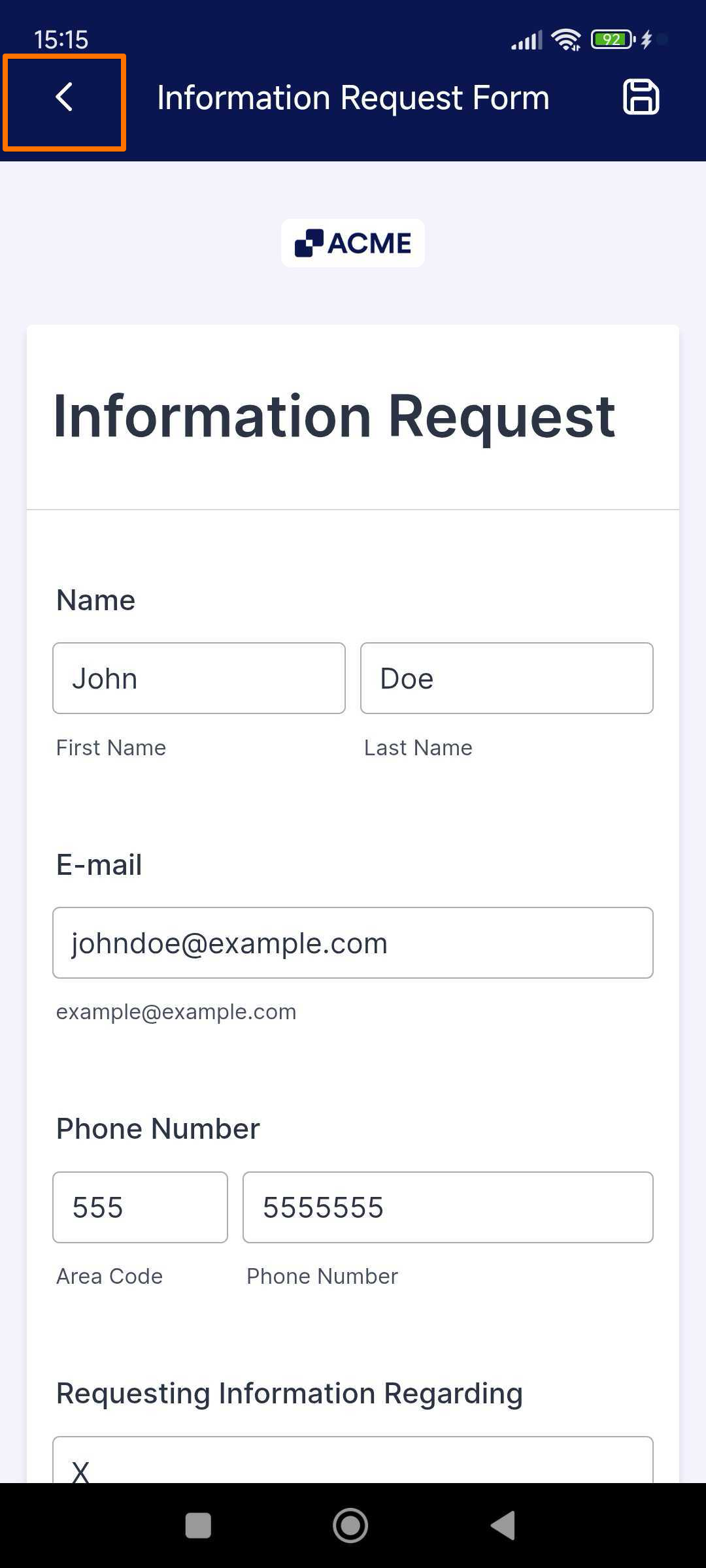
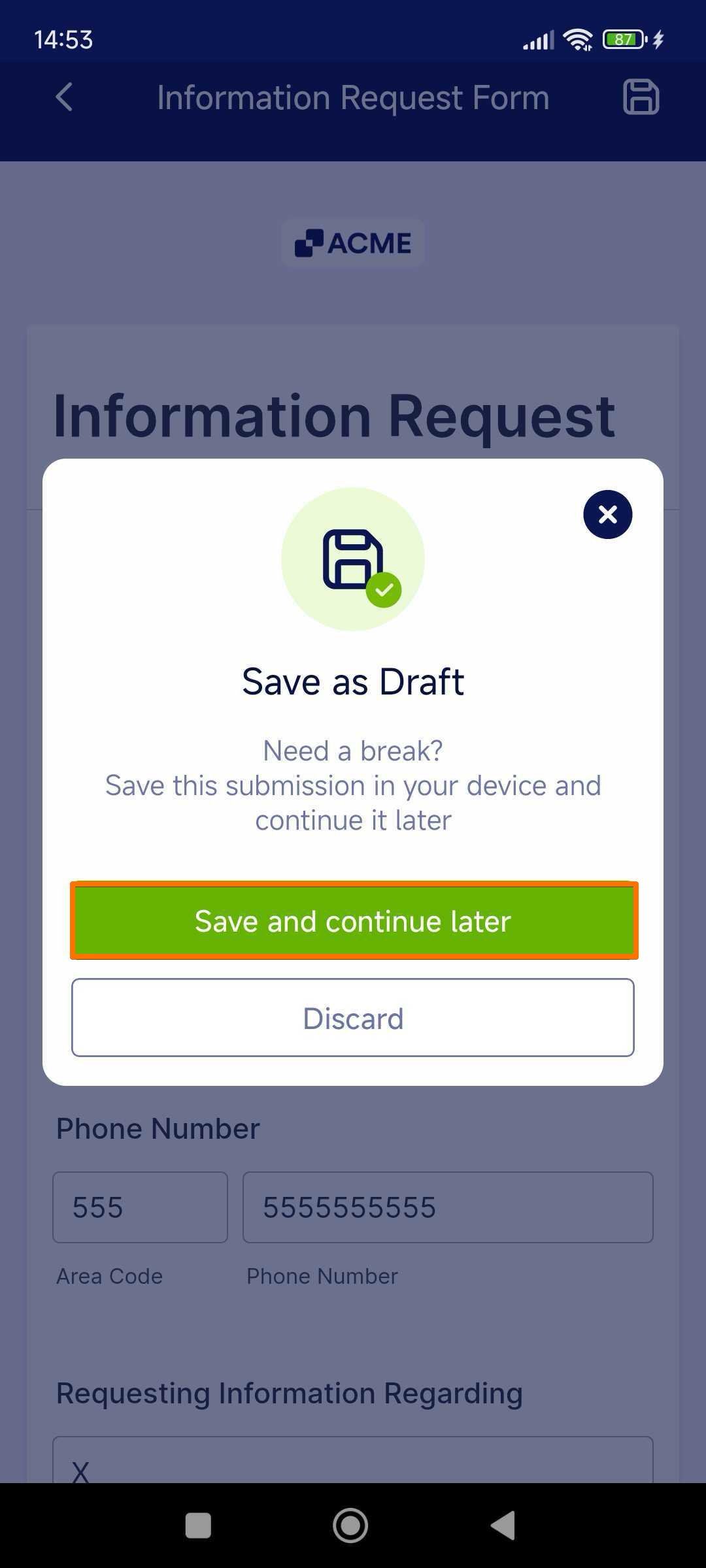
- Fill out the form, and then in the upper-left corner, tap on the Back icon to open the Save as Draft dialog.
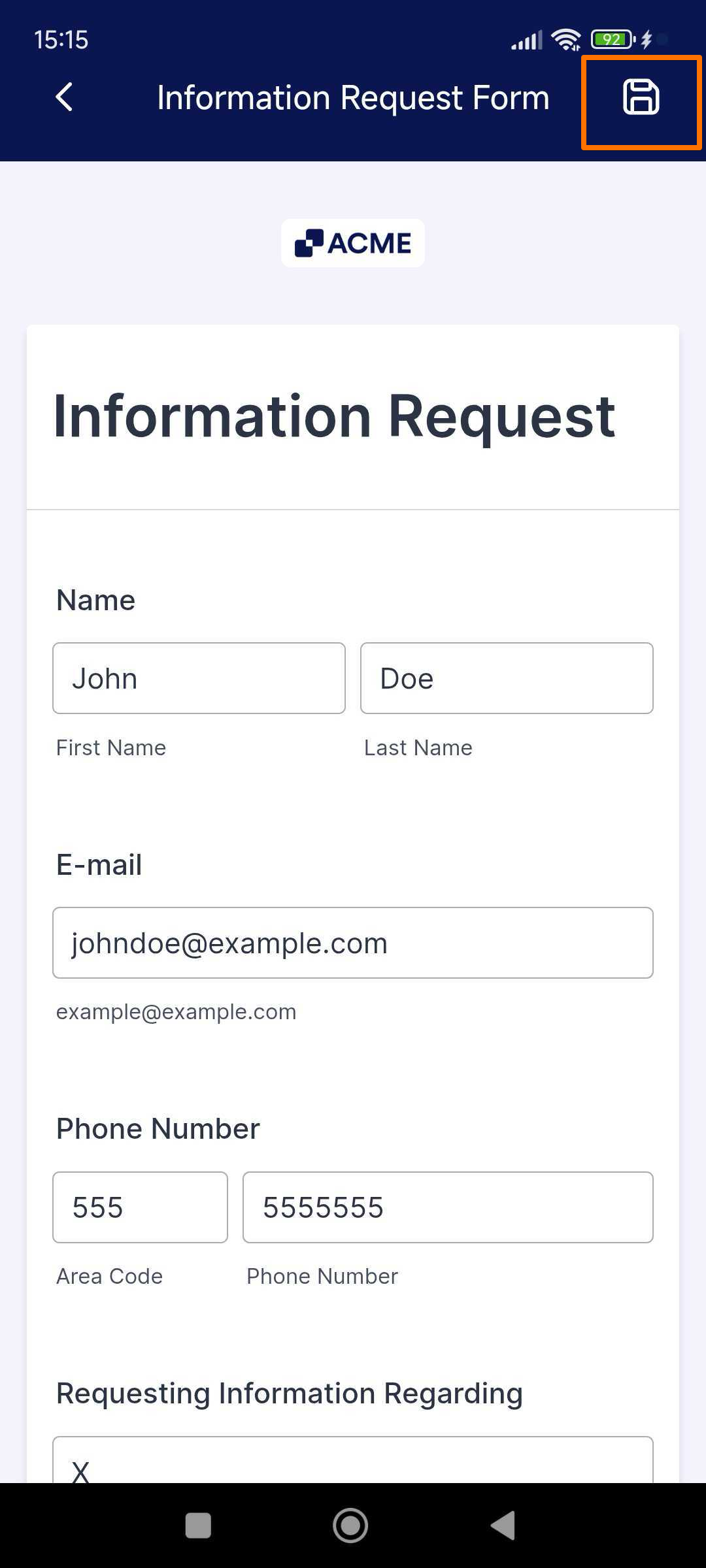
Tip
You can also use the save icon in the upper-right corner on forms with Save and Continue Later turned on.
- In Save as Draft, select Save and continue later.
Viewing Saved Drafts in Mobile Forms
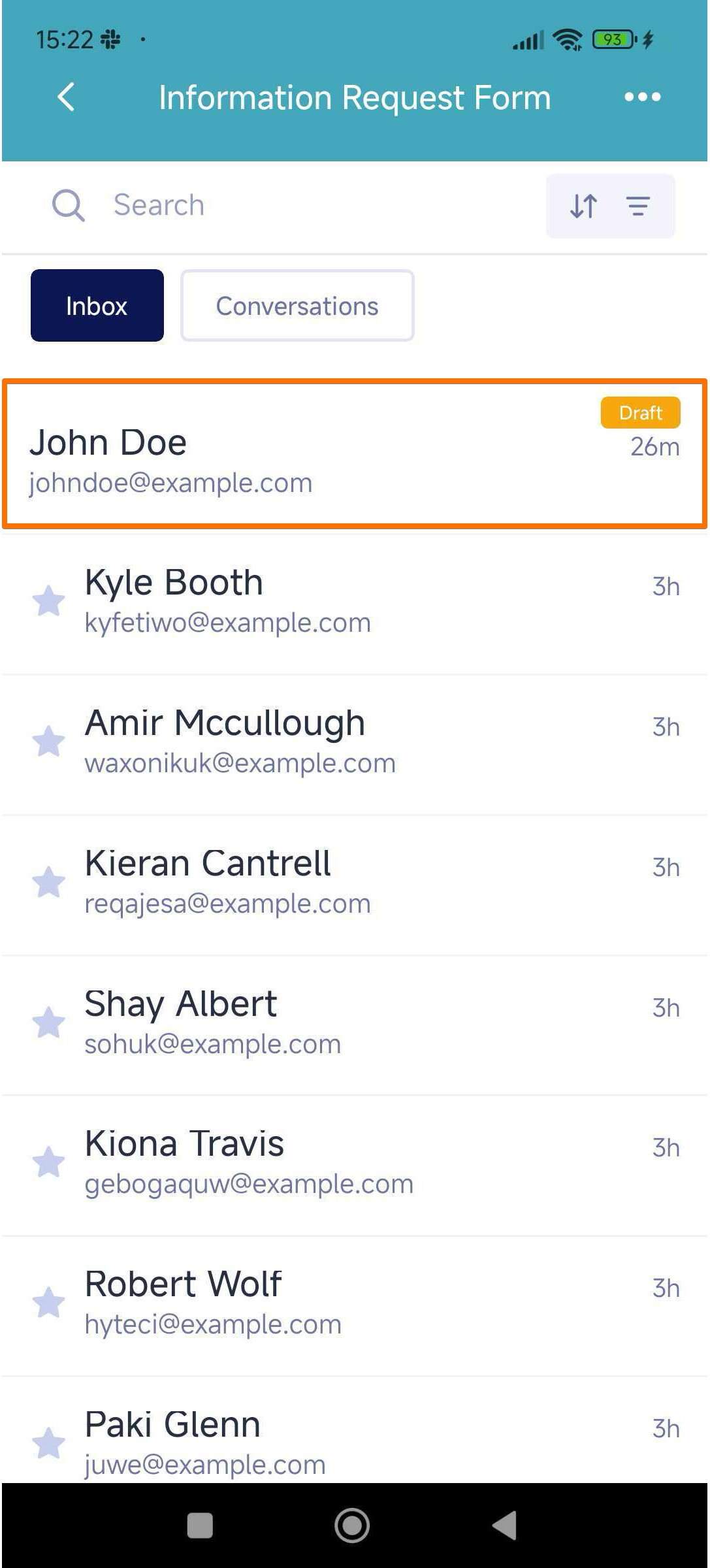
Your drafts are saved in the form’s inbox. To view them:
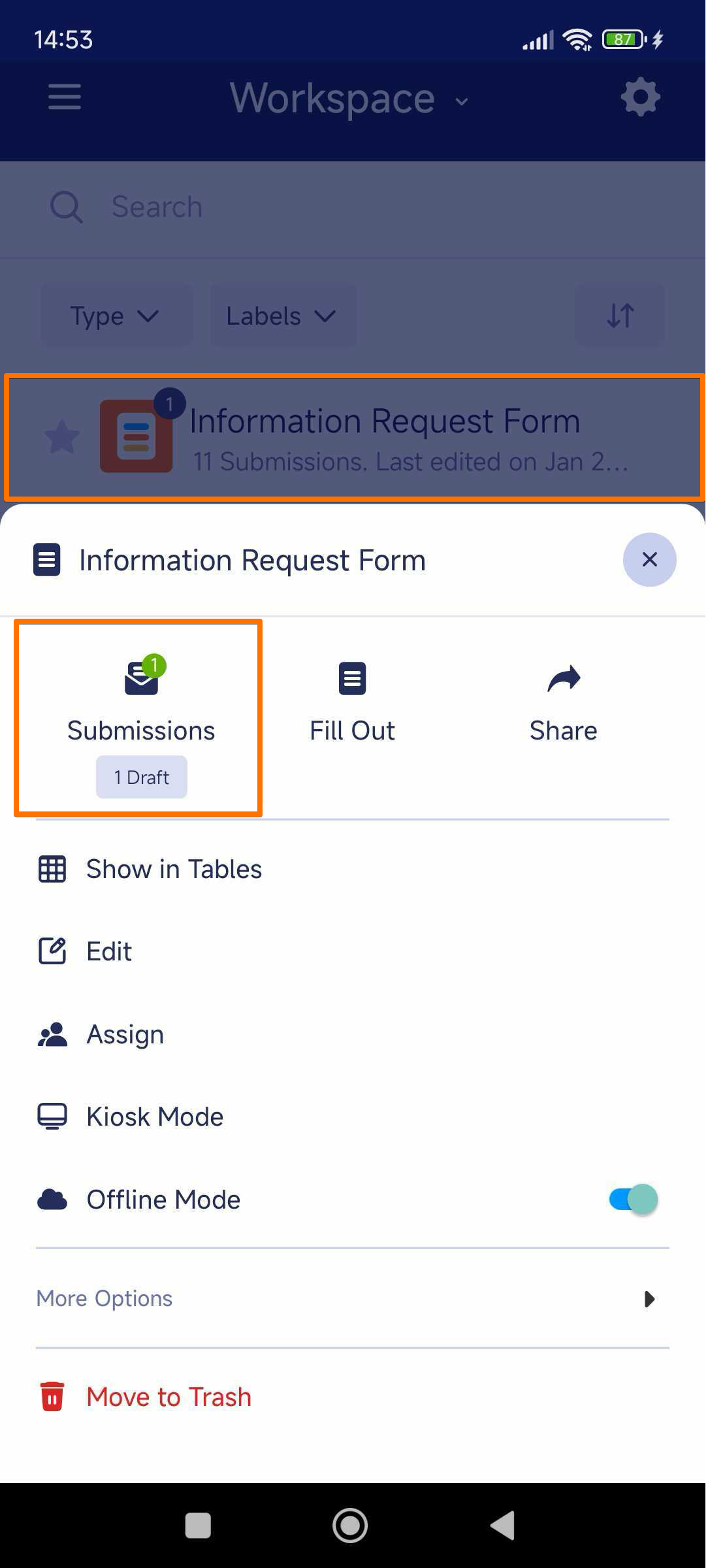
- In My Workspace, tap on your form.
- Select Submissions from the bottom menu.
- In Inbox, choose your draft.
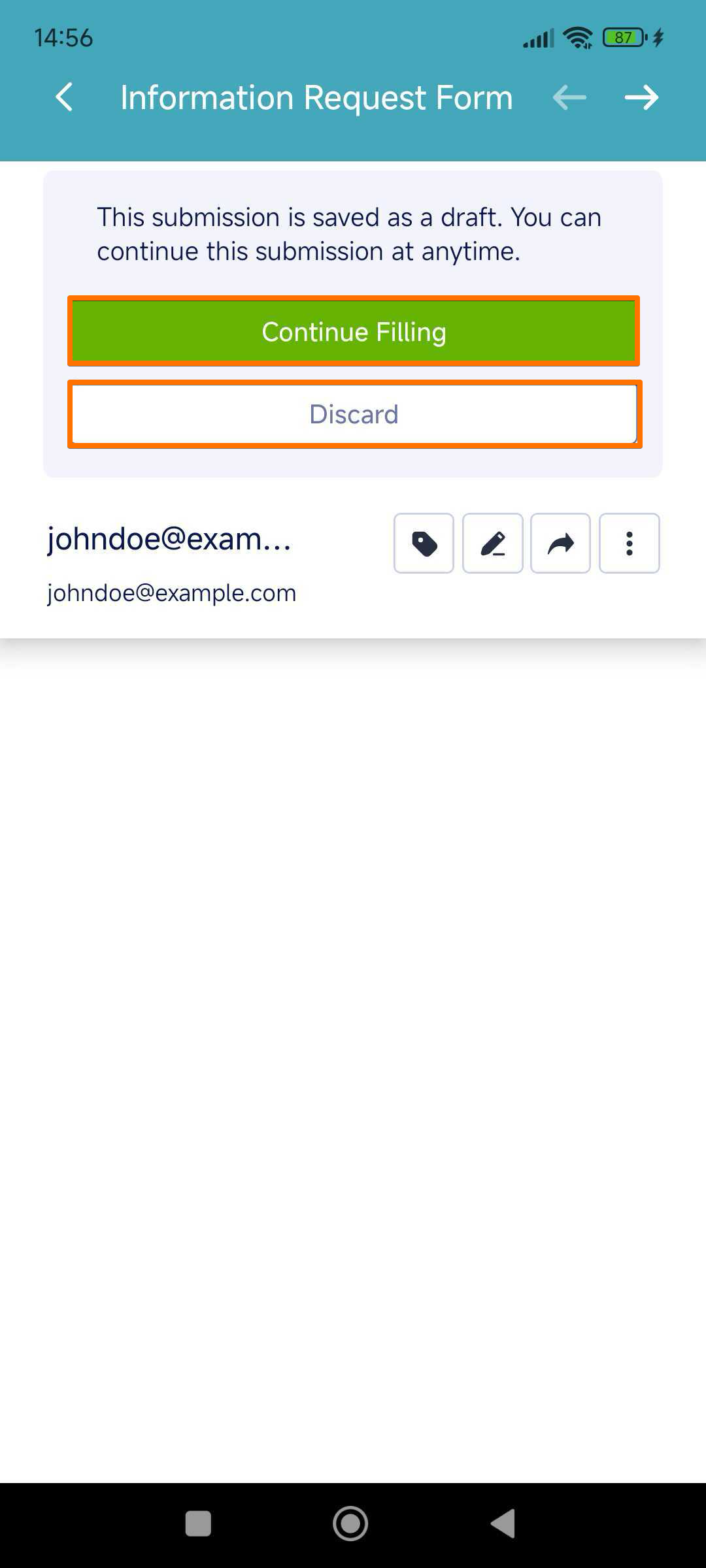
- Choose whether to continue or discard your draft.

Send Comment: