You can make sure even guest users sign in through SSO. It’s a simple way to keep tighter control over who accesses your forms, especially when you’re working with collaborators outside your team. Just enable the setting in your SSO configuration, and guests will be prompted to log in with your SSO provider before they can view the form.
Notes
- Before you can enable this setting, SSO needs to be enabled for your organization. For steps on getting started, take a look at our guide on How to Enable SSO Integration in Your Organization.
If you’re an admin, you can require guest users to sign in through your SSO provider before accessing a form. Here’s how to set it up:
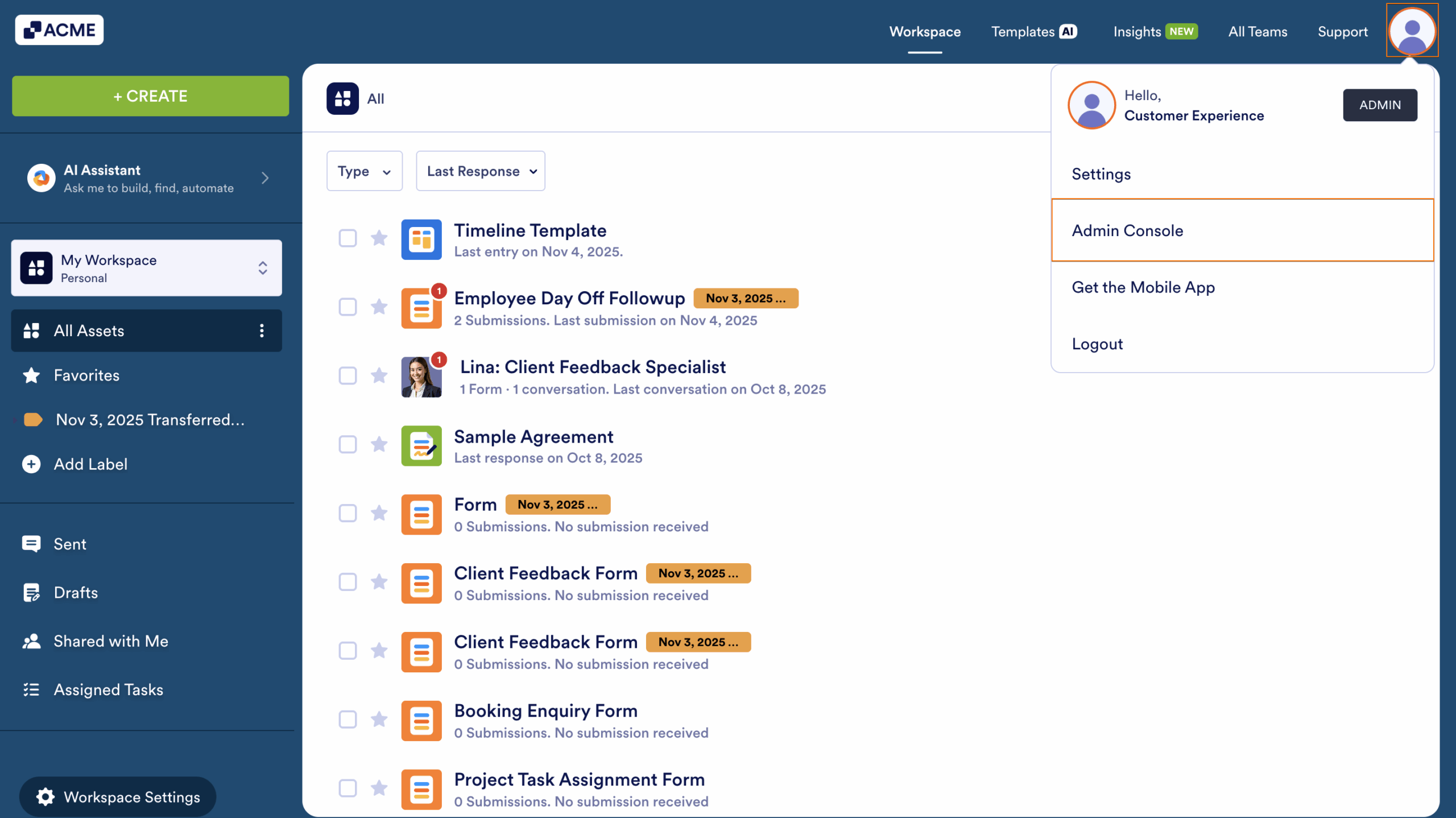
- First, in My Workspace, click on your Avatar in the upper right corner of the screen.
- Then, in the Dropdown menu that appears, click on Admin Console.
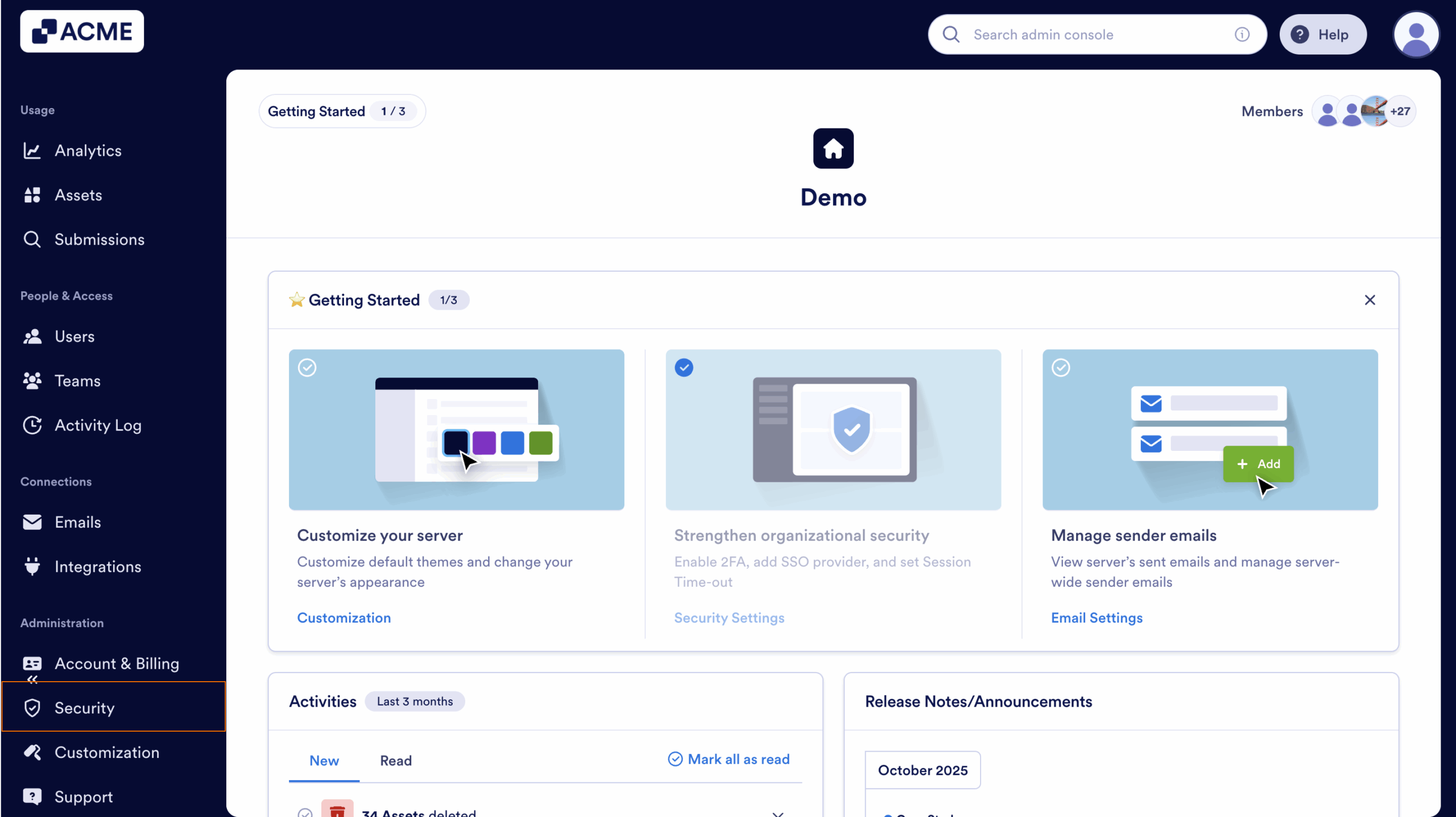
- Next, in the sidebar on the left side of the screen, click on Security.
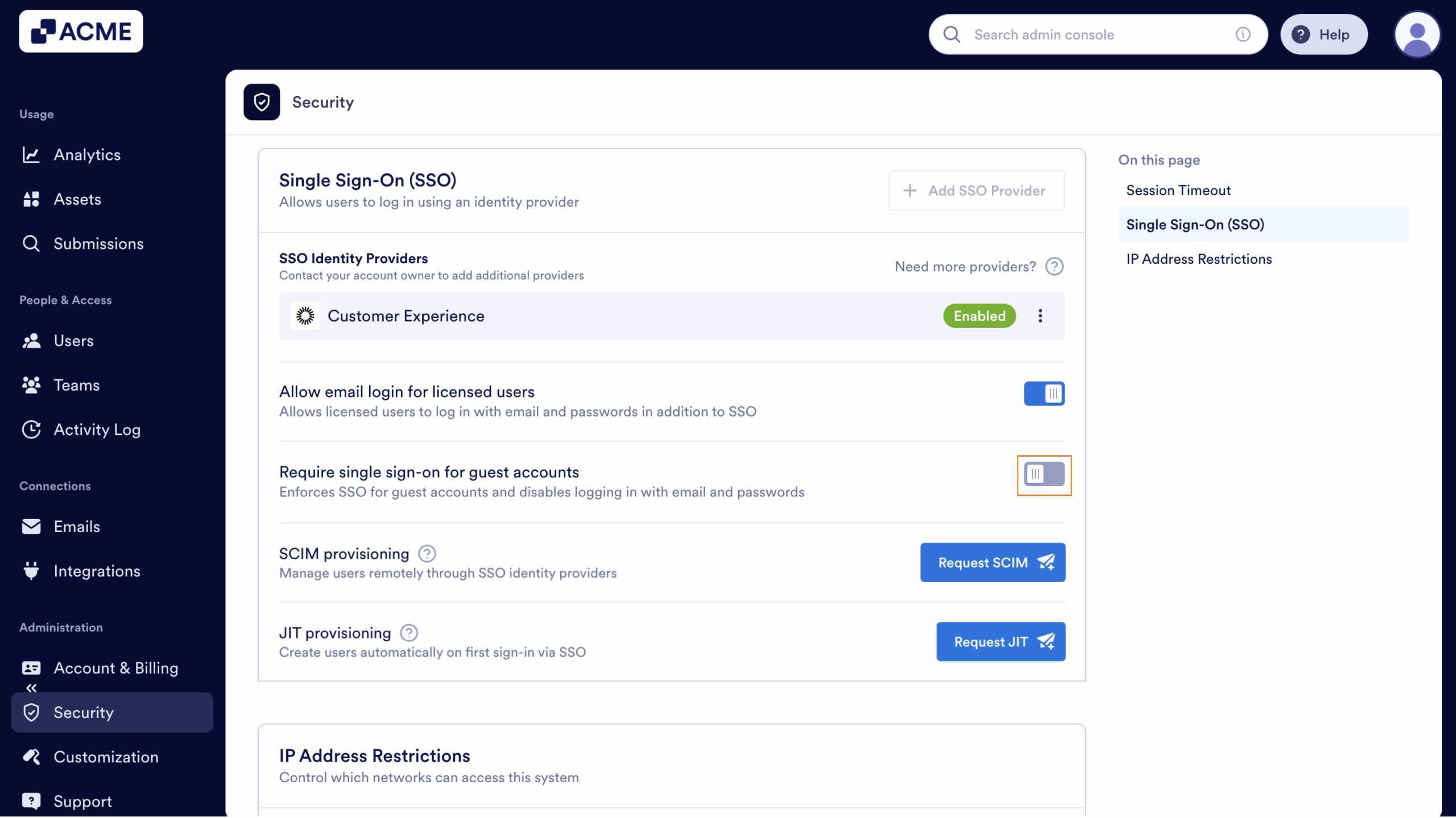
- Scroll down to Single Sign-On (SSO) and toggle on Require Single Sign-On for Guest Accounts.
- Finally, click on Yes, Enforce SSO.
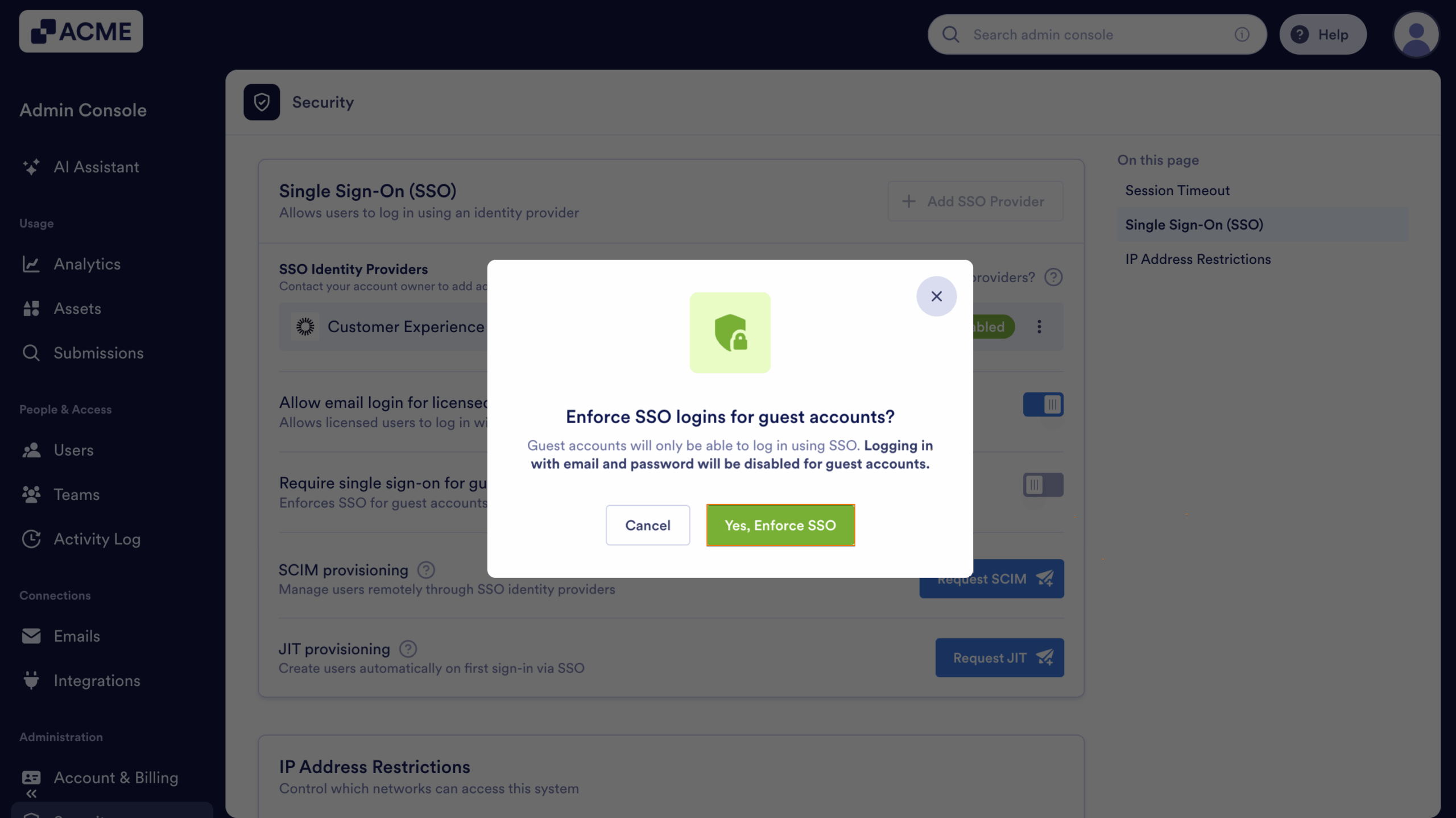
Now, any guest you share a form or workspace with will be asked to sign in through your SSO provider before they can access it.

Send Comment: