Team owners and managers can add people to a Team Workspace to collaborate on shared forms, data, apps, and workflows. Members can be invited individually, in bulk, or through a shareable link.
Invite Members from the Team Workspace
Invite Members by Email
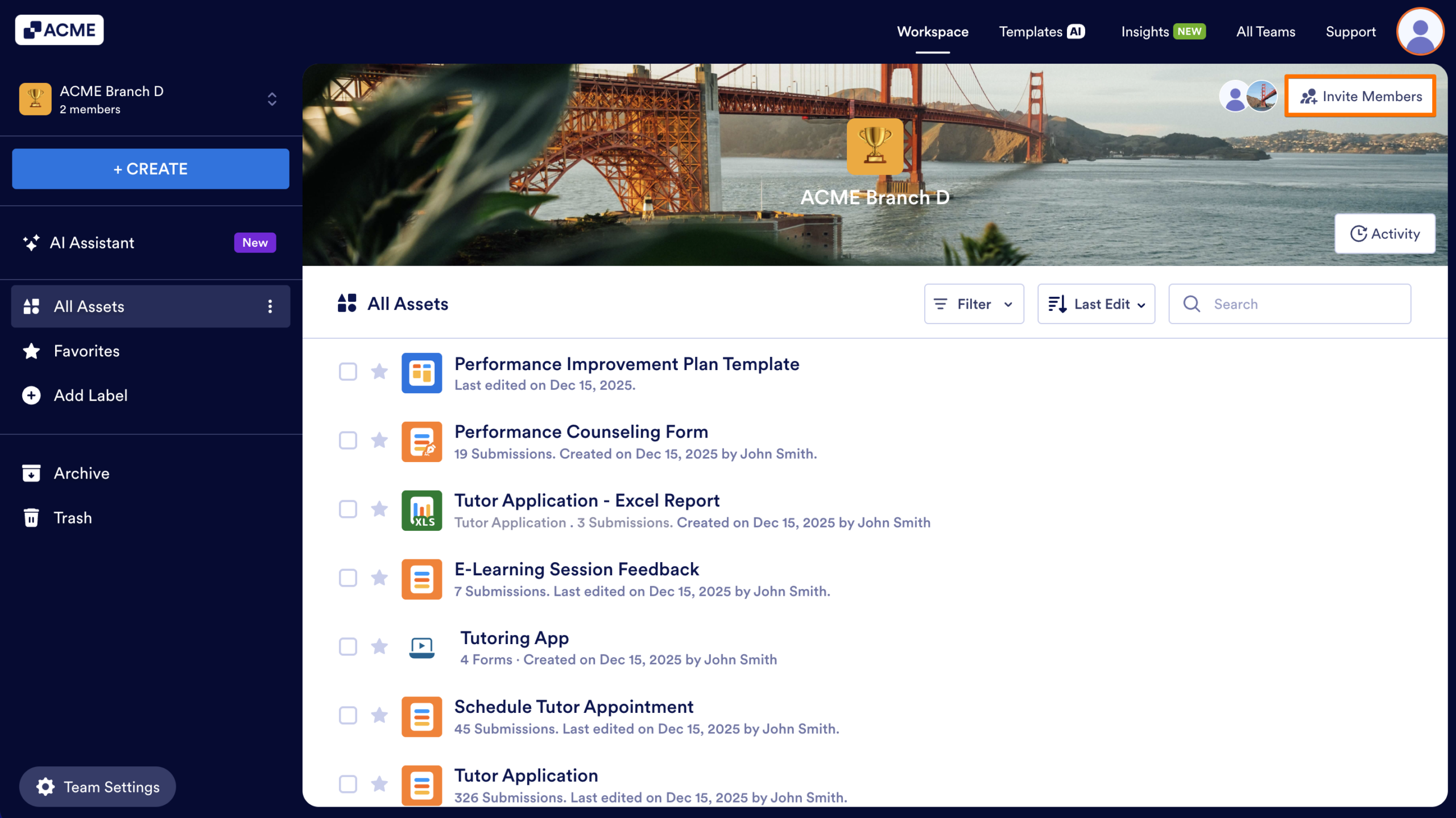
- In the Team Workspace, click on Invite Members in the upper right-hand corner of the page.
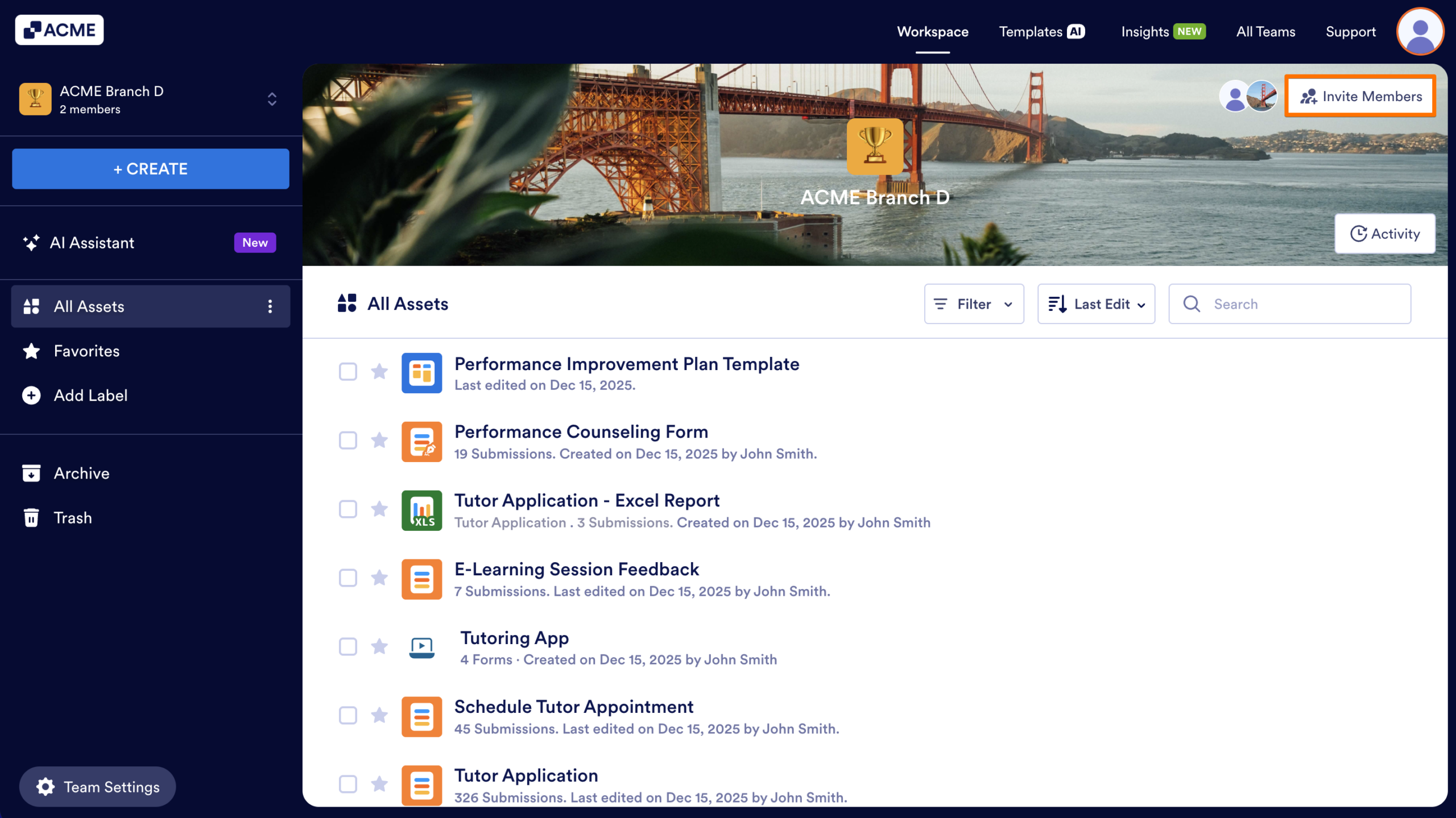
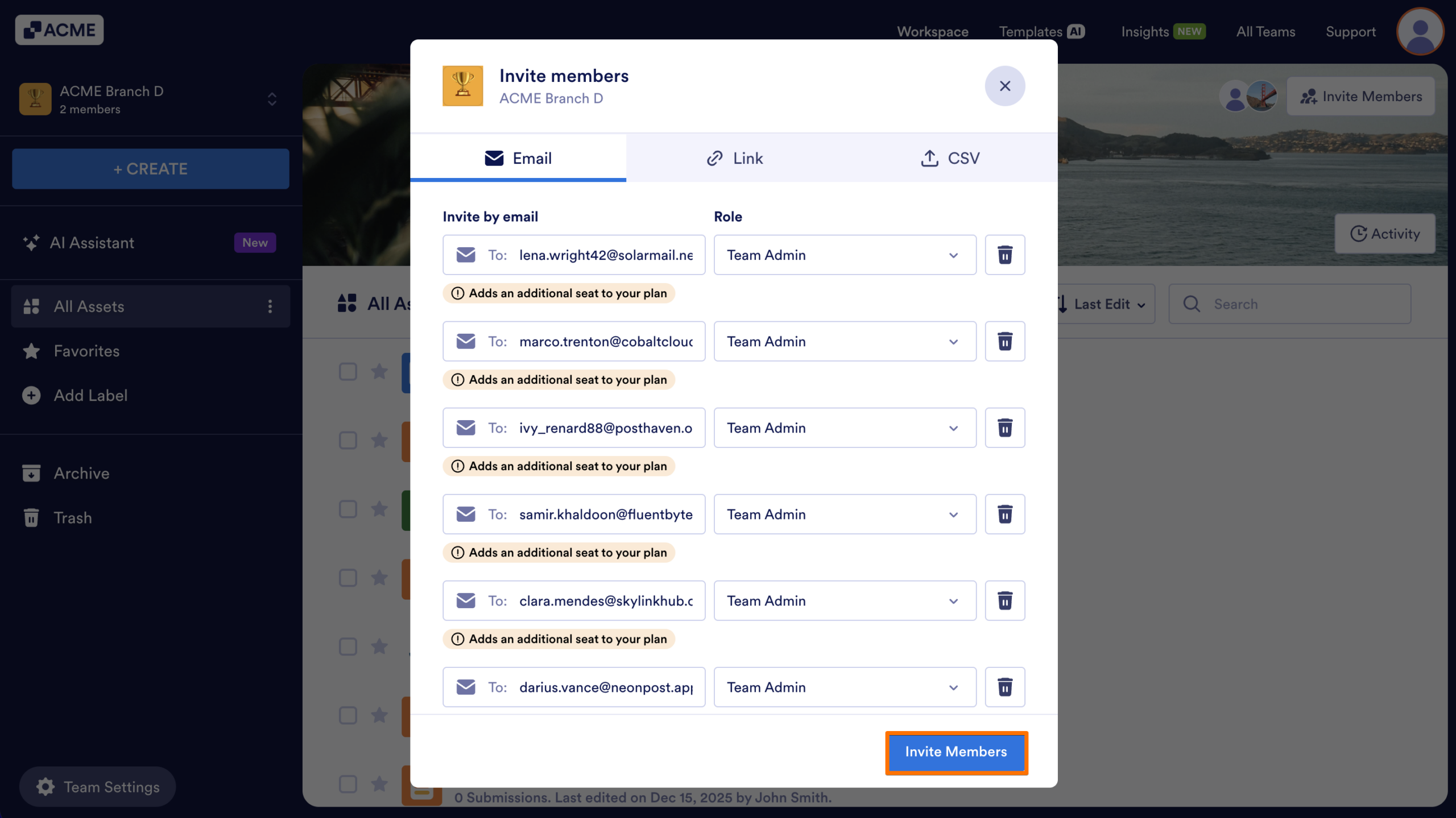
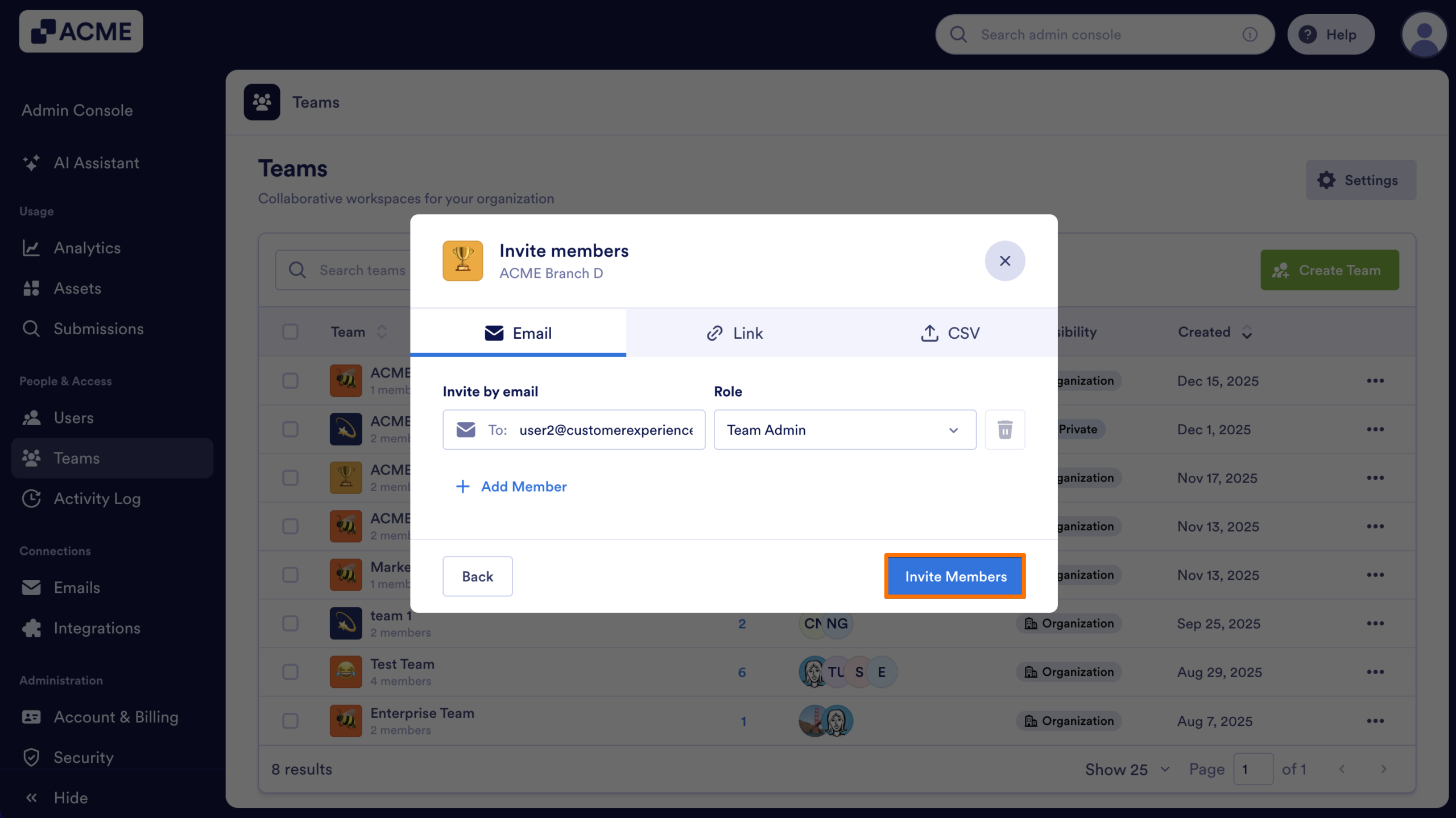
- In the Email tab, enter the email of the Team Member under Invite by Email.
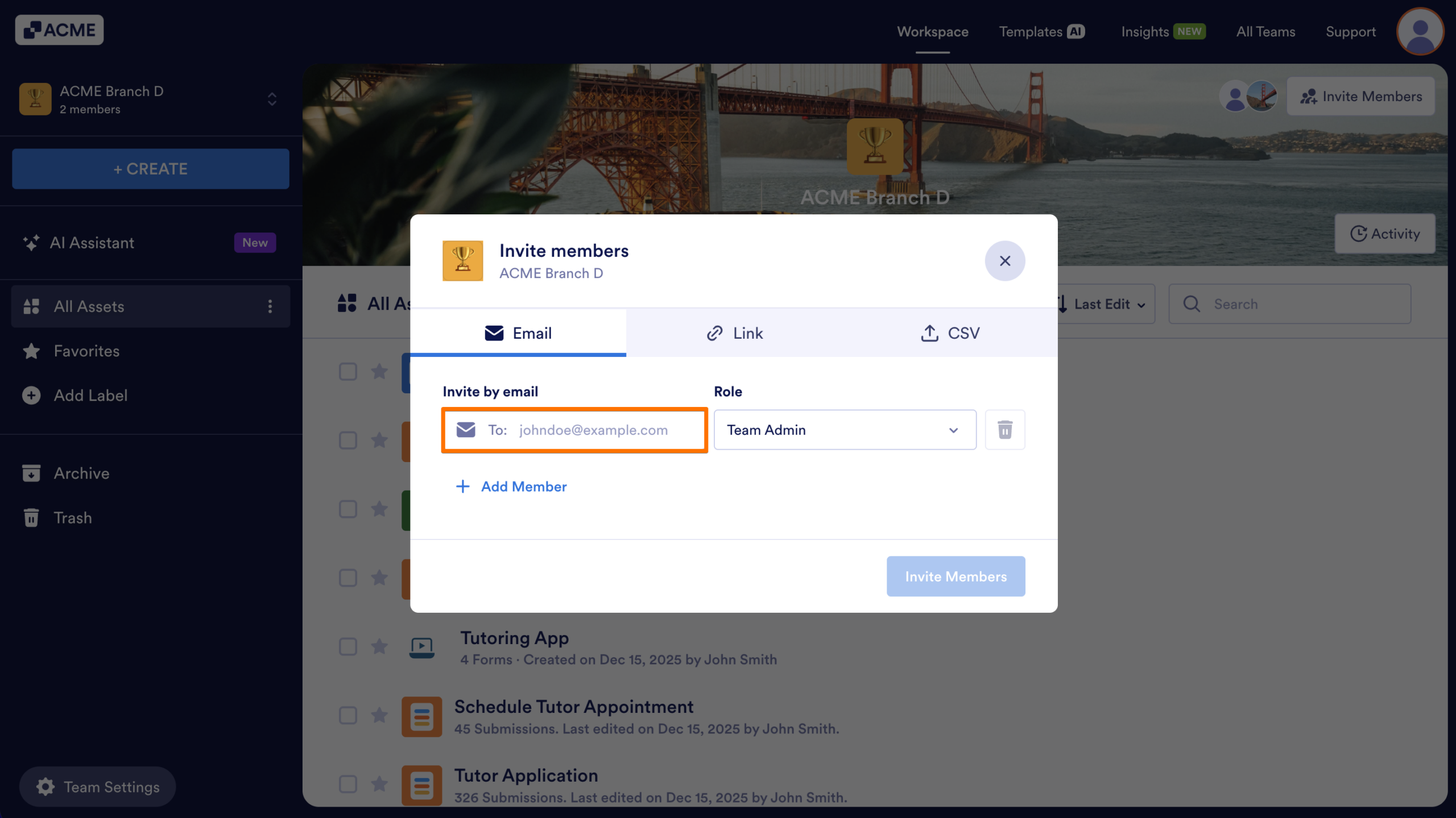
- Click on the drop-down menu under Role and select the User Role for the new Team Member. To see what each role can do, check out Understanding Different Team Roles and Their Permissions.
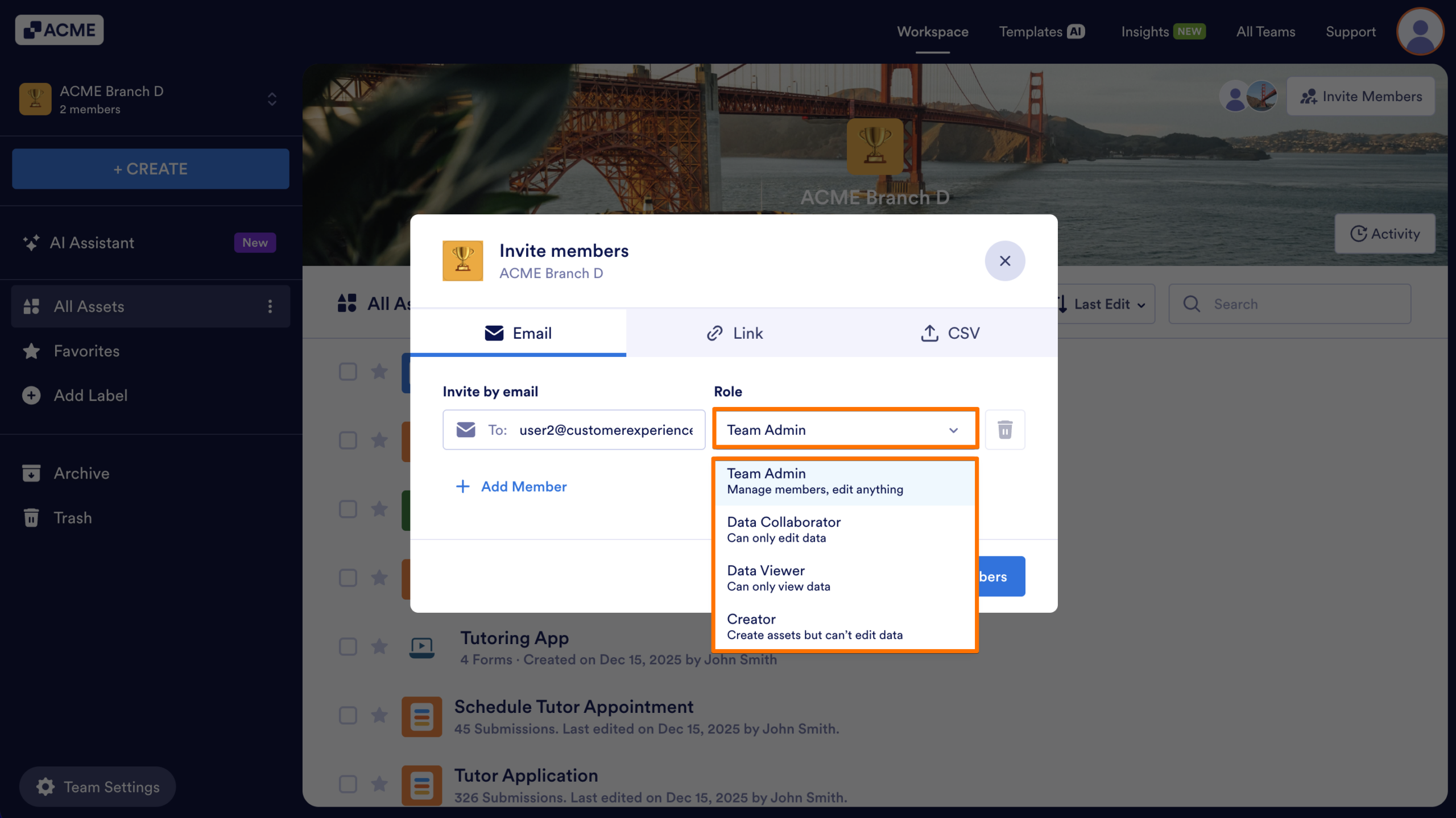
- To add additional team members to the invite, click on Add Member and repeat steps 2 and 3.
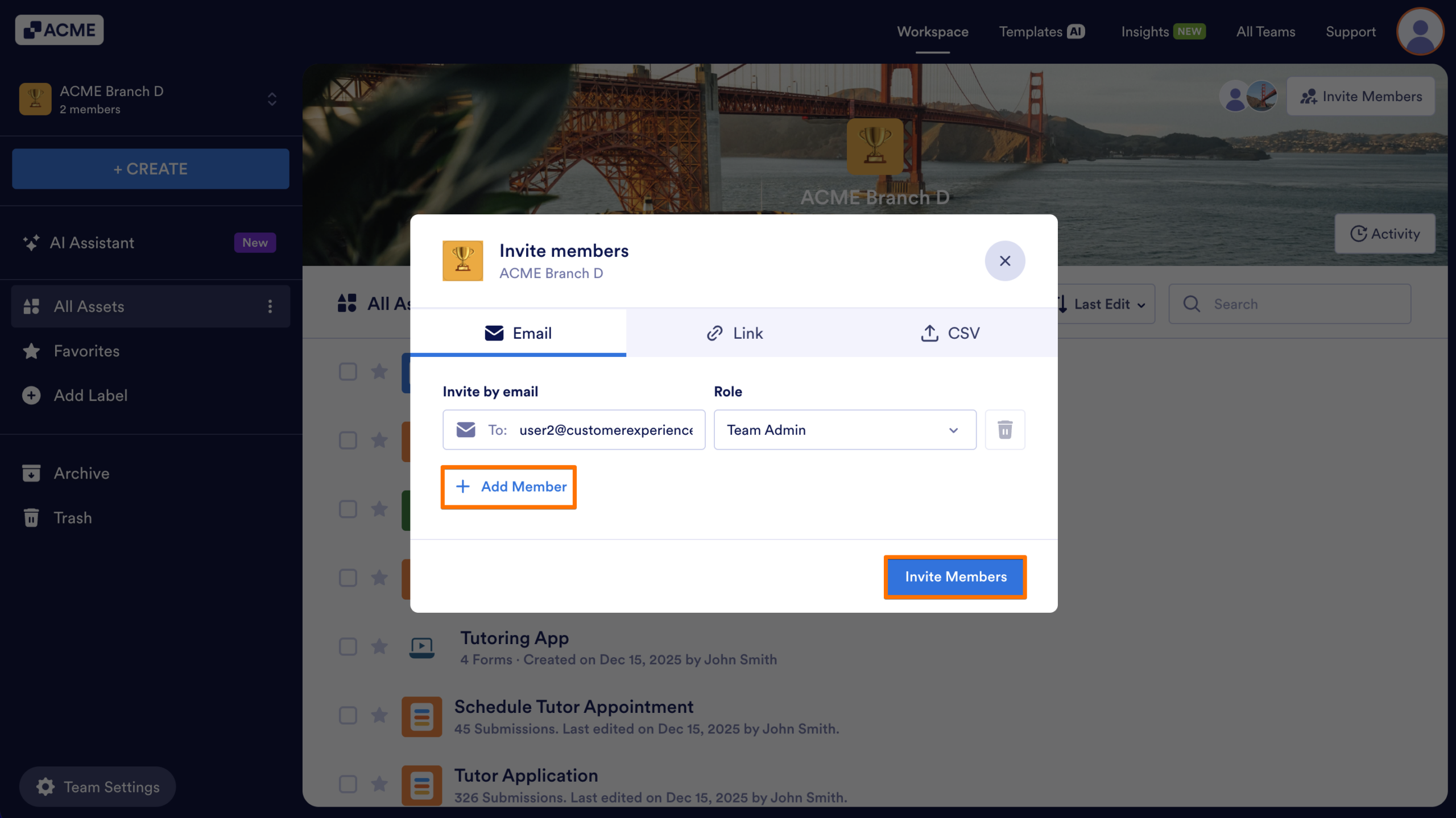
- Finally, click on Invite Members.
Invite Members by Link
You can also generate a shareable invitation link to add new members. Only Licensed Users can join a team via a link.
- In the Team Workspace, click on Invite Members in the upper right-hand corner of the page
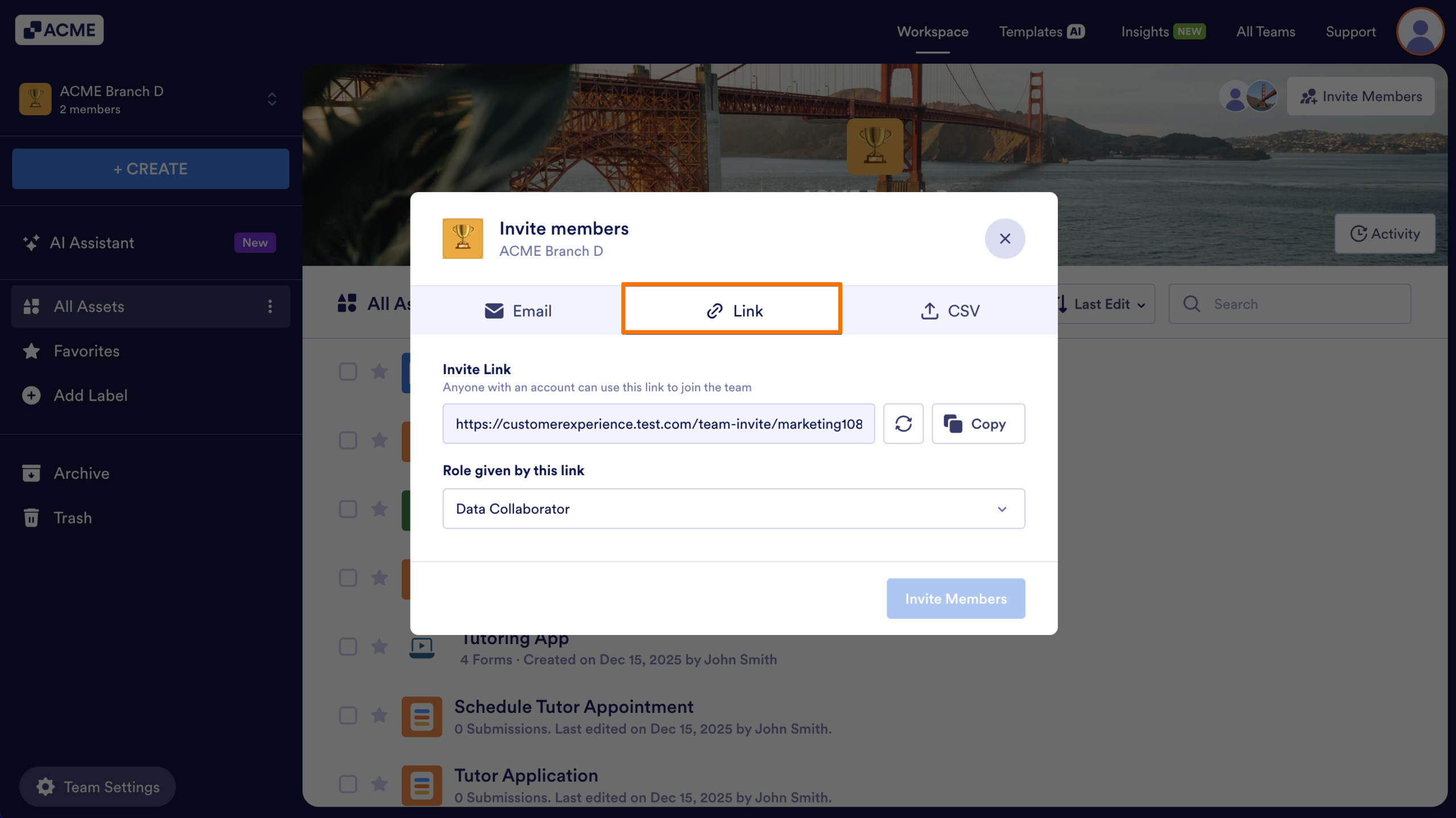
- In the pop-up window, click on Link.
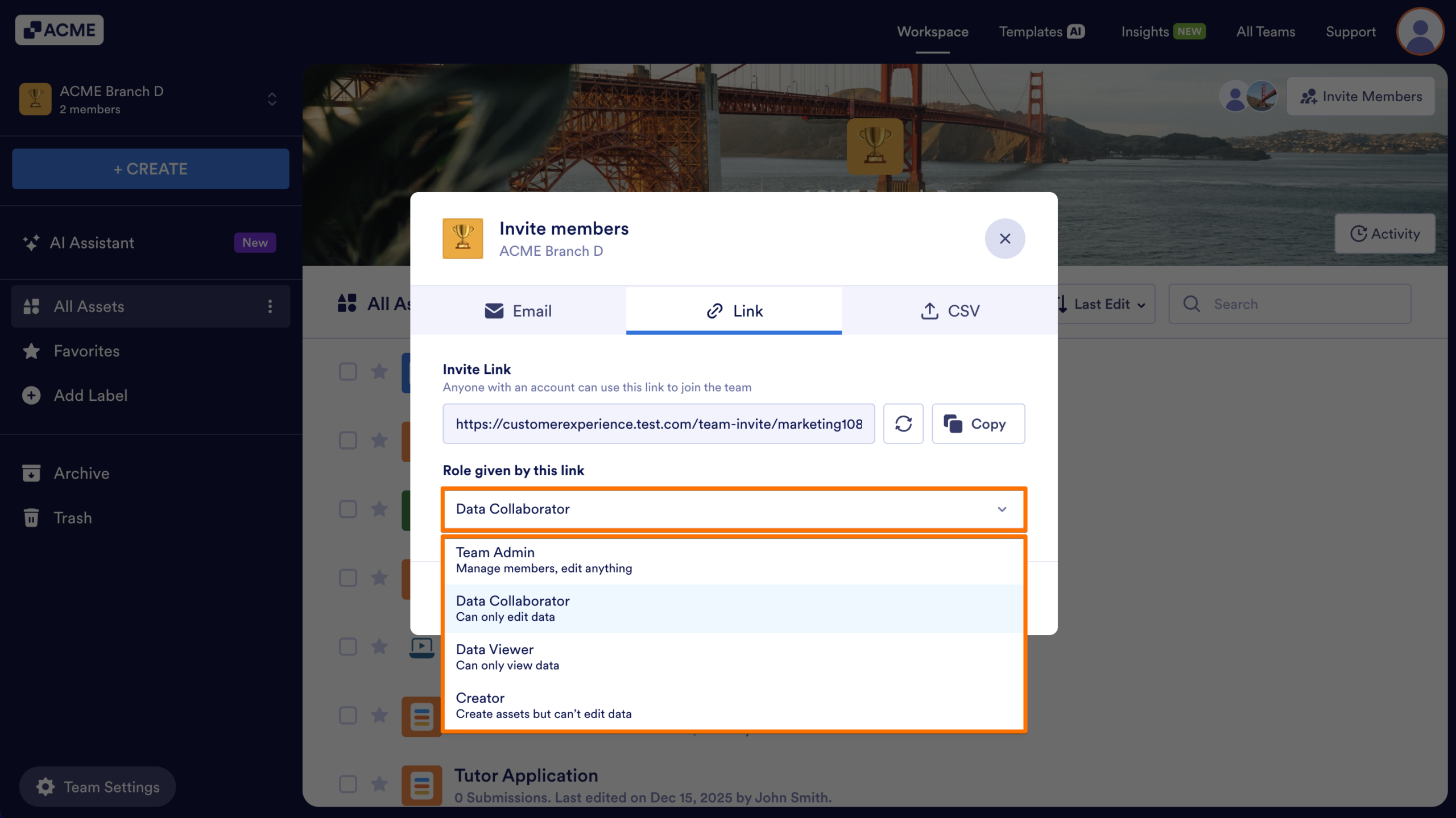
- Then, under Role given by this link, select the role that will be assigned to users joining the Team.
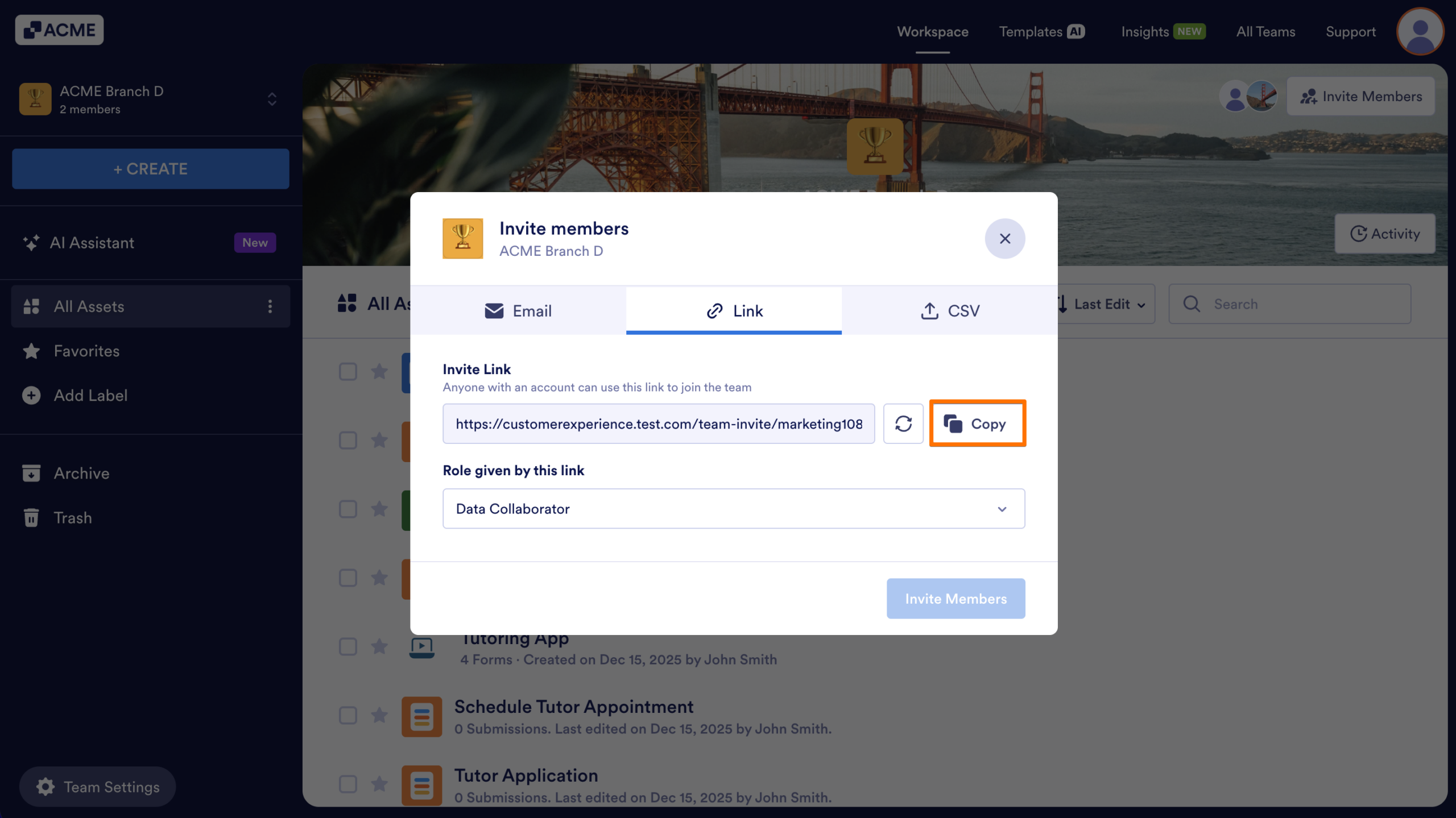
- Finally, click Copy and share the link with your users.
Invite Members by Uploading a CSV File
- In the Team Workspace, click on Invite Members in the upper right-hand corner of the page
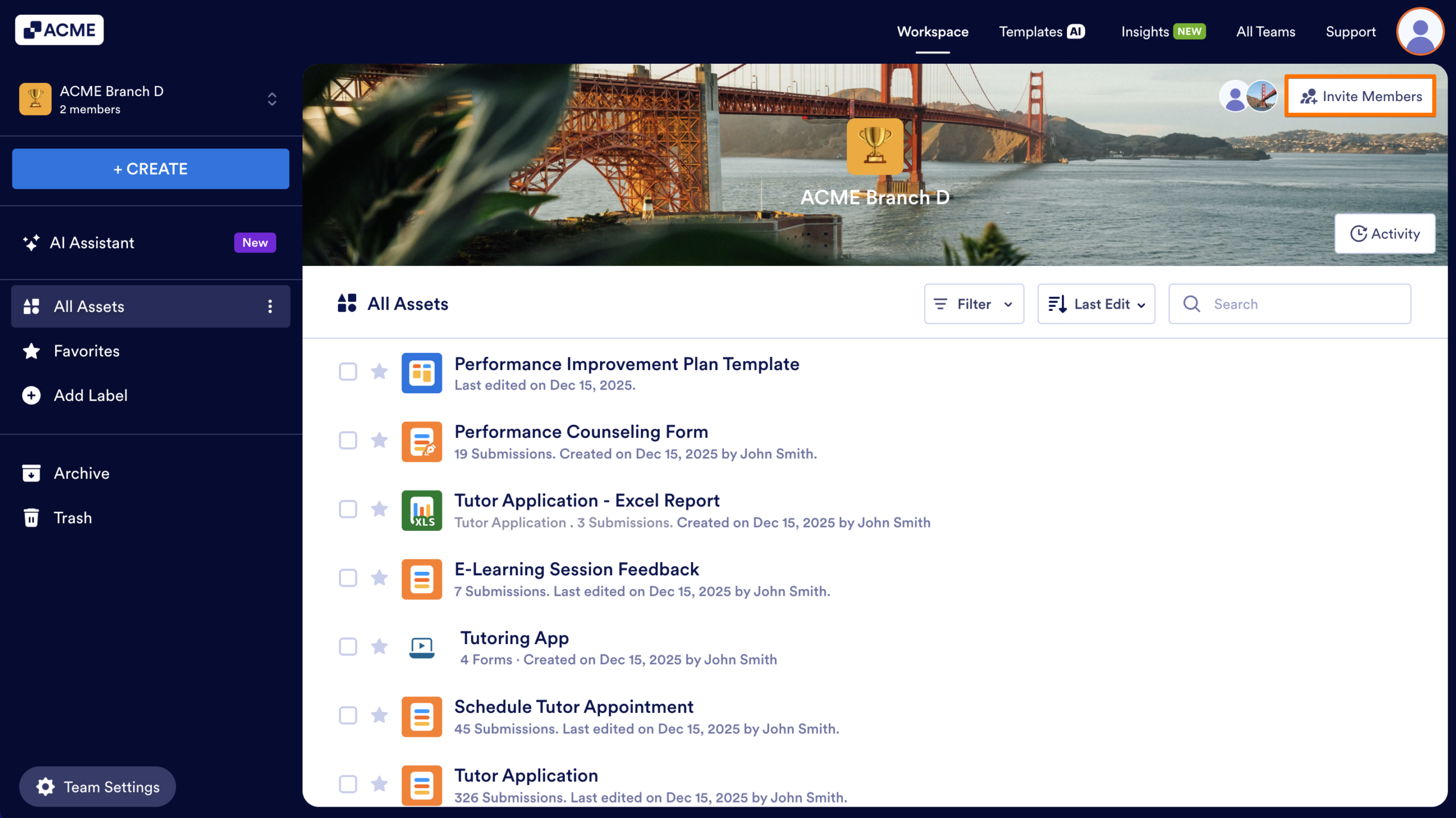
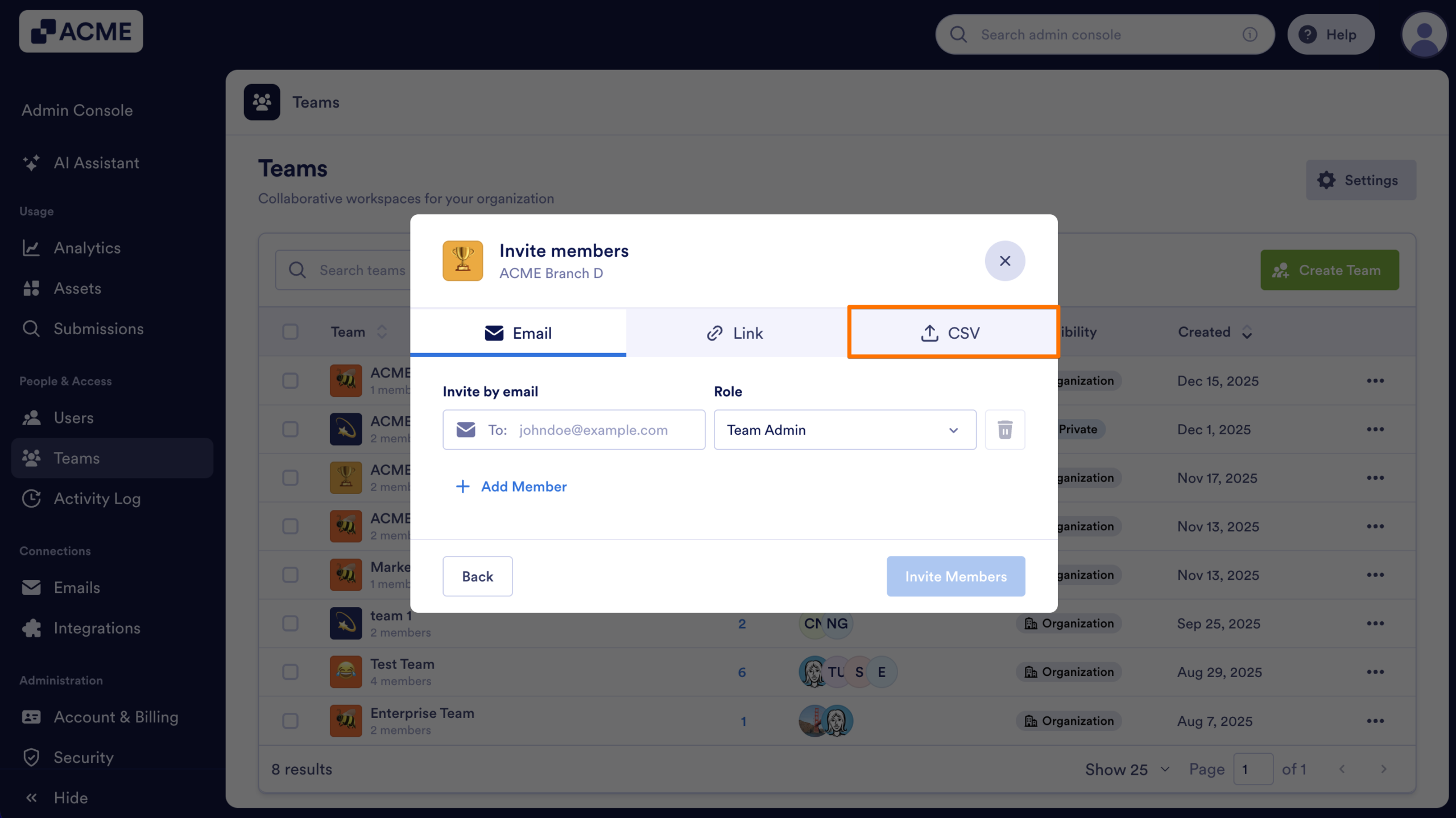
- Then, click on the CSV tab.
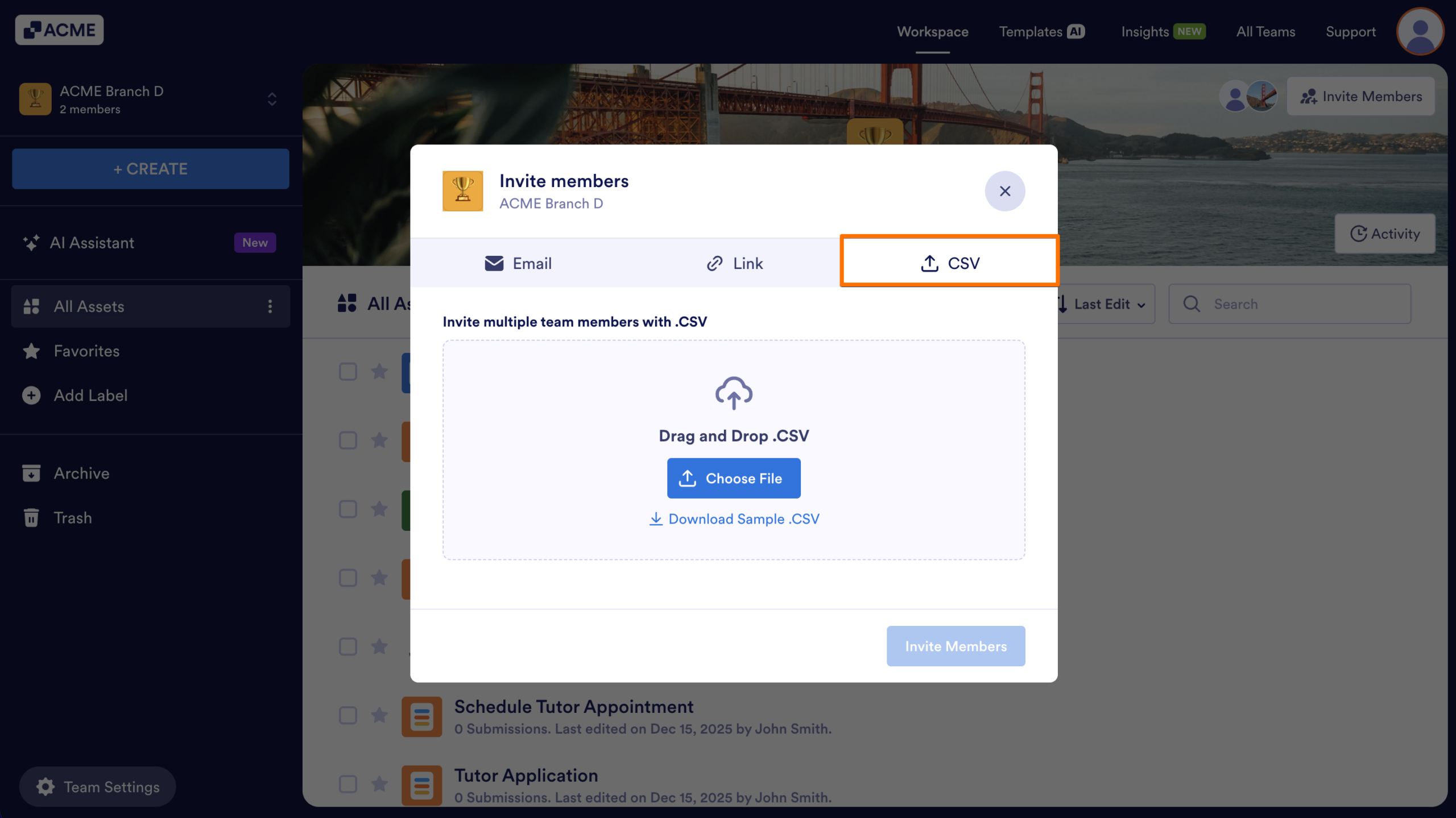
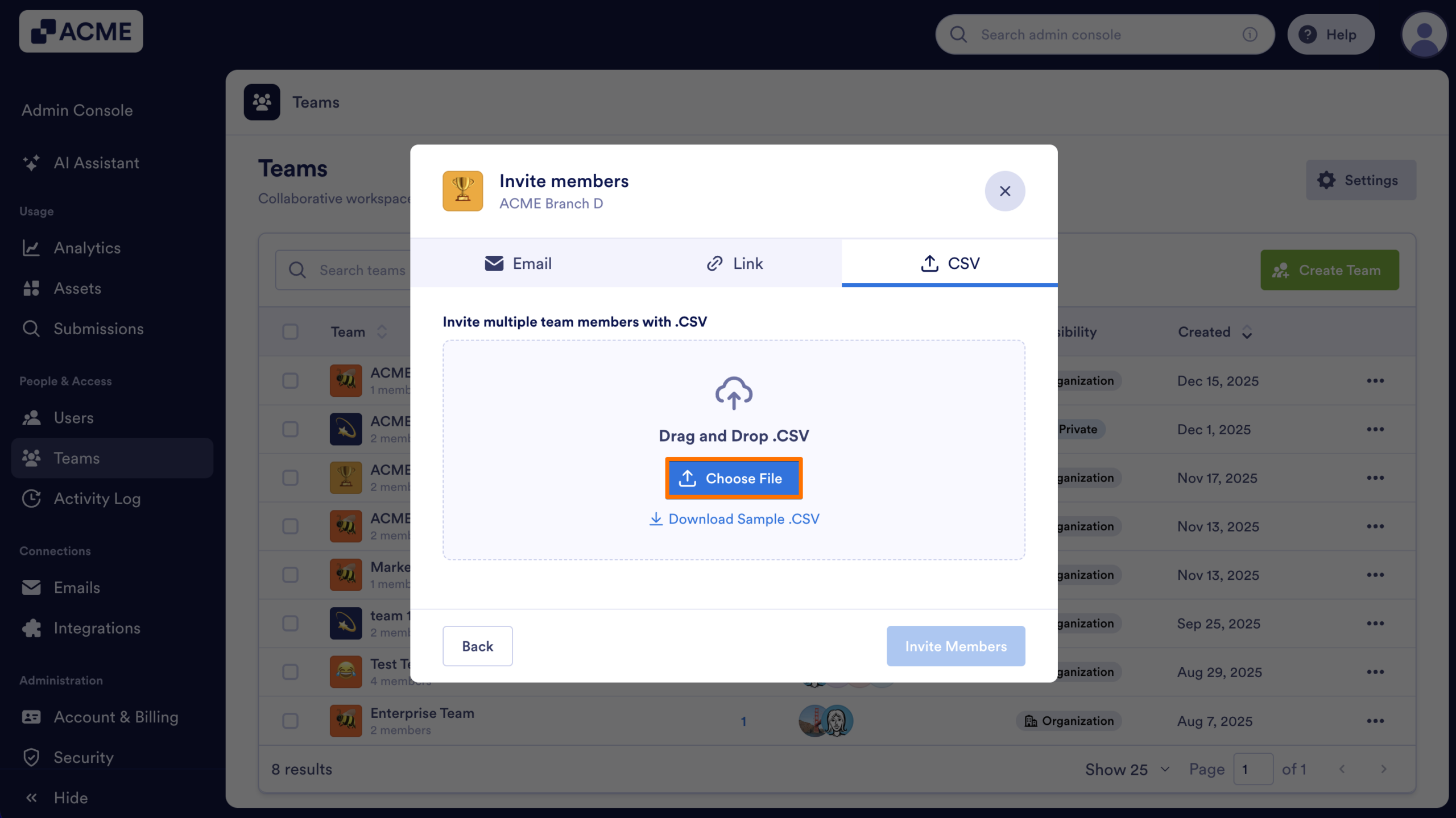
- In the pop-up window, click on Choose File.
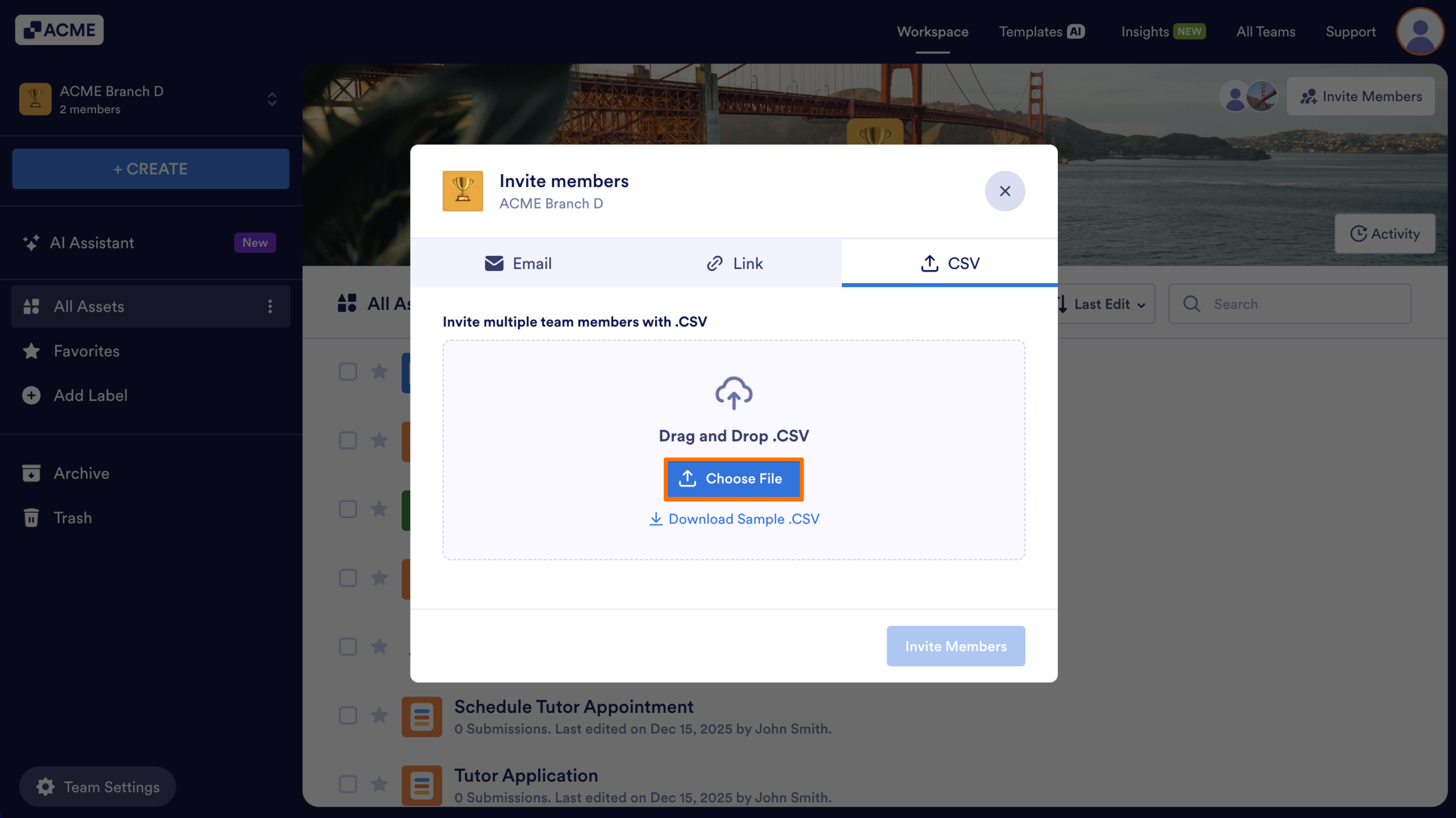
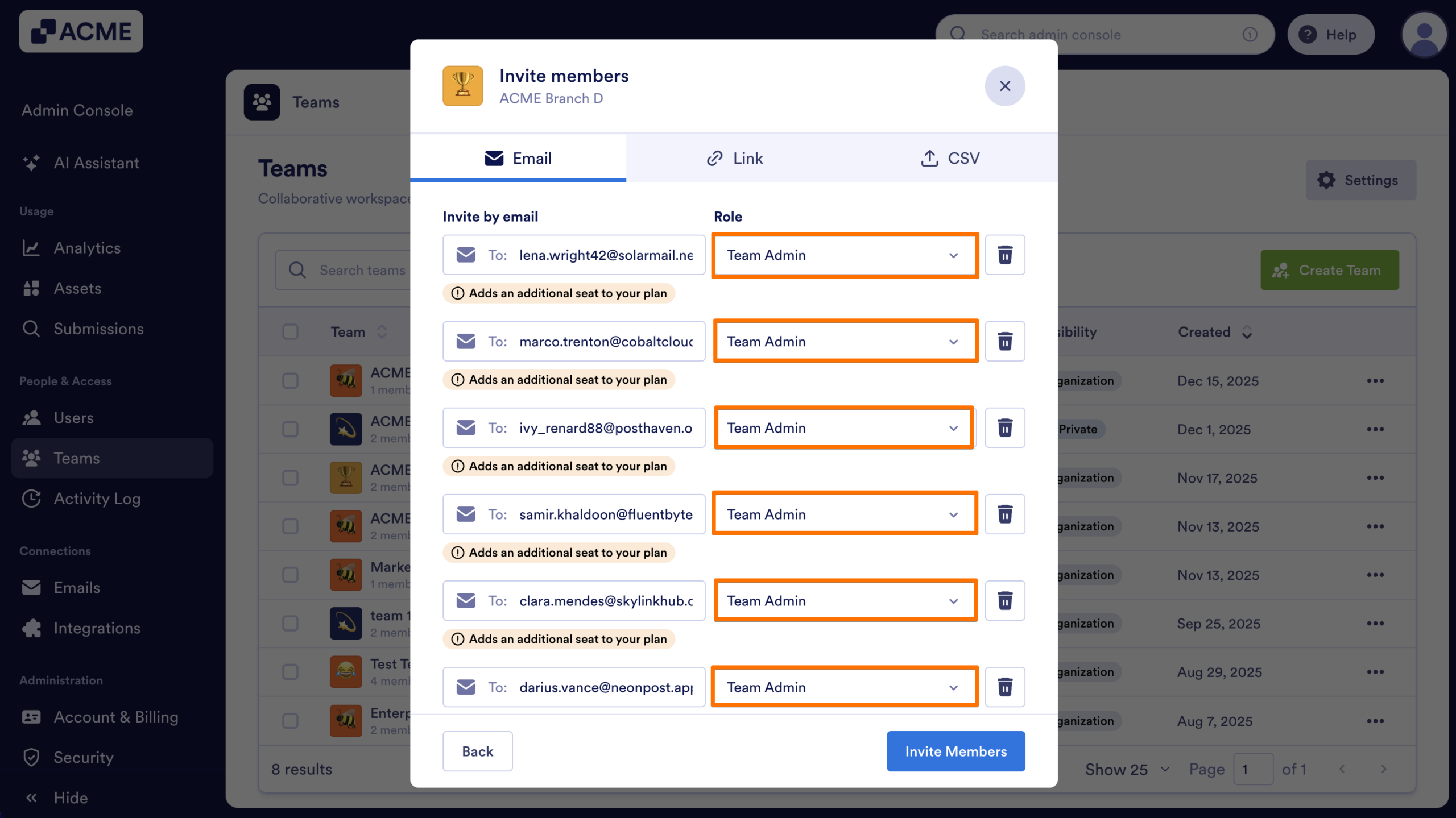
- After your file uploads, click on the drop-down menu next to each email and select their Role.
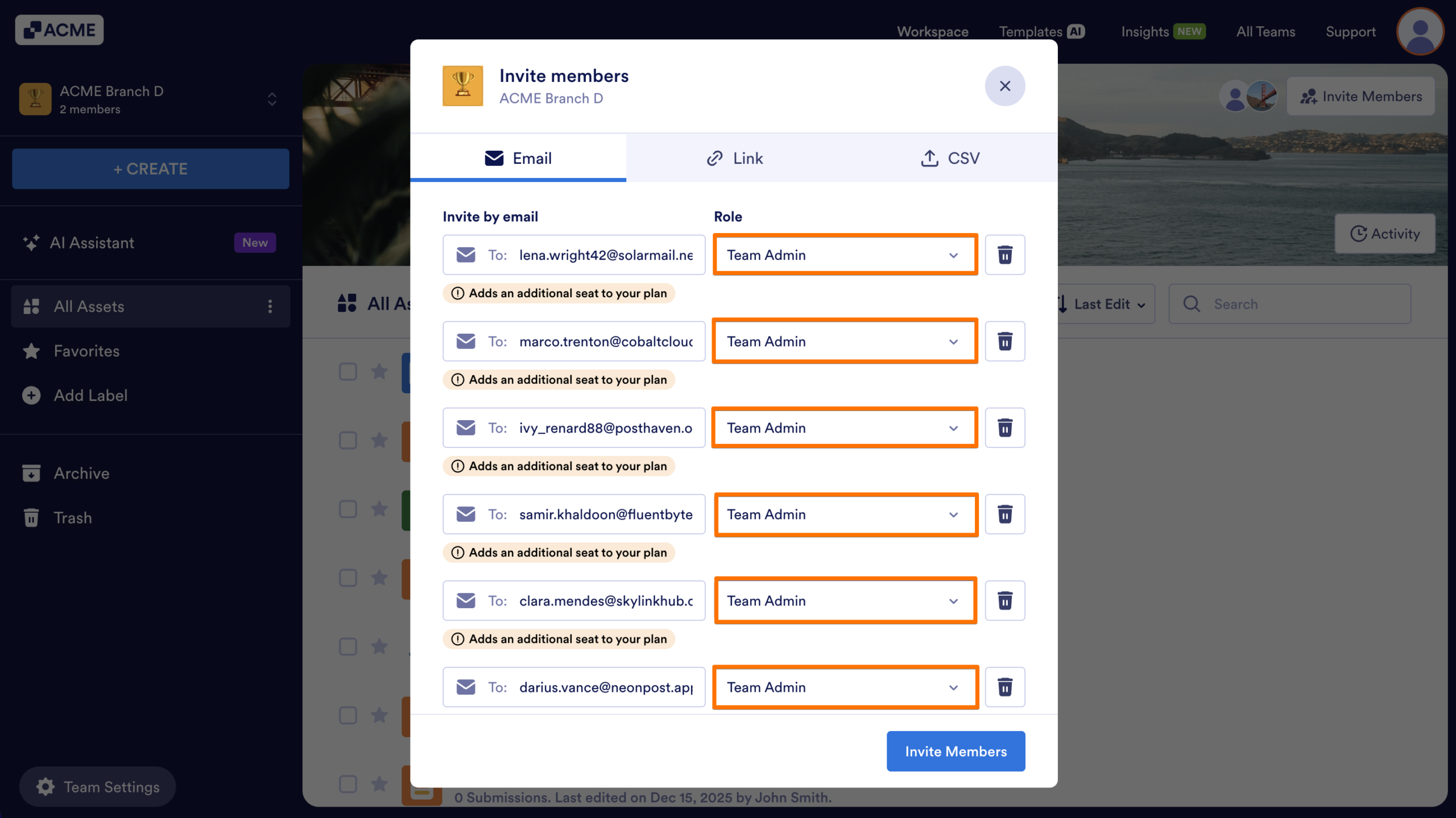
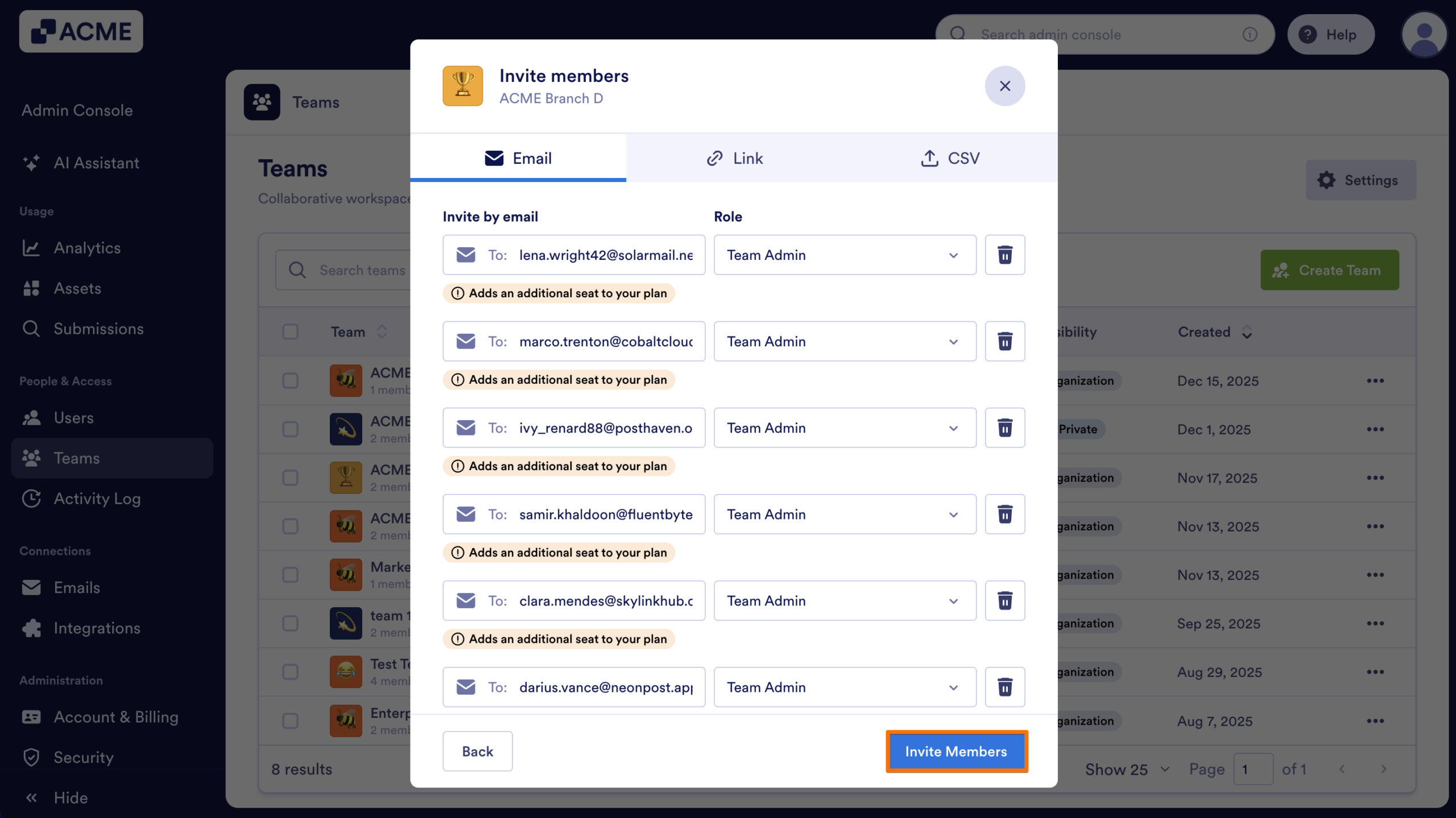
- Finally, click on Invite Members.
Invite Members from the Admin Console
If you are an admin in your organization, you can also use the Admin Console to manage Team members. Here’s how:
Invite by Email
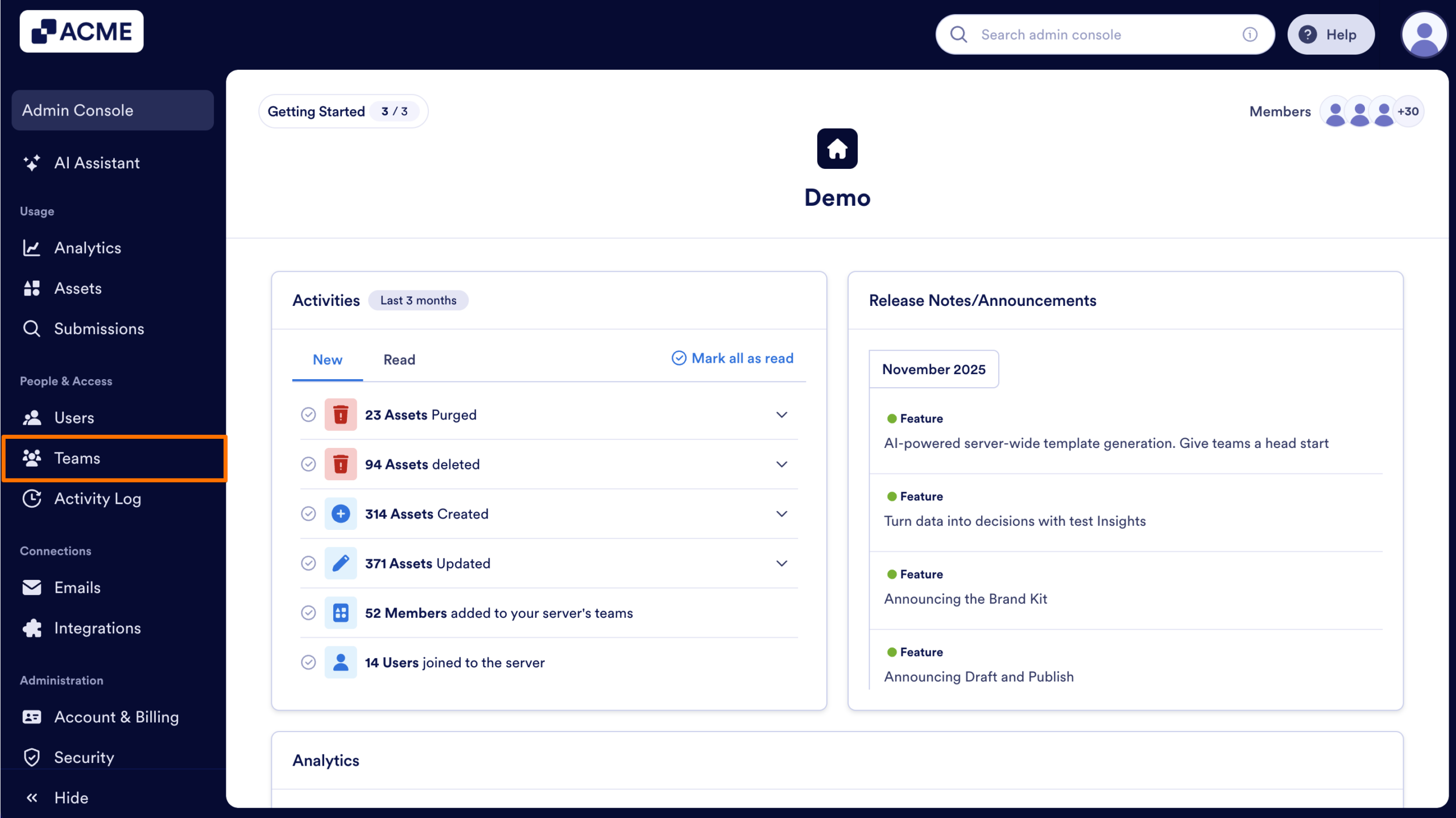
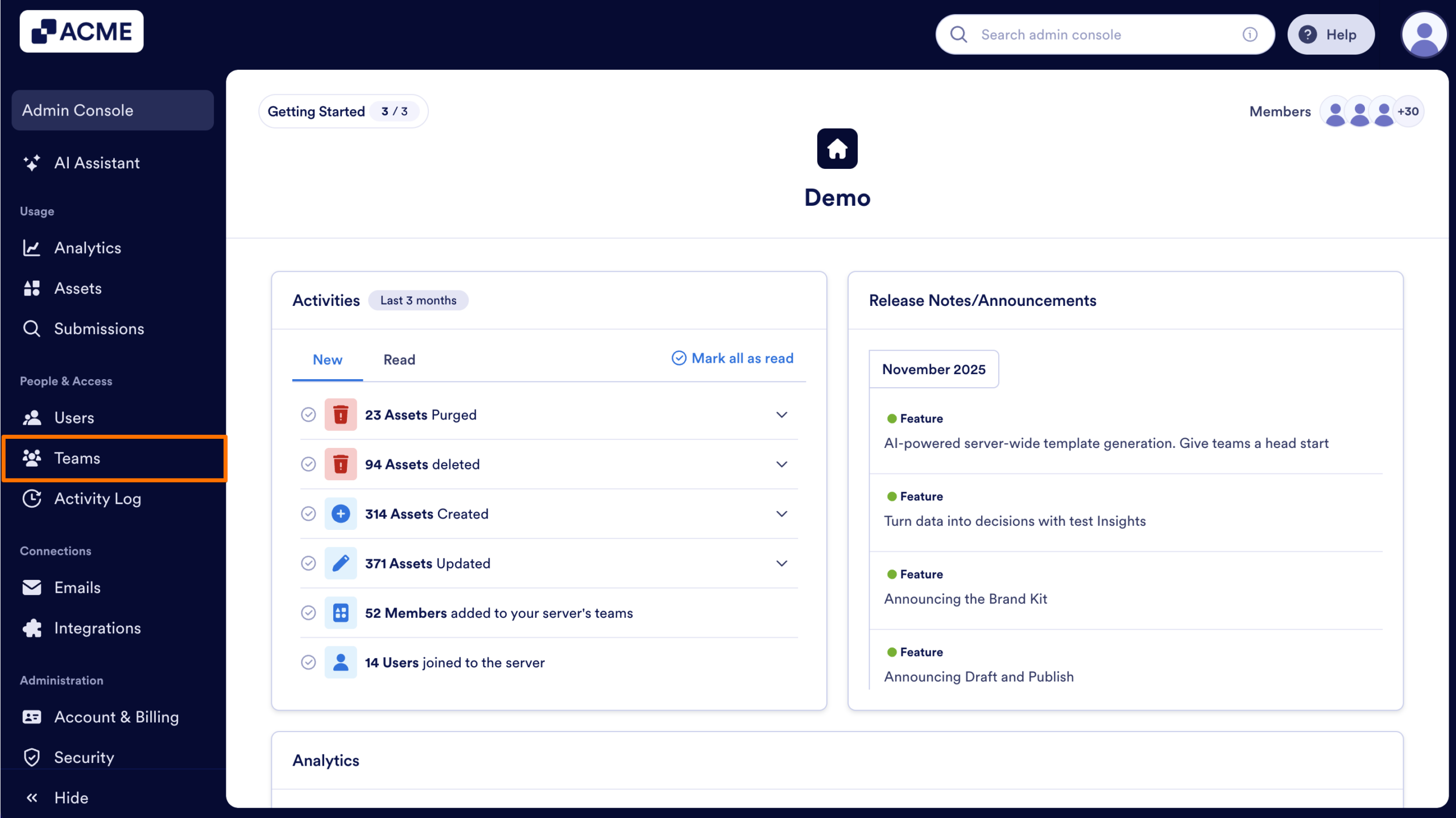
- In the Admin Console, click on Teams from the menu on the left-hand side of the page
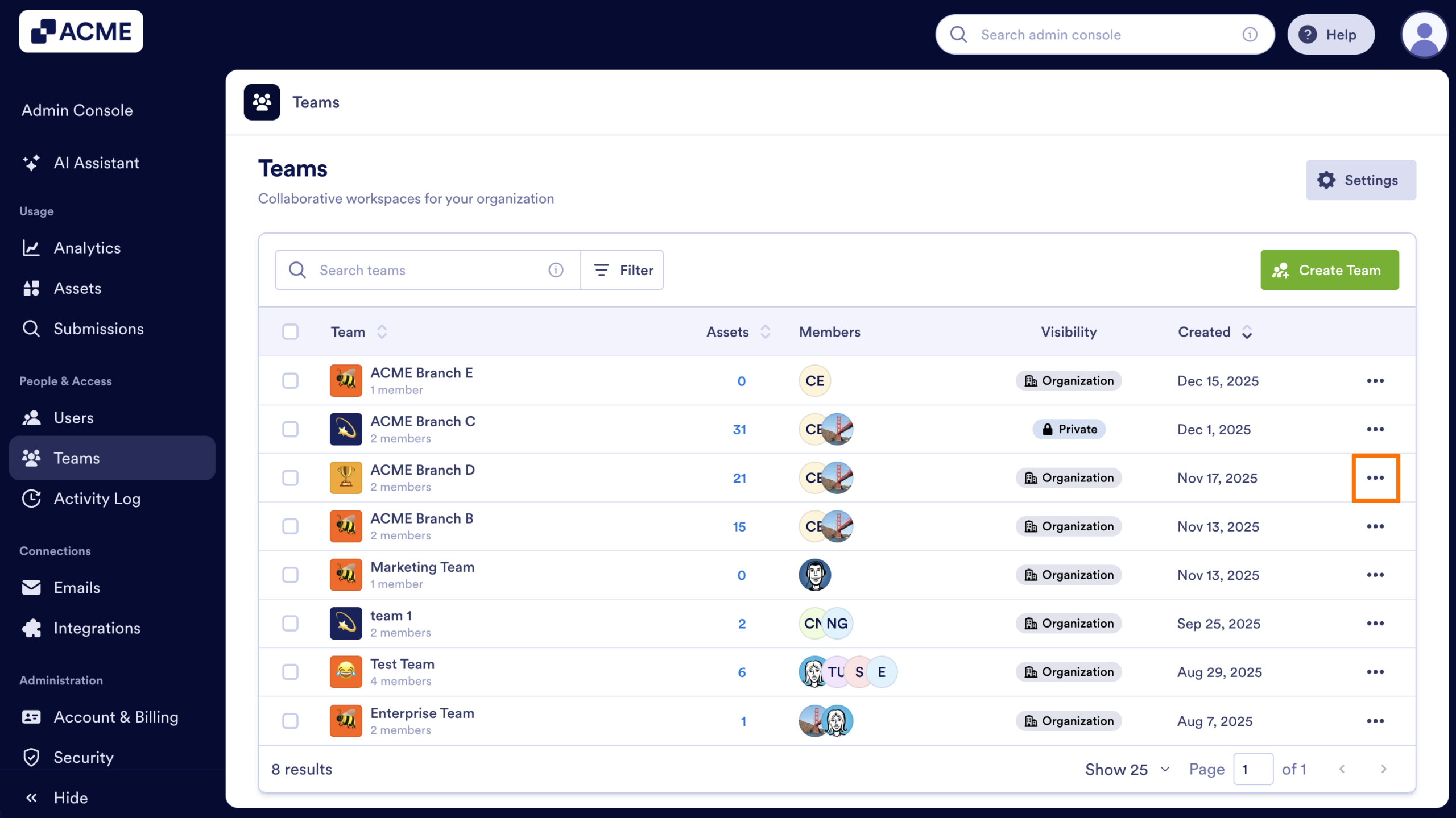
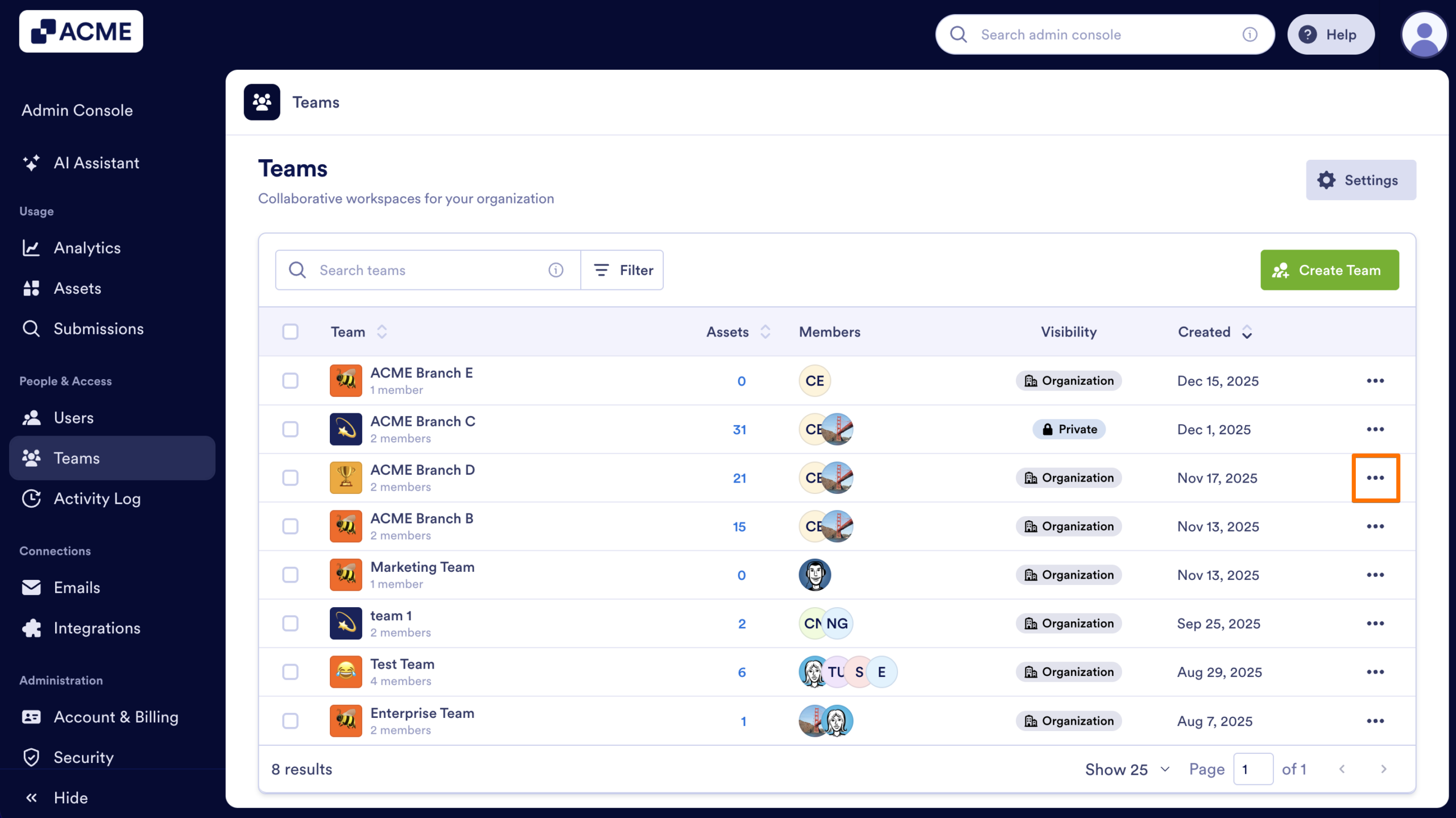
- Then, click on the three dot menu for the team you want to invite members to.
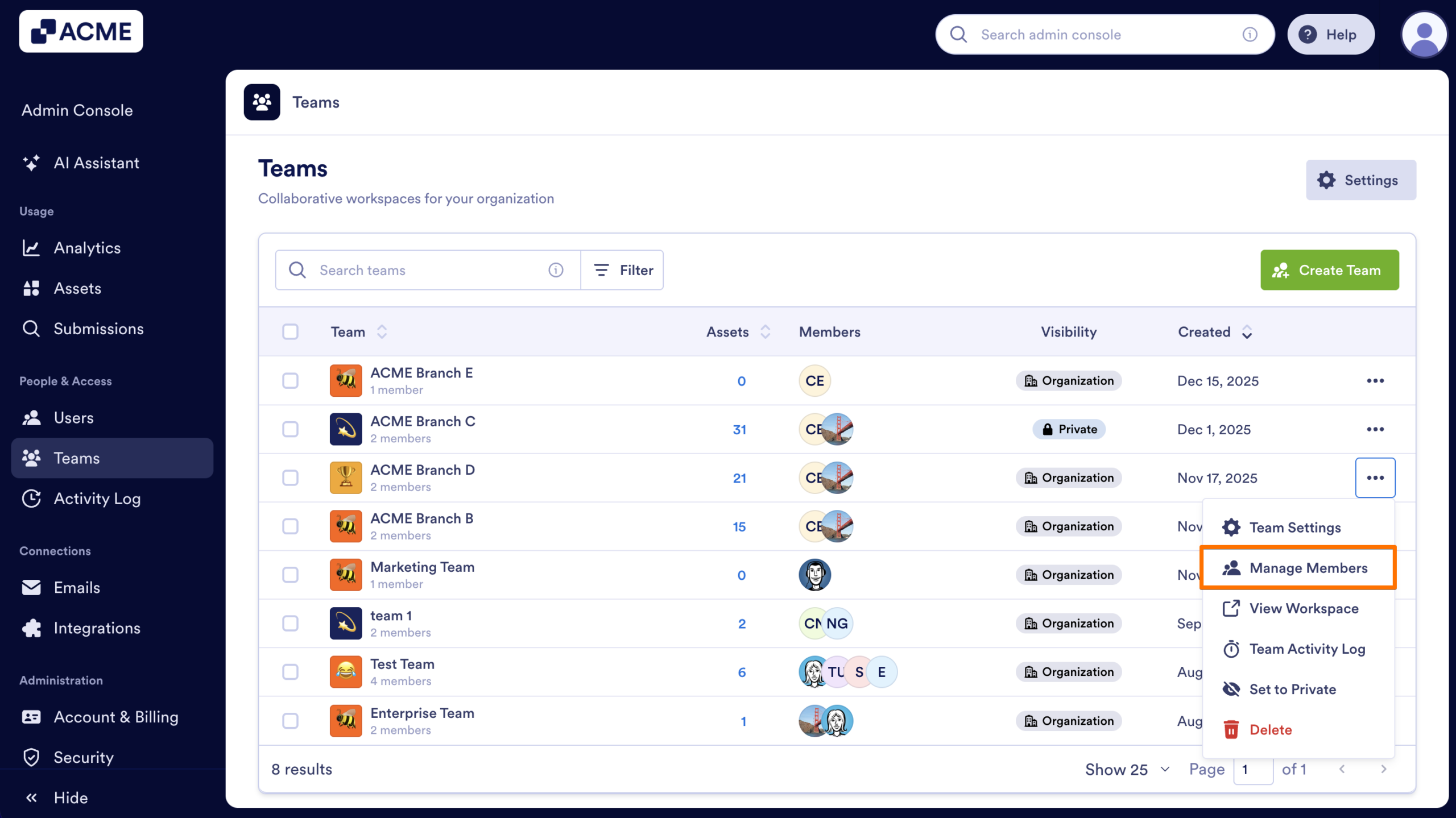
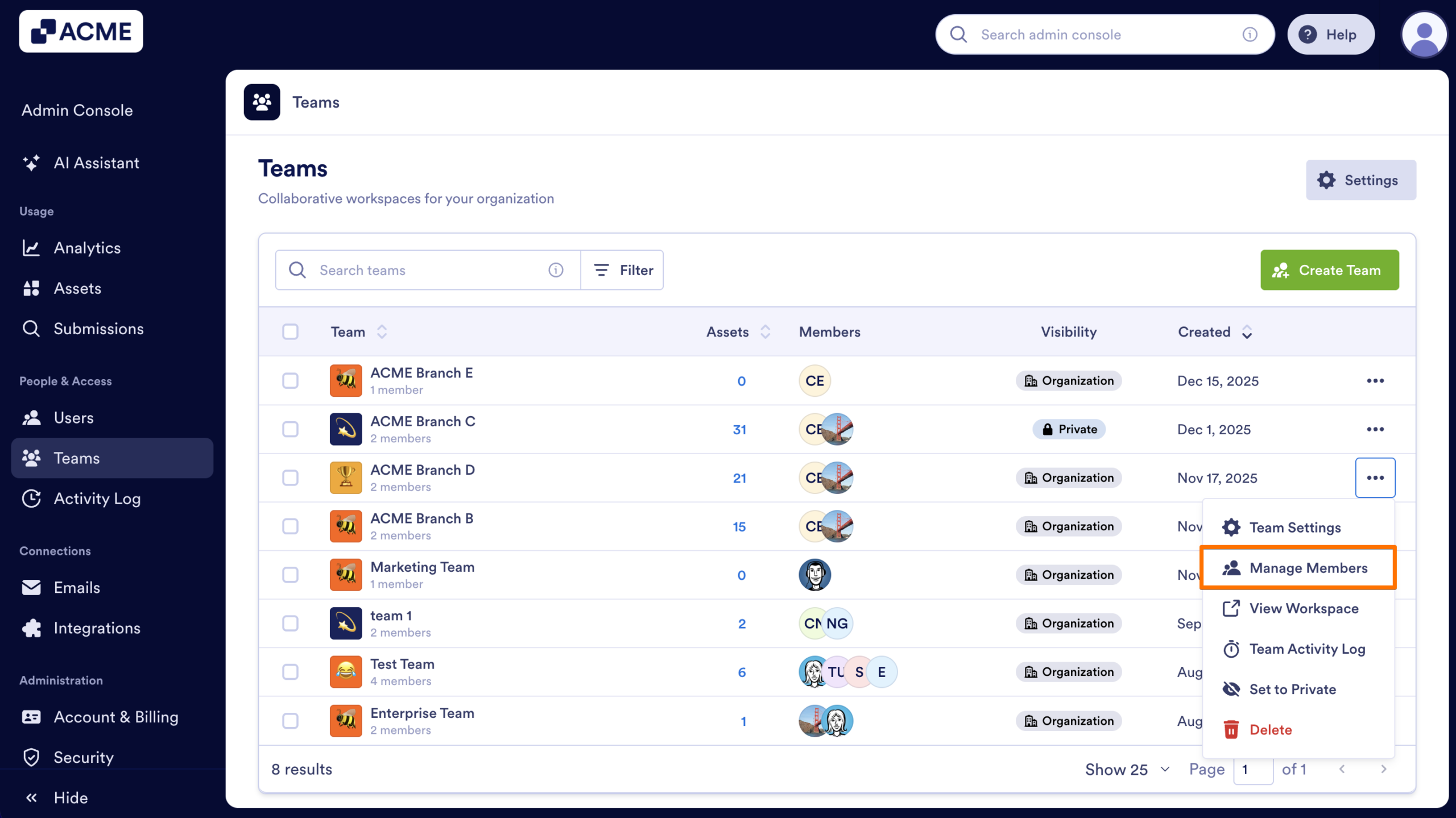
- Select Manage Members from the drop-down menu
- Then, click on Invite in the pop-up window.
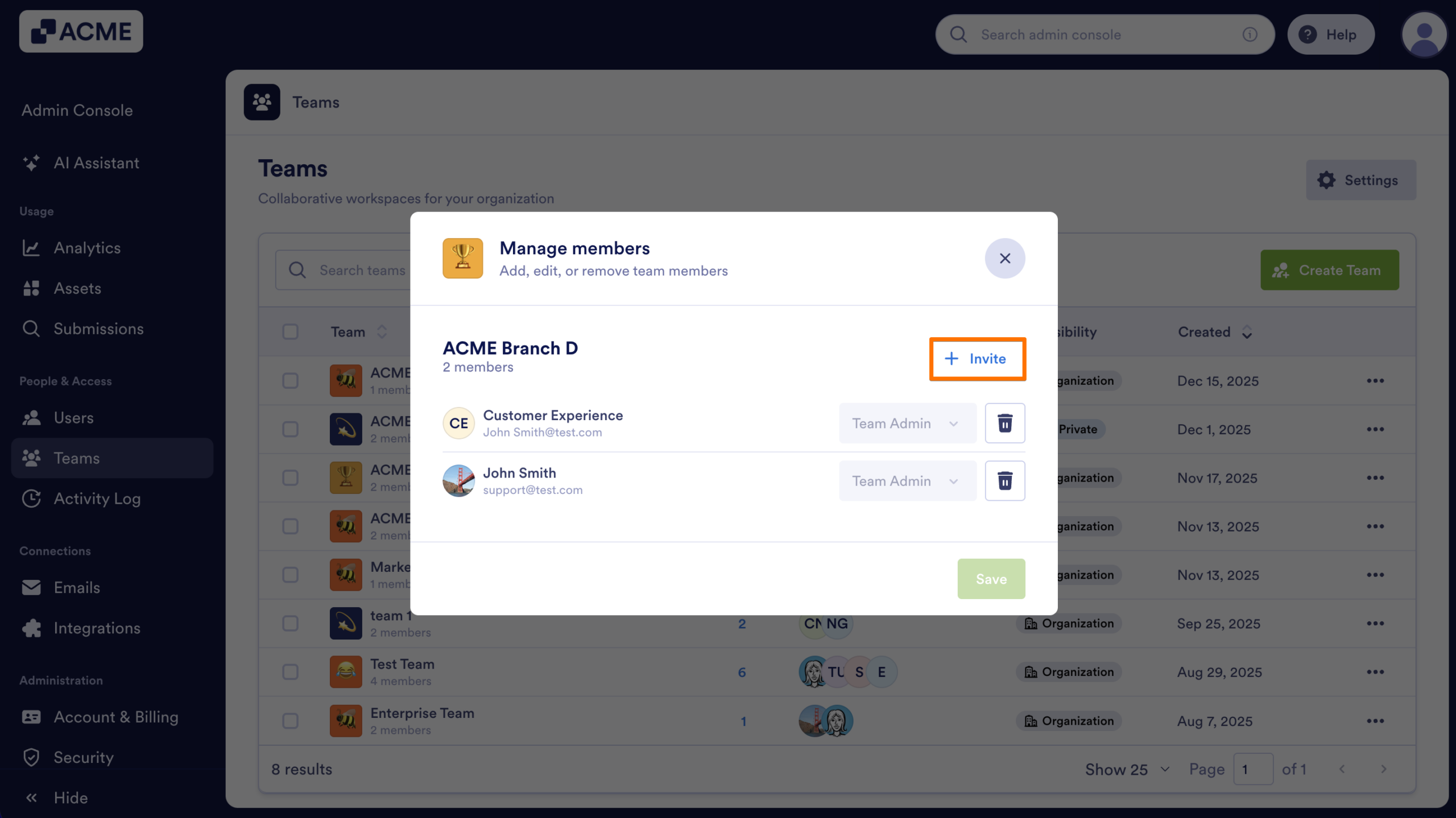
- Under Invite by Email, enter the email address for the new team member.
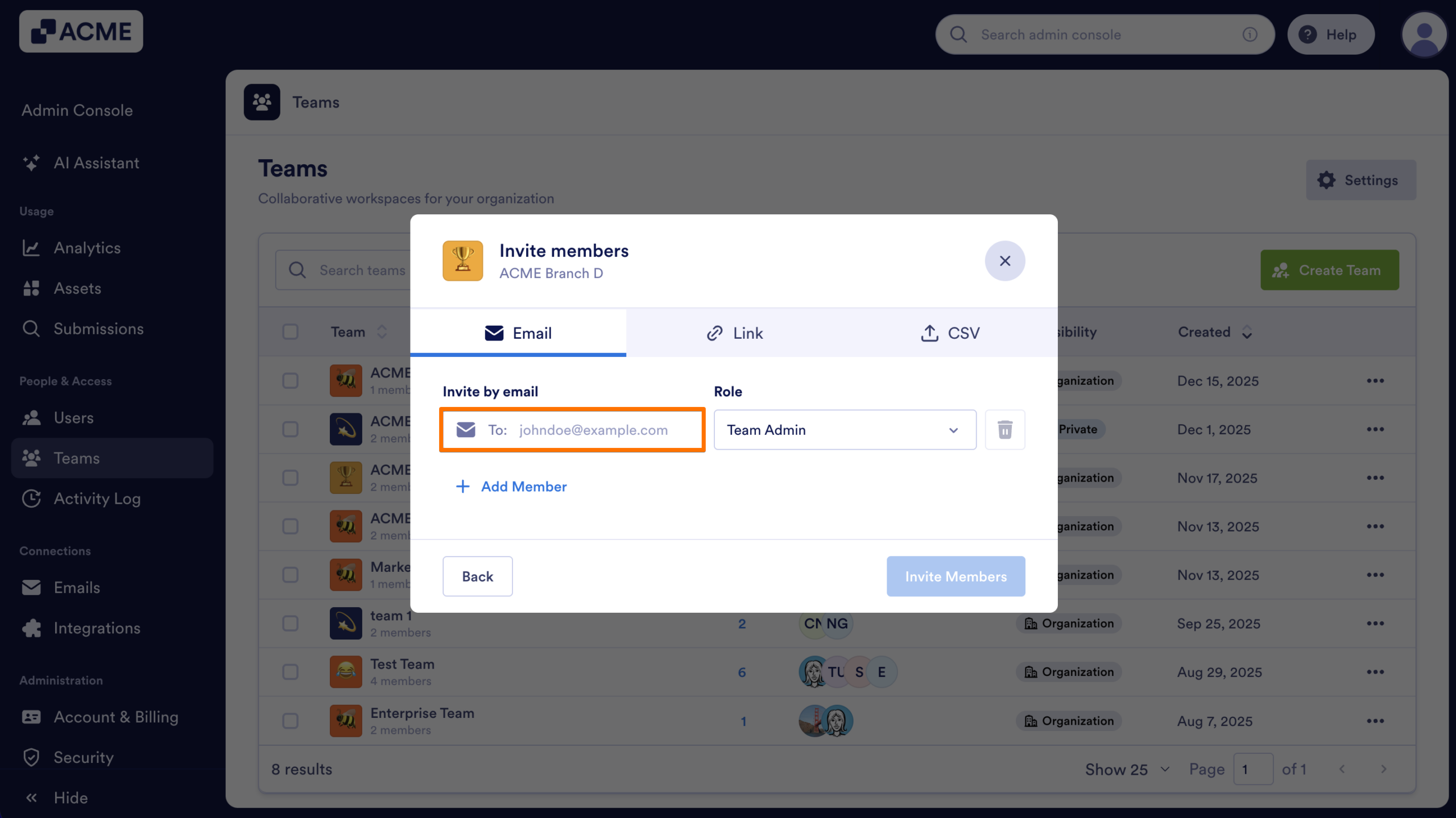
- Click on the dropdown menu under Role and select the Team Role for the user. To see what each role can do, check out Understanding Different Team Roles and Their Permissions.
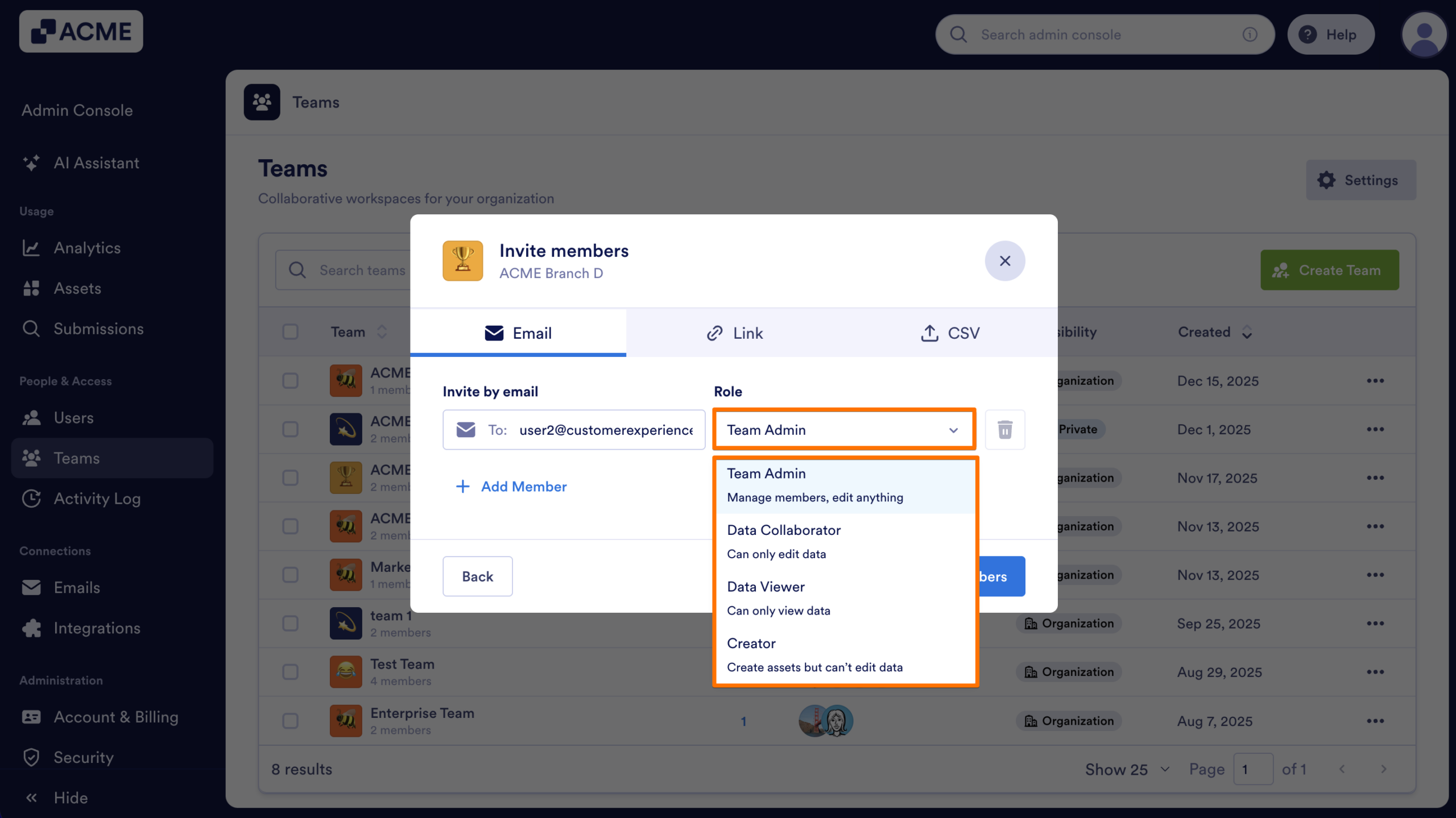
- If you want to add more than one Team Member , click on Add Member and repeat steps 5 and 6.
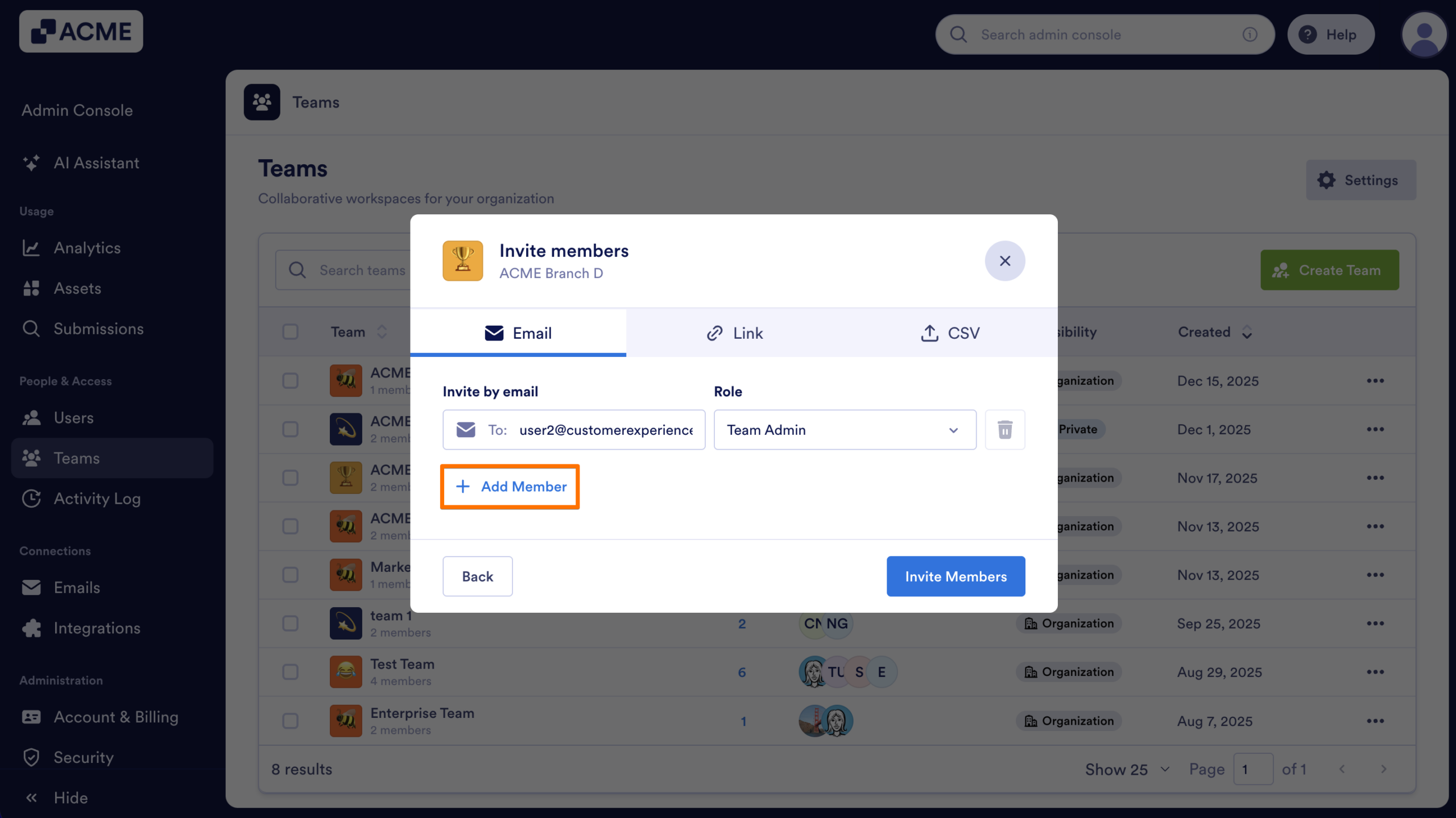
- After you’ve finished adding Team Members, click on Invite Members.
Invite by Link
Only Licensed Users can be added to a Team via an Invite Link.
- In the Admin Console, click on Teams from the menu on the left-hand side of the page.
- Then, click on the three dot menu for the team you want to invite members to.
- Select Manage Members from the drop-down menu.
- Then, click on Invite in the pop-up window
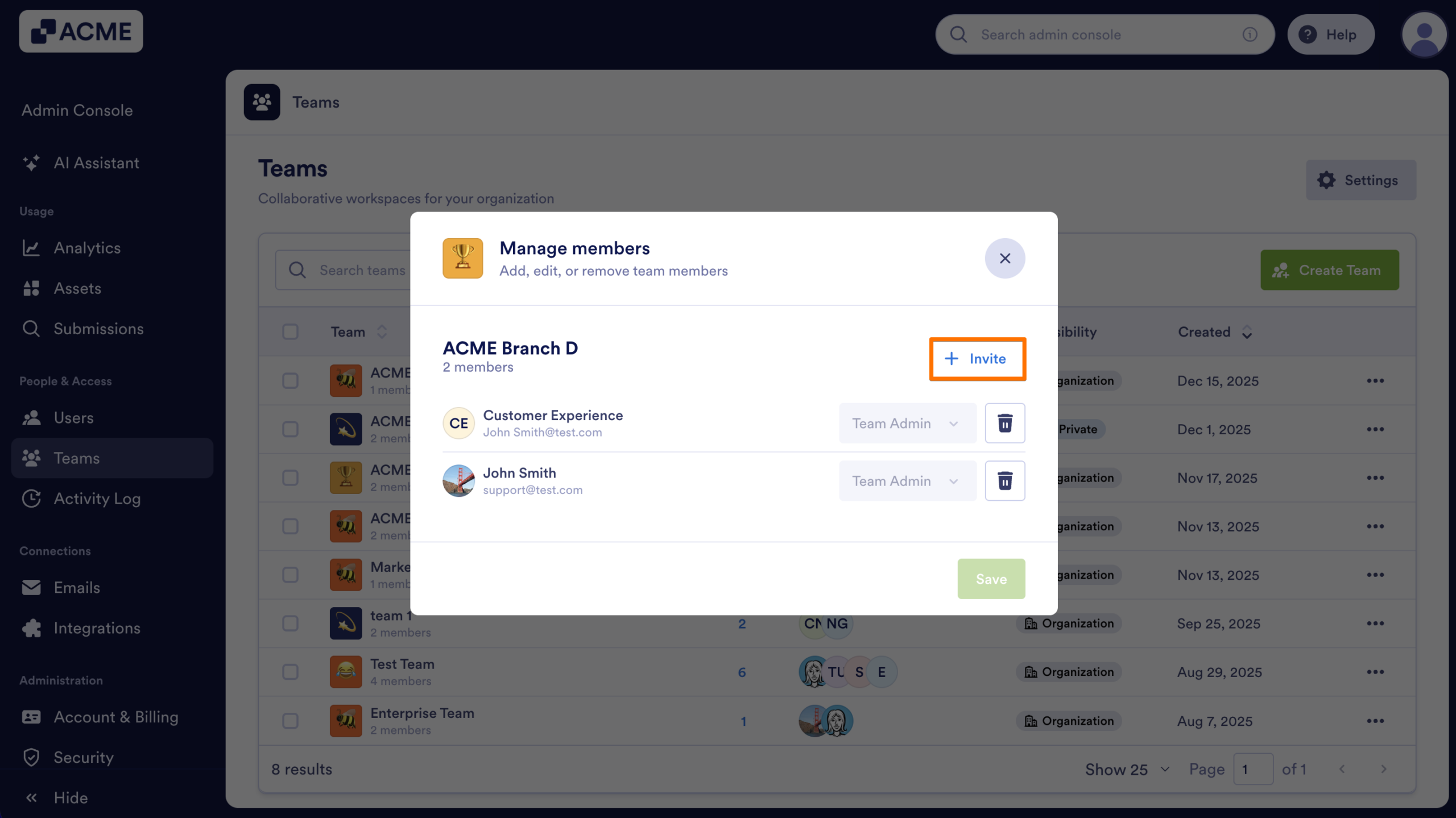
- Next, select the Link tab.
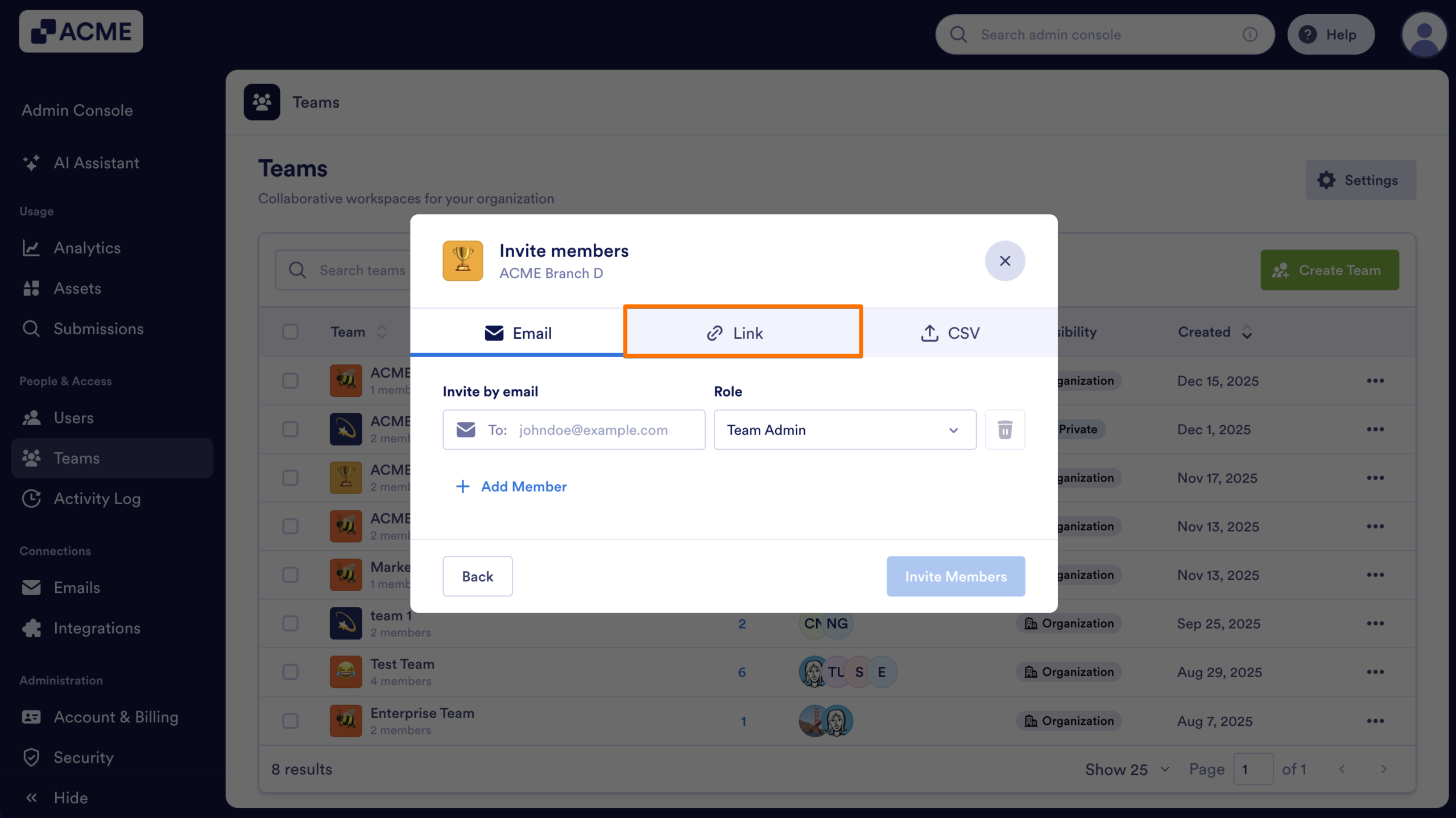
- Select the role you want to give to the user under Role given by this link
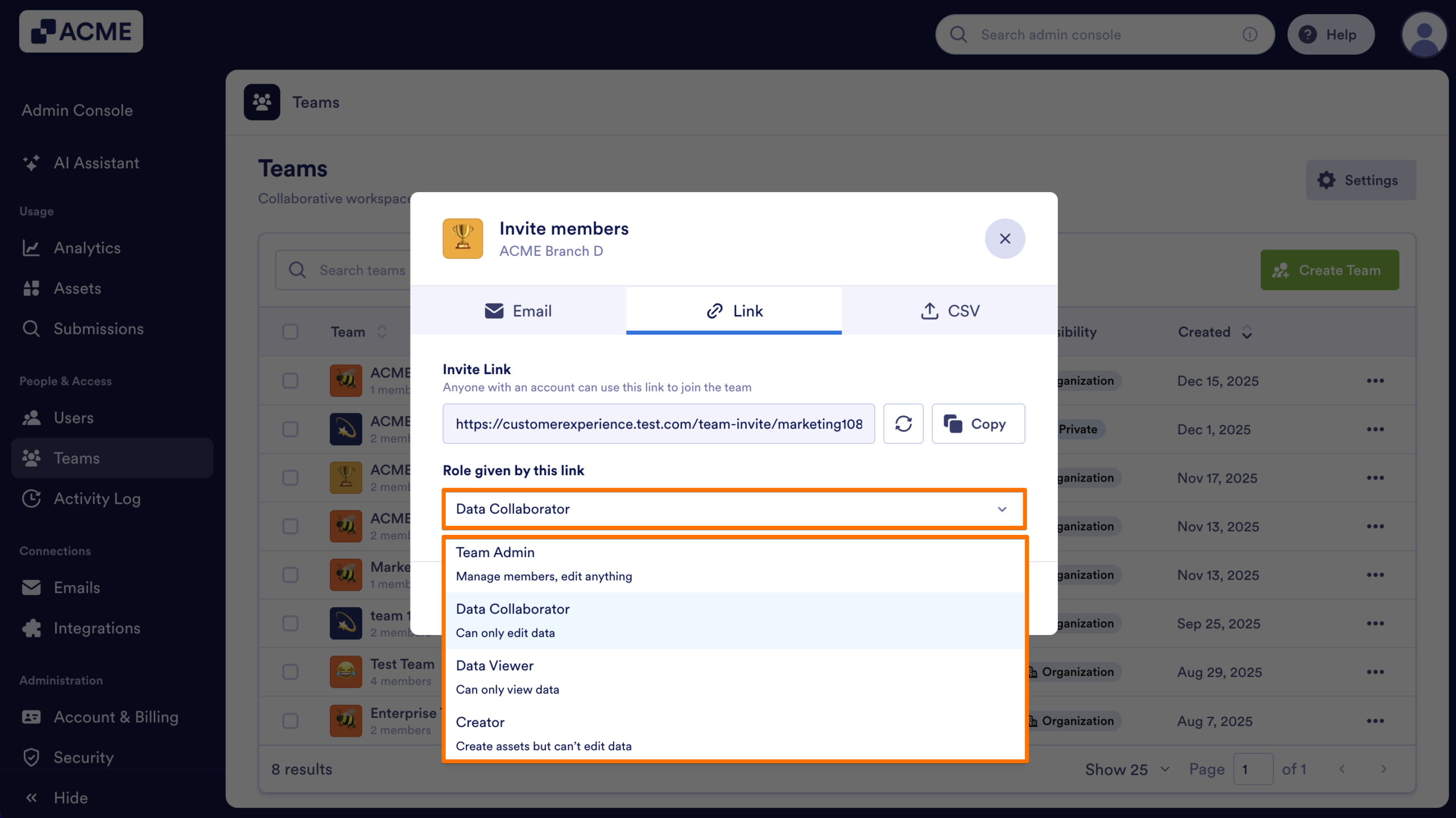
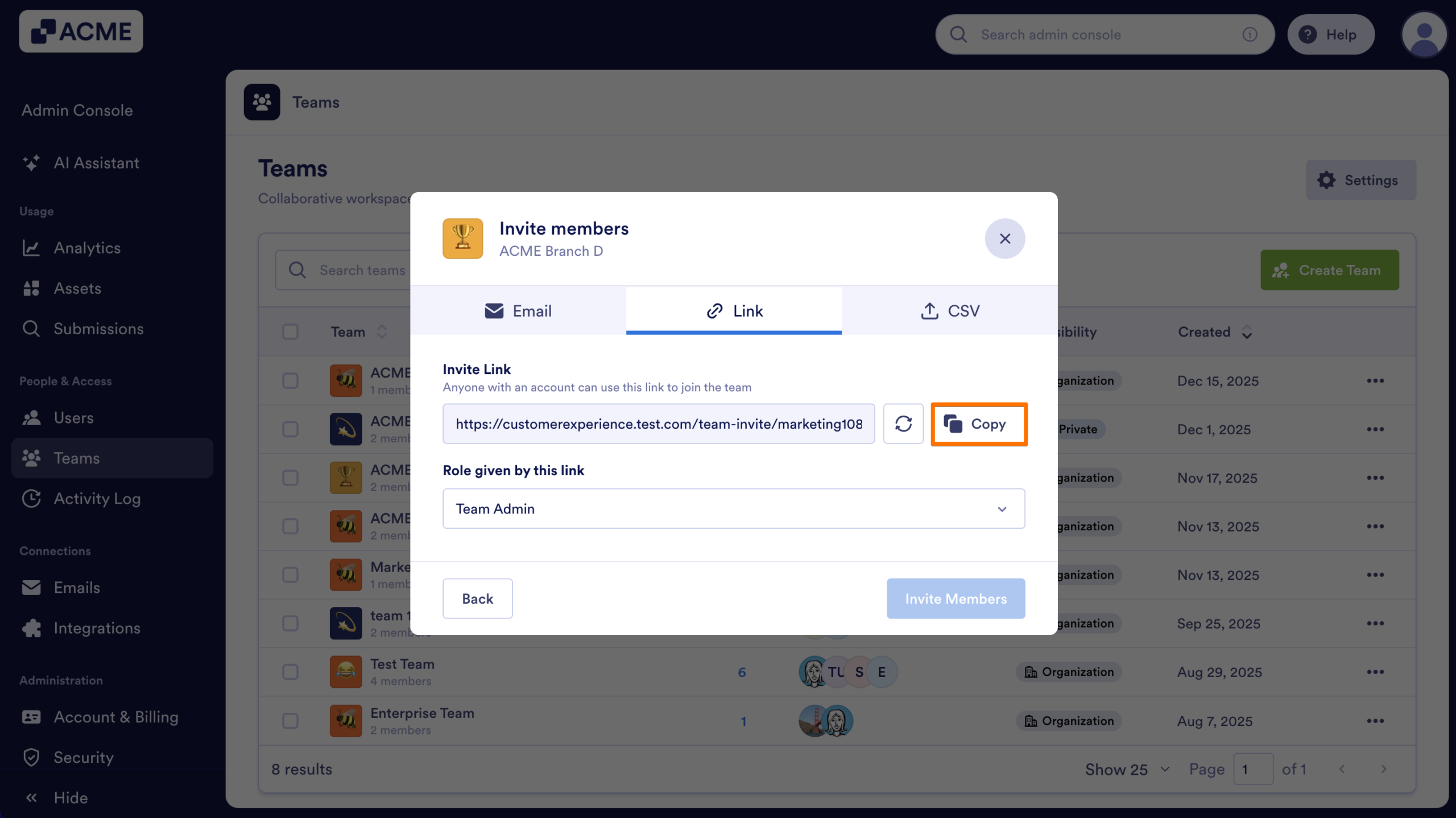
- Finally, click Copy next to the link and share it with users who need to join the Team.
Invite by Uploading a CSV File
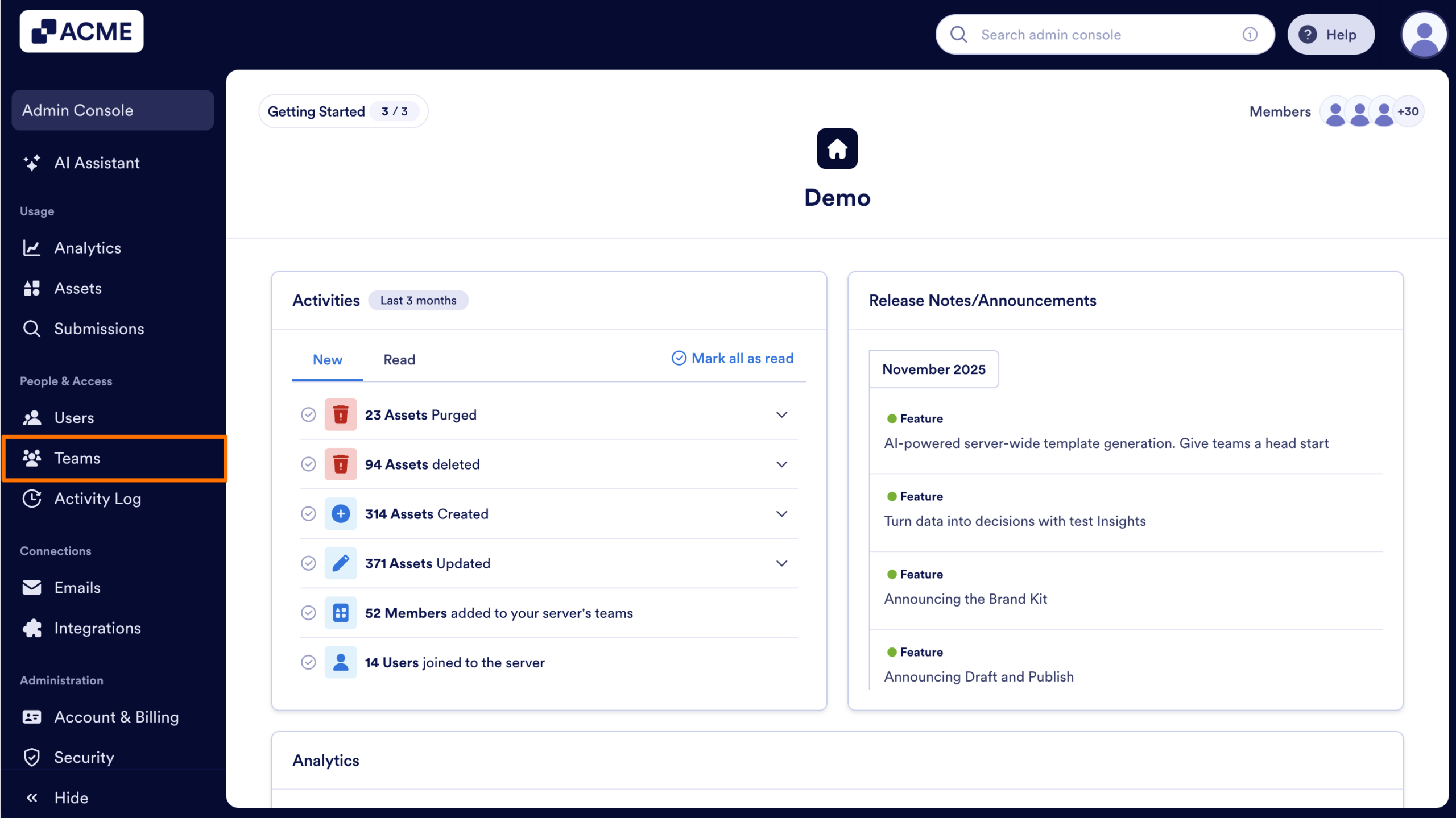
- In the Admin Console, click on Teams from the menu on the left-hand side of the page.
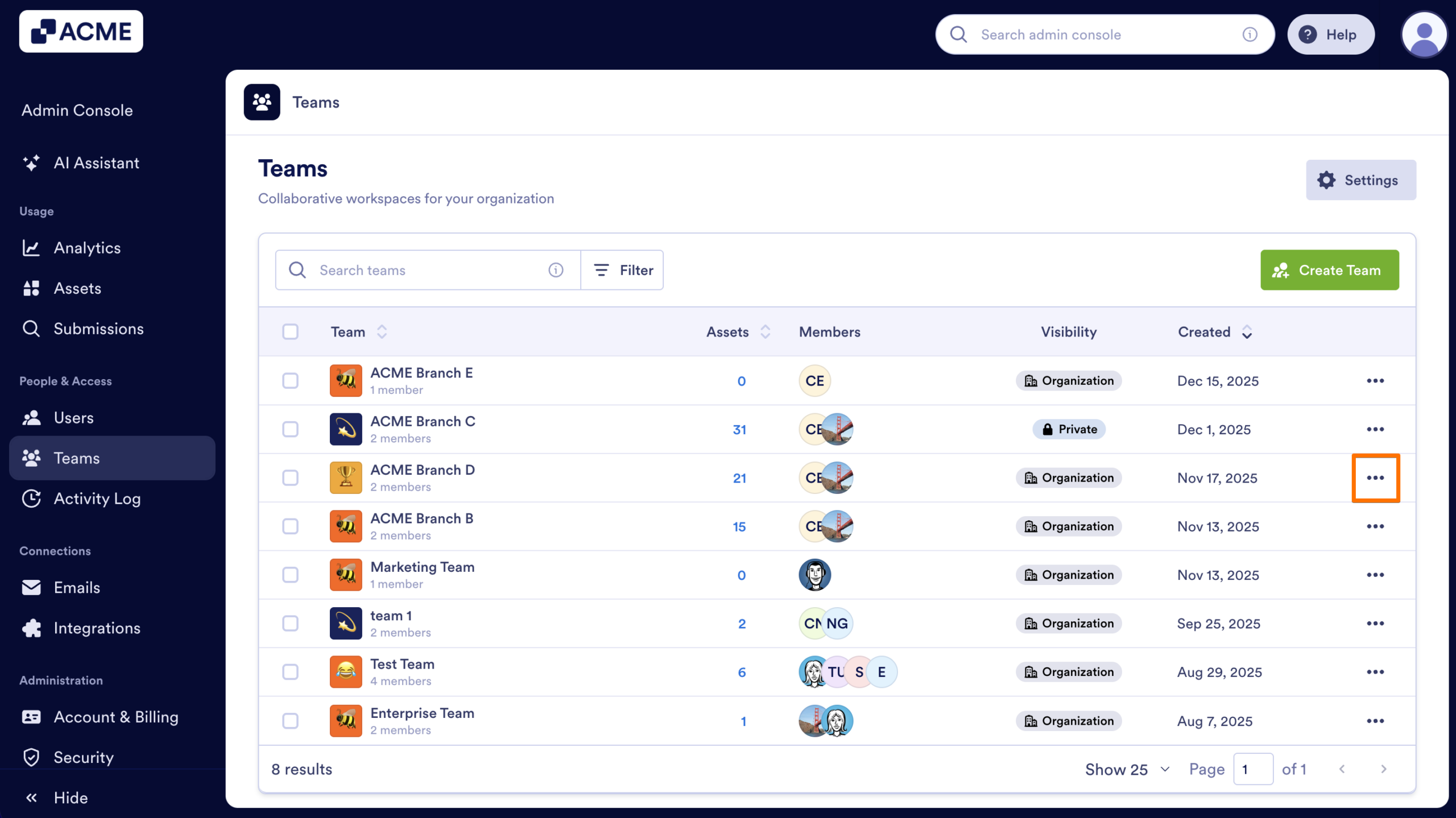
- Then, click on the three dot menu for the team you want to invite members to.
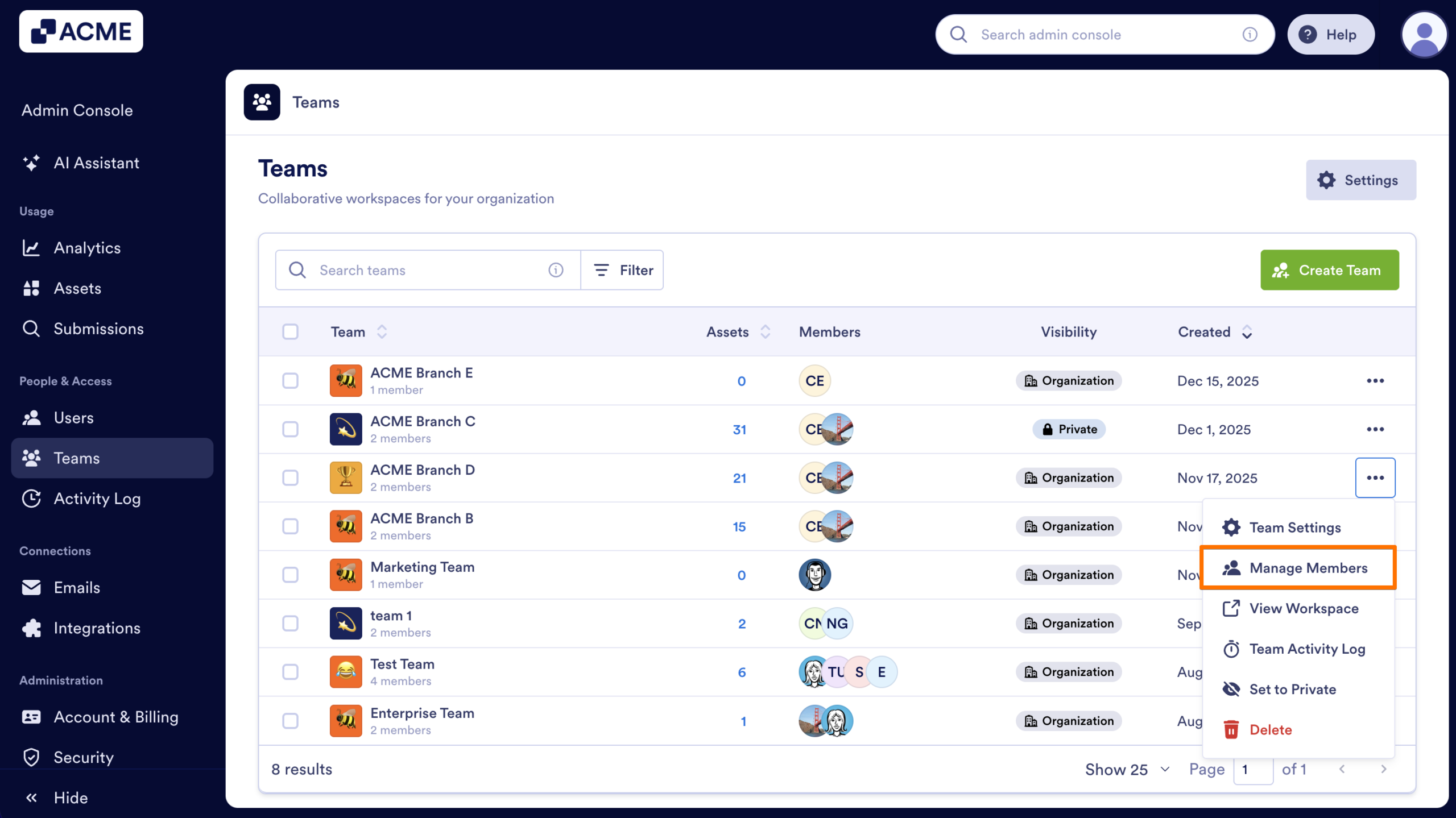
- Select Manage Members from the drop-down window
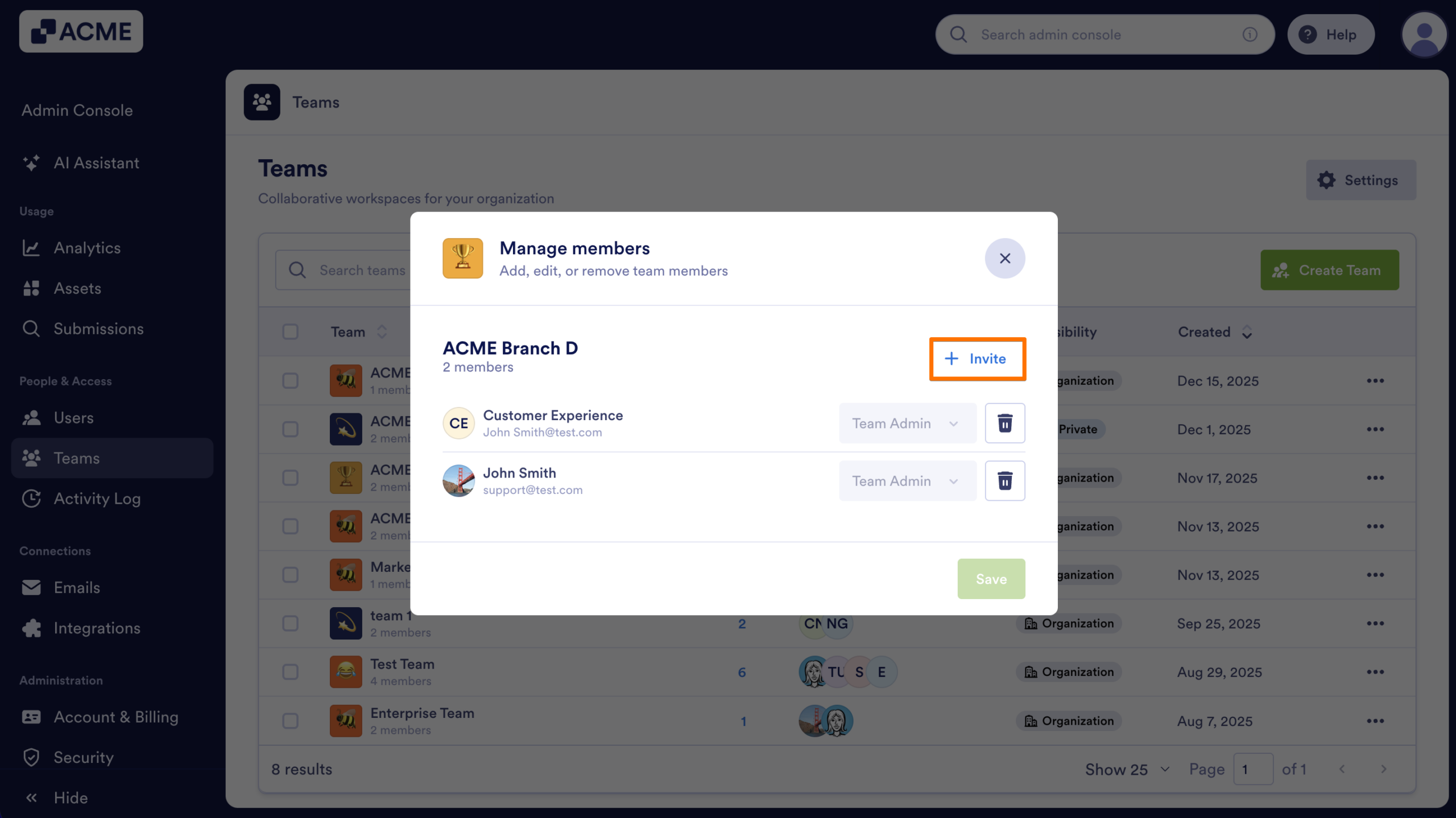
- Then, click on Invite in the pop-up window.
- Next, select the CSV tab.
- In the pop-up window, click on Choose File and upload your CSV file.
- After your file uploads, click on the drop-down menu next to each email and select their Role.
- Finally, click on Invite Members.

Send Comment: