The Form Builder makes it easy to manage and organize your form fields. You can select multiple fields at once, rearrange them, or apply settings like duplicating, hiding, or deleting fields.
With tools like multi-select and a custom right-click menu, you have everything you need to quickly adjust your form’s layout and functionality.
Managing Multiple Fields
To manage multiple fields, hold down Ctrl (Windows) or Command ⌘ (Mac) and click each field you want to select. You can also press Ctrl + A or ⌘ + A to select all fields at once.
A menu will appear at the top, giving you options to Duplicate, Require, Hide, or Delete the selected fields as needed.
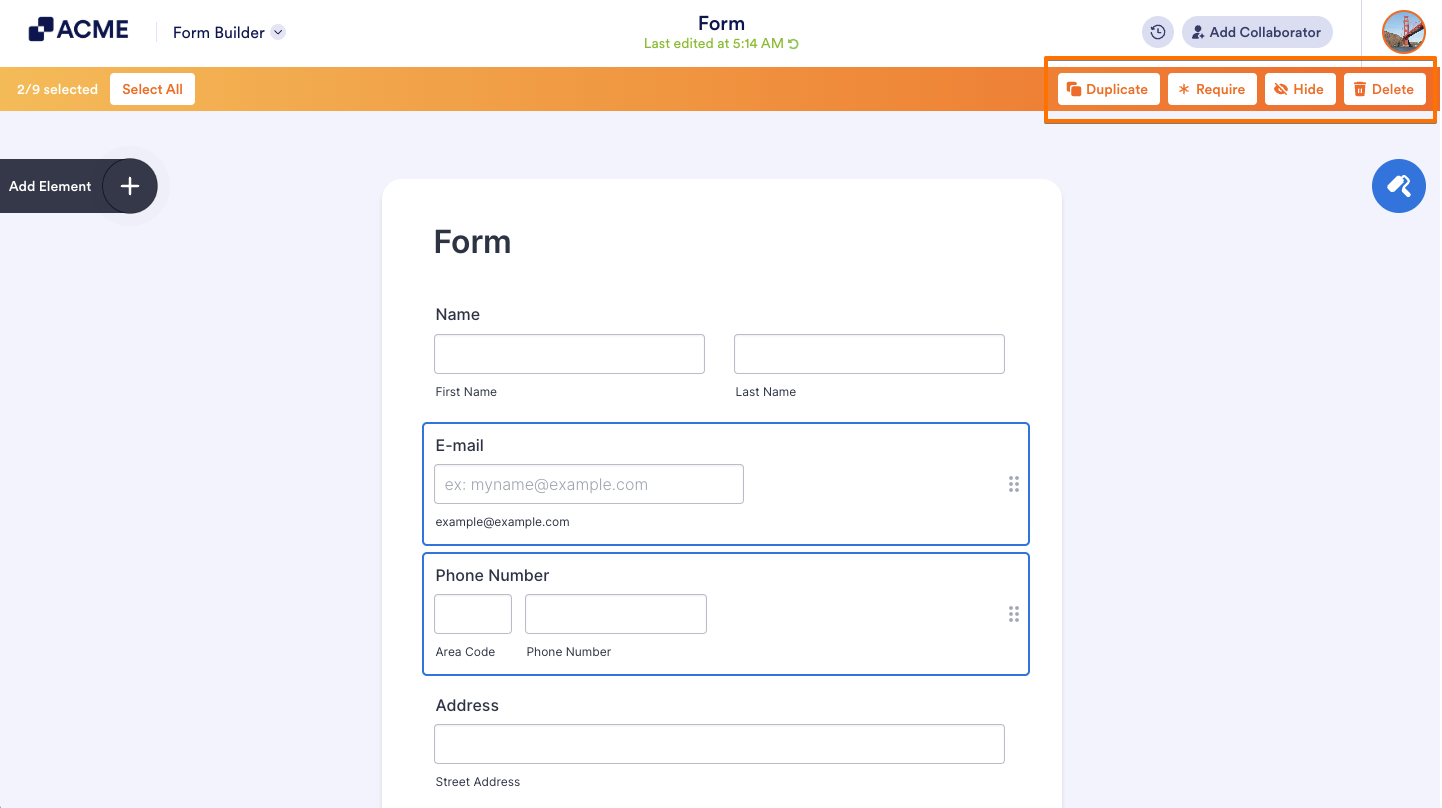
The Form Builder also offers a custom Context Menu, providing additional options for managing fields. Simply right-click your mouse to display the menu and access these options below:
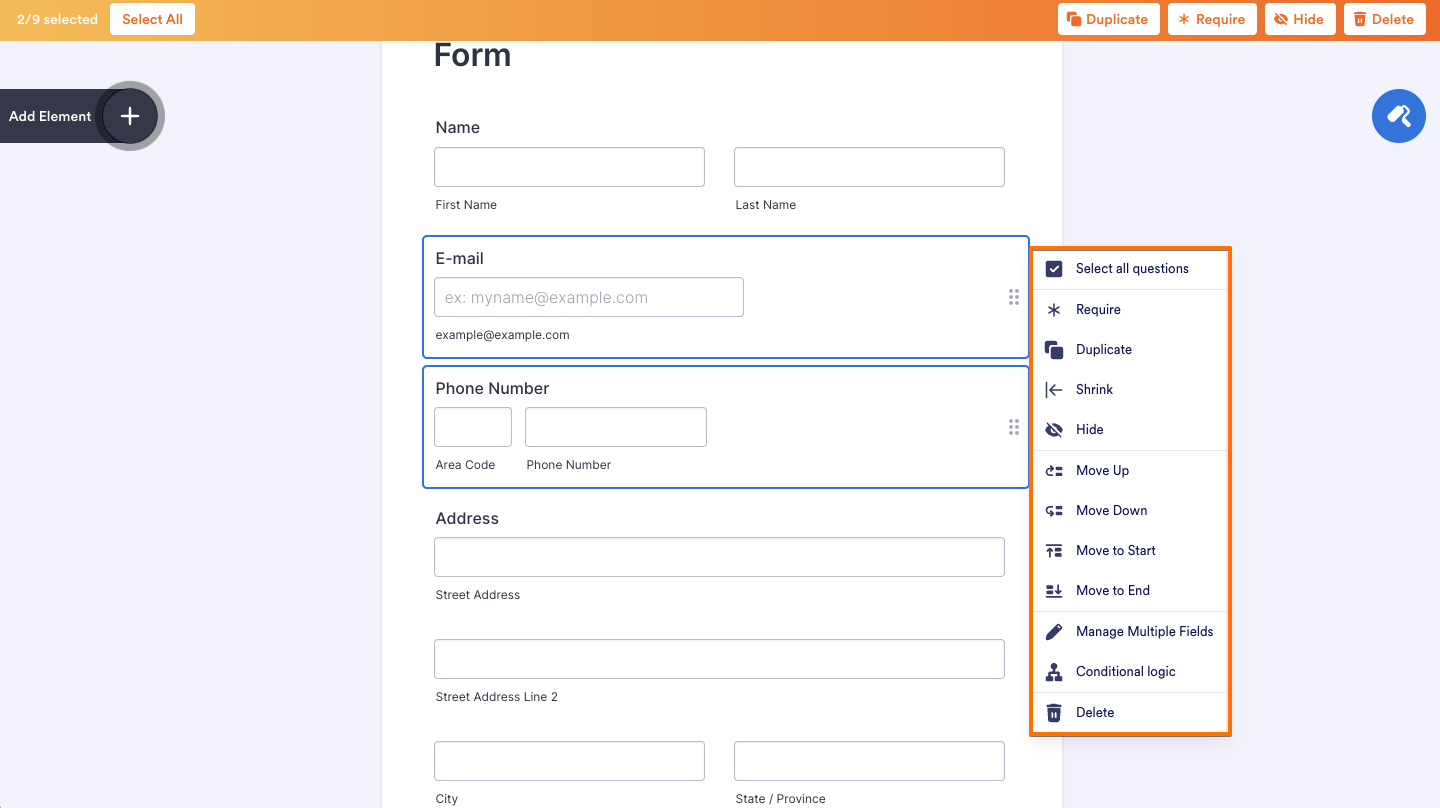
Here’s a short description of what each option does:
- Select All Questions — Selects all fields (like pressing Ctrl + A or ⌘ + A).
- Require — Makes a field required.
- Move Up — Moves a field up.
- Move Down — Moves a field down.
- Move to Start — Moves the field to the top.
- Move to End — Moves the field to the bottom, just before the submit button.
- Shrink — Reduces a field to its bare minimum width.
- Duplicate — Creates another copy of the selected field.
- Hide — Hides the field.
- Delete — Deletes the field.
- Conditional Logic — Opens the conditions associated with the selected field.
- Manage Multiple Fields — Adds a checkbox to each field for easy selection or deselection.

Send Comment: