Moving your existing Forms, AI Agents, Boards, and other assets to Teams helps keep everything organized and accessible to your team. It simplifies collaboration, provides better control over resources, and removes the need to manage individual permissions.
You can move Forms, Tables, Apps, Sign Documents, Workflows, Reports, Boards, and AI Agents individually to a Team Workspace. Let’s walk through that together, below:
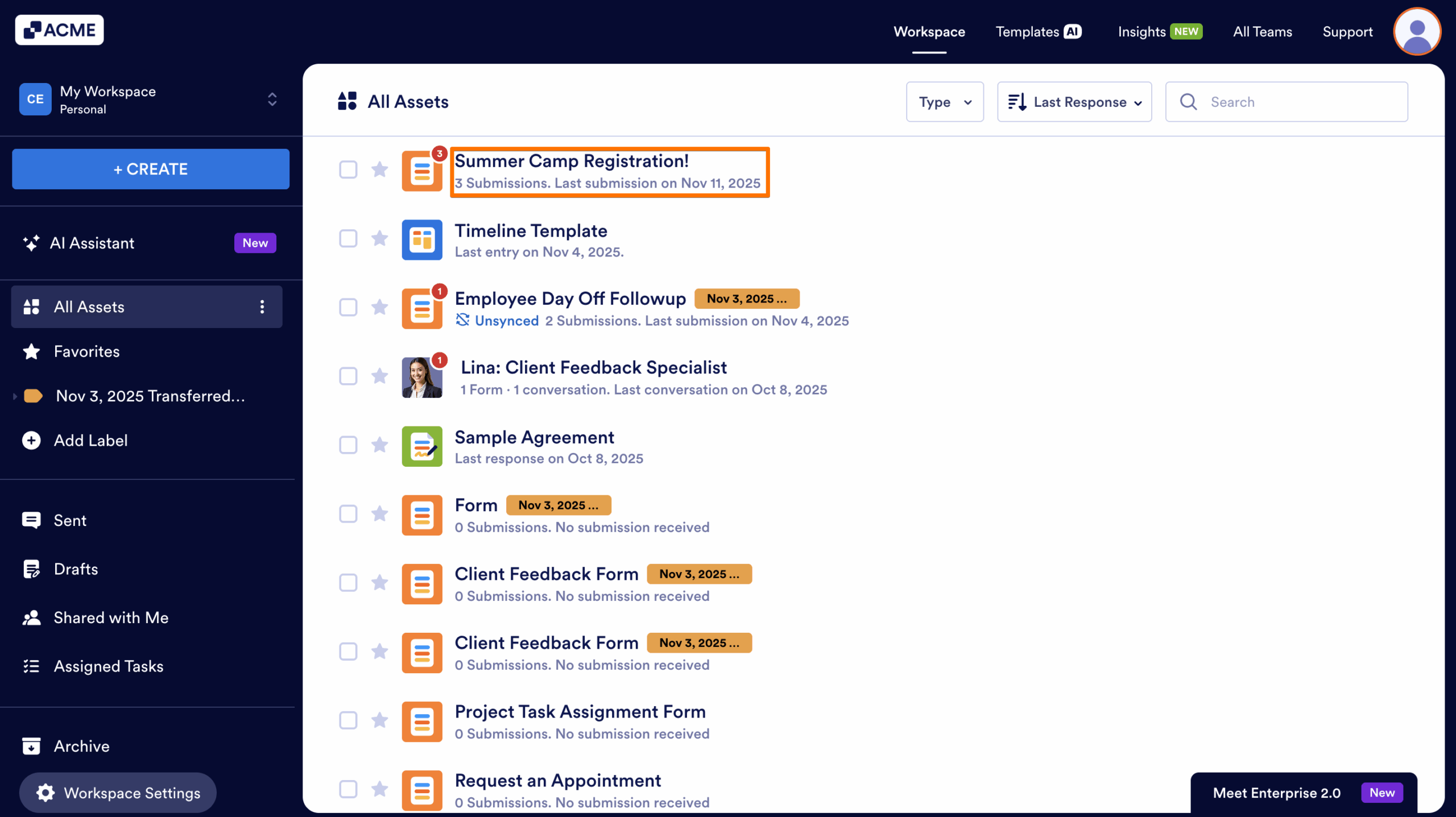
- Starting from your My Workspace page, locate and click on the asset you’d like to move.
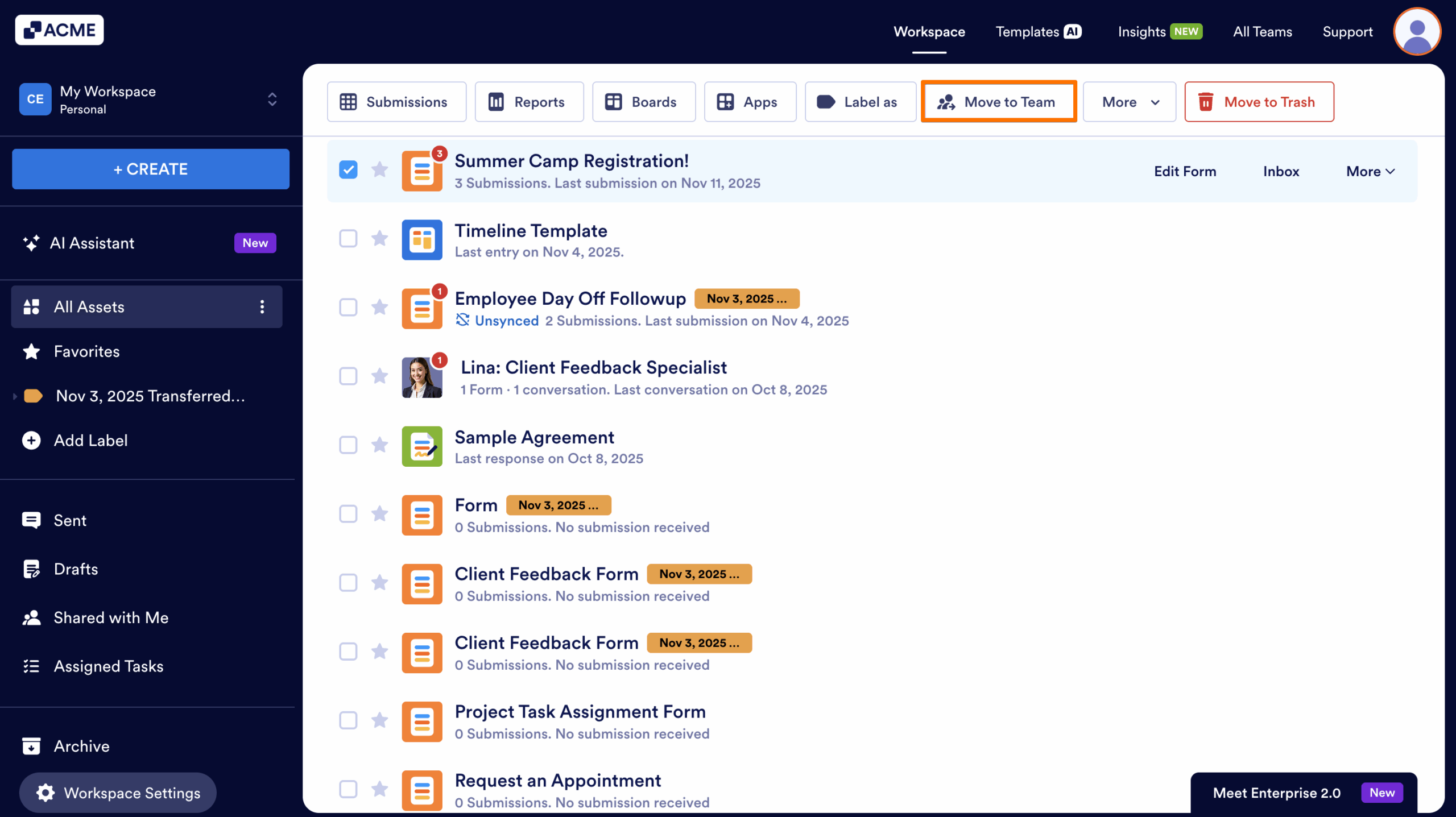
- Next, click on Move to Team in the menu located at the top of the page.
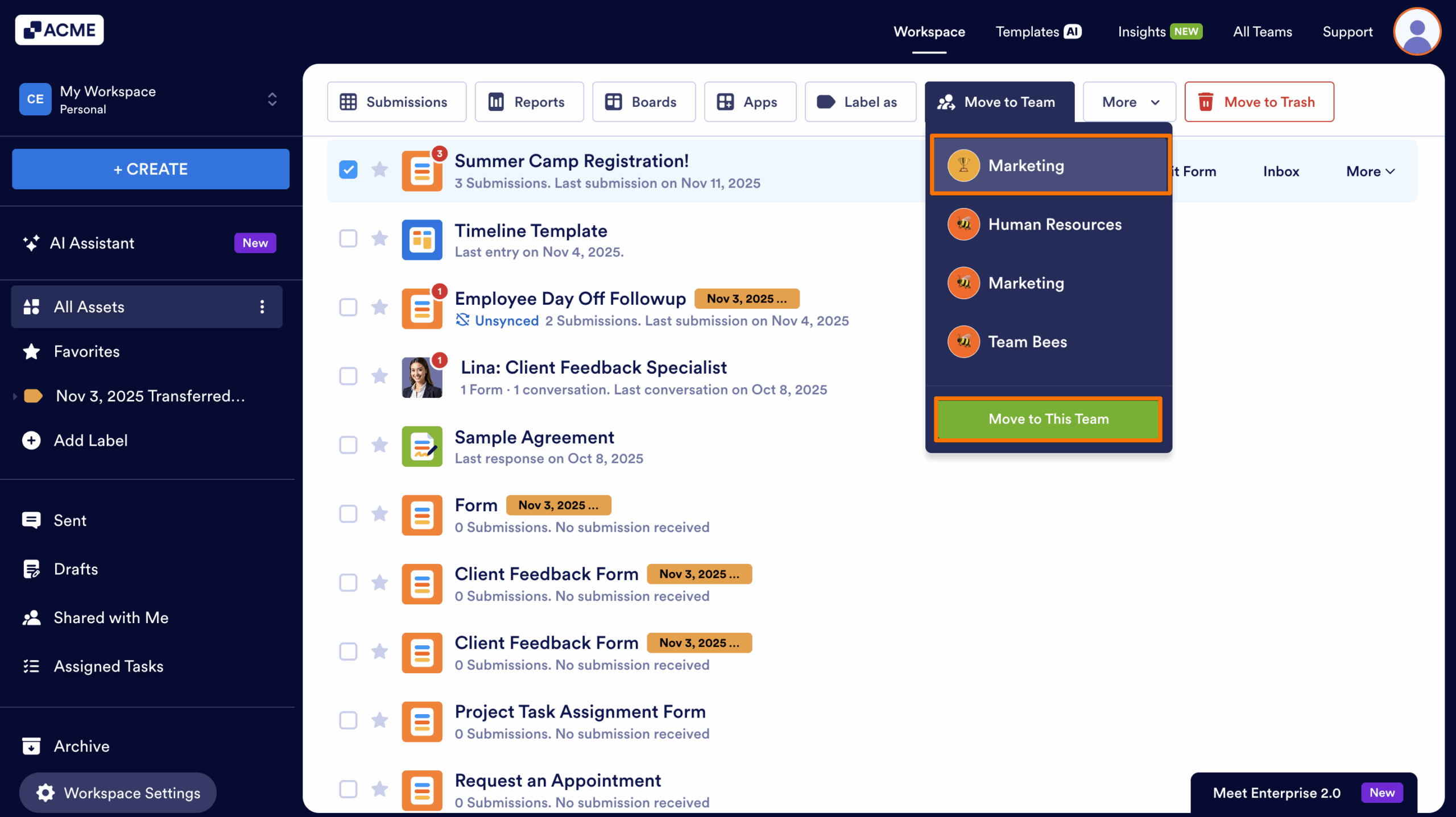
- Select the Team you want to move your asset to in the Dropdown menu that opens, then click Move to This Team.
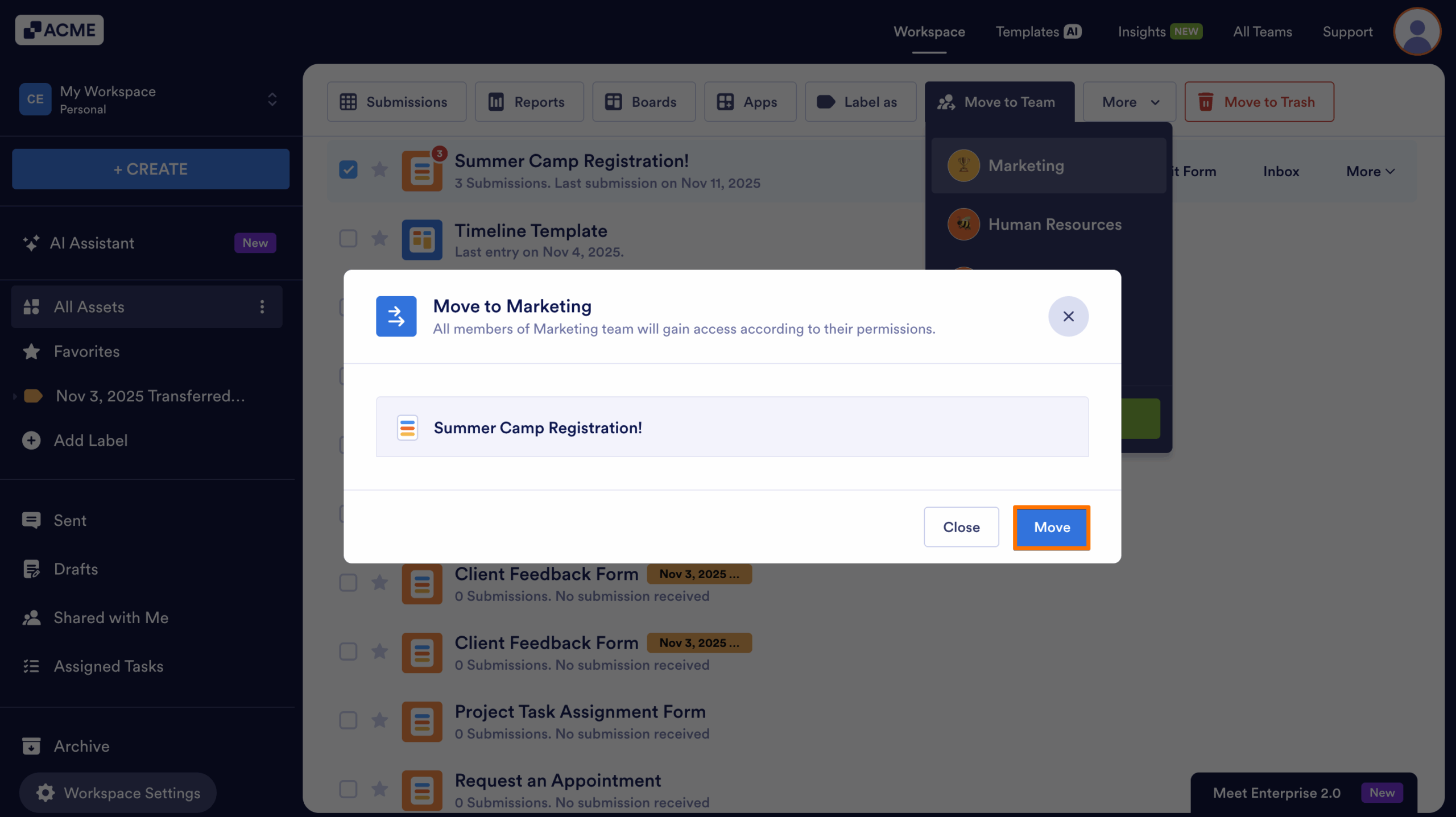
- Now, click Move in the Confirmation popup window and the asset will be moved.
Note
- You can’t move multiple forms or assets to a team all at once, you’ll need to move them one at a time.
- If a Sign document has a pending signature, the Move to Team button won’t show up. But, you can still drag the document into the team’s folder to move it manually.

Send Comment: