As an Admin, you can reset passwords for users in your organization directly from the Admin Console. This can help when a user forgets their password or is unable to access their account.
 How to Update User Information in Your Organization from the Admin Console
 How to Create Users in Your Organization from the Admin Console
 How to Manage User-Based Two-Factor Authentication (2FA) Settings in Your Organization from the Admin Console
 How to Lock Users in Your Organization from the Admin Console
Resetting User Passwords Individually
You can reset user passwords in two ways—through the User Management screen, or from within the User Profile section of an individual user’s account. Let’s walk through both of those options together, down below:
From the User Management Screen
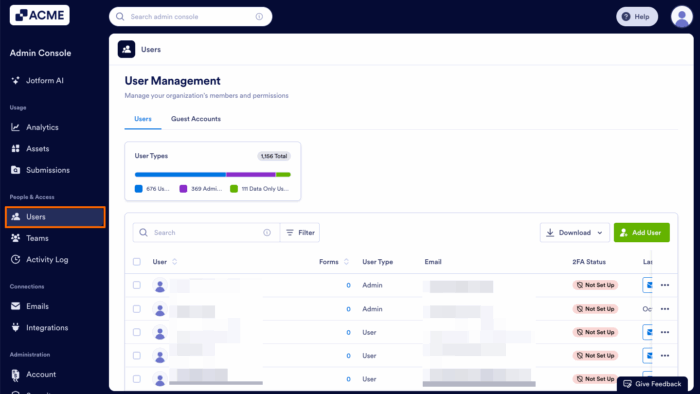
- Starting in the Admin Console, in the menu on the left side of the screen, click on Users.
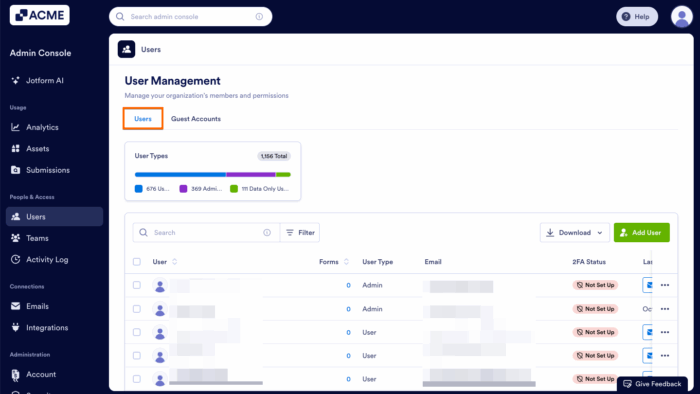
- Next, select the Users tab below User Management at the top of the screen.
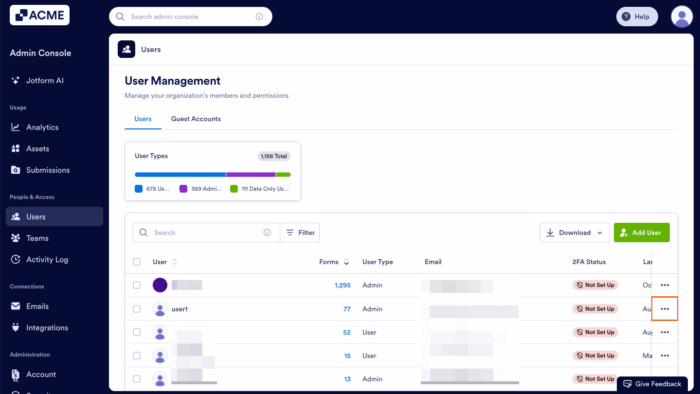
- Then, click on the Three Dots icon on the right side of the user whose password you want to reset.
- Choose Reset Password in the dropdown menu.
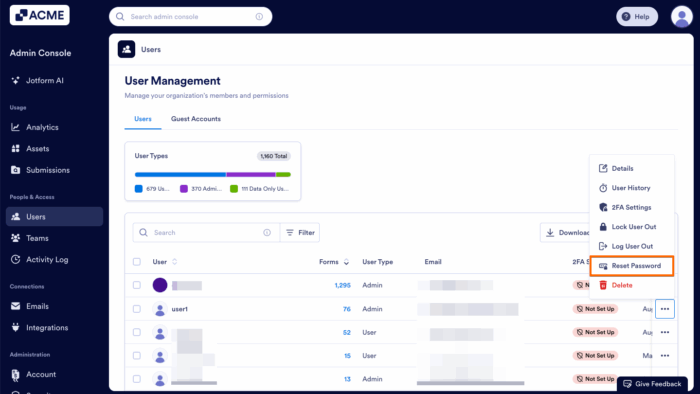
- Finally, click on the Yes, Reset Password button.
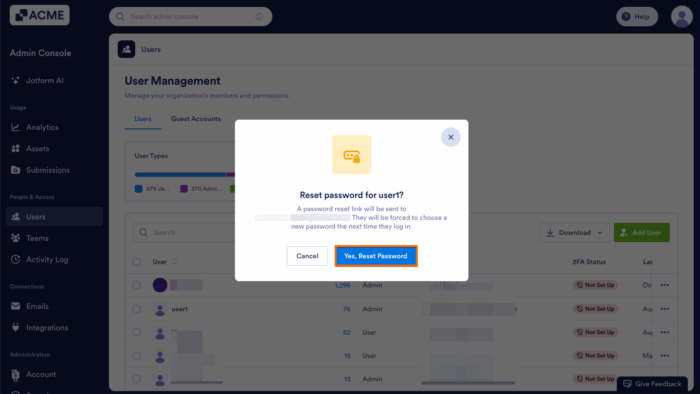
In a Specific User’s Profile
- In the Admin Console, in the menu on the left side of the screen, navigate to Users.
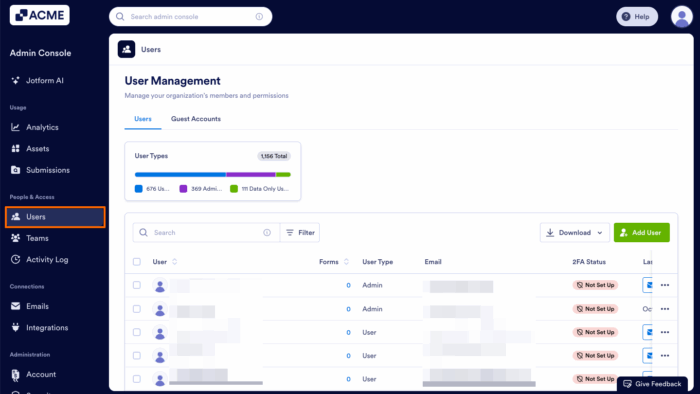
- Click on the Users tab below User Management at the top of the screen.
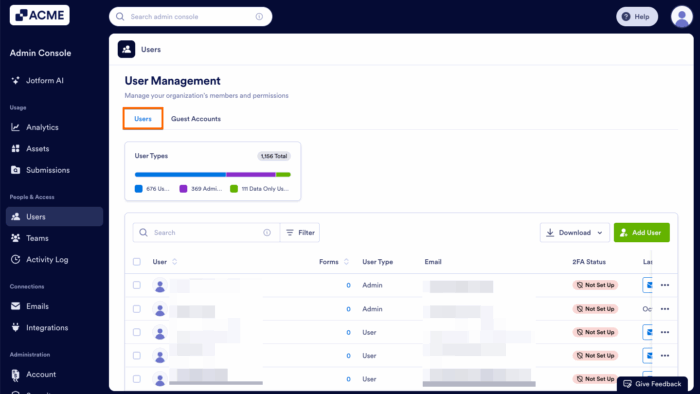
- Click on the name of the user whose activities you want to view.
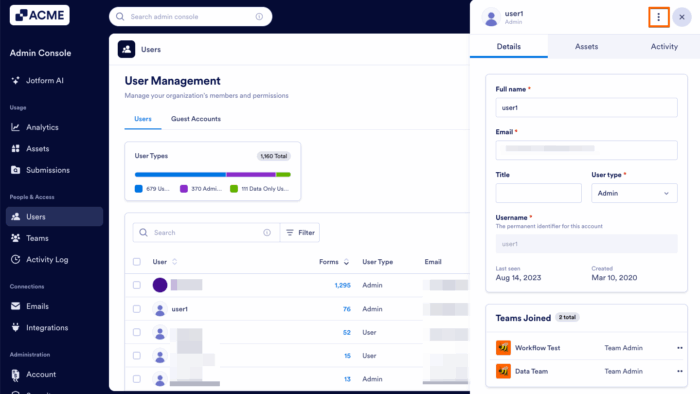
This opens a sidebar on the right side of the screen that contains several tabs, such as Details, Assets, and Activity.
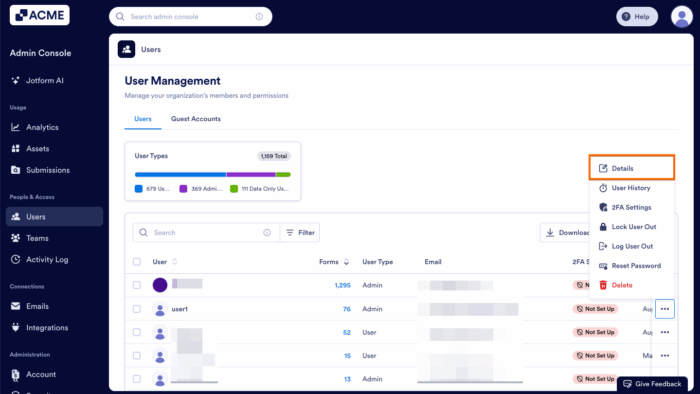
- In the sidebar, click on the Three Dots icon in the upper right corner of the screen.
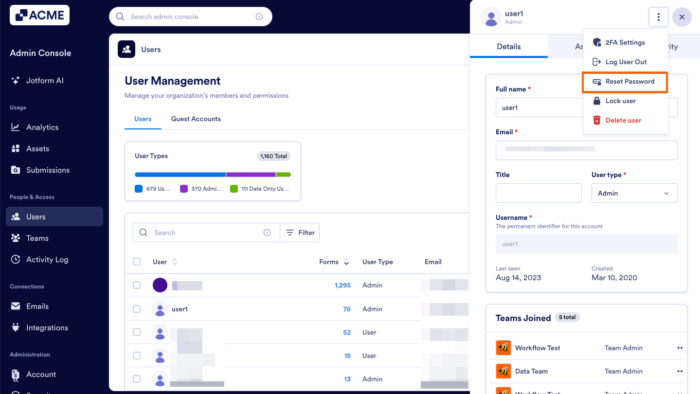
- Select Reset Password in the dropdown menu.
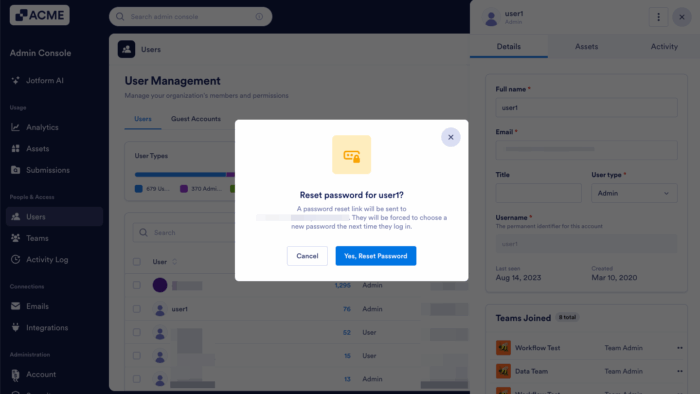
- Click on the Yes, Reset Password button.
Tip
If you’d like to review the user’s recent activity before resetting their password, see How to View Individual User Activities in Your Organization from the Admin Console.
Resetting User Passwords in Bulk
You can also reset passwords for multiple users at once from the same page.
- In the Admin Console, in the menu on the left side of the screen, click on Users.
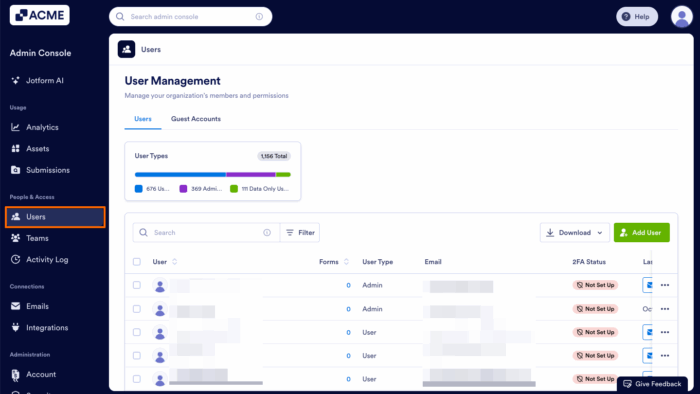
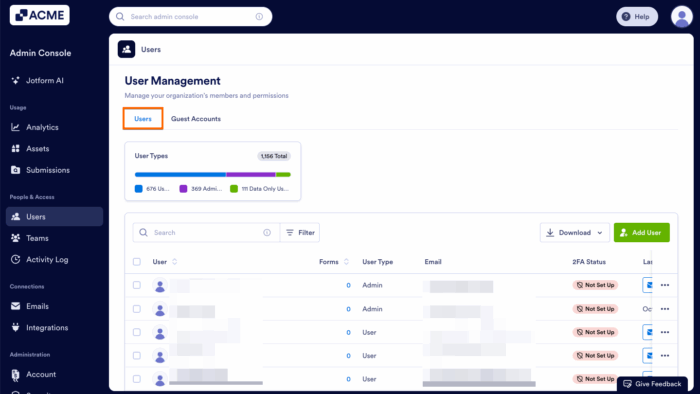
- Next, select the Users tab.
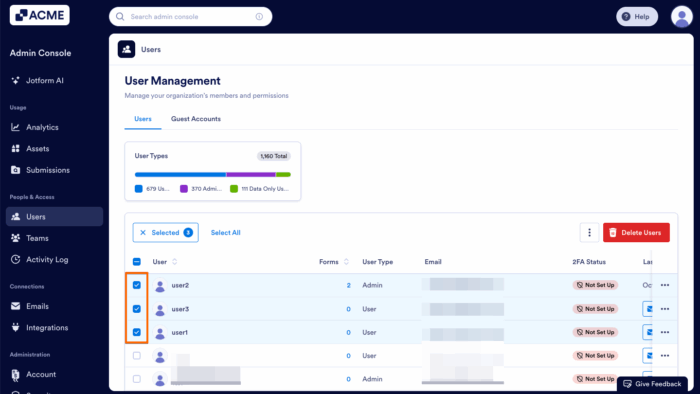
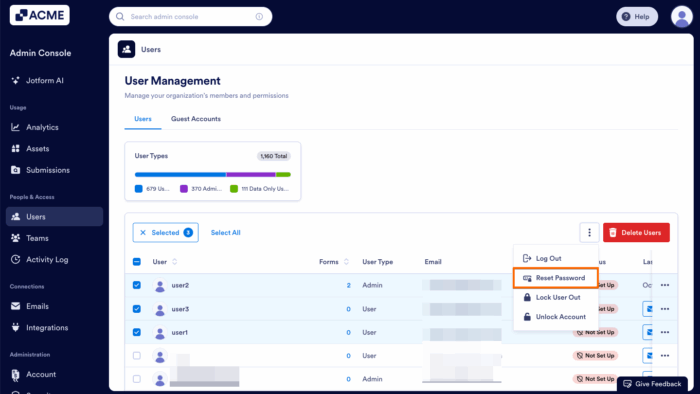
- Select the boxes next to the users whose passwords you want to reset.
- Click on the Three Dots icon that appears at the top right of the Users Table.
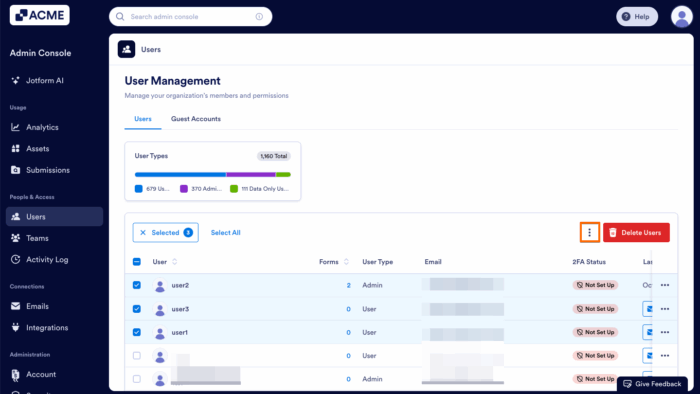
- Select Reset Password from the dropdown menu.
How does a user reset their password?
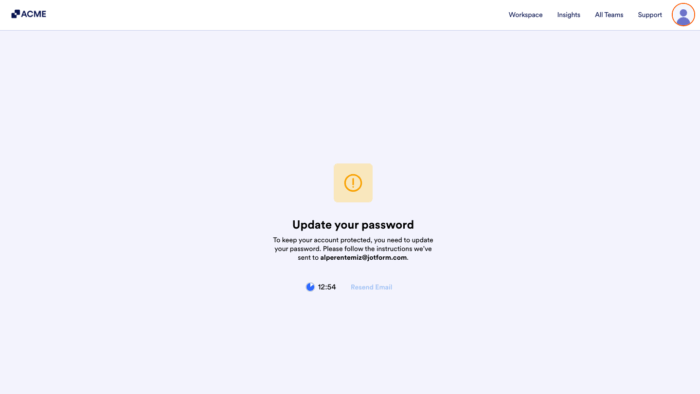
After the reset request is sent, the user’s next login attempt will prompt them to update their password. If no action is taken within 15 minutes, a new reset password link can be generated by clicking the Resend Email button.
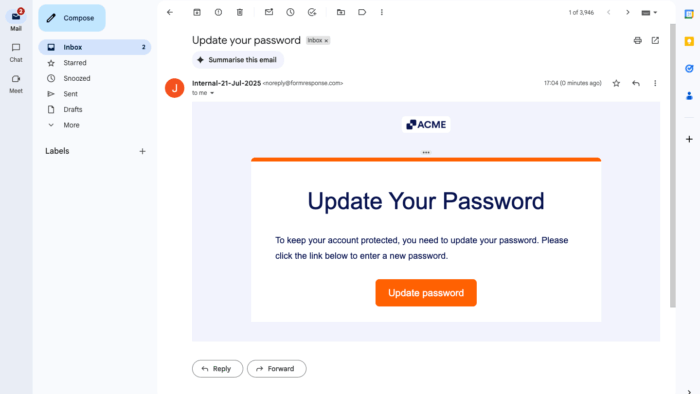
They will also receive an email with a link to reset their password. The email includes a secure link that directs the user to the Reset Password page, where they can create a new password for their account. If the user doesn’t receive the email within a few minutes, they should check their spam or junk folder.
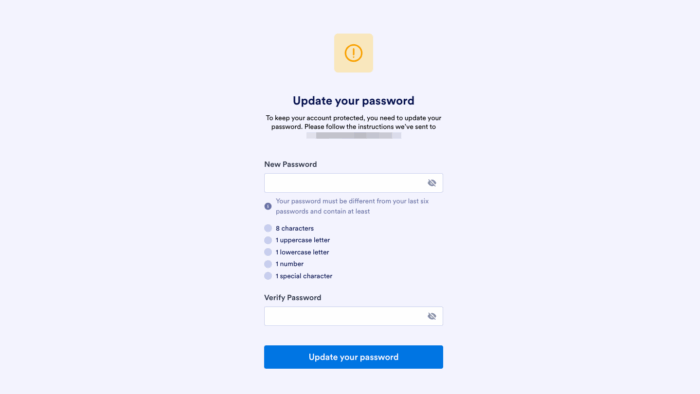
Once the user clicks on the link, they will be able to update their password.
Note: This password reset process differs from the Forgot Your Password option. When an Admin triggers a password reset, the user’s current password becomes invalid immediately, so it’s not possible to log in with the existing password.

Send Comment: