As an admin, you can find all submissions related to an email address, username, or a keyword in the Admin Console by creating a submission search result. Then, you can view, repeat, or delete the search result as needed.

 How to View Individual Guest Account Activities in Your Organization from the Admin Console
 How to Revoke Access from Guest Accounts to Assets in Your Organization from the Admin Console
 How to Revoke Users Access to Assets in Your Organization from the Admin Console
 How to View Individual User Activities in Your Organization from the Admin Console
These search results are limited to a single username/email address or keyword per search, so you’ll need to create additional submission searches if you’re wanting to pull multiple username/keyword or email addresses.
Note
To return successful results, your search query must match the exact format of the data stored in the system. Partial matches or spelling variations may result in no submissions being found.
Submissions Search Results
Creating a Submission Search
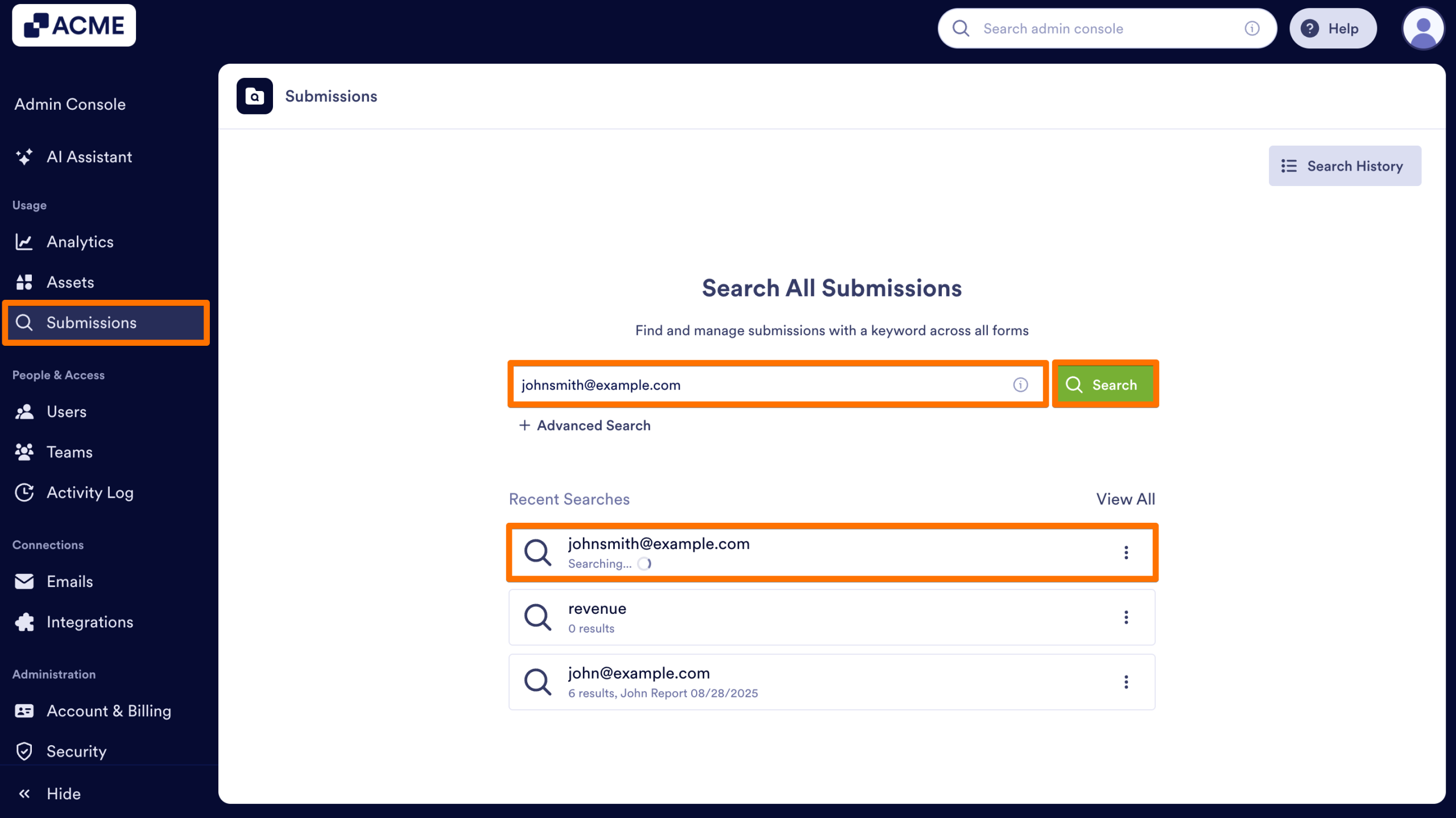
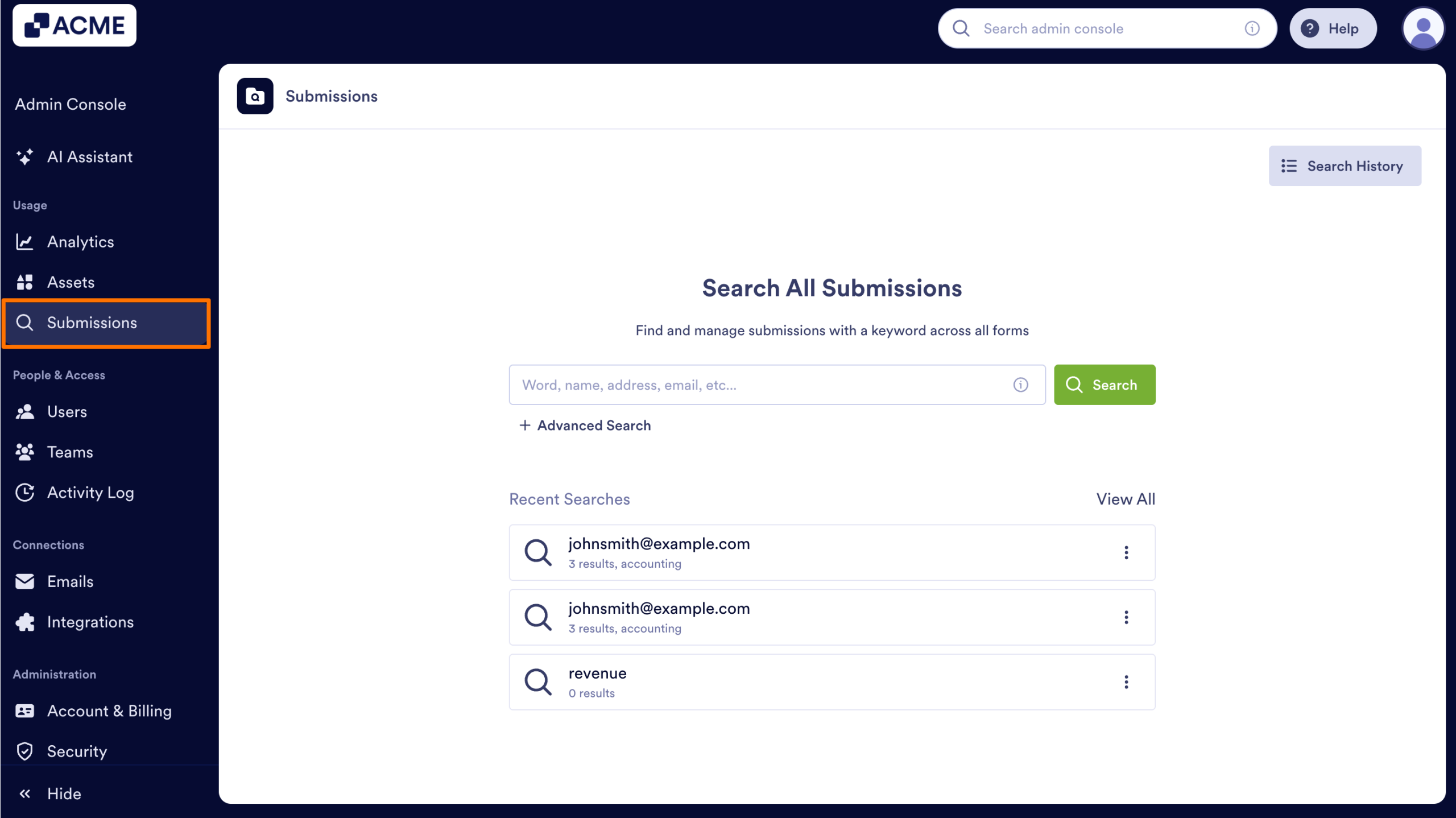
- In the Admin Console, click on Submissions.
- In the search bar, enter the email address, username, or a keyword for the submissions search.
- Then, click on Search to find results for the entered data.
- The search results will be queued, and will be displayed in the Recent Searches under the Search Bar.
Advanced Search
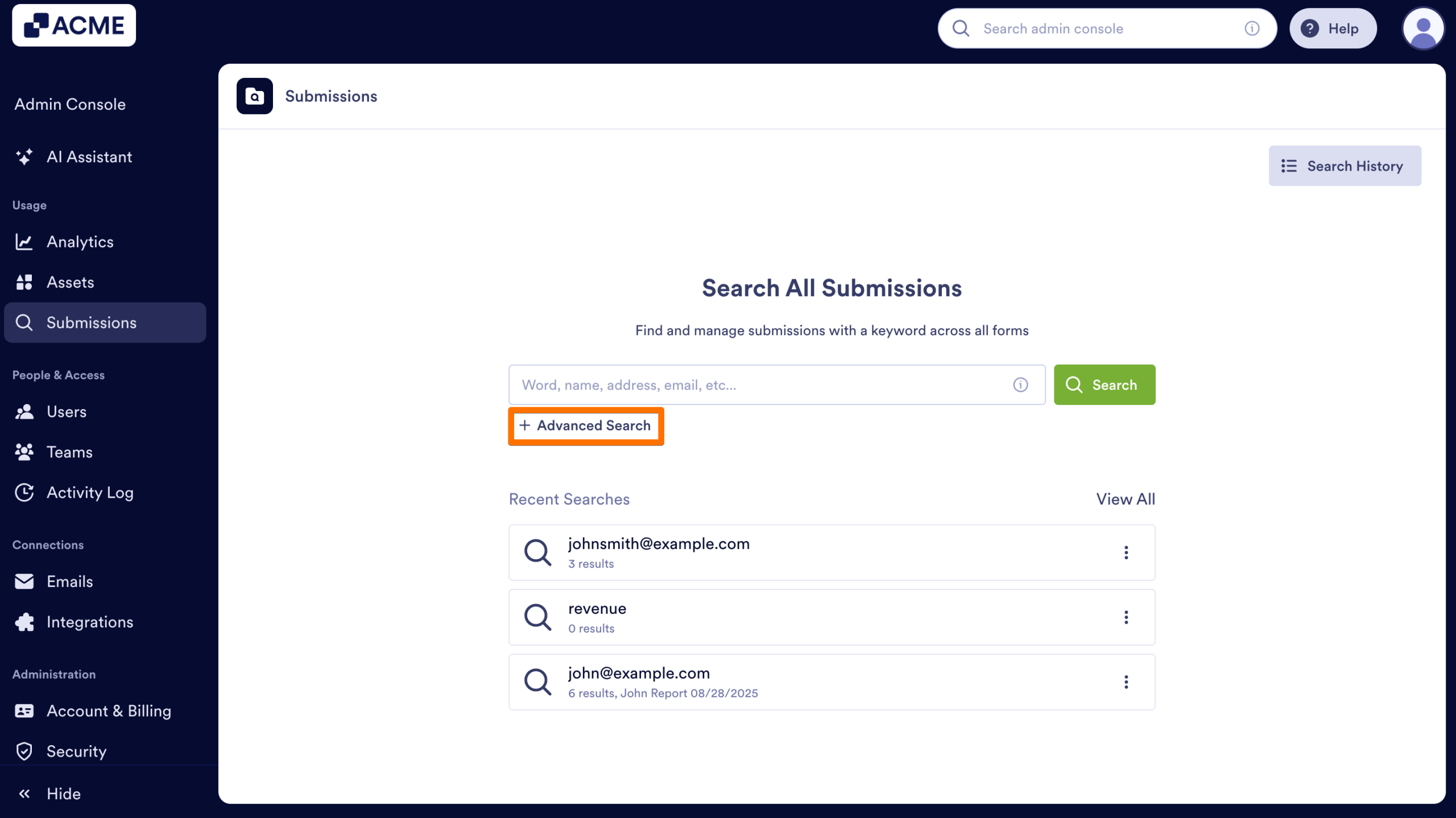
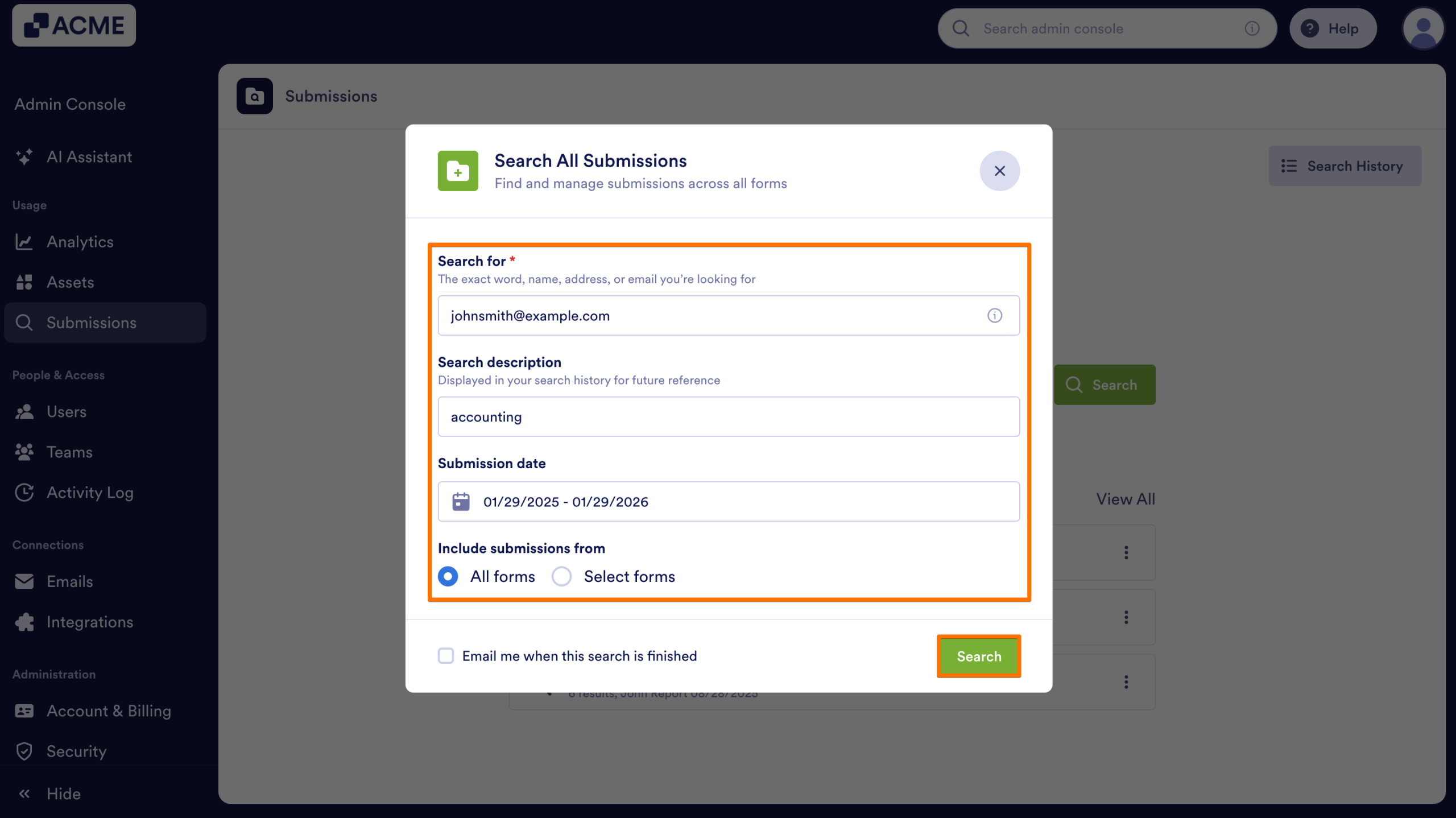
Under the search bar, there is an Advanced Search option, this option allows you to find a person from a keyword, name, address, or the email:
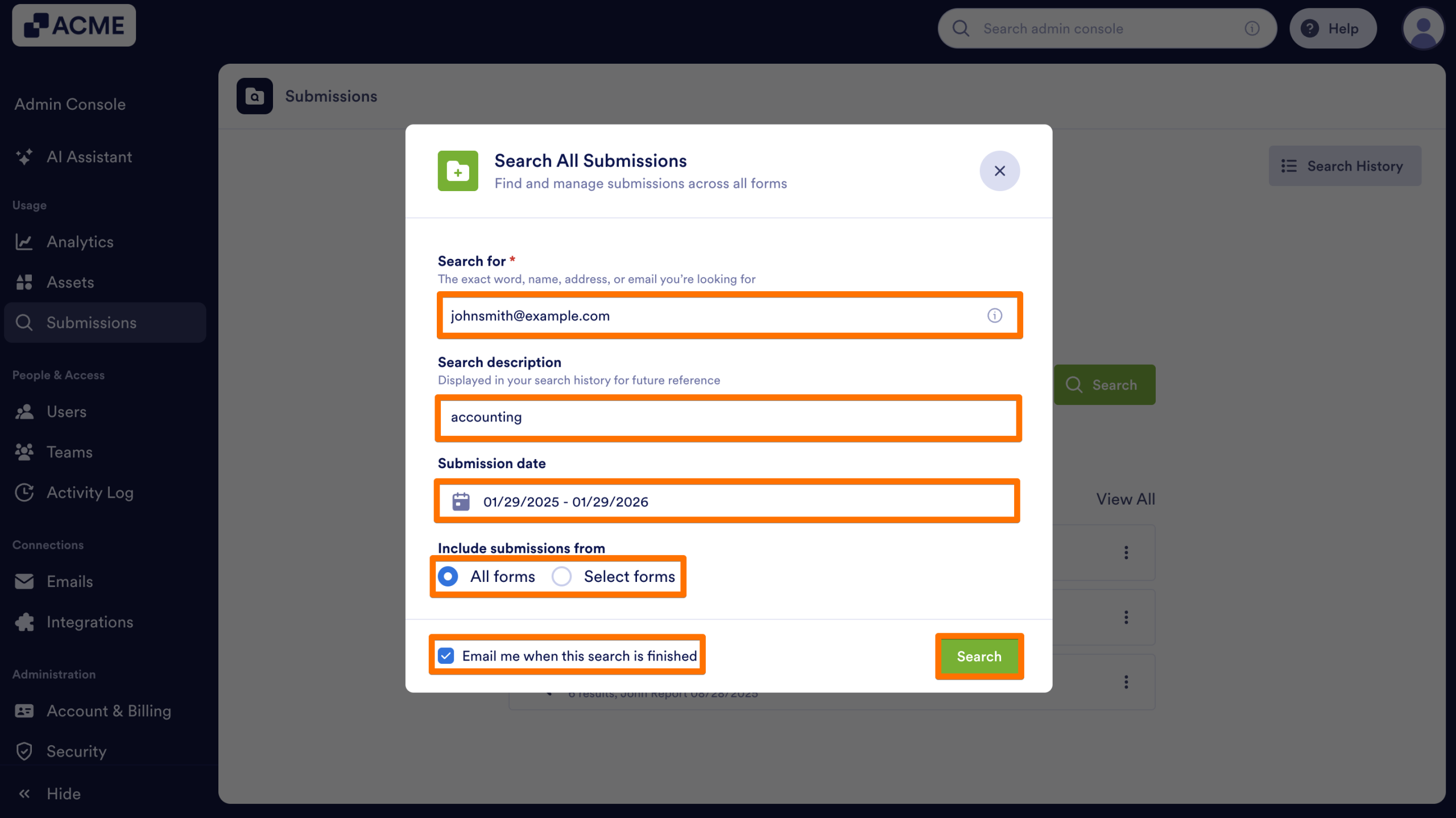
- You can describe your purpose of search and select a date range for the submission that might be done by the person you are looking for to create a submissions result.
- You can also select search in all forms or specific forms to include submission in your search.
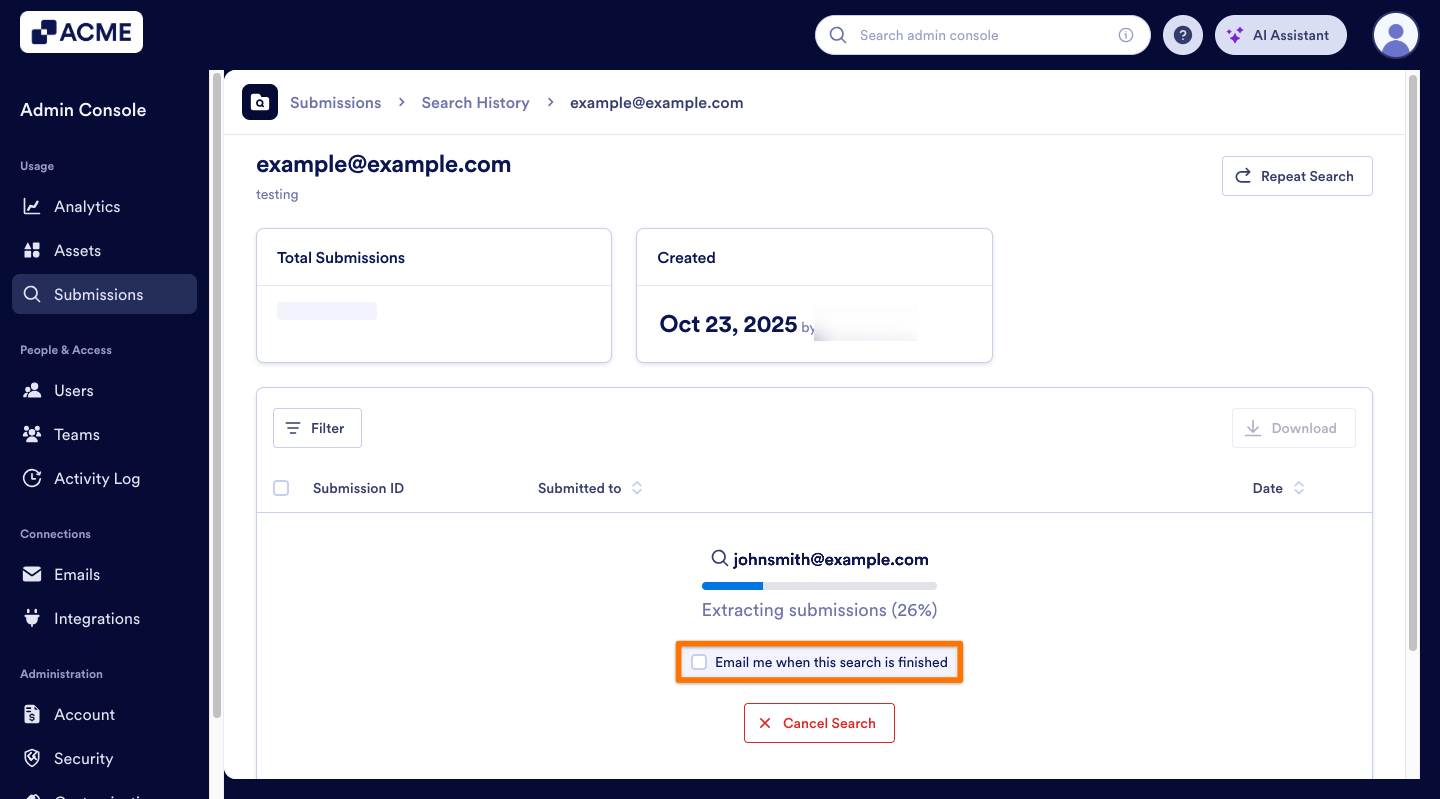
- Lastly, you can select the “Email me when this search is finished” option to get notified while continuing your work. You can also select this option during the extraction process to receive the submission search results, as shown in the image below.
Filtering Forms in Advanced Search
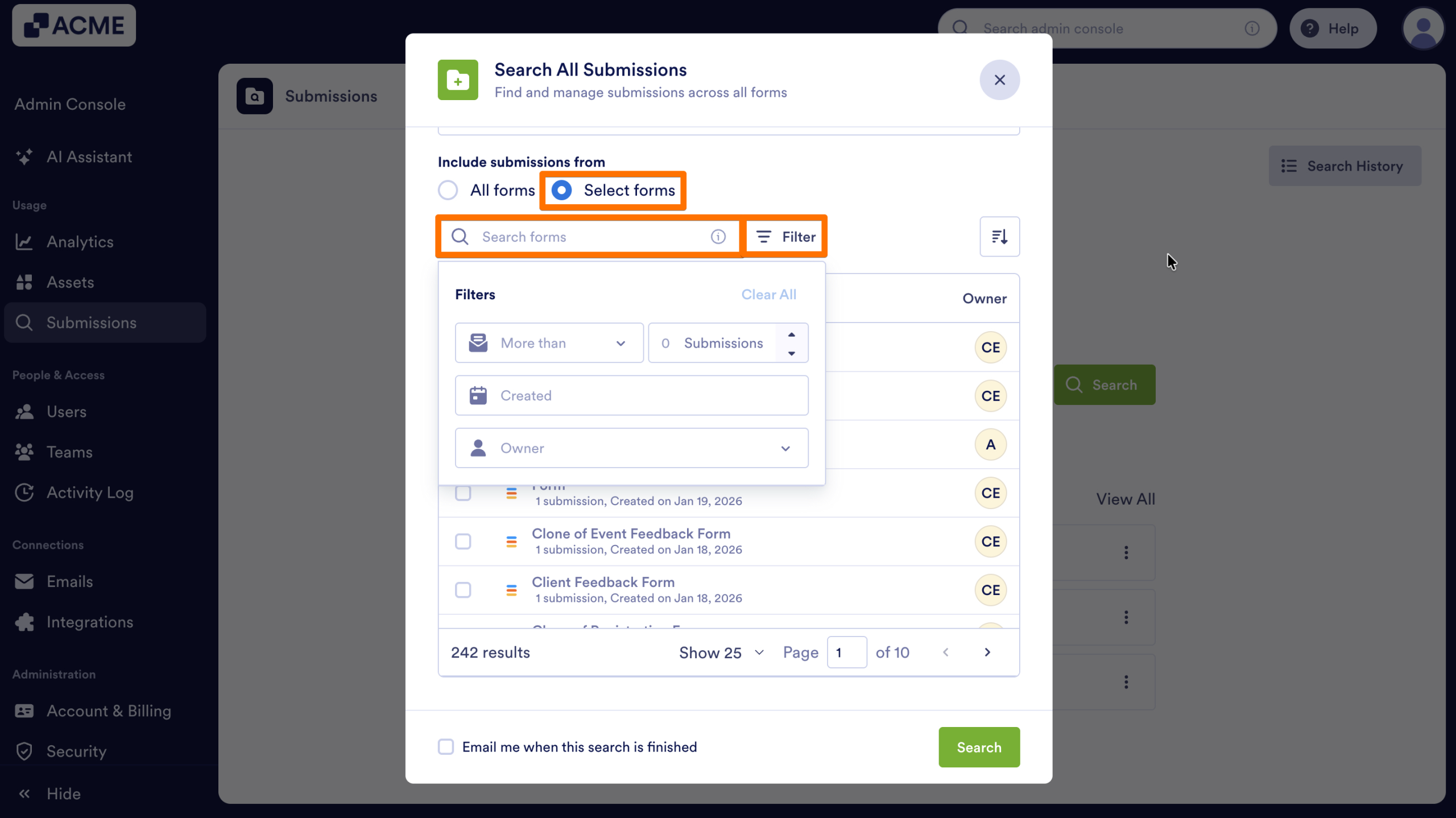
There are some filtering and ordering options for forms in the advanced search pop-up that you can use:
- You can search the forms by Form Name, Form ID and the Form Owner.
- You can also select filtering options such as filter condition (more than, equals, not equal to etc.) and submission count number, select date range to find forms created at that range and filter owner.
Filtering Submission Search Results in Search History
You can visit the search history page to find the previously created submission search results. There are also some filtering options that help you find specific results you are looking for:
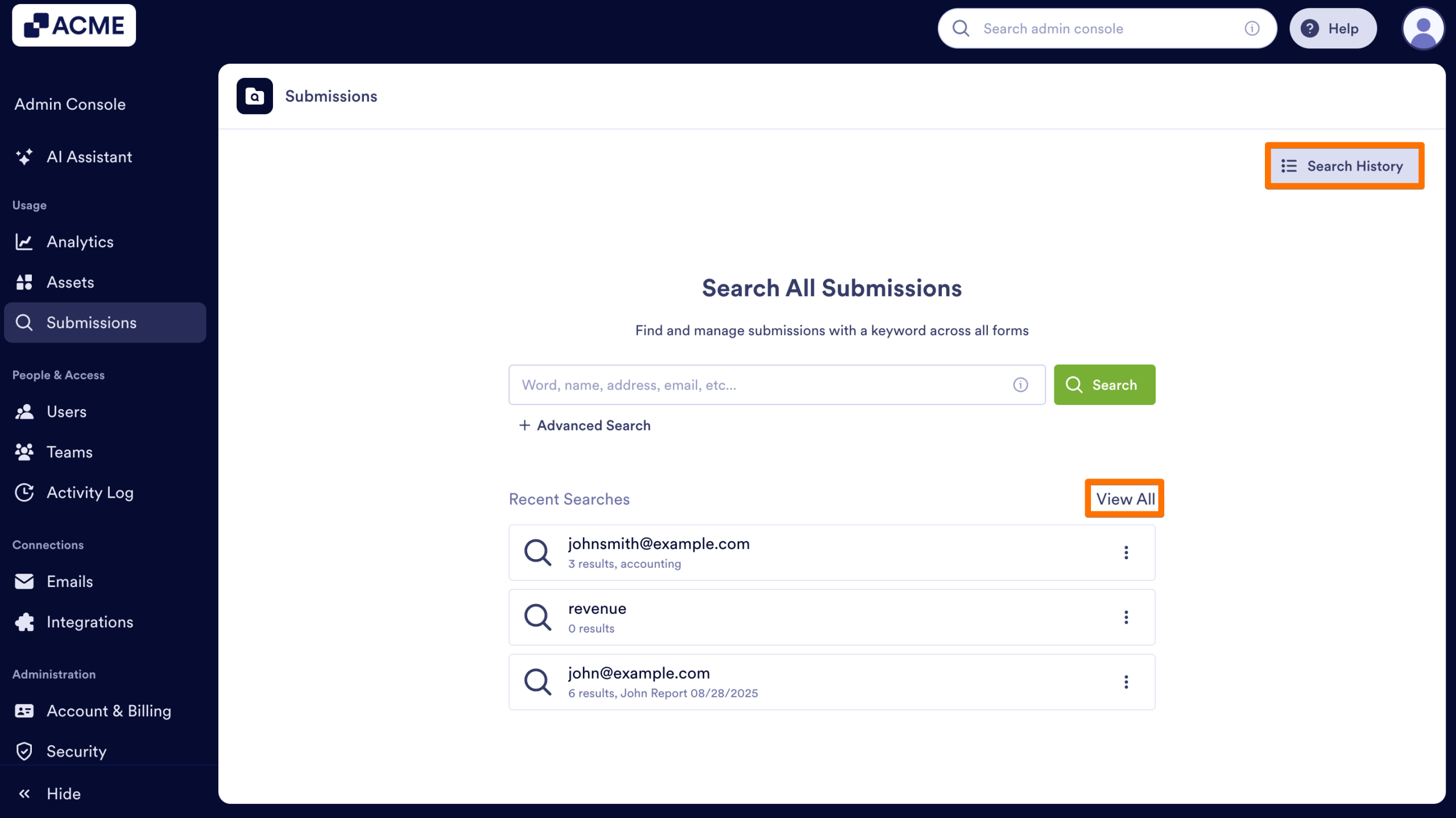
- In Submissions page, click on View All or Search History.
- Under the Search History, click on Filter next to the search bar. You will see the filters below:
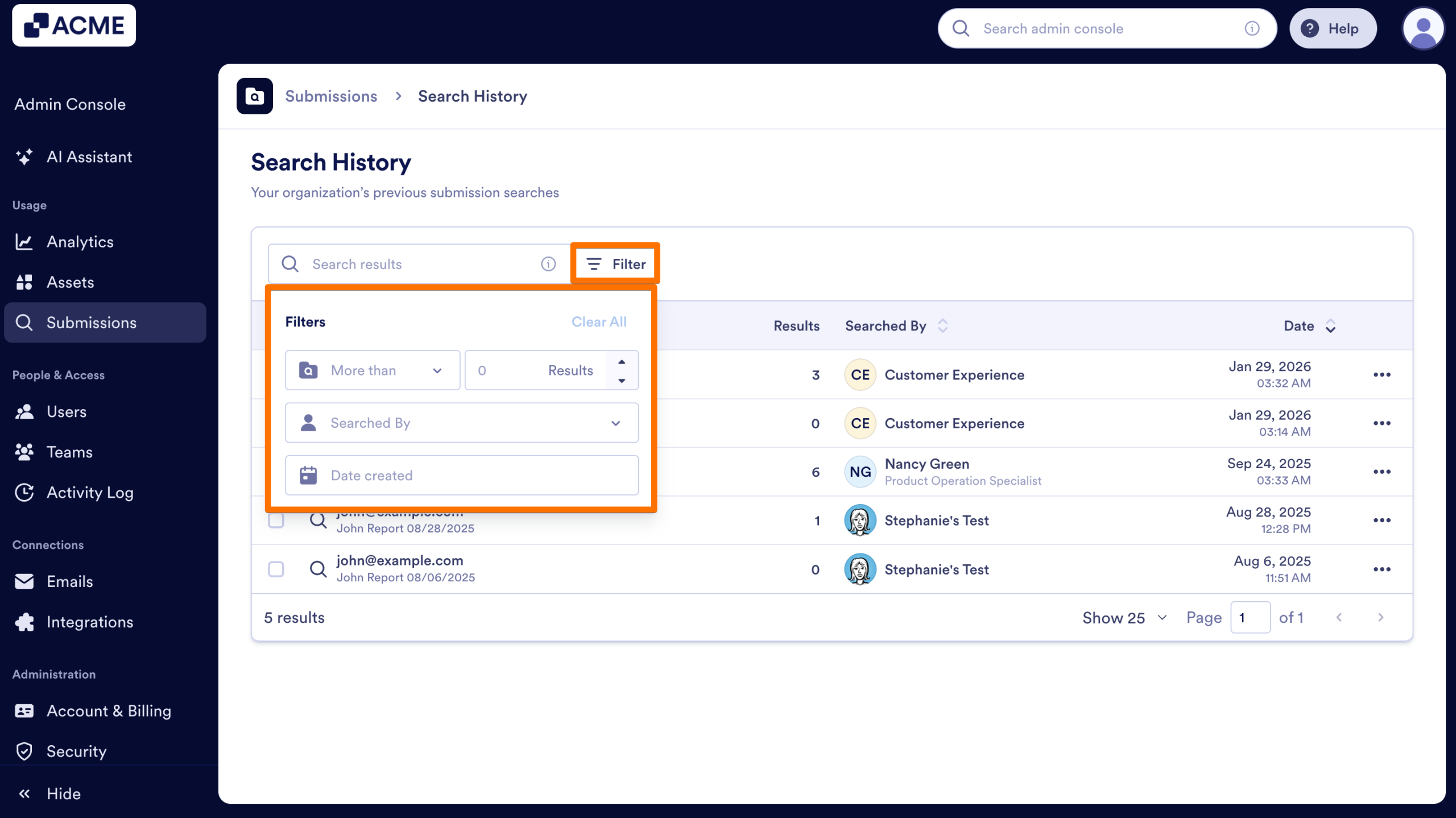
- Filter Condition & Results Number: You can select filter conditions such as more than, equals, not equal to, less than etc. and a result count in the number scale next to the filter condition to find search results with specific result counts (e.g., submission searches more than 100 results).
- Searched By: You can filter submission search results by whom the search was made.
- Date Created: You can filter submission search results searched in a specific time period.
Viewing Submission Search Results
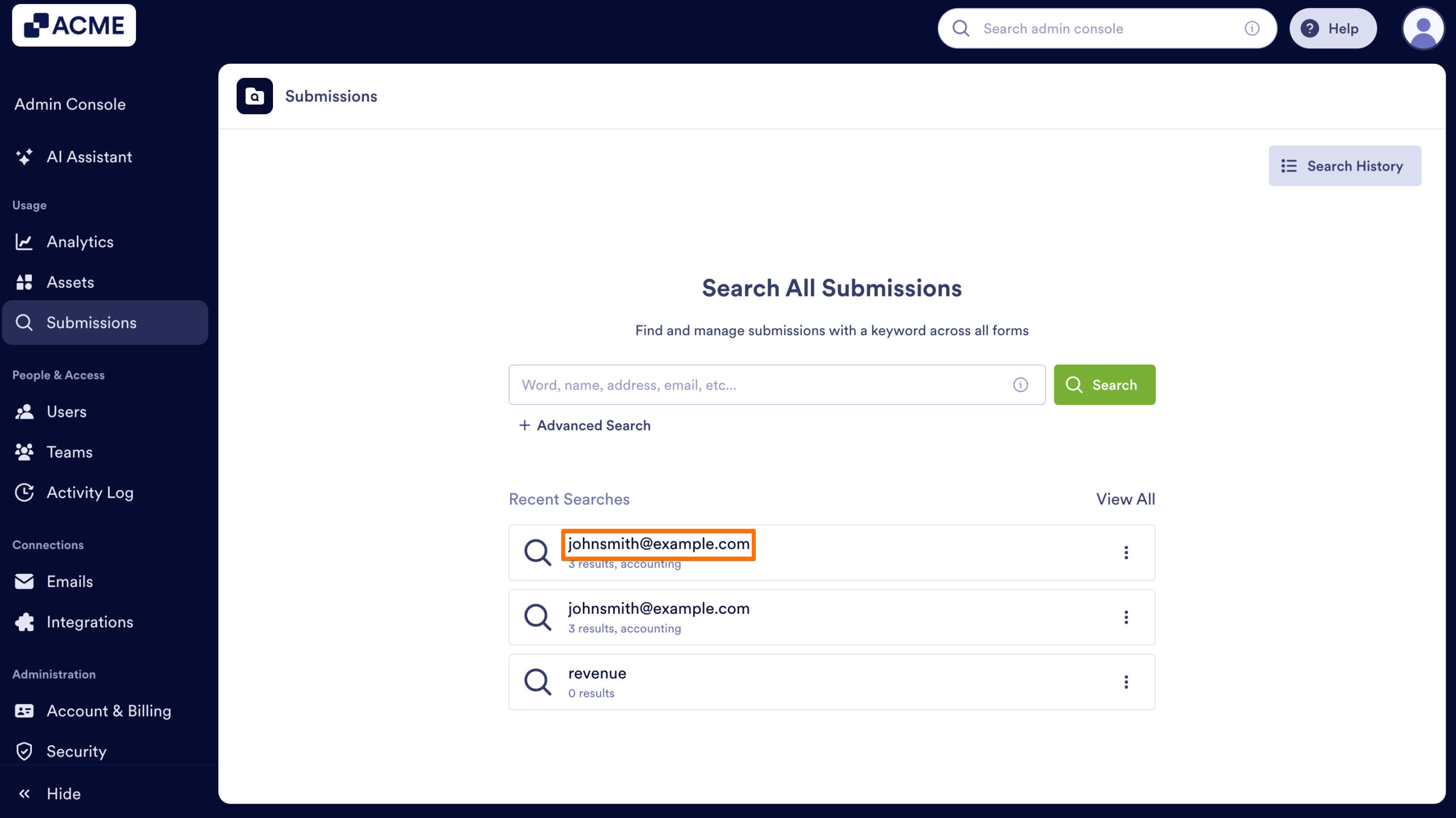
After the submission search is finished generating, you can view the results of the search. You can do this either by clicking on the email address/username/keyword you entered or opening the search results from the three-dot menu. Let’s walk through this process together, starting with clicking on email address/username/keyword:
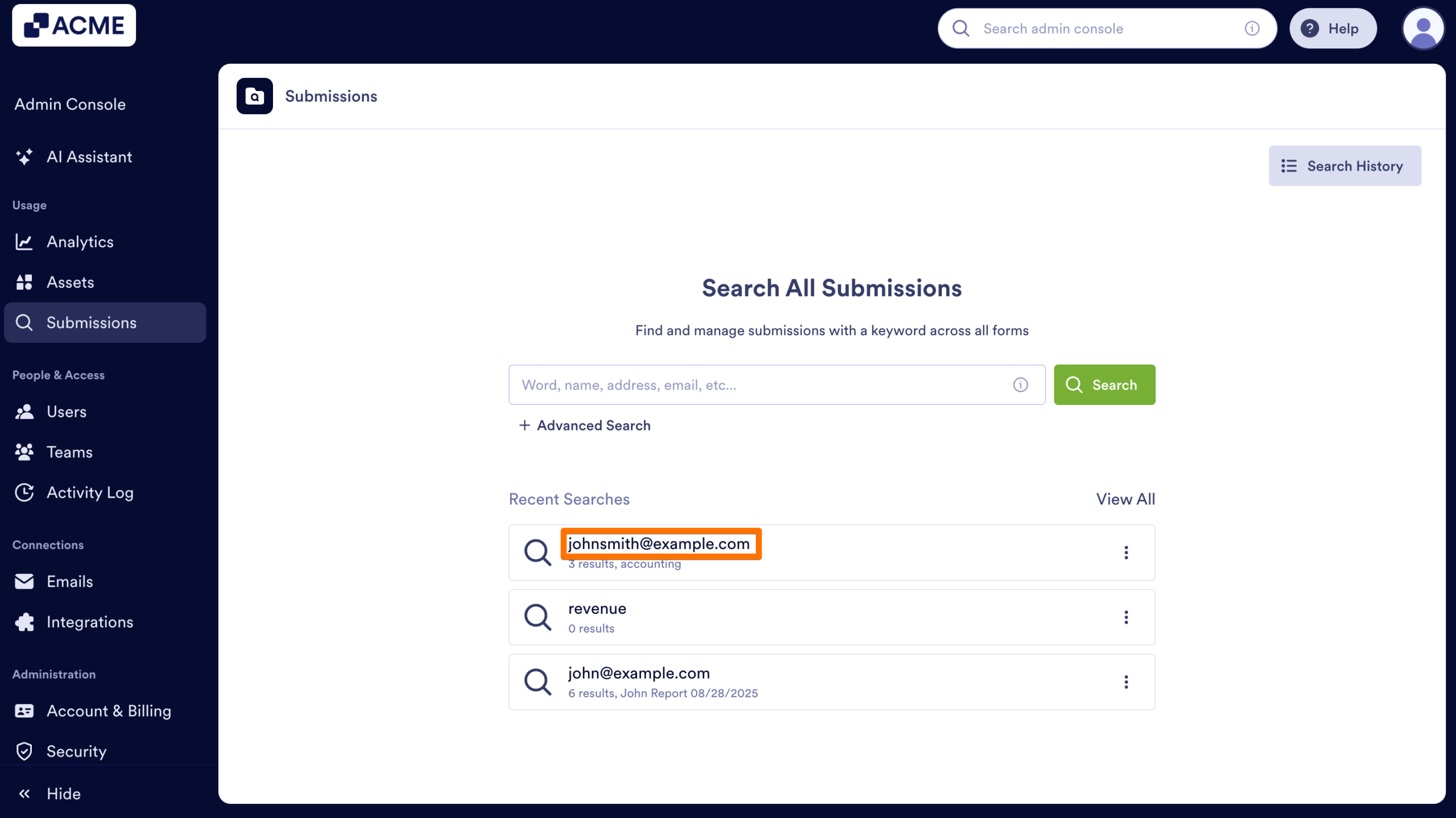
- In Submissions, click on the targeted Email Address under the Recent Searches.
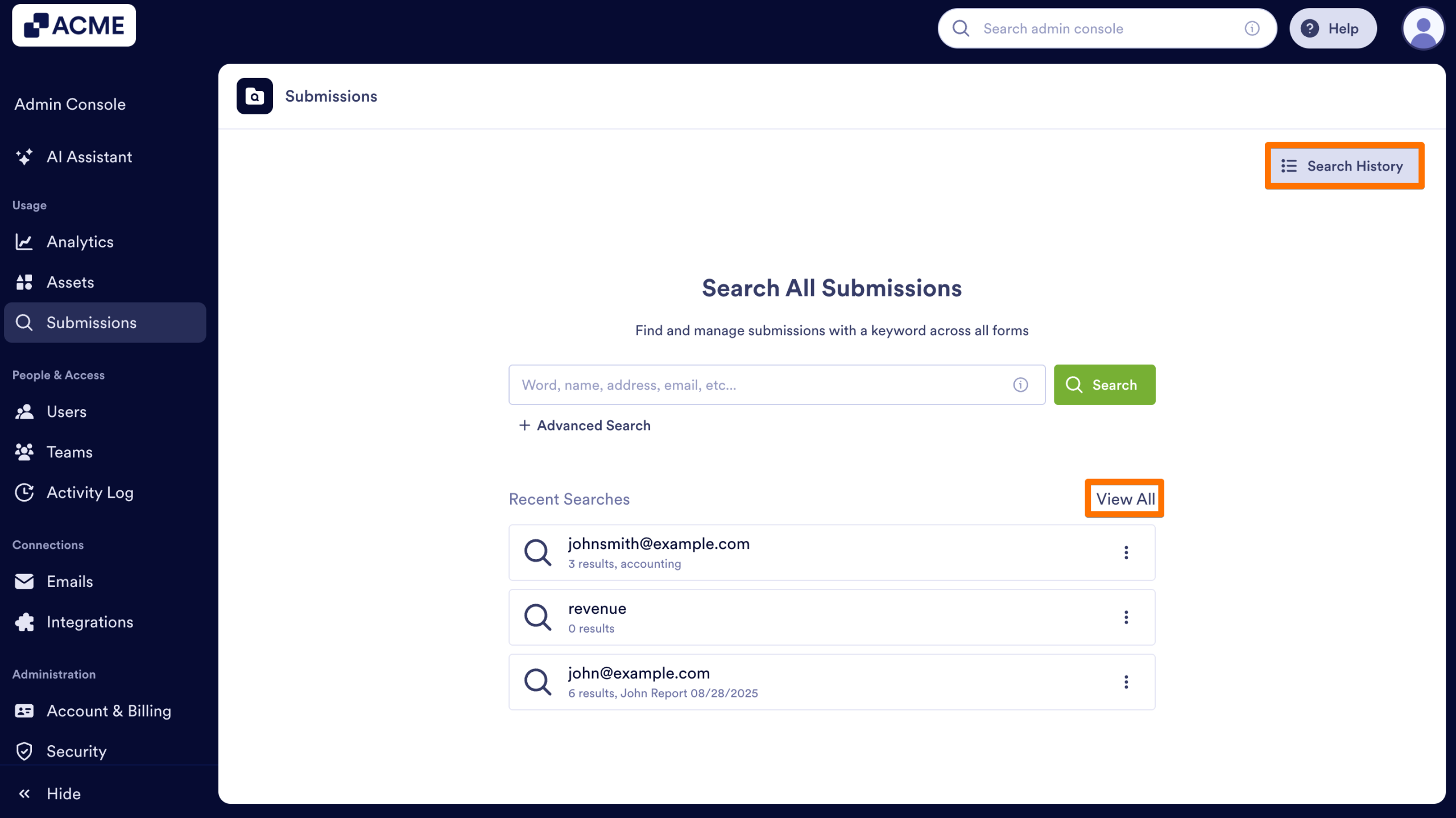
- If the results you are looking for is not listed in recent searches, you can either click on View All next to the Recent Searches or the Search History at the top of the page.
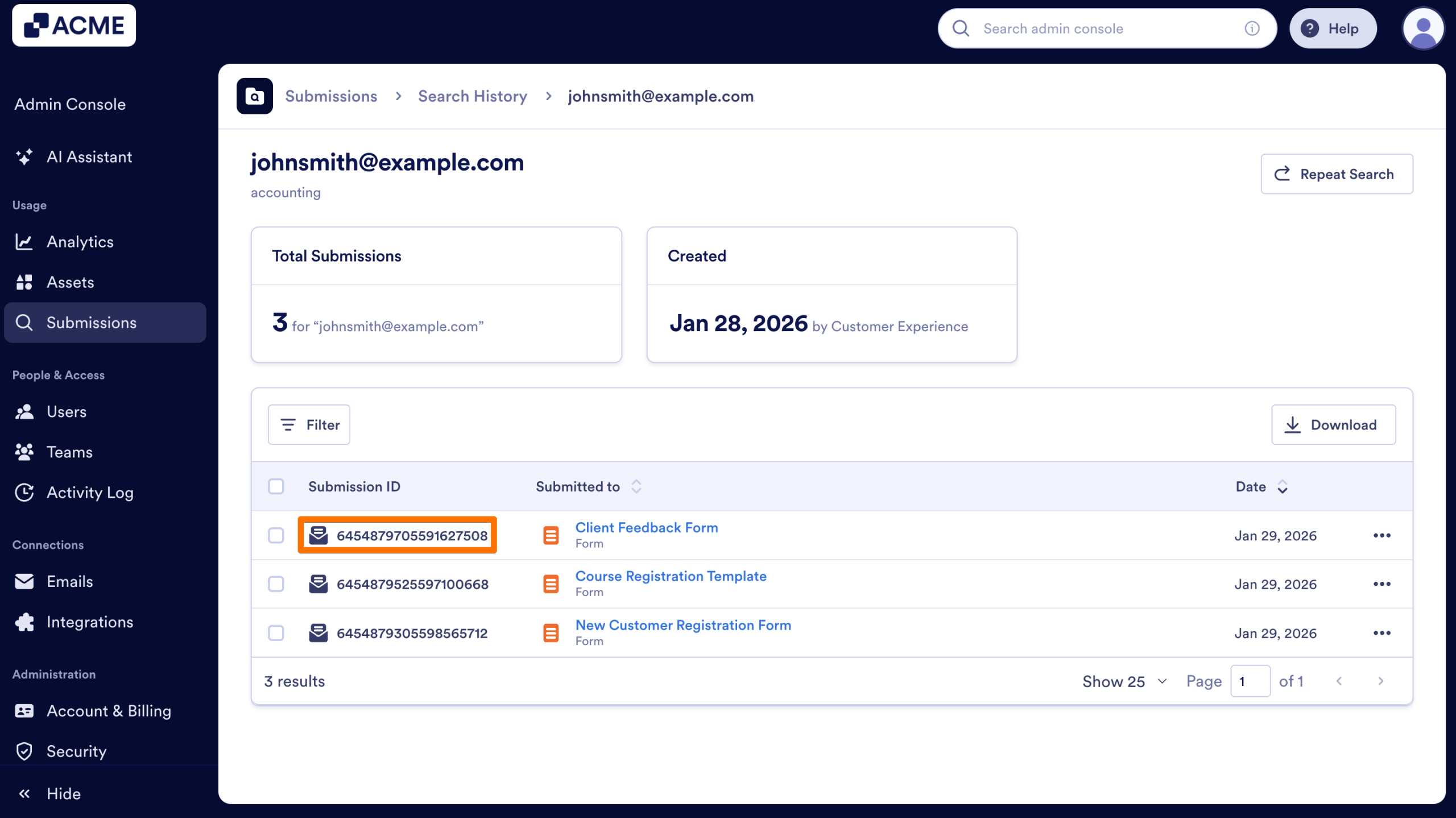
- After selecting the search result in Search History, click on the Submission ID to view submission details.
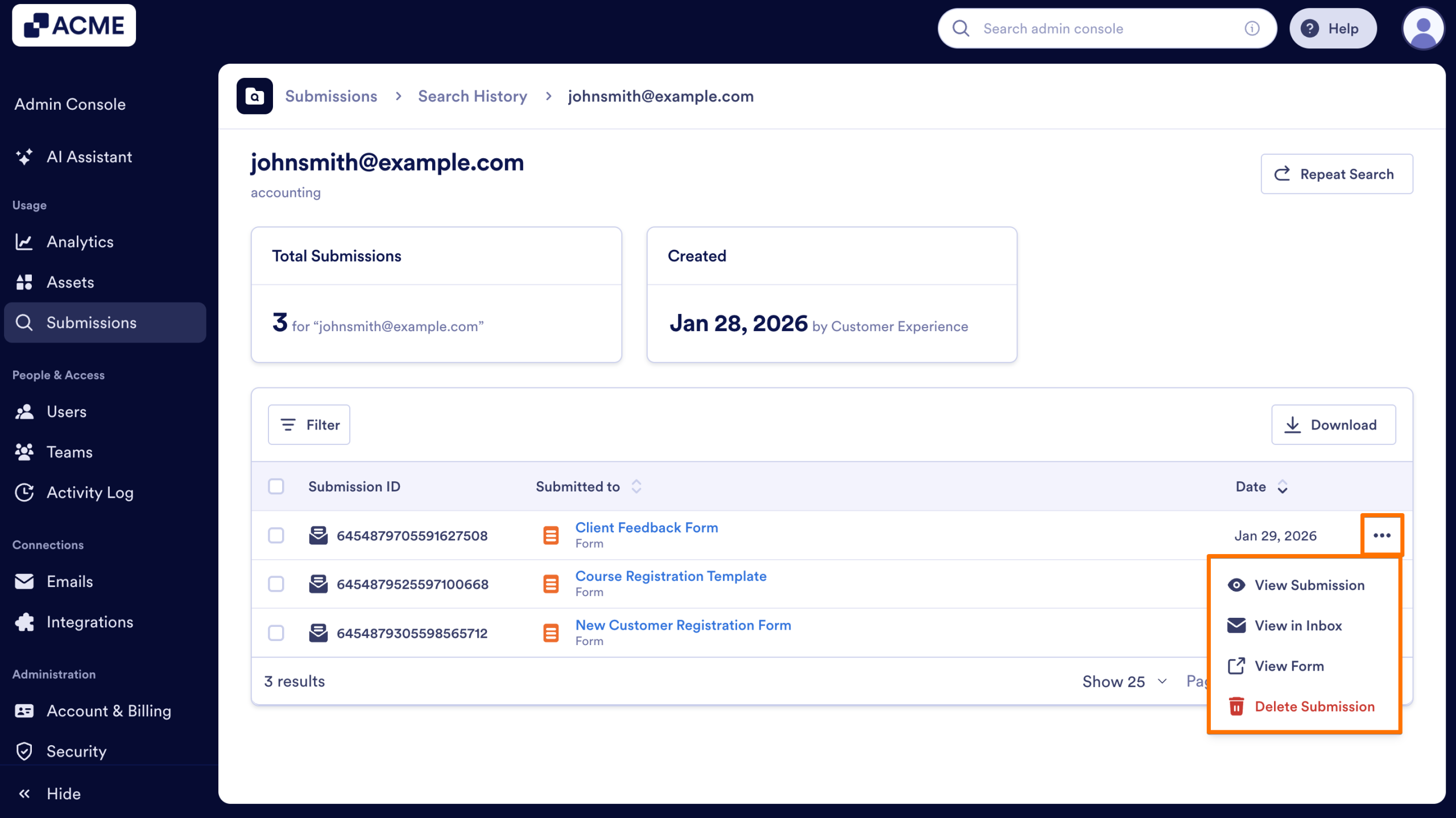
- You can also click on the Three Dots icon next to the submission.
- Then, select one of the options to view the submission details, view in Inbox, view form or delete it.
Let’s walk through the process of viewing the submission search result from the three-dot menu now.
- In Submissions, for the submission you’d like to view results for click on the Three Dots icon and click on View Results.
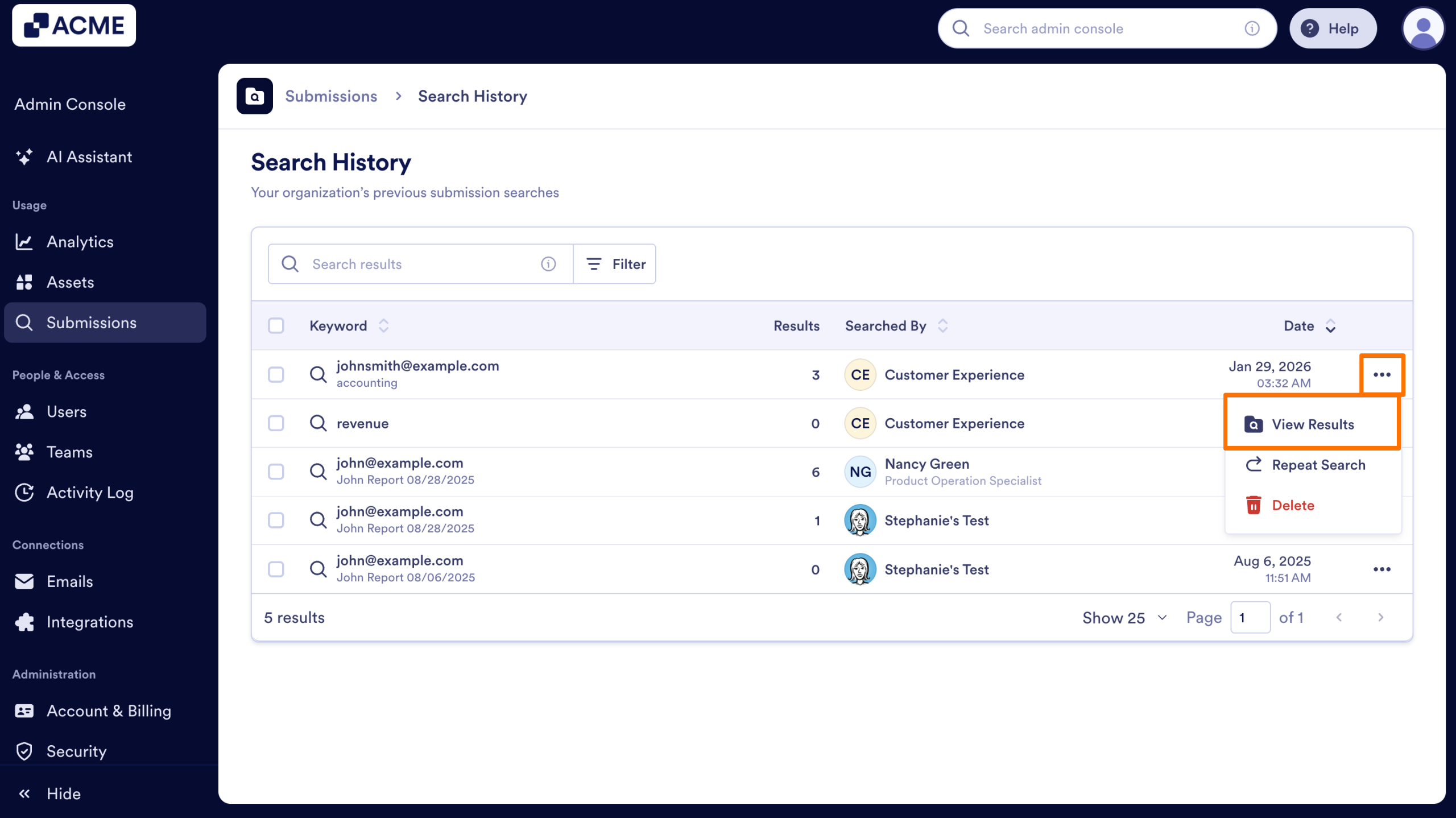
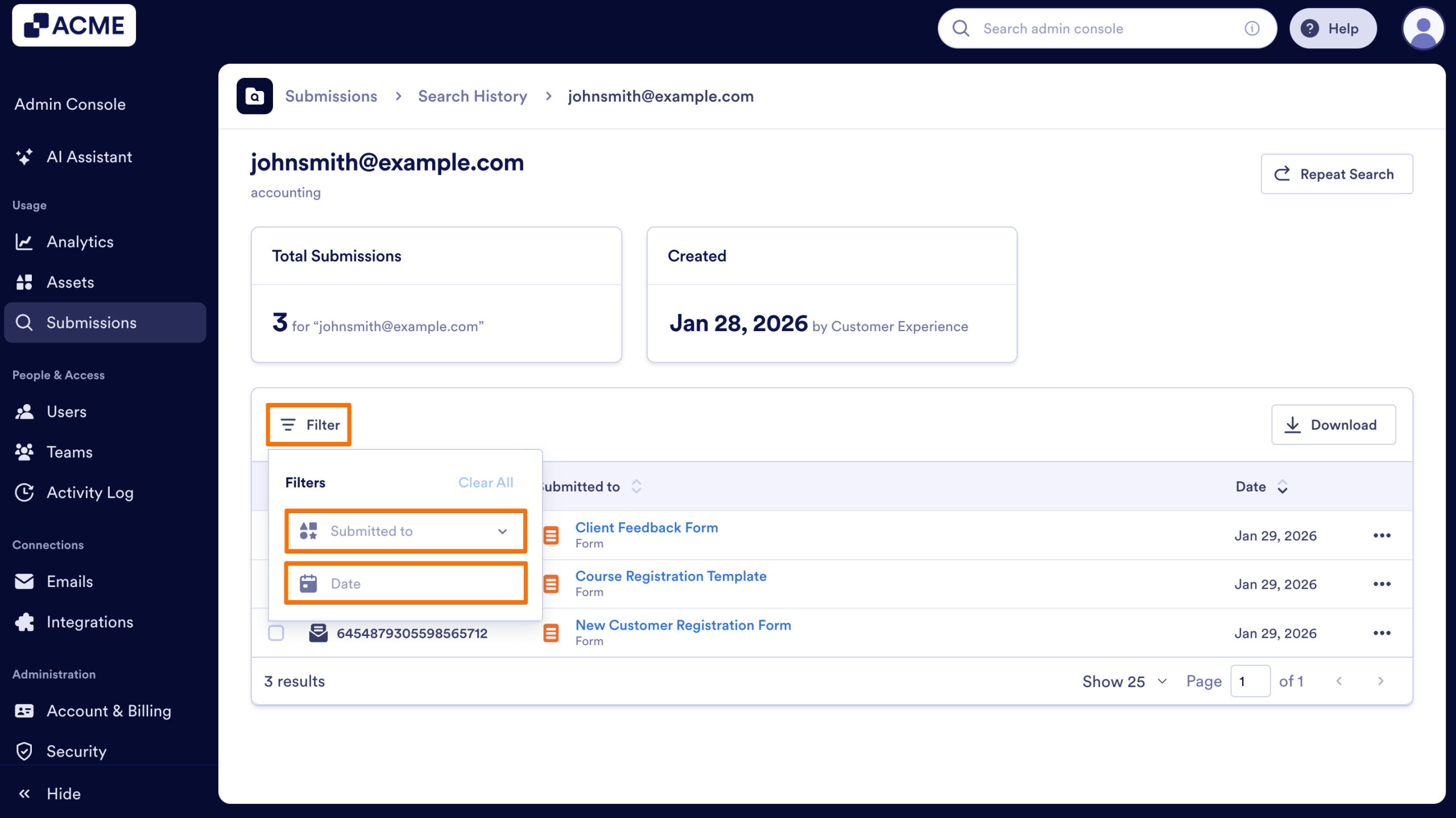
You can also filter the results to find the specific submissions in the submissions search results:
- Submitted to: This dropdown helps you to filter the submissions a user/form filler sent to a specific form.
- Date: This dropdown helps you to filter submissions made by a user/form filler in a specific date range.
Managing Submissions Directly in the Submission Results Landing Page
Submissions can be managed, either in the landing page for the specific search result, or in a pop-up window – we’ll walk through both methods, starting with the landing page.
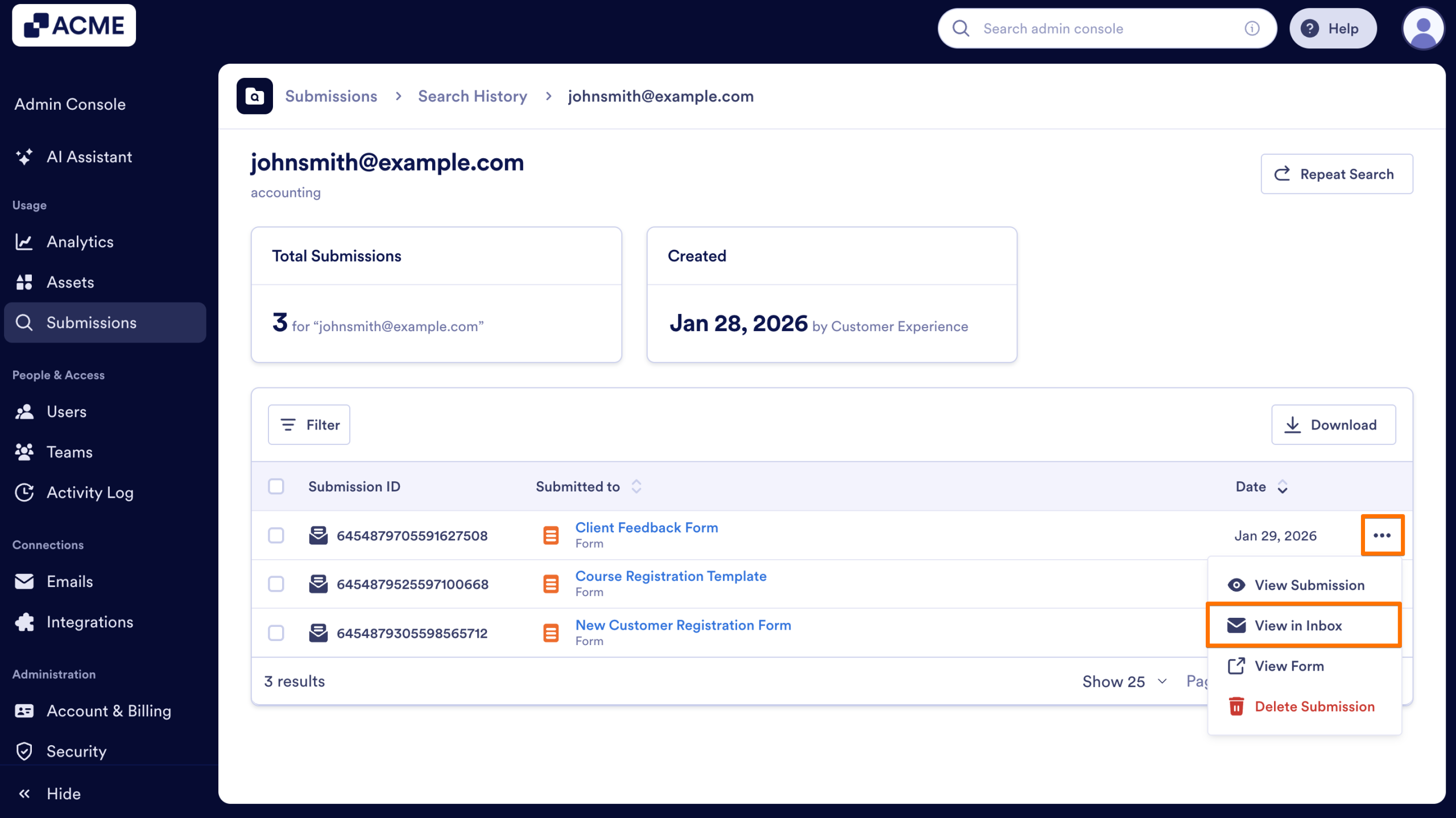
Viewing a Submission in Inbox
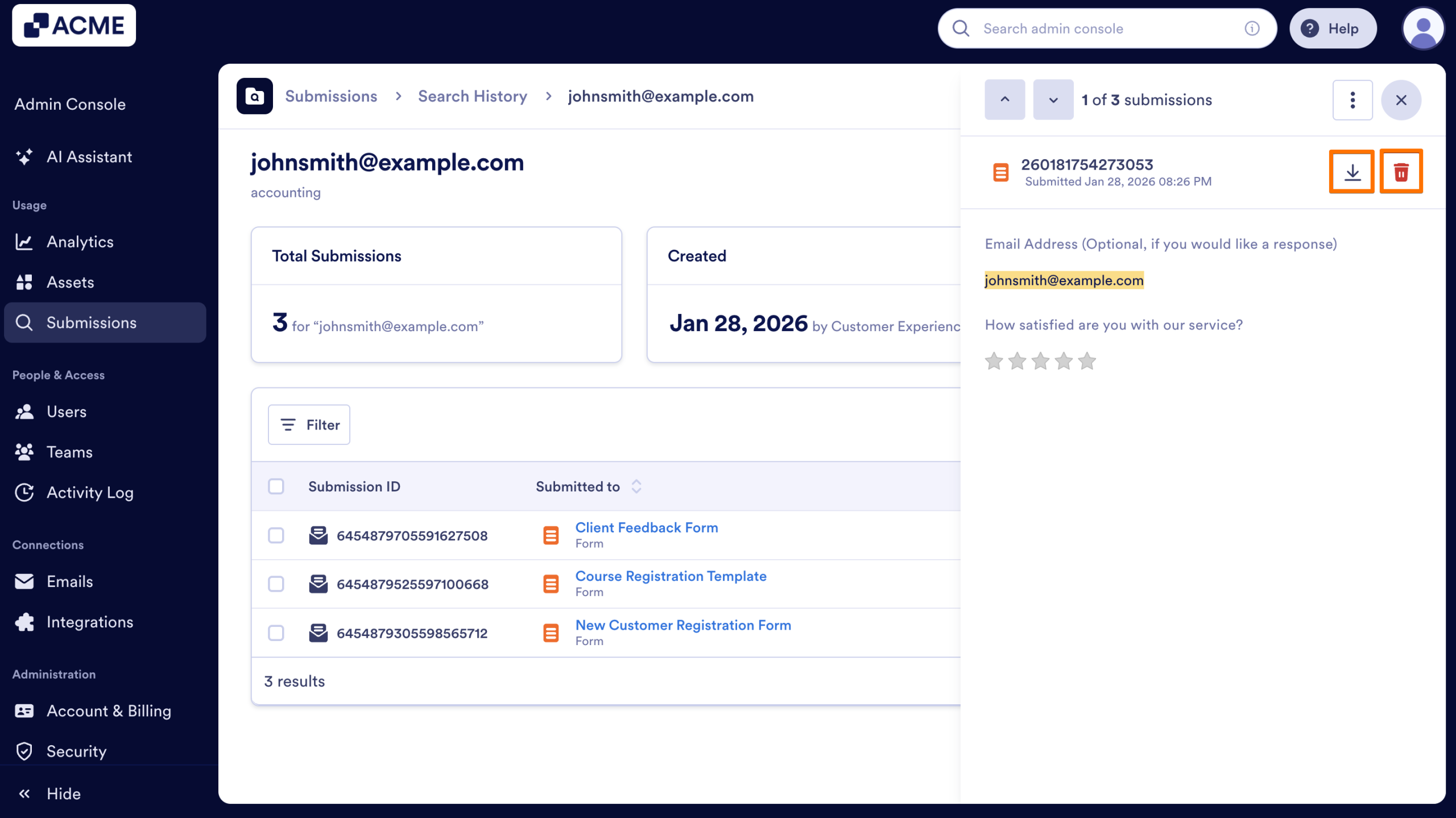
- In the Submission Results, click on the Three Dots icon next to the submission you’d like to view.
- Then, select View in Inbox.
You’ll be brought to the Inbox for the submission and any others from the submission results for the same form.
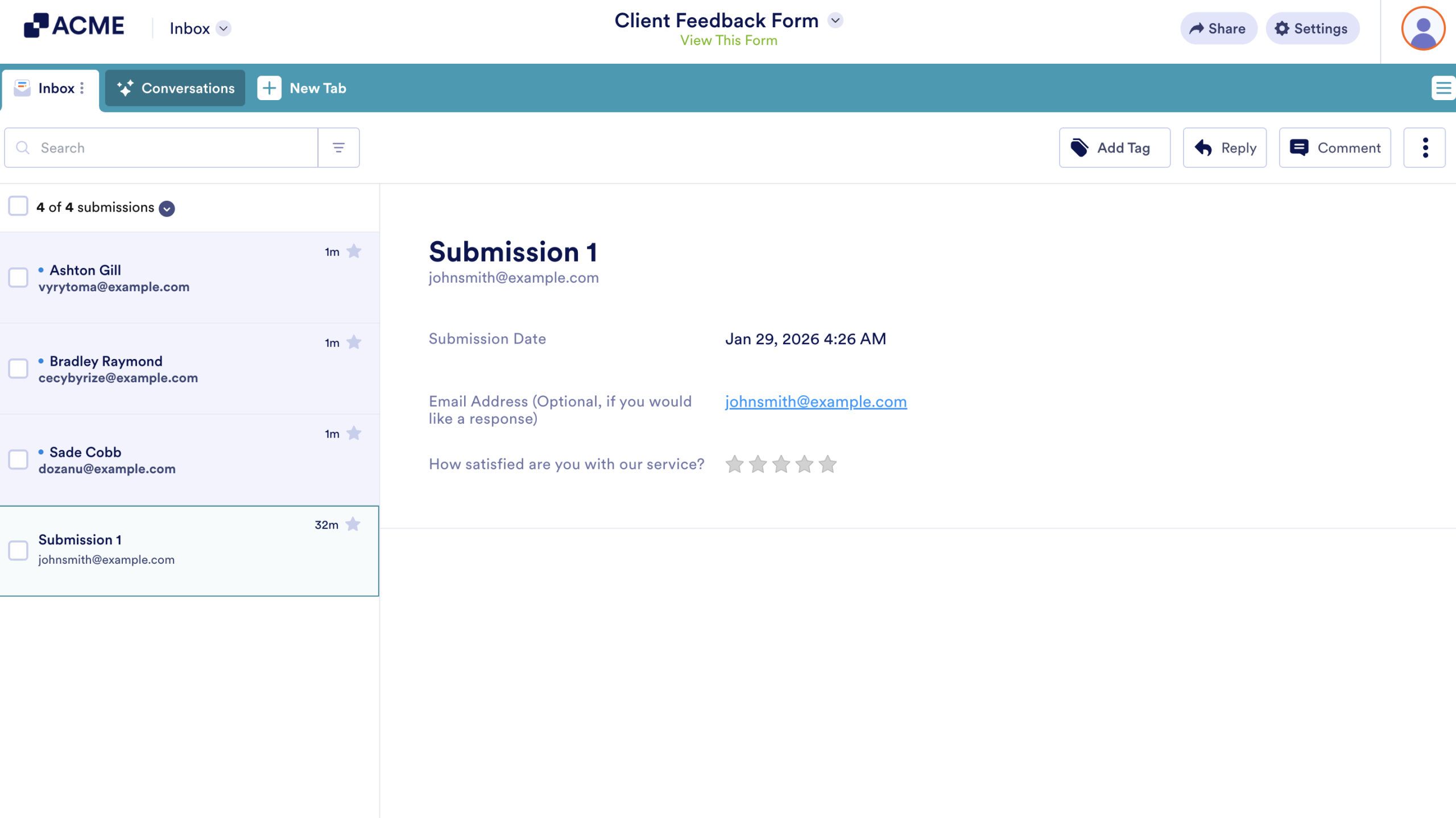
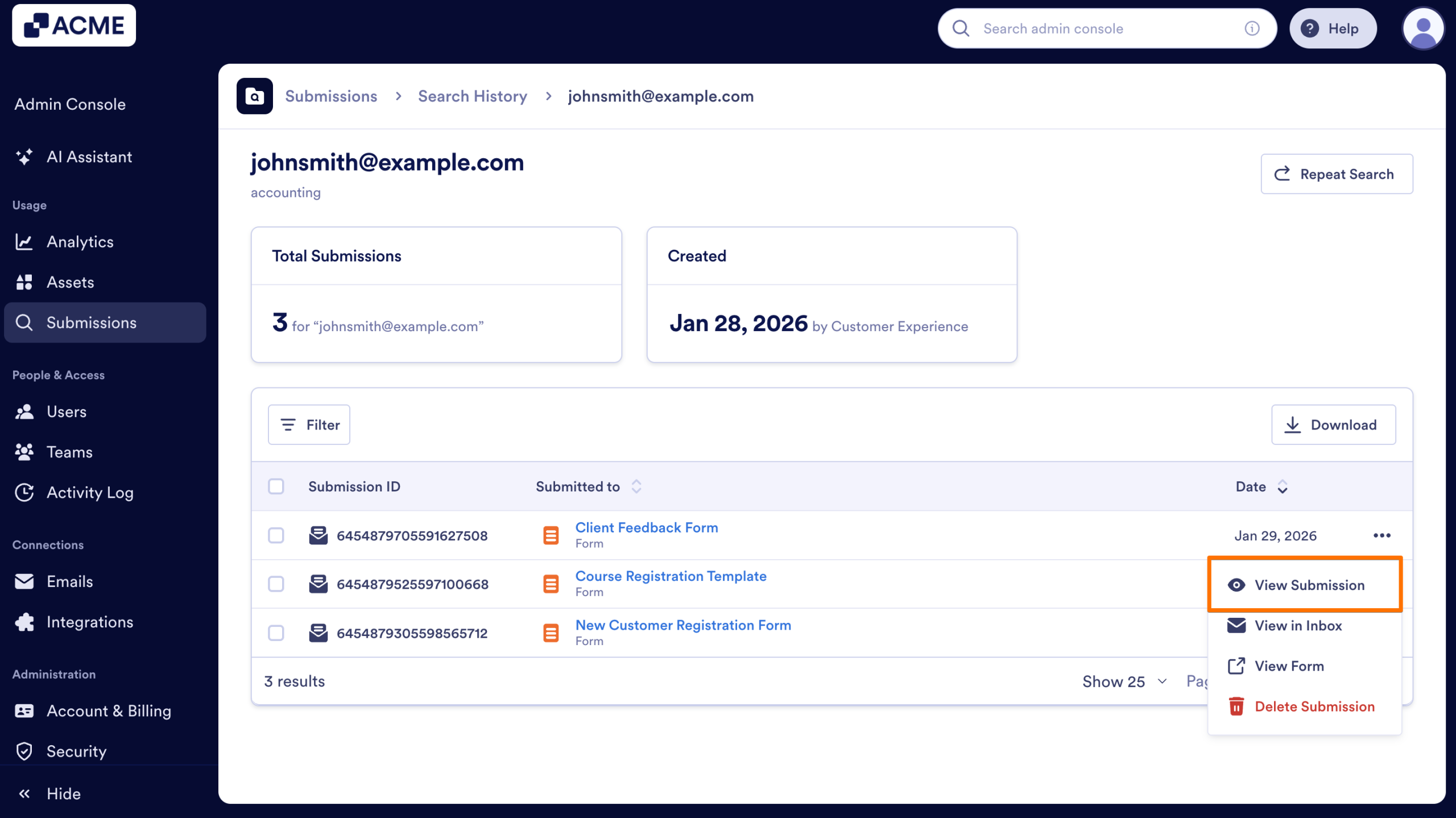
Viewing a Submission from the Results
With this option selected, you'll be able to view Submission Details from the pop-up window that opens on the right side of the page.
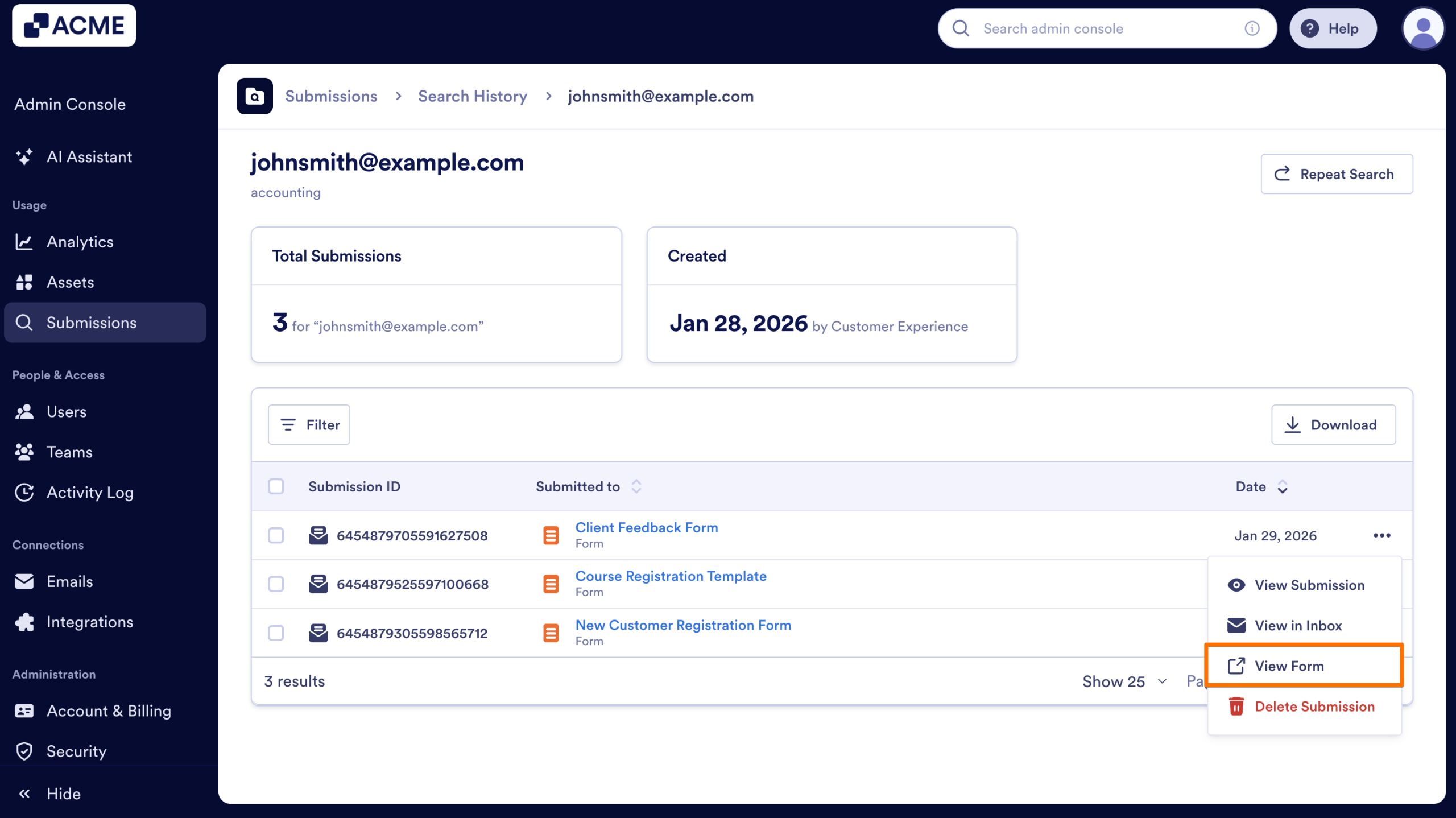
View Form
When you select View Form option, you'll be redirected to the Form's preview.
Deleting a Submission from the Submission Results
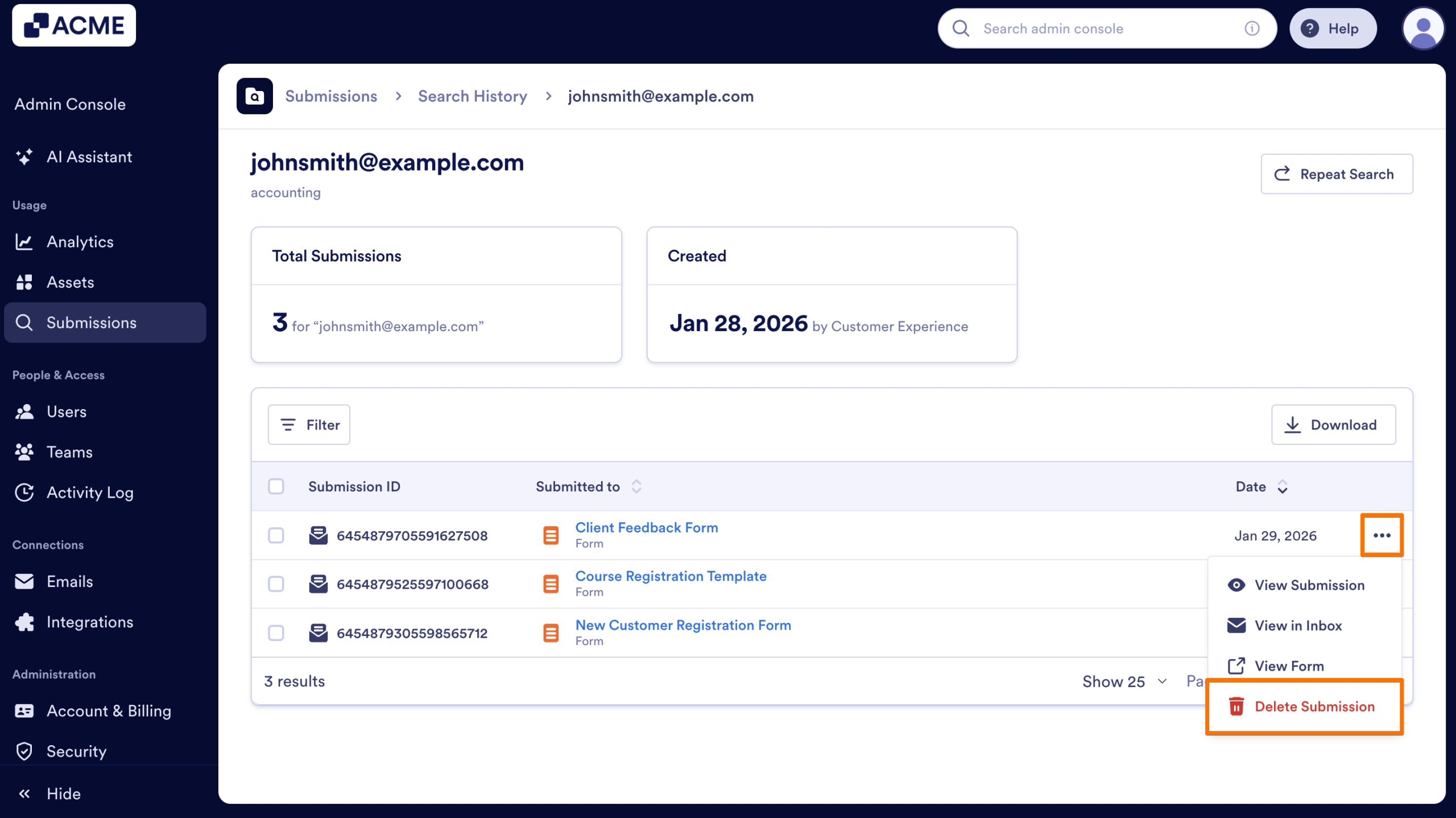
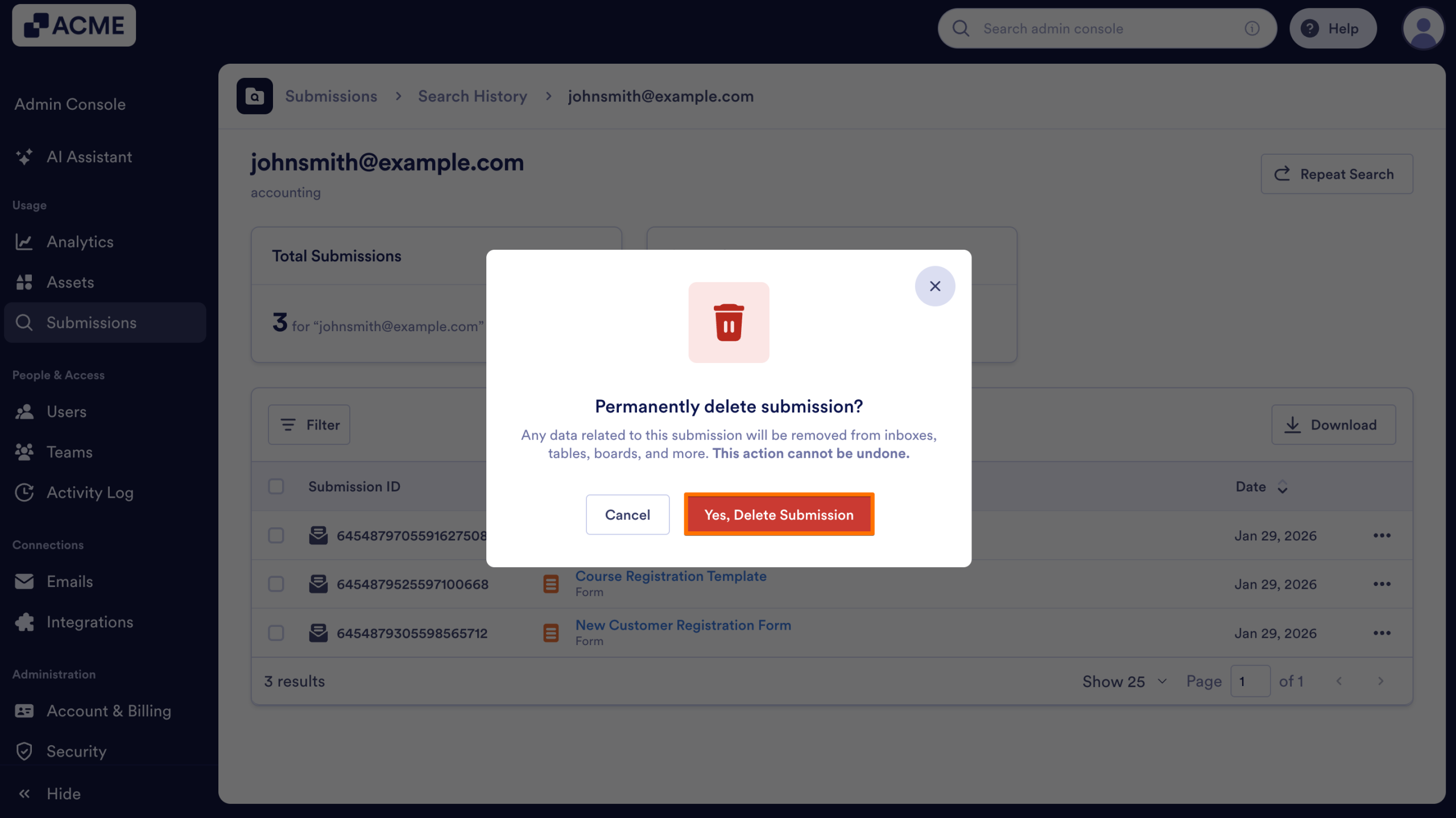
If you need to remove the submission, you can delete it from the Submission Results page. However, this is a permanent action and can’t be undone. Make sure you need to delete the submission before proceeding. Let’s walk through those steps together:
- In the Submission Results, click on the Three Dots icon next to the submission that needs to be deleted.
- Then, select Delete Submission from the drop-down menu.
- Finally, click Yes, Delete Submission from the pop-up window.
Managing a Submission from the Pop-up Window
Viewing a Submission in the Search Results
- In the Submission Results, click on the Three Dots icon next to the submission you’d like to view.
- Next, select View Submission.
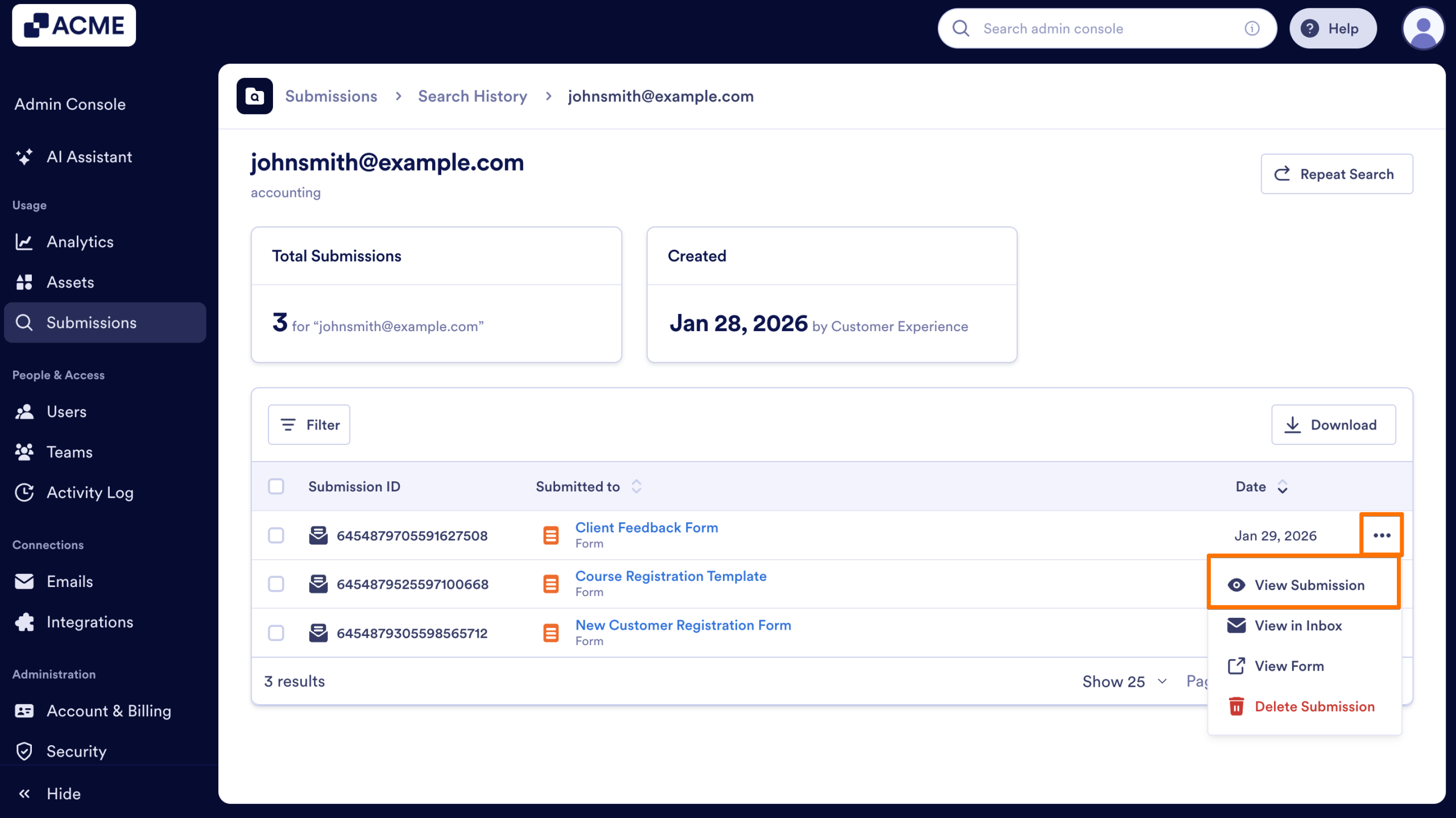
- Click on the Three Dots icon to view actions, or take action within the window.
In the pop-up window on the side, you can:
In the pop-up window on the side, you can:
- View a Submission in the Inbox: Click on the three-dot menu at the top of the page and select View in Inbox. Your submission will appear in the submission inbox, along with any other submissions for the form that match the search criteria.
- View the Form: To view the form, click on the three dot menu and select View Form. You’ll be brought to the live version of the form.
- Print a Submission: Click on the print icon at the top of the pop-up window. Then, make sure your printer is set up and select Print. Your submission will print in PDF format.
- Delete a Submission: To do this, click on the trash can icon at the top of the pop-up window. Alternatively, click on the three-dot menu and select Delete Submission. This is a permanent action and cannot be undone.
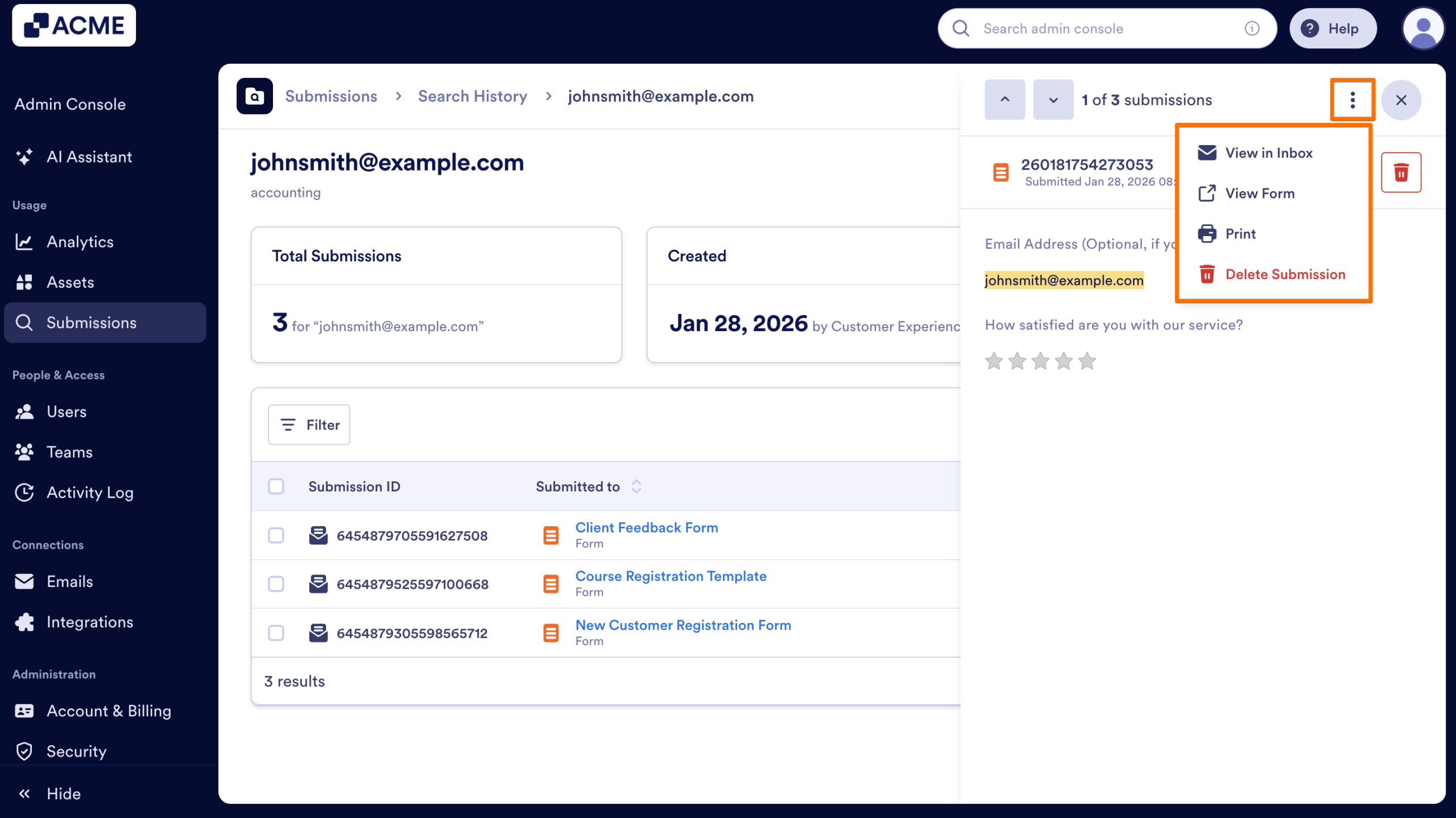
Additionally, next to the form submission you can see download and delete buttons to take direct actions:
Repeating a Submissions Search
Submission Search Results only contain submissions that were available when the submission search was created. If you’d like to pull in later submissions, you can repeat the search, either in the individual results information or on the Submissions landing page. Let’s walk through both methods, starting with the Submissions Landing Page:
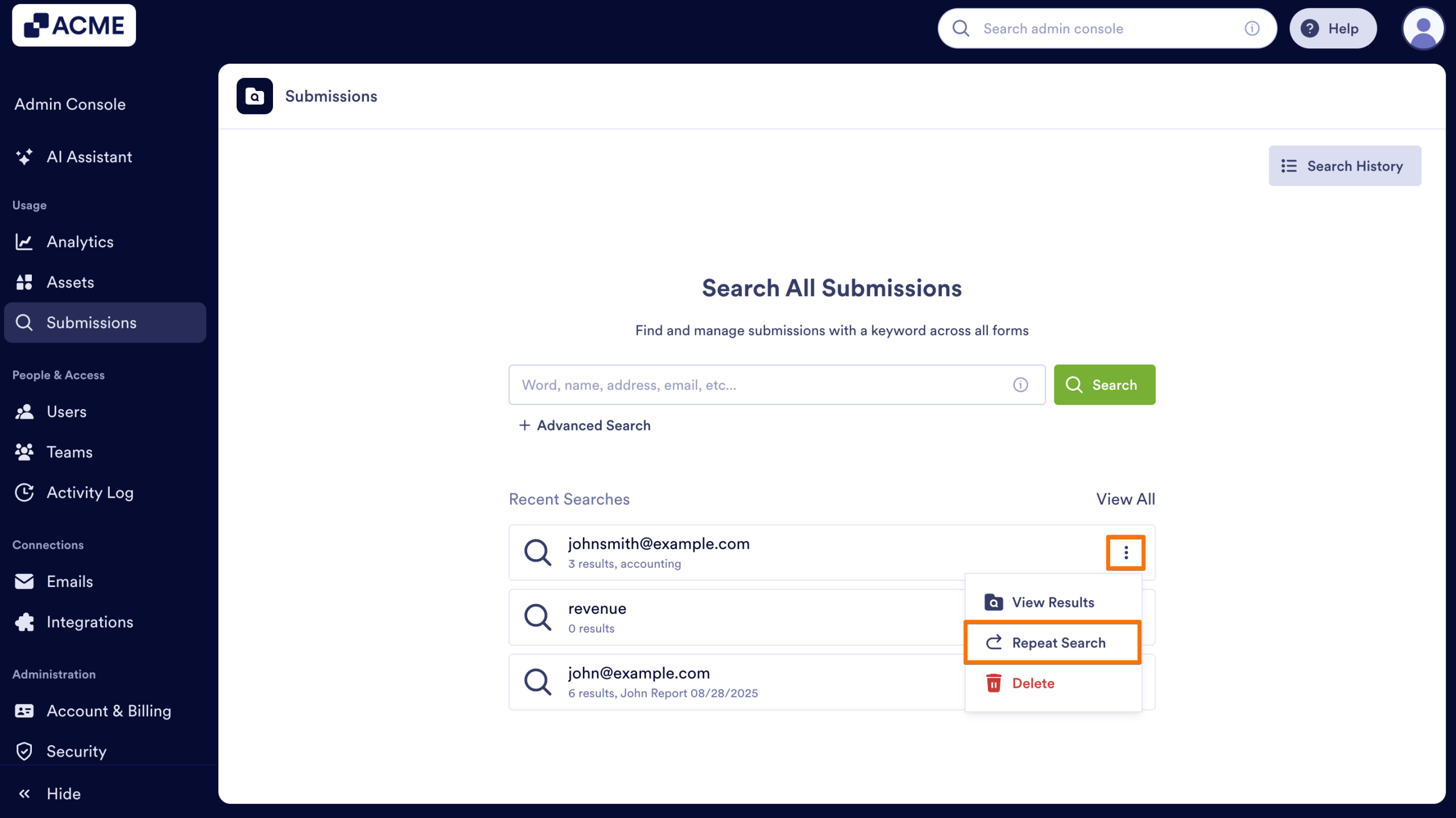
- In Submissions, select the submission search result you want to repeat from Recent Searches or click on View All to locate.
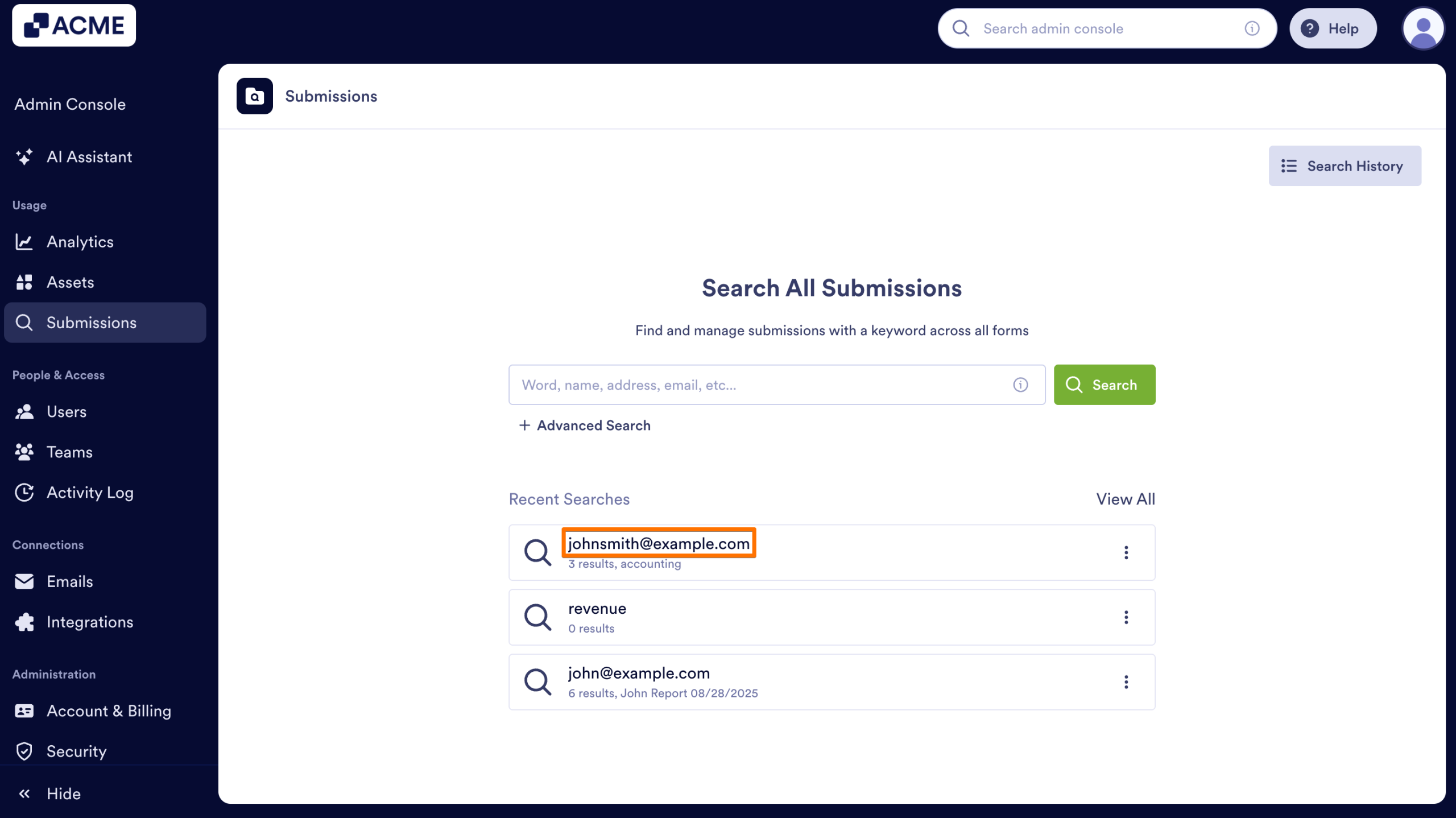
- Next, click on the Three Dots icon next to the submission search results and select Repeat Search.
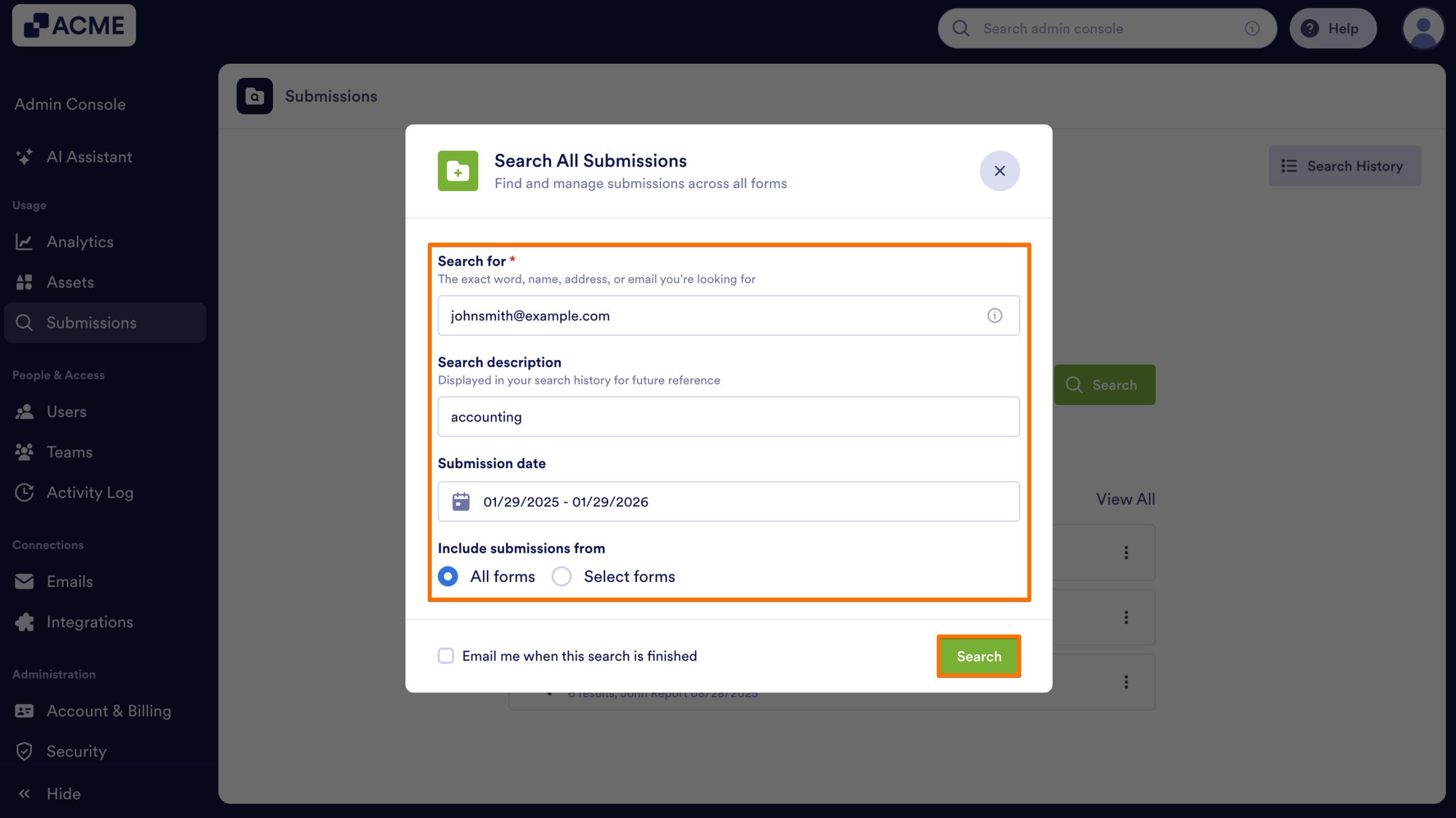
- In the pop-up window, confirm that the information is correct. You can update the Search Results Name if needed to differentiate it from the previous search result.
- Click on Search and the new submissions result will be generated.
The new submission search result will appear at the top of the list.
Now, let’s walk through the process of repeating a search from inside the search results.
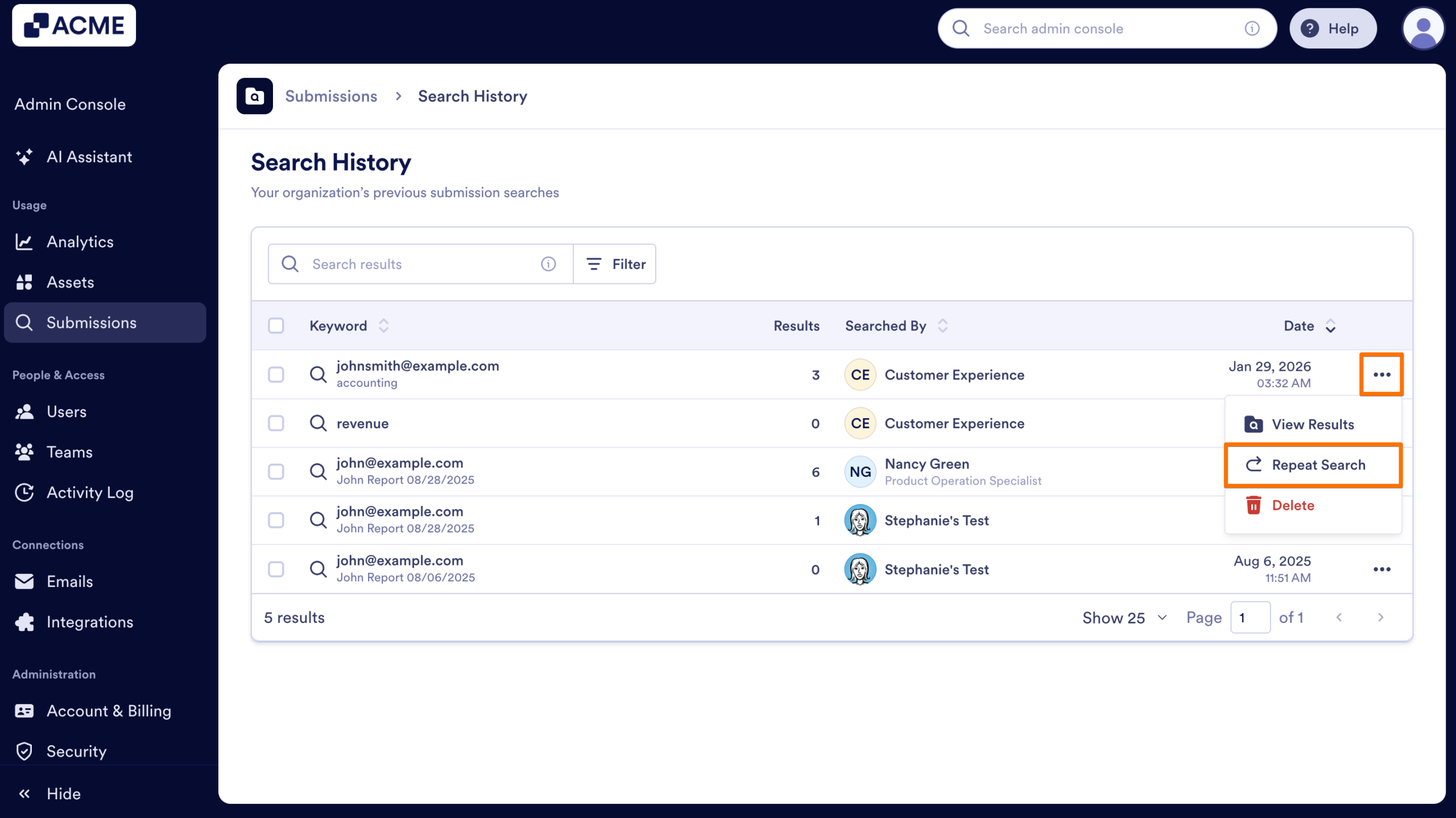
- In Submissions, for the search results you’d like to repeat, click on the Three Dots icon.
- And select View Results.
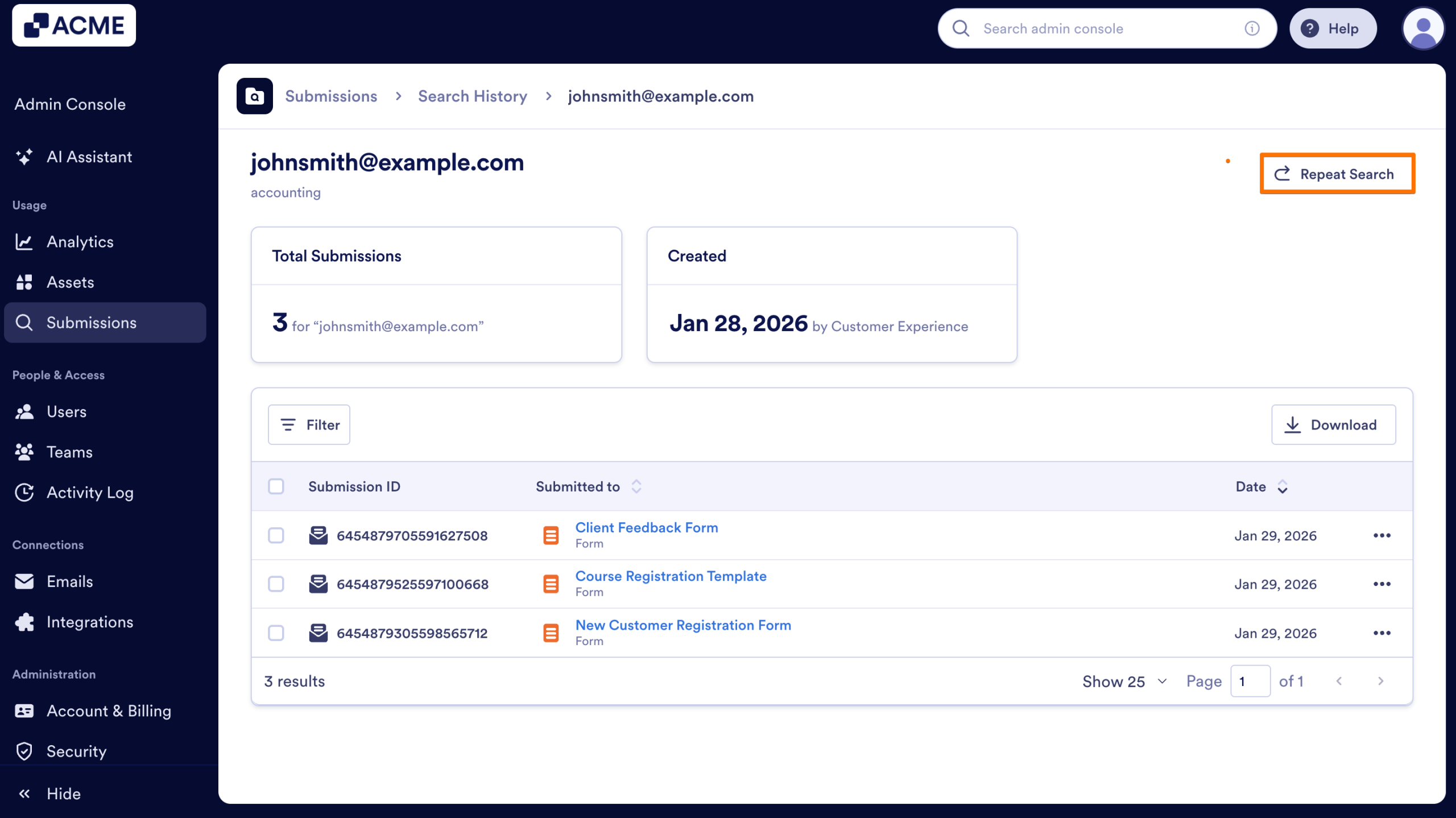
- On the next page, click on Repeat Search in the upper right-hand corner of the page.
- Update the information in the pop-up window and click Search.
- To view the new search results, click on Submissions at the top of the page to return to the Submissions page.
- Then, follow the steps in Viewing Submissions Search Results to view the new results.
Deleting a Submissions Search Results
If you no longer need a search result, you can delete it from the Submissions landing page, either individually or in bulk. This only deletes the submission search results, but not any submission data. Let’s walk through both, starting with deleting one result:
- In Submissions, for the search results you’d like to view, click on the Three Dots icon.
- And select Delete.
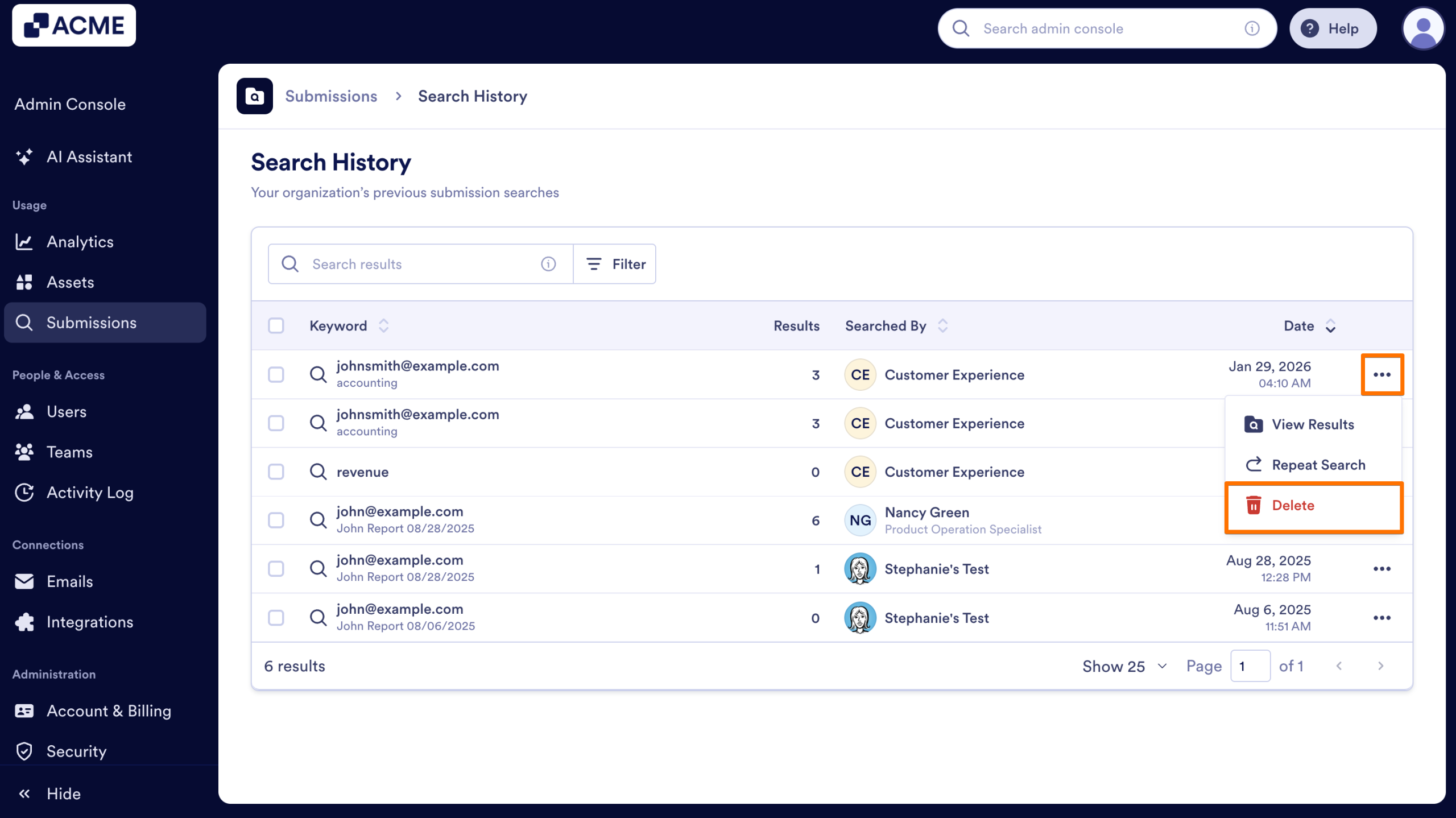
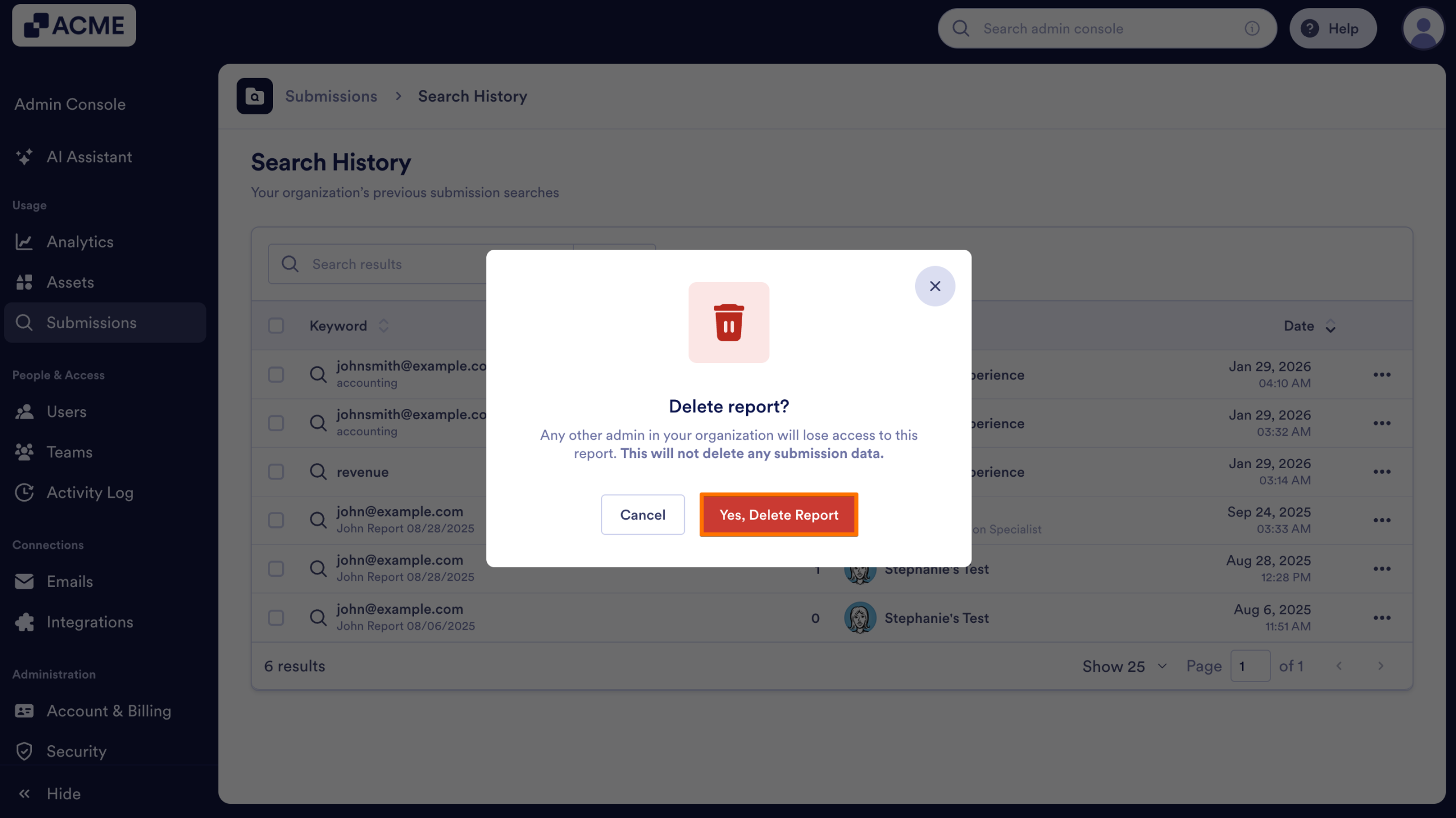
- Finally, in the pop-up window, click Yes, Delete Report.
Now, let’s walk through the process of deleting multiple search results:
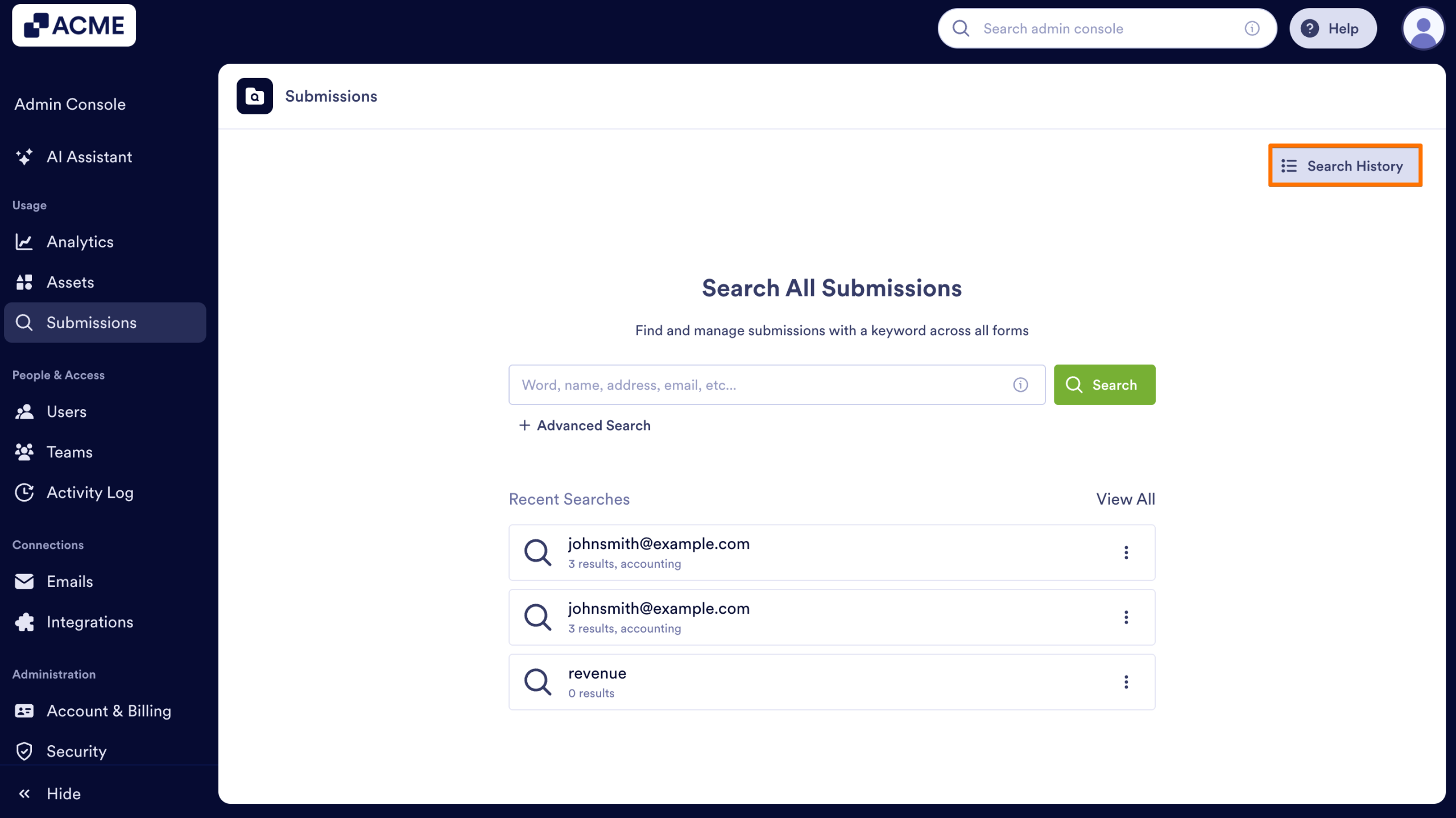
- In Submissions, click on Search History on the top right side of the page.
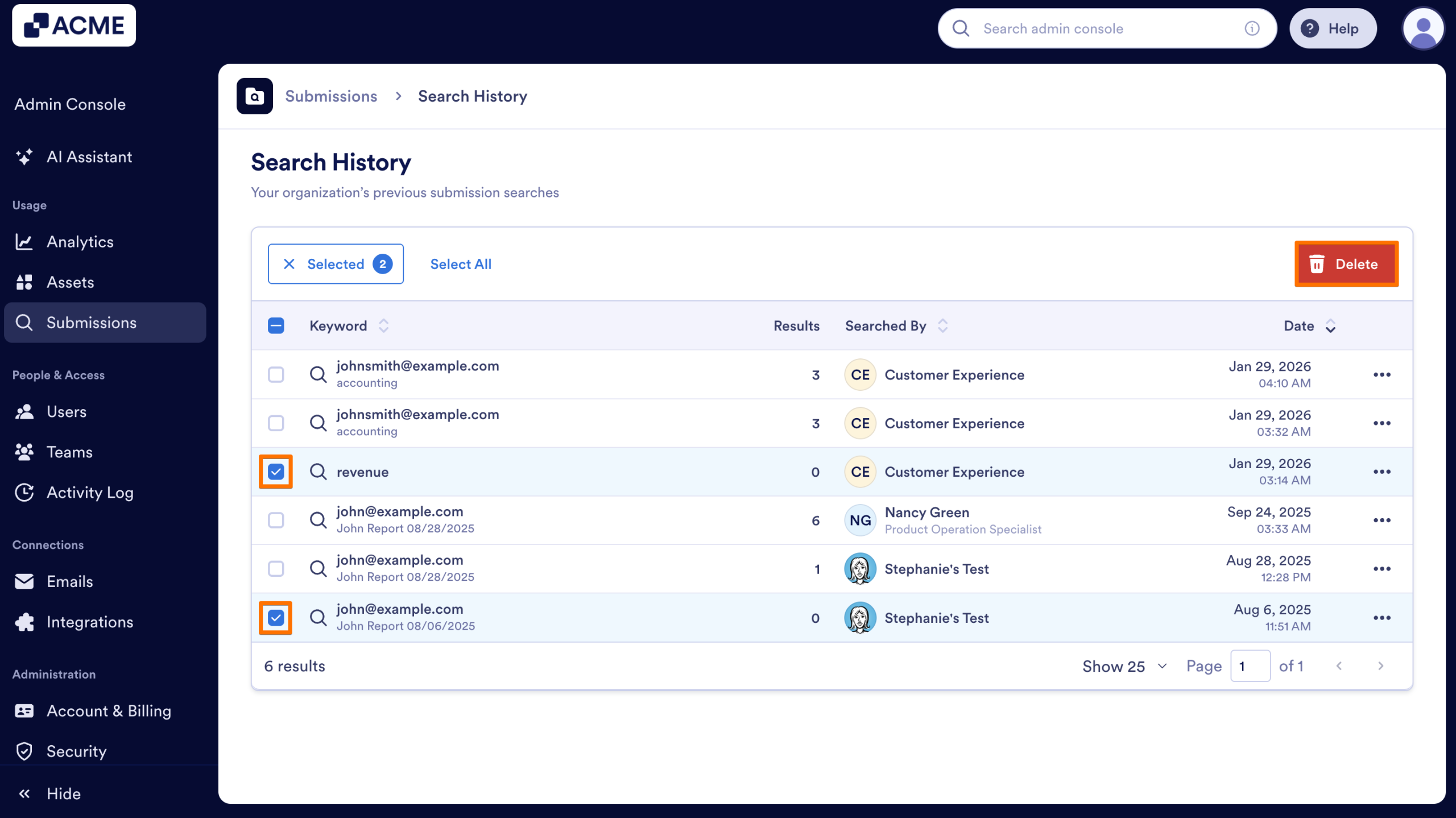
- Then, click on the checkboxes next to the search results you want to delete.
- Next, click Delete at the top of the page.
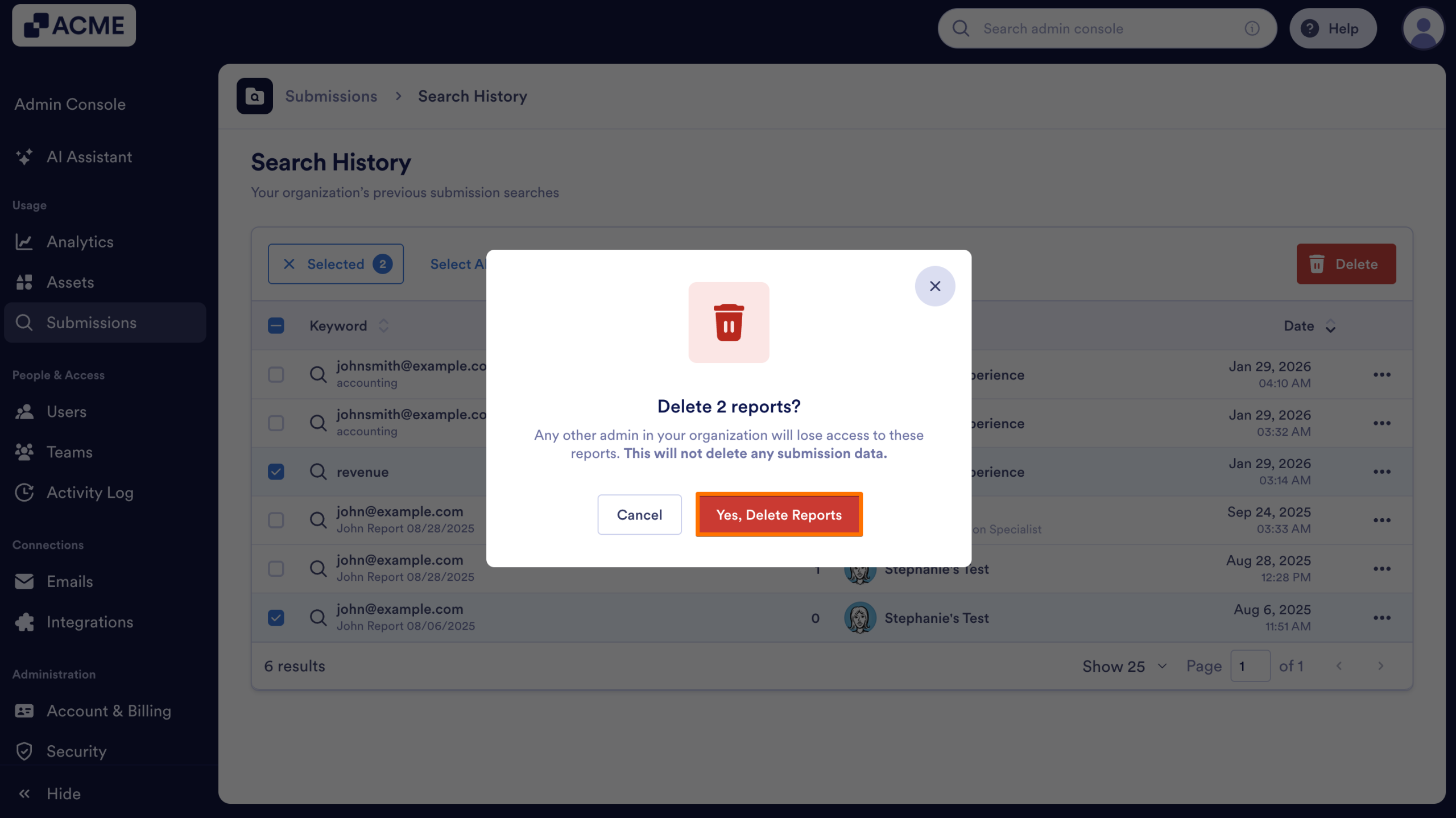
- Finally, click Yes, Delete Reports in the pop-up window.

Send Comment: