Keeping your workspace organized is essential for a smooth workflow. The Sort menu helps you rearrange your assets so you can find exactly what you need based on activity, date, or name.
Using the Sort Menu
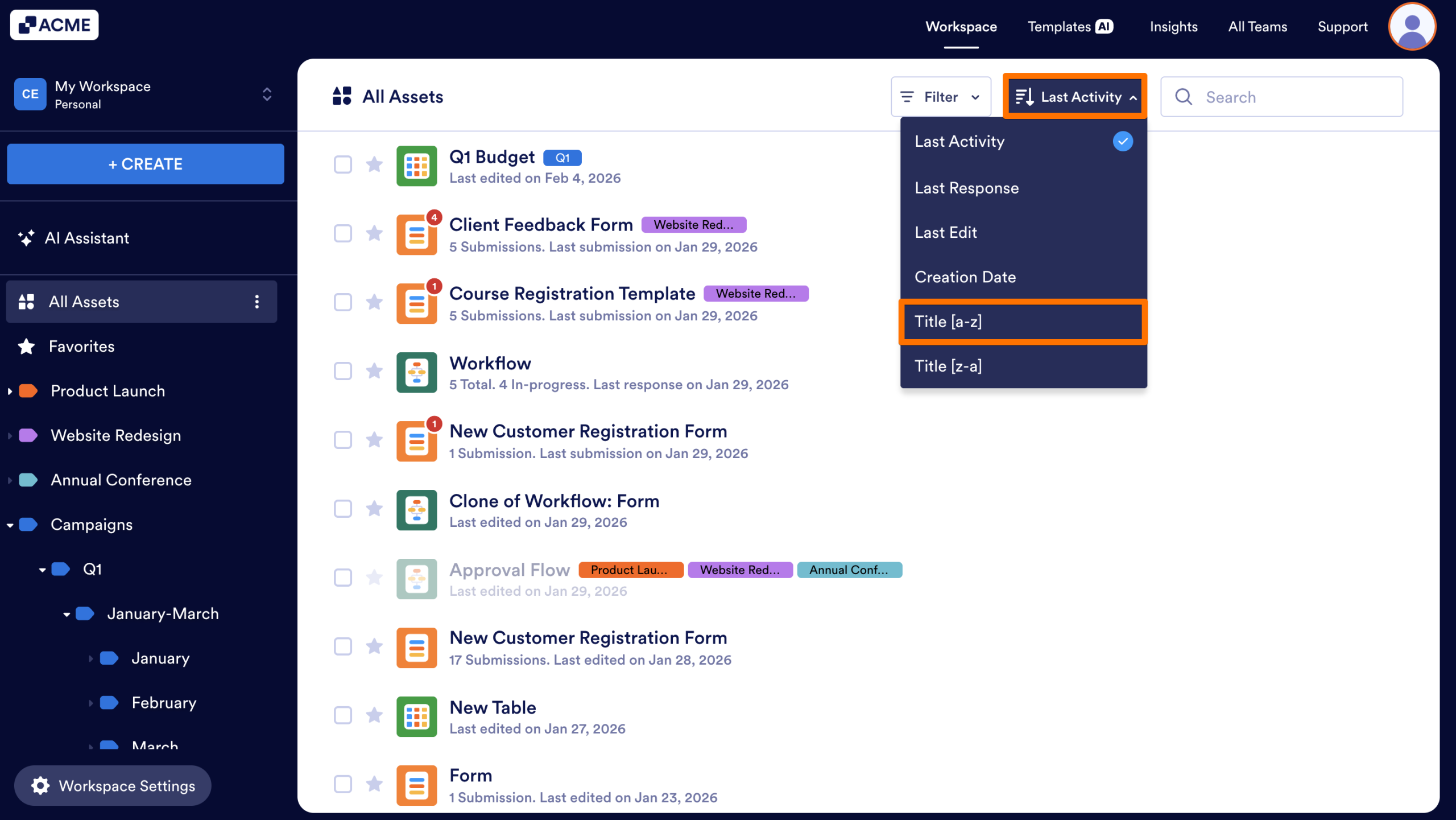
The Sort menu is located at the top of the asset list, next to the Filter.. Available sort options may change depending on which asset type(s) are currently selected in the Filter and what workspace you’re in. Based on that, you’ll see a combination of the following:
- Last Activity: Sort assets based on the most recent activity, such as edits or responses, from newest to oldest.
- Last Response:Sort assets based on the time of the most recent response, starting with the asset with the most recent response. This is available for all asset types, except Forms, Reports, and AI Agents.
- Last Submission: Sort Forms and Reports based on the time of the most recent submission, from newest to oldest.
- Last Conversation: Sort AI Agents based on the most recent conversation, from newest to oldest.
- Last Edit: Sort assets based on the time of the last edit, starting with the most recent edit.Bring the projects you’ve recently worked on in the builder to the top of the list.
- Submission Count: Sort Forms from most to least submissions.
- Unread: Sort Forms from most to least unread submissions.
- Creation Date: Sort assets by the date they were created, from newest to oldest.
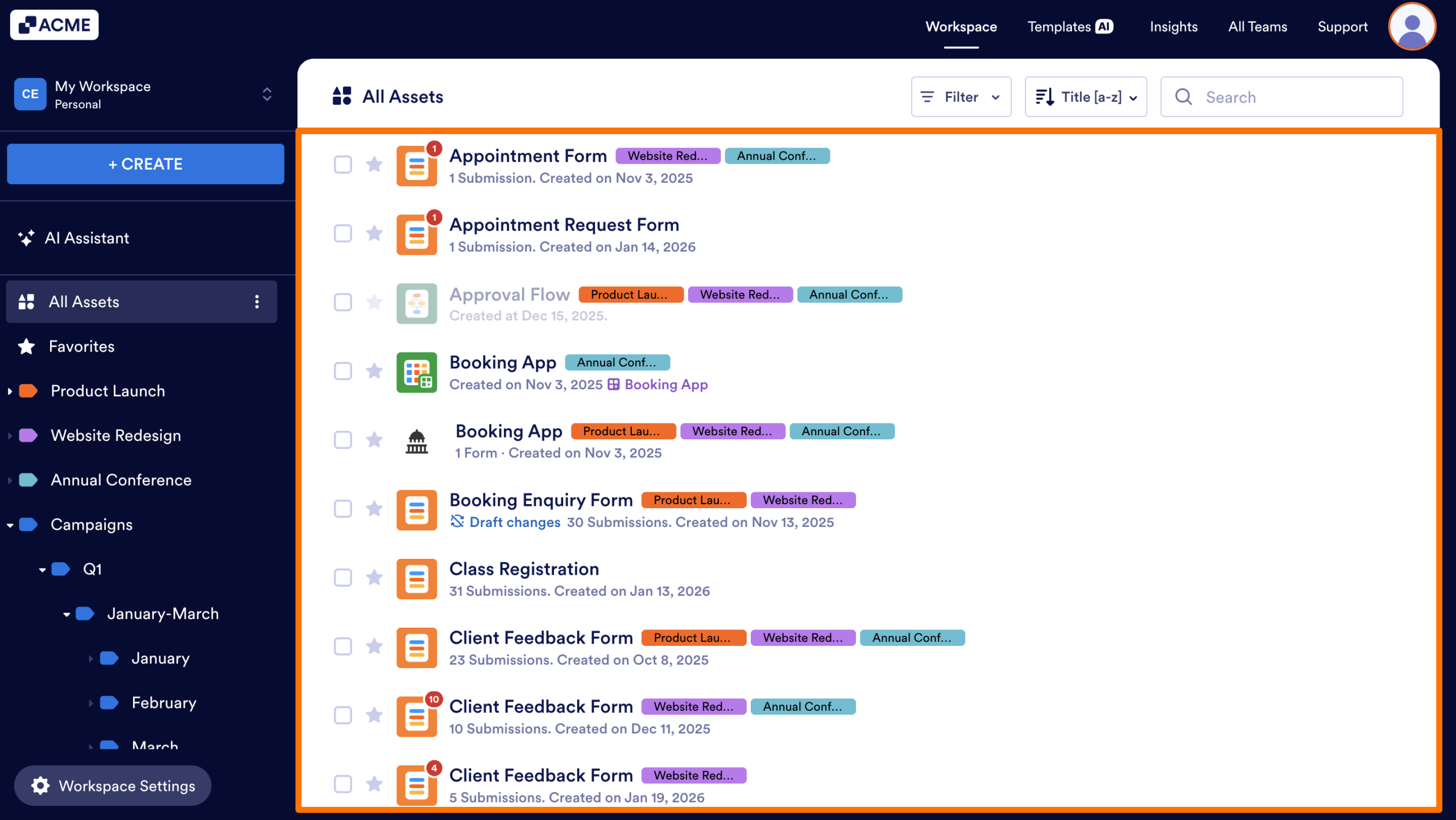
- Title [a-z] / [z-a]: Sort assets alphabetically or in reverse alphabetical order by name.
Available sort options may vary depending on the selected asset type and your current workspace location.
For a full breakdown, see:
How to Use the Sort Menu
- In My Workspace or the space you want to sort, click on the Sort dropdown in the toolbar at the top.
- Select the way you want your assets to be sorted.
The asset list will refresh automatically, showing only the items that match your chosen type.
Persistent Sorting
Once you’ve selected a sort method, the workspace will remember that preference the next time you access it. Persistent sorting is a key feature of this tool, which means that until a different method is selected, you won’t have to re-apply it every time you login or go to a new workspace.
Tip
If you are looking for a specific project you just finished designing, sort by Last Edit to bring it instantly to the top of your list.
Availability by Asset Type
| Forms | AI Agents | Tables | Apps | Sign Documents | Workflows | Reports | Boards | |
| Last Activity | ✅ | ✅ | ✅ | ✅ | ✅ | ✅ | ✅ | ✅ |
| Last Response | ❌ | ❌ | ✅ | ✅ | ✅ | ✅ | ❌ | ✅ |
| Last Submission | ✅ | ❌ | ❌ | ❌ | ❌ | ❌ | ✅ | ❌ |
| Last Conversation | ❌ | ✅ | ❌ | ❌ | ❌ | ❌ | ❌ | ❌ |
| Last Edit | ✅ | ✅ | ✅ | ✅ | ✅ | ✅ | ✅ | ✅ |
| Submission Count | ✅ | ❌ | ❌ | ❌ | ❌ | ❌ | ❌ | ❌ |
| Unread | ✅ | ❌ | ❌ | ❌ | ❌ | ❌ | ❌ | ❌ |
| Creation Date | ✅ | ✅ | ✅ | ✅ | ✅ | ✅ | ✅ | ✅ |
| Title | ✅ | ✅ | ✅ | ✅ | ✅ | ✅ | ✅ | ✅ |
Availability by Location
| Workspaces (Personal and Team) | Sent (Personal) | Drafts (Personal) | Shared with Me | Assigned Tasks (Personal) | Archive (Personal and Team) | Trash (Personal and Team) | |
| Last Activity | ✅ | ❌ | ❌ | ✅ | ✅ | ✅ | ✅ |
| Last Response | ✅ | ❌ | ❌ | ❌ | ❌ | ✅ | ✅ |
| Last Submission | ✅ | ❌ | ❌ | ✅ | ❌ | ✅ | ✅ |
| Last Conversation | ✅ | ❌ | ❌ | ❌ | ❌ | ✅ | ✅ |
| Last Edit | ✅ | ✅ | ✅ | ✅ | ✅ | ✅ | ✅ |
| Submission Count | ✅ | ❌ | ❌ | ✅ | ❌ | ✅ | ✅ |
| Unread | ✅ | ❌ | ❌ | ✅ | ❌ | ✅ | ✅ |
| Creation Date | ✅ | ✅ | ✅ | ✅ | ✅ | ✅ | ✅ |
| Title | ✅ | ✅ | ✅ | ✅ | ✅ | ✅ | ✅ |

Send Comment: