What is a Guest User?
A Guest User is an external (and unlicensed) user who’s been granted access to your forms to submit, view, or edit their own responses.
Guest User Permissions
The actions these users can take, depend on the permissions you set when inviting the guest user to the form. We’ve provided a detailed breakdown of those permission levels, below::
- Submit only: Guest Users with this permission level can fill out and submit the form, but they cannot view or edit their submission afterward.
- Submit and view later: Guest Users with this permission level can submit the form and can also view their submission later.
- Submit and edit: Guest Users with this permission level can submit the form and go back to edit their own submission whenever needed.
Note
Submissions from Guest Accounts will be tied to the original email address that was used to invite that user to your form. Guest Users must use that same email address to access or manage their submissions unless you update the email address stored in their profile.
Updating Guest Accounts
As an admin, you can edit your organization’s guest user accounts to update their names and email addresses. Let’s walk through that process together, below:
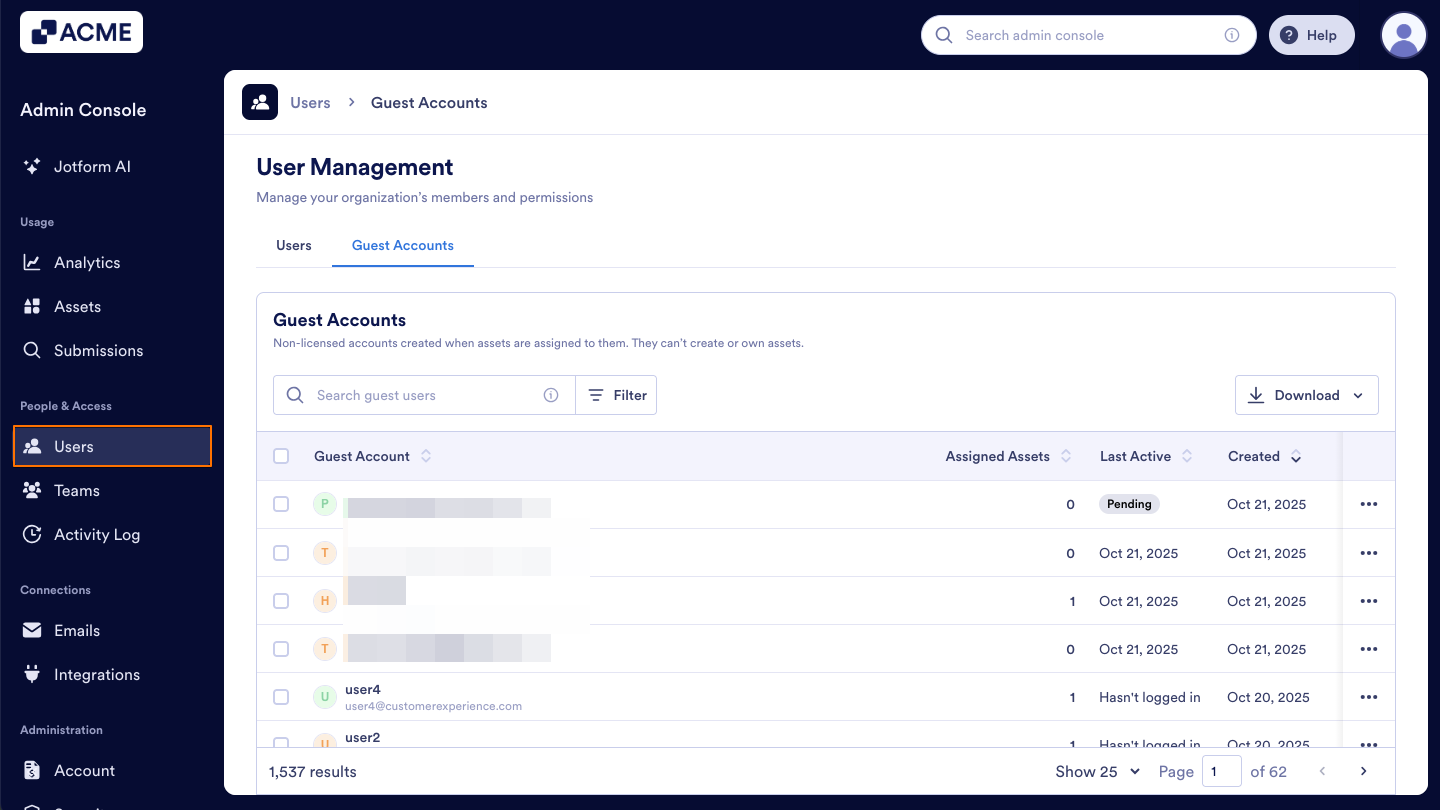
- Starting in the Admin Console, click on Users in the menu on the left side of the page.
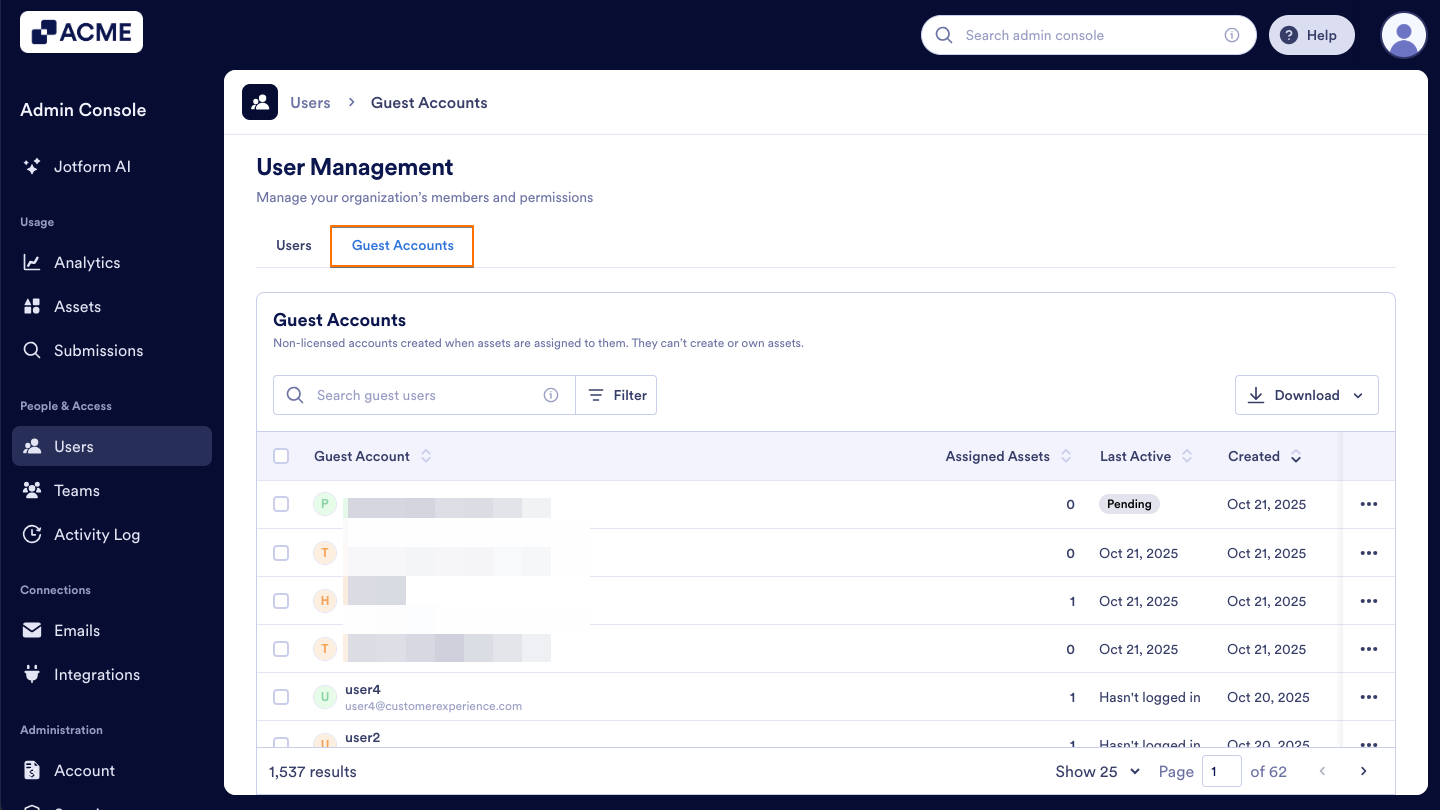
- Next, click on the Guest Accounts tab located at the top of the User Management page.
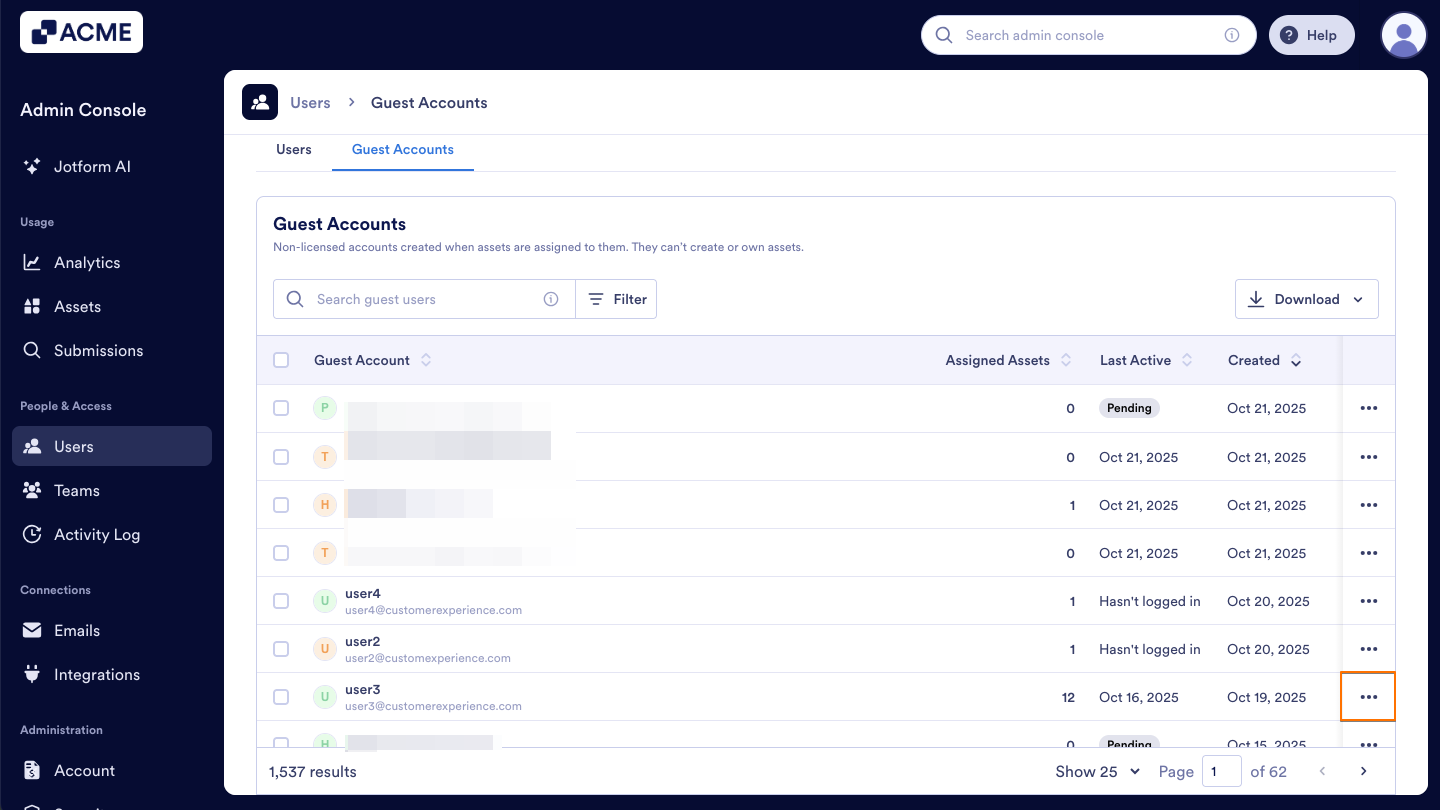
- Click on the Three-Dot icon on the right of the user you want to update.
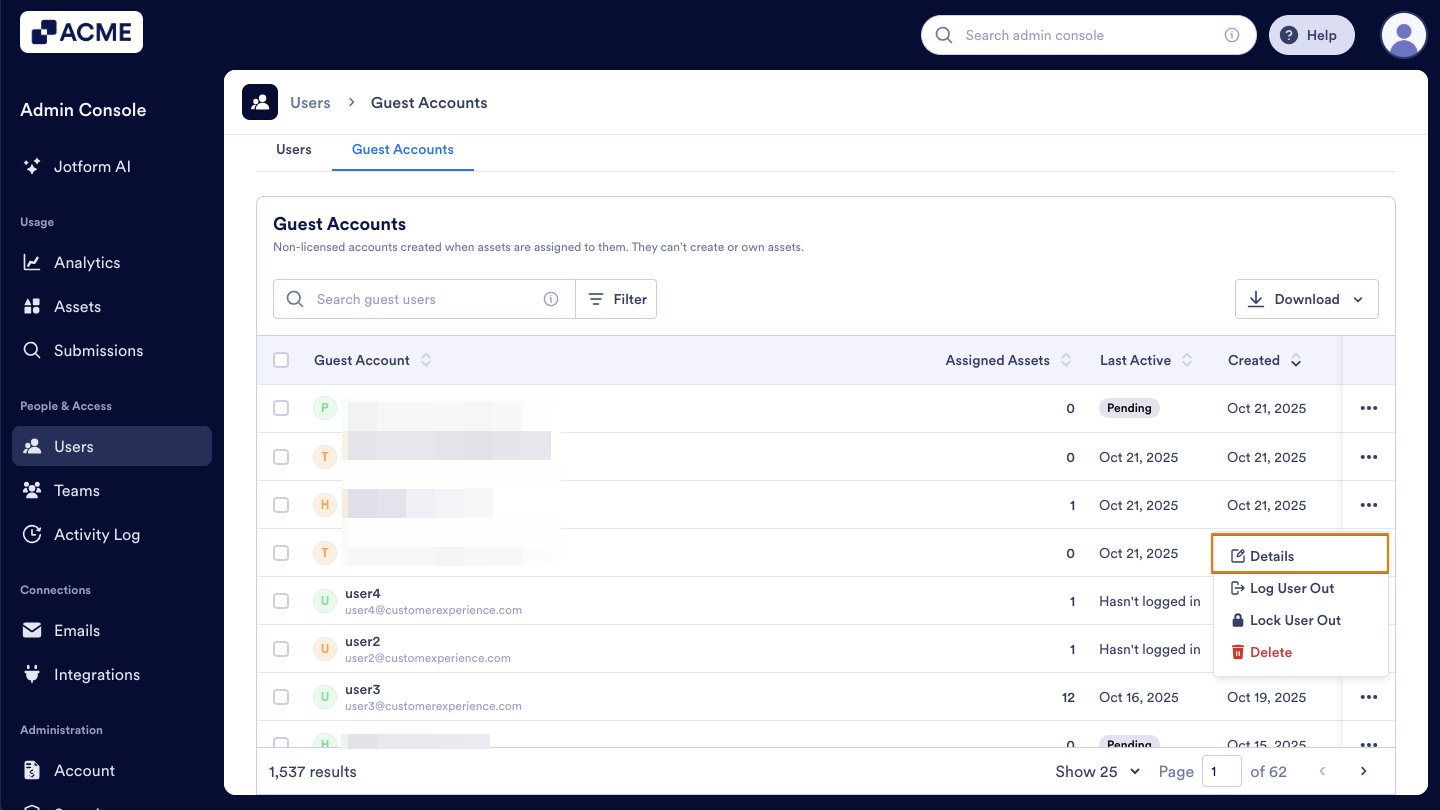
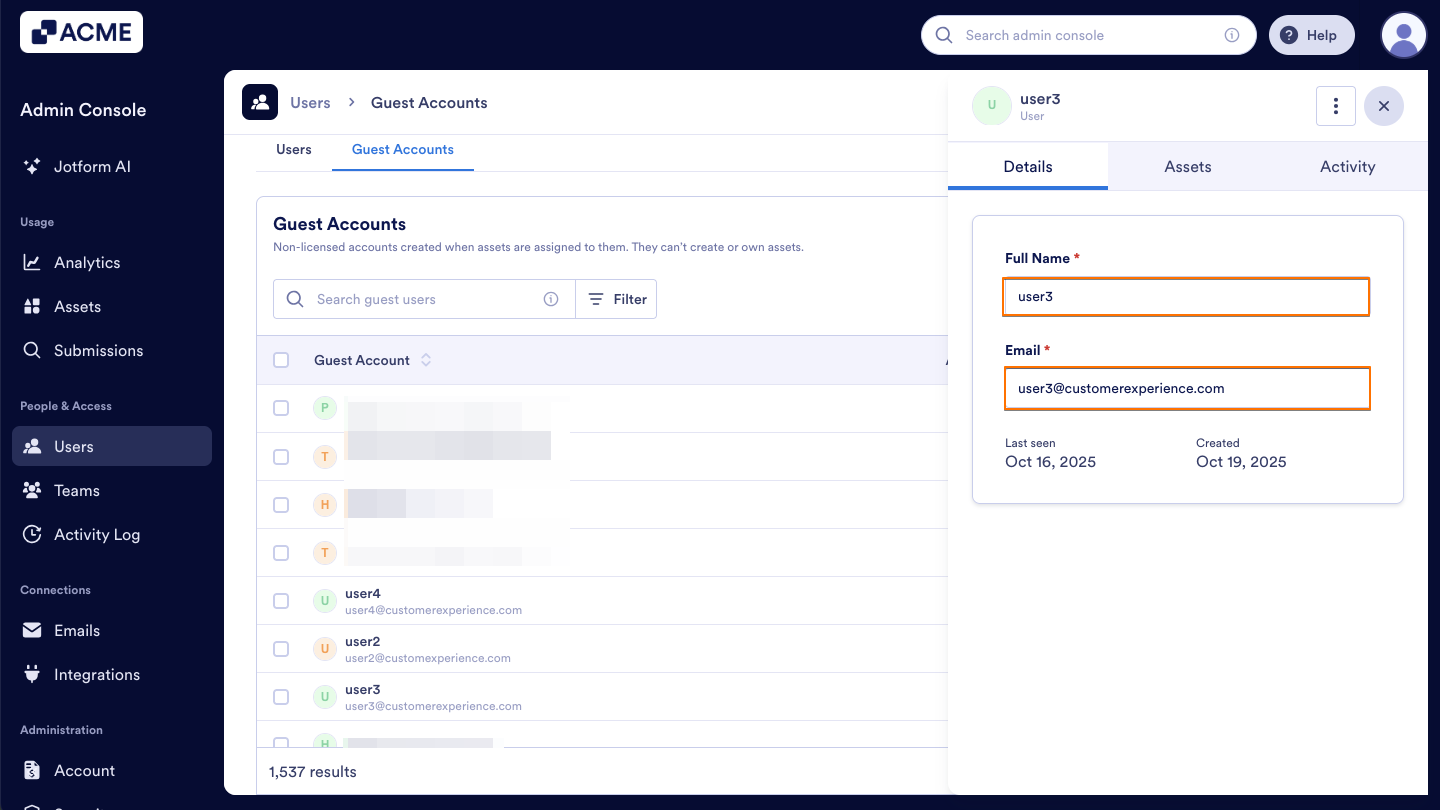
- Now, click Details in the dropdown menu.This opens a sidebar on the right side of the screen that contains several tabs, such as Details, Assets, and Activity.
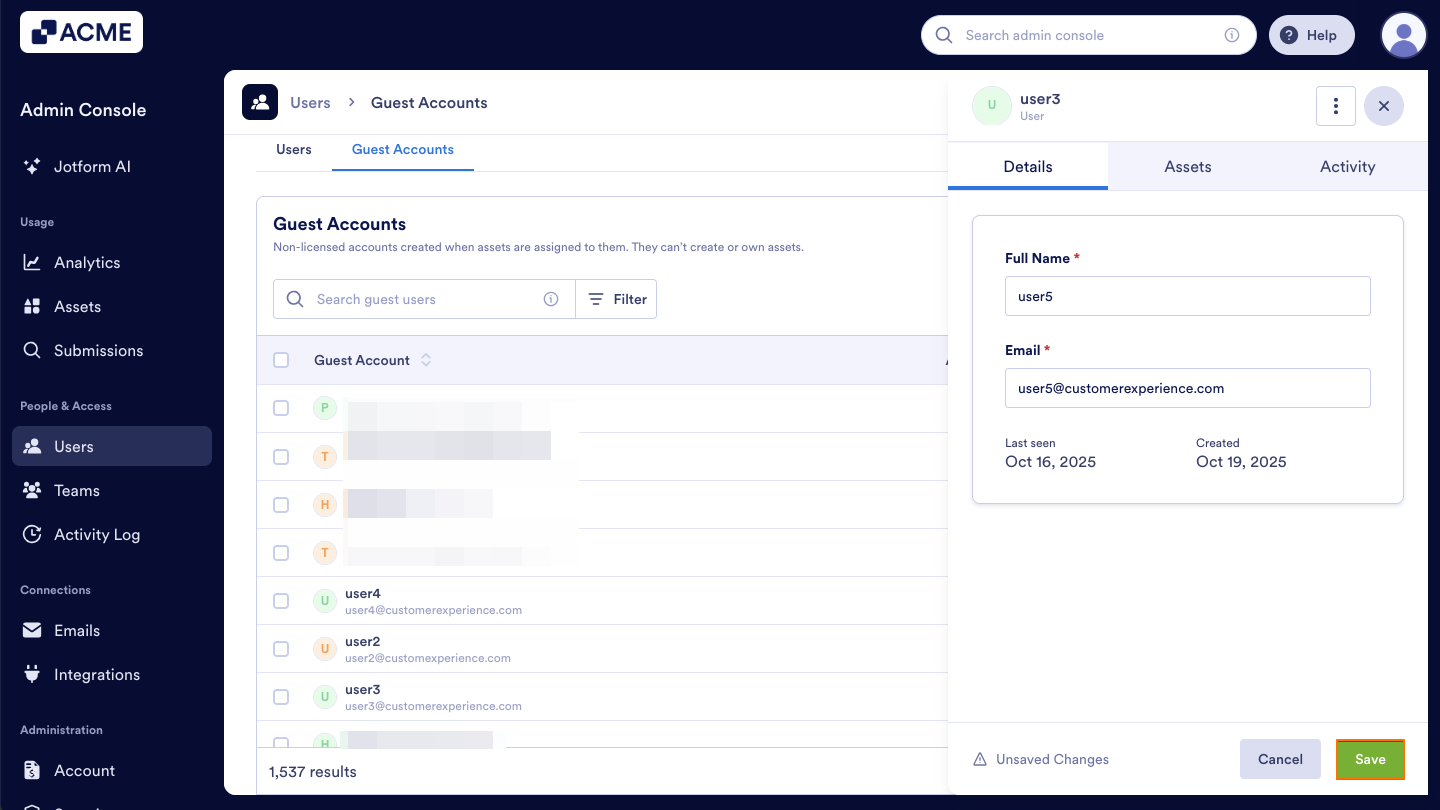
- In that sidebar, the guest user’s Full Name and Email is display in the Details tab. You can type directly into these fields to change their name or update their email address.
- Finally, click Save at the bottom of the Details section to confirm any changes you’ve made.

Send Comment: