The search bar is a convenient tool for quickly locating specific items within your current workspace. In this guide, we’ll walk through how it works, limitations, and how to find Asset IDs.
How the Search Field Works
The search bar is located in the upper right-hand corner of your asset list.
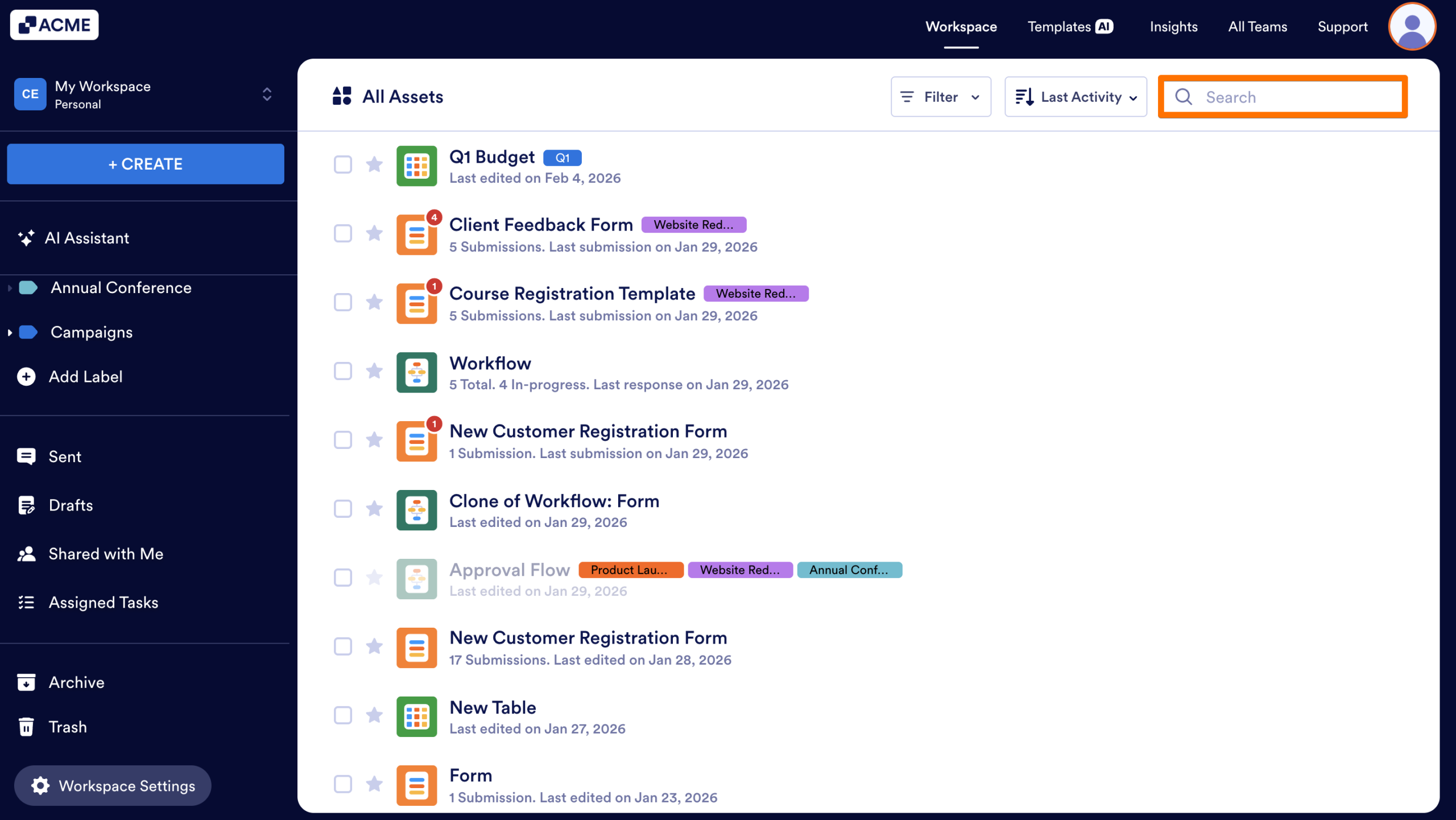
You can search for assets using the following:
- Name: Find any asset (Forms, Apps, Tables, etc.) by typing its name or title in the search bar.
- Asset ID: Find any asset by entering the Asset ID in the search bar.
Where to Find an Asset ID
IDs are assigned to all assets in Jotform Enterprise. While this is most commonly seen on forms, Tables, Apps, Sign Documents, and AI Agents are also given unique IDs.
If you need to search for an asset but don’t want to use the title, you can use the Asset ID, which is located in its URL. Let’s walk through finding these IDs together:
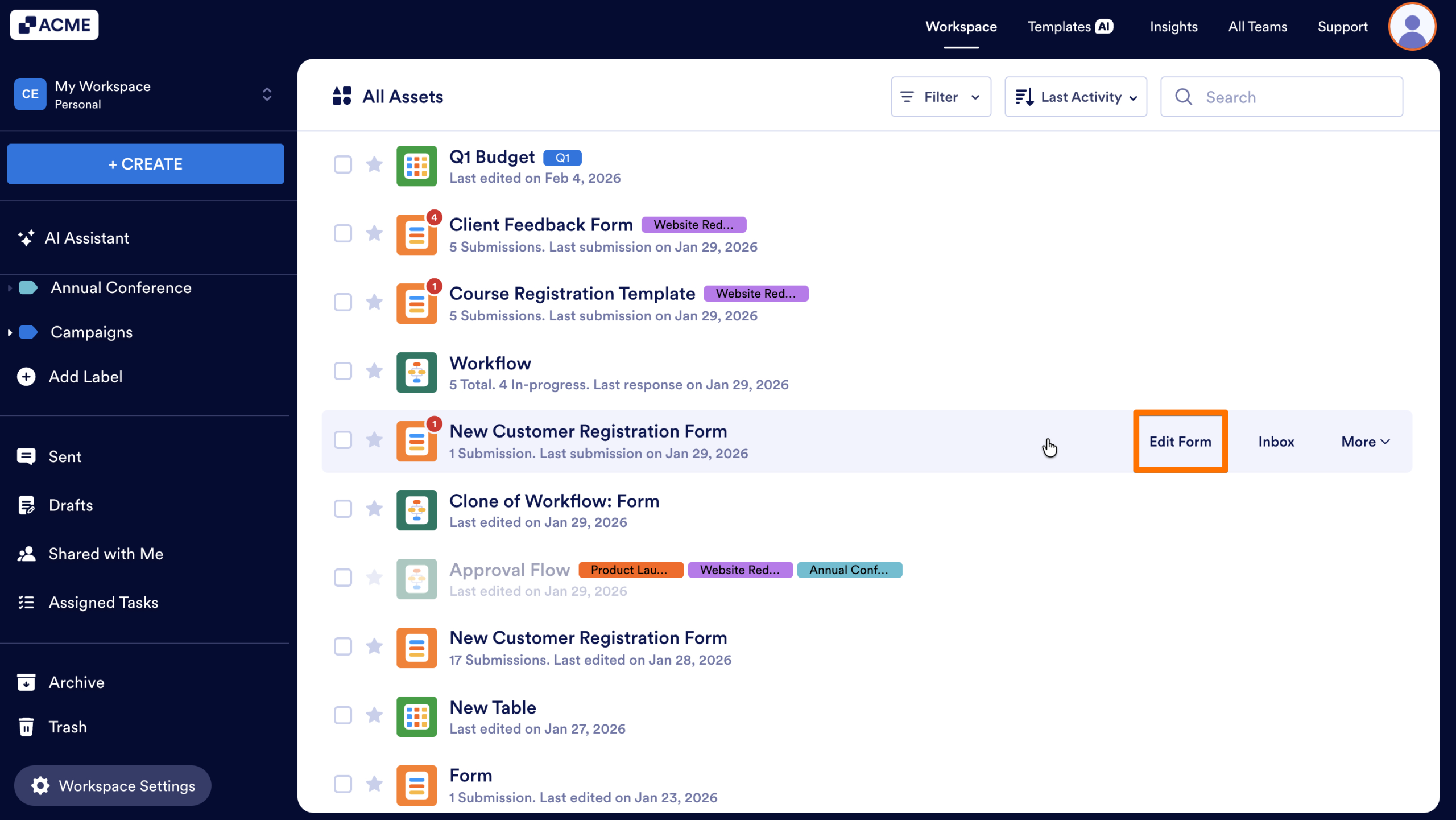
- In the Workspace, hover over the asset and select Edit.
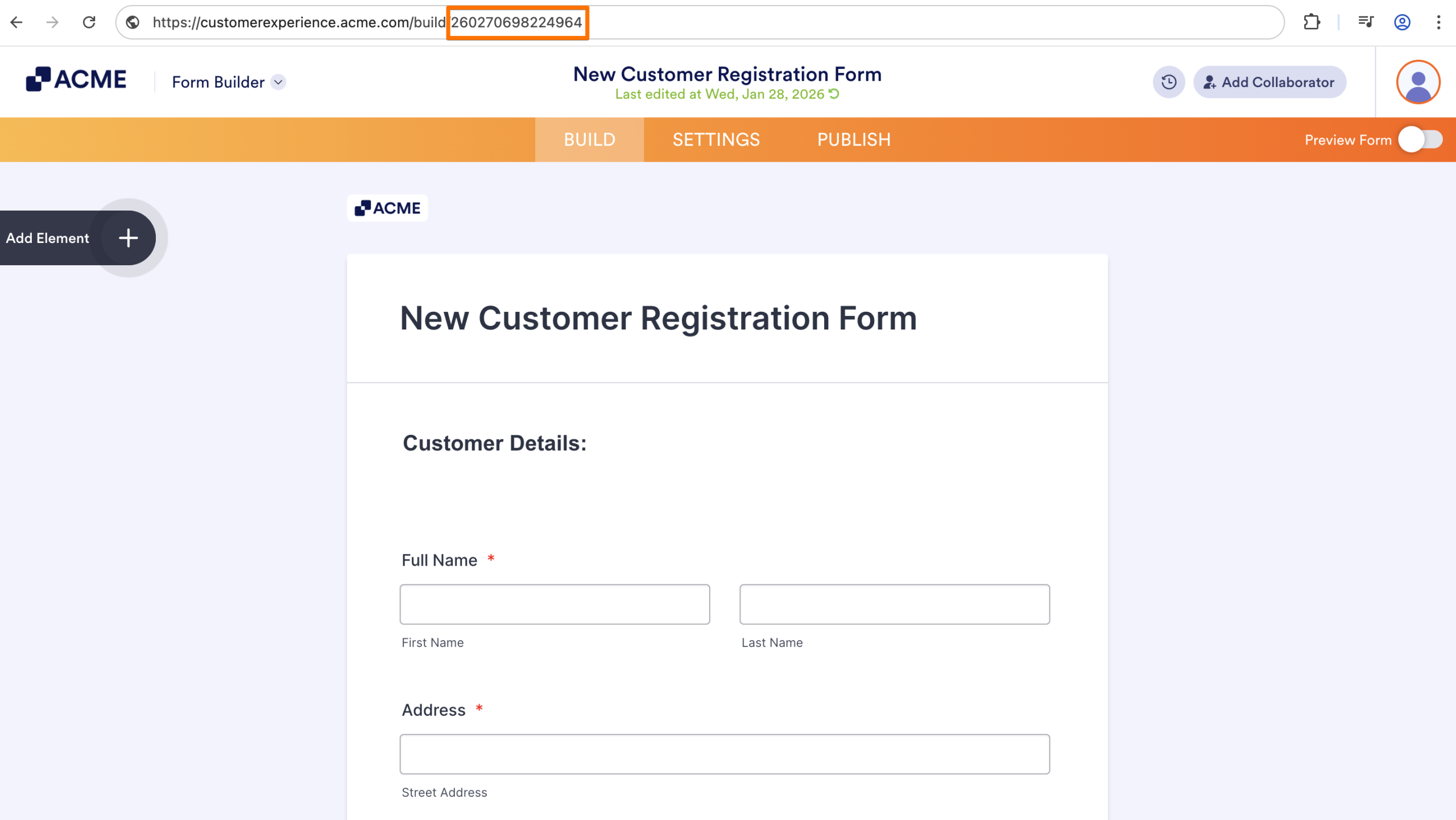
- Once the Builder opens, navigate to the address bar of your browser.
- Locate the string of numbers after /build/, /workflows/, /boards/, or /tables/ in the URL. This is the Asset ID, which you can copy directly from the URL for future searches.The ID is the long string of numbers located at the end of the URL.
Note
Asset IDs for Custom URLs can be found in the address bar in the Builder. This ID can always be used in the search bar to find that specific asset, regardless of custom URLs that have been applied.
Search Limitations
Keep the following limitations in mind when using search:
- Current Page Scope: The search area only scans the assets listed on your current page. If you are inside a specific label, it will only search within that label.
- Filter Dependency: Only assets related to the active filters will appear in the search. For example, if the filter is set to Tables, only Tables will be searched until the filter is updated.If you have an active Filter (e.g., you are only viewing “Tables”), the search will not return “Forms” until the filter is cleared.
- Submission Data: Form responses, user names, email addresses, or other identifiers for individual submissions can’t be used while searching in a Workspace. To view this data, you’ll need to search in the Submission Table or Inbox tied to the form.
- Metadata Searching: Label names, assignees, internal descriptions, and other metadata can’t be used with this tool.

Send Comment: