The Conversations tab in AI Agent Insights provides detailed information about user interactions with your AI Agents. It highlights how conversations are initiated, how they are handled, and offers access to individual conversation details. With this view, you can better understand the effectiveness of your agents and identify opportunities for improvement.
Accessing AI Agent Conversation Metrics
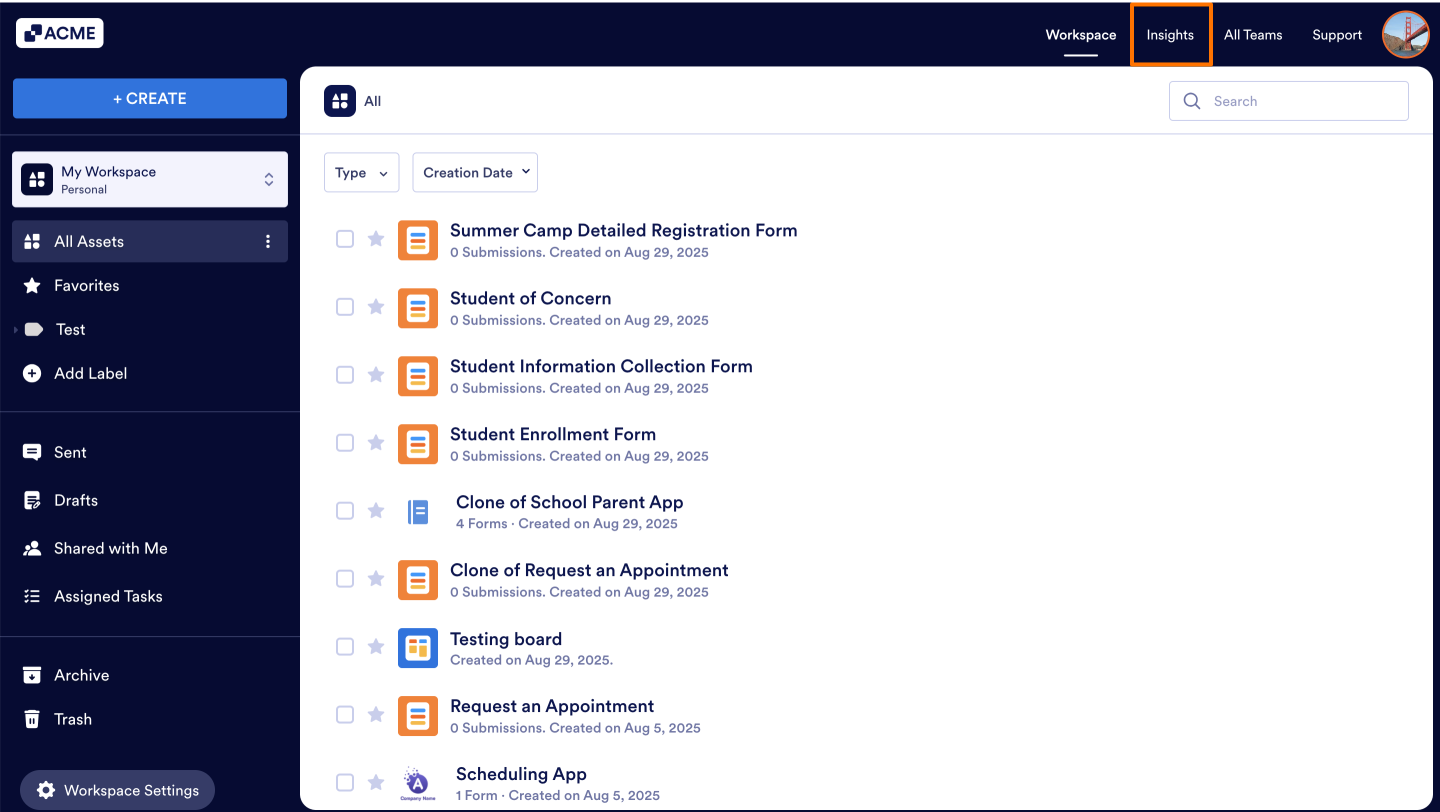
- In My Workspace, click on Insights in the upper right-hand corner of the page.
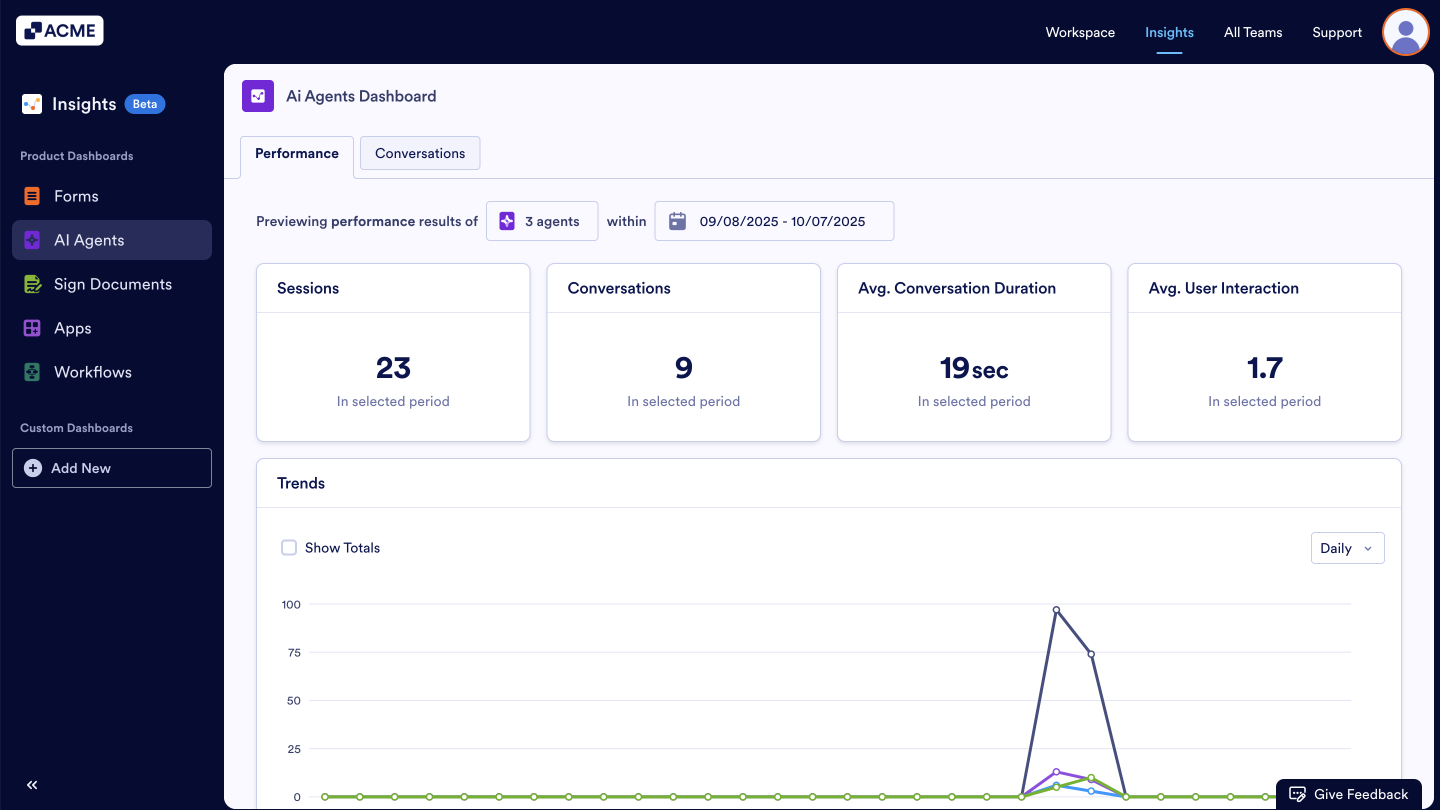
- Next, click on AI Agents from the menu on the left.
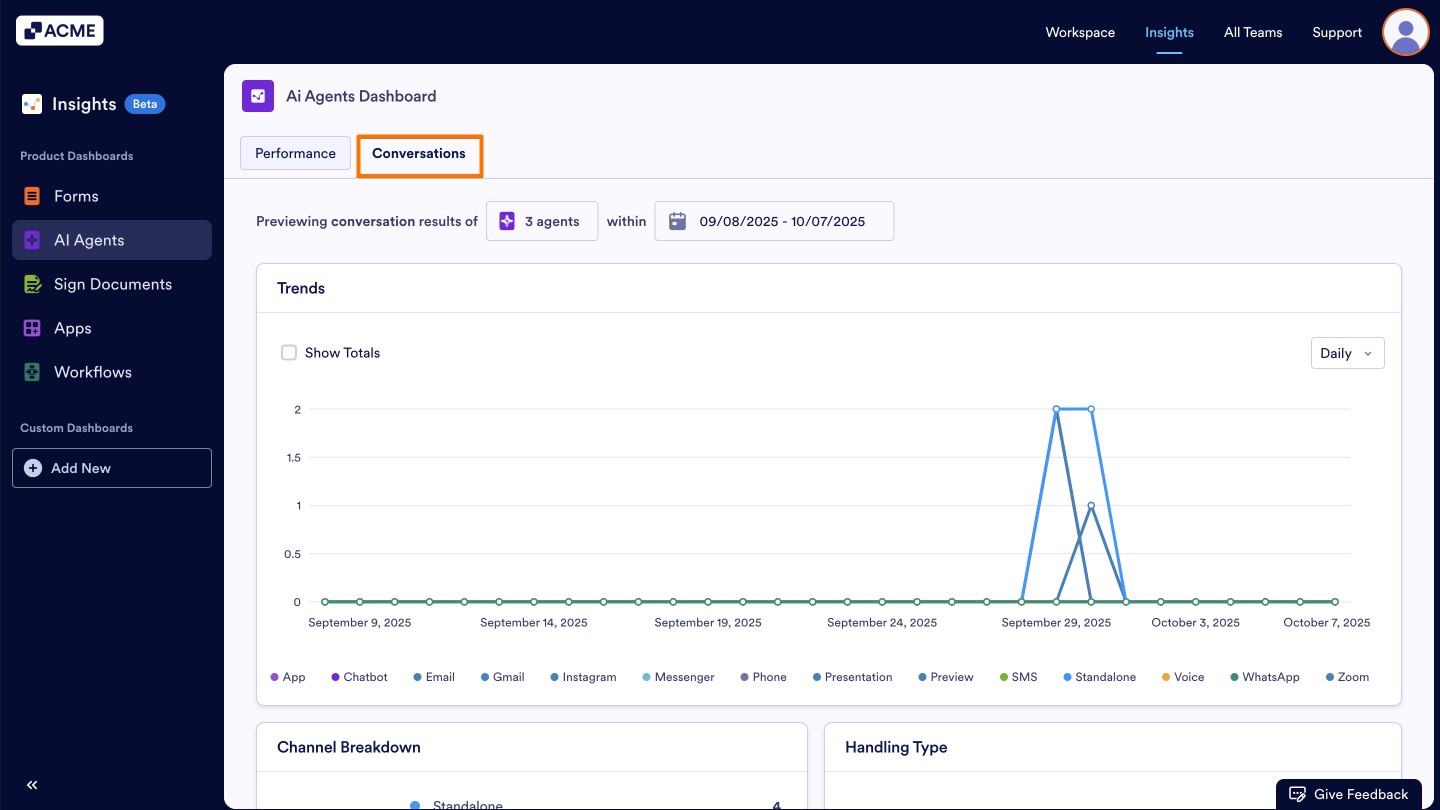
- Under AI Agents Dashboard, select the Conversations tab.
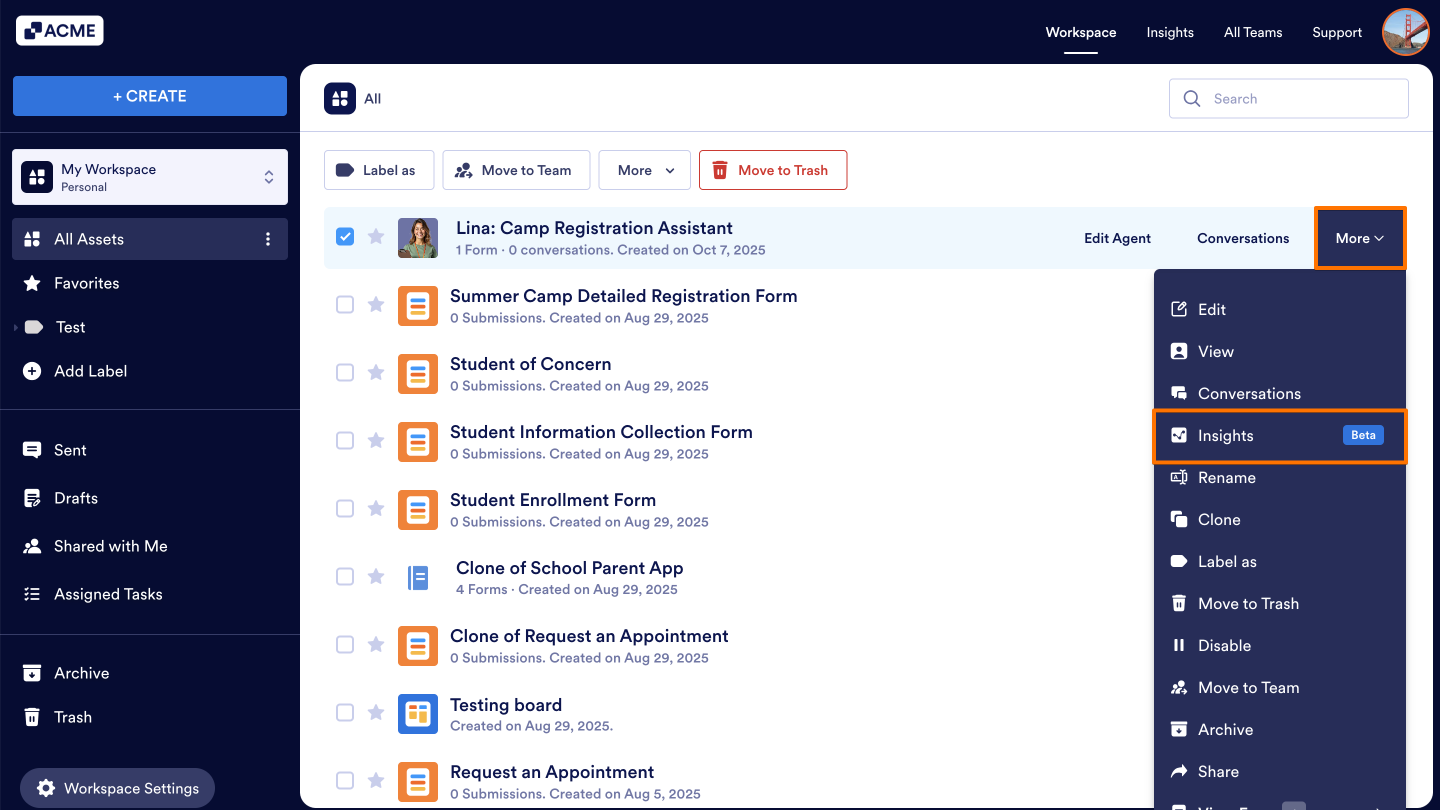
Tip: You can also go to the Insights page by clicking on More next to the desired asset in your Workspace. When you select this option to go to the Insights, you will see that only a single agent is selected in the filter, the agent is the one you select in the workspace to view.
Note: You can filter the agents you want to analyze and also select a date range to view specific data. When you set a filter with selected agents and date range, you will be able to view data with the same filter when you visit the Performance and Conversations tabs. You do not need to set a filter every time you visit other tabs inside the AI Agent Insights.
What metrics do we provide?
Trends
We provide a line chart that displays which channel conversations happen throughout the selected time period. You can change the visibility of the data in the line chart. Let’s move on to the steps together:
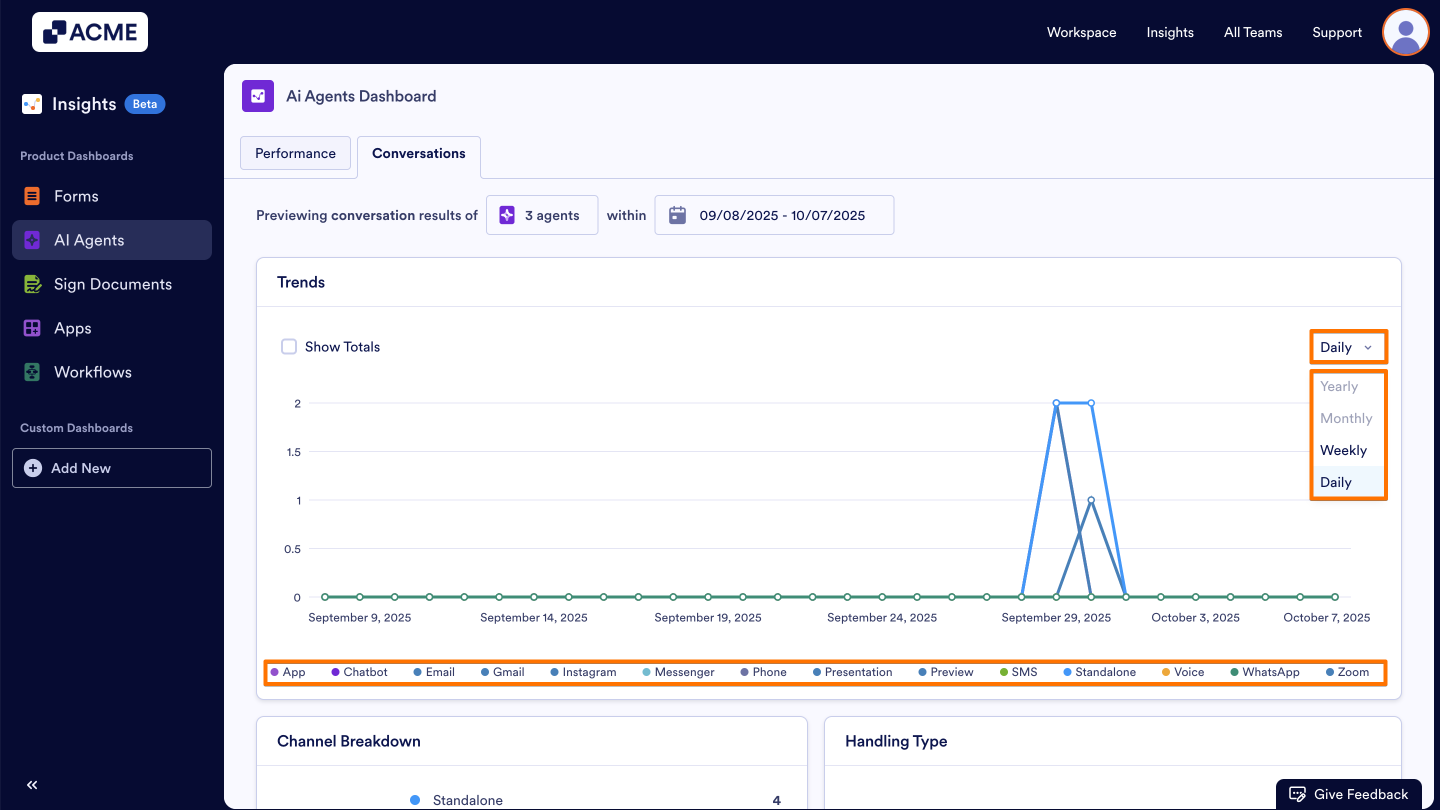
- Add/Remove Metrics: Click on the metric name at the bottom of the chart to add or remove it from the chart.
- Changing the Time Interval: Click on the drop-down menu at the top right of the chart and select daily, weekly, monthly, or yearly.
- Depending on the date range you’ve selected, some options might not be available. For example, if your date range for the tab is set to last seven days, you won’t be able to select monthly or yearly.
Other Cards Metrics
Under the line chart, other valuable insights about form viewer data can be found in card format. You can check the details about each card below:
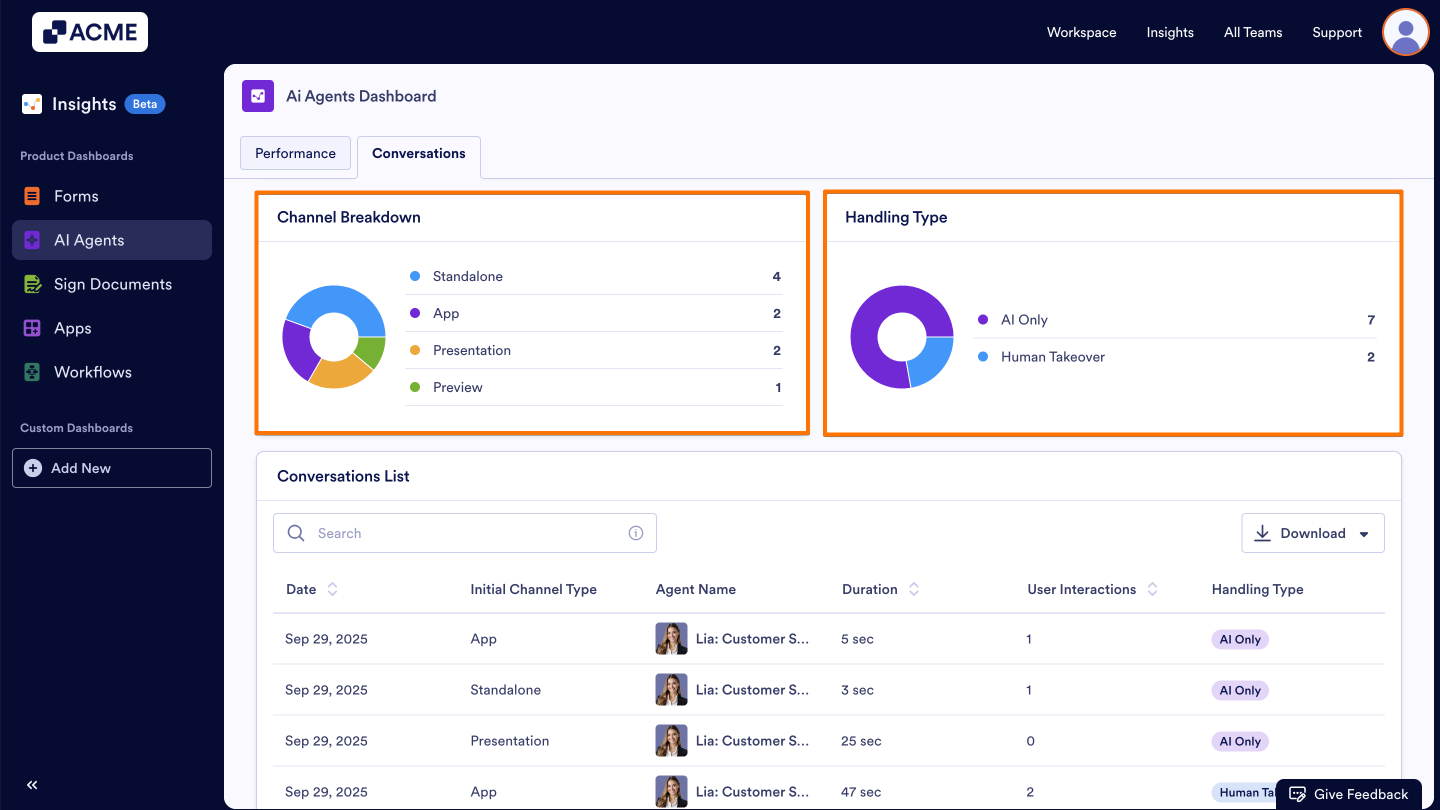
Channel Breakdown
Shows where conversations originate (e.g., Standalone, App, Zoom, etc.), helping you identify preferred entry points. The details for all channel types are listed below:
- App: Conversations that took place in the Agent App, where users interact with the AI through an installed application interface.
- Chatbot: Conversations that took place in the Chatbot Agent, embedded directly into your website or pages.
- Email: Conversations that take place in the Email Agent, sent from the Agent’s builder, where the AI Agent responds within email threads.
- Gmail: Conversations that took place in the Gmail Agent, tightly integrated with Gmail so the AI drafts replies and continues email threads inside Gmail.
- Instagram: Conversations that took place in the Instagram Agent, handling direct messages on Instagram as part of your multichannel support.
- Messenger: Conversations that took place in the Messenger Agent, through Facebook Messenger integration.
- Phone: Conversations that took place in the Phone Agent, meaning incoming phone calls handled by the AI via a designated phone number.
- Voice: Conversations that took place in the Voice Agent, enabling users to communicate with the AI through real-time spoken dialogue.
- Presentation: Conversations that took place in the Presentation Agent, where the AI supports live presentations and answers question streams.
- Preview: Conversations that took place in the Preview Agent, which is a test mode before publishing to simulate how the agent will behave in all channels.
- SMS: Conversations that took place in the SMS Agent, where users interact via SMS using a number tied to the agent.
- Standalone: Conversations that took place in the Standalone Agent, using a direct chat interface (via link or embed) independent of a host site.
- WhatsApp: Conversations that took place in the WhatsApp Agent, via WhatsApp Business integration where a dedicated phone number is connected so users can message the agent directly through their regular WhatsApp chat.
- Zoom: Conversations that took place in the Zoom Agent, meaning the AI joined or participated in Zoom meetings or webinars and interacts via audio or chat.
Handling Type
Displays how each conversation was managed. This metric helps you measure the agent’s efficiency, and identify areas where automation can be improved. You can find the detailed explanation of each handling type below to better understand how conversations are categorized.
- AI Only: Indicates conversations that were fully handled by the AI Agent without any human involvement.
- Human Takeover: Refers to conversations where a human stepped in to assist or complete the interaction
Conversations List
Need an even more detailed overview of each conversation? Within the Conversations List, you can view all conversations that occurred in the selected date range along with their individual details. These include Date, Initial Channel Type, Agent Name, Duration, User Interactions, and Handling Type.
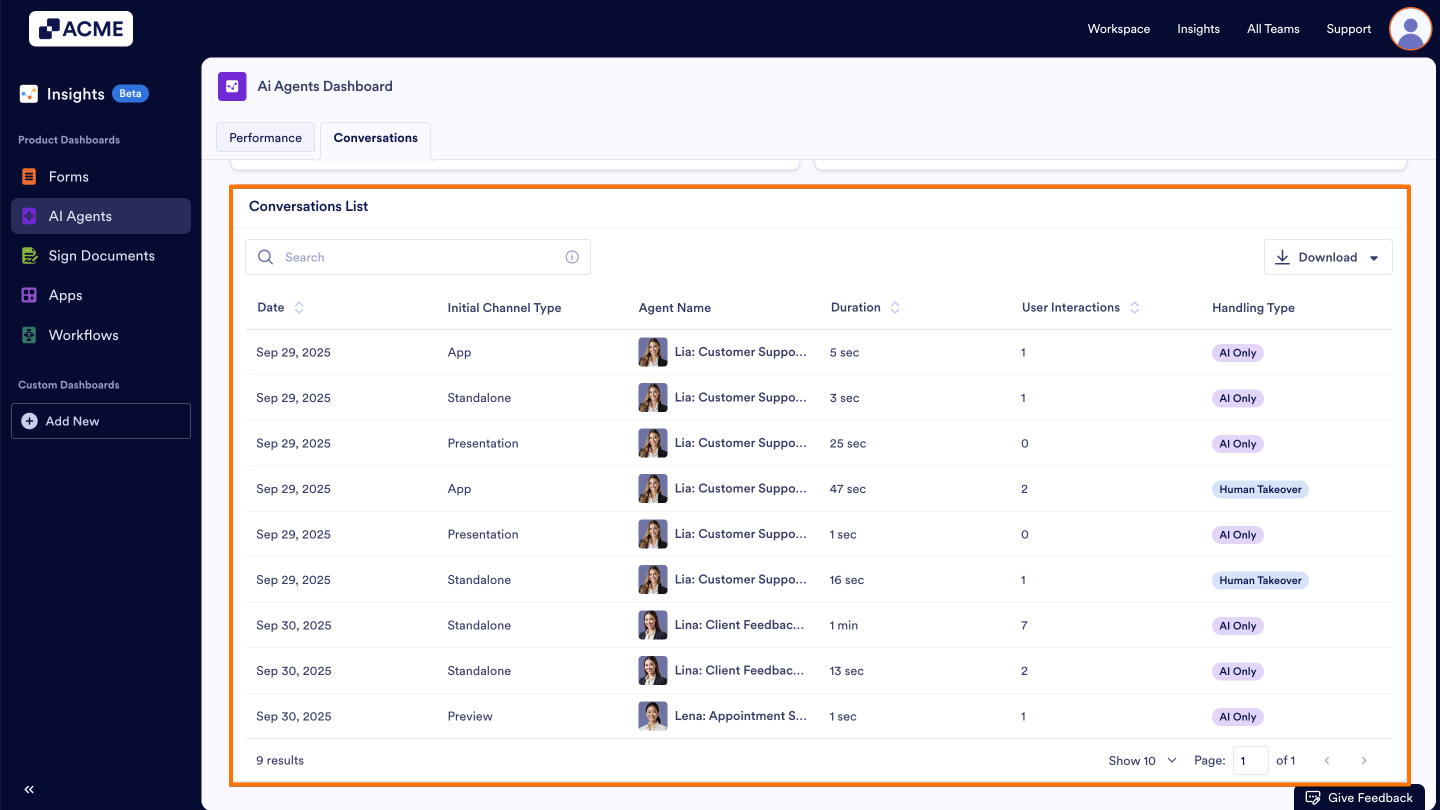
- These metrics are per conversation and are specific to the date range selected at the top of the page.
- You can download the entire list by clicking the Download button on the right and saving it as a CSV or Excel file.

Send Comment: