In Workflow Insights, you can track the status and performance of your Workflows, understand how participants interact with them, and gain insights to improve efficiency and outcomes. You can also filter the Workflow or Workflows you want to analyze using the Workflow filter.
How to Filter Workflows in Workflow Insights
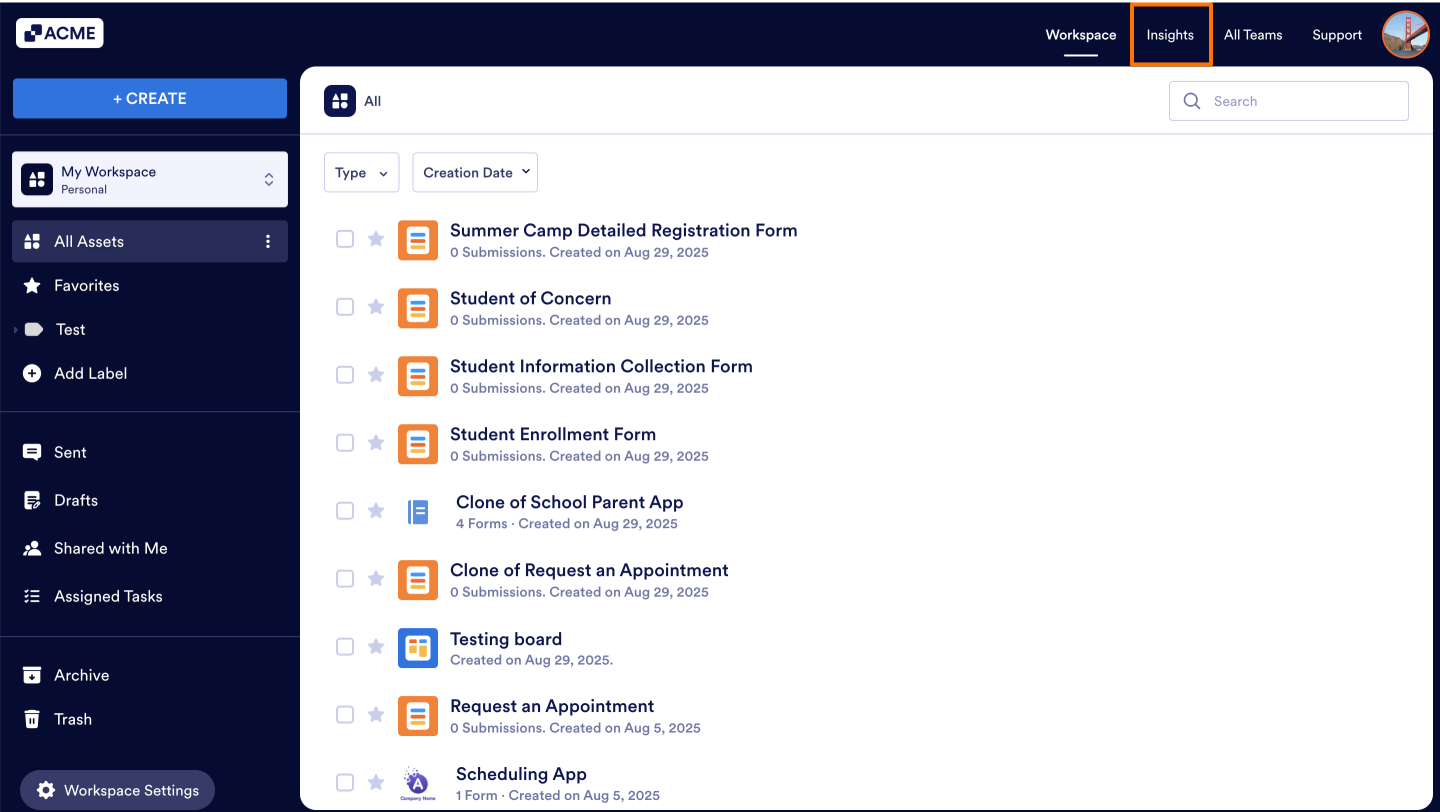
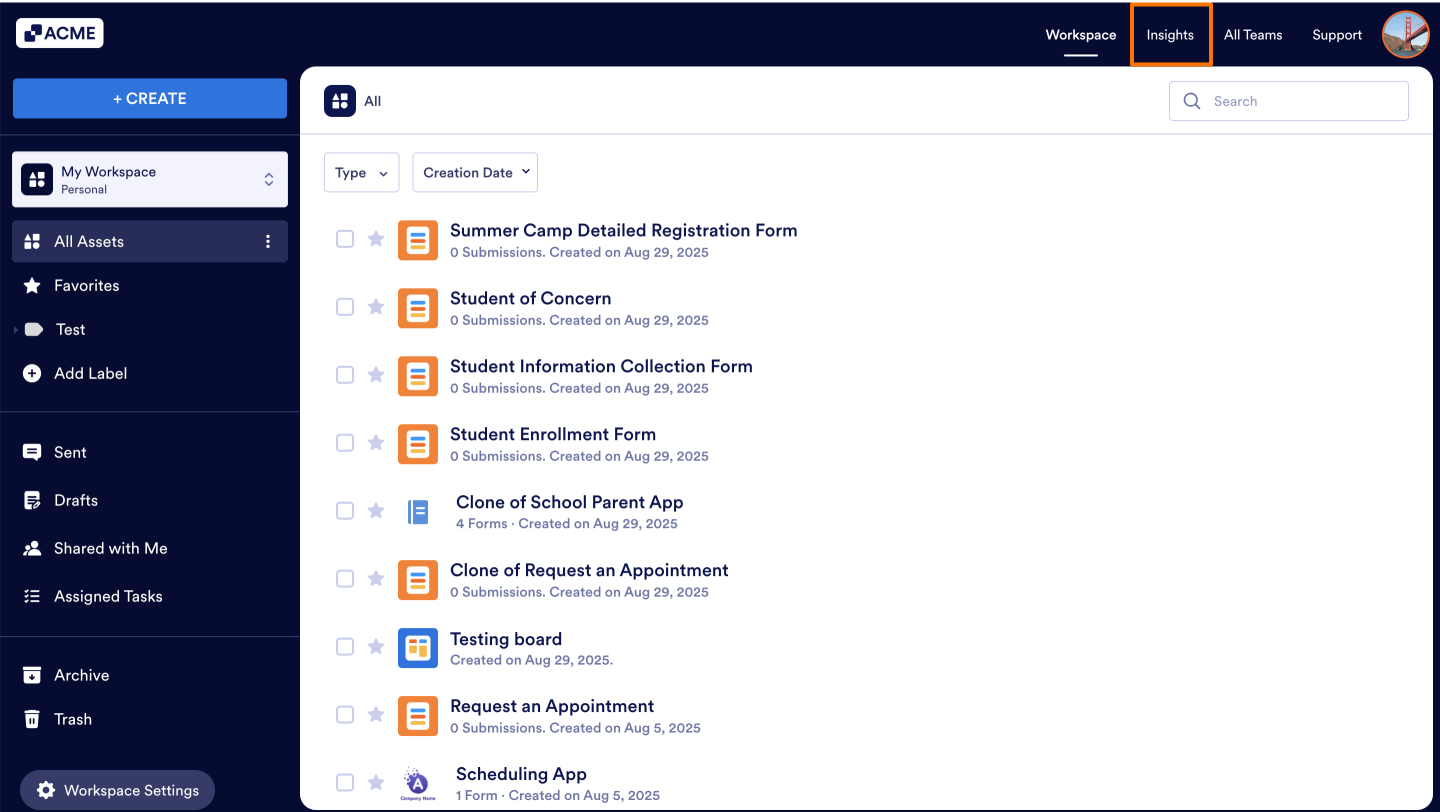
- In My Workspace, click on Insights on the top right side of the page.
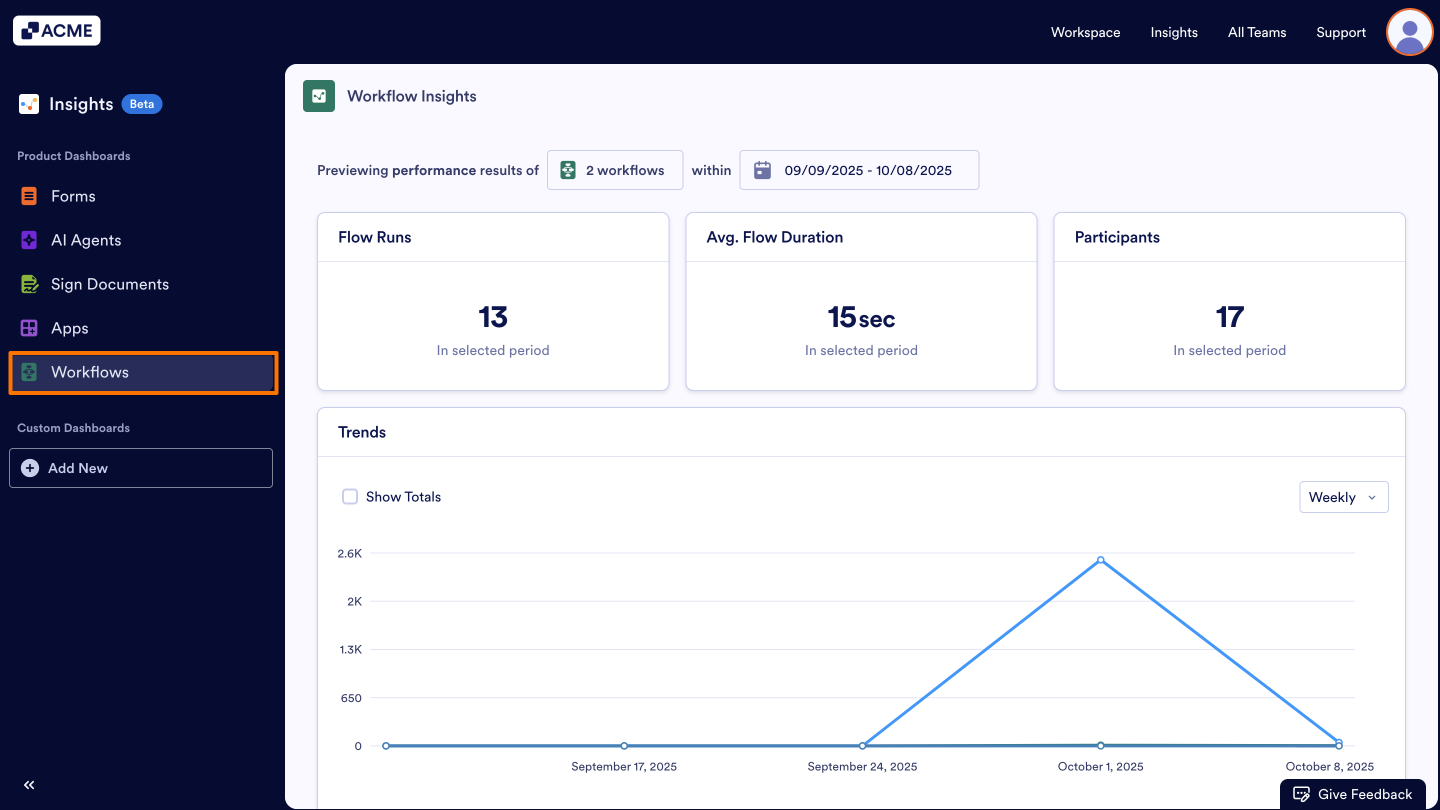
- On the Insights page, click on Workflows from the menu on the left side of the page.
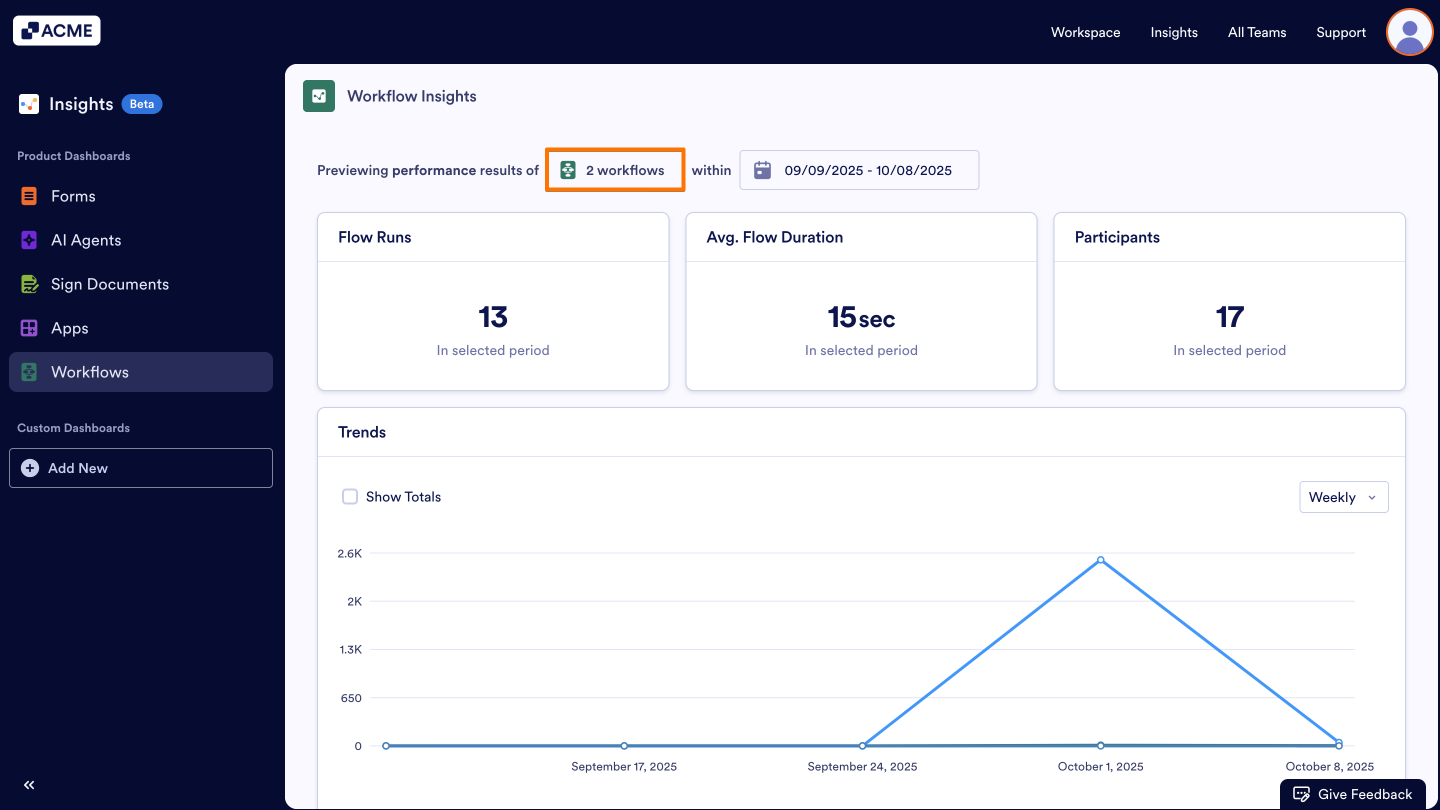
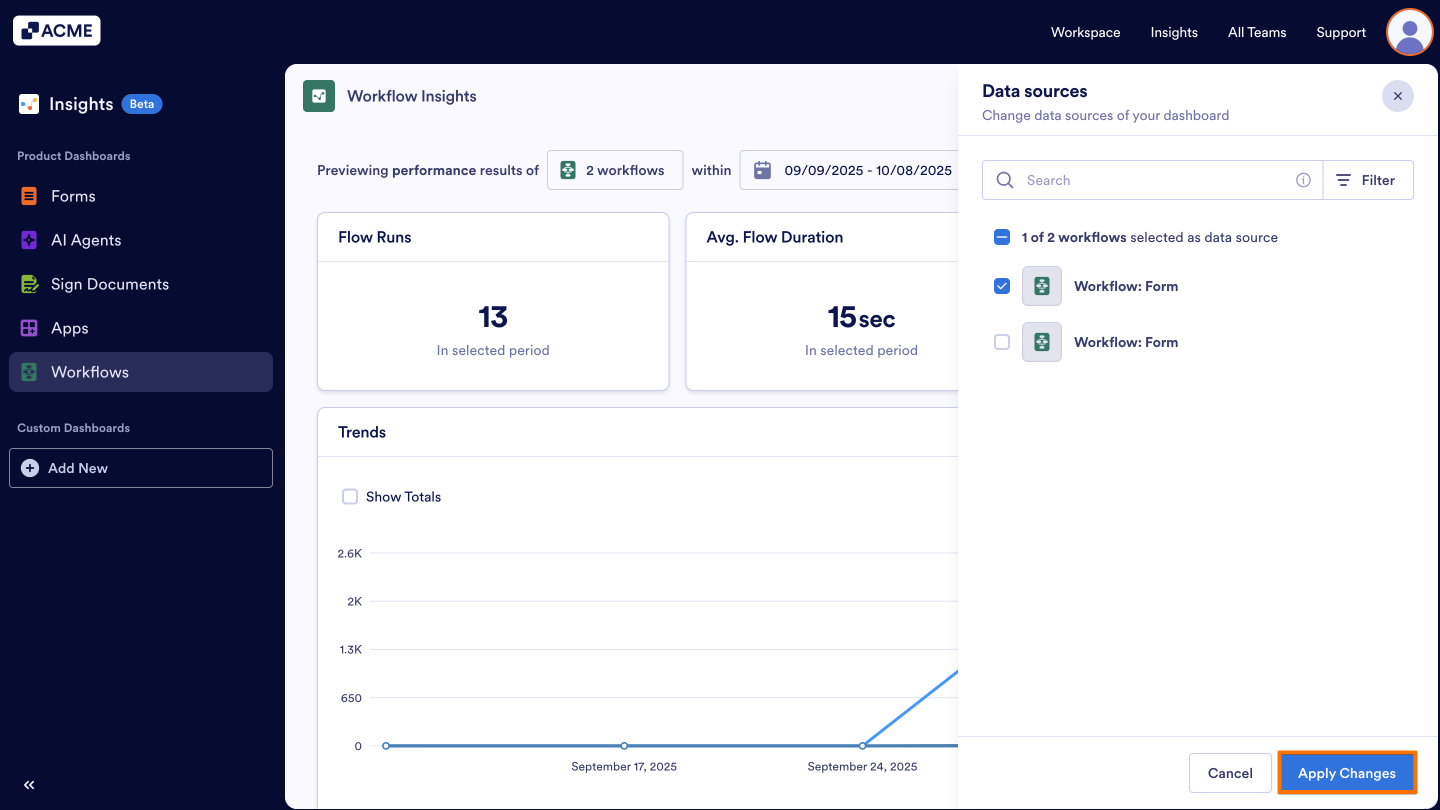
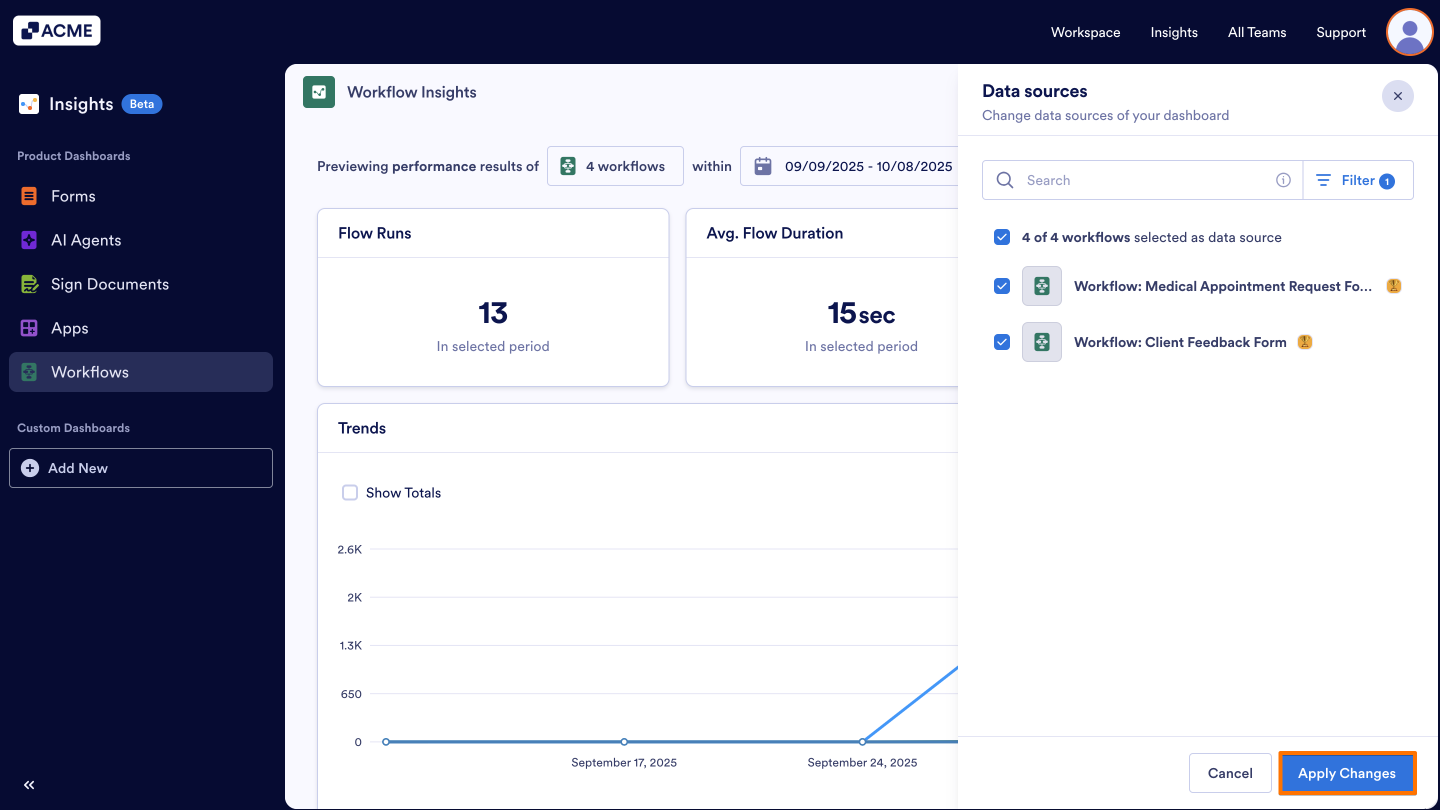
- In Workflow Insights, click on the Workflow number.
- In the window that opens on the right side, check the box next to the workflow you want to view the results of.
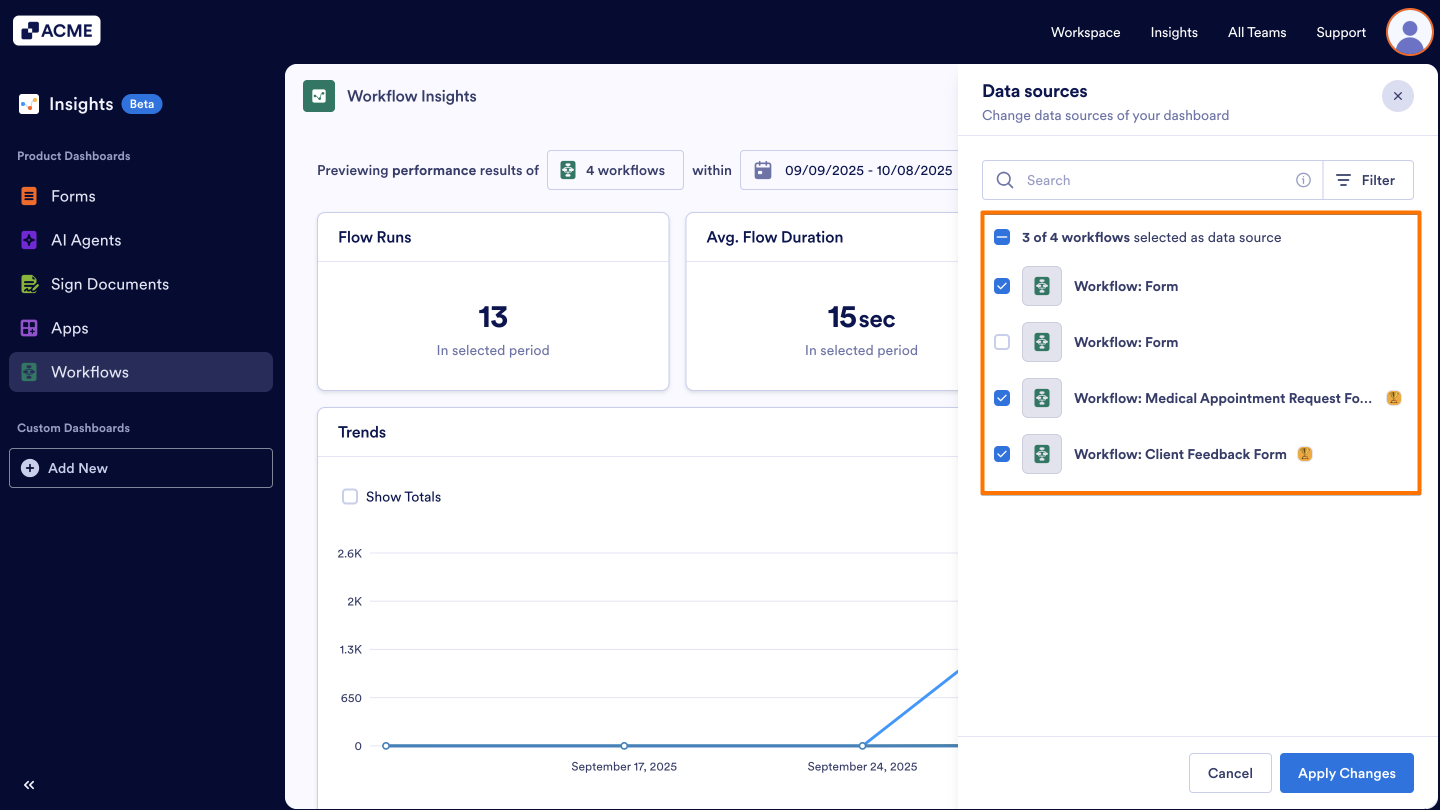
- Finally, click on Apply Changes.
Accessing an Individual Workflow’s Insights from the Workspace
You can also go to the Insights page by clicking on More next to the desired asset in your Workspace.
Let’s walk through the steps together:
- In the My Workspace page, hover your mouse over the Workflow and click on More.
- In the menu that opens, click on Insights under the Data section.
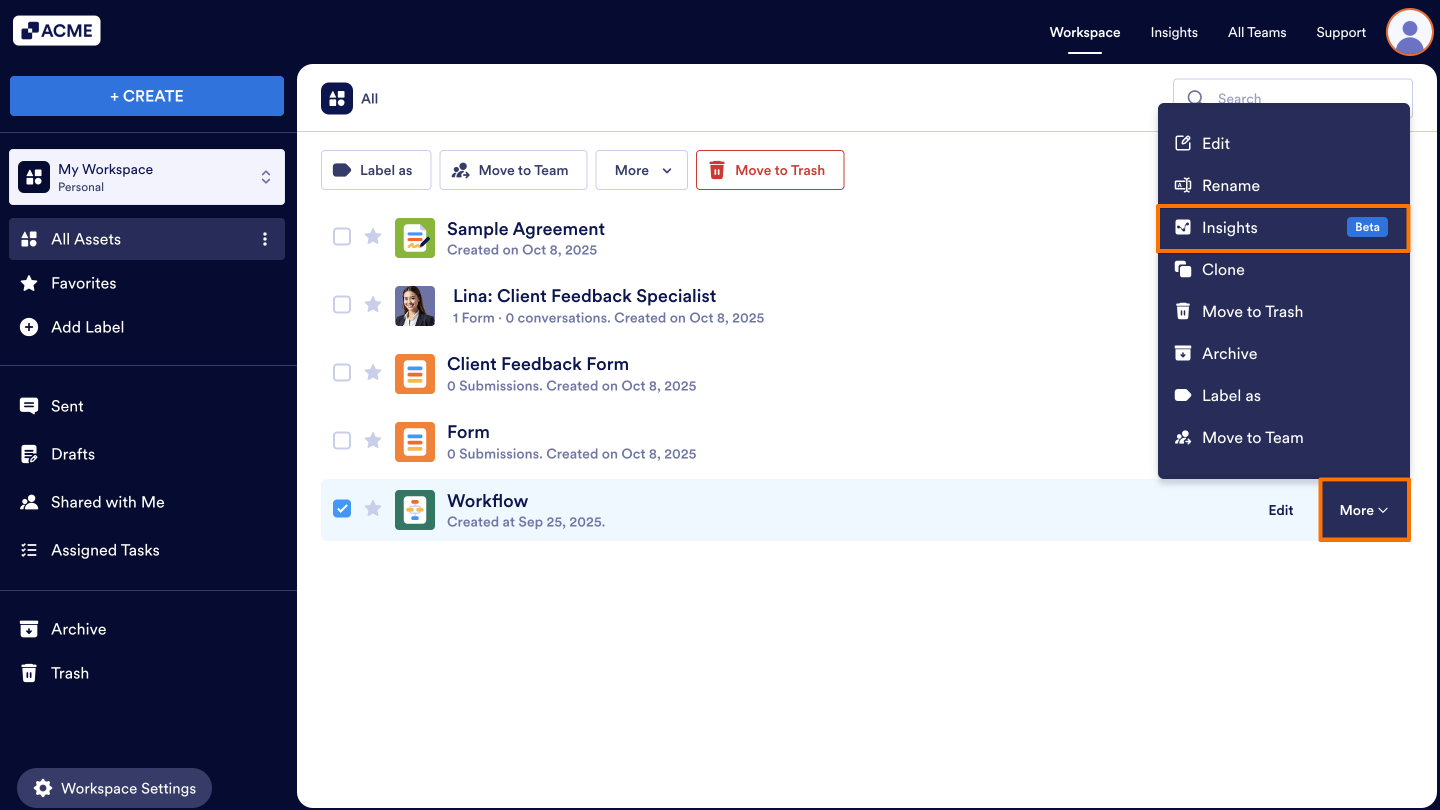
When you select this option to go to the Insights, you will see the Workflow is selected in the filter.
Filtering a Workflow in a Team Workspace
You can also filter the Workflows in a team workspace. Here’s how to do it:
- In the My Workspace page, click on Insights on the top right side of the webpage.
- On the Insights page, click on Workflows from the menu on the left side of the page.
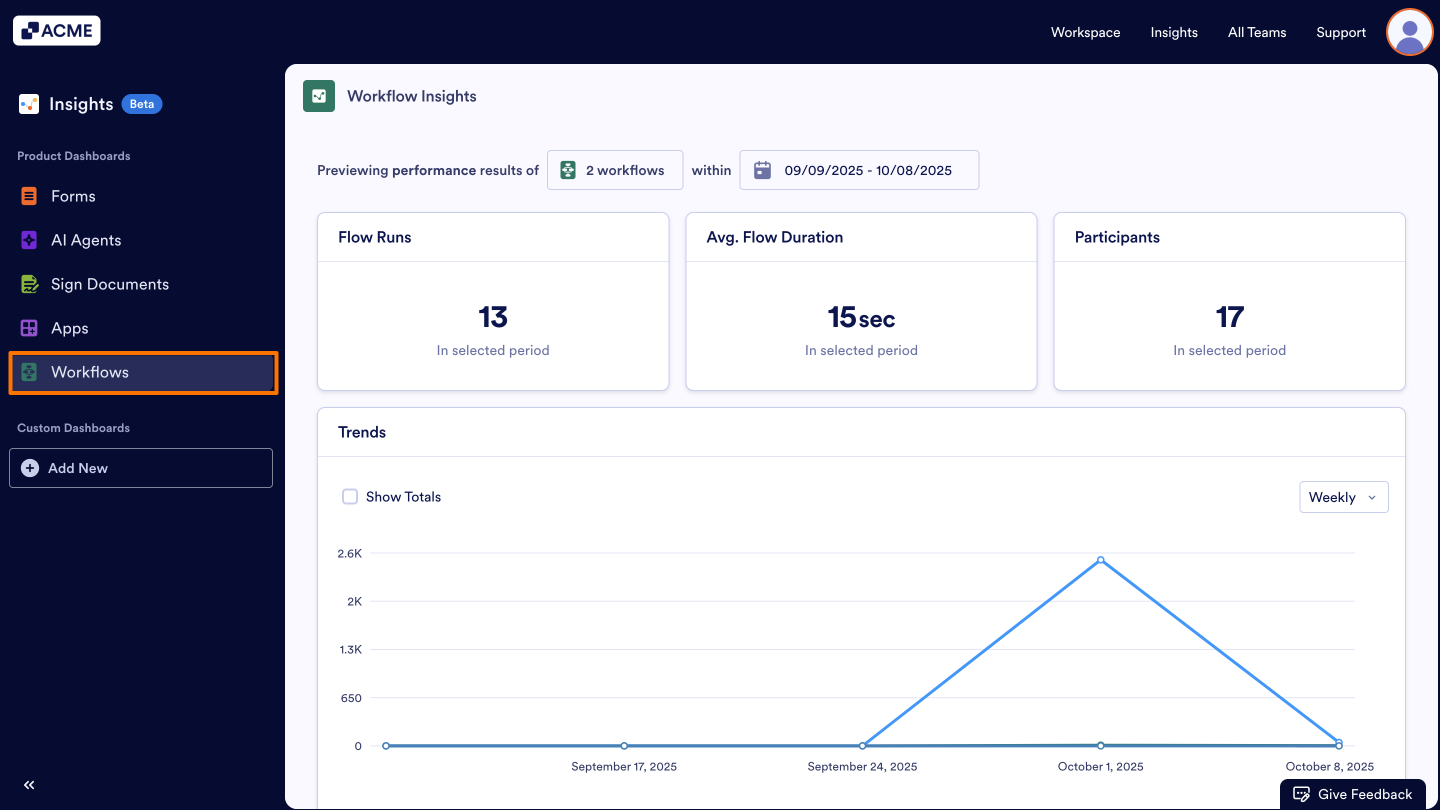
- In Workflow Insights, click on the Workflow number.
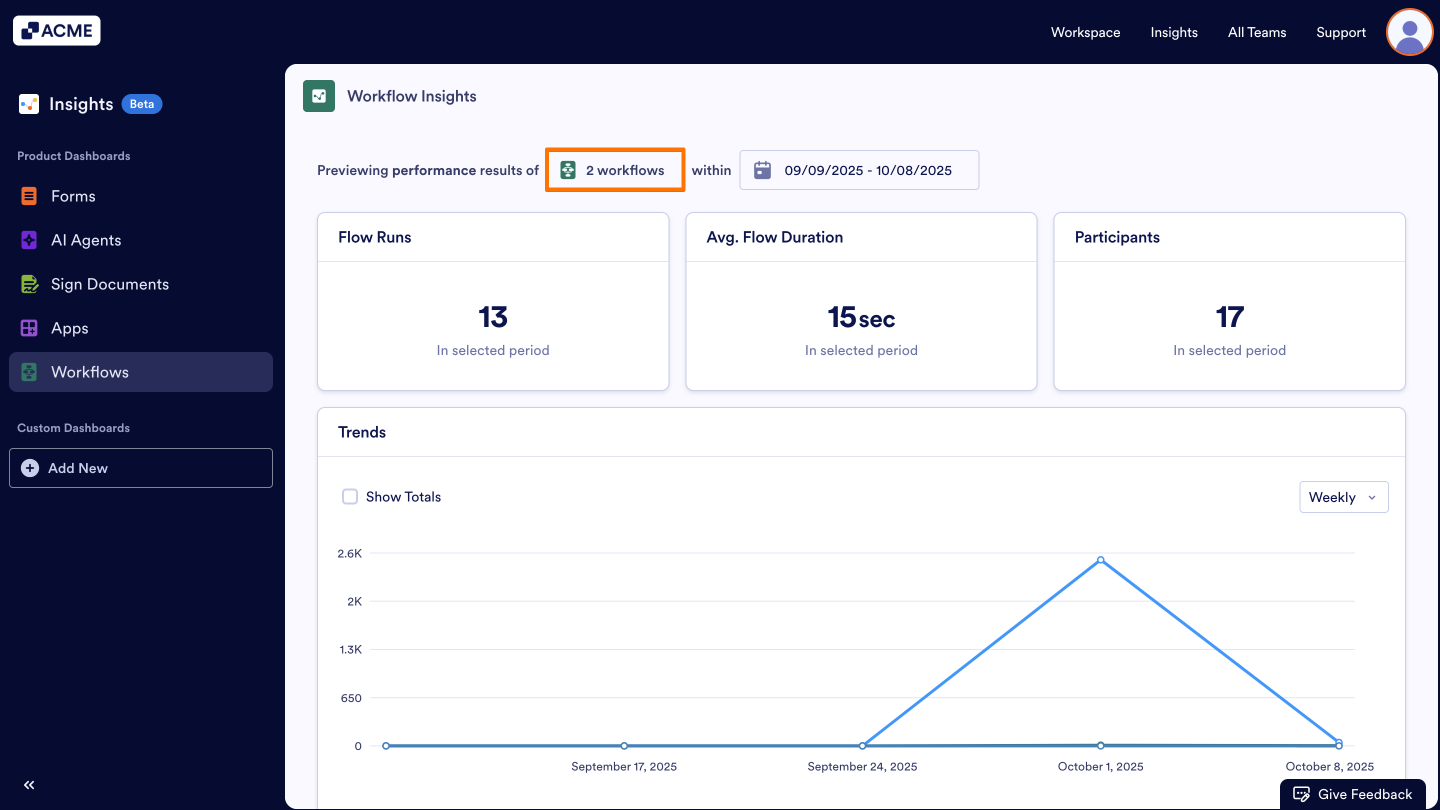
- In the window that opens on the right, click the checkbox at the top to unselect any previously selected workflows.
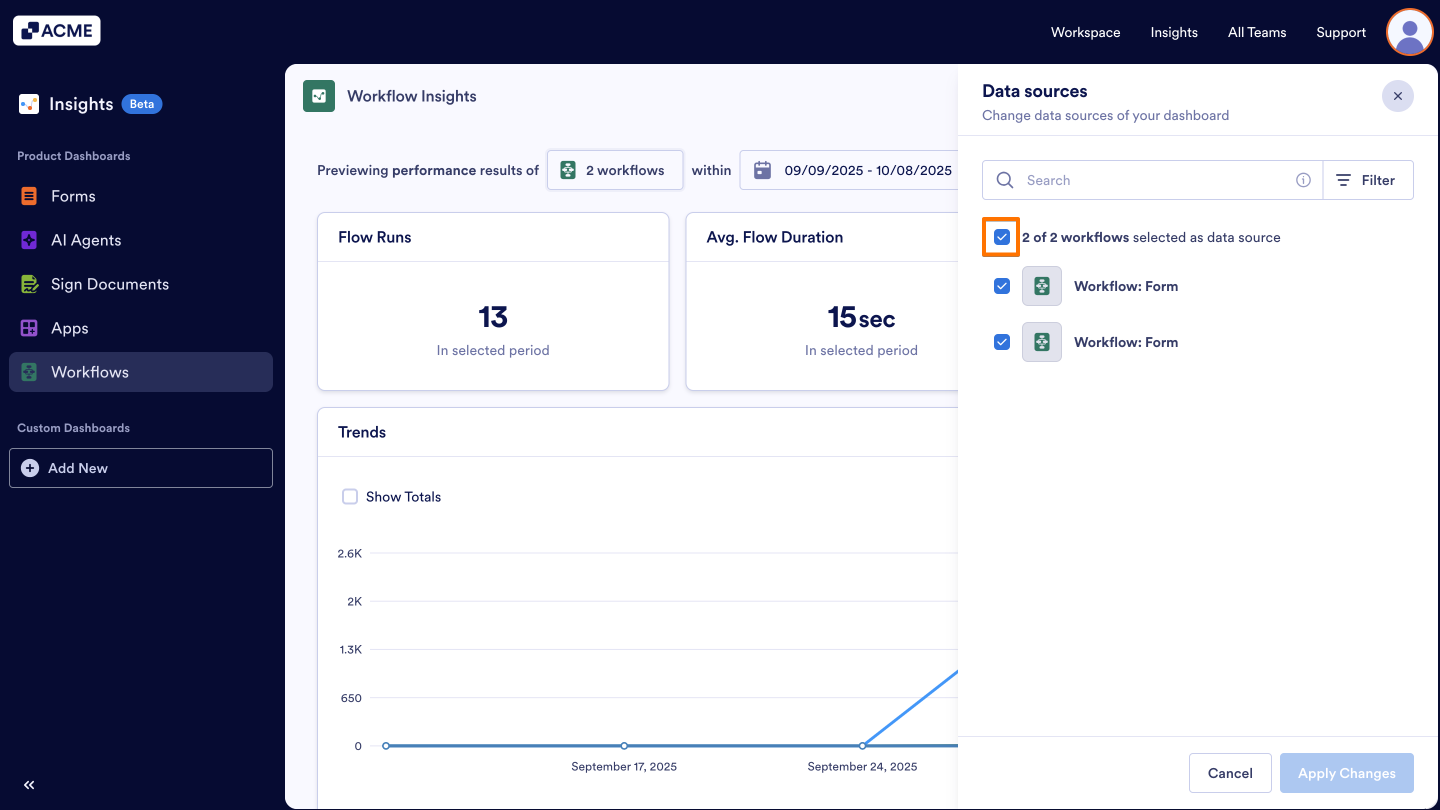
- Next, click on Filter and select the team under the Owner dropdown.
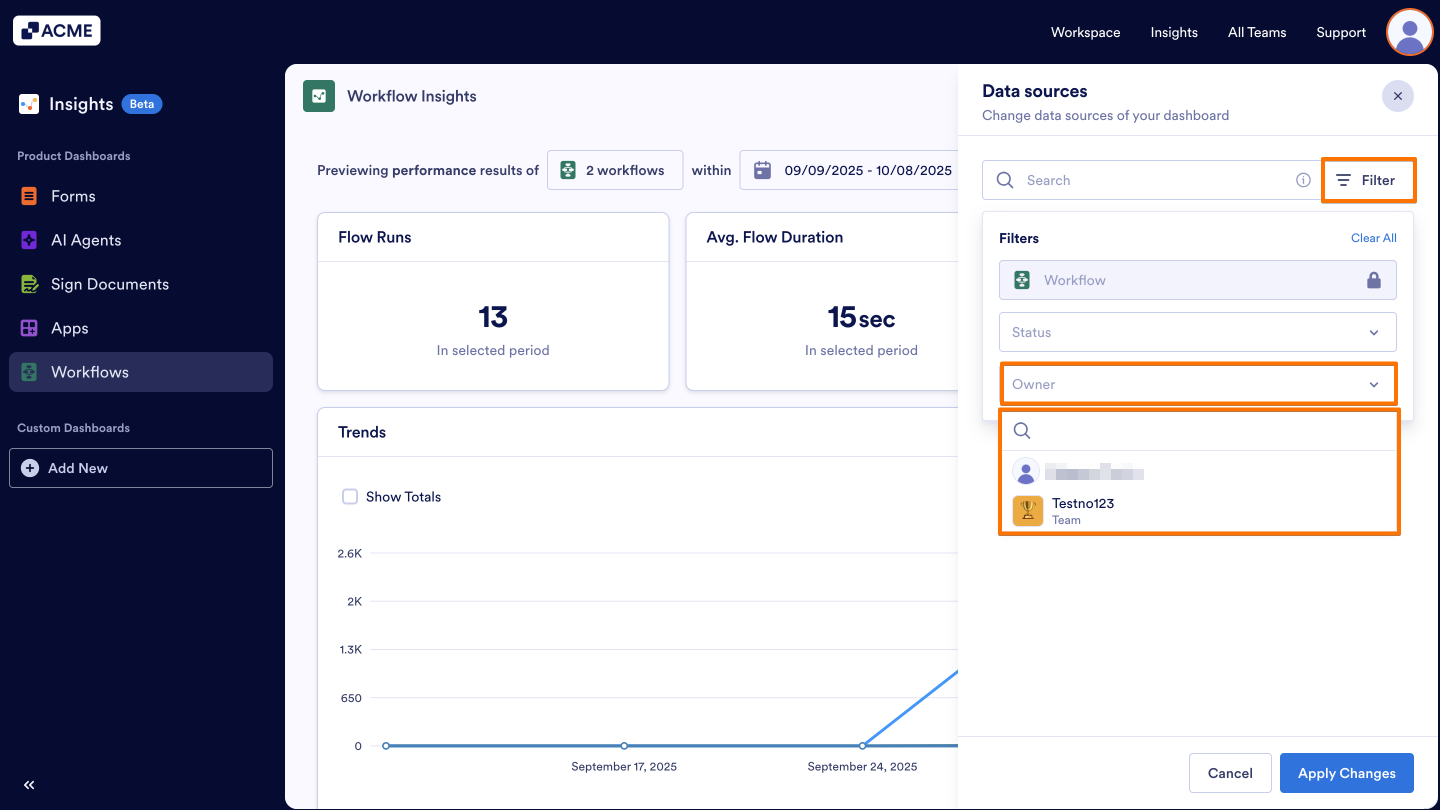
- Select the workflows in the Team Workspace.
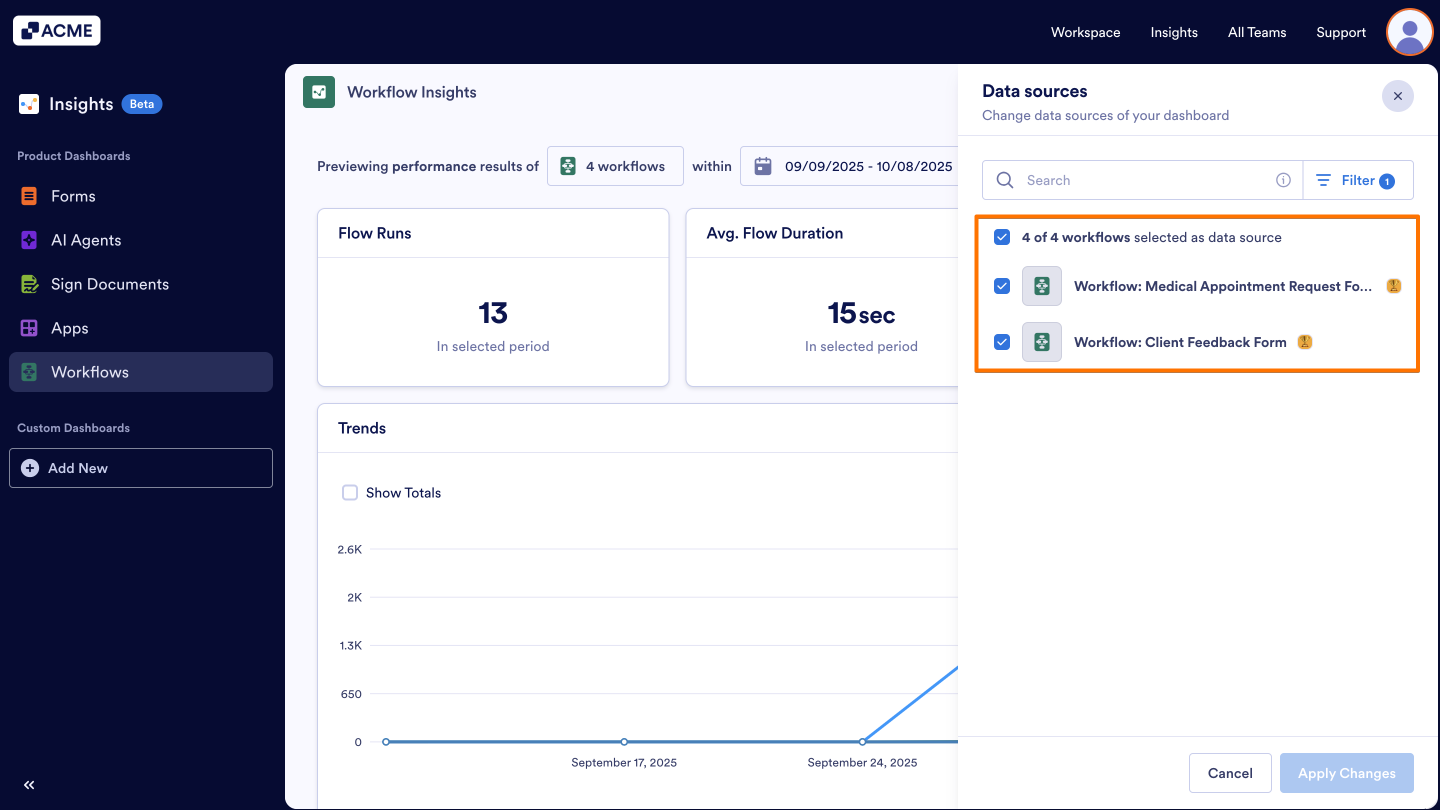
- Finally, click on Apply Changes at the bottom.
See also:
How to Filter and View Workflow Metrics in a Specific Date Range in Insights?
How to Download Workflow Metrics as Excel or CSV from Insights?

Send Comment: