As an Admin, you can view the teams each user belongs to within your organization directly from the Admin Console. This allows you to easily identify which teams users are part of and manage collaboration across your organization.
Viewing User Teams
You can view a user’s teams in two ways—through the User Management screen, or from within the Details Tab located in that user’s profile. Let’s walk through both of those options together, down below:
From the User Management Screen
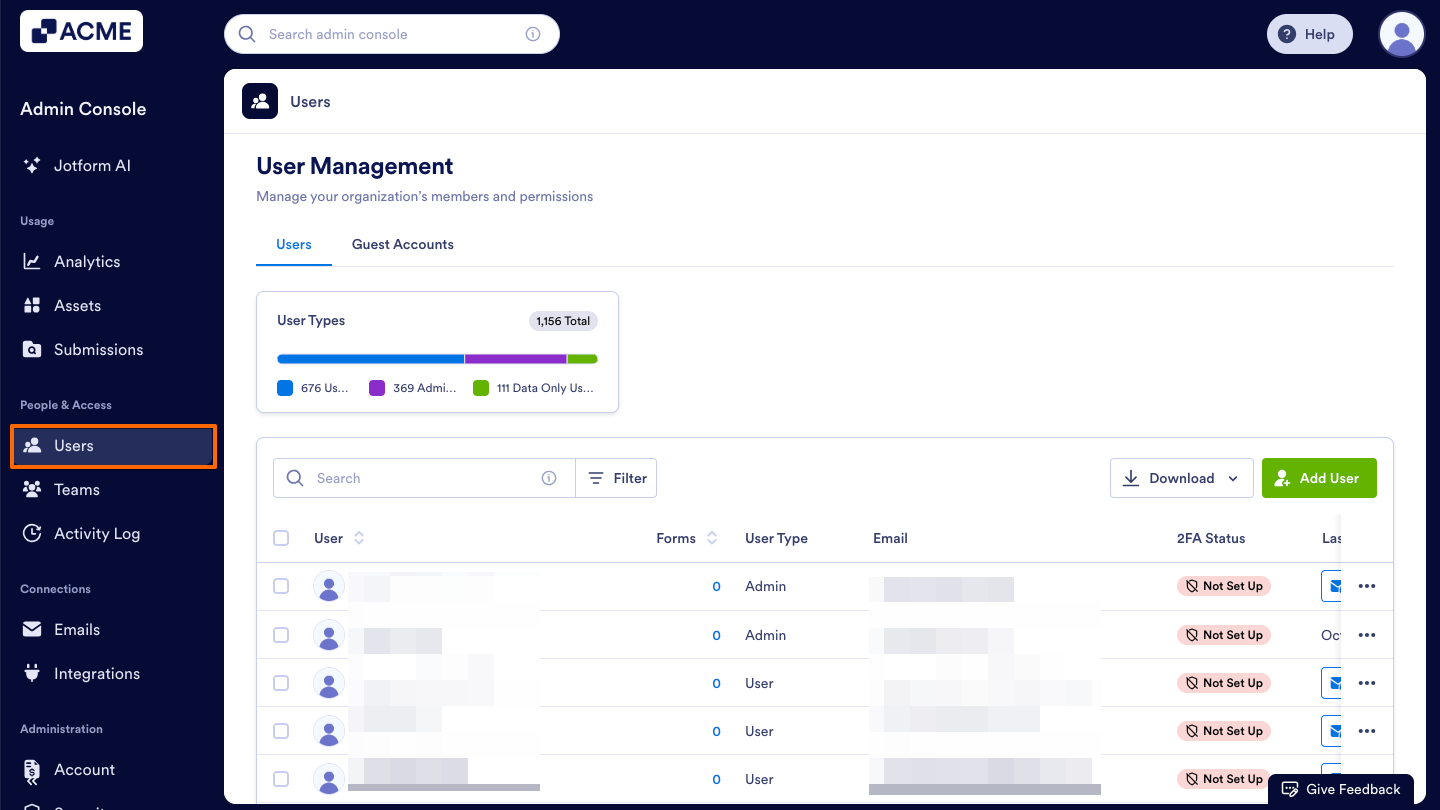
- In the Admin Console, in the menu on the left side of the screen, navigate to Users.
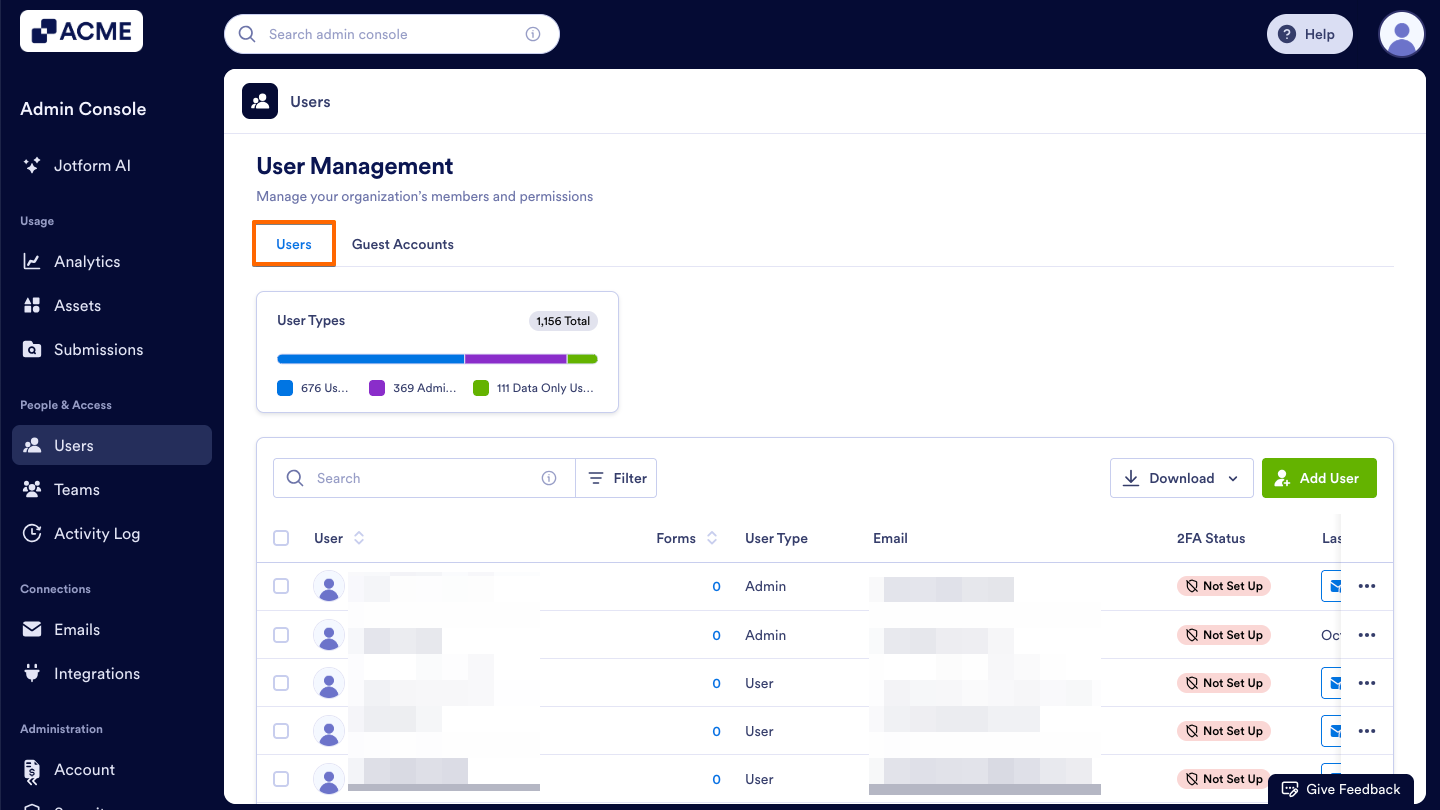
- Then, click on the Users tab under User Management.
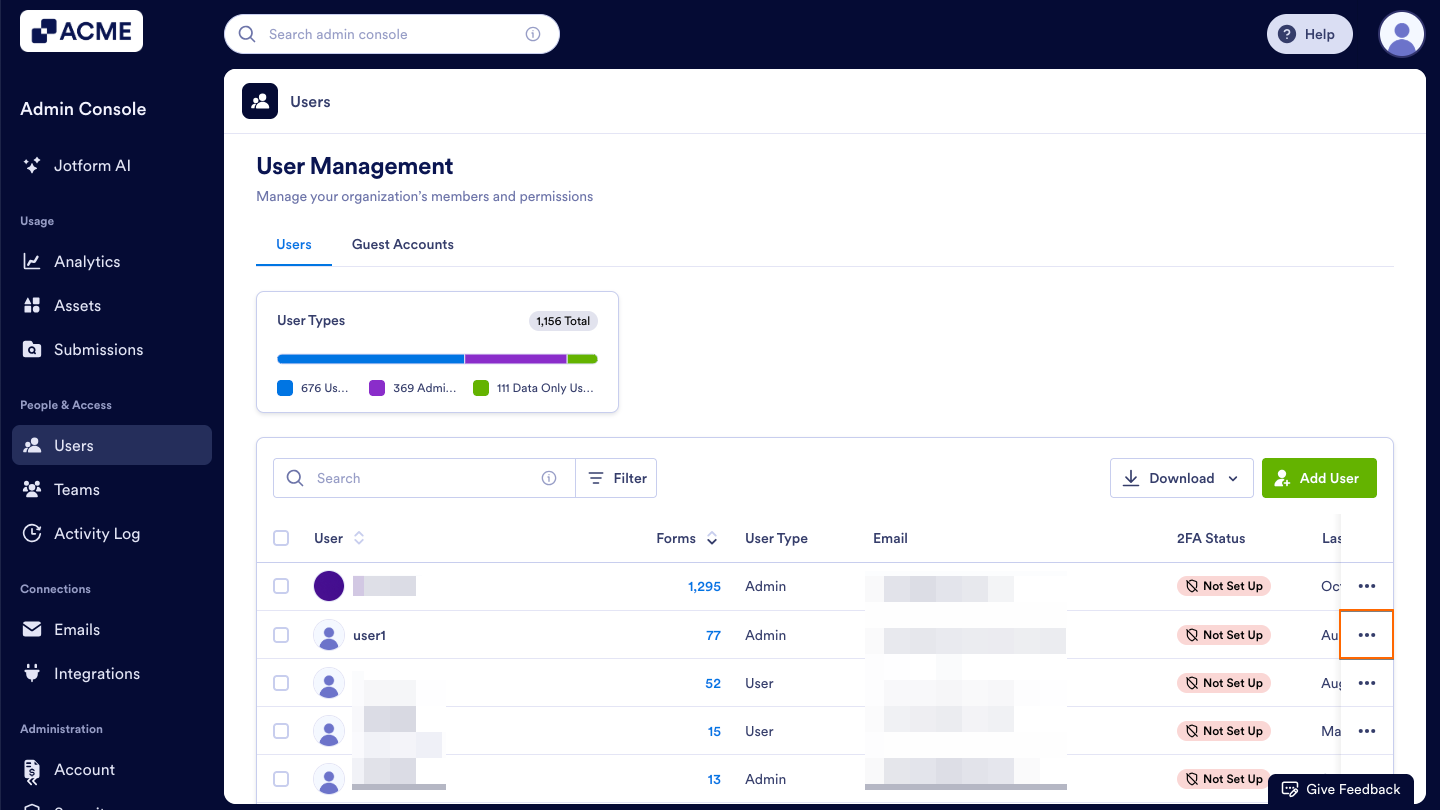
- Click the Three Dots icon on the right side of the user whose teams you want to view.
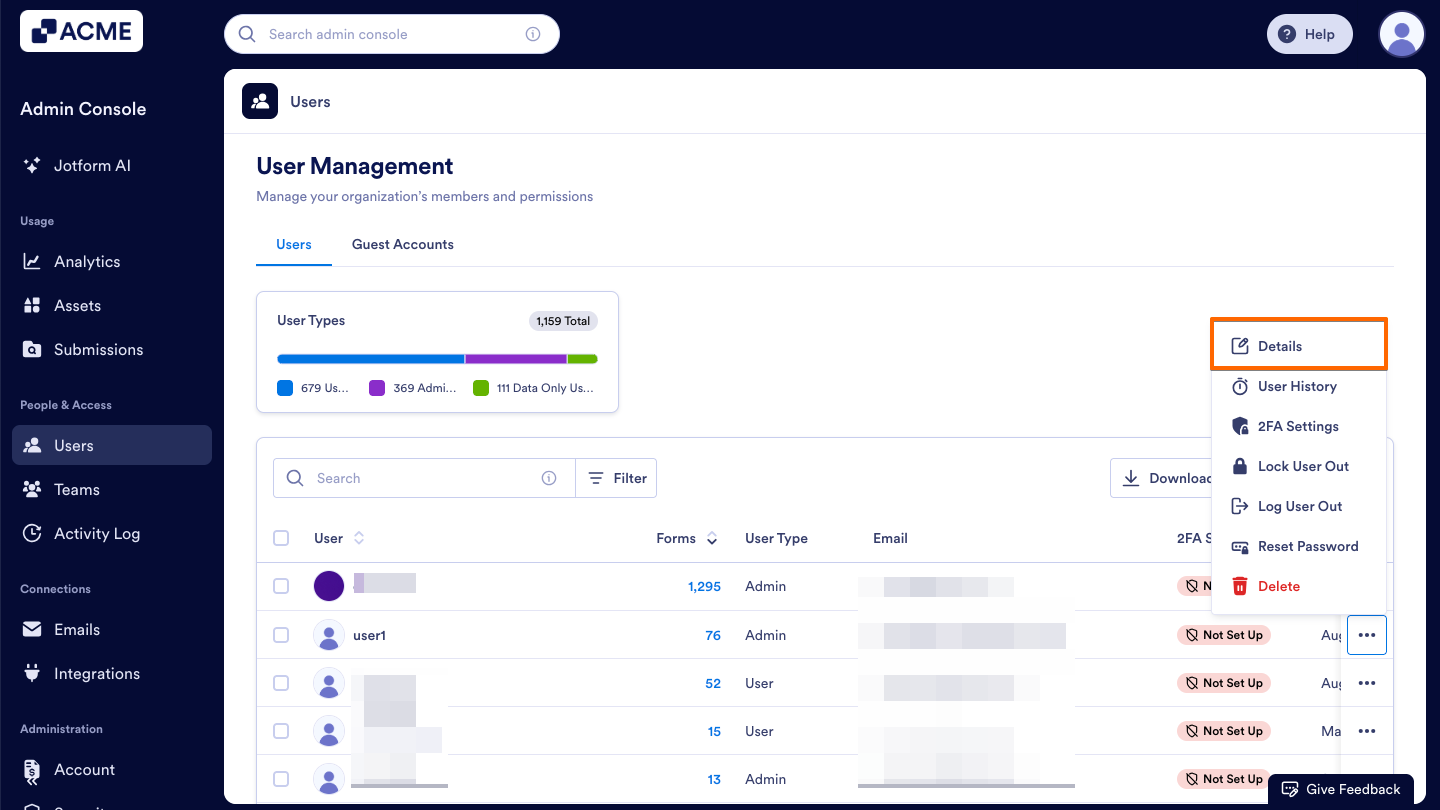
- Select Details. This opens a sidebar on the right side of the screen that contains tabs for Details, Assets, and Activity.
- In the sidebar, select the Details tab to view a user’s details.
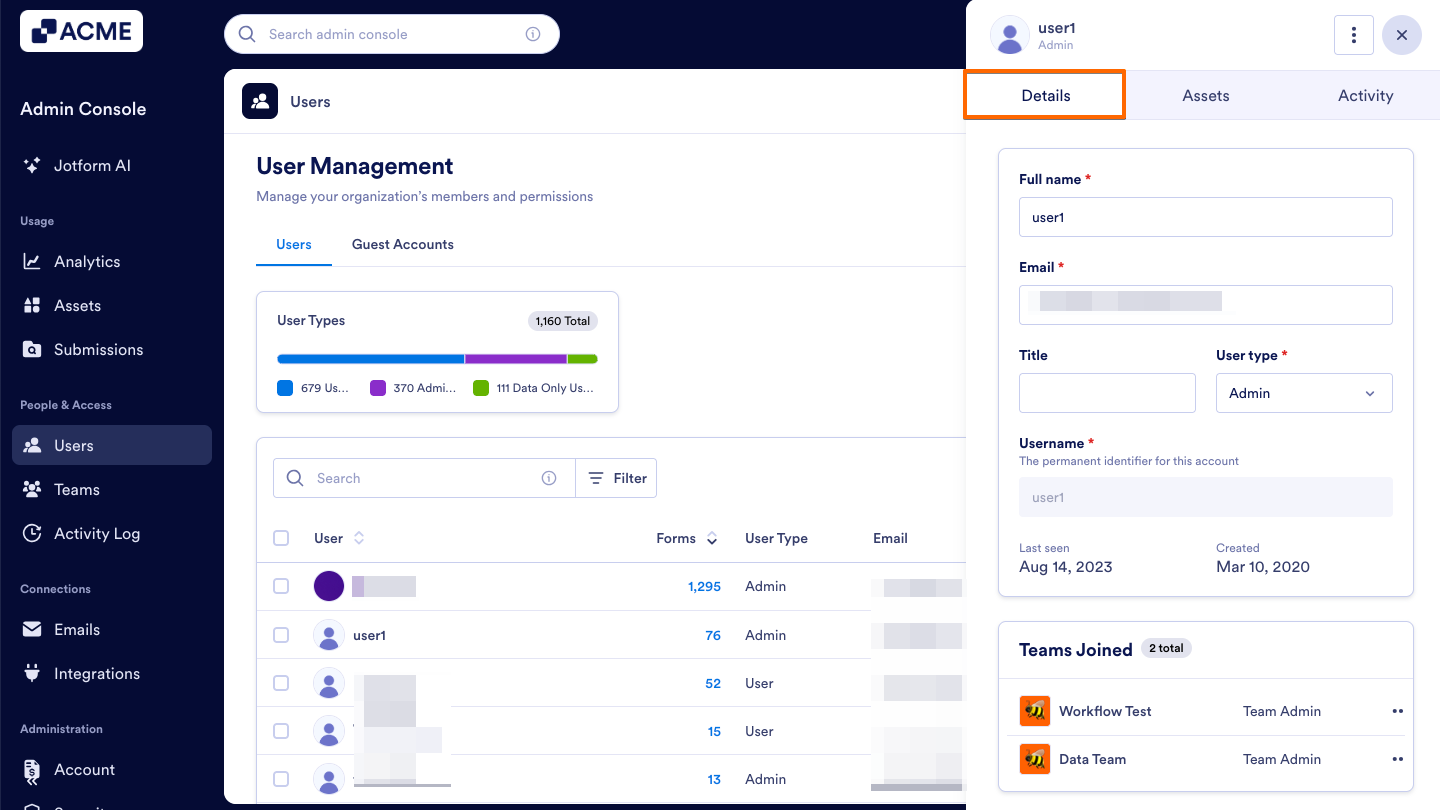
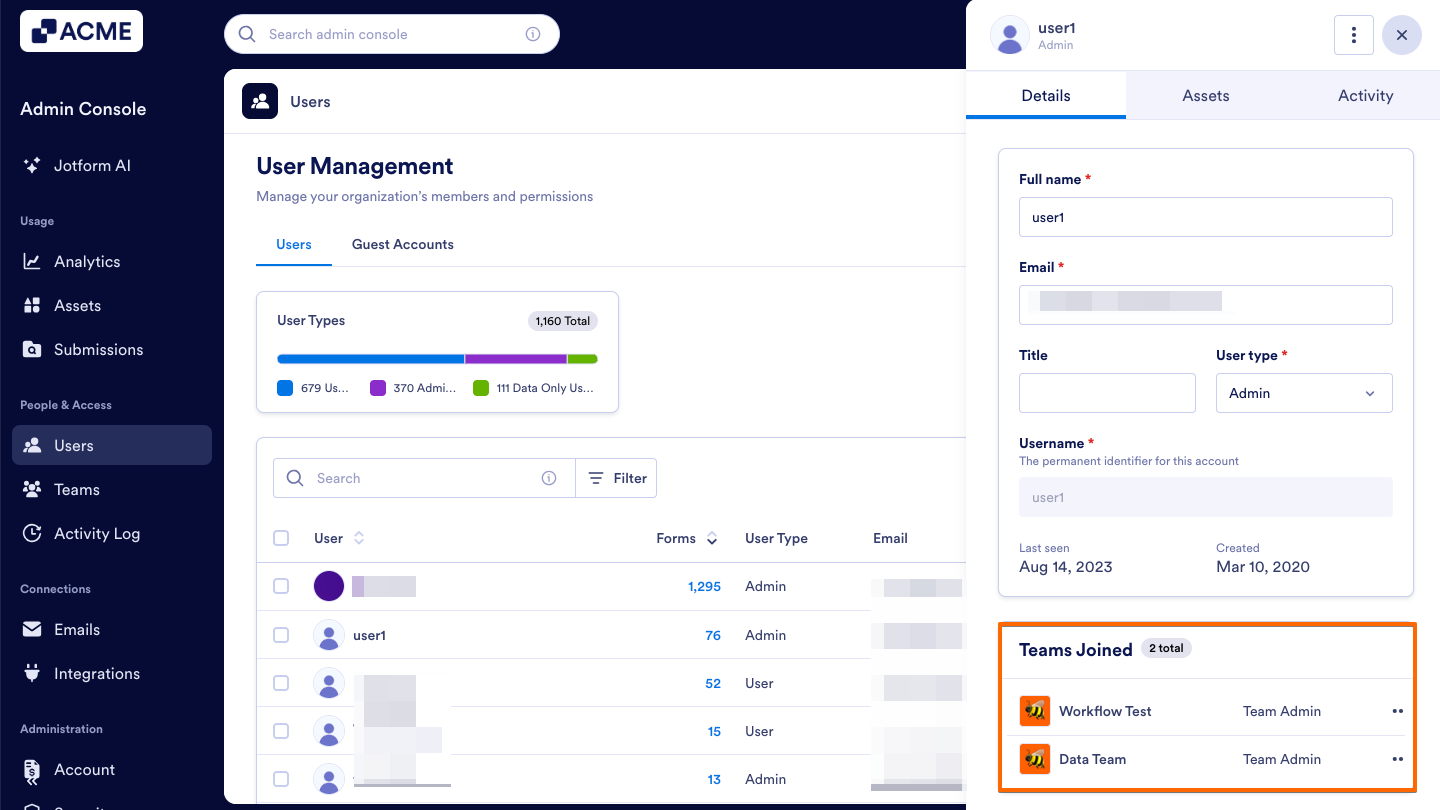
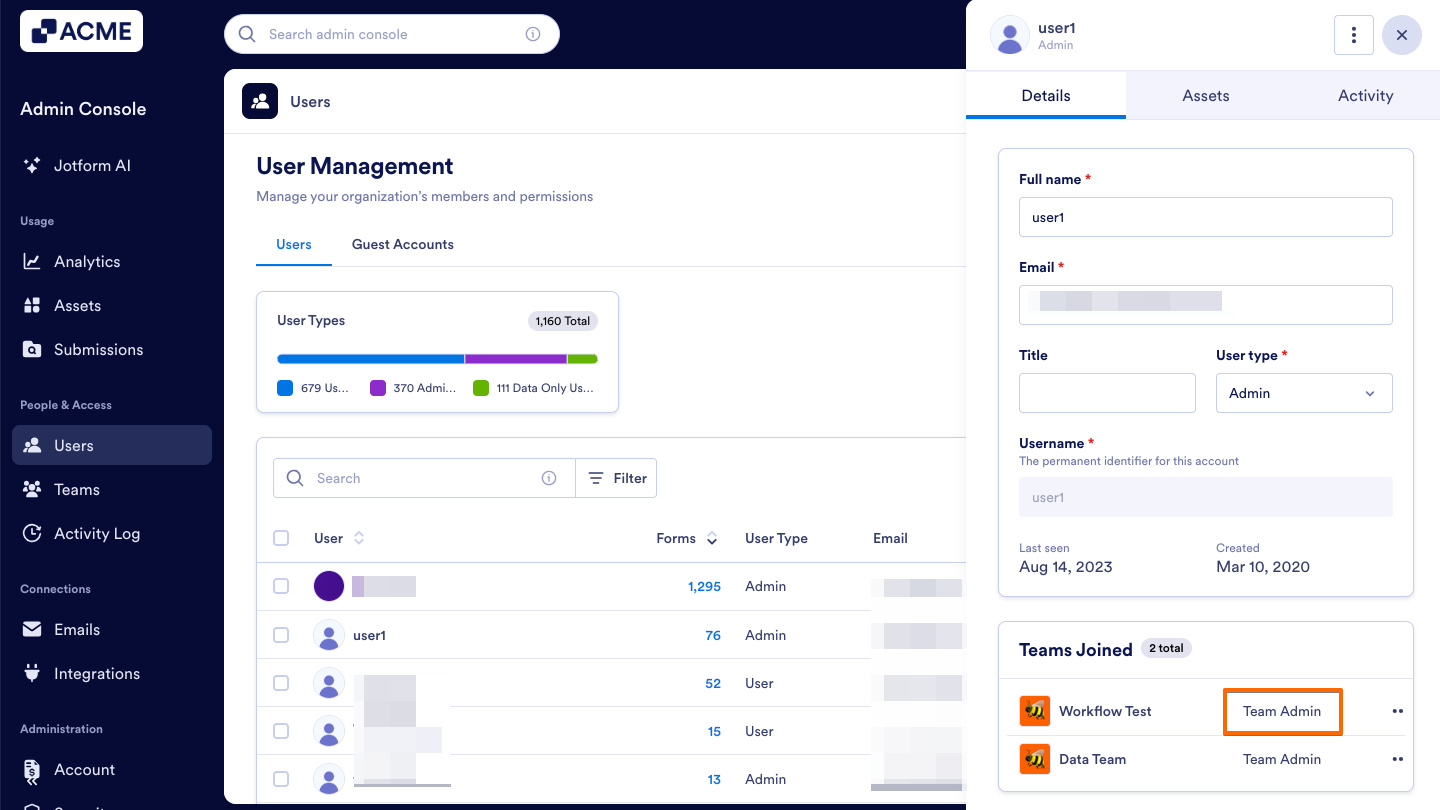
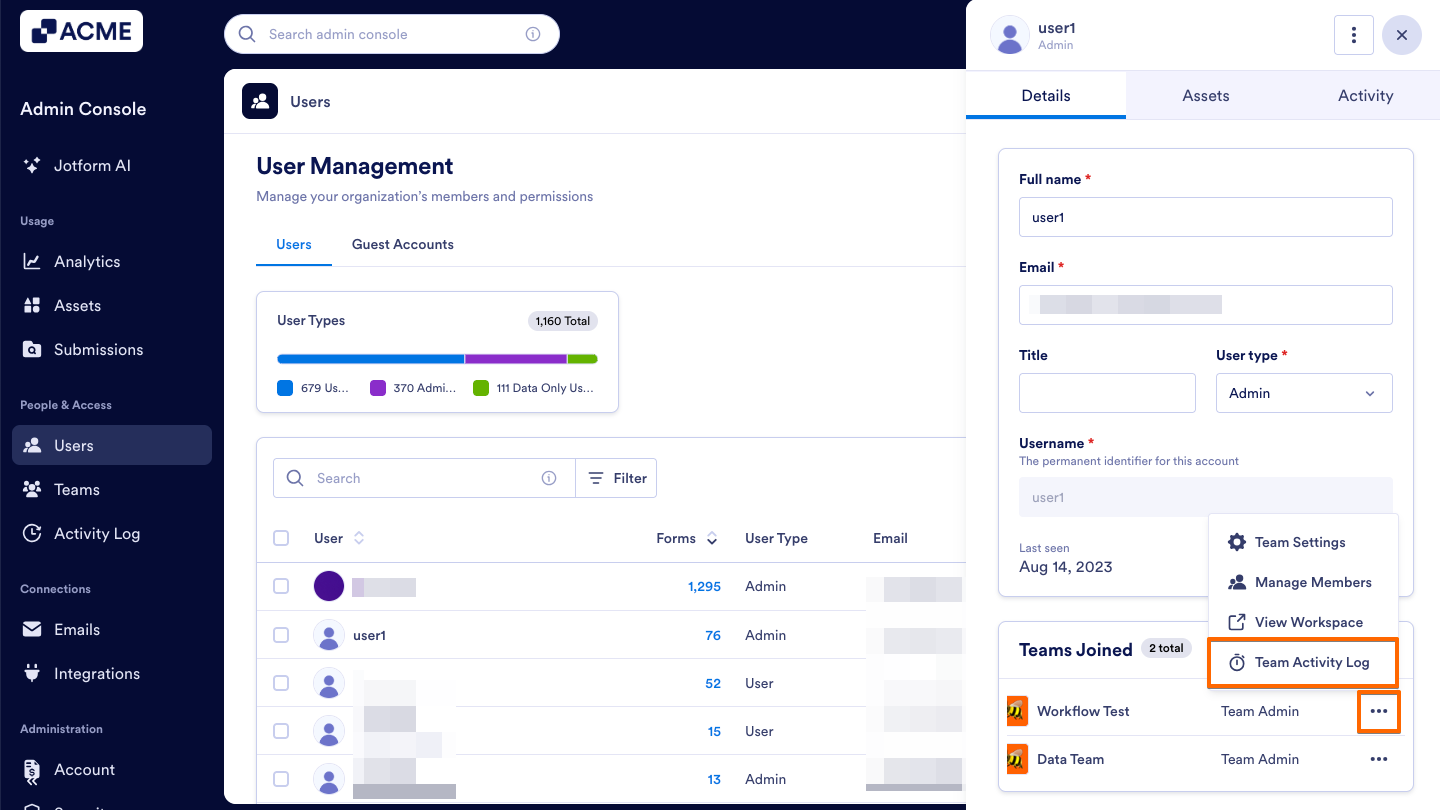
Down below, you can view all the Teams the selected user is part of:
From the Details Tab within a Specific User’s Profile
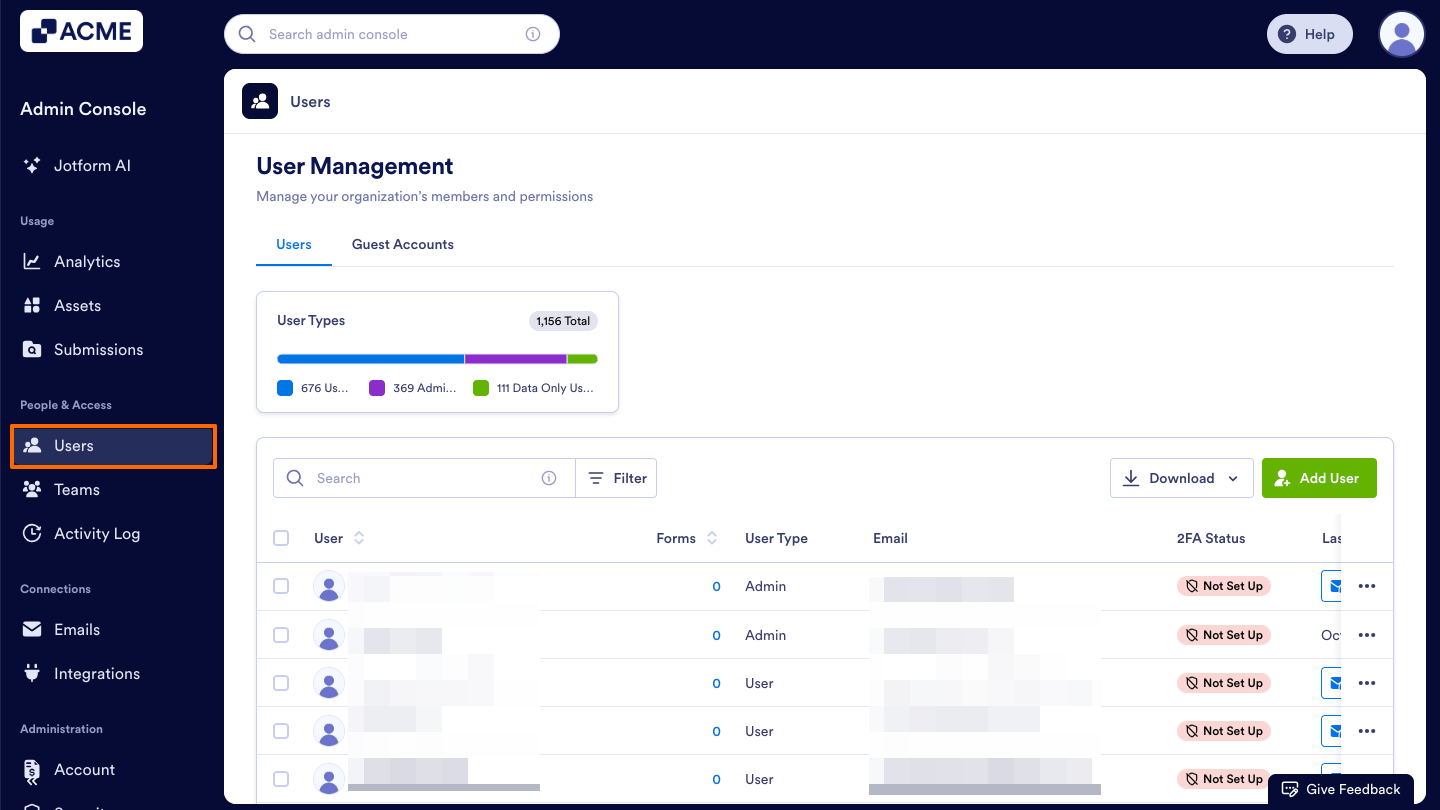
- In the Admin Console, in the menu on the left side of the screen, navigate to Users.
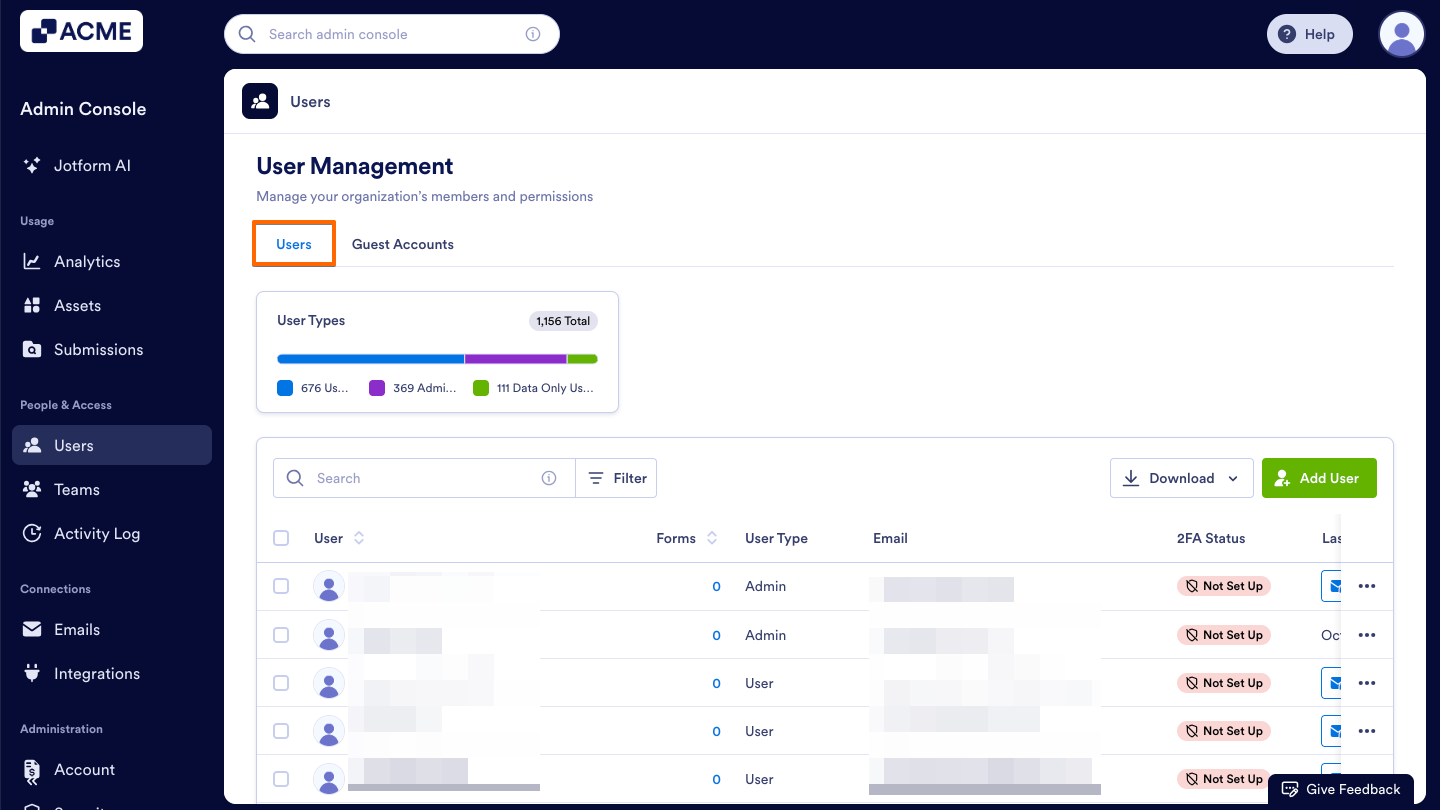
- Then, click on the Users tab.
- Now, click on the username you want to see the Teams of. This opens a sidebar on the right side of the screen that contains tabs for Details, Assets, and Activity.
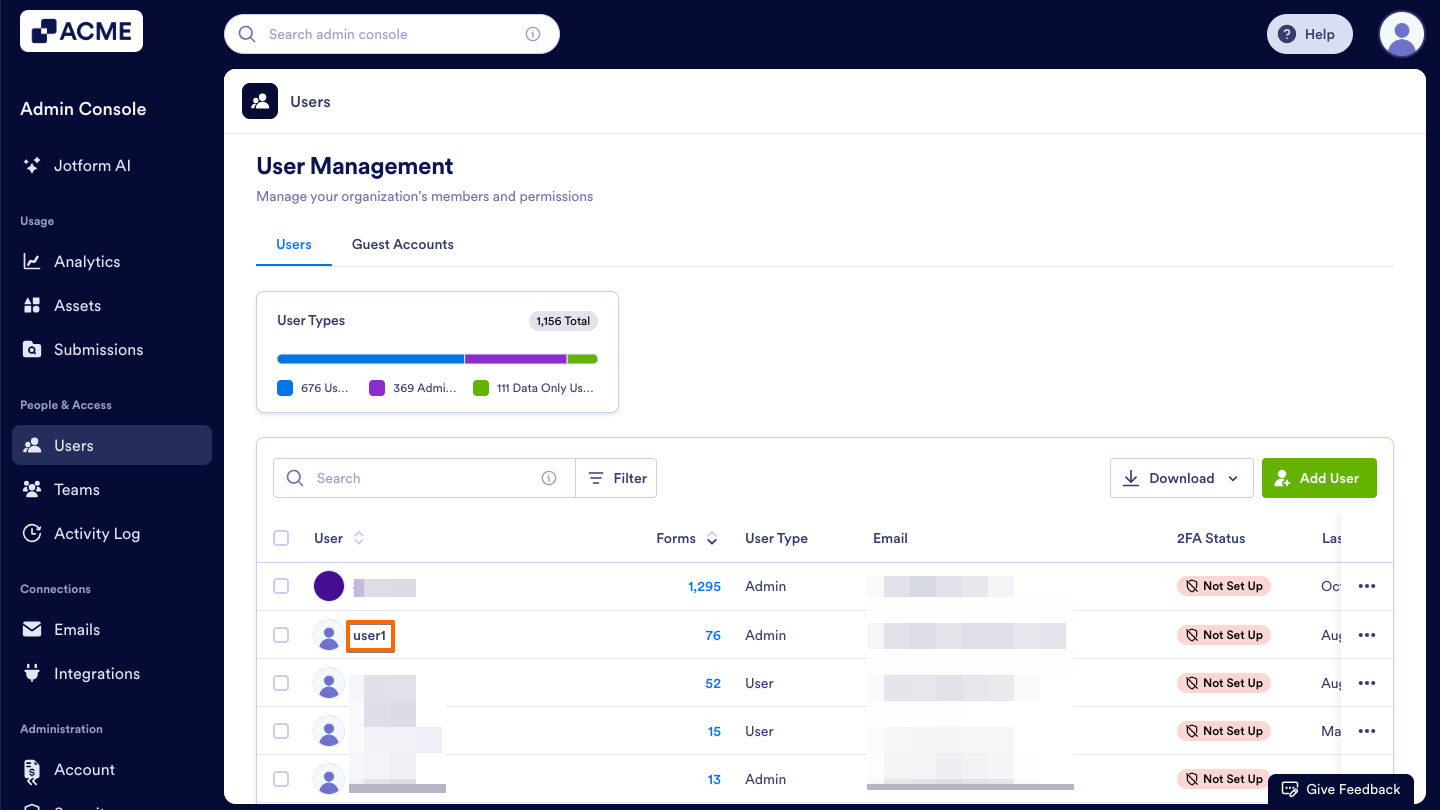
- In the sidebar, select the Details tab to view the user’s details.
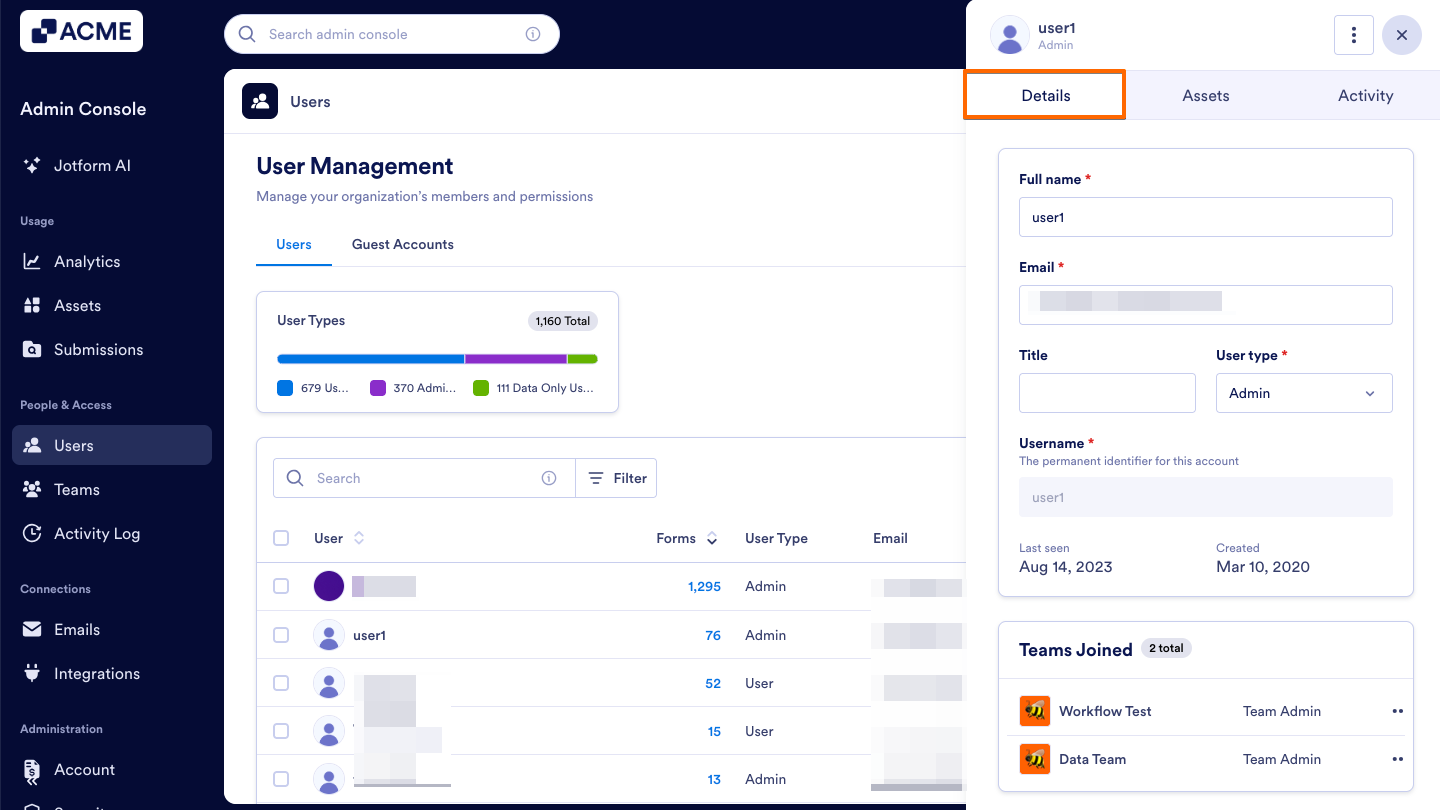
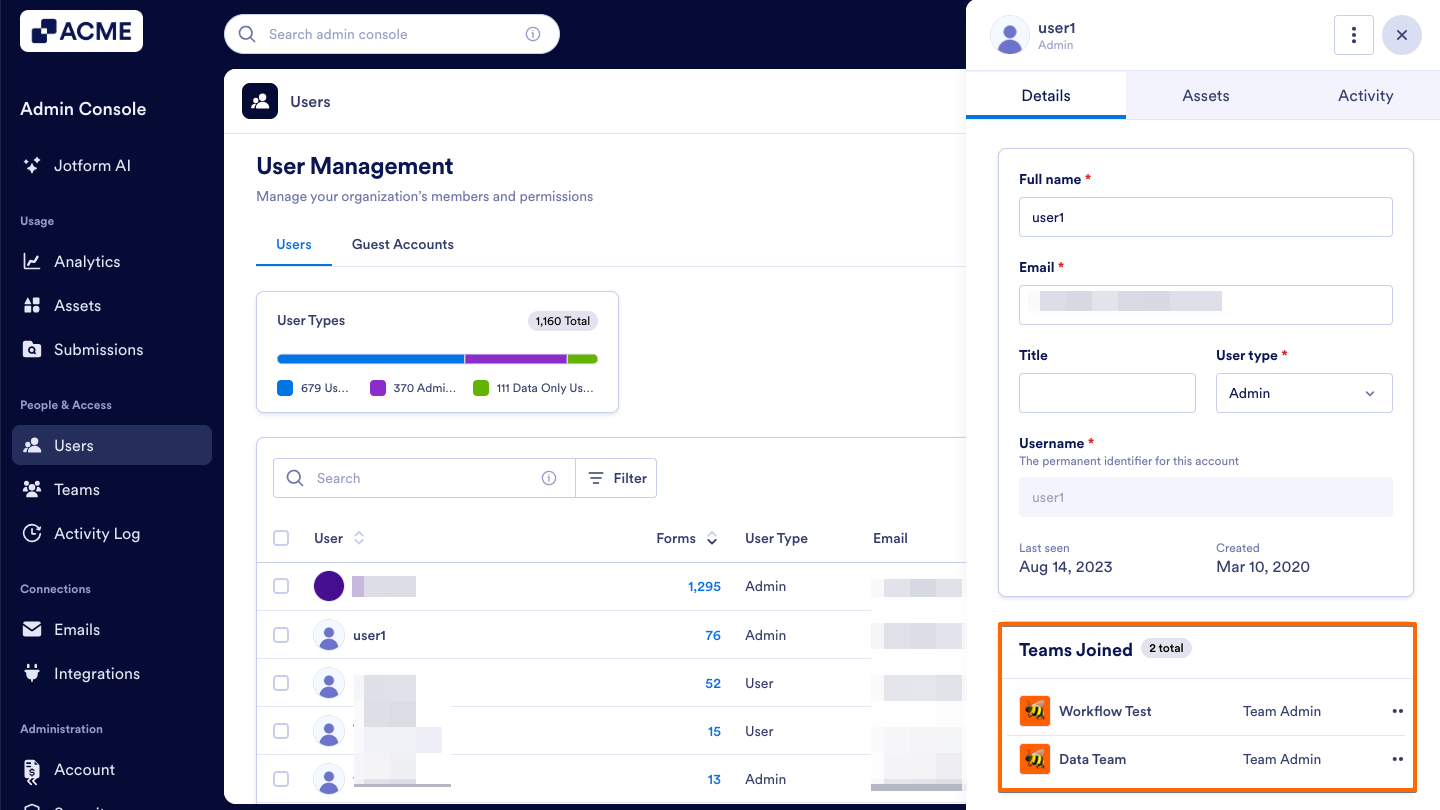
Down below, you can view all Teams the selected user is part of:
Viewing Team Details
In the Teams section, each team displays the following details:
- Team Name and Logo: Shows the name and visual identifier of a team.
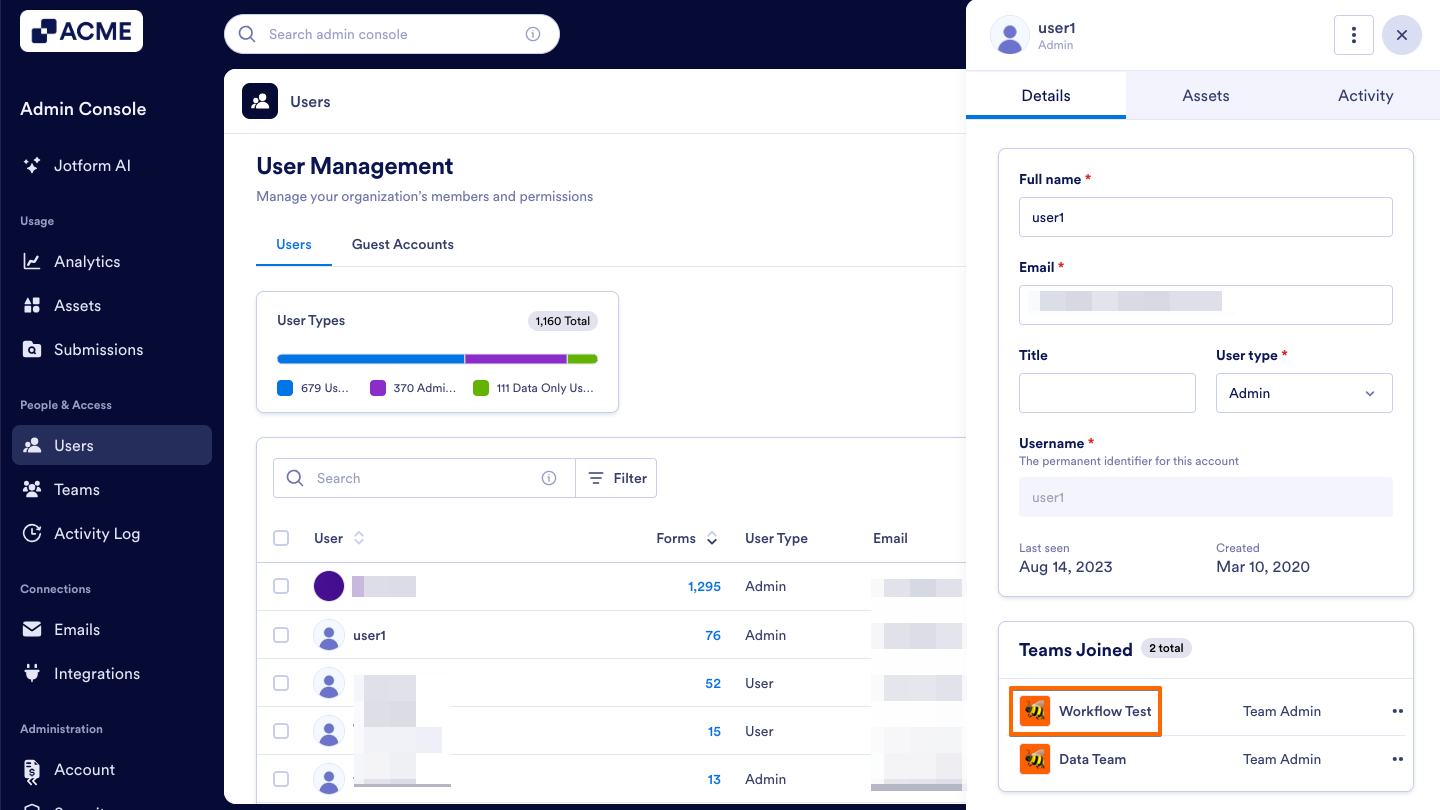
- Role: Indicates the user’s role within a Team, showing if a user is a Team Admin, Data Creator, Data Viewer, or Creator.
Managing User’s Teams
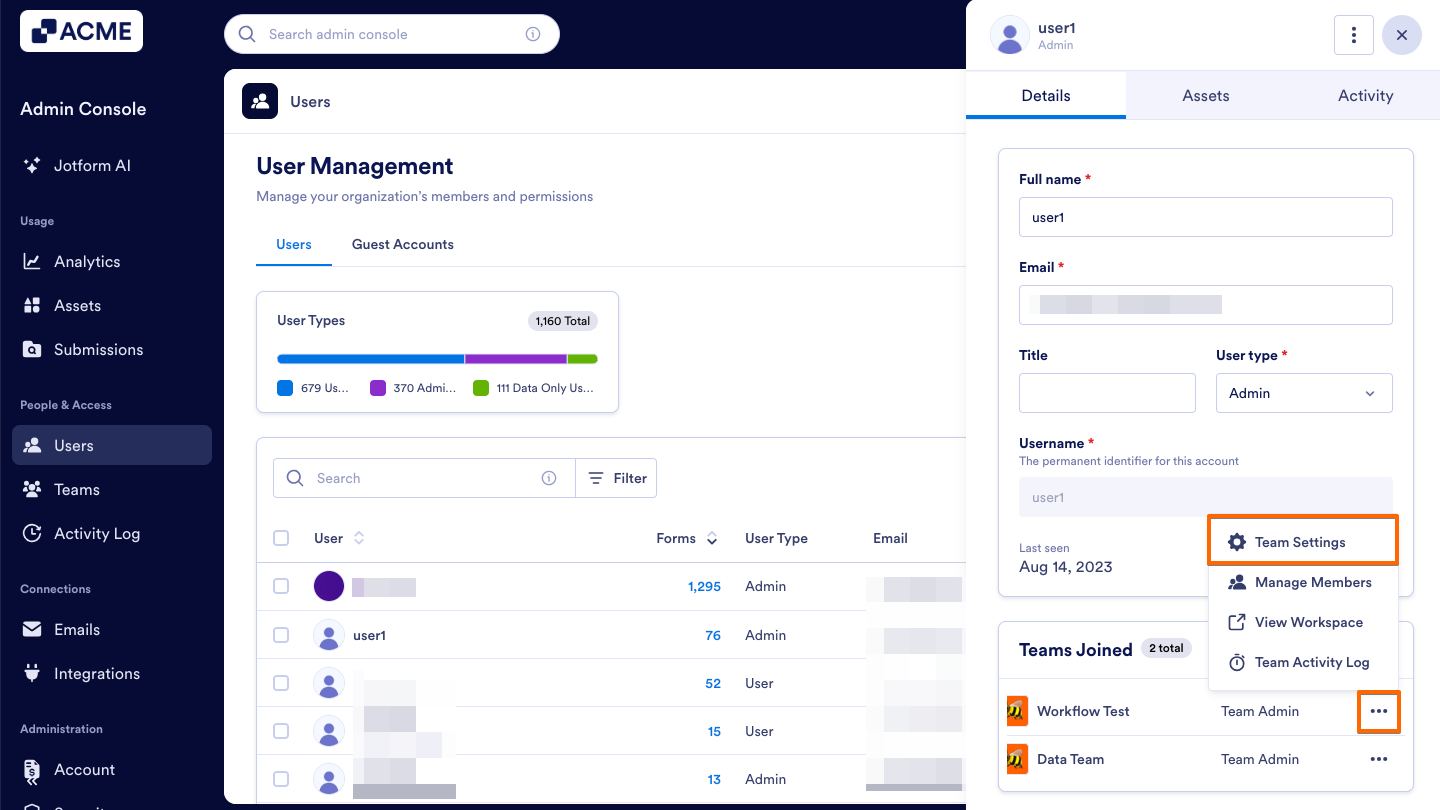
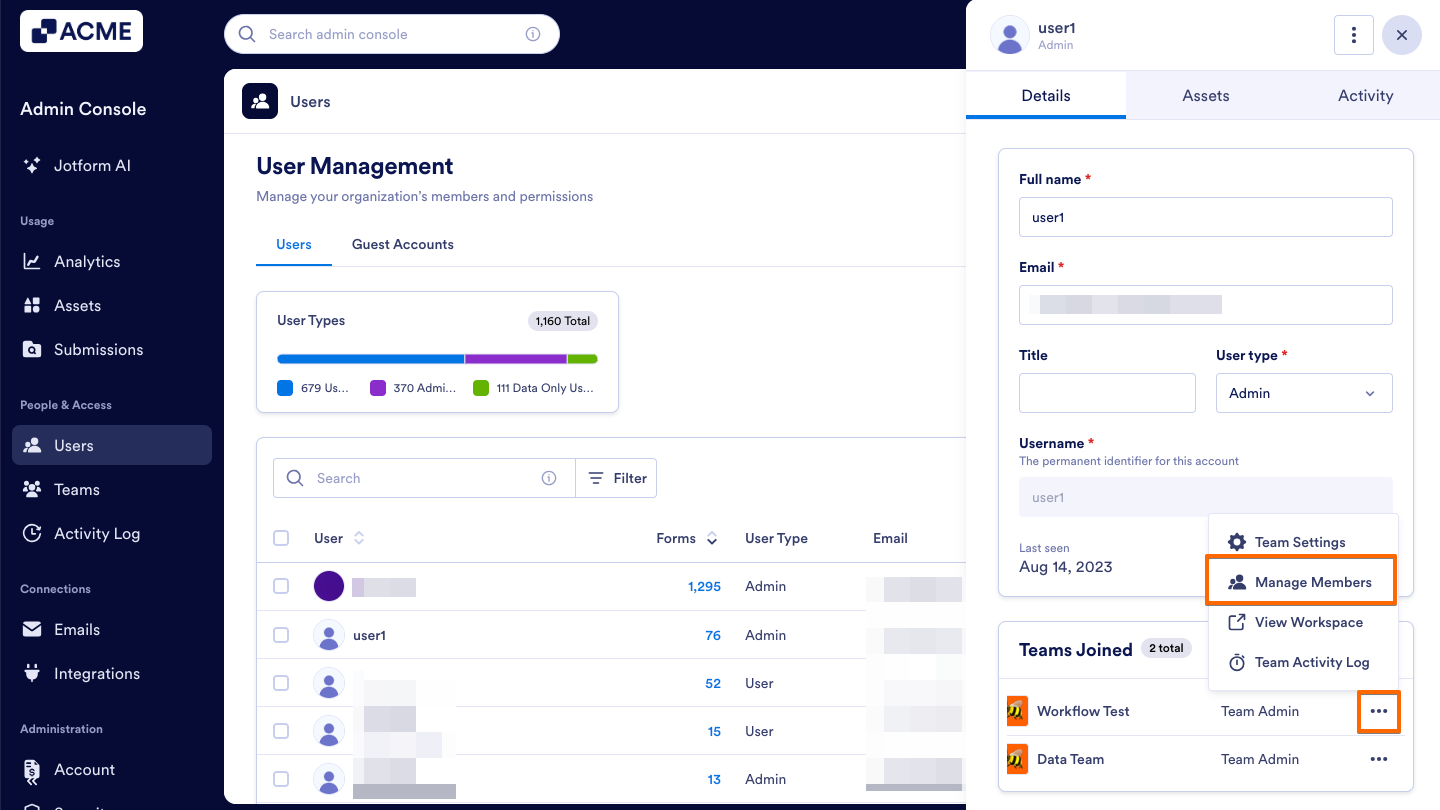
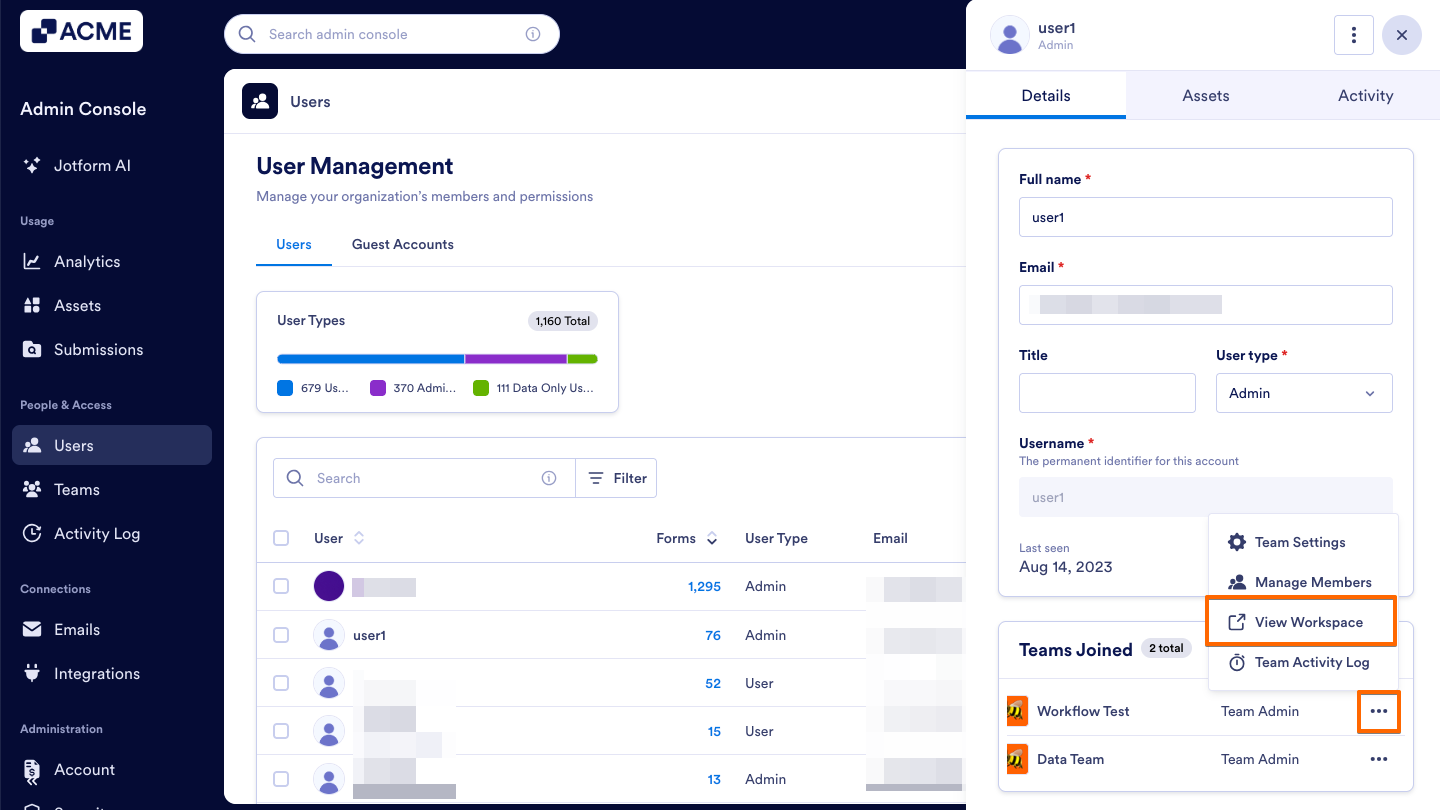
In the Teams section, you can view each Team the user is a member of along with quick actions available for each team. By clicking on the Three Dots icon next to a team name, the following options are available:
- Team Settings: View and update a team’s general settings and details.
- Manage Members: Add or remove members and adjust their roles within a Team. When you remove a user from a team, they will immediately lose access to all team assets and permissions associated with that Team. Once removed, the user will no longer appear in the Team Members list.
- View Workspace: Open a Team’s Workspace to view its assets.
- Team Activity Log: Review recent actions and updates within the team.

Send Comment: