As an admin, you can view a detailed history of any user’s actions using the activity logs located in your Admin Console. These detailed logs can help you track changes to your assets and maintain accountability across your organization.
Viewing Individual User Activities
There are three places that you view your users’ activities in the system: from the User Management screen, in a specific user’s profile, or from within their User History page. Let’s walk through those different options below:
From the User Management Screen
- Starting in the Admin Console, click on Users in the menu on the left side of the page.
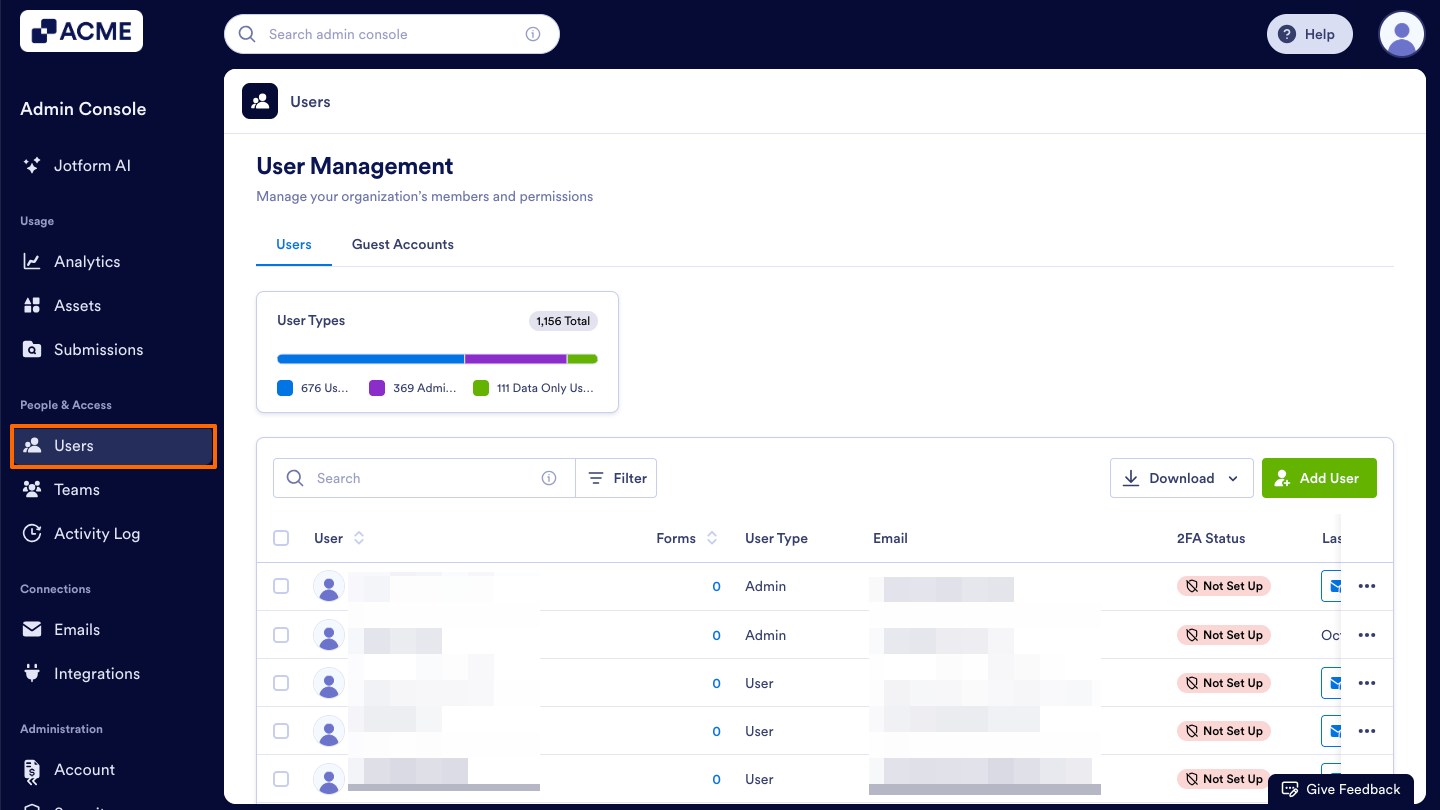
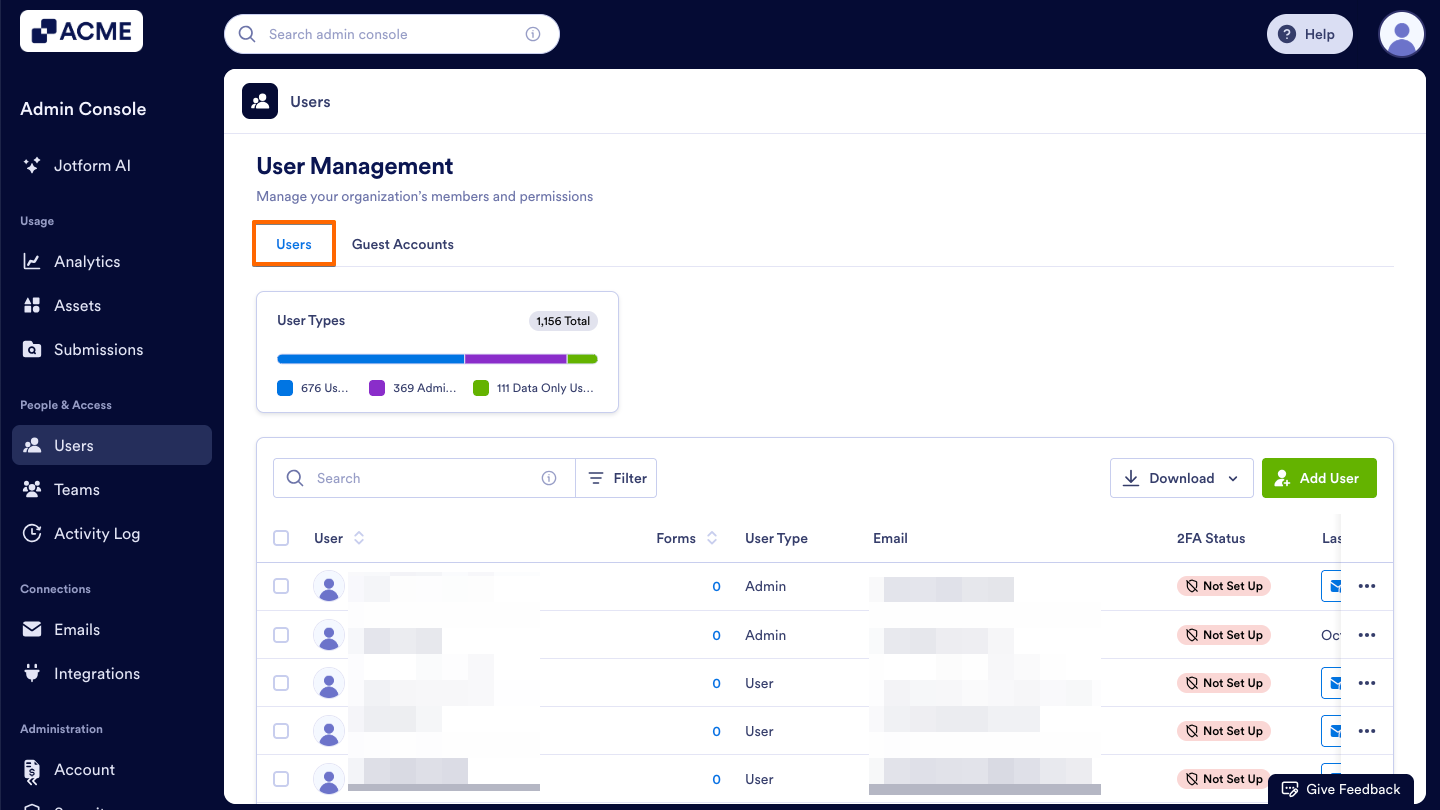
- Next, click on the Users tab located at the top of the User Management page.
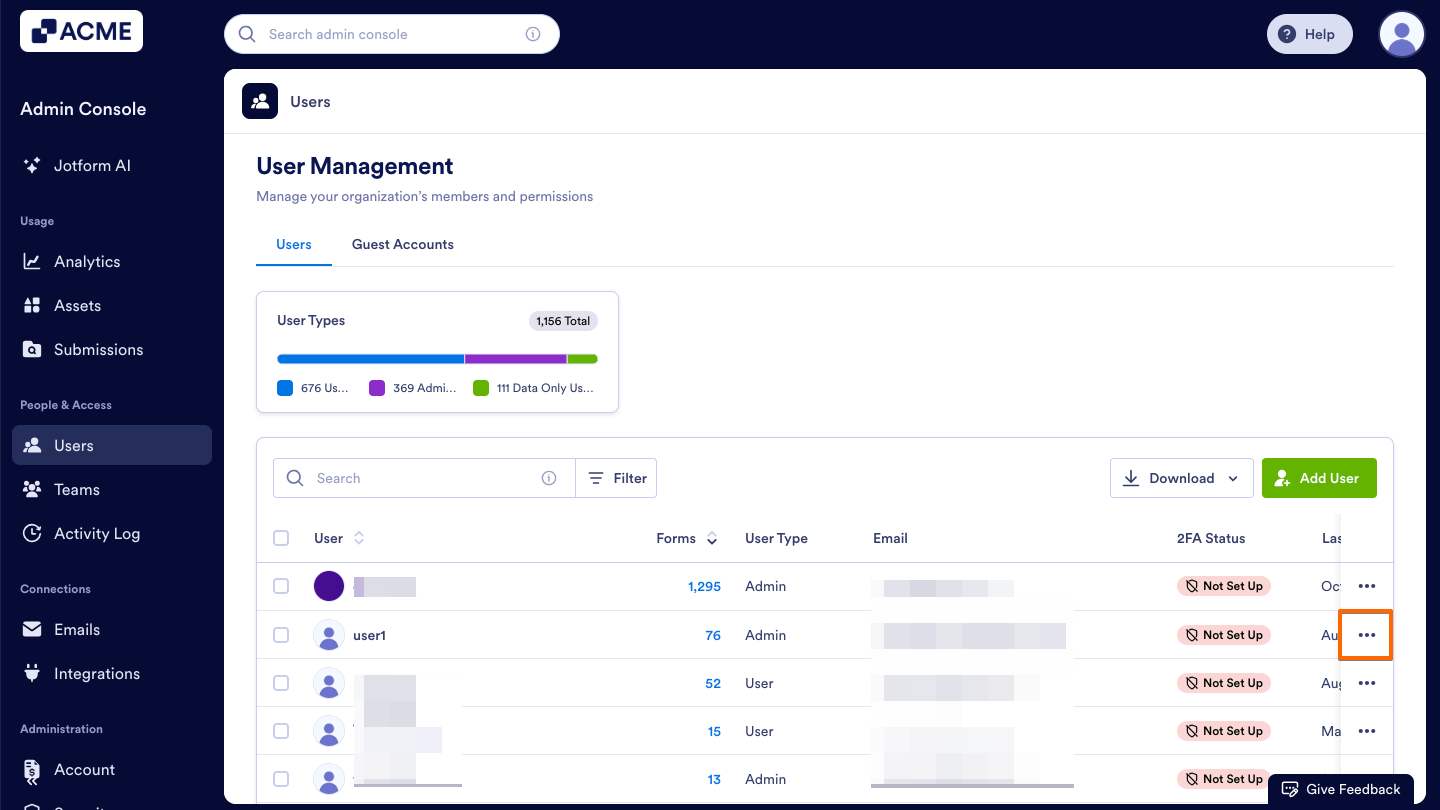
- Now, click the Three Dots icon located to the right of the user whose activities you want to view.
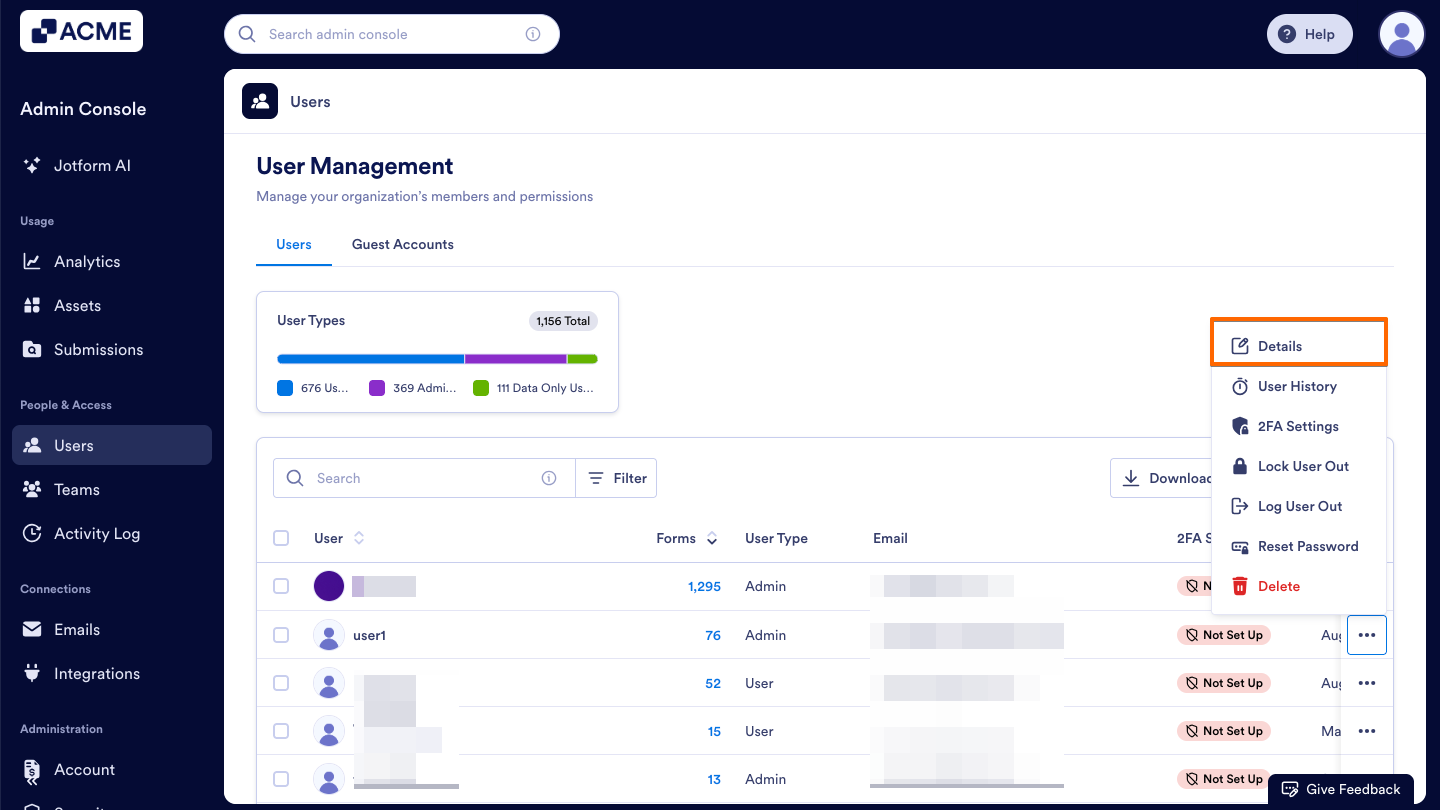
- Then, select Details in the dropdown menu. This opens a sidebar on the right side of the screen that contains several tabs, such as Details, Assets, and Activity.
- Finally, select the Activity tab within the sidebar to view that user’s recent actions.
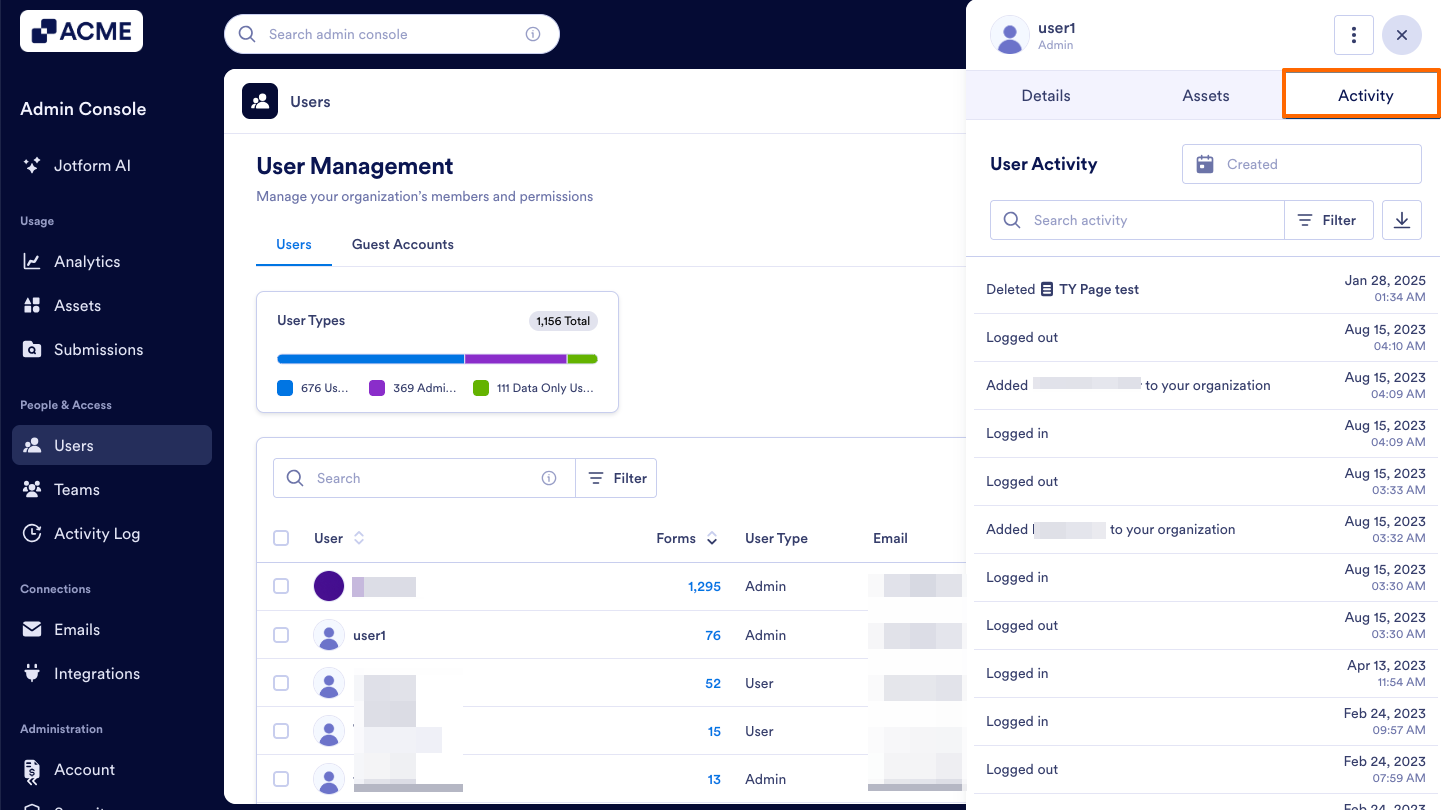
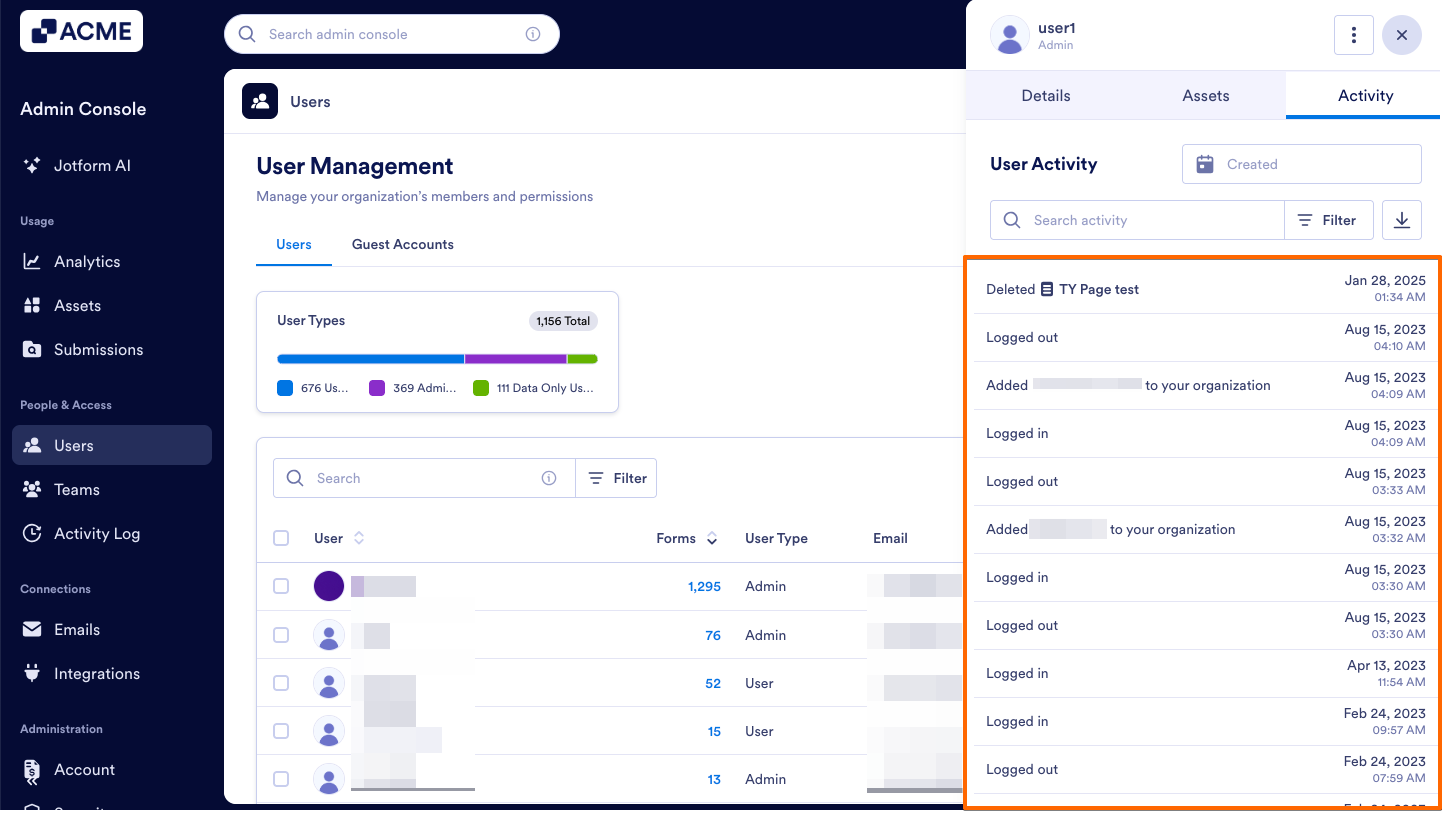
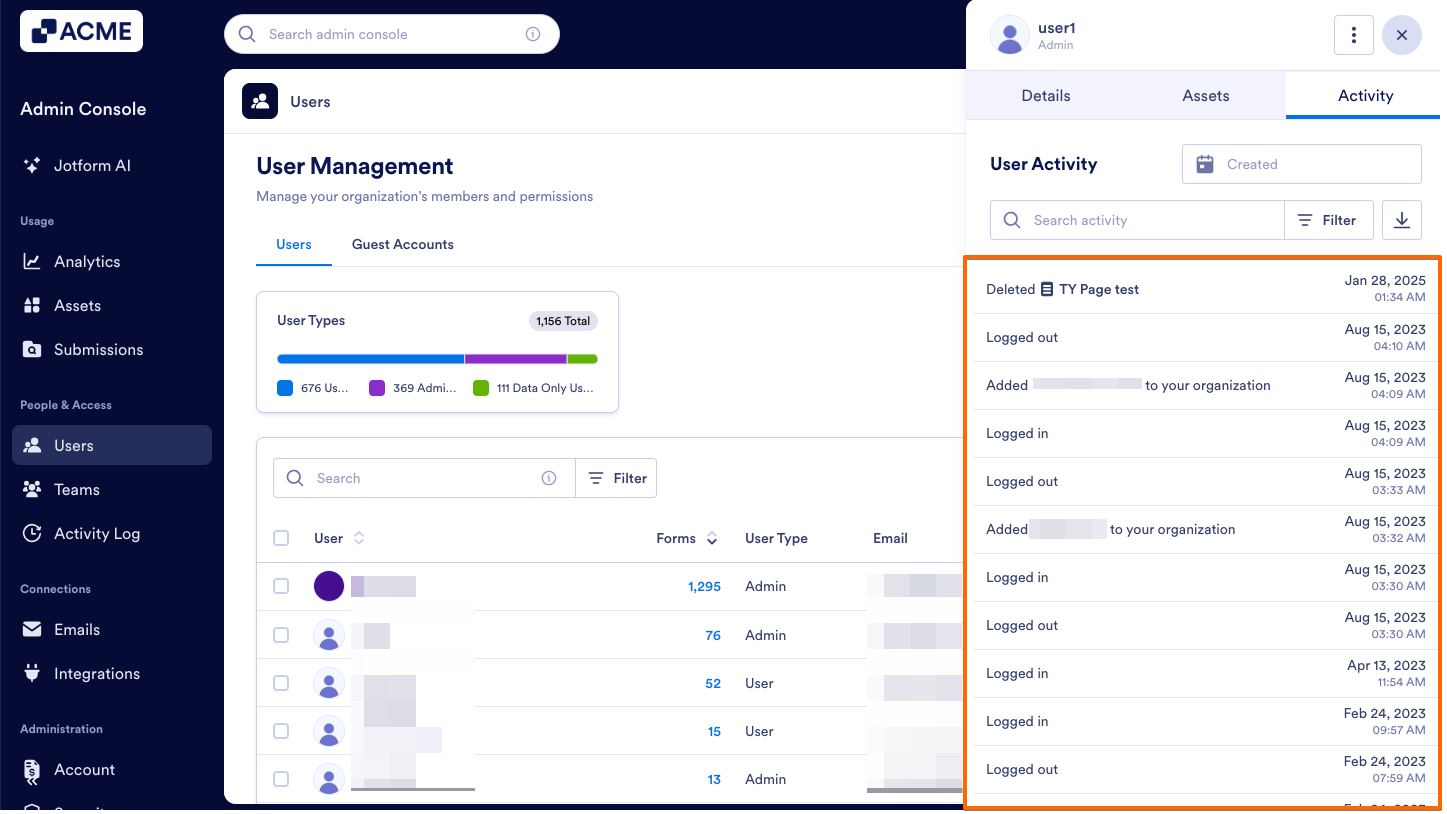
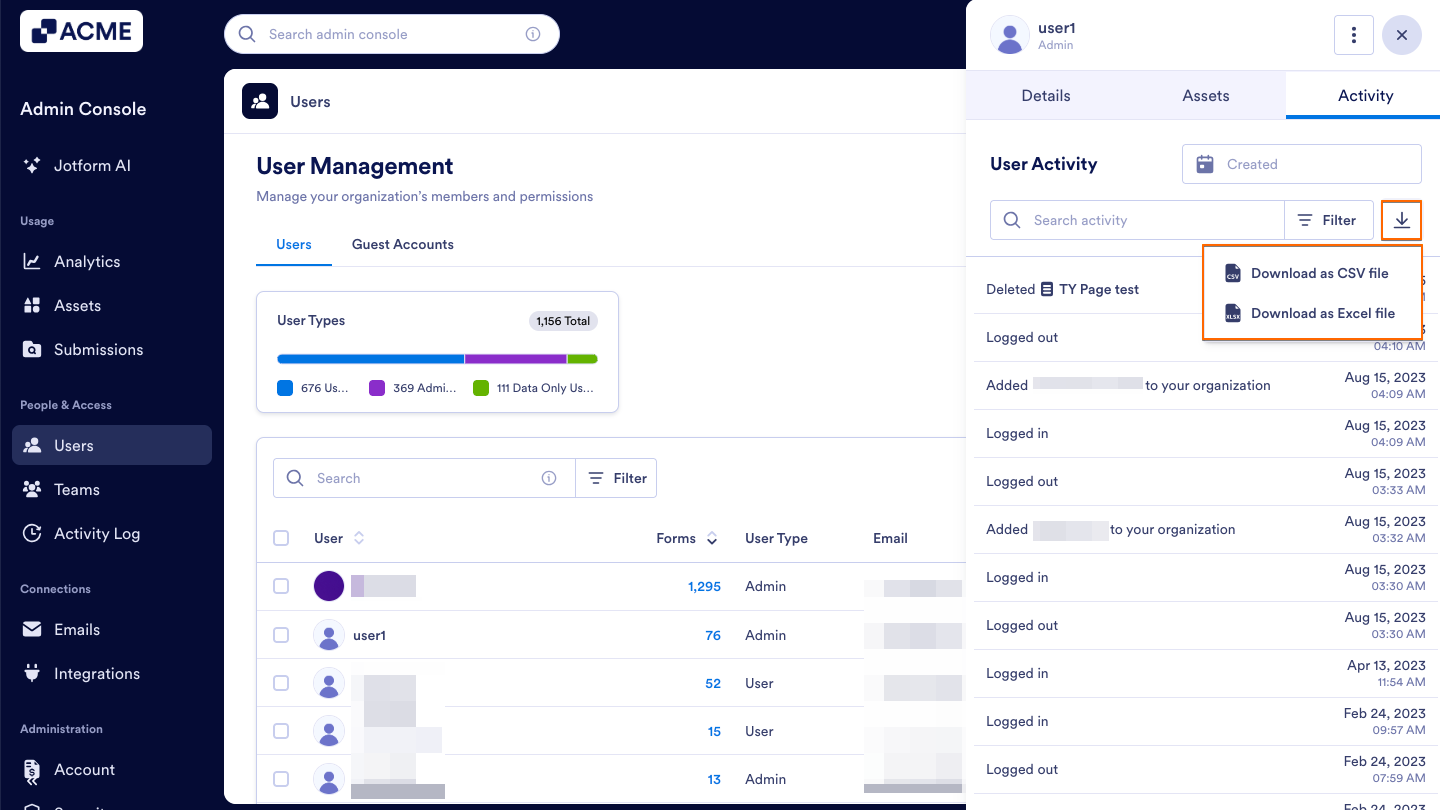
Here, you will see a detailed list of all actions performed by the selected user:
From the Activity Tab within a Specific User’s Profile
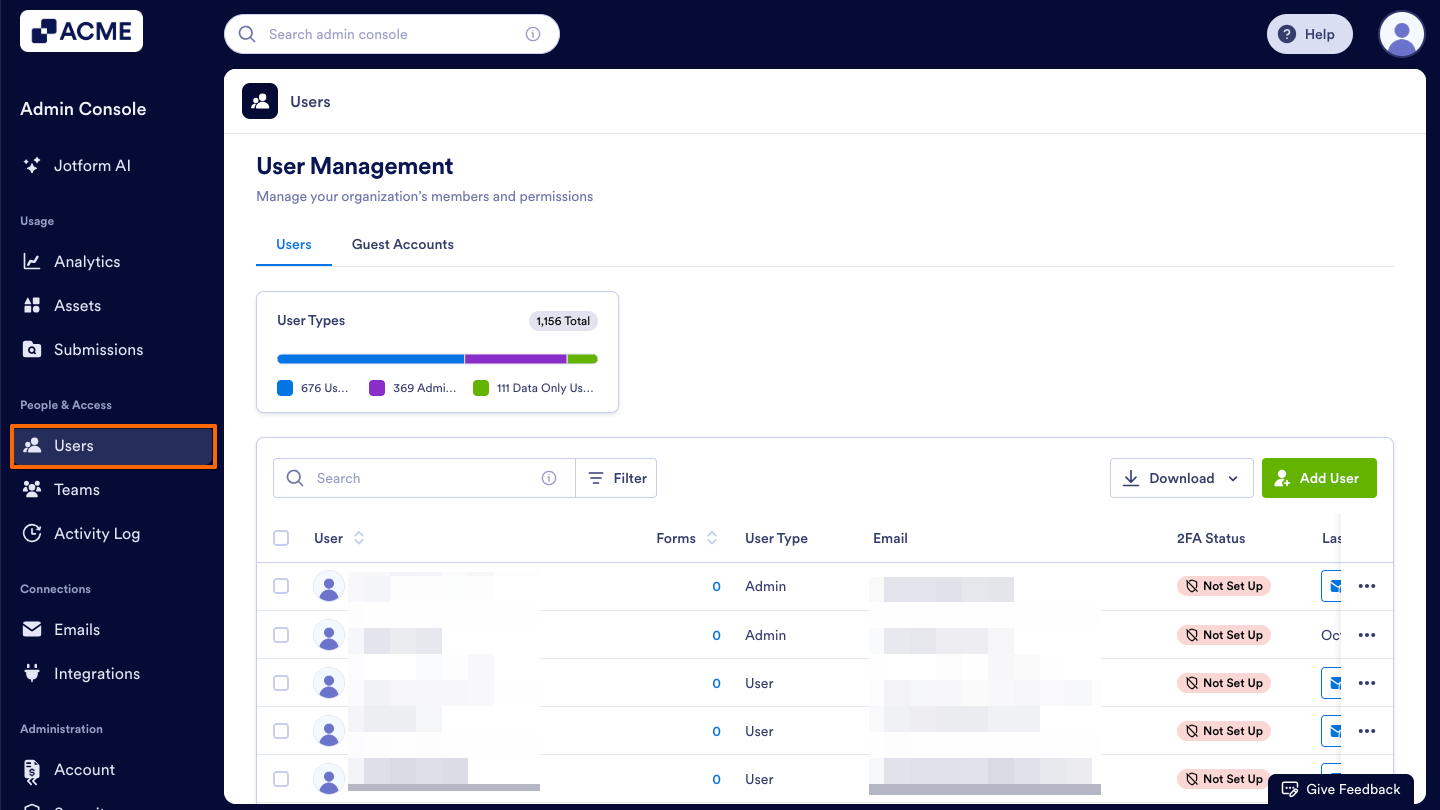
- Starting in the Admin Console, click on Users in the menu on the left side of the page.
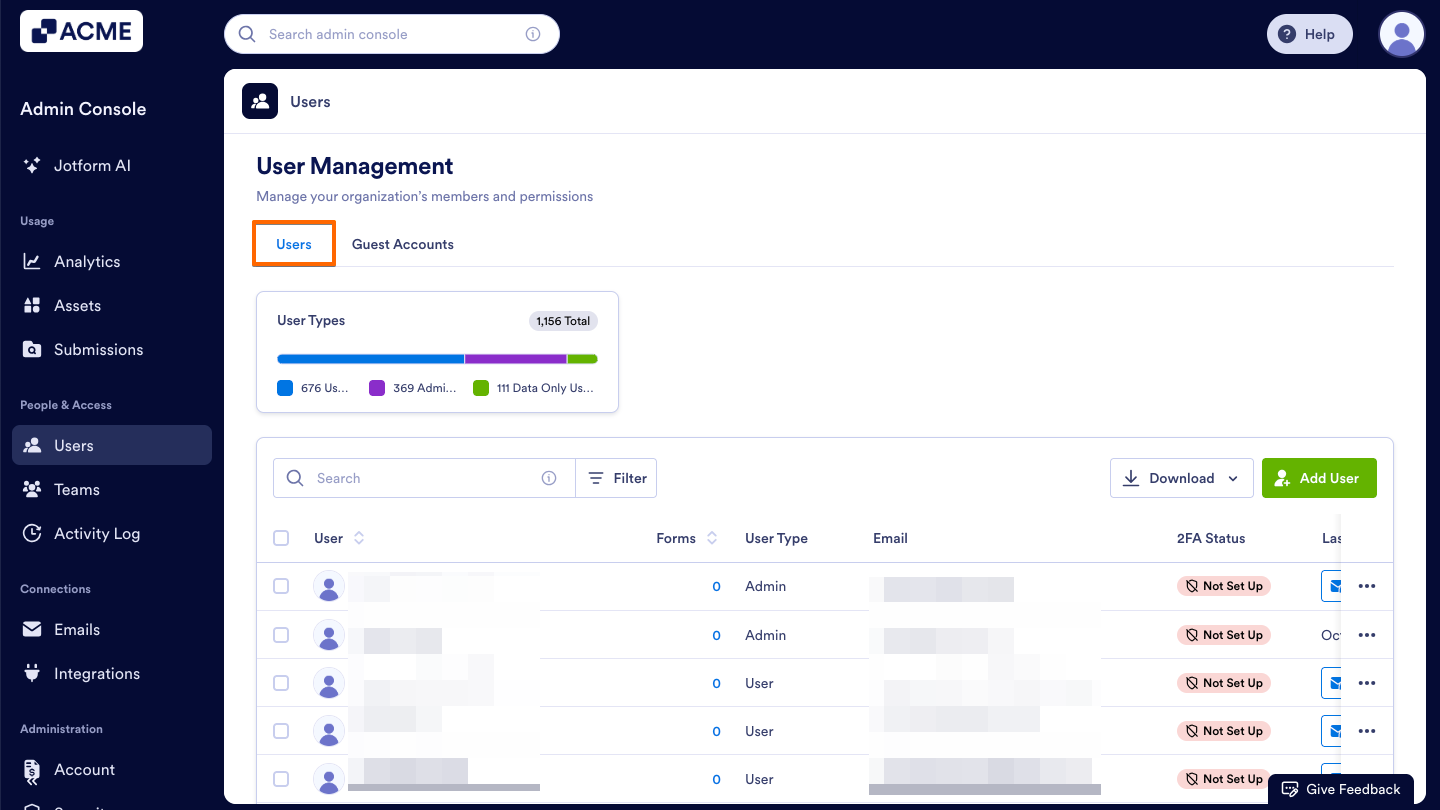
- Next, click on the Users tab located at the top of the User Management page.
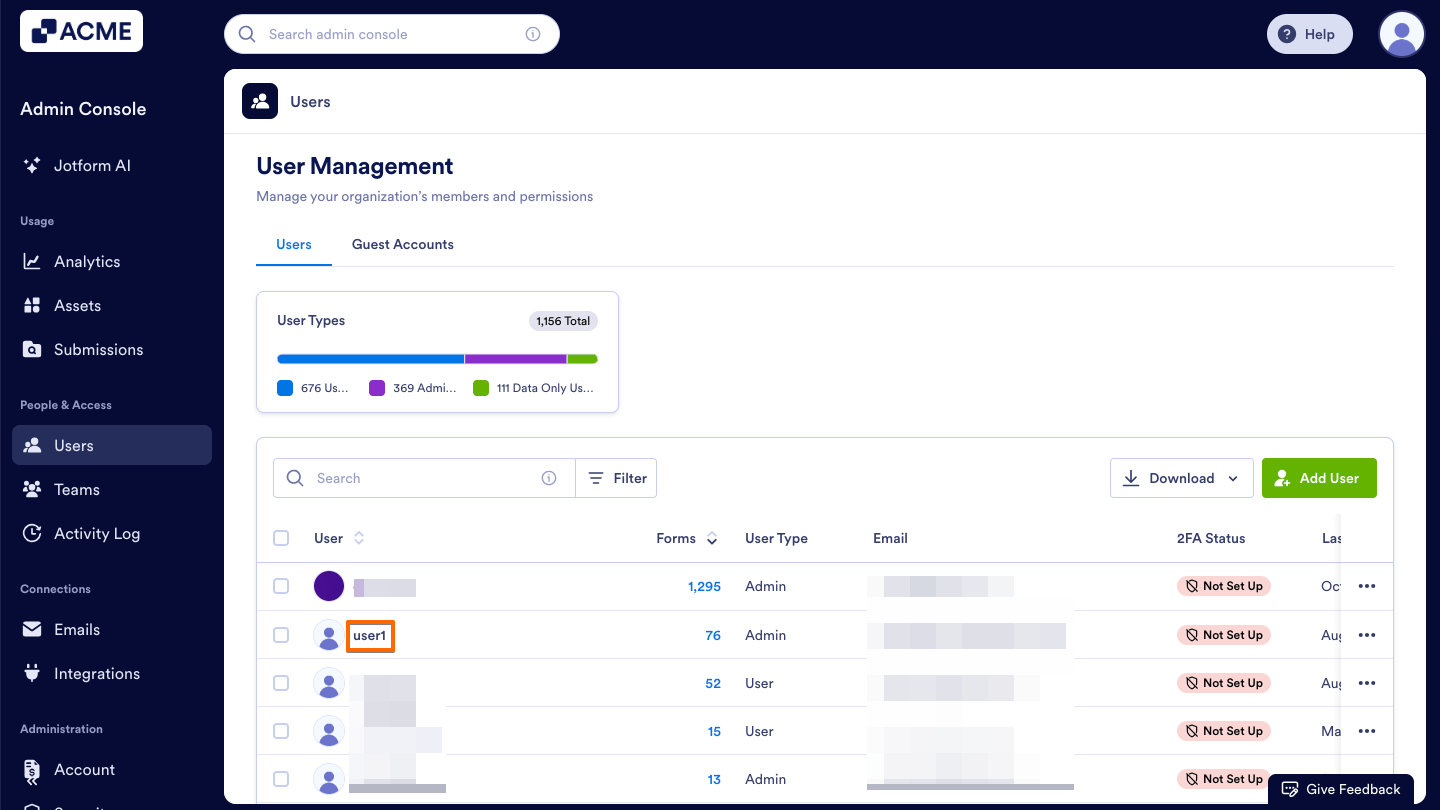
- Locate the user whose activities you want to view, and click on their name. This opens a sidebar on the right side of the screen that contains several tabs, such as Details, Assets, and Activity.
- Now, select the Activity tab in the sidebar to view that user’s recent actions.
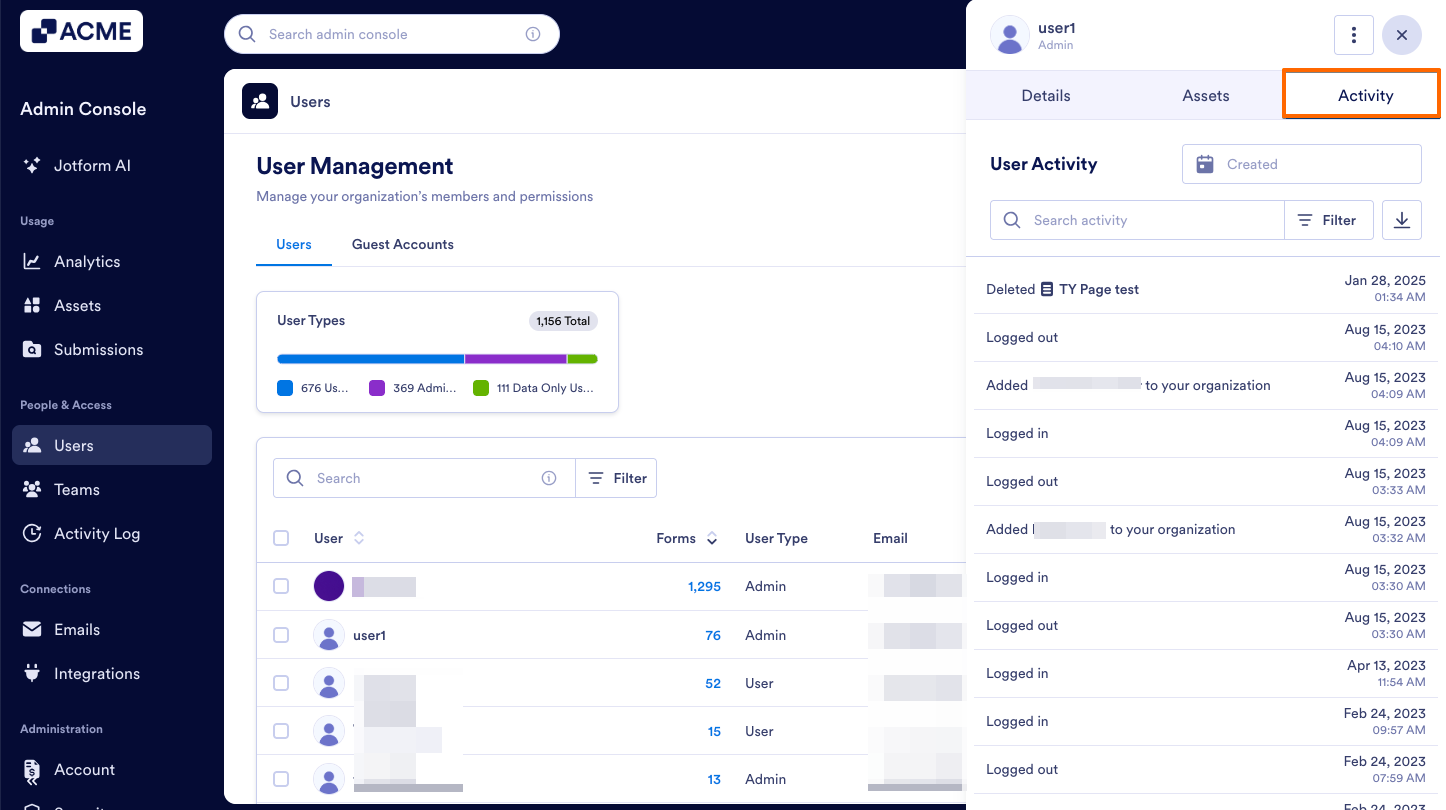
Here, you will see a detailed list of all actions performed by the selected user:
From the User History Menu Option
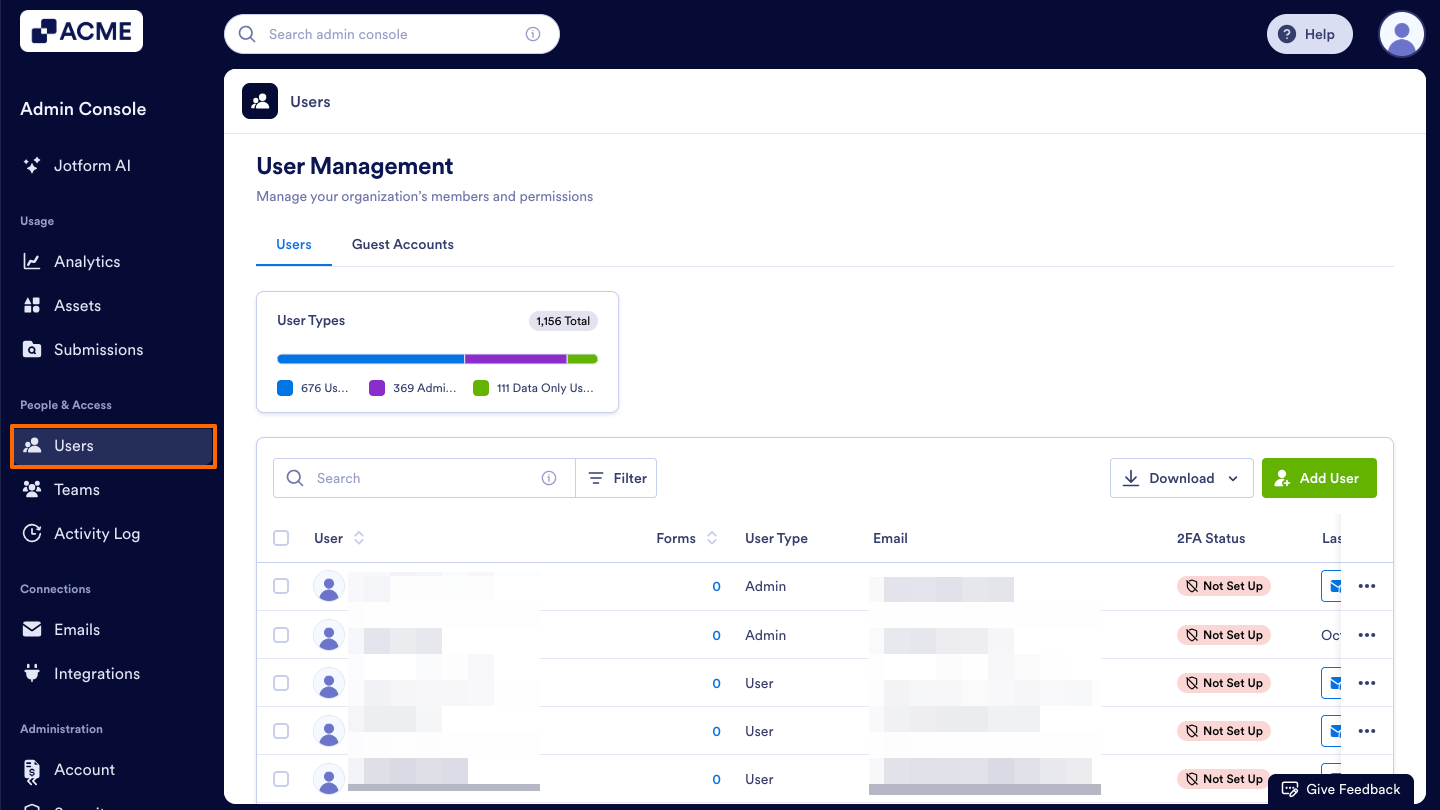
- Starting in the Admin Console, click on Users in the menu on the left side of the page.
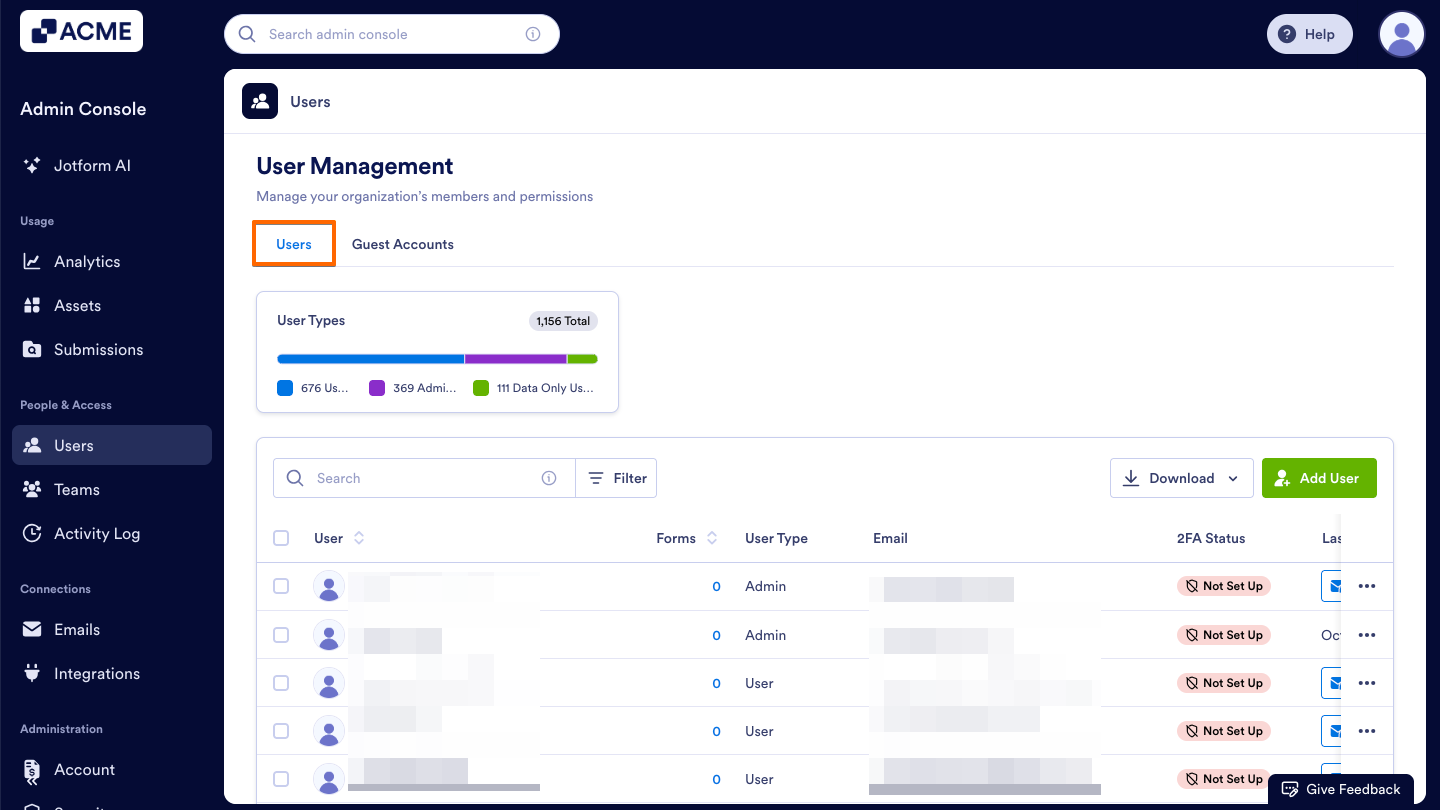
- Next, click on the Users tab located at the top of the User Management page.
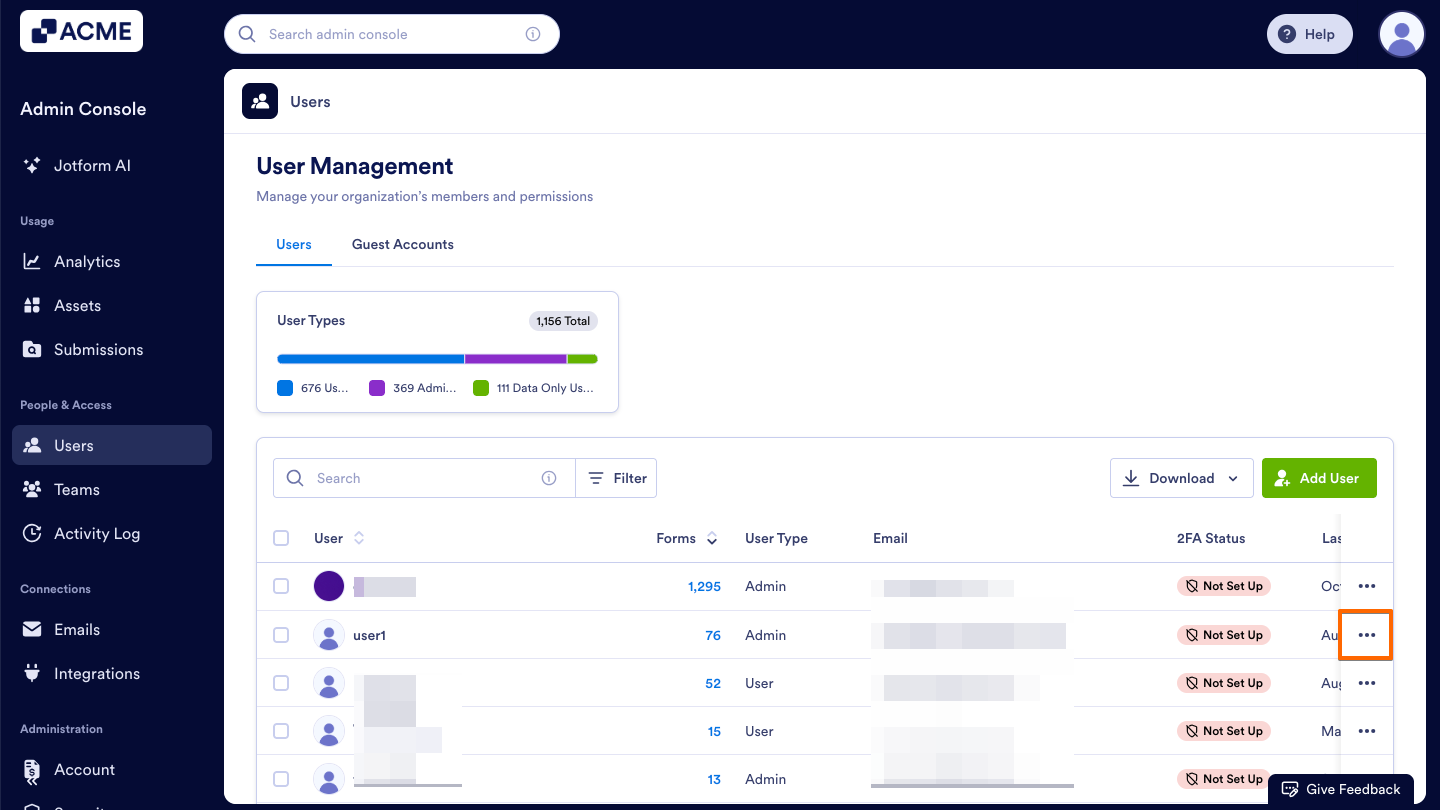
- Now, click the Three Dots icon located next to the user whose activities you want to view.
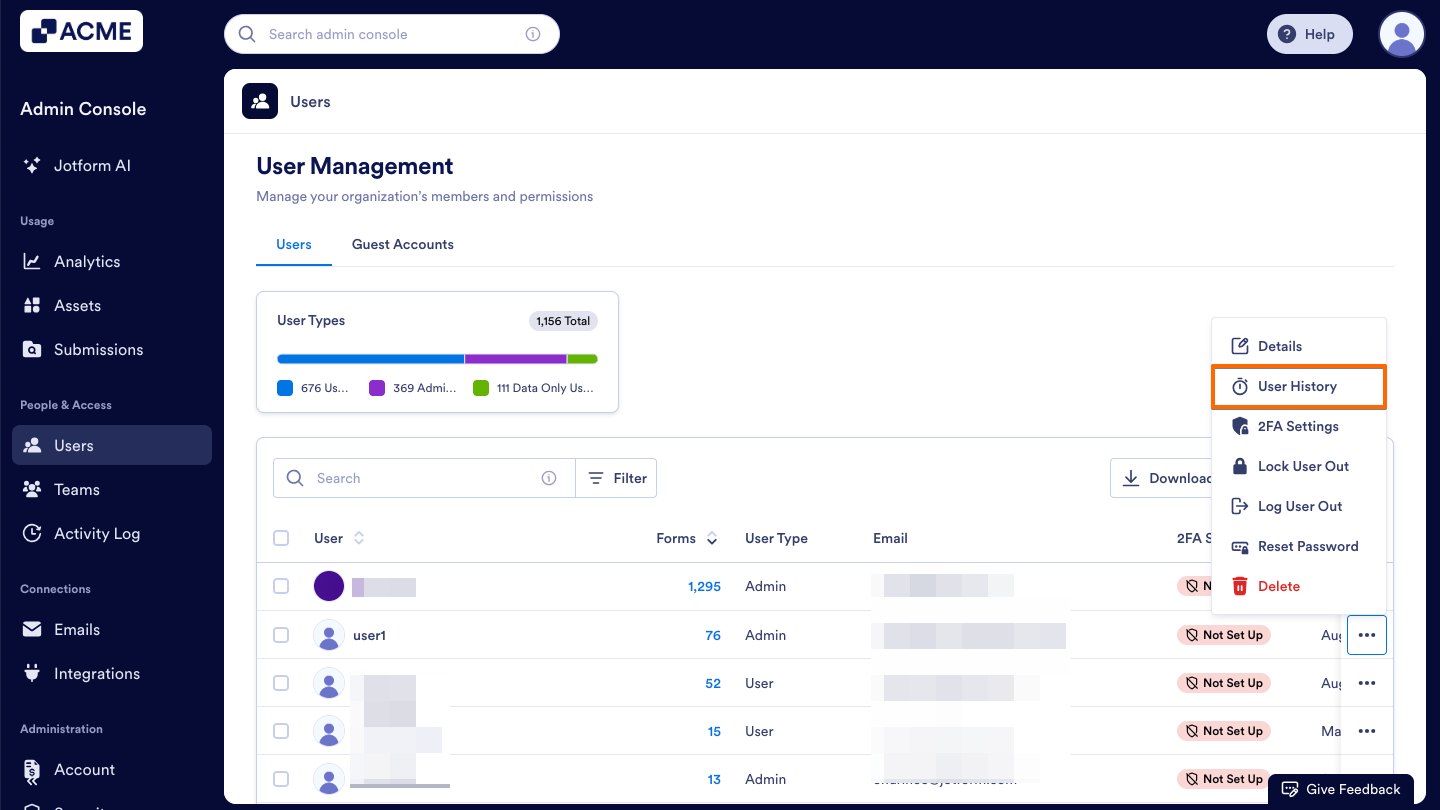
- Then, select User History in the dropdown menu.
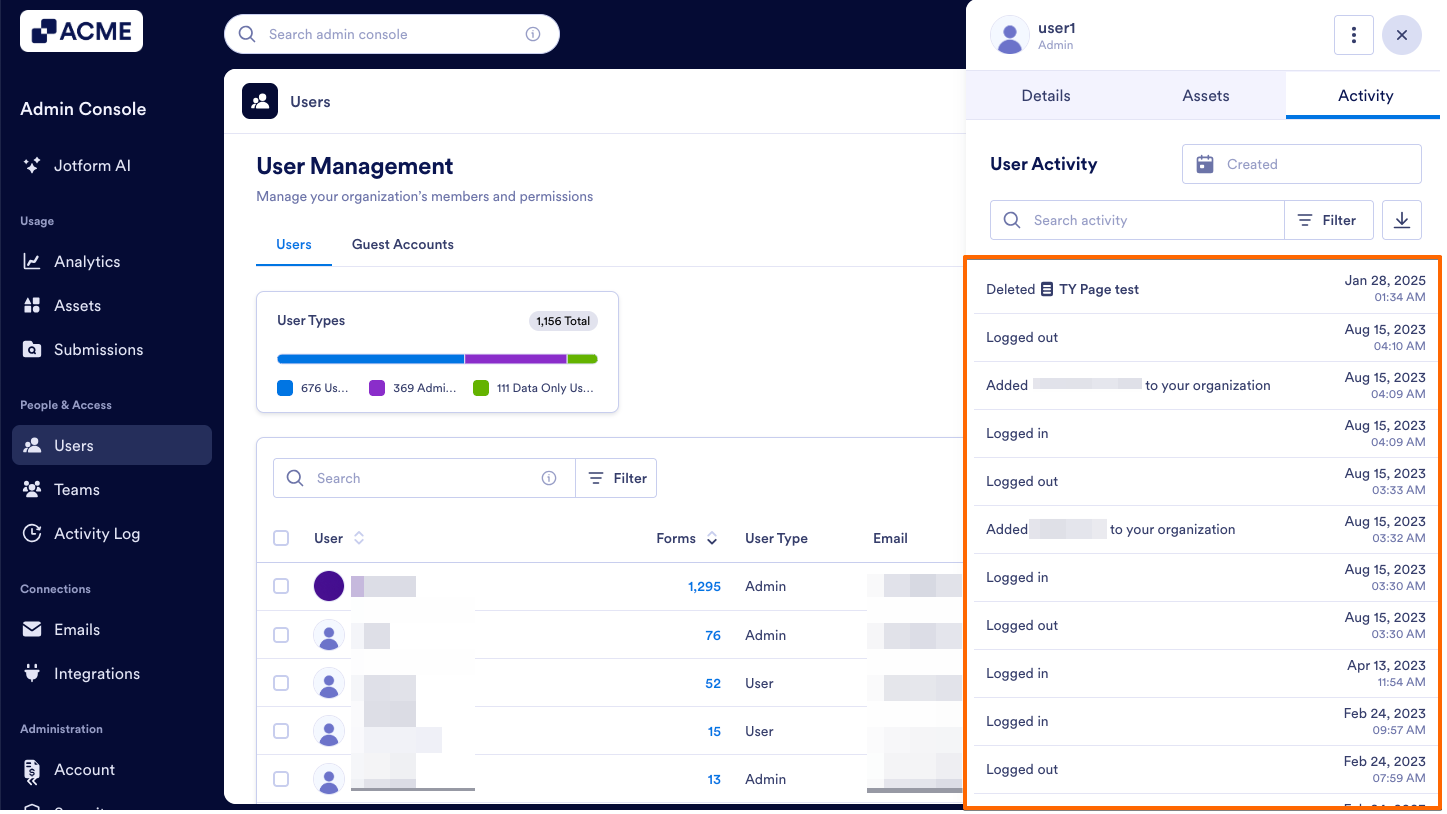
Here, you will see a detailed list of all actions performed by the selected user on the right:
Viewing User Activity Details
Each entry in the Activity tab, displays key information about the user’s actions:
- Activity Type: Describes the specific action performed by the user.
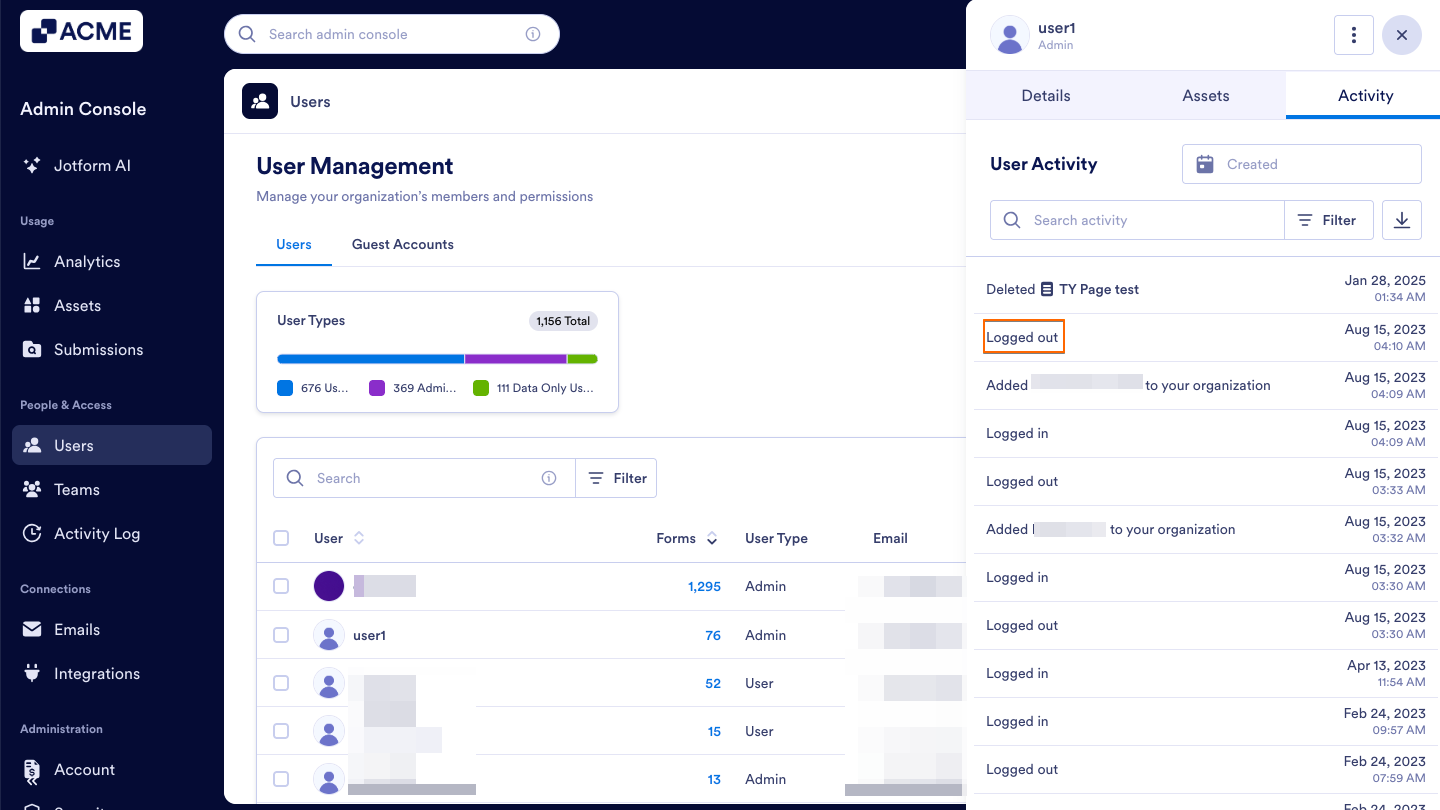
- Date and Time: Shows when the activity occurred.
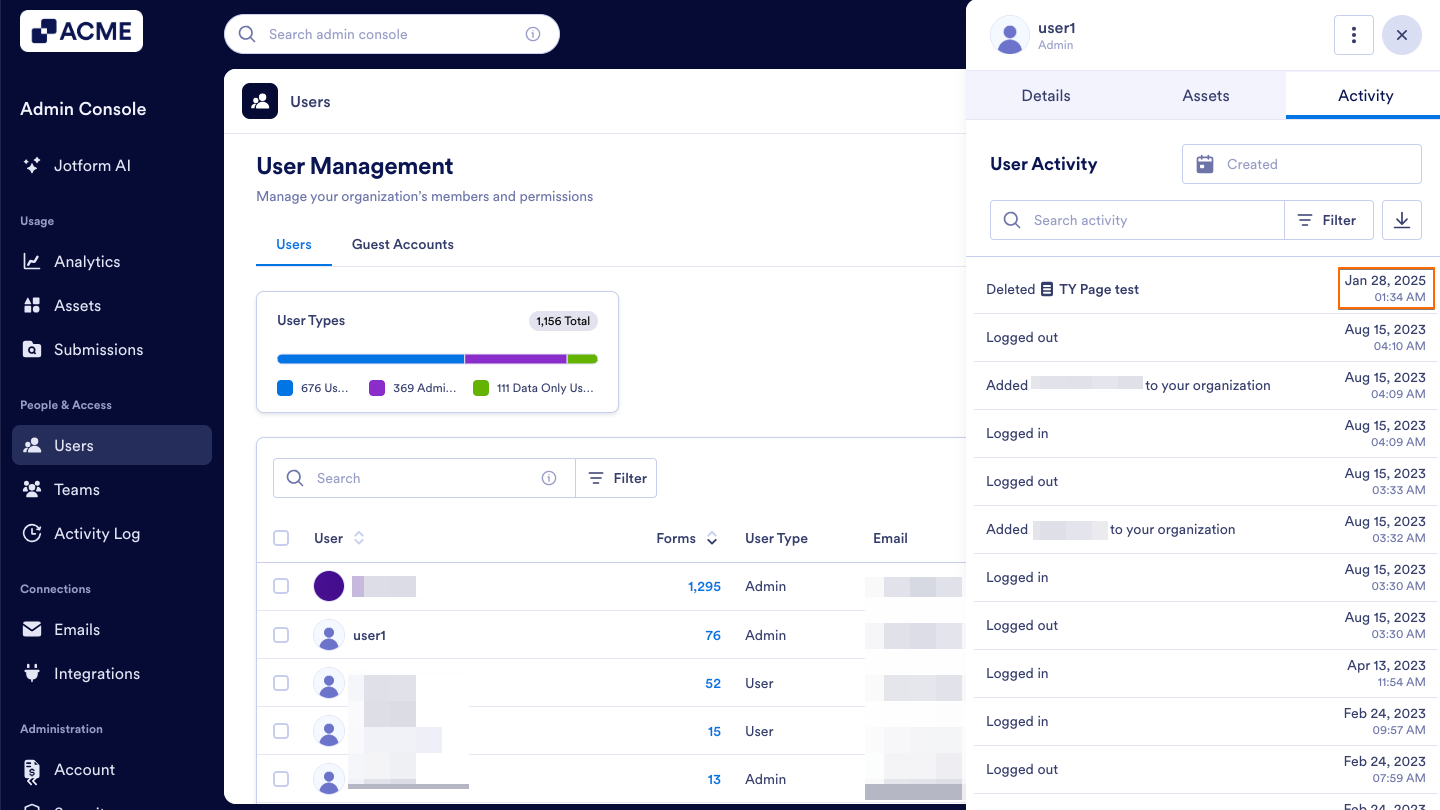
If the activity is related to a specific asset, additional details will be displayed:
- Asset type: Displays the name of the associated asset (for example, a form, table, or app).
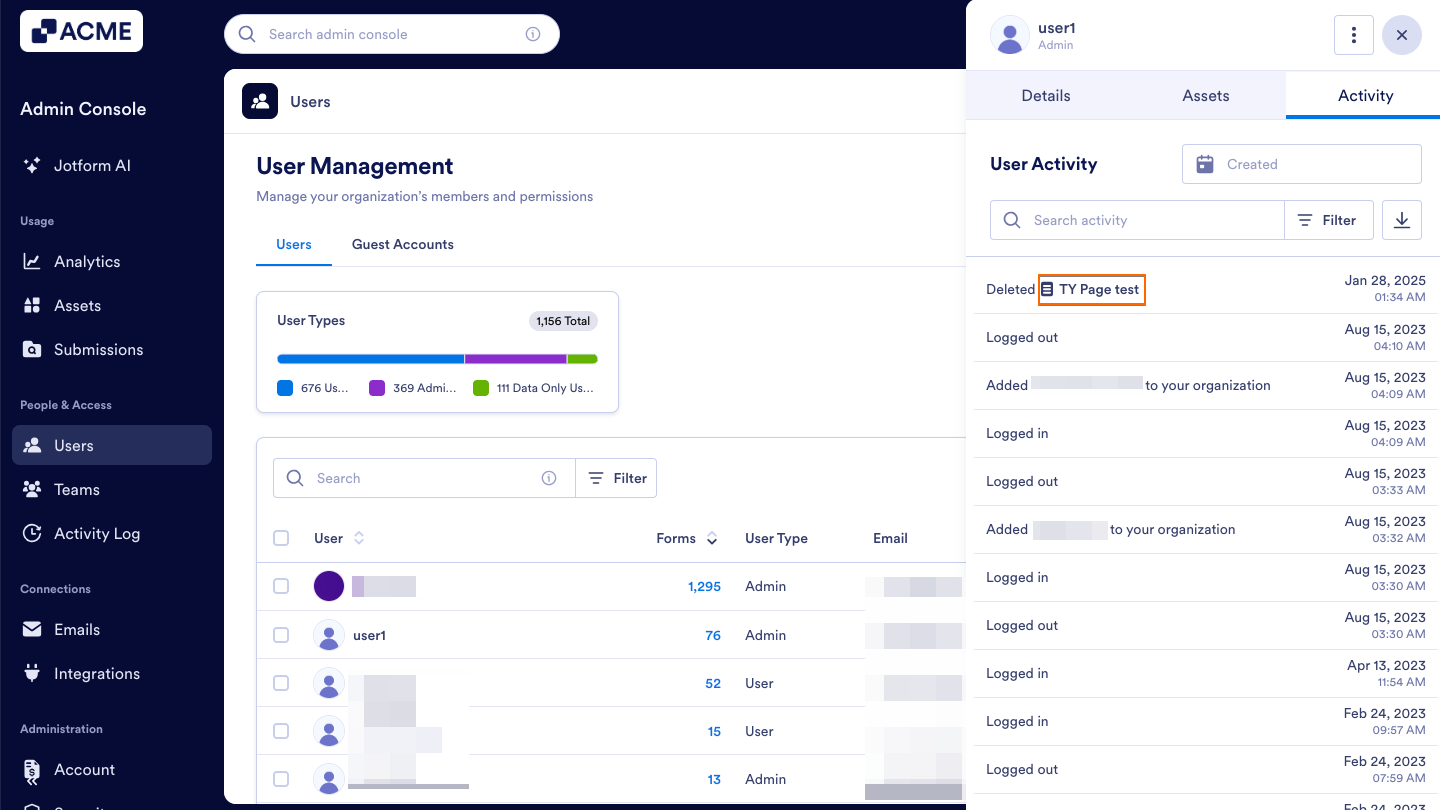
Managing Activity Visibility
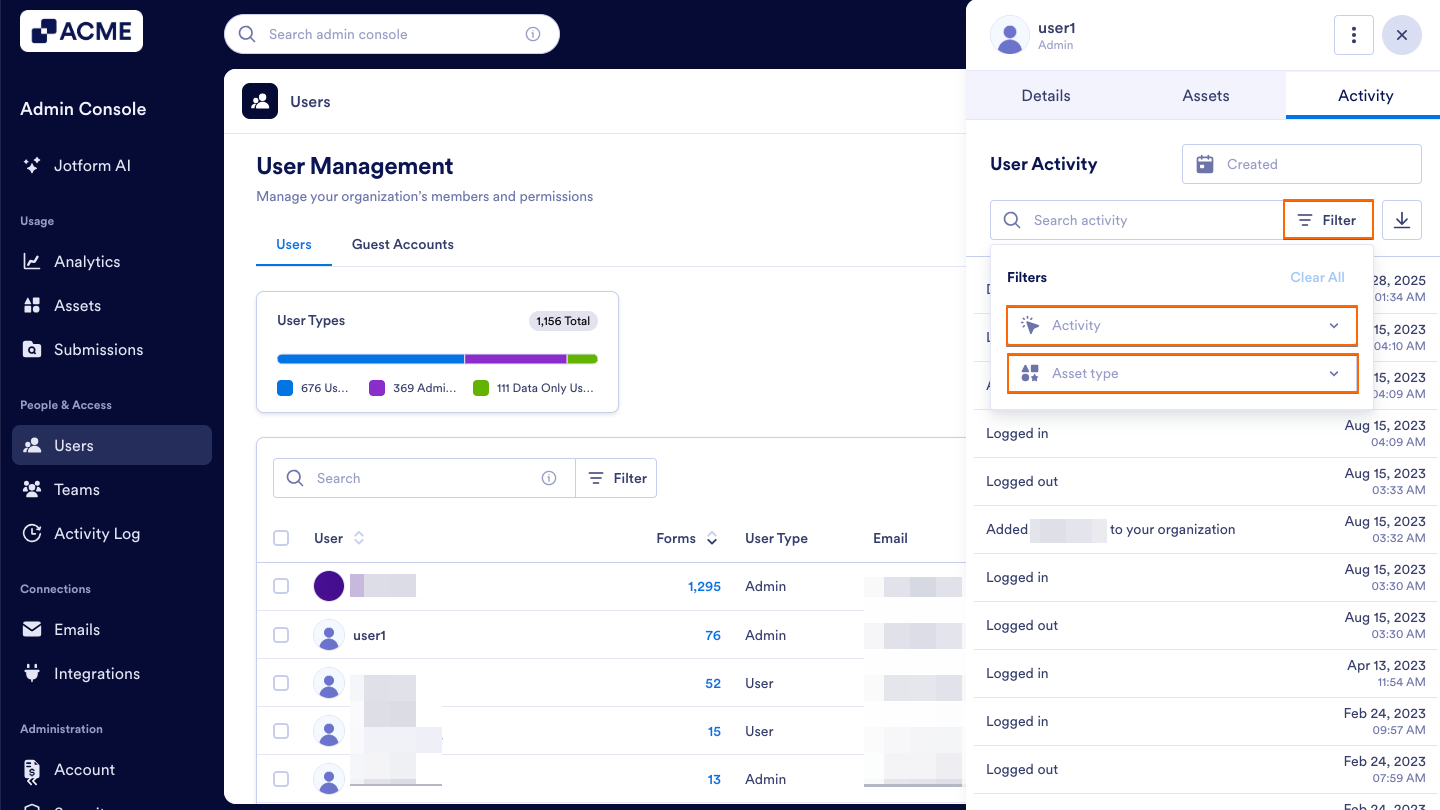
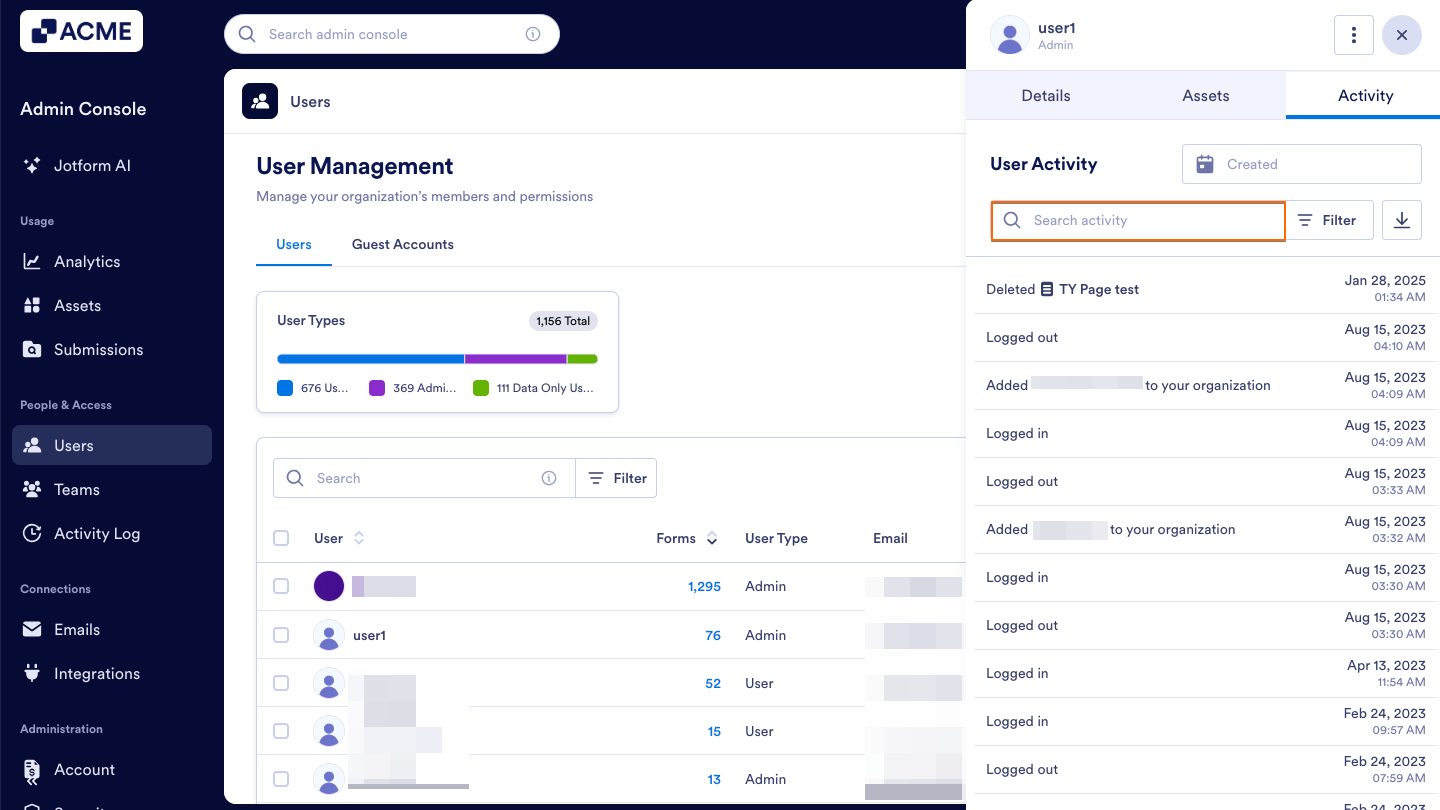
You can refine the activity list to focus on specific events and export these records as well:
- Filter menu: Use the Filter button to narrow results by activity type, asset type, or date range.
- Search by keyword: Enter part of an asset name in the Search bar to quickly locate specific entries.
- Download button: Click on the Download button to export these activity logs as a CSV or Excel file.
See also:
- How to View Users Owned Assets in Your Organization from the Admin Console
- How to View and Manage Assigned Assets in Your Organization from the Admin Console
- How to Access Highlighted Activities in the Organization from the Admin Console
- How to Log Users Out in Your Organization from the Admin Console
- How to Update User Information in the Admin Console

Send Comment: